

Note: An administrator must configure the Schedule Job field in the job checklist before it can be used. For more information, see Configuring Job Checklist.
Schedule a Job Using the Schedule Job Field
When you update a job status with a checklist, the checklist appears. If the checklist contains a Schedule Job field, you can schedule the job while completing the checklist.- Select the required job. The job details page appears.
- Click Update Status on the quick action bar.
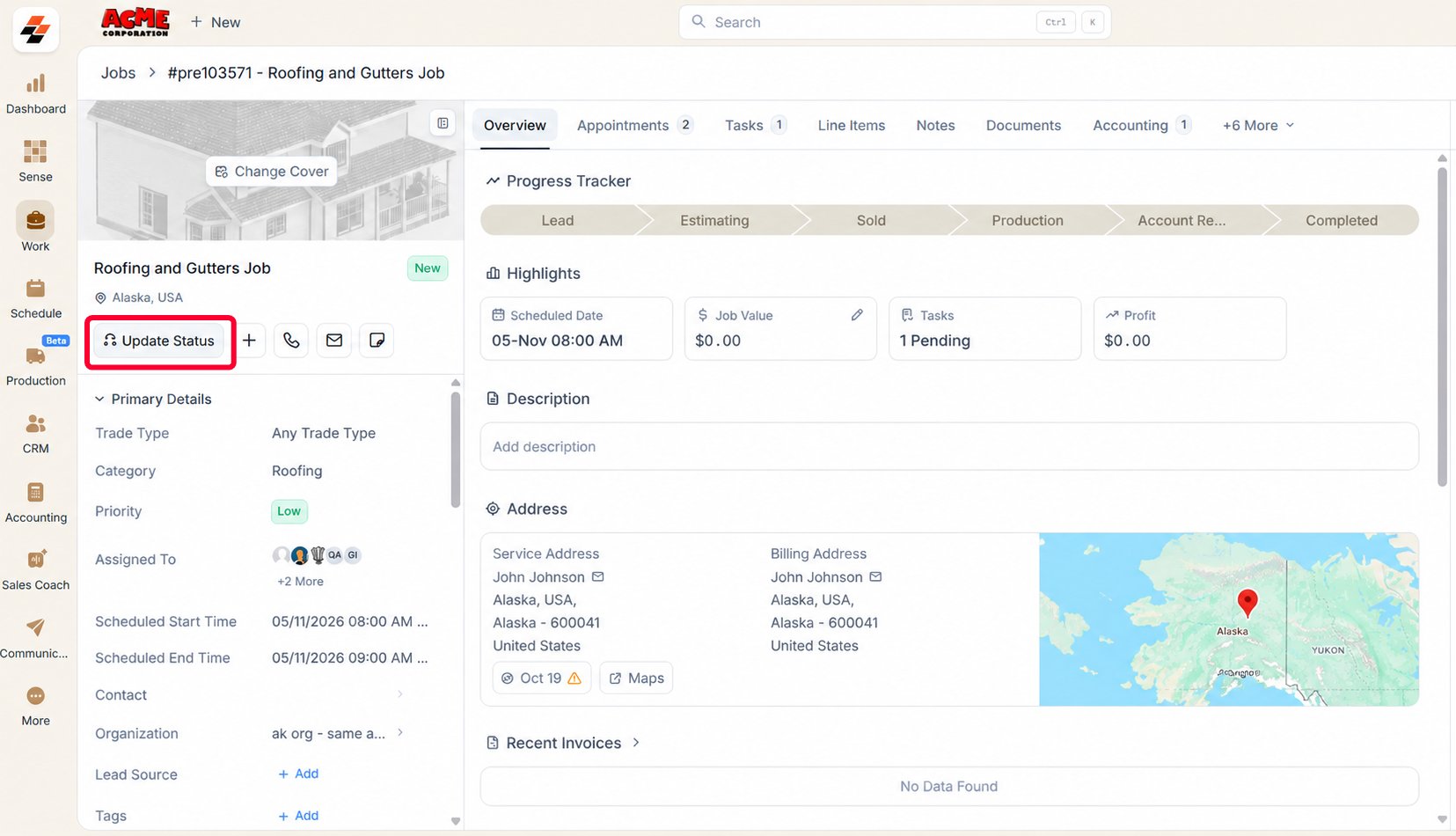
- Select the job status associated with the checklist.
- Complete the required checklist fields.
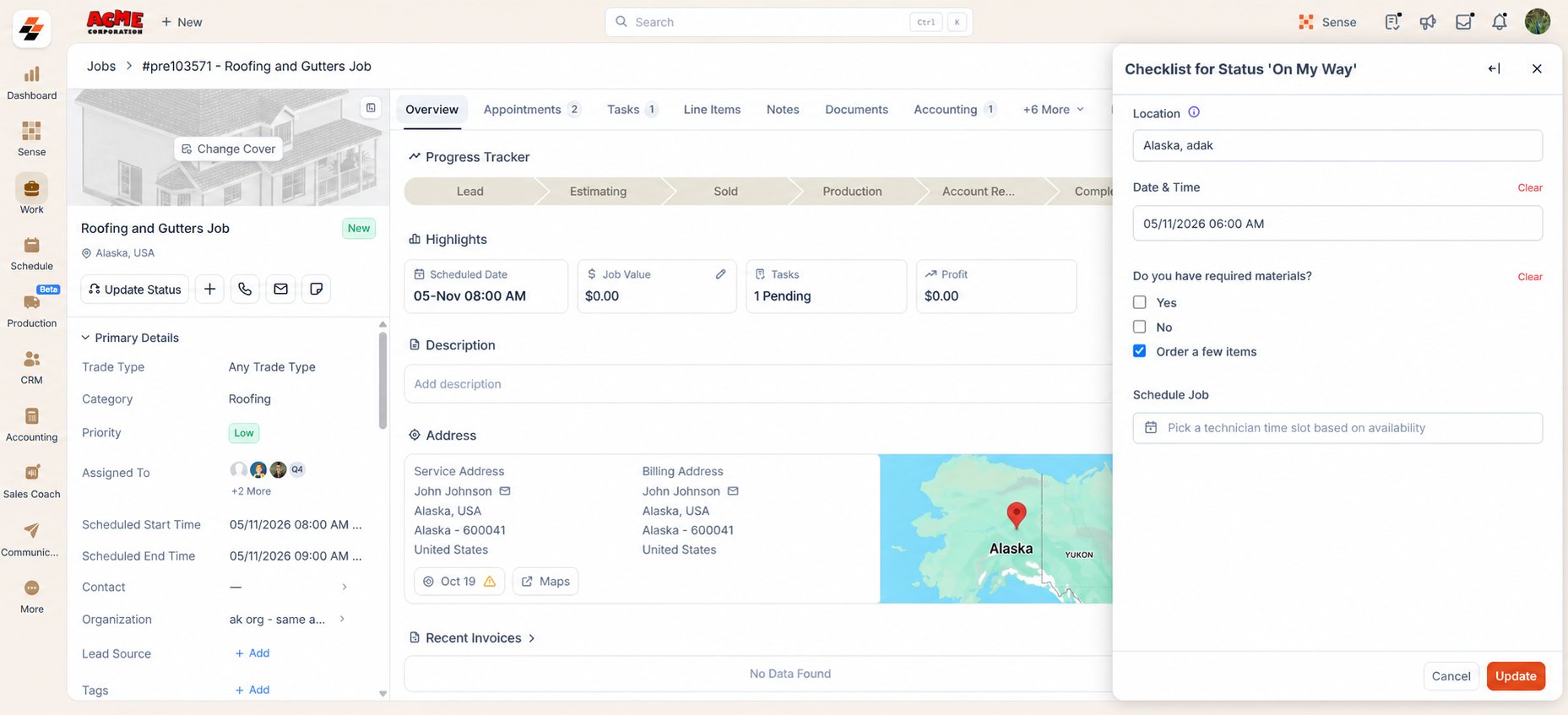
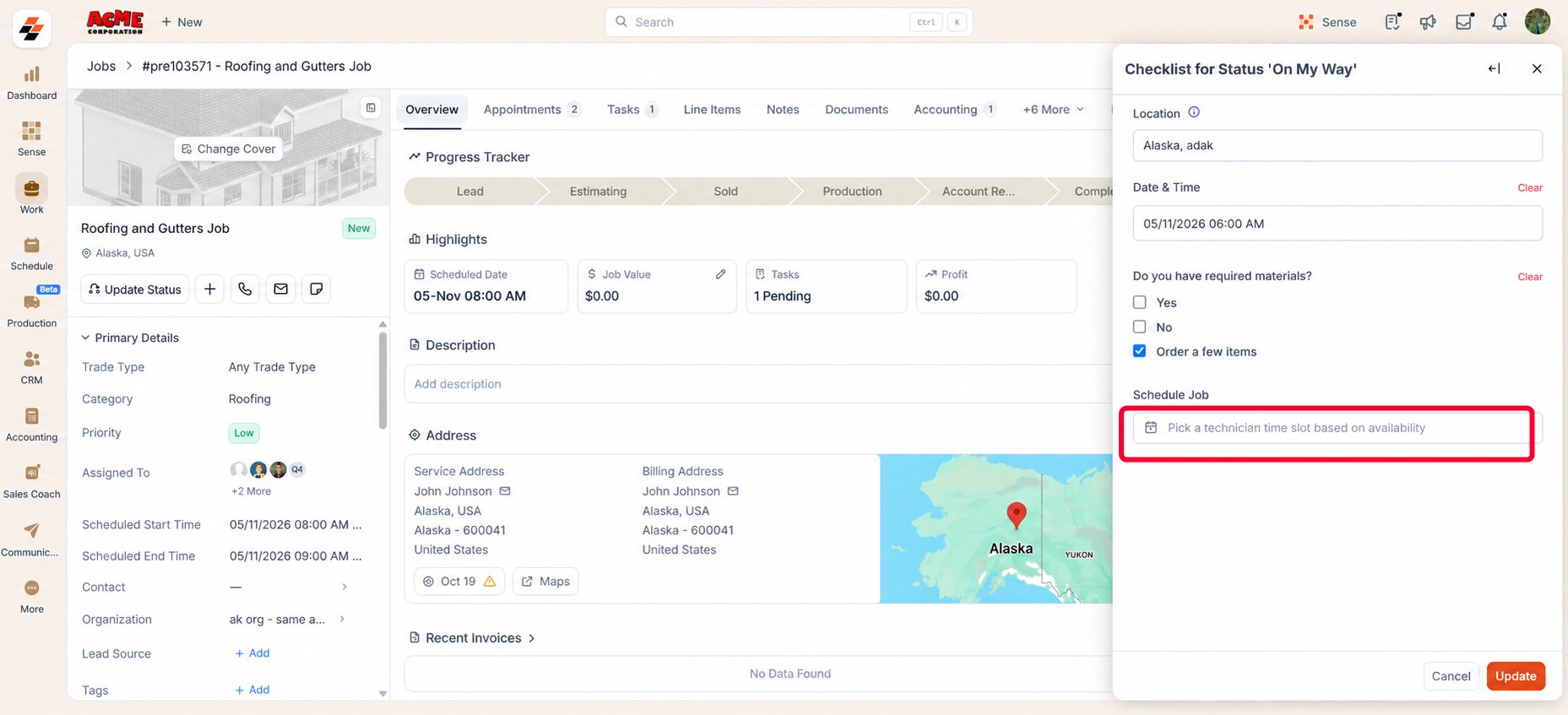
- In the Schedule Job field, schedule the job for the technician based on the configured scheduling method.
- Assisted Scheduling
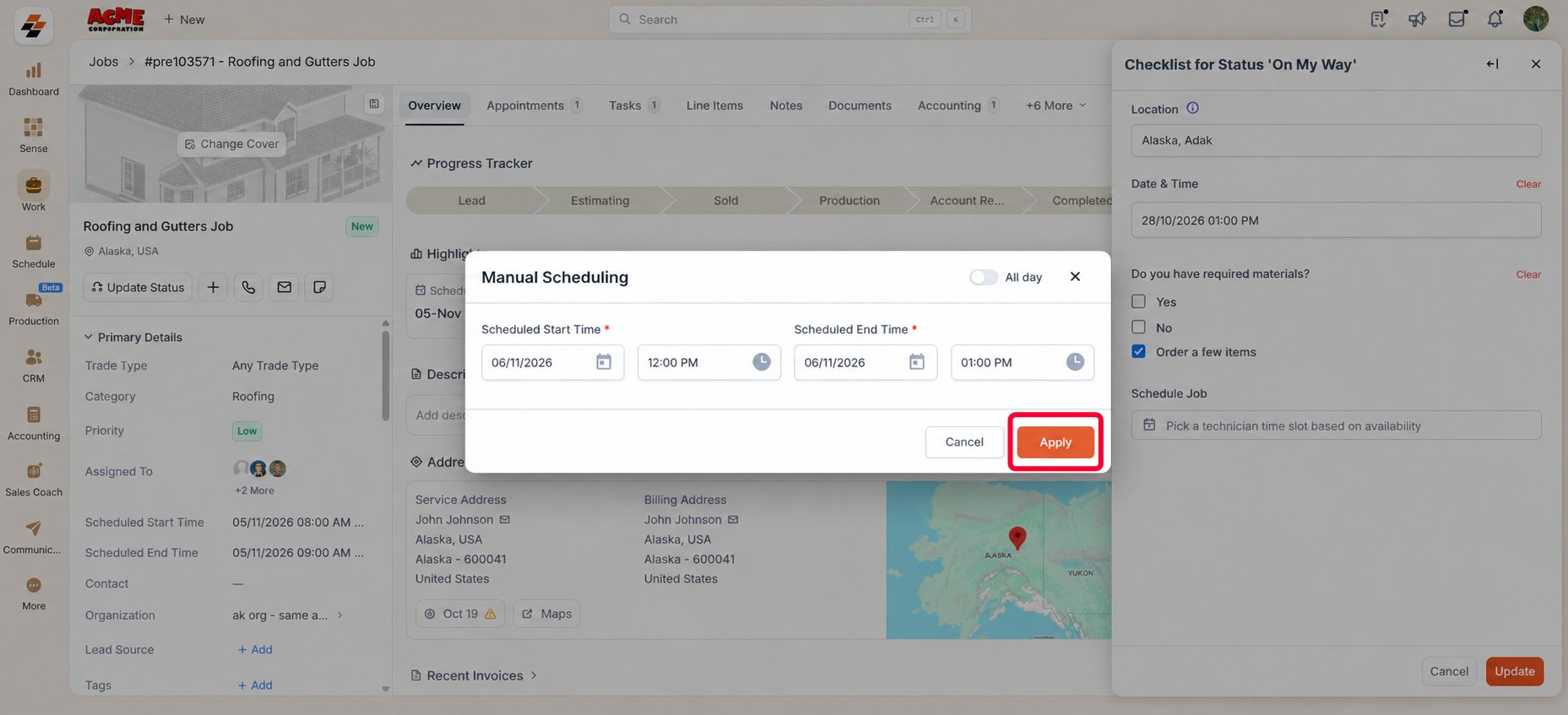
- Manual Scheduling
If the Schedule Job field is configured for Assisted scheduling, you can find an available technician time slot based on the selected teams and technician availability.
-
Click Pick a technician time slot based on availability. The Check availability window opens.
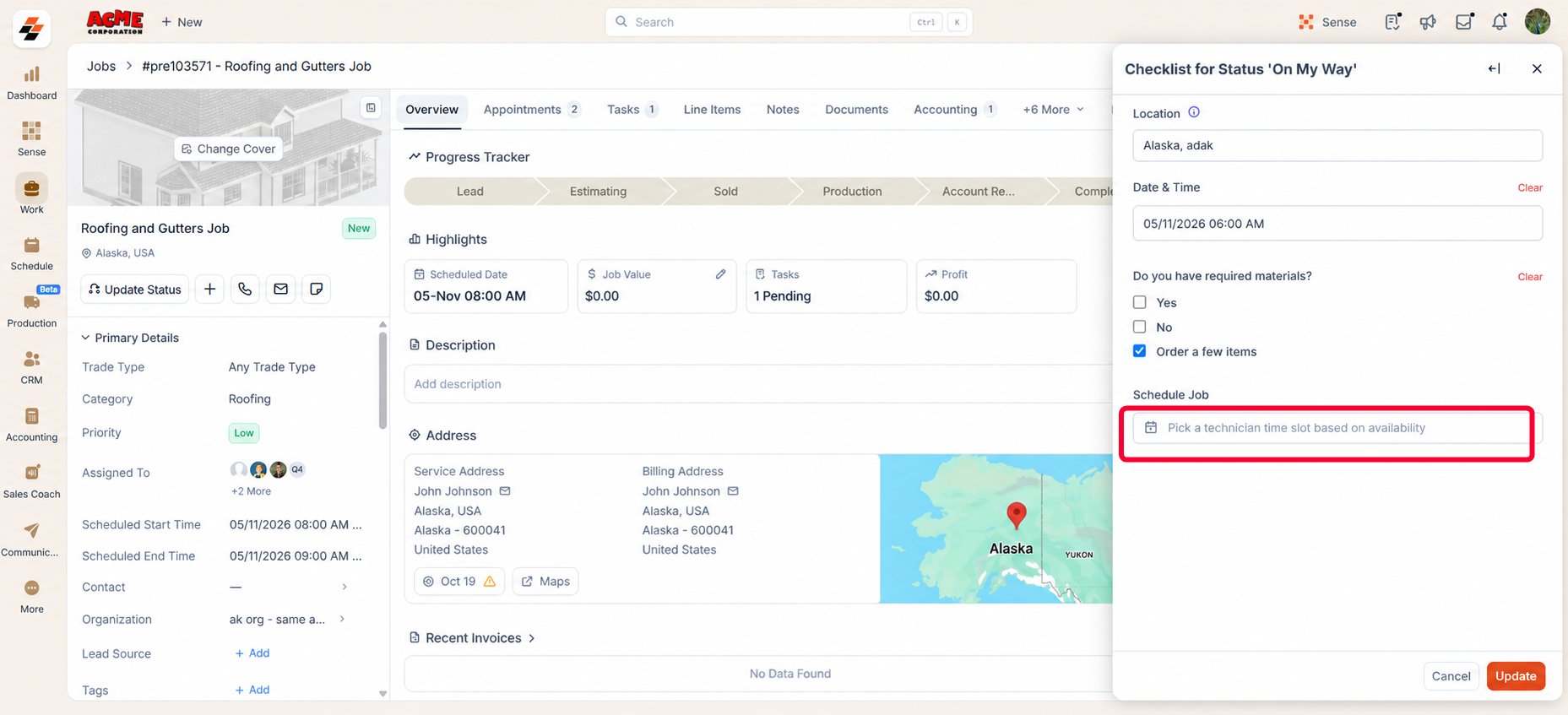
- Select the required date.
- Review the teams selected for scheduling.
Teams configured in the Schedule Job field are selected by default. You can clear the selected teams or select additional teams to find available time slots across multiple teams.
- Review the available technician time slots.
- Select the required time slot.
-
Click Use this Schedule.
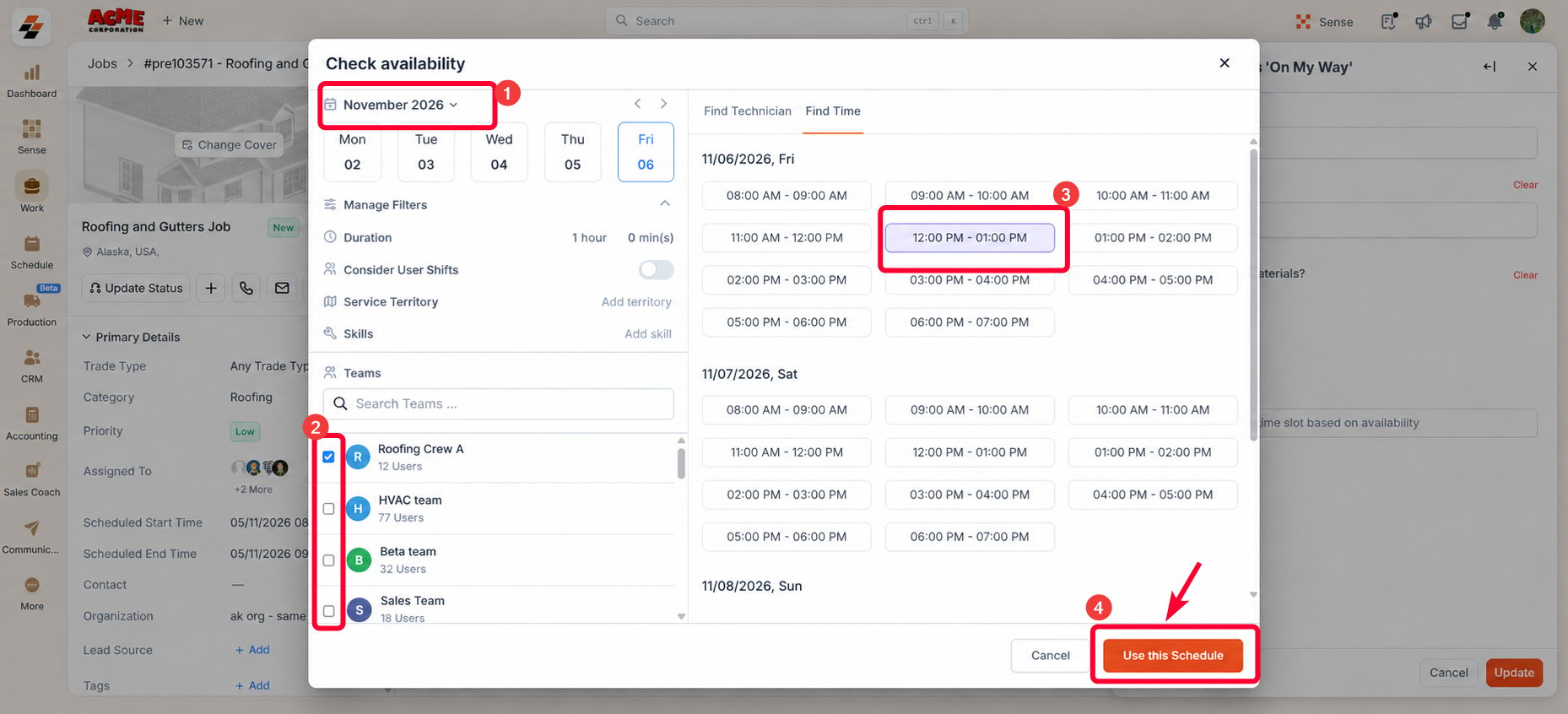
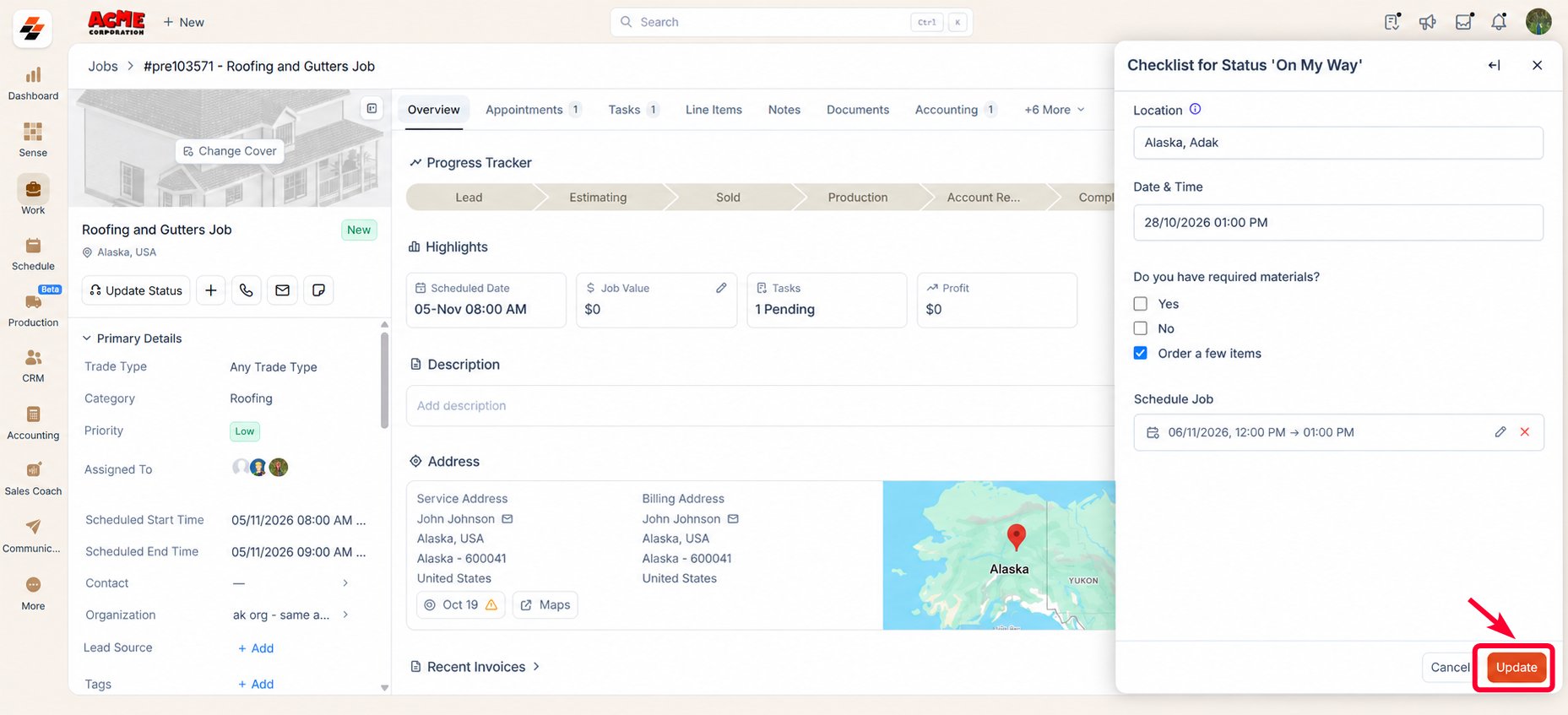
- Review the selected schedule in the Schedule Job field.
- Click Update to submit the checklist and update the job.
Note: For more information about Assisted Scheduling and how available technician time slots are determined, see the Assisted Scheduling article.
What if appointments are enabled?
An appointment represents a scheduled visit to the customer site. When you create a job, Zuper automatically creates an initial appointment. If a technician needs to return to the site, you can add additional appointments to the same job instead of creating separate jobs or rescheduling an existing appointment. When you use the Schedule Job field, the scheduling behavior depends on the number of appointments associated with the job.If there is one appointment
If there is one appointment
If the job has one appointment, the existing appointment is used for scheduling. Select the technician time slot or specify the schedule based on the configured scheduling method. When you submit the checklist, the schedule of the existing appointment is updated.
If there are multiple appointments
If there are multiple appointments
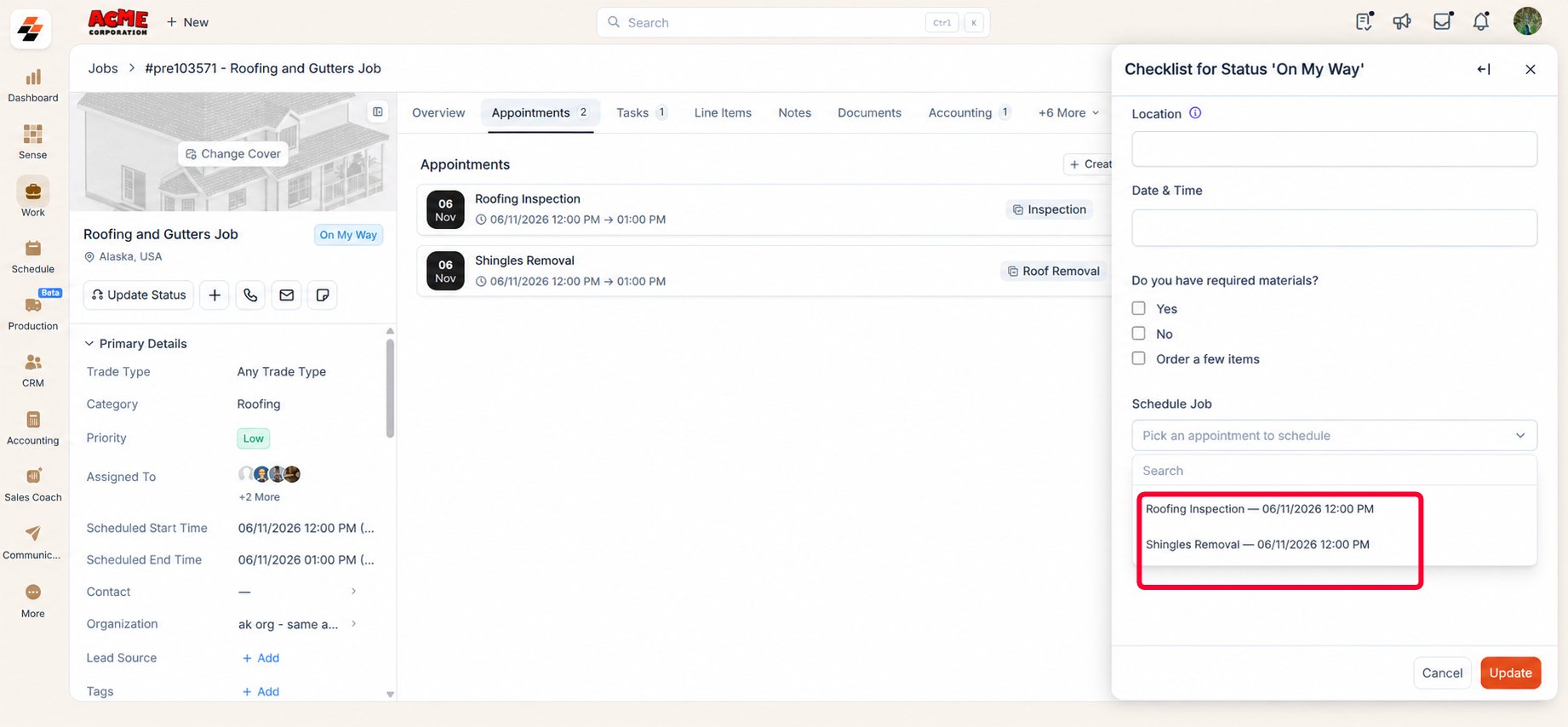
If multiple appointments are associated with the job, the Schedule Job field displays a dropdown that allows you to select the appointment you want to schedule. 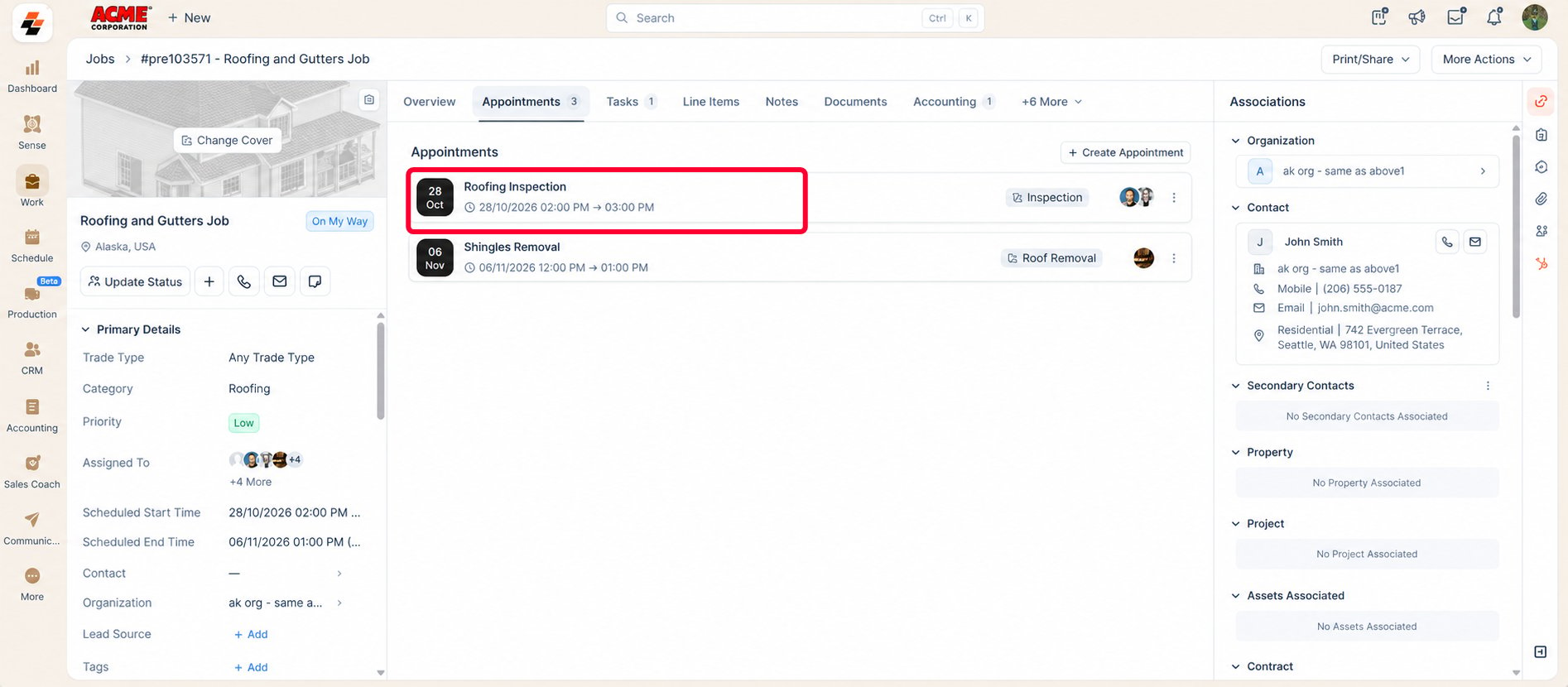
-
Select the required appointment from the dropdown.
-
Select a schedule using the configured scheduling method:
- Assisted Scheduling: Click Pick a technician time slot based on availability, select an available time slot, and click Use this Schedule.
- Manual Scheduling: Specify the Scheduled Start and End Time and click Apply.
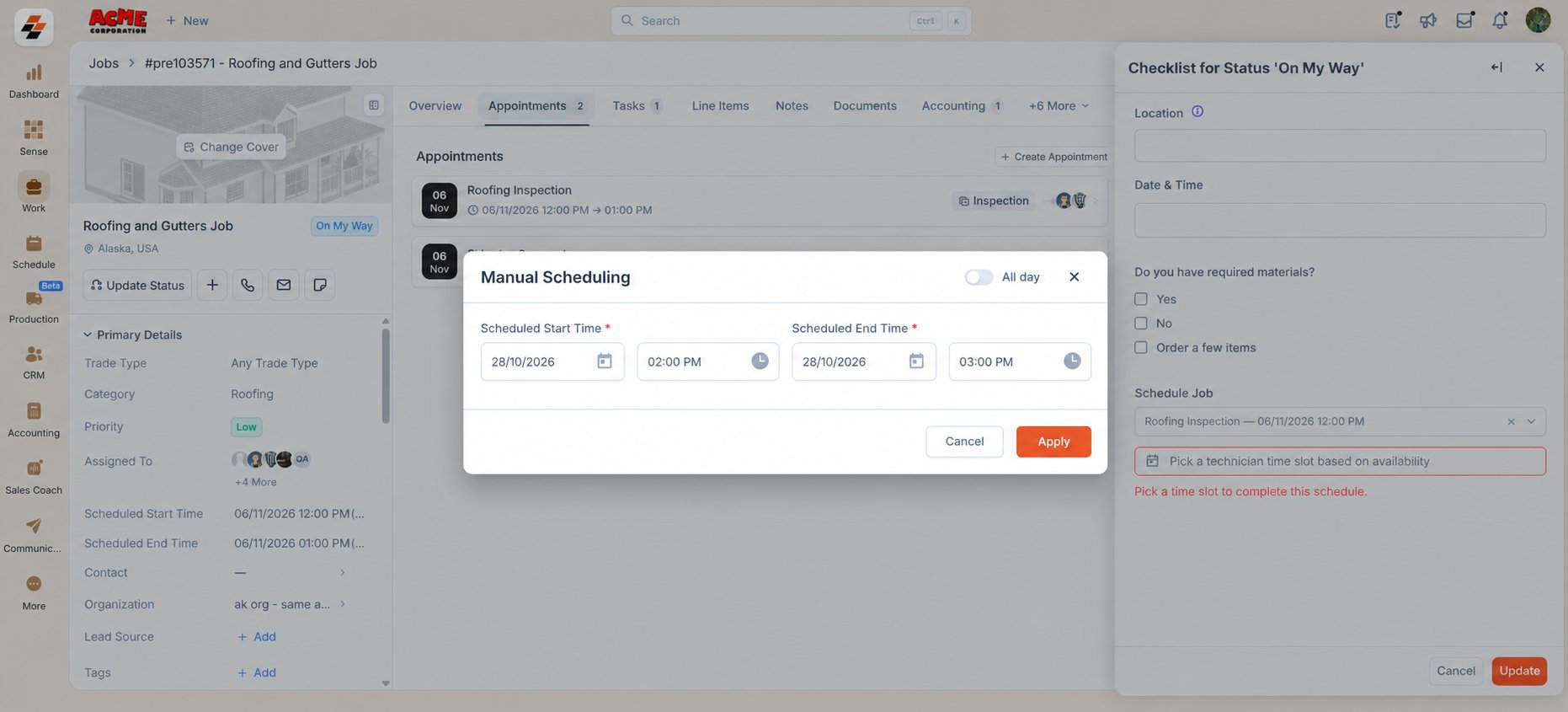
- Review the selected schedule.
- Click Update.
Note: When multiple appointments are associated with the job, you must select an appointment before proceeding to schedule it.
Edit the Schedule
You can edit the Scheduling component as long as the job is not in Canceled or Closed status. Depending on the scheduling method configured for the Schedule Job field, you can select another available time slot or update the scheduled start and end times. After making the required changes, click Update to save the schedule.Best Practices
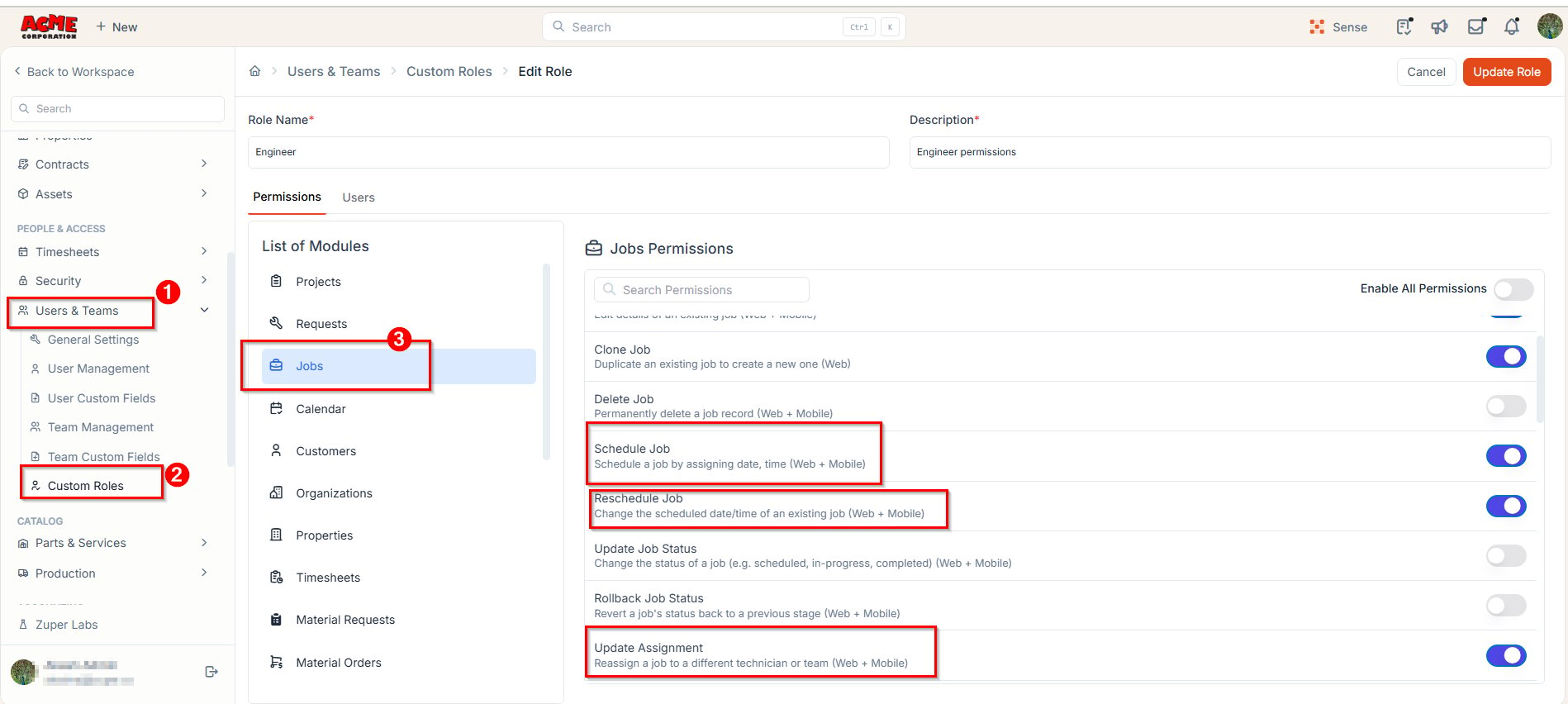
- Verify job permissions: Ensure users have the required permissions to access and use the Schedule Job field. No new permissions are introduced for this feature.
-
Web:
- Schedule Job: Required to schedule a job that has not yet been scheduled.
- Reschedule Job: Required to change the schedule of an already scheduled job.
- Mobile: Reschedule Job also allows users to schedule a job for the first time.
- Assisted Scheduling: Users must also have the Update Assignment permission to assign or reassign a job to a technician or team.
- Appointments on mobile: Users must also have the Edit Job permission to schedule appointments. This additional permission is not required on the web.
- Understand field visibility: Users who do not have the required permissions will not see the Schedule Job field in the checklist. However, saved responses remain visible to anyone who can access the submitted checklist.
- Configure teams for Assisted Scheduling: When configuring the Schedule Job field for Assisted Scheduling, select the teams that should be available by default. Users can modify the team selection while scheduling, subject to their permissions.
- Consider appointment scheduling: When appointments are enabled, ensure users have the Reschedule Job permission if they need to change the schedule of an existing appointment.