

- Transaction-level discounts apply to the entire quote or invoice. Use them to stack multiple discounts such as promotions, loyalty discounts, or manager-approved adjustments.
- Line-item discounts apply to a specific product, part, or service. Use them when only certain items need a price adjustment.
Things to know
Things to know
- Your organization can use either transaction-level discounts or line-item discounts. Only one discount method can be enabled at a time. Your admin set “Apply discount at?” in Settings → Modules → Quotes and Invoices → General.
- To select from saved discounts, create them first in Settings → Modules → Quotes and Invoices → Discount & Fees. Learn more in Configuring Quotes and Invoices.
- Role and trade-type restrictions determine which discounts users can access.
Transaction-level discounts
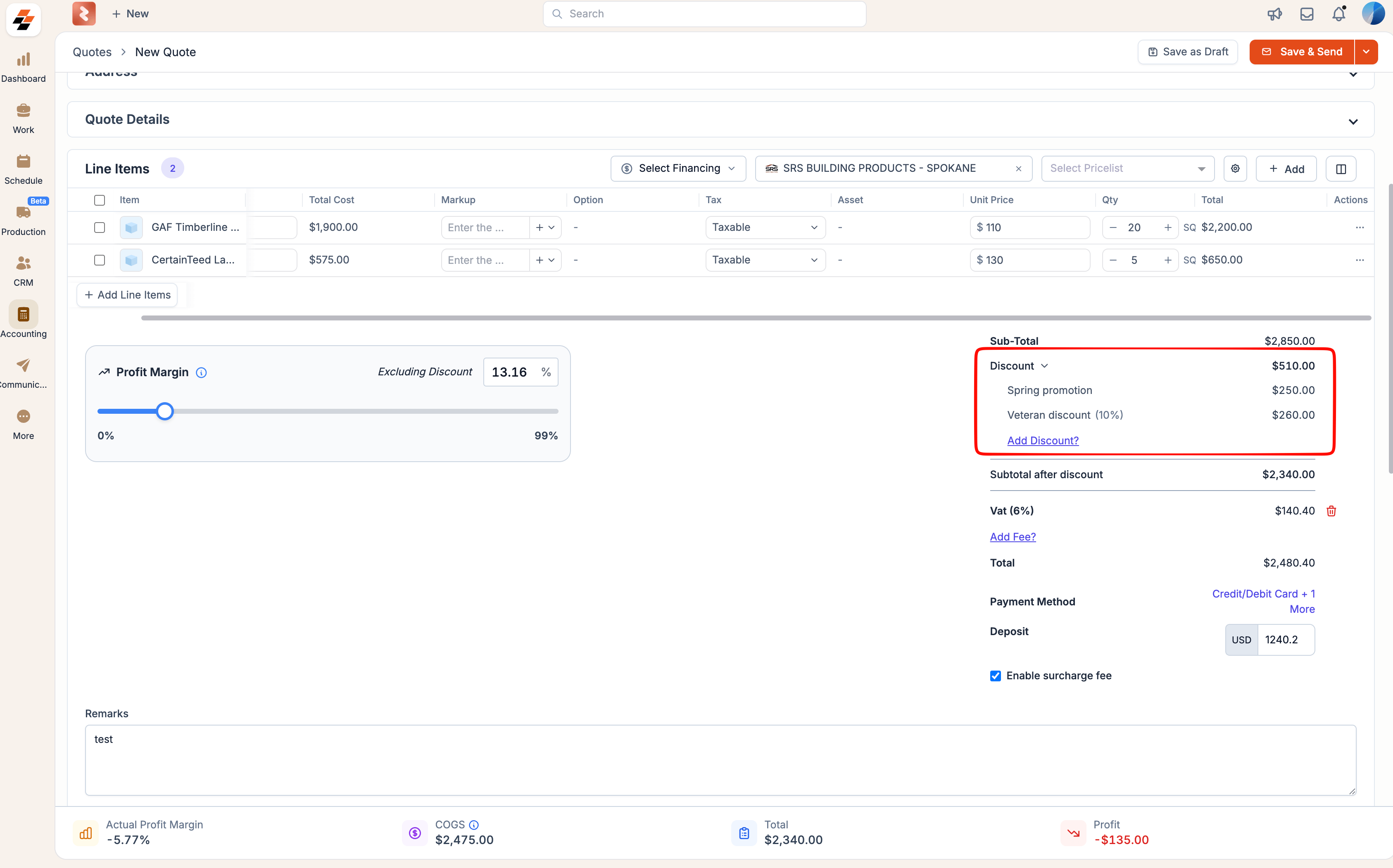
A homeowner qualifies for a spring promotion and a veteran discount, and your sales manager approves an additional 5% discount. You can add each discount separately below the Sub-Total by clicking “Add Discount?”, which makes it easy for your team to understand how the final price was calculated. Zuper applies each discount to the remaining amount after the previous discount has been applied. Tax is calculated last, using the Subtotal after discount.To apply a discount to your quote or invoice:
- Create a quote or invoice, or navigate to an existing quote or invoice.
- Add your line items.
- Below Sub-Total, click Add Discount?.
- Click Enter label and select a saved discount, or enter a name for a new discount.
- Enter or update the value. Select USD for a fixed amount or % for a percentage.
- Click outside the row to apply the discount. This discount will be deducted from the sub-total.
- To add another discount, click Add Discount? again and repeat the process.
Line-item discounts
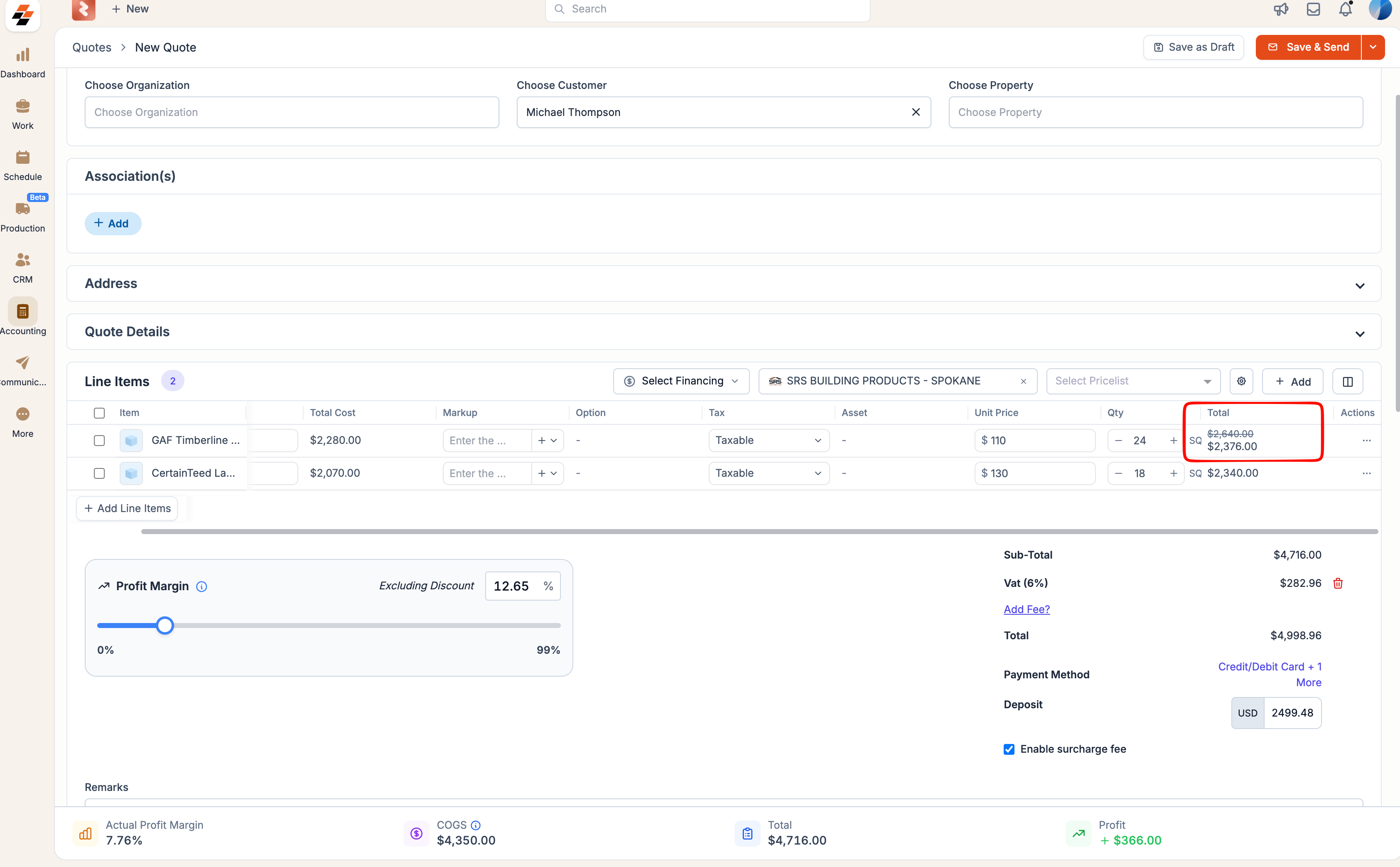
Line-item discounts are useful when only one product or service requires a price adjustment. For example, you may offer a discount on a specific part, or provide a one-time reduction on a service without affecting the rest of the quote. Zuper strikes through the item’s original total and displays the discounted total below it. The Sub-Total reflects the discounted line totals, and tax is calculated on that amount.To add a line-item discount
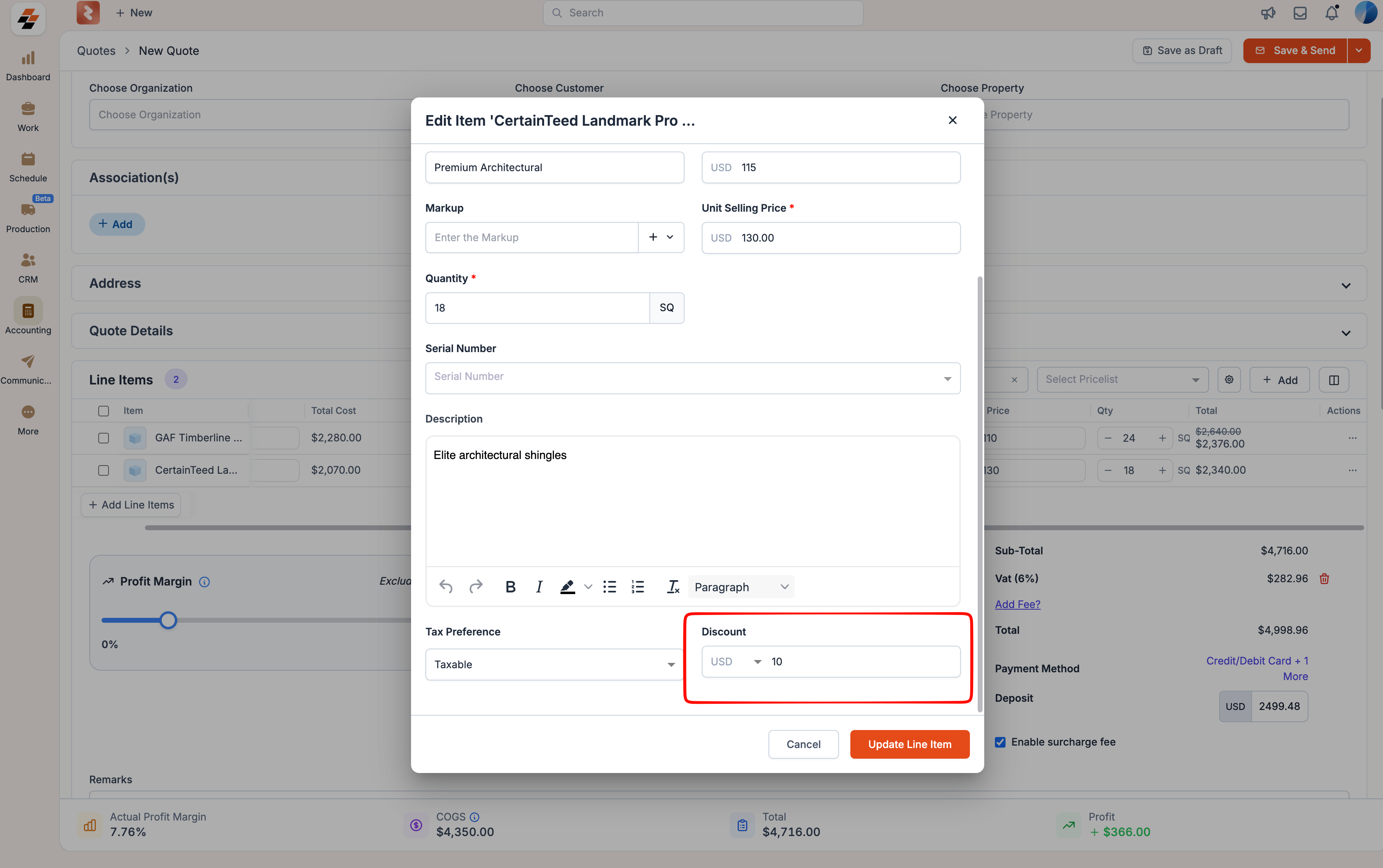
- From your quote or invoice, click Add line item. If you are editing an already created quote or invoice, click (…) in the Actions column and select Edit.
- In Discount, select USD or %.
- Enter the discount value.
- Click Update Line Item.
Frequently asked questions
Why don't I see Add Discount?
Why don't I see Add Discount?
Your account is configured for line-item discounts. Use Edit Item on individual line items instead.
Why can't I find a saved discount in the Enter label list?
Why can't I find a saved discount in the Enter label list?
Your admin may have restricted the discount to specific roles or trade types. The discount appears only when your user role and trade type match the configured restrictions.
Does my customer see individual discounts?
Does my customer see individual discounts?
Your team can view each discount separately on the quote or invoice details page. In the generated PDF, discounts are combined and displayed as a single Discount value.
Why did my total change when I added the same discounts in a different order?
Why did my total change when I added the same discounts in a different order?
Percentage discounts are calculated on the remaining amount after previous discounts have been applied. Because of this, changing the order of discounts can change the final total.
Can I change a saved discount's value on one quote?
Can I change a saved discount's value on one quote?
Yes. After selecting a saved discount, you can edit its value before applying it to the quote or invoice.