

Things to Know
Things to Know
- Use the Zuper recording feature to record the conversation. Don’t use your device’s built-in recorder or a separate app.
- On iOS, the recording automatically pauses if you take or receive a phone call, and resumes when the call ends.
- On Android, the recording is silenced if you take or receive a call.
- If your device shows a Low Storage warning, free up space before recording. Low storage can interrupt an active recording.
- Some states require you to inform the customer before recording begins. Zuper prompts you to do this before every recording.
- You can record a conversation for up to 3 hours. The conversation must be at least 60 seconds long for the Sales Coach’s AI analysis to run, so shorter recordings are saved but not scored.
- Don’t force-quit the app while a recording is active. If the app closes abnormally mid-recording, the recording can’t be recovered.
- Pausing a recording doesn’t fully protect it. If you pause and leave the app in the background for an extended period, the recording can still be lost.
- Once the app is closed for any reason during an active or paused recording, it can’t be resumed. At best, a properly saved recording uploads as a completed one.
- If your Zuper session expires while a recording is active or pending upload, log back in with the same account. The recording will be saved.
- If you try to log out while a recording is active or paused, you’ll be prompted to either keep recording or save it first.
- If a recording was made entirely offline and you log out before it syncs, the recording won’t be restored when you log back in. Make sure you’re back online and the recording has synced before logging out.
- You’ll get a warning at 10, 5, and 2 minutes before the recording automatically stops at the 3-hour mark. Make sure notifications are turned on for the Zuper Mobile app to receive them.
Start a recording on a job
- Open the Zuper Mobile app and go to the job.
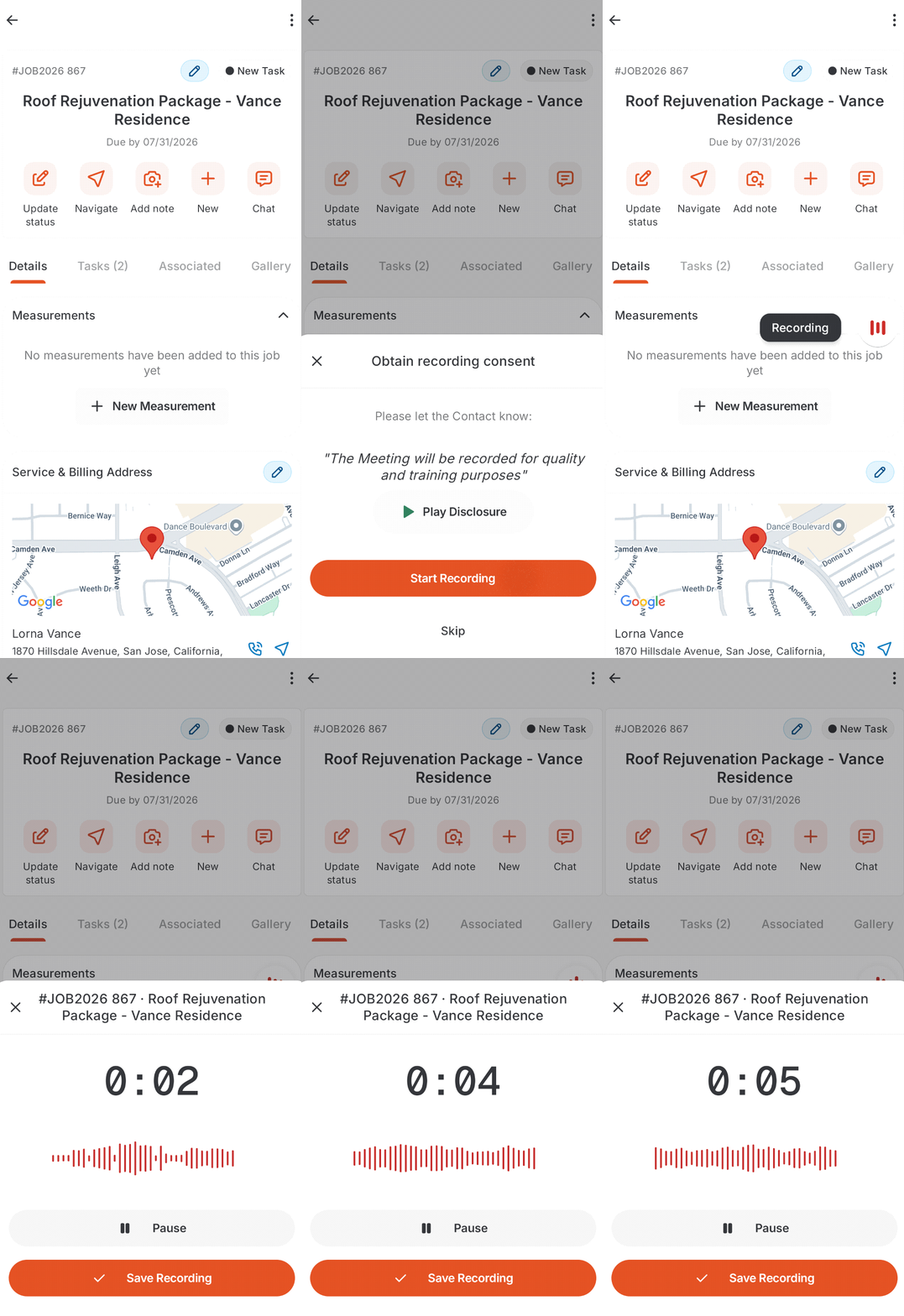
- Tap + New, then select Field Recording. The first time you record, Zuper asks permission to access your microphone.
- Zuper shows an Obtain recording consent screen with a disclosure script to read aloud to the customer.
- Select Play Disclosure if you’d rather Zuper play the disclosure to the customer directly rather than read it yourself.
- Tap Start Recording to begin, or Skip to continue without recording this conversation.
- Once recording starts, a small recording icon floats on screen so you can continue working through the proposal without it blocking your view.
- Tap the recording icon to open the recording controls. Tap Pause if you need to pause, and Resume when you’re ready to continue.
- Tap Save Recording when the conversation is complete.
- Please convey to the customer that the conversation will be recorded.
- Recording begins.
- Tap Pause if you need to pause during the conversation, and Resume when you’re ready to continue.
- Tap Save Recording when the conversation is complete.
Recording while presenting a proposal
- Open the proposal and tap to present it to the customer.
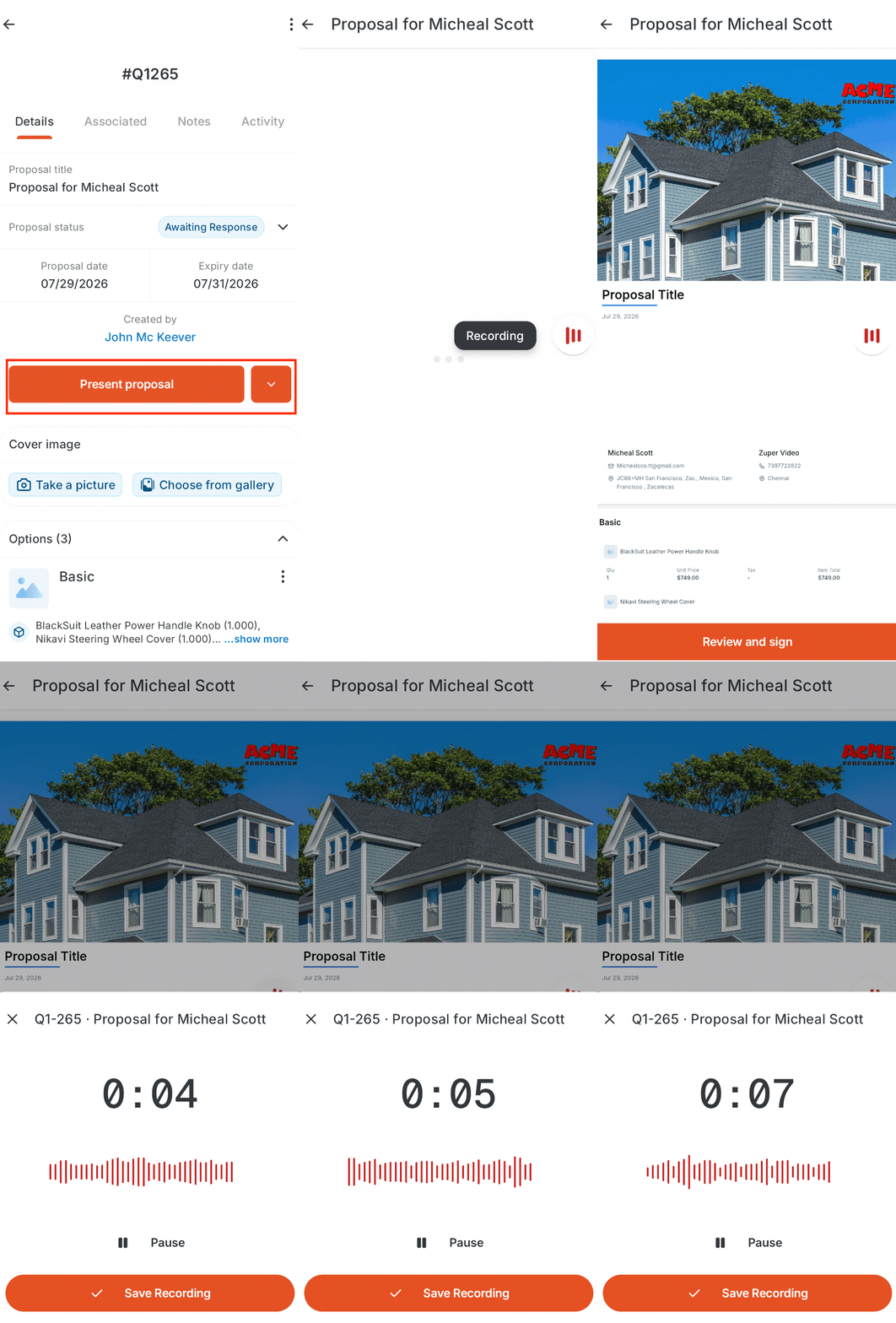
- Please convey to the customer that the conversation will be recorded.
- Recording begins.
- Tap Pause if you need to pause during the conversation, and Resume when you’re ready to continue.
- Tap Save Recording when the conversation is complete.
Privacy and consent
Recording a conversation with a homeowner requires their knowledge. Zuper Mobile prompts you to confirm the homeowner has been informed before recording begins. Some states require the other party’s consent before a conversation can be recorded. If your business operates in one of these states, make sure your team follows the consent requirement every time.Frequently asked questions
What happens if I lose connectivity mid-recording?
What happens if I lose connectivity mid-recording?
The recording continues and is stored locally. It syncs automatically once you’re back online.
Can I record for longer than 3 hours?
Can I record for longer than 3 hours?
No. Recording stops automatically at the 3-hour mark.
I paused my recording and left the app for a while. Is it still there when I come back?
I paused my recording and left the app for a while. Is it still there when I come back?
It should be, but pausing for an extended period and leaving the app in the background can cause the recording to be lost. It’s safer to save a recording than to leave it paused for a long stretch.
Can I resume a recording after closing the app?
Can I resume a recording after closing the app?
No. Once the app closes during an active or paused recording, you can’t pick it back up.
Where do I review my coaching results after I finish recording?
Where do I review my coaching results after I finish recording?
You’ll receive an email with your score and coaching feedback once the recording is scored. See Your Sales Coach Scorecard Email.