

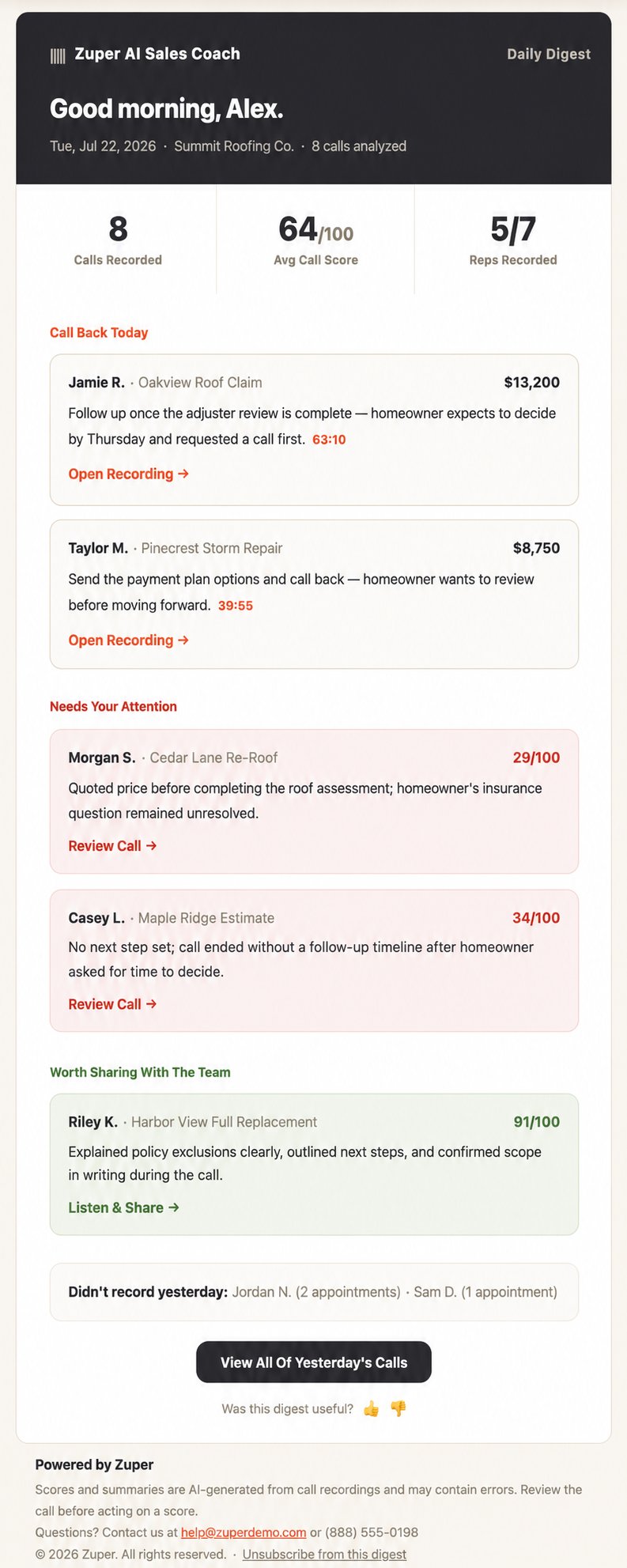
What’s included?
- Summary Stats: Calls Recorded, Avg Call Score, and Reps Recorded, giving you a snapshot of the previous day across your whole team.
- Call Back Today: Up to five conversations with an open action item that needs a follow-up are shown, each showing the rep’s name, the linked job or proposal, its value, and a short note on what to follow up on. Select Open Recording to go directly to that conversation.
- Needs Your Attention: Up to five low-scoring conversations that may need your review are shown, each with a score and a short note on what went wrong. Select Review Call to open the coaching card.
Not every call in this section will need action from you. Use it as a starting point to spot patterns, not a task list you have to clear.
- Worth Sharing With The Team: Up to five high-scoring conversations worth using as a training example, each with a score and a short note on what the rep did well are shown. Select Listen & Share to open the recording.
- Didn’t record yesterday: A list of reps who had appointments the previous day but didn’t record a conversation, along with their appointment count.
Where to review this in Zuper Connect
- Call Back Today, Needs Your Attention, and Worth Sharing With The Team: Select any link in the digest to jump directly to that recording’s details page, or go to the Coach module in the Zuper web portal to browse all of yesterday’s calls.
- Reps who didn’t record: Check the rep’s schedule for that day to confirm which appointments were missed, then follow up directly.
Why it’s useful
- Start your day with direction: Instead of opening every recording from the day before, the digest tells you which three or four actually need your attention.
- Catch coaching opportunities early: A low score flagged the morning after a visit is easier to act on than one you discover a week later.
- Recognize good work in the moment: The “Worth Sharing” section gives you an easy way to highlight strong calls with the team while the visit is still fresh.
Opening a call from the digest
Select any Open Recording, Review Call, or Listen & Share link in the digest to go directly to that conversation’s details page. Select View All Of Yesterday’s Calls to see every recording from the previous day in the Coach module.Giving feedback on the digest
Use the thumbs up or thumbs down at the bottom of the email to let Zuper know whether the digest was useful.FAQs
How often is the digest sent?
How often is the digest sent?
Once daily.
Can I turn off the digest?
Can I turn off the digest?
Yes. Reach out to our support team, and we can turn it off for you.