Opening a recording
Click any recording from the Coach tab to open its details page. The recording details page contains two main sections: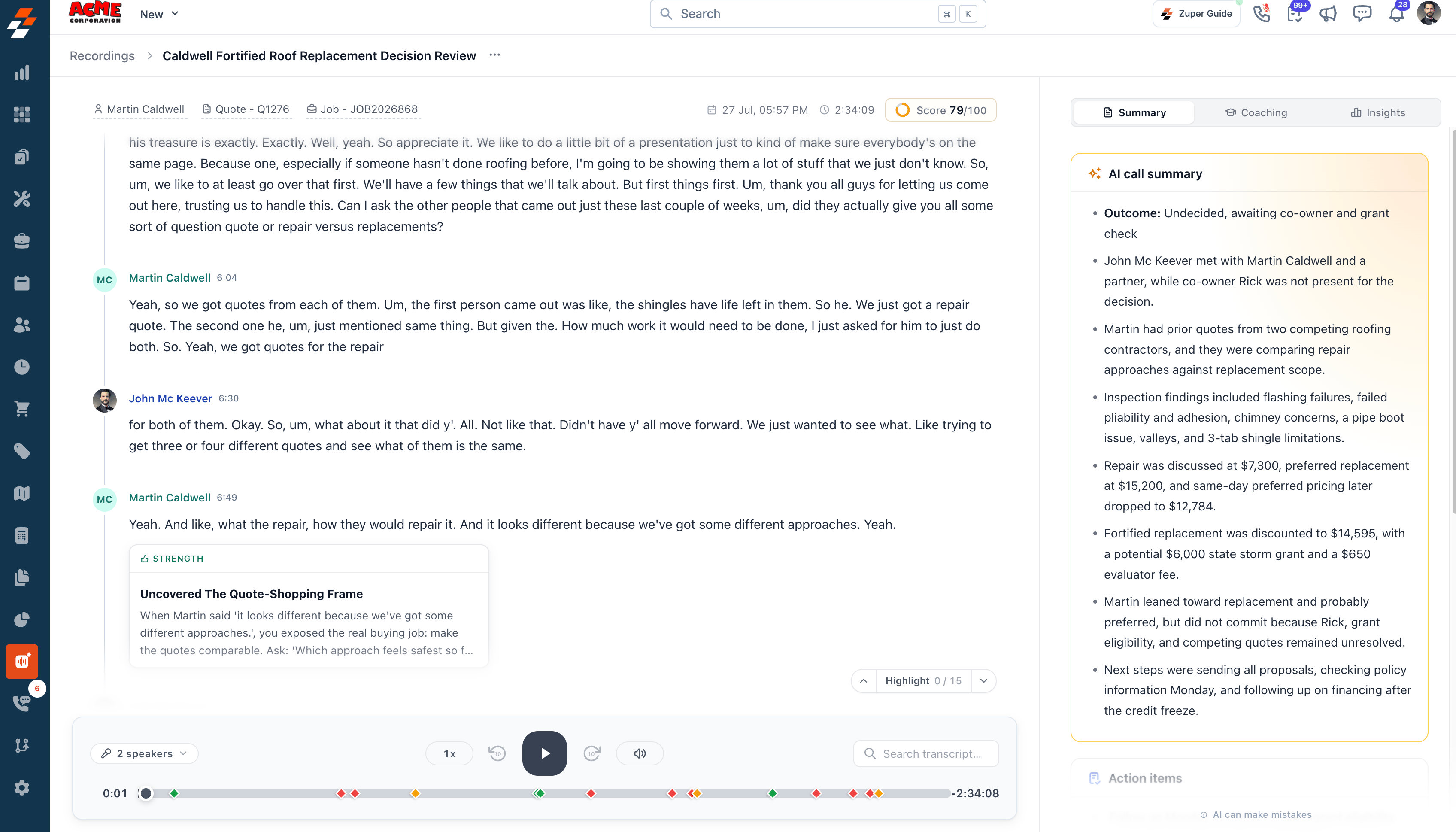
Transcript
The transcript appears on the left side of the page and displays the recorded conversation, including speaker labels, timestamps, and coaching highlights. You can use the playback controls to listen to the recording, search the transcript, and navigate highlighted moments.Coaching
The coaching panel appears on the right side of the page and contains the following tabs: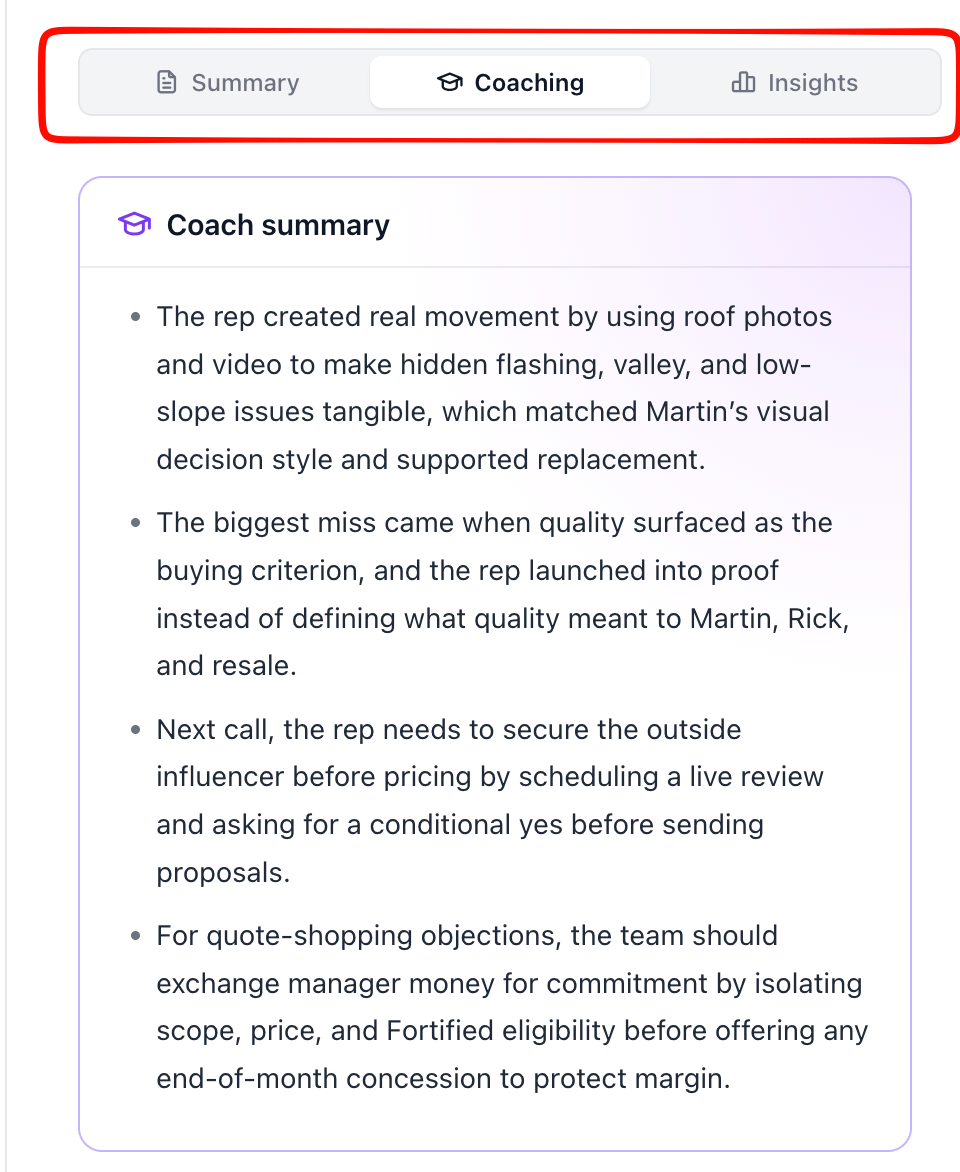
- Summary: AI-generated summaries, action items, and sentiment analysis.
- Coaching: Playbook performance, objection handling, strengths, and improvement opportunities.
- Insights: Conversation metrics and communication analytics.
Reviewing the transcript and audio
The transcript shows every line of the conversation, labeled by speaker and timestamped. As the recording plays, the transcript highlights whichever line is currently being spoken.- Use the playback controls to play, pause, or restart the recording.
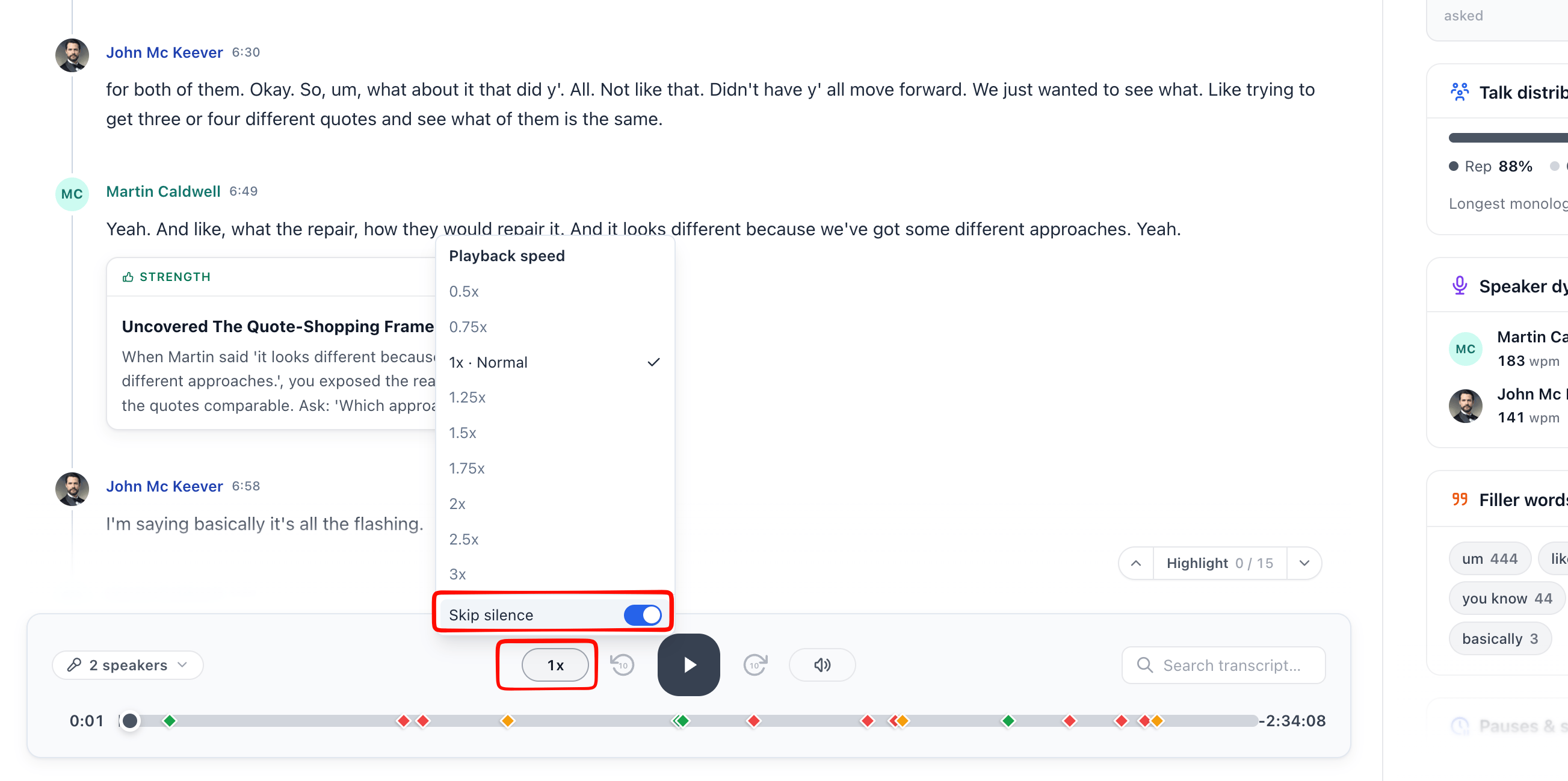
- Adjust playback speed using the speed control.
- Enable Skip silence from the playback speed menu to automatically skip silent portions of the recording.
- Use the search transcript to find a specific word or phrase.
- Select any timestamp in the transcript to jump the audio player directly to that moment.
Coaching callouts
Sales Coach attaches a callout directly beneath specific lines in the transcript. Each callout is one of three types: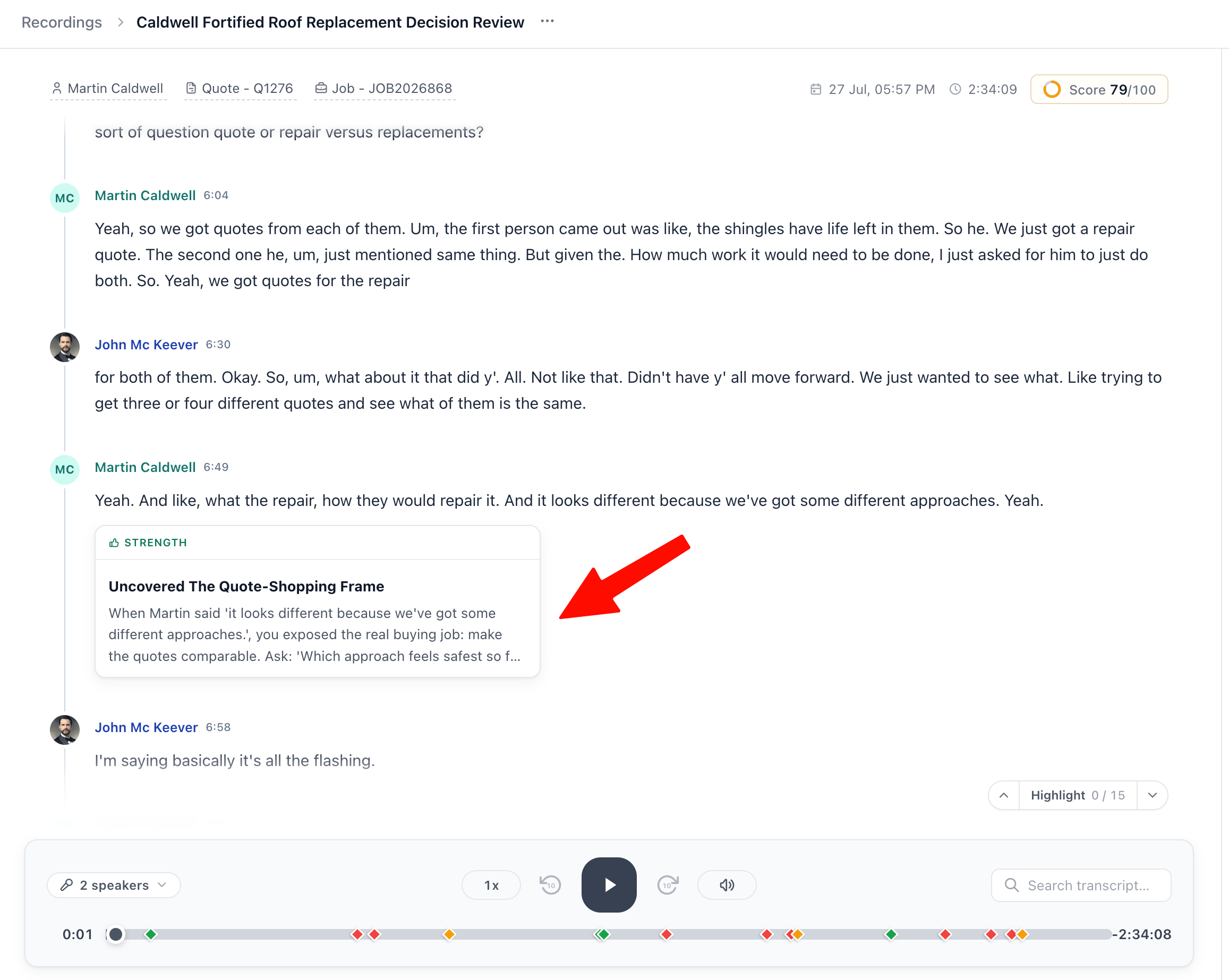
- Strength: A moment the sales rep handled well, with a title and an explanation of why it worked.
- Objection: A moment when the customer showed resistance or hesitation, with a note on how the sales rep responded.
- Improvement: A moment the sales rep missed an opportunity, with a specific suggestion for what to say instead next time.
Jumping between highlighted moments
Every callout is also marked as a different highlighted color on the timeline in the media player. Use the Highlight counter to step forward or backward through every callout in the conversation. This ensures you don’t miss a specific moment worth reviewing.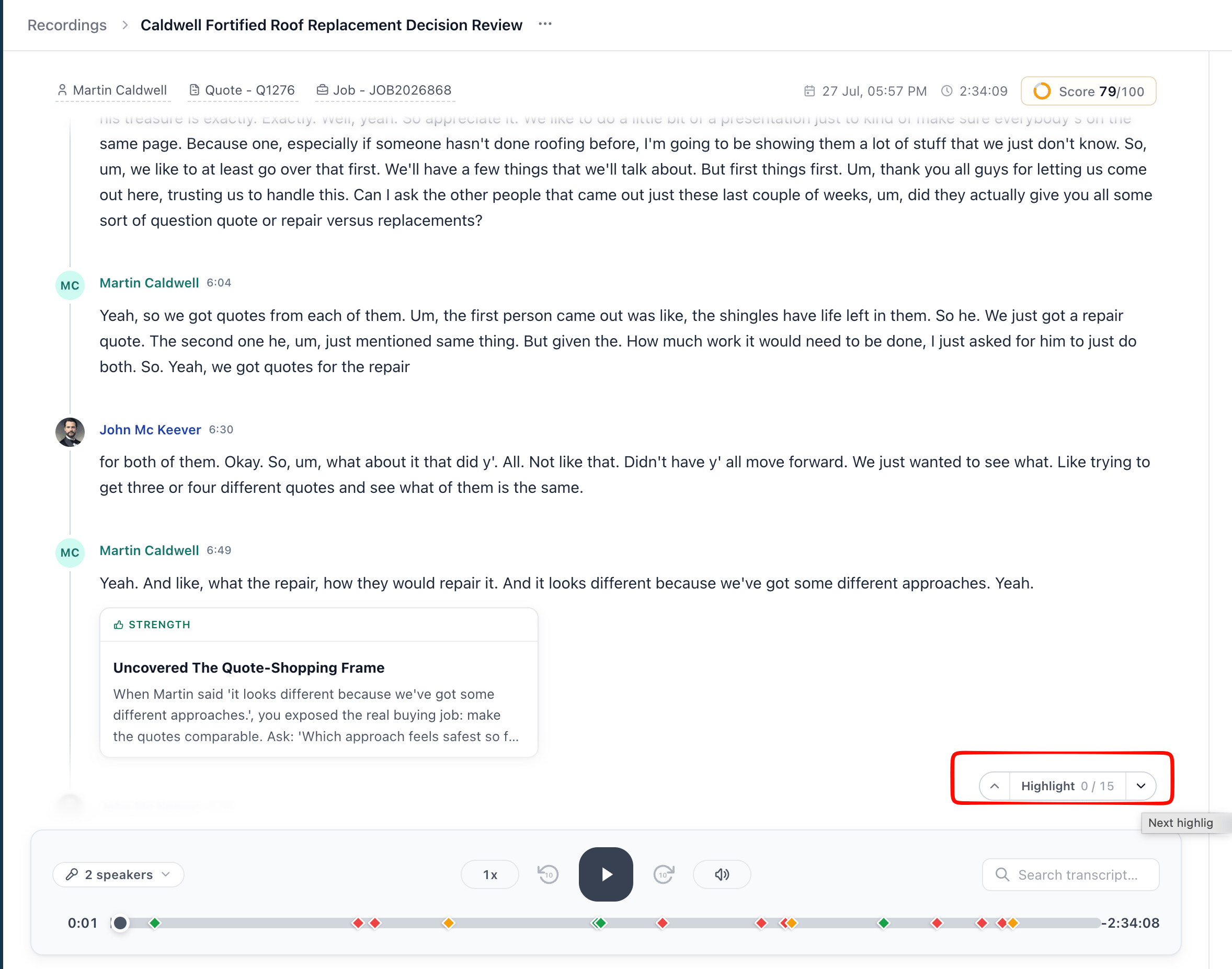
Coaching panel
Select a tab on the right side of the page to switch what it shows.Summary tab
- AI Call Summary: A bullet-point recap of the conversation, generated from the transcript. It leads with the outcome of the call, followed by key details like the reason for the visit, what was discussed or found, and any pricing or options presented.
- Action Items: A list of items needed for next steps or follow-up after the call.
- Sentiment Arc: A chart showing how sentiment shifted from the opening of the conversation to the close, with a short explanation of what drove the shift.
Coaching tab
- Coach Summary: A short narrative covering the sales rep’s biggest strength, the biggest missed opportunity, and what to focus on next call.
- Playbook Checklist: The playbook used and the number of steps detected out of the total. Steps are grouped into categories (for example, Agenda, Rapport, Roof Inspection, Inspection/Evaluation), each with its own score and a brief description of what was or wasn’t covered.
- Objection Handling: Each objection the homeowner raised, tagged by type (Pricing, Competitor, Timing, or Other), was scored and paired with a note on how the sales rep could respond. Sales Coach detects objections directly from the conversation, ensuring customer concerns are captured even if they are not defined in your playbook.
- What Went Well: Specific moments the sales rep handled effectively, each with a timestamp.
- What Could Be Improved: Specific moments the sales rep missed, each with a timestamp.
- Focus on Next Conversation: One recommendation for the sales rep’s next visit or call.
Insights tab
Insights describe how the conversation was conducted. These metrics are separate from the playbook score and don’t affect it.- Duration, Talk Ratio, Questions, and Filler Words: Summary stats at the top of the tab.
- Talk Distribution: The split between the sales reps and the customer, plus the longest uninterrupted stretch of talking (longest monologue) and who it belonged to.
- Speaker Dynamics: Words per minute and number of questions asked by speaker.
- Filler Words: A breakdown of filler words used and how often.
- Pauses & Silence: Total silence, average pause length, longest pause, and total pause count.
Managing recordings
Giving feedback
If you disagree with something Sales Coach generated, flag it directly from the Coaching panel. Hover on the coaching card, provide your feedback, and Zuper will be notified and make improvements for the future.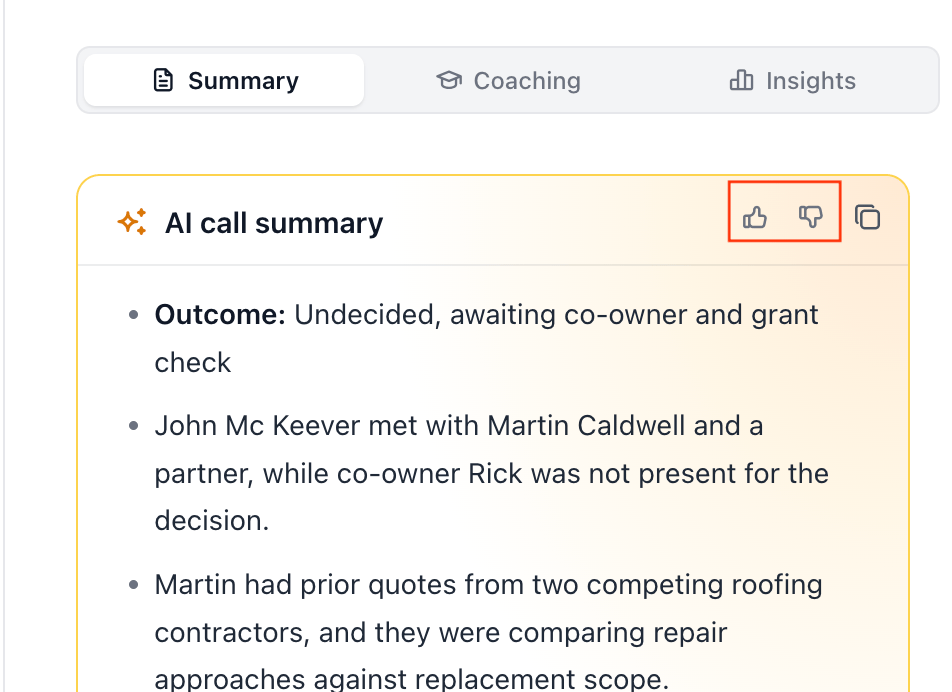
The Insights tab has no feedback controls. Insights are calculated directly from the transcript and audio.
Downloading the transcript or audio
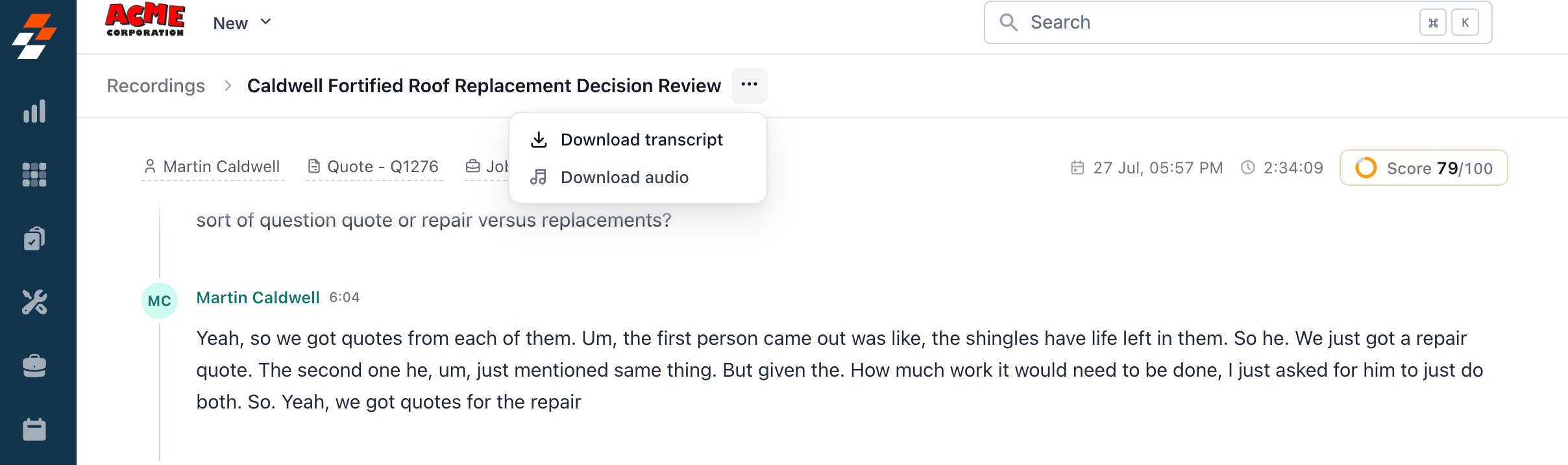
Zuper allows you to download the audio or transcript if needed, to do so;- Select the More actions (•••) menu next to the recording title.
- Choose Download transcript or Download audio.