

- Read and reply to emails linked to a job or customer.
- Compose a new email and send it from a mailbox you have access to.
- Link a customer, contact, or job to any email.
- See every text and email with a customer or contact in one place.
- Reuse a saved template instead of typing a message from scratch.
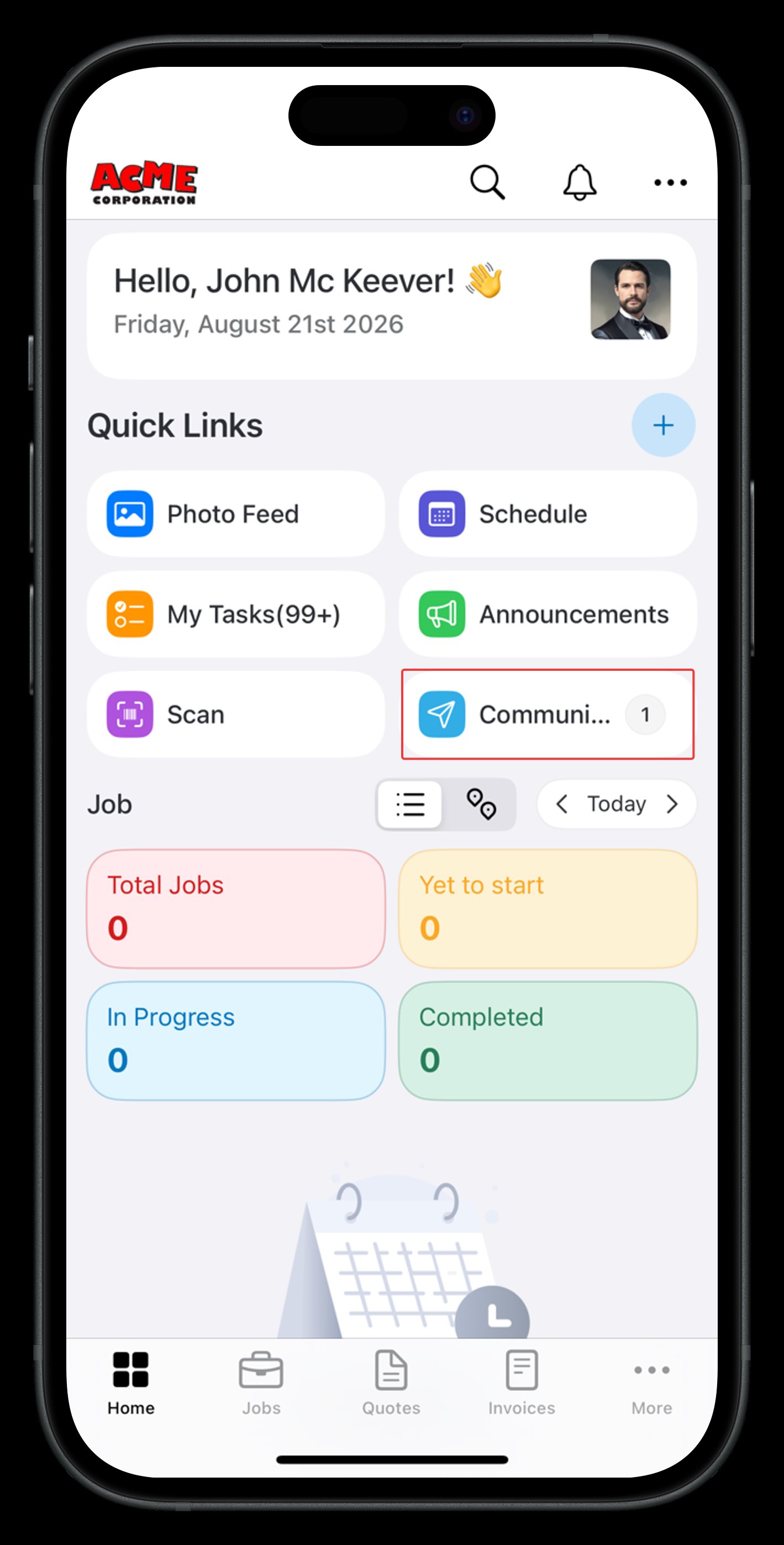
Navigation: Home > Quick Links > Communication
Before you begin
You can connect one personal inbox and any shared inboxes you have been added to.View conversations
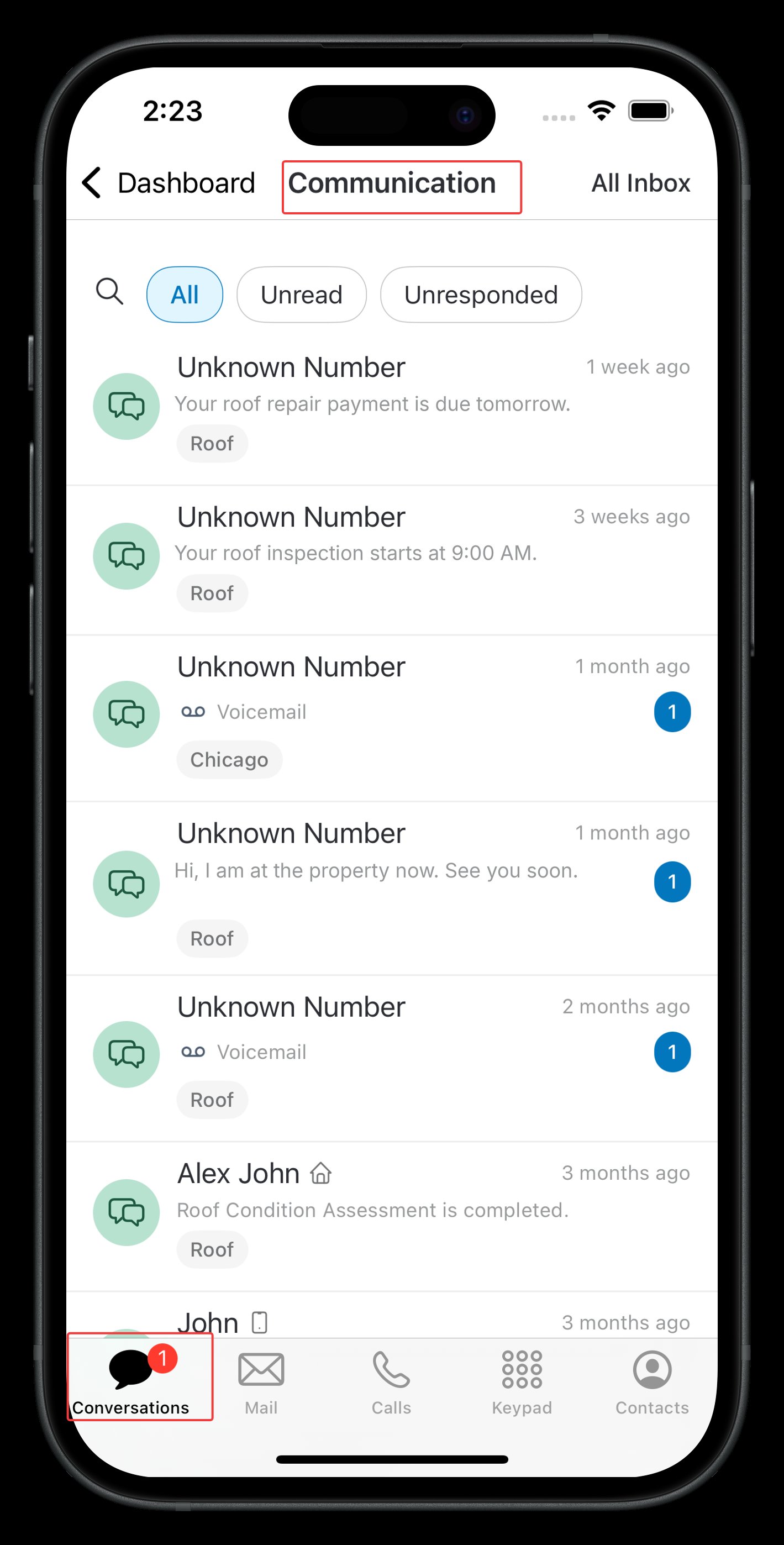
- On the Communication screen, tap Conversations at the bottom of the screen.
- Tap All, Unread, or Unresponded to filter by status.
- Tap an entry to open it.
Filter by mailbox or number
- Tap All Inbox at the top right of the Communication screen. The Select Inbox screen opens.
- Turn off the All Inbox toggle.
- Tap Number or Email.
- From the list, tap the number or mailbox that matches the one you want to view.
View communication with a customer or contact
- Go to Customers/Contacts.
- Tap the customer or contact you want to view.
- Tap Conversations or Email at the bottom of the screen.
- Tap All Email to filter by a specific mailbox.
- Tap an entry to open it.
A Zuper-only mailbox on mobile shows only emails already linked to a Zuper customer, contact, or job. Emails without a linked customer, contact, or job do not appear in this view.
View your mail
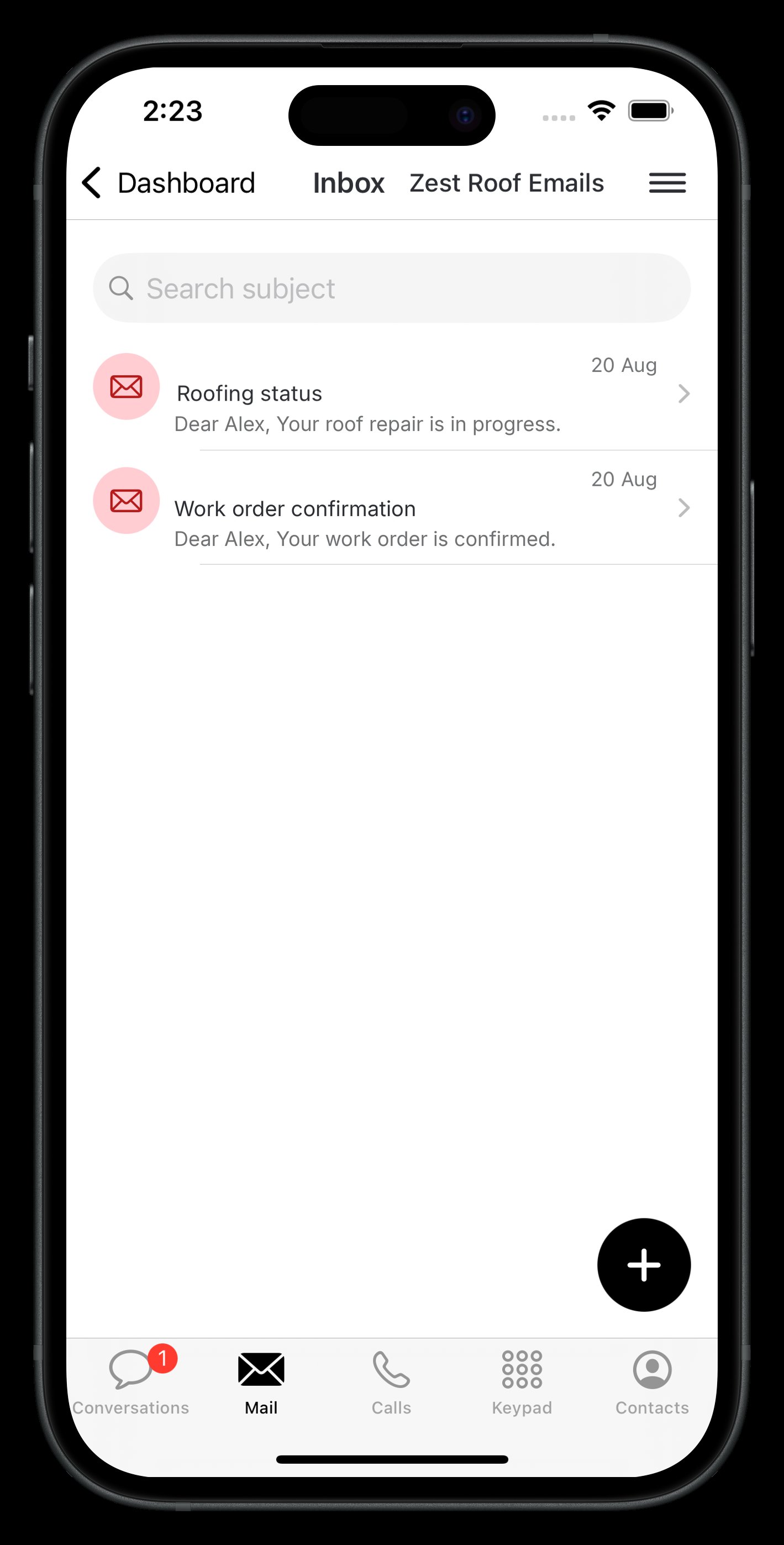
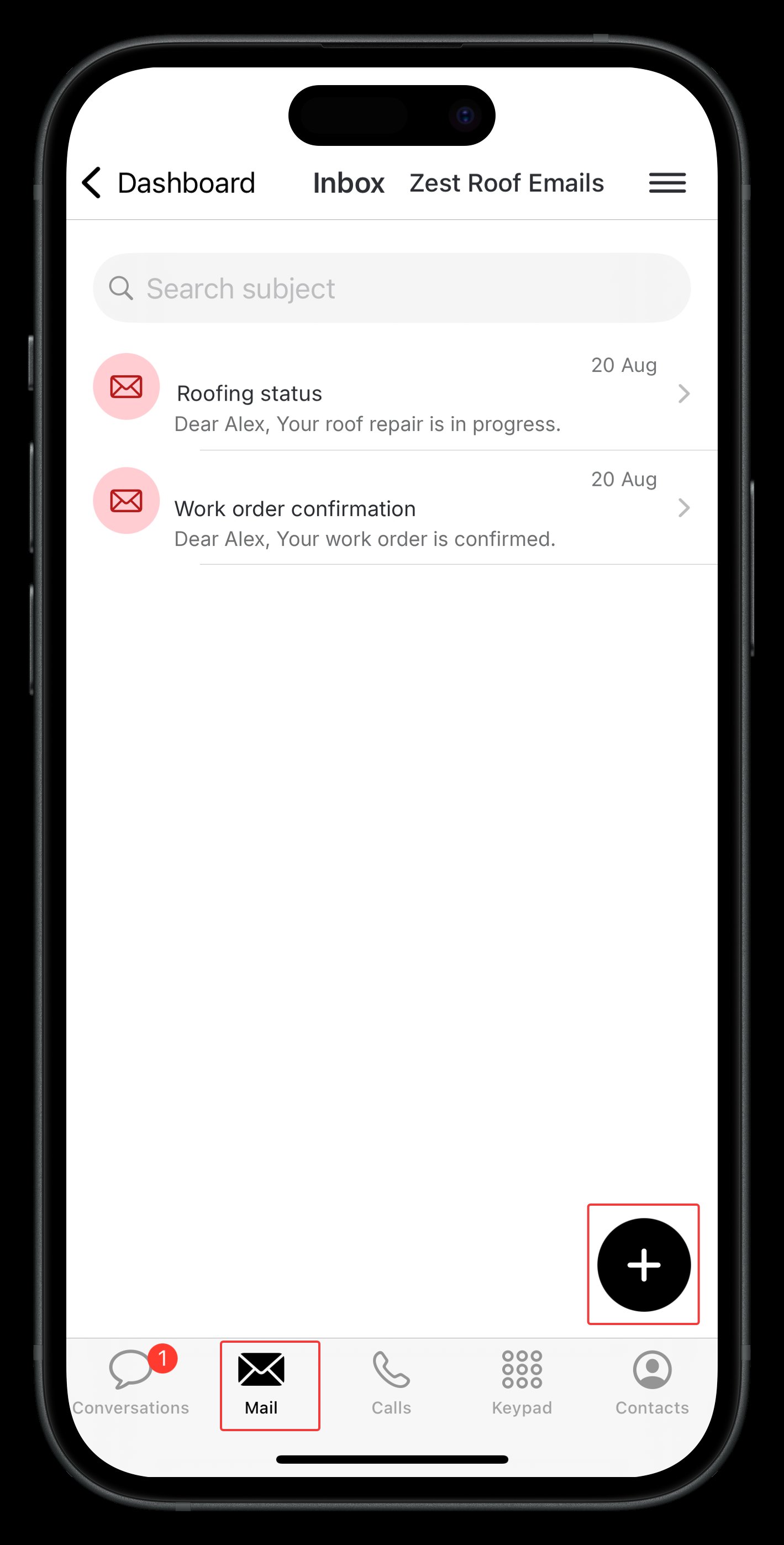
- On the Communication screen, tap Mail at the bottom of the screen. Your Inbox opens with the current mailbox name next to it.
- To find an email, enter its subject in Search subject.
- To switch mailboxes, tap the menu icon at the top right. From the Email list, tap the mailbox that matches the one you want to view./
Link a customer or contact and a job to an email
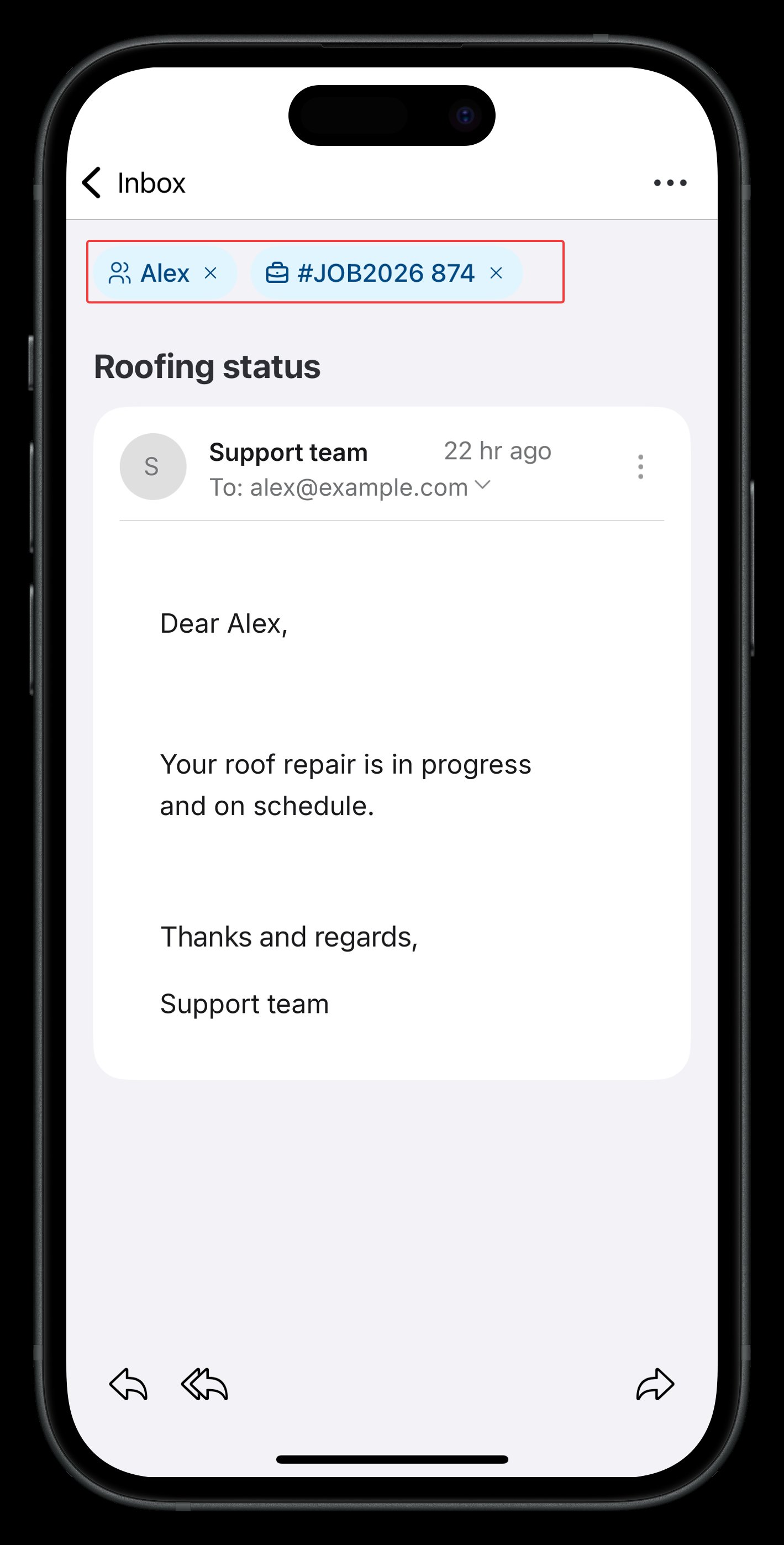
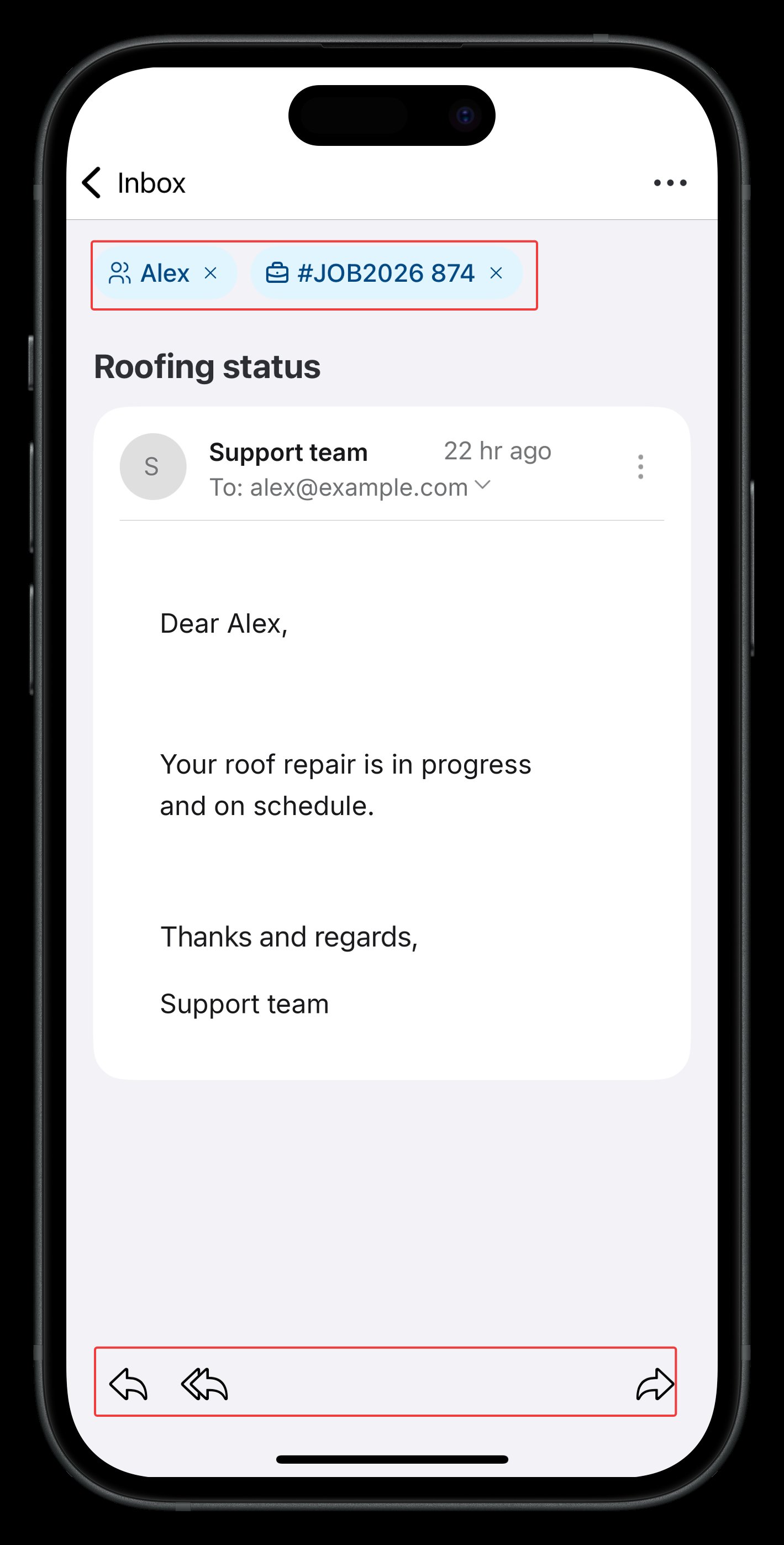
- Open an email from your list, then tap + Add Customer.
- Tap the customer or contact you want to link.
- Tap + Add Job, then tap the job you want to link.
Manage an email
- Tap an email in the list to open it.
- To reply, tap the reply icon at the bottom of the screen. To reply to everyone, tap the reply-all icon next to it. Type your message, then tap the send icon.
- To forward the email, tap the forward icon at the bottom right, then type the recipient’s email address.
Move an email to trash
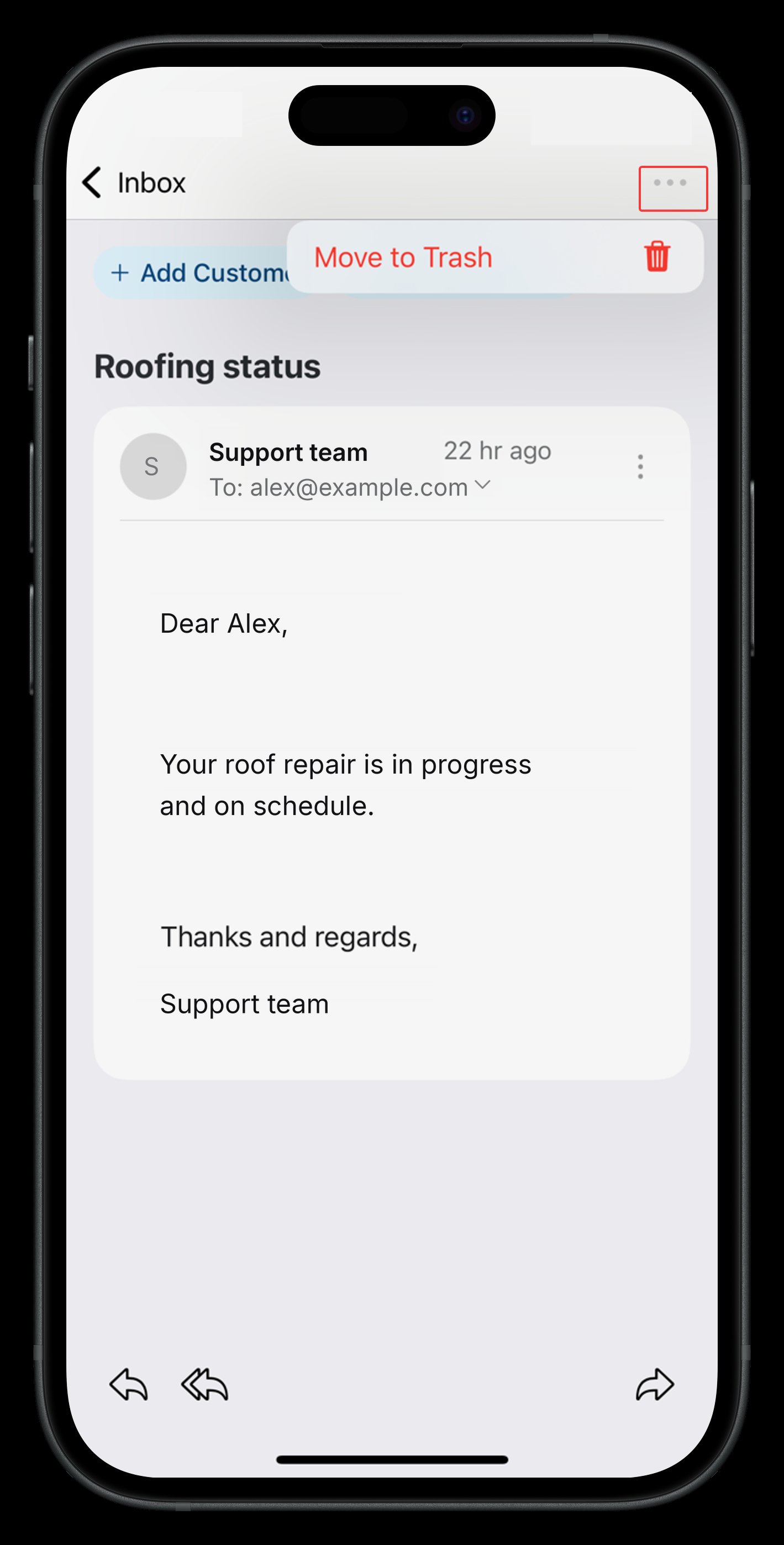
- Open the email you want to remove.
- Tap the more icon (•••) at the top right.
- Tap Move to Trash.
Compose a new email
- On Mail, tap + at the bottom right.
- Type the recipient’s email address, the subject, and your message in the To, Subject, and message fields.
- To link a customer/contact or a job, tap the contact icon or the job icon in the toolbar above the keyboard.
- Tap the send icon at the top right to send your email.
Use a template
To reuse a saved message instead of typing one from scratch, tap Email Template at the top of the compose screen before you send. Tap Contact or Job, then tap the template that matches your update.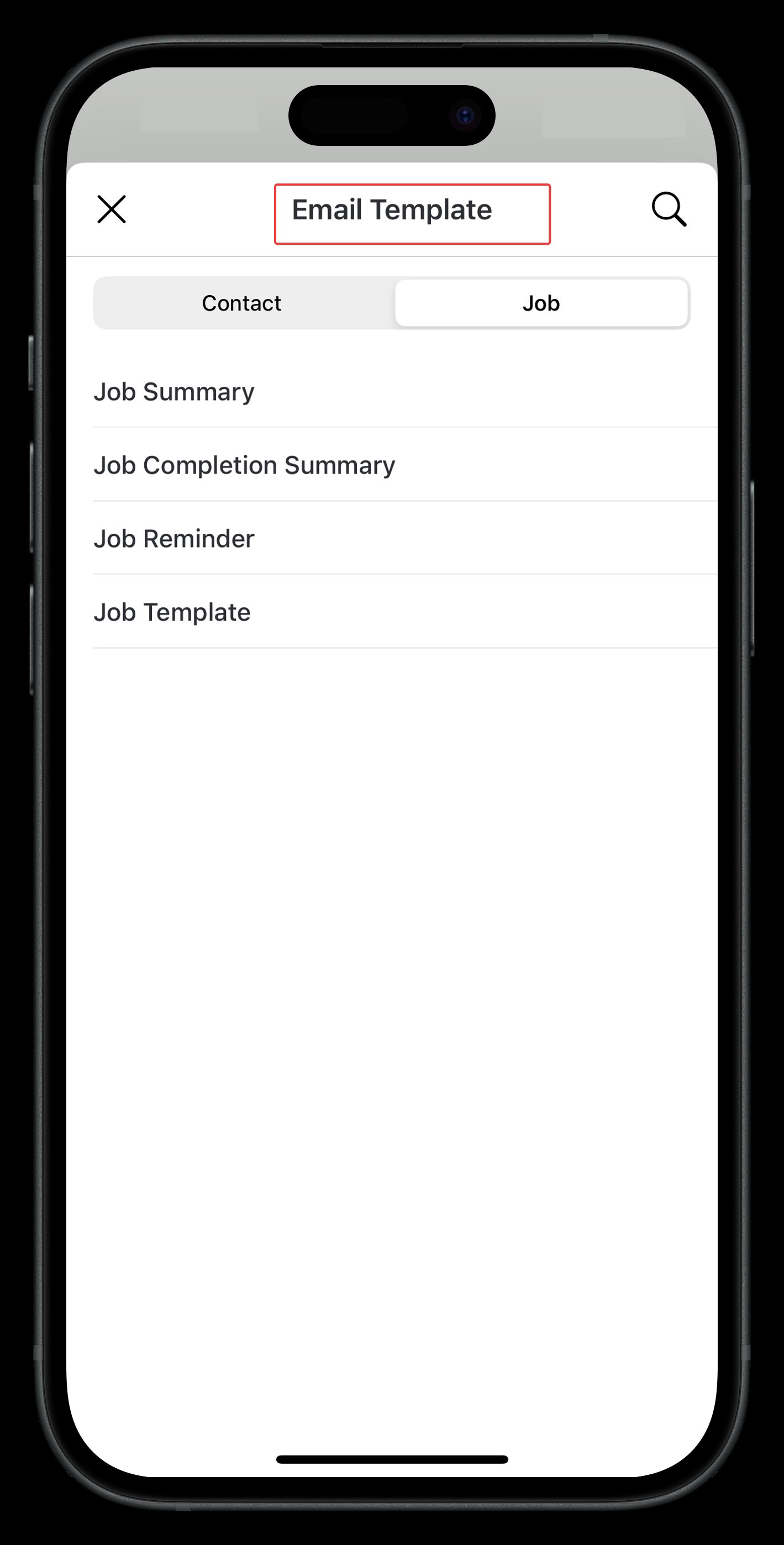
Choose a mailbox you can send from
If you do not have permission to send from the selected mailbox, Zuper displays a No Send Access message. Tap Choose Mailbox to pick a mailbox to send from, or tap Discard to cancel the email.Attach a photo or file
To attach a photo, tap the camera icon in the toolbar above the keyboard. To attach a file, tap the paperclip icon and choose images from your gallery or documents.FAQs
Why does my Zuper-only mailbox show fewer emails on mobile than I expect?
Why does my Zuper-only mailbox show fewer emails on mobile than I expect?
A Zuper-only mailbox on mobile shows only emails already linked to a Zuper customer, contact, or job. Emails without a linked customer, contact, or job do not appear in this view.
Do my teammates see the emails I send from the mobile app?
Do my teammates see the emails I send from the mobile app?
Yes. Every email you send, receive, or link on mobile syncs to the web app in real time. Your office team sees the same activity right away.
Can I delete an email from every mailbox type on mobile?
Can I delete an email from every mailbox type on mobile?
Yes. Move to Trash is available for every connected mailbox type on mobile.
Can I create folders on mobile?
Can I create folders on mobile?
No. You can create and manage folders only from the web app. Folders you create on the web sync to your mobile Mail tab, but you cannot create one from the mobile app itself.