

Before you start
Before you start
Before recording a refund, keep the following points in mind:
- Payments made using customer credits cannot be refunded.
- Card payments collected through Zuper Pay must be refunded through Zuper Pay.
- You can use this workflow for payments recorded manually in Zuper.
- Zuper records the refund but does not return the money to the customer. You must return it separately.
Choose how to handle the payment
Before proceeding, decide what you want to do with the payment:- Refund to the original payment method: Choose this option when you want to return the money to the customer, such as handing back cash or issuing a check.
- Create a credit note: Choose this option when you want to keep the amount as customer credit that can be applied to a future invoice.
- Void transaction: Choose this option when the payment was recorded incorrectly, such as a duplicate payment or a payment recorded against the wrong invoice.
Note: You can refund the full available amount using the refund option. To issue a partial credit, select Create a credit note and enter the amount you want to credit.
Start a refund
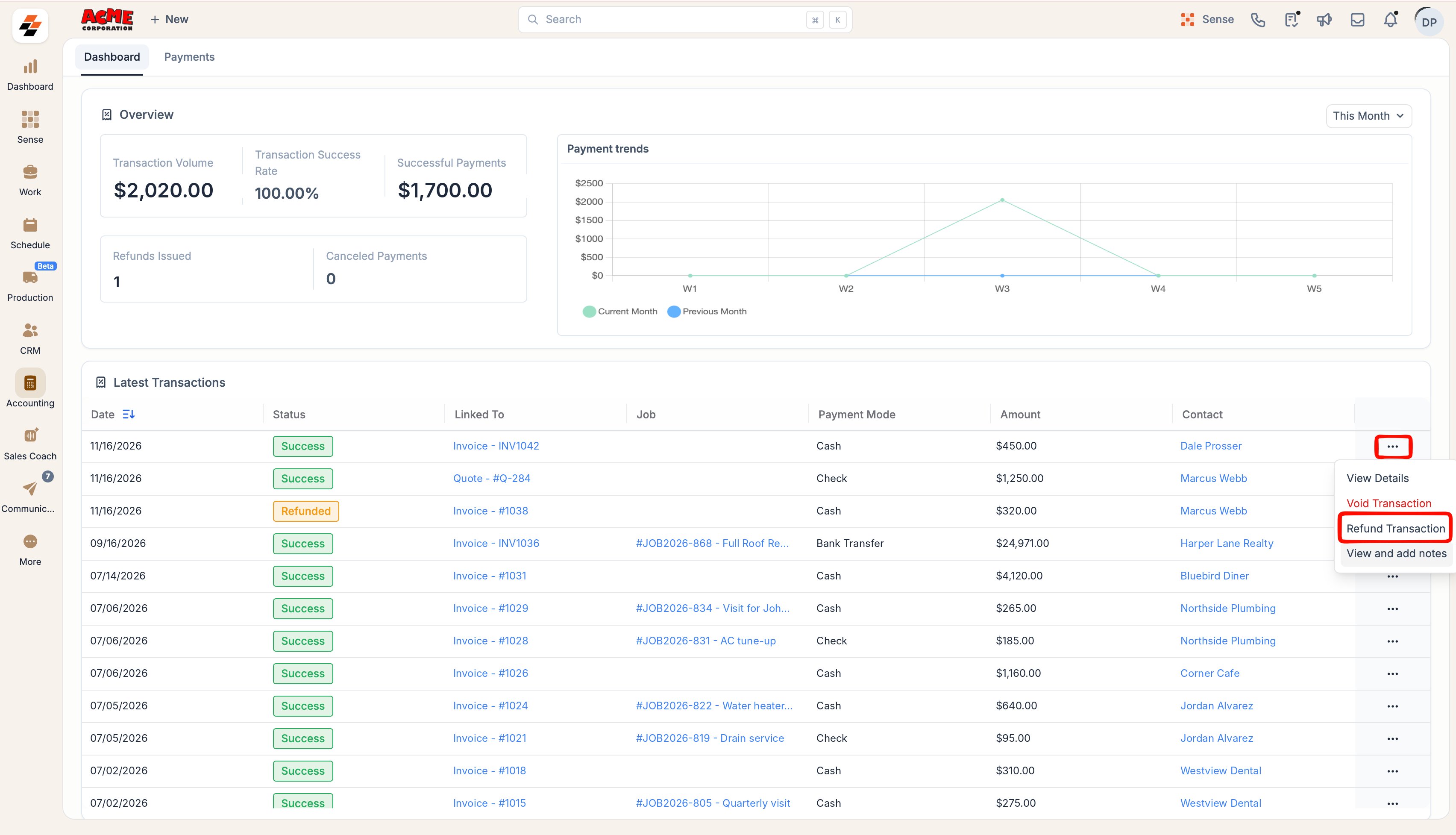
You can start a refund from the Payments tab or from the associated quote or invoice.From the Payments tab
From the Payments tab
- Go to Payments.
- Find the payment you want to refund.
- Select the More options menu for the payment.
- Select Refund Transaction.
From an invoice
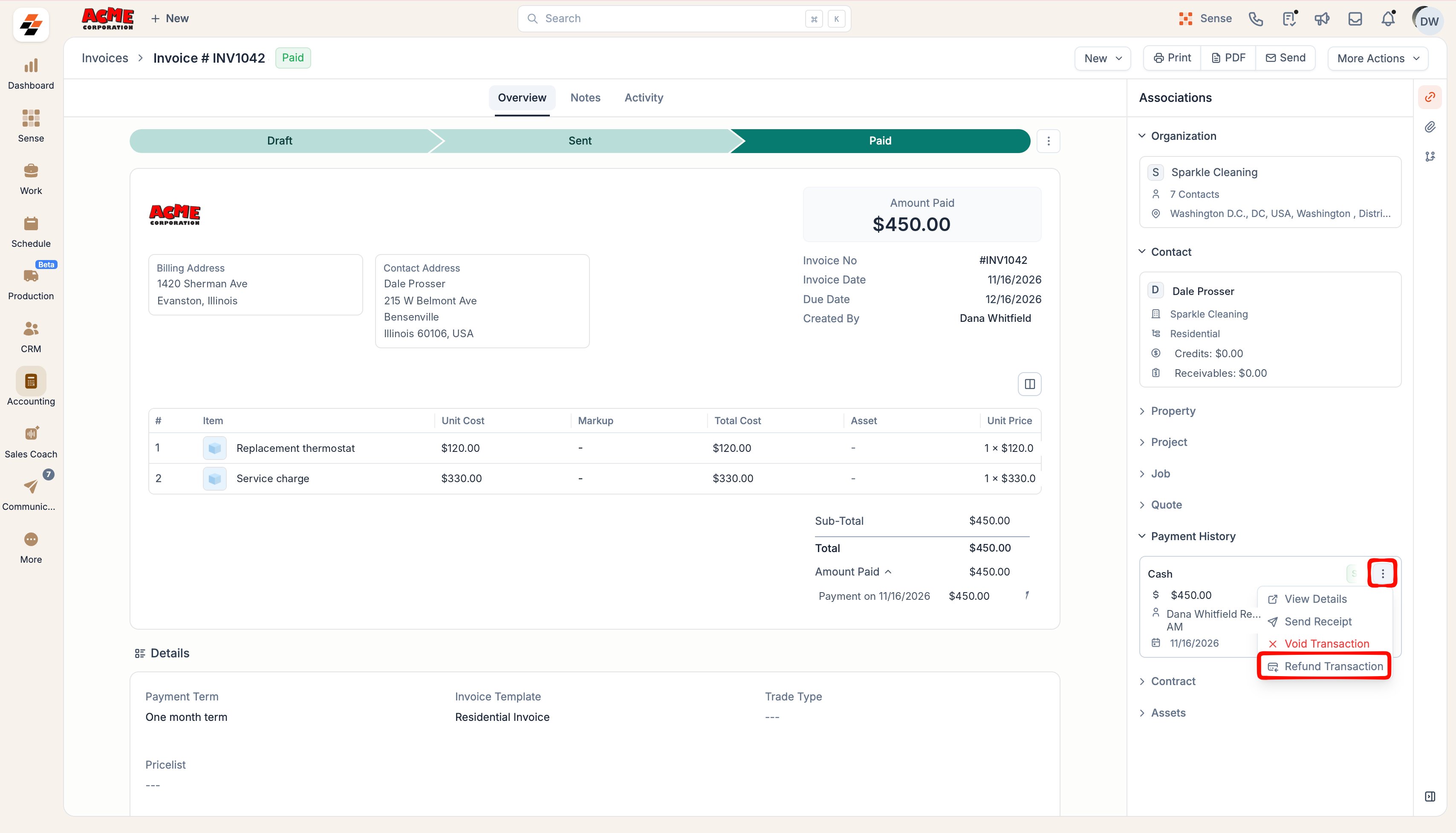
From an invoice
- Open the invoice associated with the payment.
- Go to the Payment History section.
- Find the payment you want to refund.
- Select the More options menu on the payment card.
- Select Refund Transaction.
From a quote
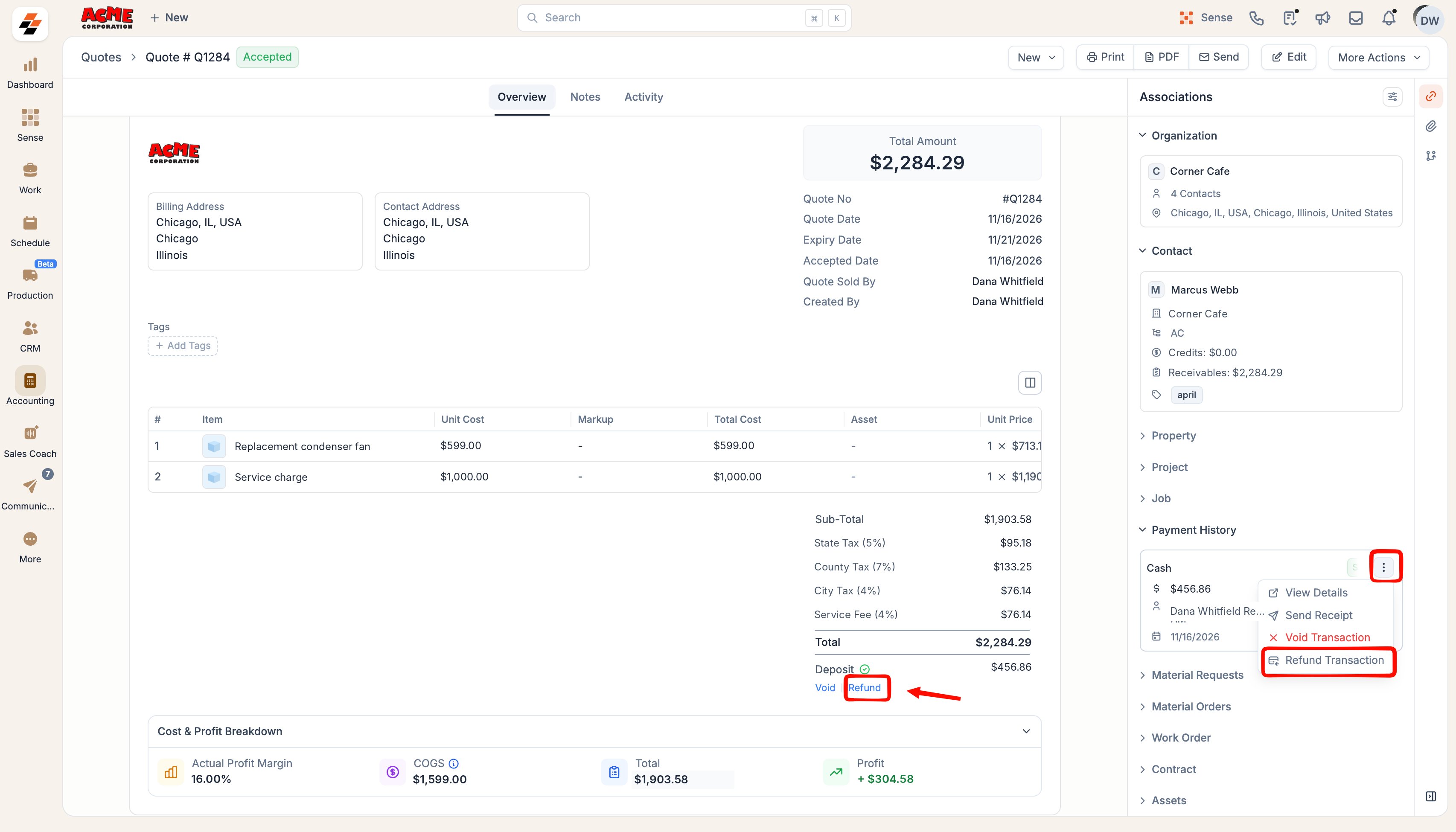
From a quote
- Open the quote associated with the payment.
- Go to the Payment History section.
- Find the payment you want to refund.
- Select the More options menu on the payment card.
- Select Refund Transaction.
Complete the refund
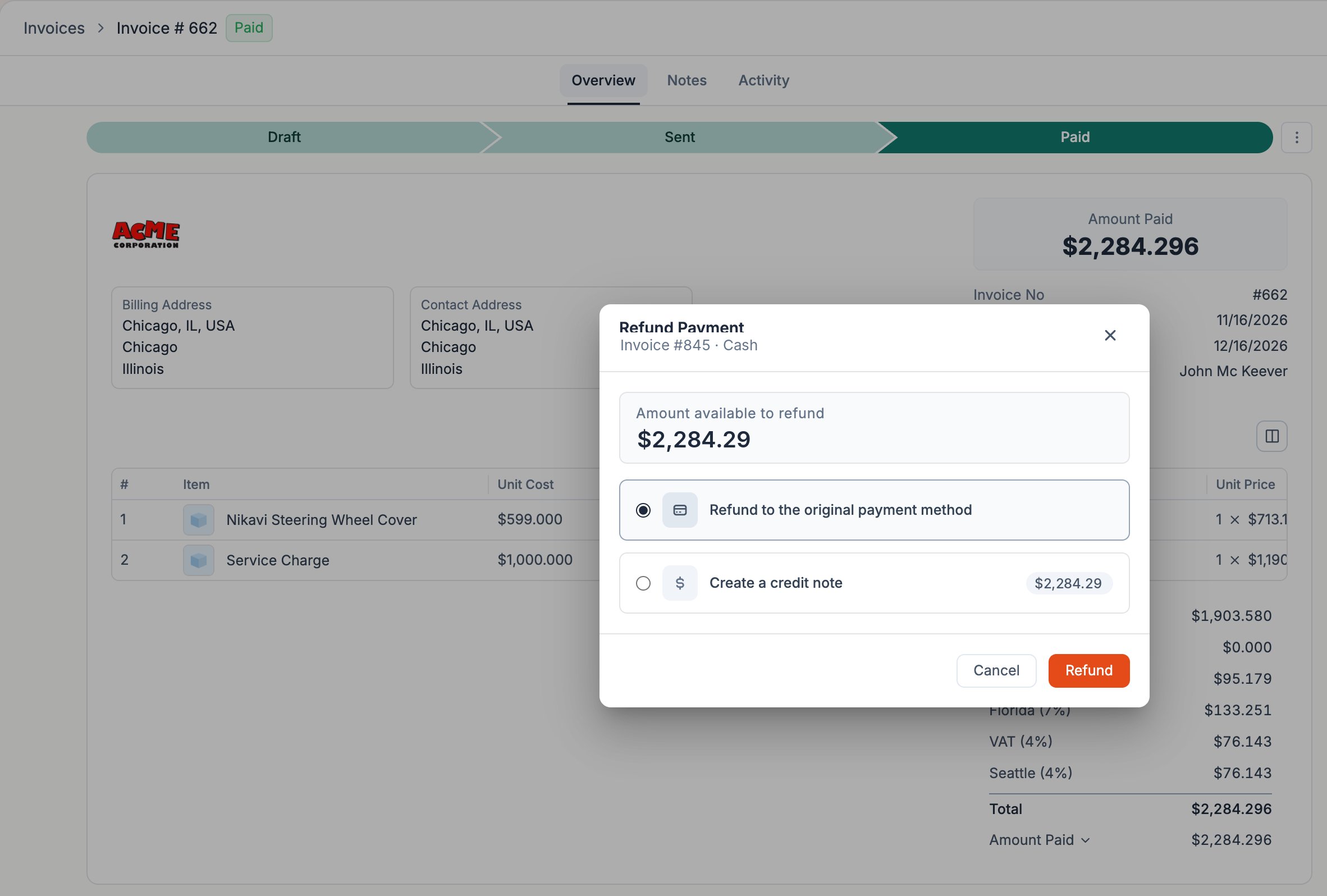
After selecting Refund Transaction, the Refund Payment dialog box opens.- Review the associated record and payment mode displayed in the dialog box.
- Check the Amount available to refund. This amount accounts for any refunds or credits already issued against the payment.
- Choose how you want to handle the amount:
- Refund to the original payment method: Records the full available amount as refunded.
- Create a credit note: Creates a credit note for the full or partial available amount.
- If you select Create a credit note, complete the following fields:
- Credit Date: Defaults to the current date and time. Change it if required.
- Credit Amount: Defaults to the full available amount. Enter a lower amount to issue a partial credit.
- Remarks: Includes a reference to the associated invoice by default. Update it with additional details about the credit, if needed.
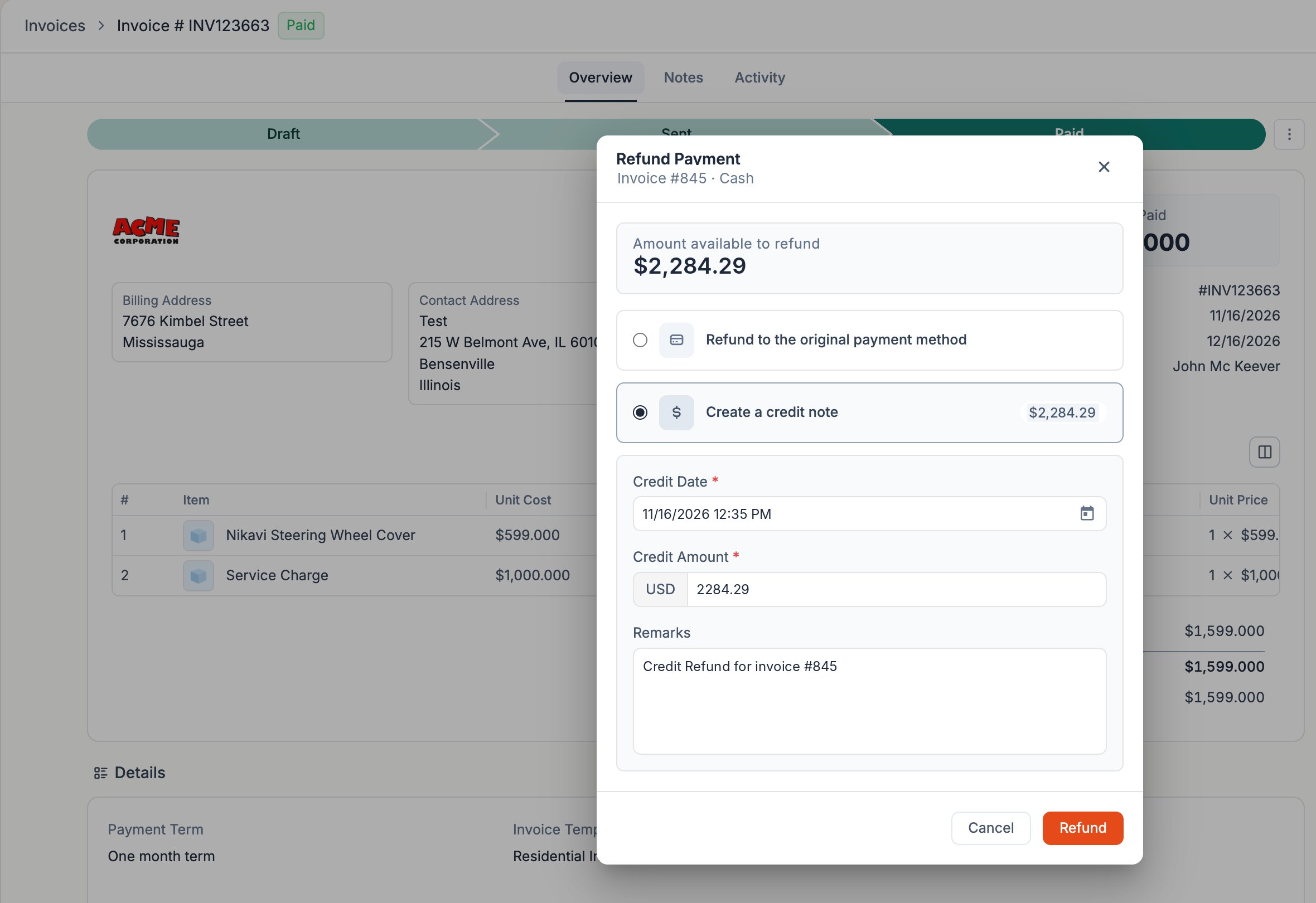
- Click Refund.
Important: If you select Refund to the original payment method, you must return the money to the customer separately. Clicking Refund only updates the payment records in Zuper.
Check the refund status
After completing the action, you can check the updated payment status on the Payments tab.
You can also check the payment in the Payment History panel of the associated quote or invoice. The original payment amount appears with a strikethrough, along with the updated status.
The quote or invoice balance reflects the refund or credit adjustment.
When you issue a credit note, the amount is added to the customer’s credit balance. You can view this amount under Credits in the contact panel of the quote or invoice.
To learn how to use the available credit against an invoice, see Applying credits.
Frequently asked questions
Does Zuper return the money to the customer?
Does Zuper return the money to the customer?
No. Zuper records the refund but does not transfer money to the customer. You must return the cash, check, or other payment separately.
Can I refund only part of an offline payment?
Can I refund only part of an offline payment?
The Refund to the original payment method option records the full available amount as refunded.To handle a partial amount, select Create a credit note and enter the amount you want to issue in the Credit Amount field.
When should I create a credit note instead of a refund?
When should I create a credit note instead of a refund?
Create a credit note when you want to retain the amount as customer credit for a future invoice. Use Refund to the original payment method when you are returning the money to the customer.
Can I refund a quote deposit?
Can I refund a quote deposit?
Yes. Once the deposit has been collected, you can click Refund below the deposit amount on the quote or select Refund Transaction from the associated payment card in the Payment History panel.
Why can't I see the Refund Transaction option?
Why can't I see the Refund Transaction option?
The refund option may not be available for certain payment types. Payments made using customer credits cannot be refunded, and card payments collected through Zuper Pay must be refunded through Zuper Pay.
When should I void a payment instead of refunding it?
When should I void a payment instead of refunding it?
Use Void Transaction when a payment was recorded incorrectly, such as a duplicate entry. Use Refund Transaction when the payment was valid but you need to return the money to the customer.