

Supported PLAUD devices
Zuper supports the following PLAUD recording devices:- PLAUD Note Pro
- PLAUD NotePin S
Before you begin
Before you begin
Make sure you have:
- Access to Sales Coach in the Zuper Field Service app.
- A supported PLAUD recorder. See how to pair your PLAUD recorder.
- Bluetooth enabled and the required permissions granted to Zuper.
A PLAUD recorder can be associated with only one Zuper user account at a time. If another user has already paired the device, they must release the association before you can connect it.
Connect your PLAUD recorder
To start recording with PLAUD, you must first pair the device with your Zuper account.- Open the Zuper Field Service app and navigate to Sales Coach.
- Tap PLAUD + in the upper-right corner.
- If prompted, tap Allow to grant Bluetooth permissions.
- Turn on your PLAUD recorder by pressing its record button.
- Wait while Zuper searches for nearby devices.
- Select your PLAUD recorder from the list of available devices to pair it.
Note: If your recorder does not appear, make sure it is turned on and tap Scan again.
Record a conversation
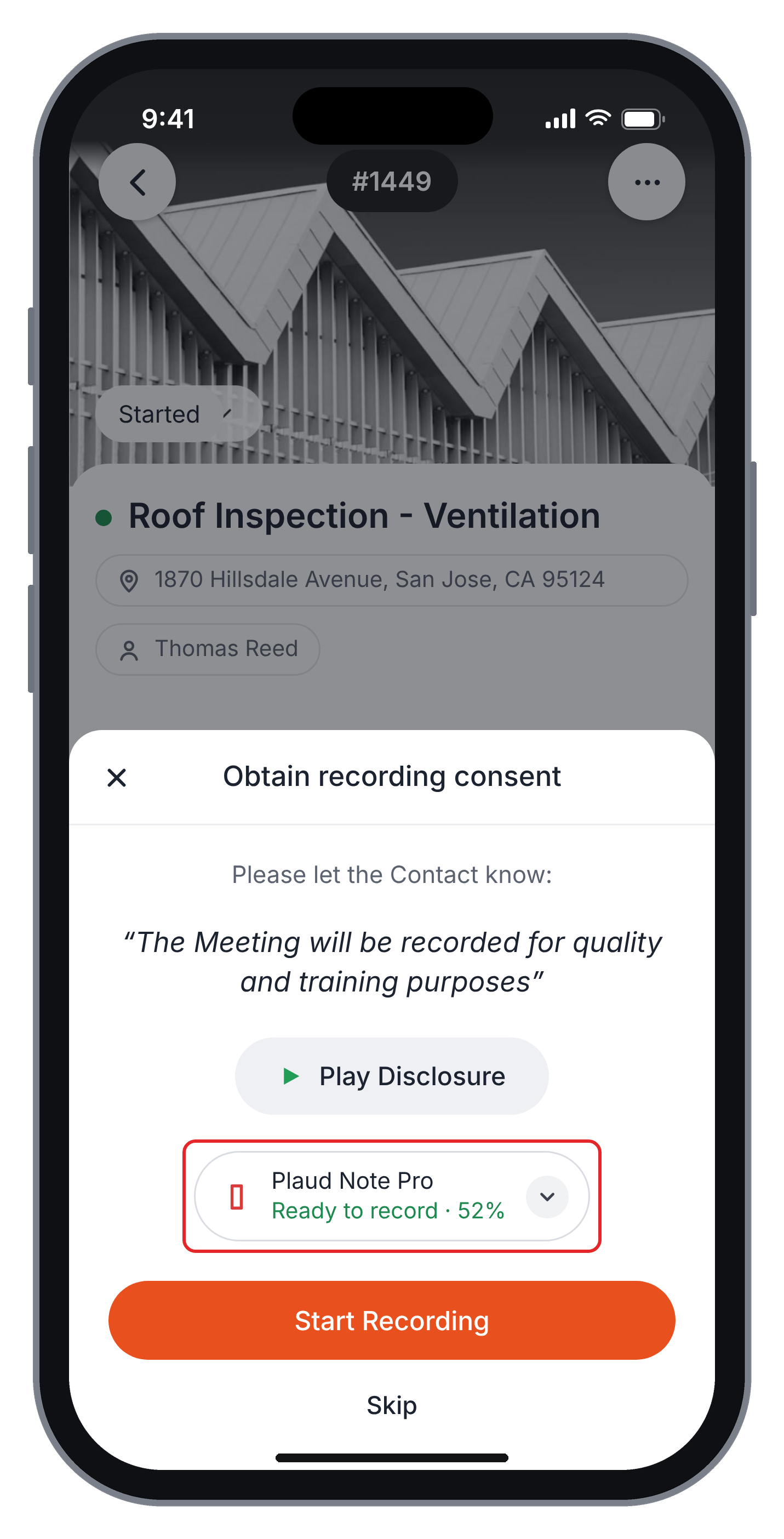
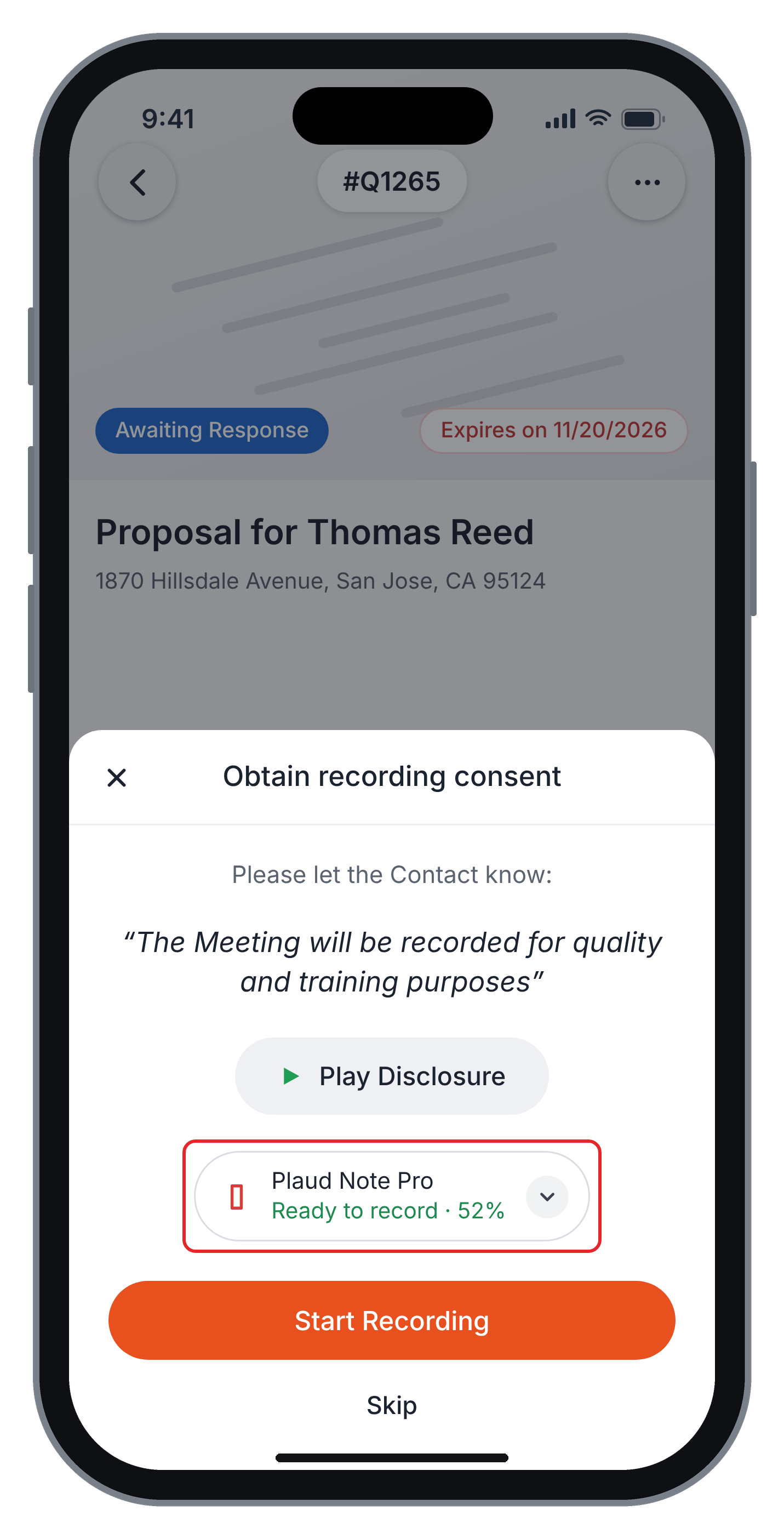
You can start a recording directly from your PLAUD device or through the recording options in the Zuper Field Service app.When you start a recording from a Job or Proposal, you can choose the audio source on the Obtain recording consent screen:
- PLAUD recorder: Captures audio using your connected PLAUD device.
- Built-in mic: Captures audio using your phone’s microphone.
Record directly from your PLAUD device
- Make sure your PLAUD recorder is connected to your Zuper account.
- Inform the customer and obtain the required recording consent.
- Long-press the recording button on your PLAUD device to start recording.
- A notification appears on your phone, indicating that recording is in progress.
- Continue your conversation and stop the recording using your PLAUD device controls.
Record from a Job
- Open the required Job in the Zuper Field Service app.
- Tap the + icon in the bottom-right corner.
- Tap Field Recording.
- On the Obtain recording consent screen, read the disclosure to the customer or tap Play Disclosure.
- After obtaining the required consent, tap Start Recording.
Record during a Proposal presentation
- Open the required Proposal in the Zuper Field Service app.
- Tap Present proposal.
- On the Obtain recording consent screen, inform the customer about the recording.
- Tap Play Disclosure to play the recording notice, if needed.
- Once the necessary consent is obtained, tap Start Recording.
Start a new recording from Sales Coach
You can also start a recording from Sales Coach without opening a Job or a Proposal first, and associate it with a customer record as you go. Your connected PLAUD recorder captures the audio. See Start a new recording from Sales Coach for the full procedure.Sync and review your recordings
After you stop recording, the audio transfers from your PLAUD recorder to your phone over Bluetooth. Longer recordings may take a few minutes to transfer. Stay near the recorder until the transfer is complete. Your recording then moves through these stages:- Uploading: Sales Coach displays an upload message indicating how many recordings are being uploaded.
- Transcribing: Zuper converts the audio into text. This usually takes a few minutes. Pull down to refresh the recording list or return to the recording later.
- Analysis: Sales Coach analyzes the conversation and provides a score, outcome, objections, and action items. The recording appears in the list as soon as the upload starts, so you don’t have to wait on site for the score.
Note:
- Recordings must be at least 60 seconds long to qualify for coaching analysis. Shorter recordings are saved but do not receive coaching analysis.
- The maximum recording length is 3 hours.
View recordings on a Job or Proposal
Recordings associated with a Job or a Proposal are also available on the corresponding record. For details, seeFind recordings on a job or proposal.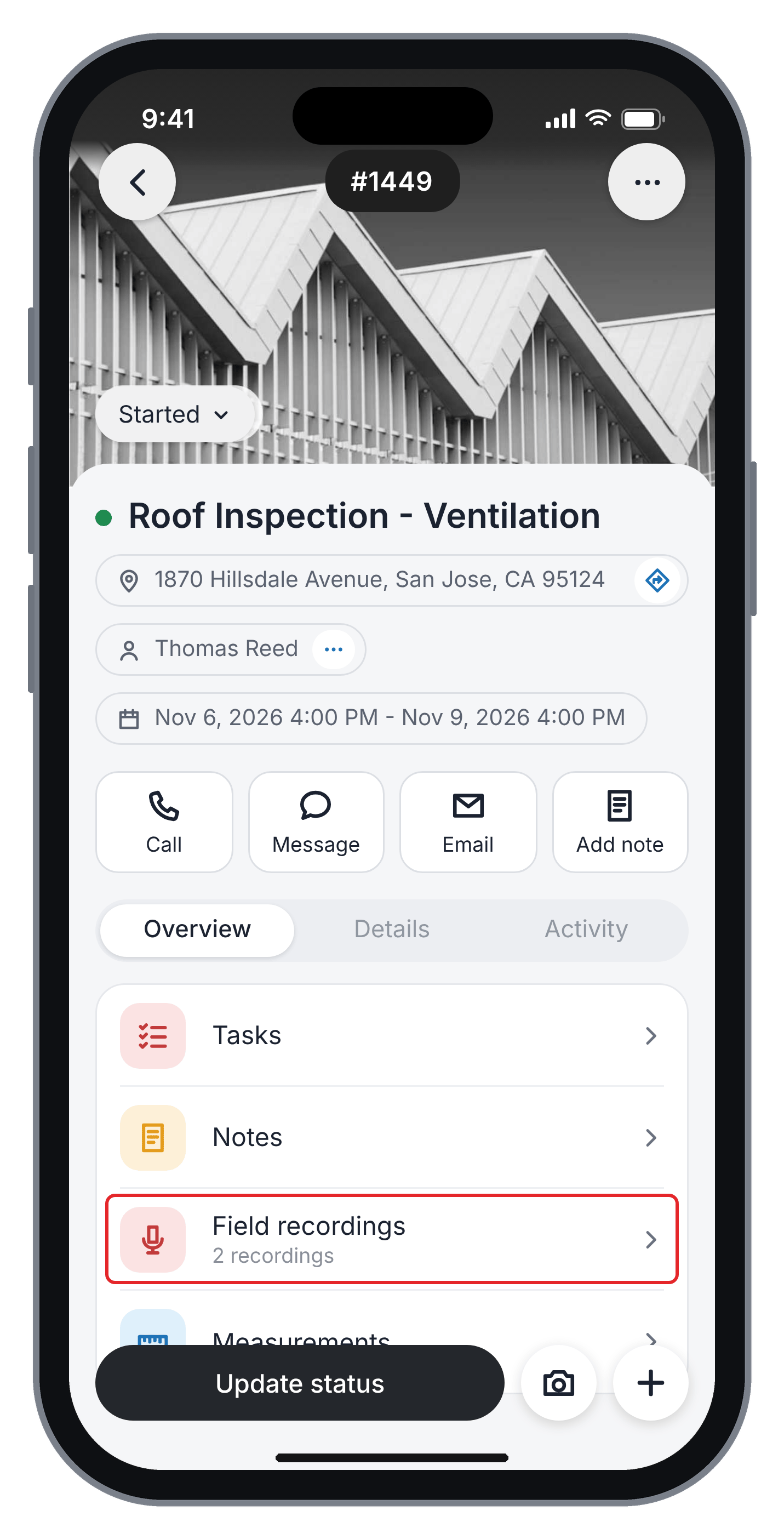
Manage your PLAUD connection
A PLAUD recorder can be associated with only one Zuper user account at a time. You can use the same recorder on another phone with your existing account or release its association so another user can connect it.Use your PLAUD recorder on another phone
- Disconnect the PLAUD recorder from your current phone.
- Open the Zuper Field Service app on your other phone using the same user account.
- Navigate to Sales Coach.
- Tap PLAUD + and connect your PLAUD recorder.
Connect a PLAUD recorder to another user’s account
To let another sales representative use your recorder:- Forget the recorder and release its association with your Zuper account.
- Ask the other user to open Sales Coach and tap PLAUD +.
- Ask them to select the recorder from the list of available devices.