

Feature enablement & creation of Trade Types
Trade types will help you segment and manage businesses that cut across multiple trades with unique branding, contacts/addresses. It will also help with better reporting, grouped by trades. Additionally, it will help improve operational efficiency through exclusivity to users to access jobs, quotes, invoices, etc., pertaining to their specific trade type(s).- Customer Action Required: Contact support@zuper.co to enable the Trade Type feature.
- Limits: Up to 25 active Trade Types per organization.
- Post-Enablement: Create Master Trade Types via
- Navigation:Settings —> Miscellaneous —> Trade Type —> + New Trade Type
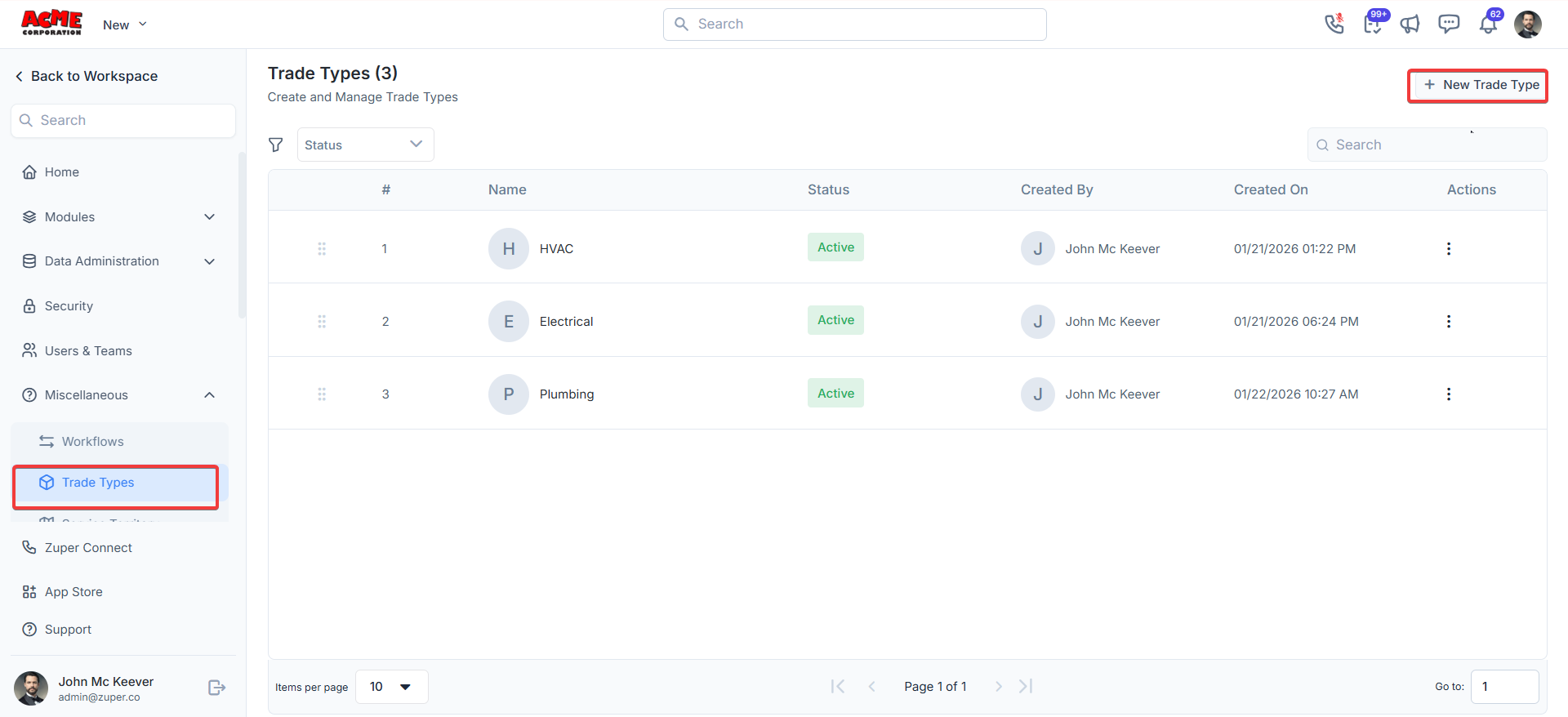
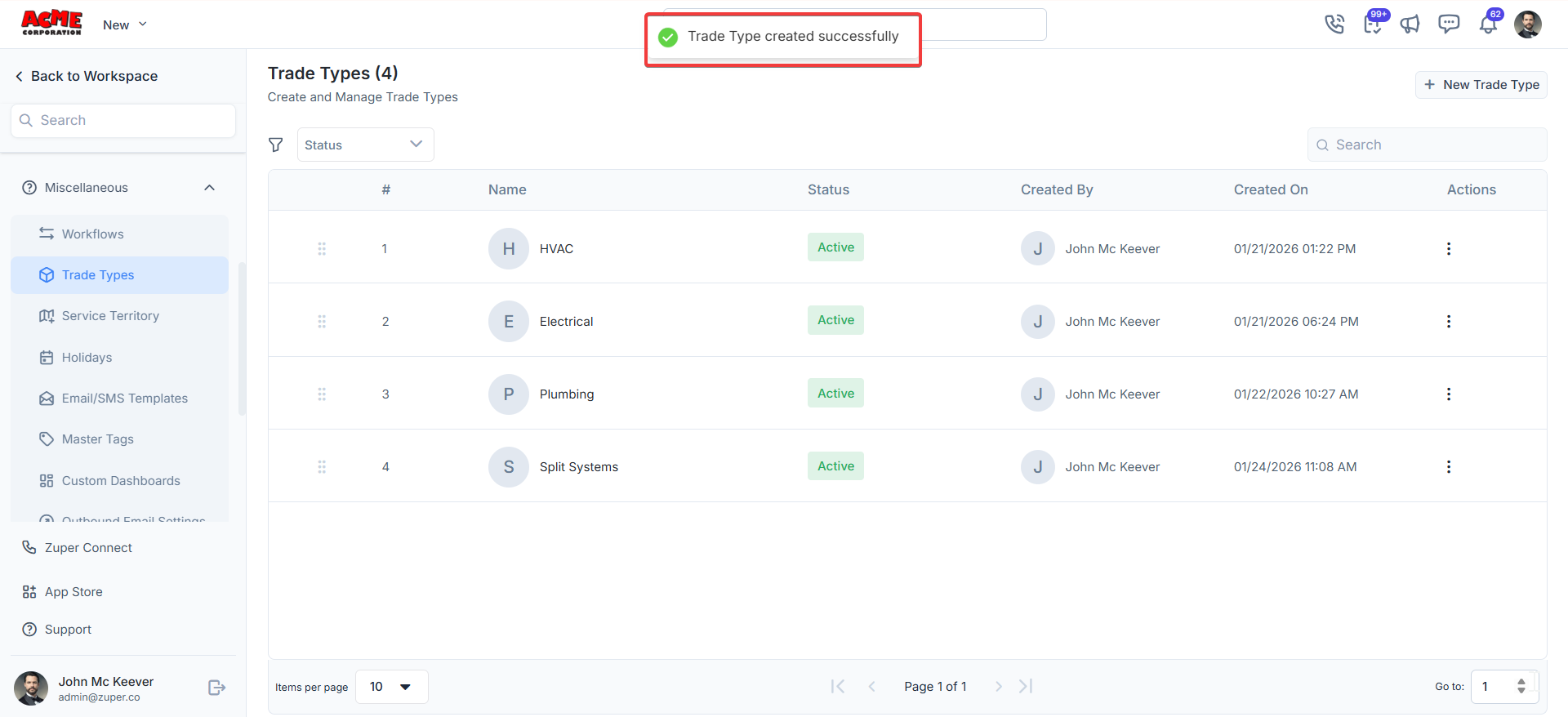
- Click the “Create” button to create the new master trade type.
Entity relationships and mapping use cases
Onboard to Zuper Trade Types
a. Job Categories & Jobs
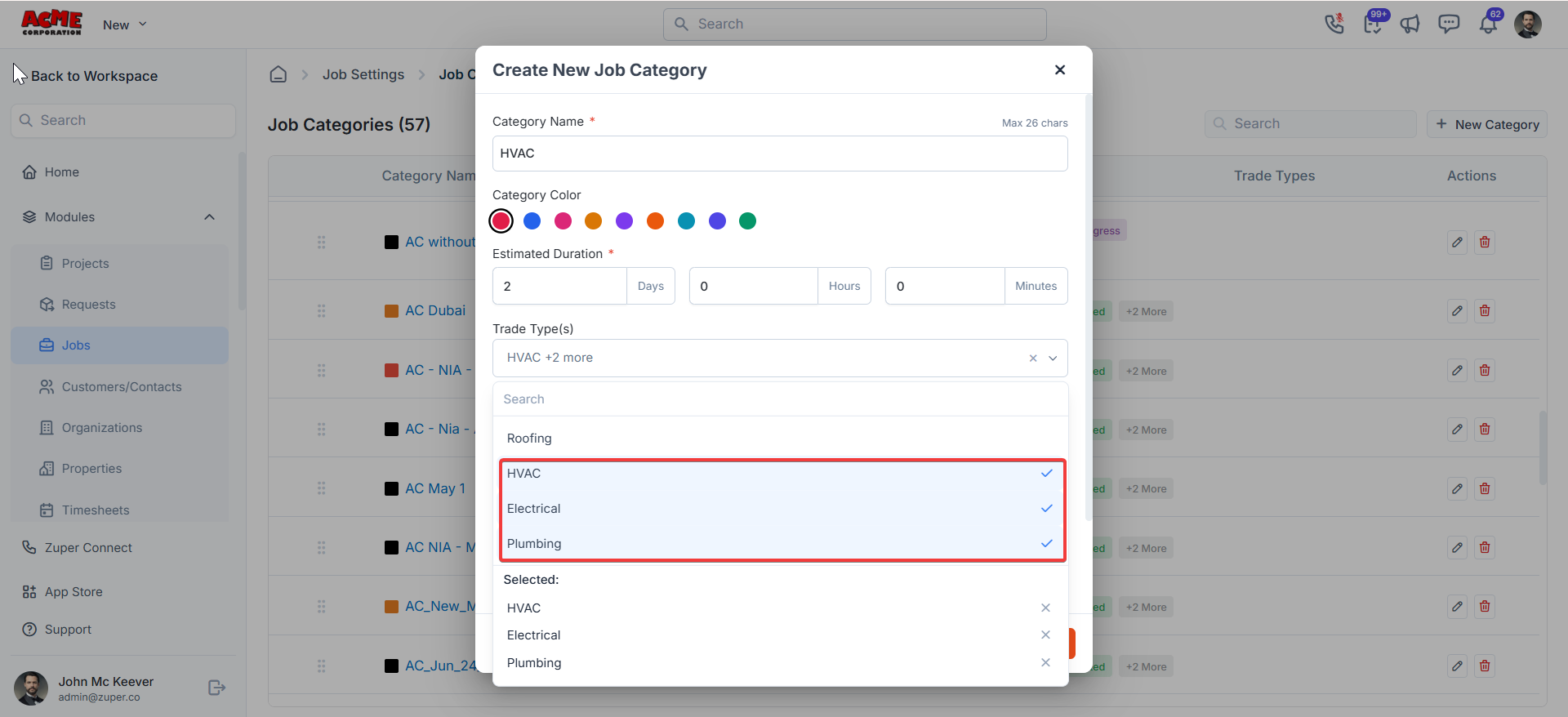
- Job Category Creation & Edits: Once trade types are created, the next critical step is to map your job categories to the right trade type(s). As mentioned in the mapping table above, a job category can be mapped to one or more trade type(s) based on your specific business needs. For e.g., A job category ‘Maintenance’ shall be associated with both HVAC & Electrical, (or) a job category ‘AC Installation’ shall be associated with only HVAC. The screen below helps you understand how to map trade type(s) to a job category.
- Job Creation & Edits: Once this is done, when creating a job, you’ll be able to map a job to only one of the trade types. During job creation, selecting a trade type for the job automatically shortlists the job categories mapped to it. This will eliminate the need to endlessly scroll through all job categories when creating a job.
- Pick Job Trade (e.g., HVAC) → Locks in the trade type.
- Pick Job Category (e.g., “AC Repair”) → Only shows categories for that trade.
- Add Products/Parts → Only see parts linked to that trade (like HVAC filters).
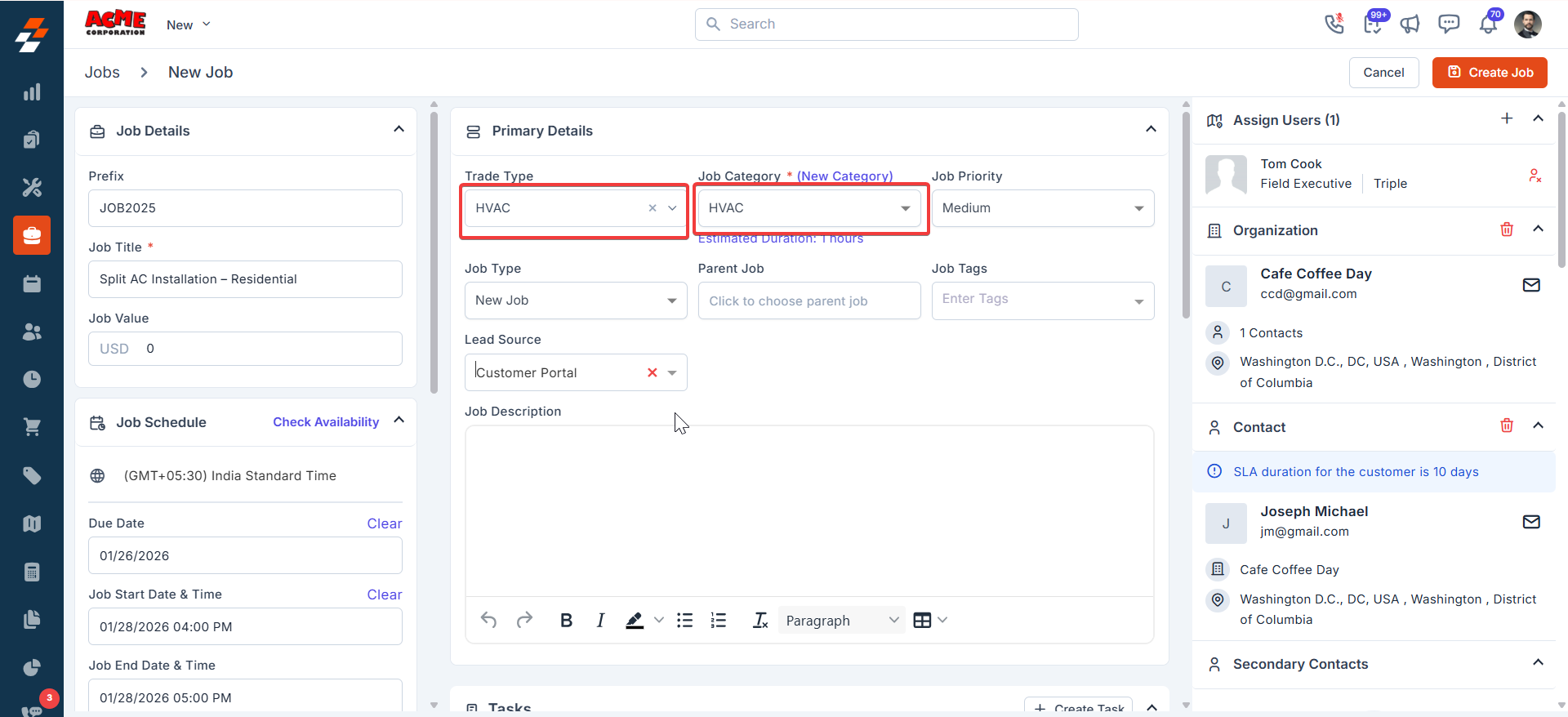
Note: When a job is not mapped to any trade type, it will be visible to ALL users.
- Line-Item/Product Selection Within Job: Additionally, when adding line items to a job, they’ll be automatically shortlisted/filtered based on the job trade type (we’ll see how to map products to trade types soon, below ). This again helps users find the right parts/services for a job rather than weeding through an infinite list of parts/services available within your organization.
- Parts belonging to job trade type: Auto-filters (e.g., thermostats for HVAC job).
- When users are associated with more than one trade type, selecting the “Any” option lists parts across all their trade types. This shall be handy when a job must encompass parts cutting across multiple trades.
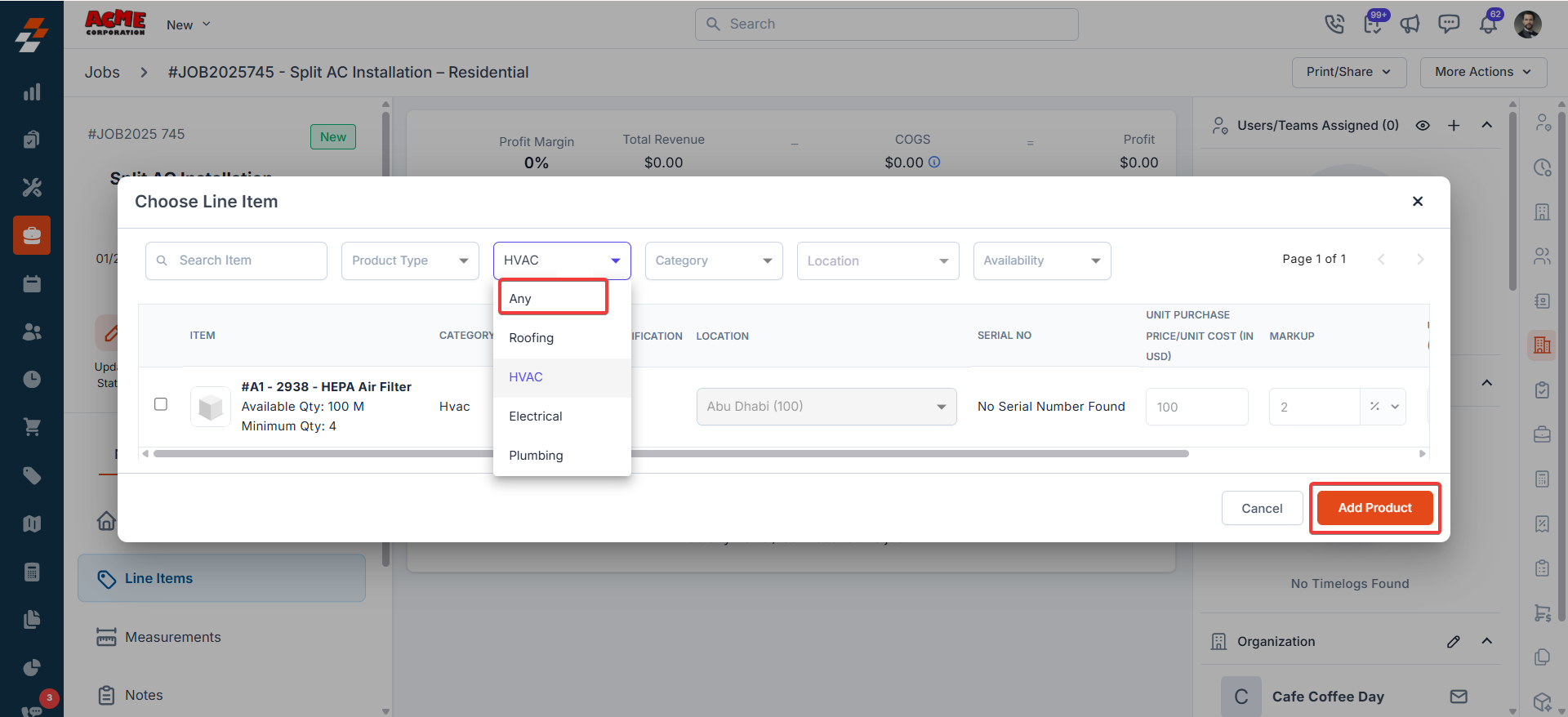
Note: Avoid using the ‘Any’ filter unless your job is not going to need materials across various trades. Picking the ‘wrong’ part (via “Any”) could impact your job operations, e.g., plumbing pipes counted in an HVAC job!
b. Tasks
Tasks in Zuper represent the discrete activities a field technician must complete to fulfill a job. They provide a structured way to standardize job execution, improve service efficiency, and track progress at a granular level. Organizations typically adopt one of two approaches: some associate job categories with a predefined set of tasks that are automatically applied to every job of that type, while others allow technicians to select from a library of standardized task templates in the field. In either case, tasks serve as the operational definition of what it means for a job to be considered complete. When your business operates across multiple trades, task assignment becomes more nuanced in either of the scenarios described above. Regardless of which approach you follow, technicians should only see tasks relevant to their trade - which makes mapping tasks to trade types essential. Consider an organization that services both HVAC and Plumbing. Without trade-based mapping, an HVAC technician may see Plumbing tasks in their list, and a plumber may see HVAC tasks. Beyond the operational noise, this forces technicians to scroll through or manually filter tasks that have no bearing on the job in front of them, leading to wasted time and a higher chance of selecting the wrong task. Mapping tasks to trade types eliminates this friction by giving each technician a focused, role-appropriate view. The sections below walk you through how to associate tasks with trade types for both business scenarios introduced earlier:- Job categories linked to a predefined set of tasks
- Technicians selecting tasks from a pool of standardized templates
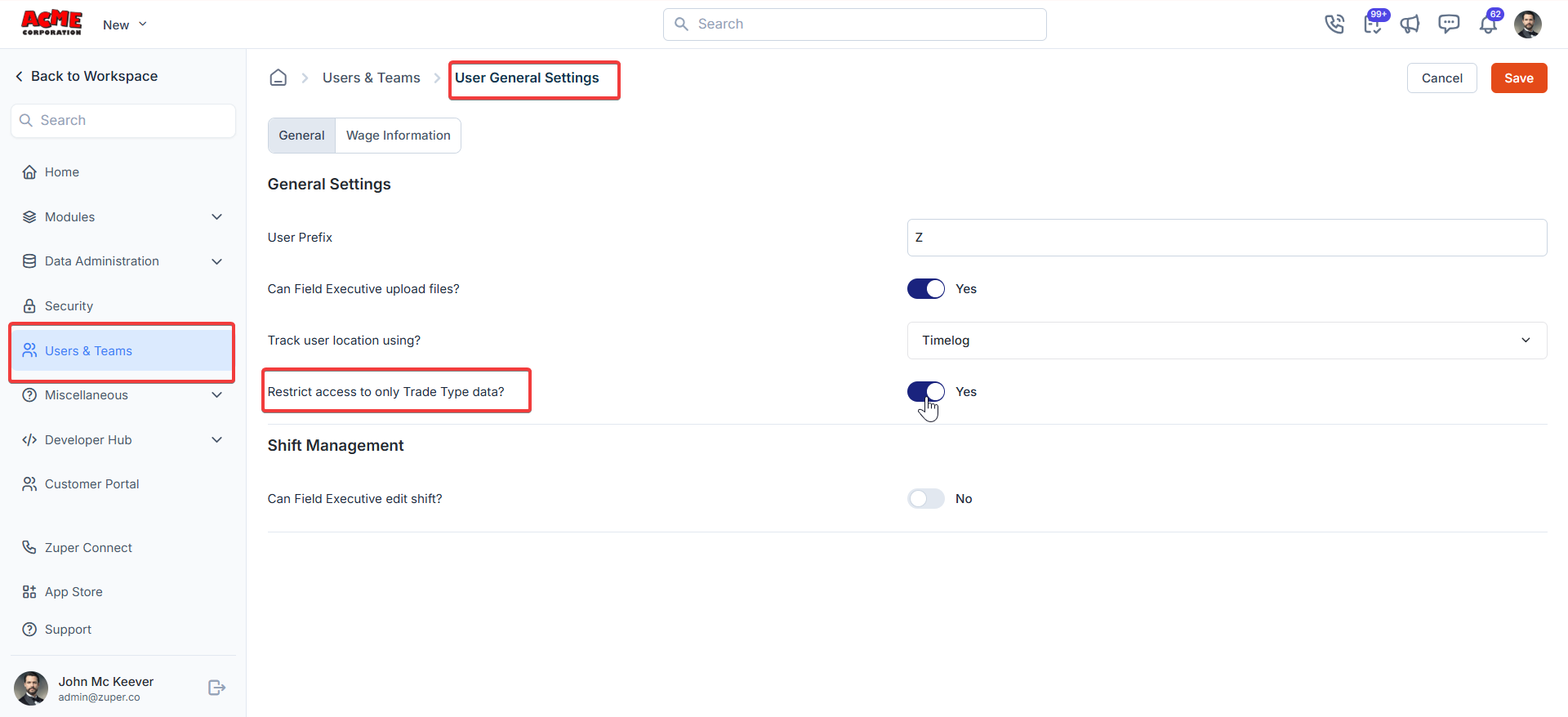
Note: Enabling trade type-based data restrictions at the organization level will automatically control task visibility. Learn more about this from here
Navigation: Settings —> Users & Teams —> User General Settings —> Restrict access to only Trade Type data?
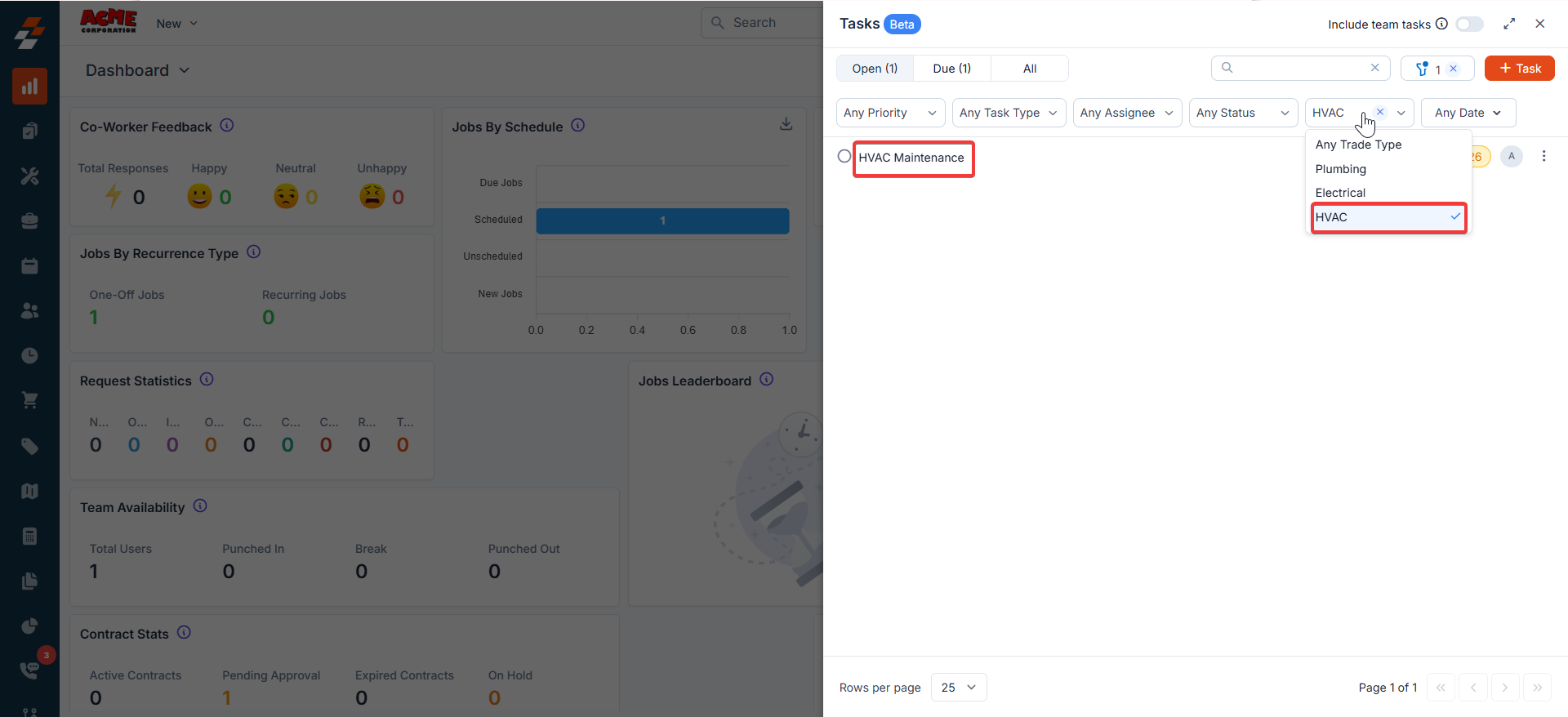
- Job Categories Linked to a Predefined Set of Tasks:
- The associated tasks are automatically added to any job, the moment its job category is selected (during job creation or edit).
- When technicians add tasks to a job themselves, they see only the tasks tied to their trade type(s).
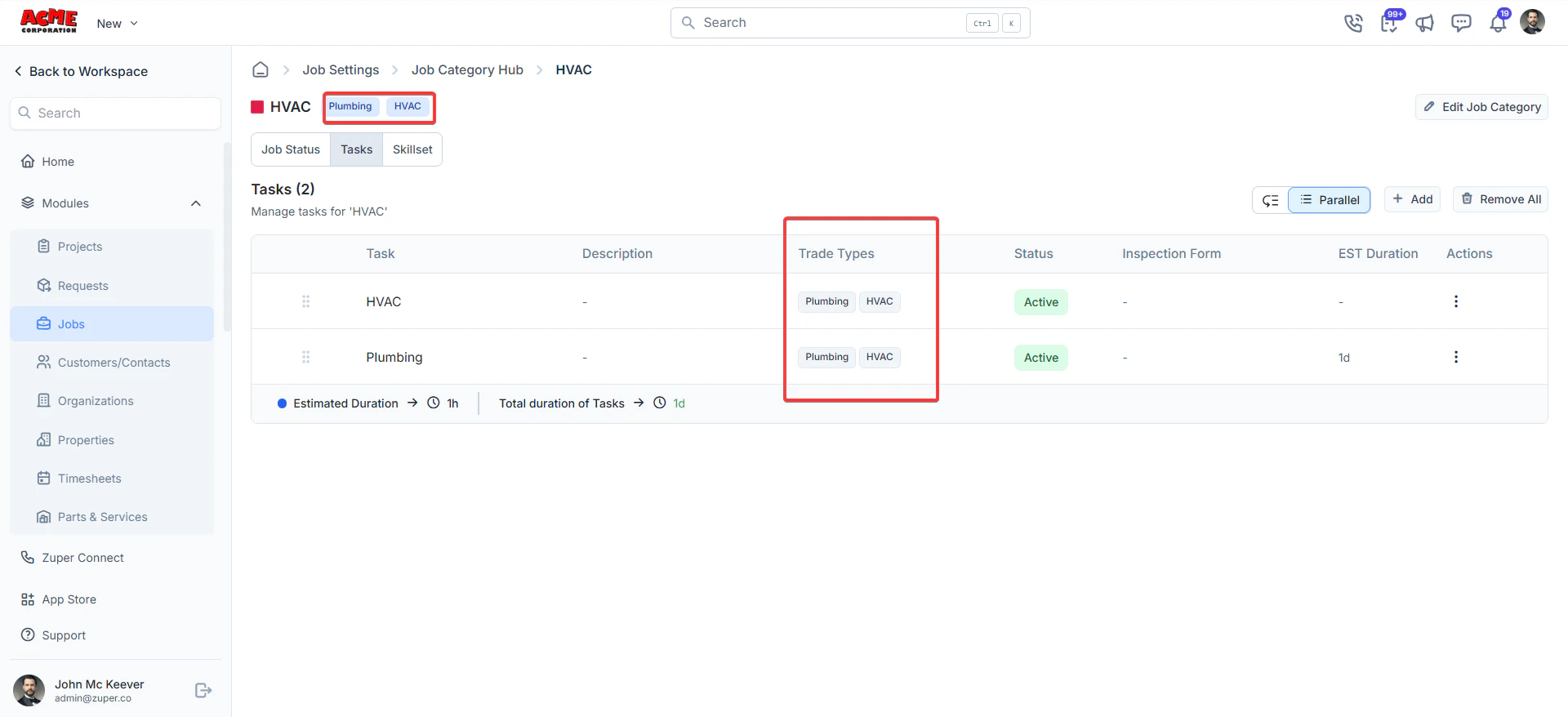
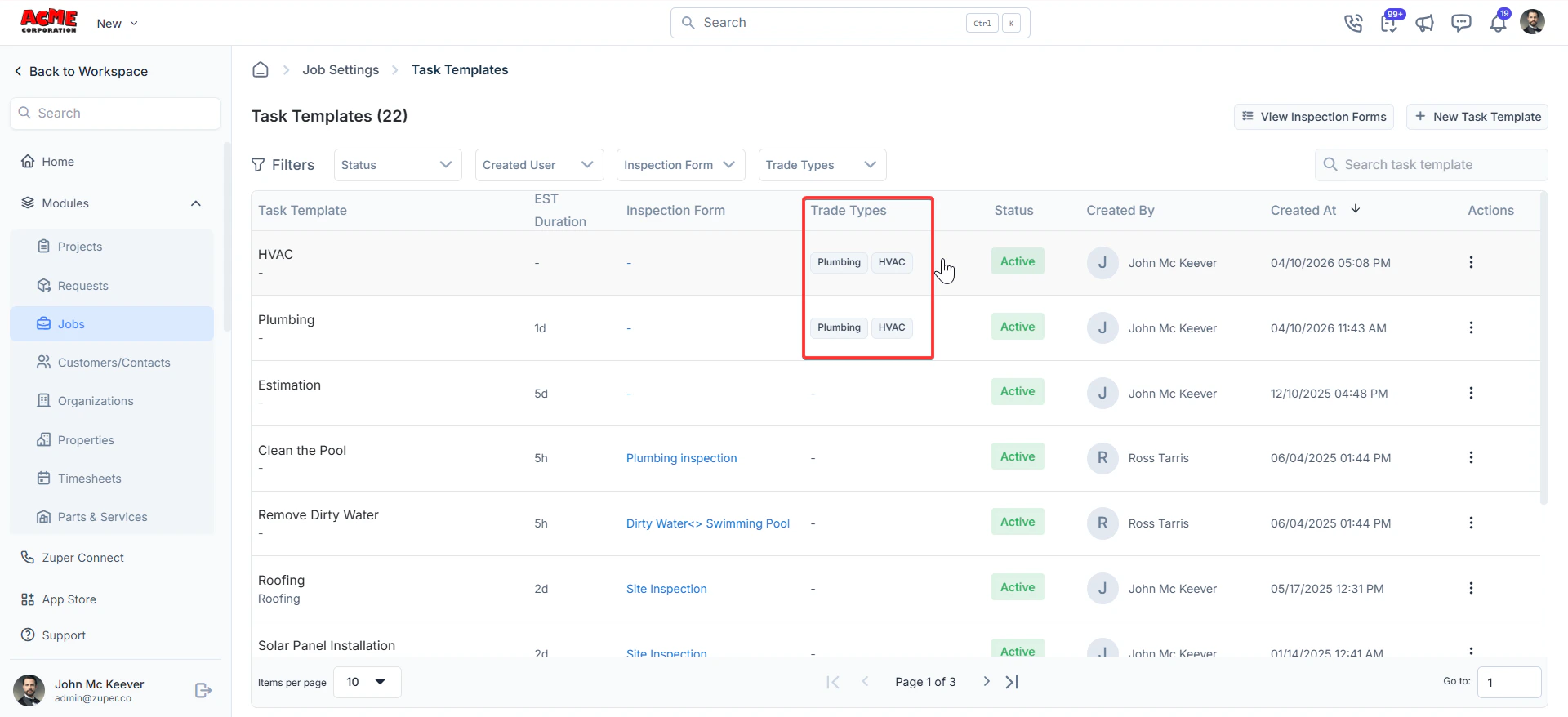
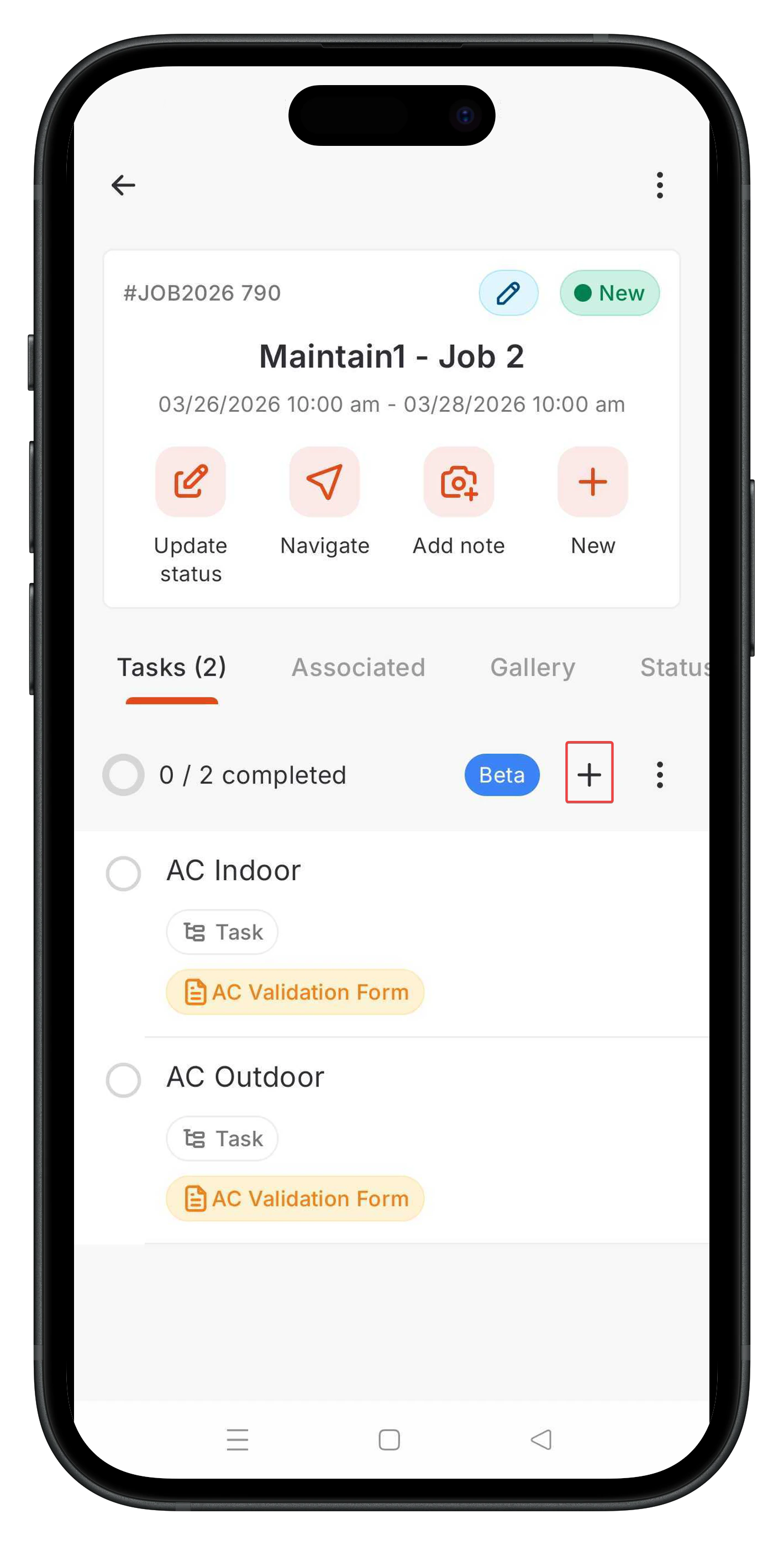
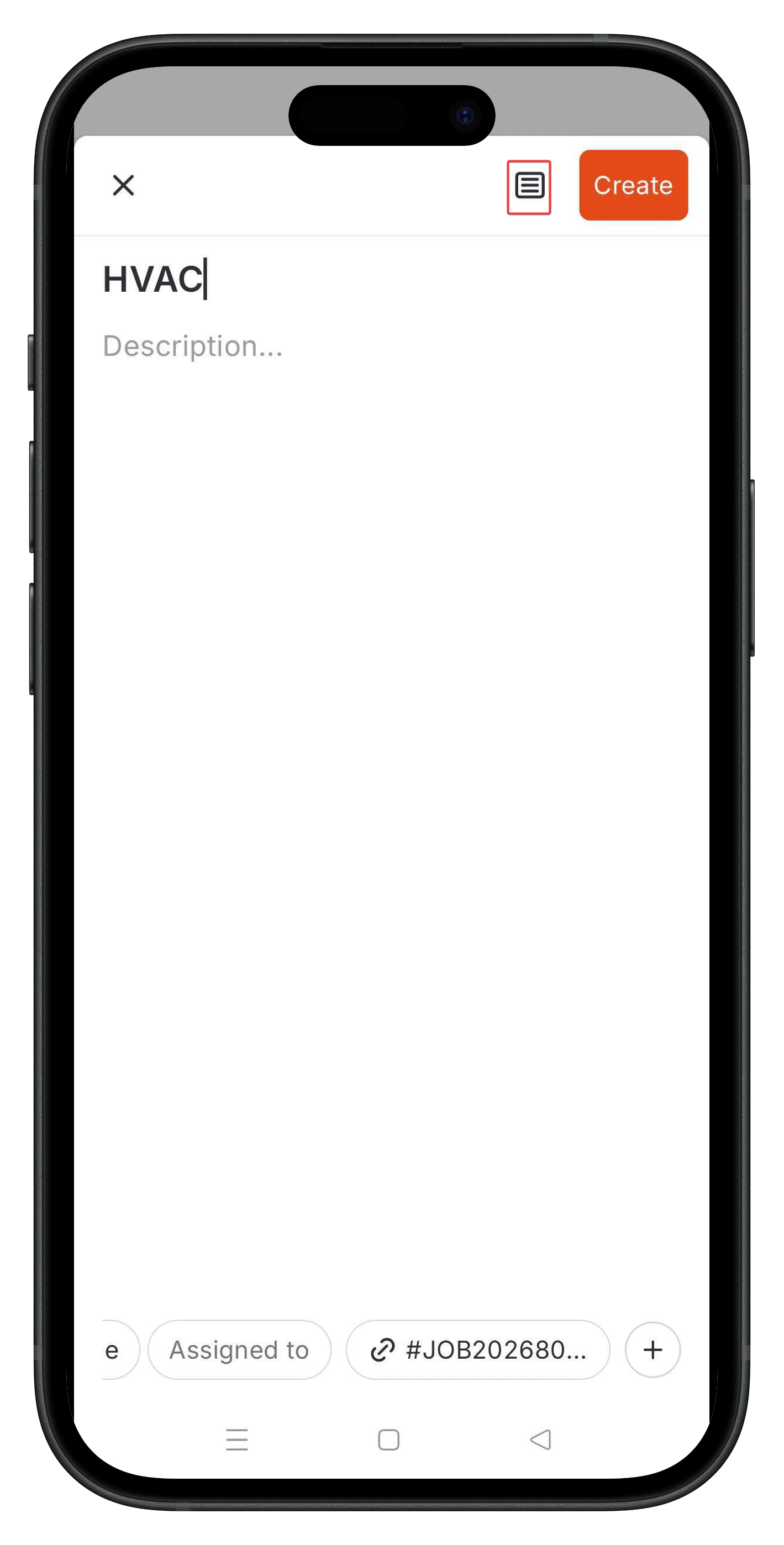
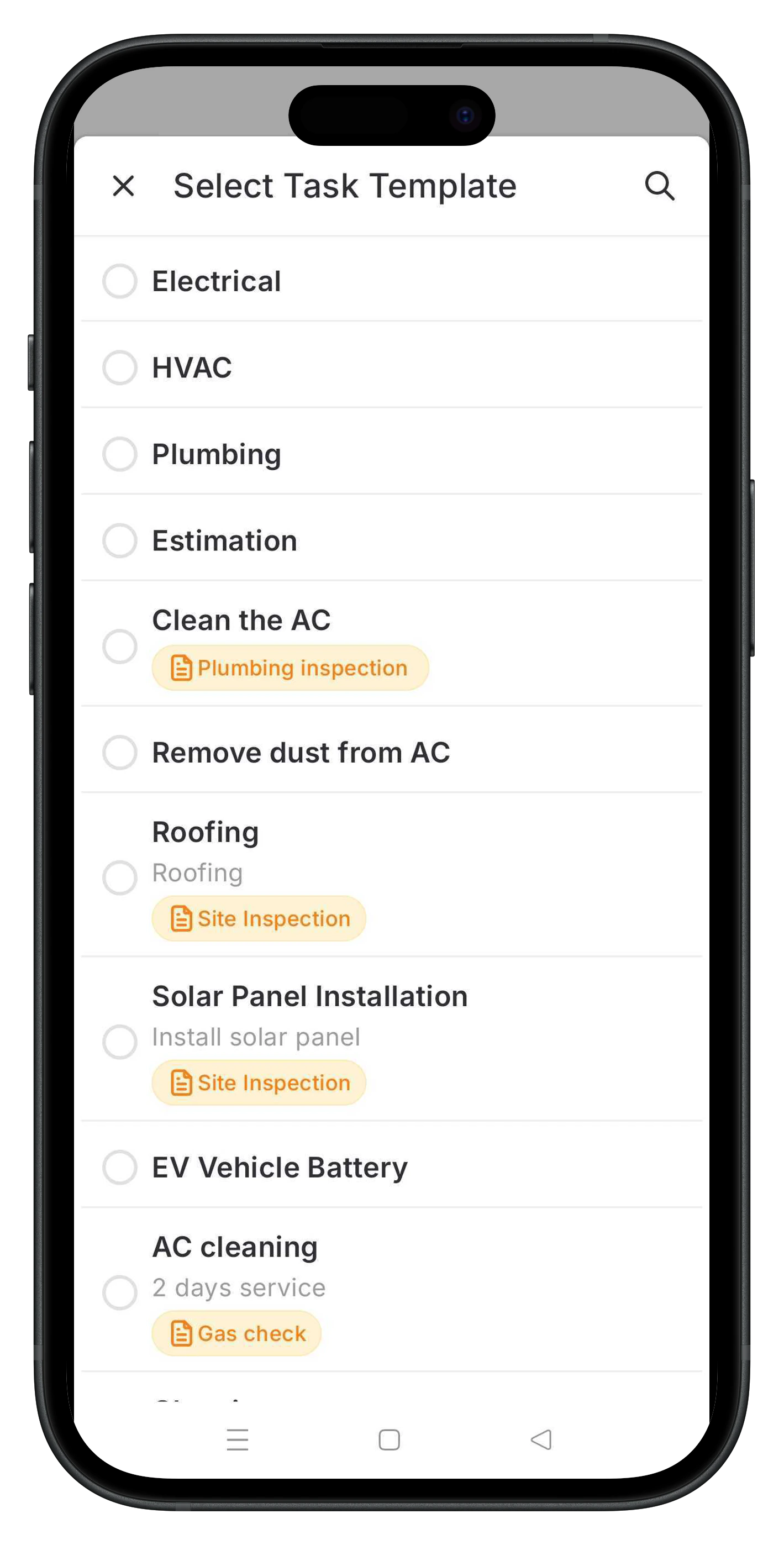
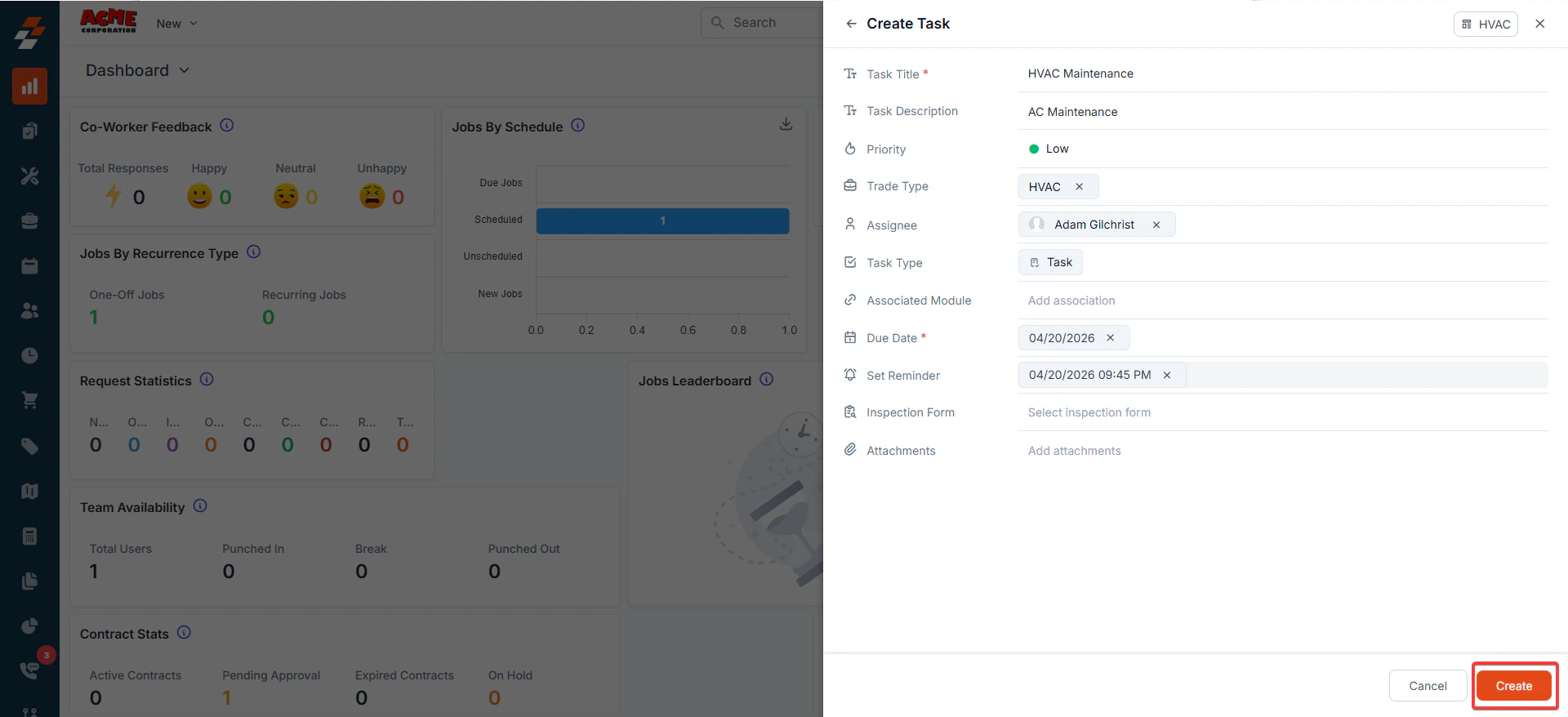
- Technicians picking tasks from a pool of standardized templates
Note: Zuper offers two types of task functionalities: Service Tasks and Tasks. The trade type filter works across both options.
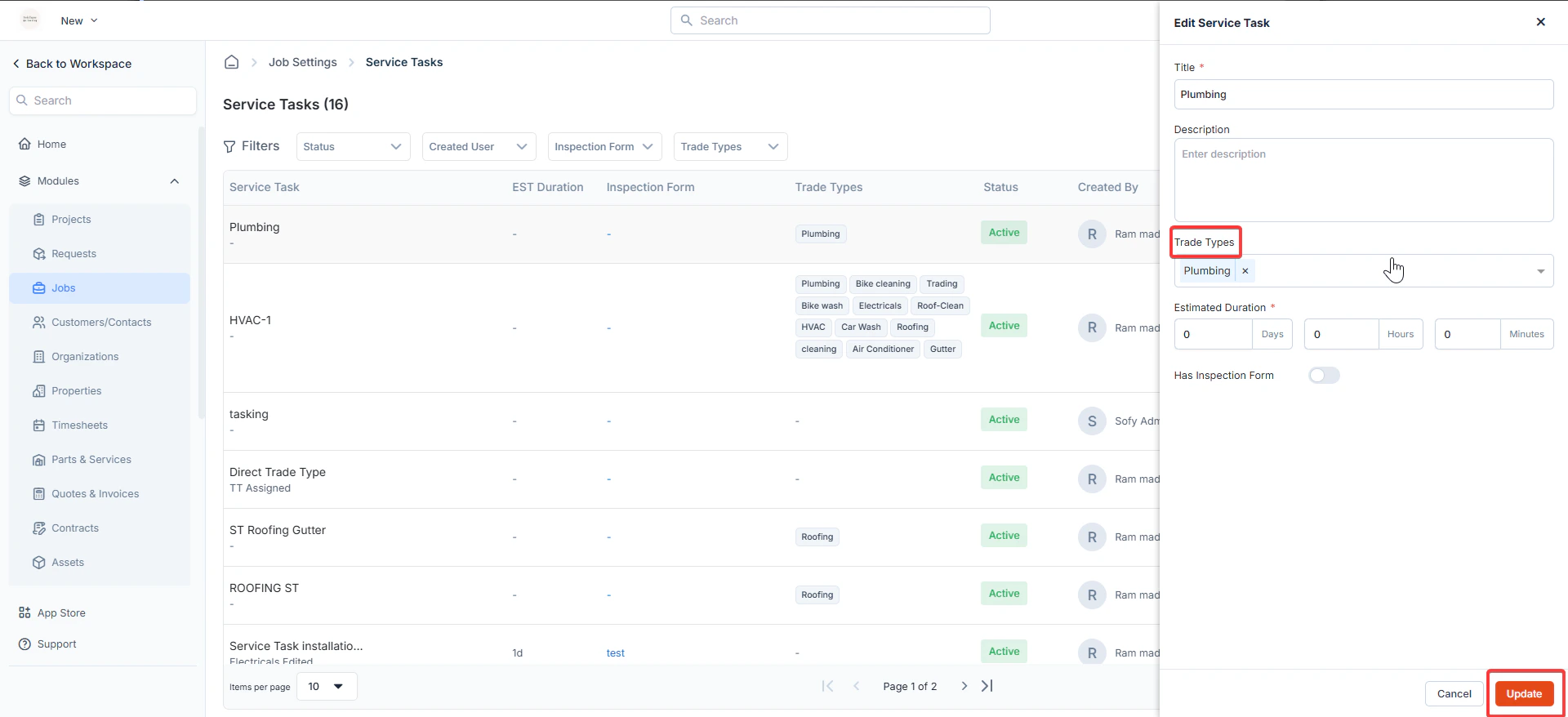
Note: This will be applicable for organizations leveraging Zuper’s new tasking capability.
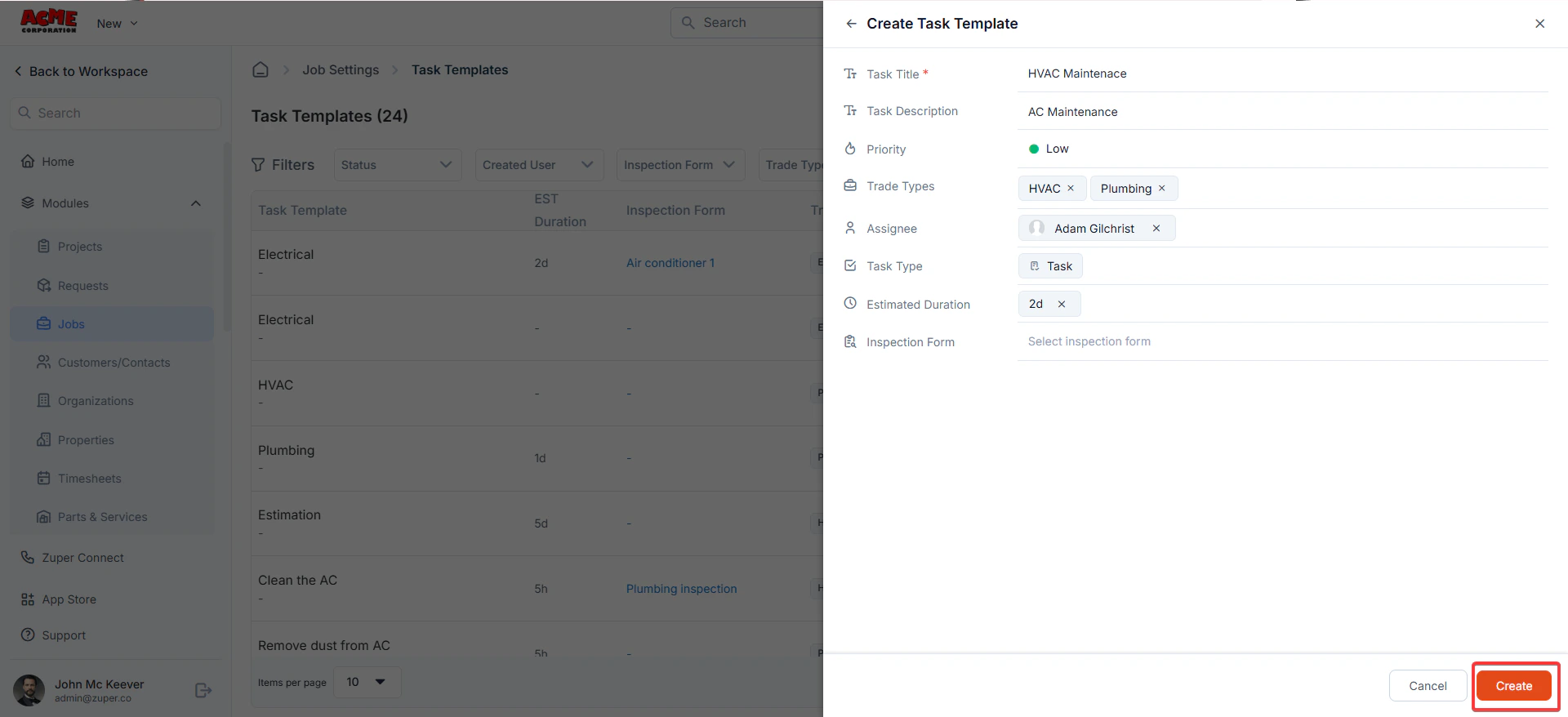
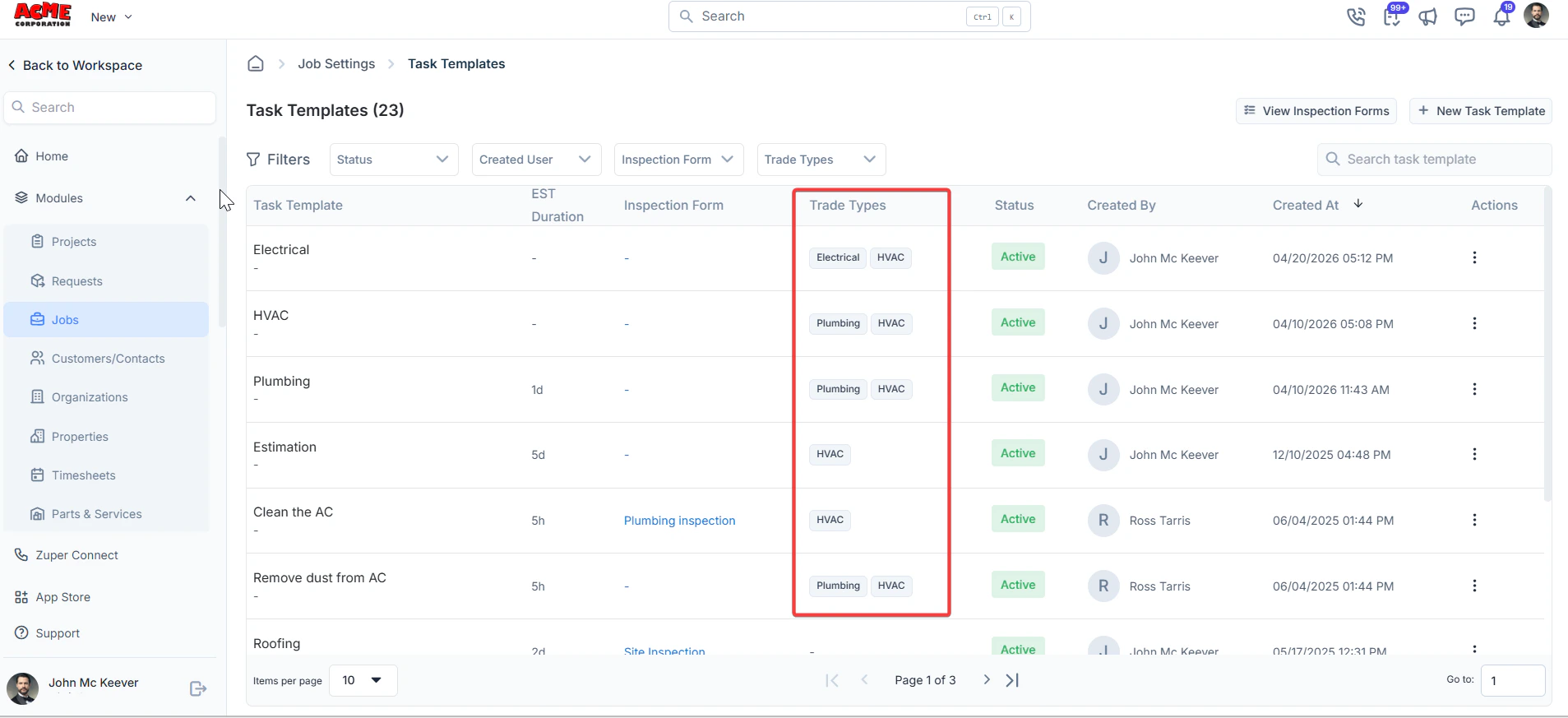
Note: Any task without a trade type association will be visible to ALL users irrespective of the trade they belong to.
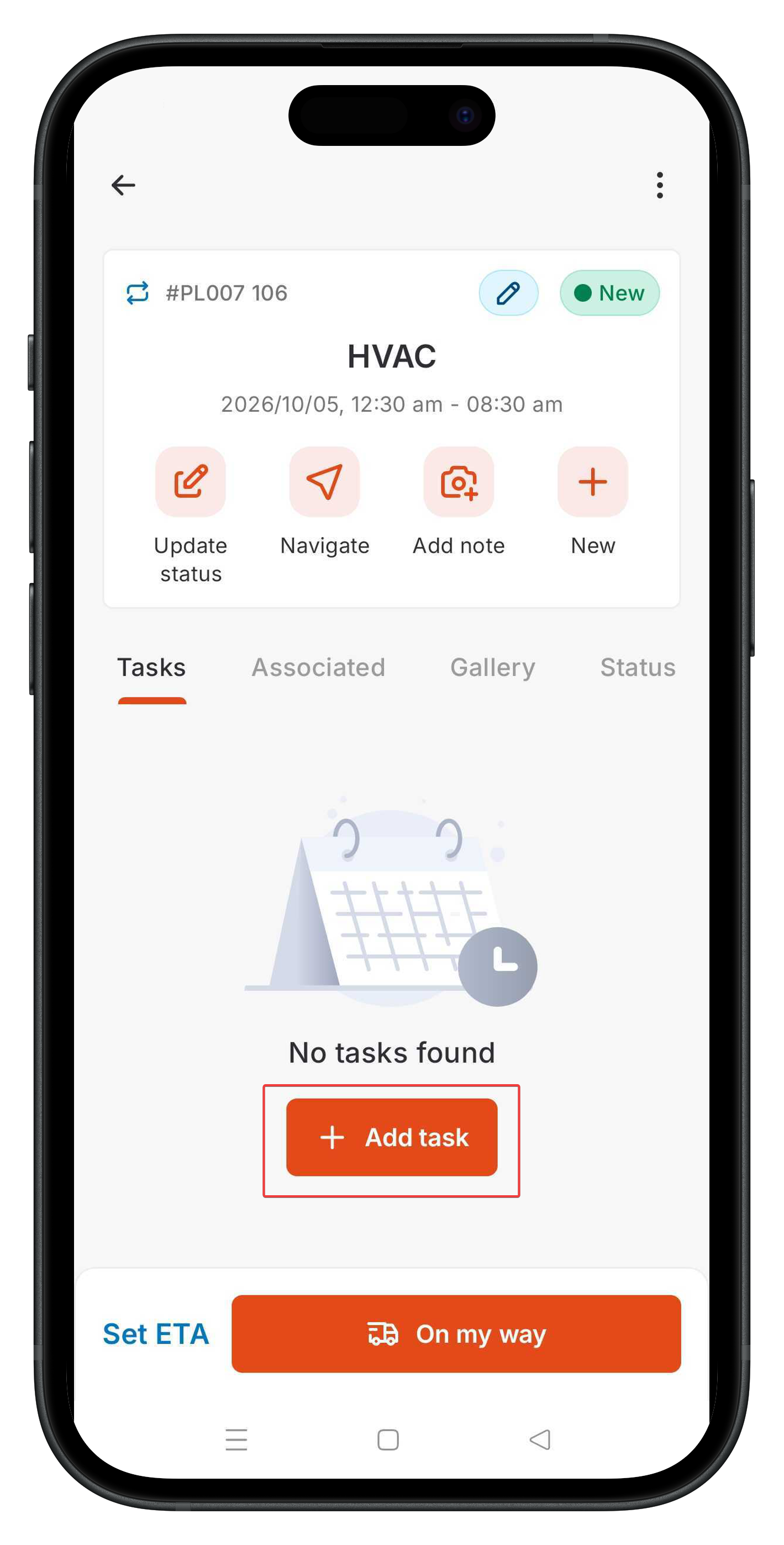
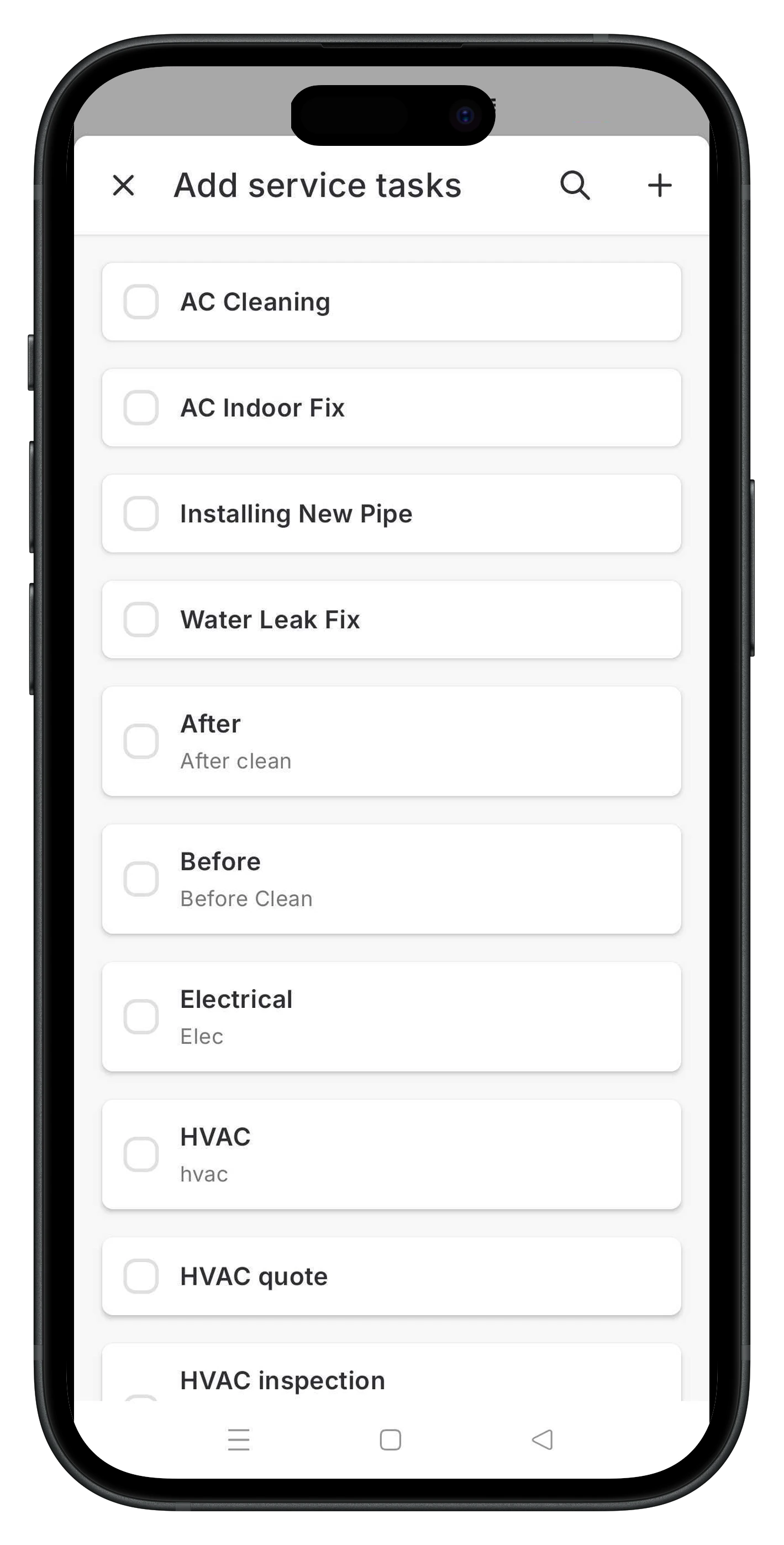
c. Product Categories & Products
Product Category Creation & Edits: Once job categories are mapped to trade types, the next logical step is to map your product categories to those trade types. As mentioned in the mapping table above, a product category can be mapped to one or more trade type(s) based on your specific business needs. For example, A product category, Pumps, HWT, shall be mapped to ‘Plumbing’ trade type, while Air Conditioners, Furnaces shall be mapped to HVAC trade type, and finally, Consumables shall be associated with both. The screen below shows how to map trade type(s) to a product category.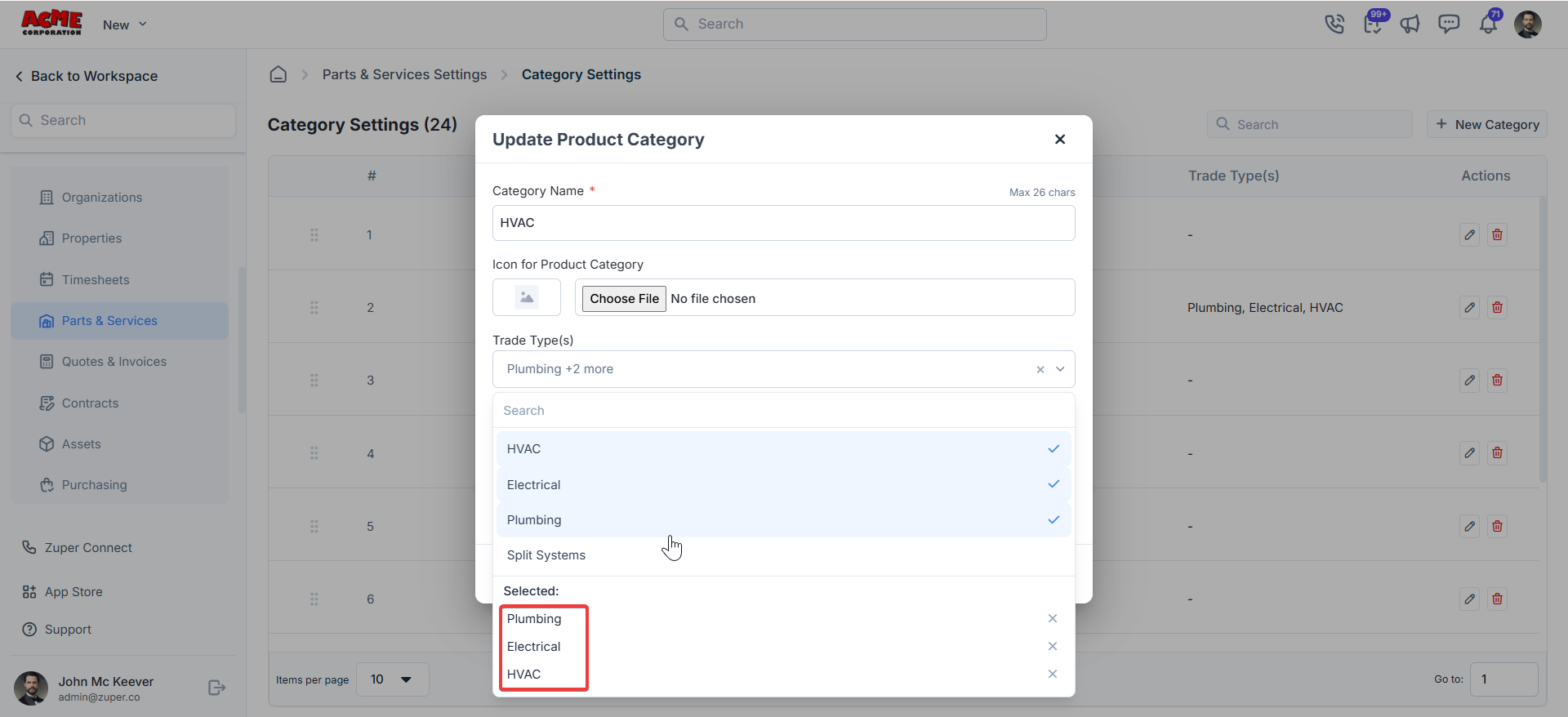
Navigation: Settings —> Modules —> Parts & Services —>+ New/Edit Category.
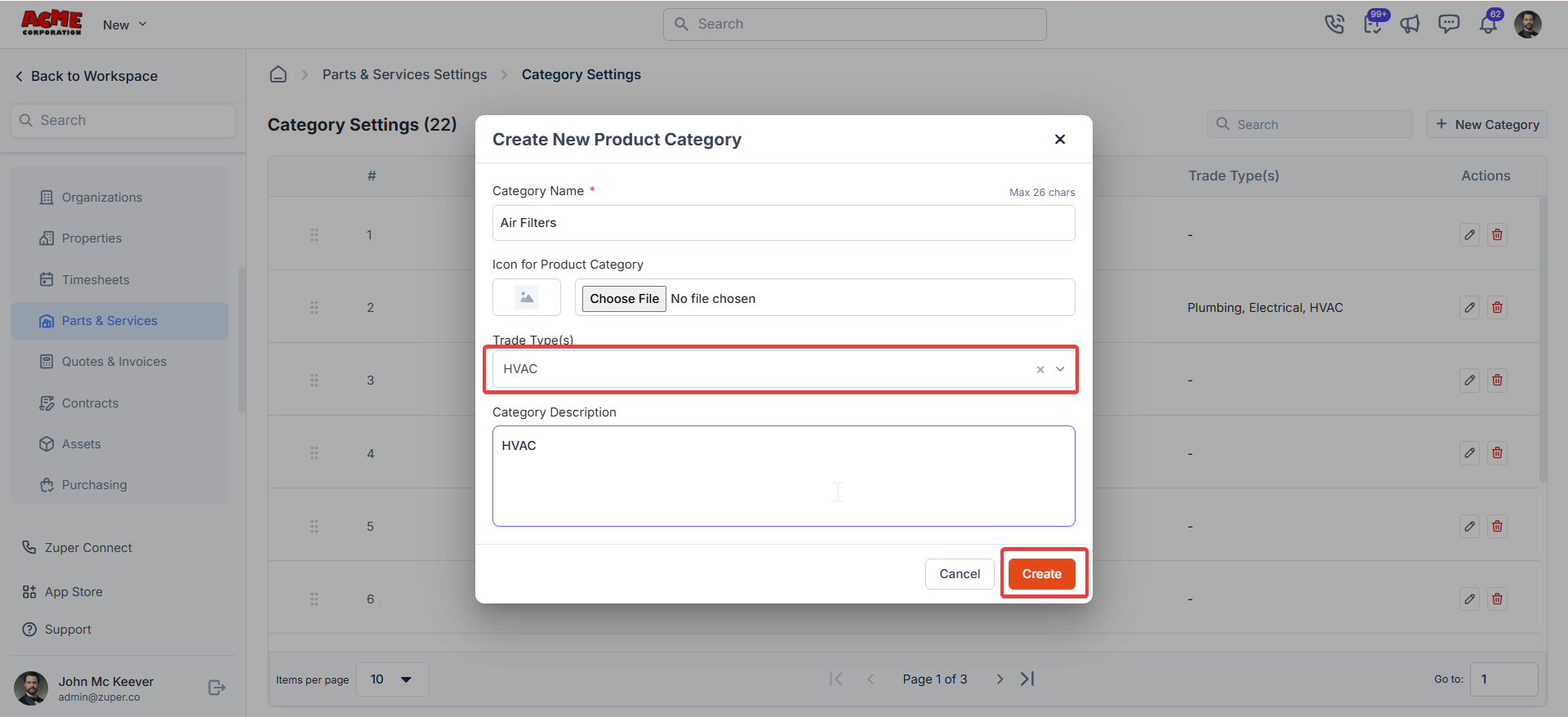
- Category: “Air Filters”.
Assign to: HVAC only.
- Category: “Sealants”.
Assign to: HVAC and Plumbing.
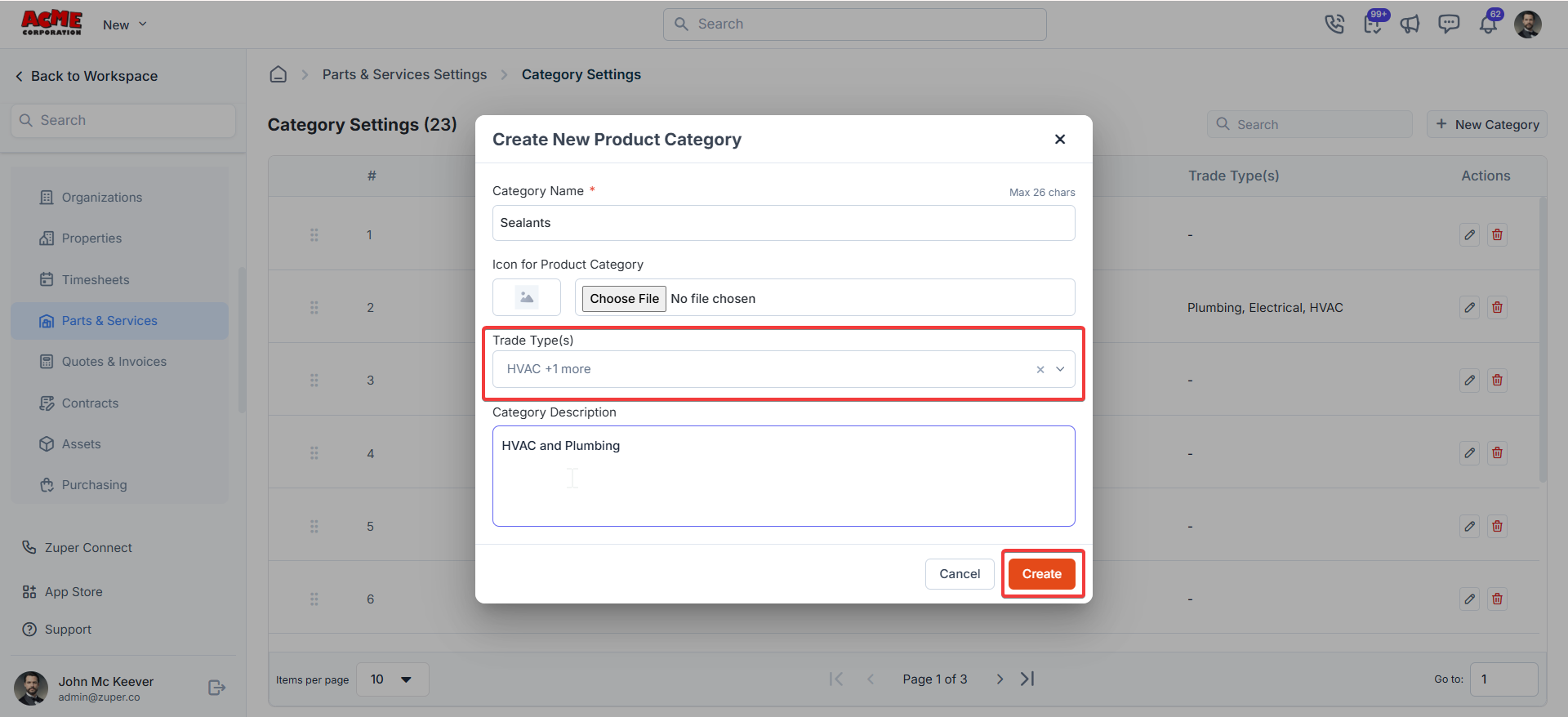
- HVAC User(s): Air Filters, Sealants.
- Plumbing User(s): Sealants.
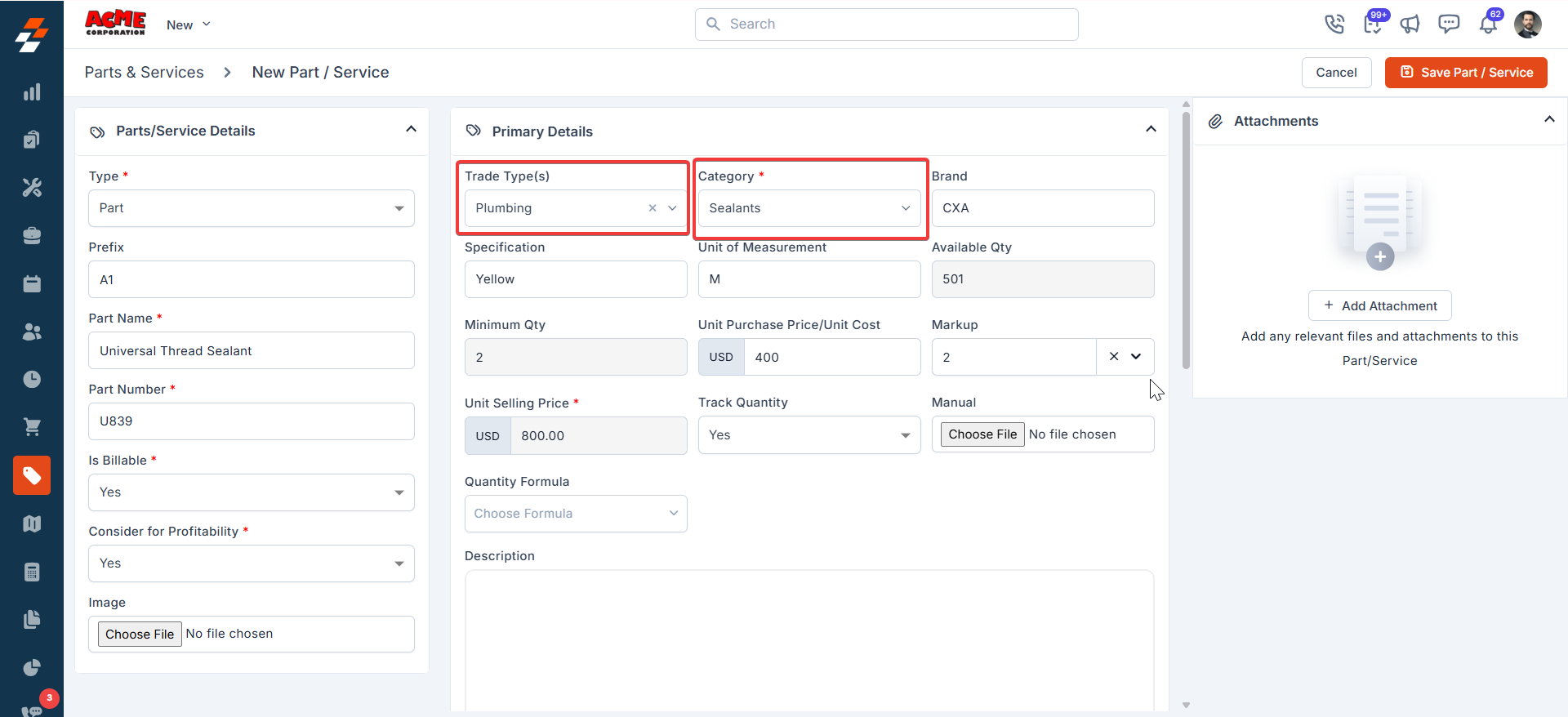
Navigation: Parts & Services —> + New/Edit Product
- Product: “HEPA Air Filter”
- Trade Type: HVAC
- Product Category: Air Filters (auto-filtered based on product category mapping).
- Product: “Universal Thread Sealant”
- Trade Type: Plumbing
- Product Category: Sealants (auto-filtered based on product category mapping).
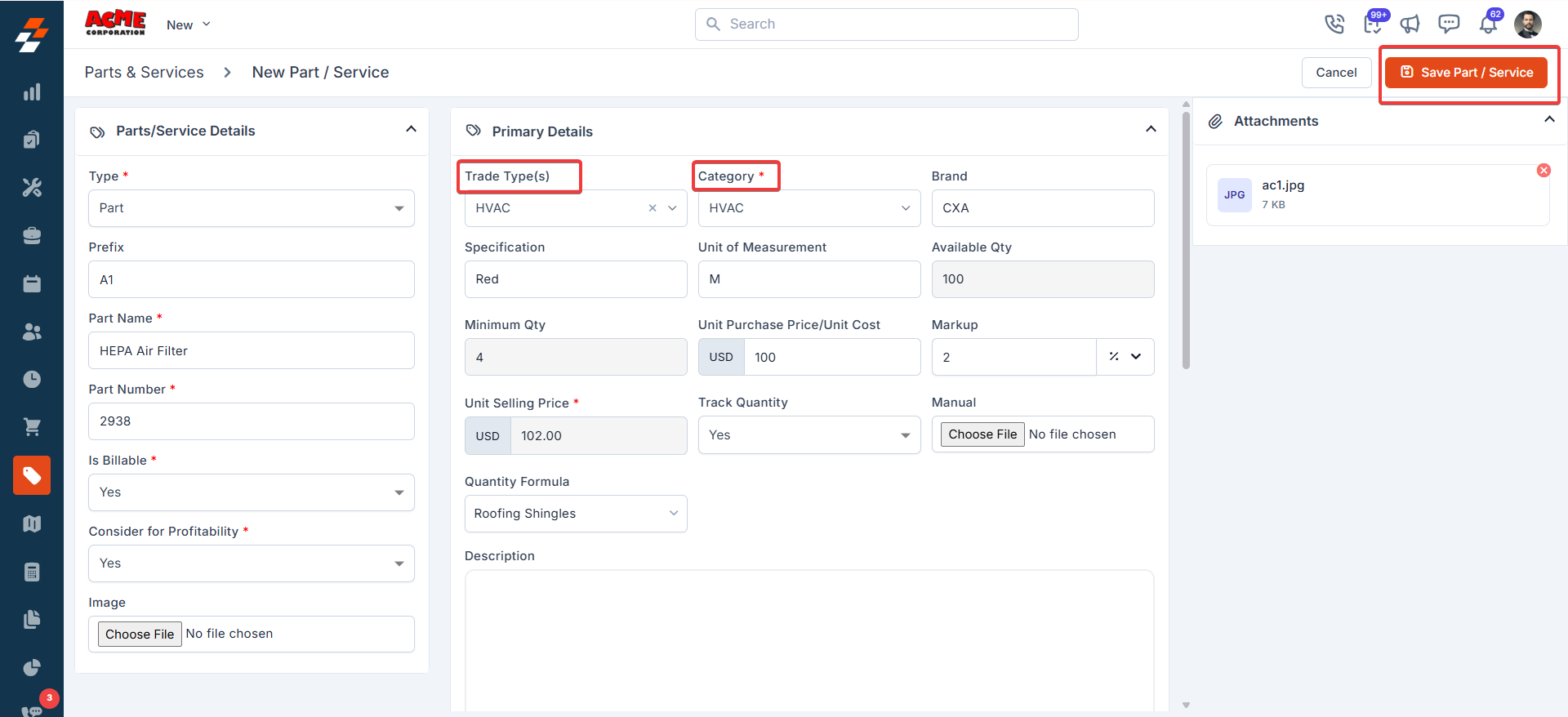
- HVAC User(s): HEPA Air Filters.
- Plumbing User(s): Universal Thread Sealants.
d. Team & Dispatch Board
Teams Creation & Edits: After completing the job & product category mapping, we need to map teams into trade types. This will help sharpen the dispatching experience. Dispatchers will see only the team(s) filtered by trade type on the dispatch board. While a team can belong to a trade, Zuper allows it to be mapped to more than one trade type IF your business requires cross-functional/trade teams. Follow the steps below to associate trade type(s) with a team: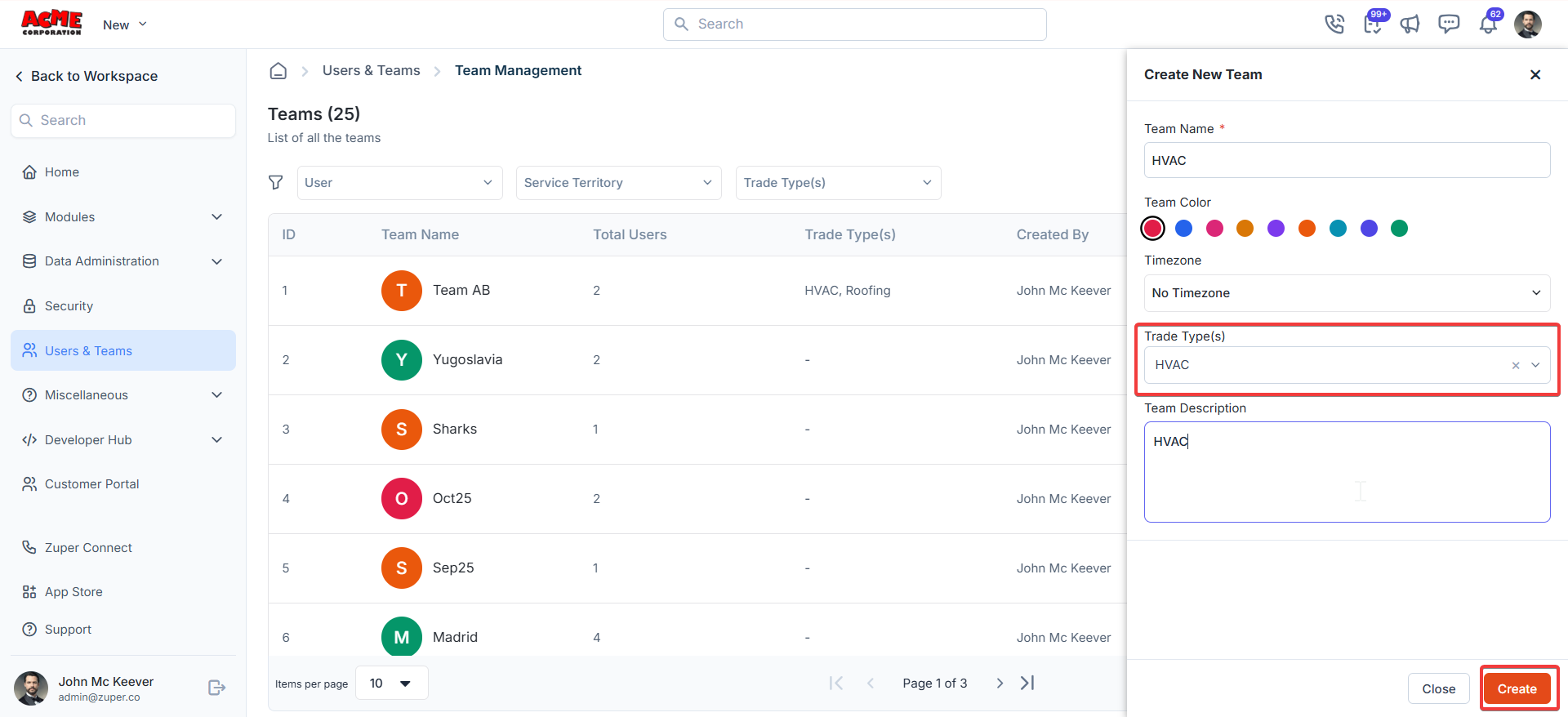
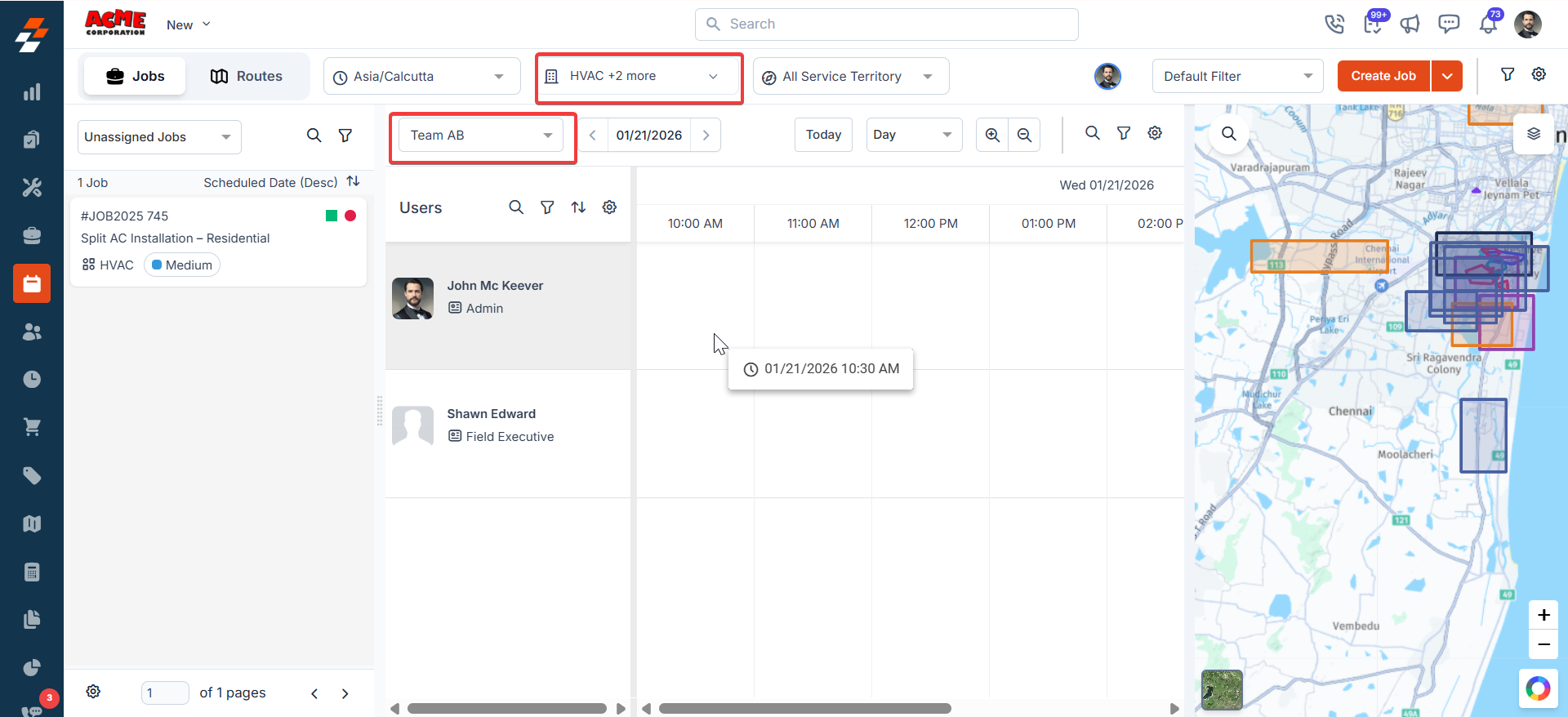
- Dispatchers’ queues will only display jobs that belong to the selected trade type(s), along with jobs with no trade type at all.
- Similarly, Teams will also be restricted based on their trade type for the user to select. This will ensure dispatchers dispatch to the right team without worrying about dispatching across trade type(s), which could jeopardize the necessary skills, the right team, and availability.
e. Users:
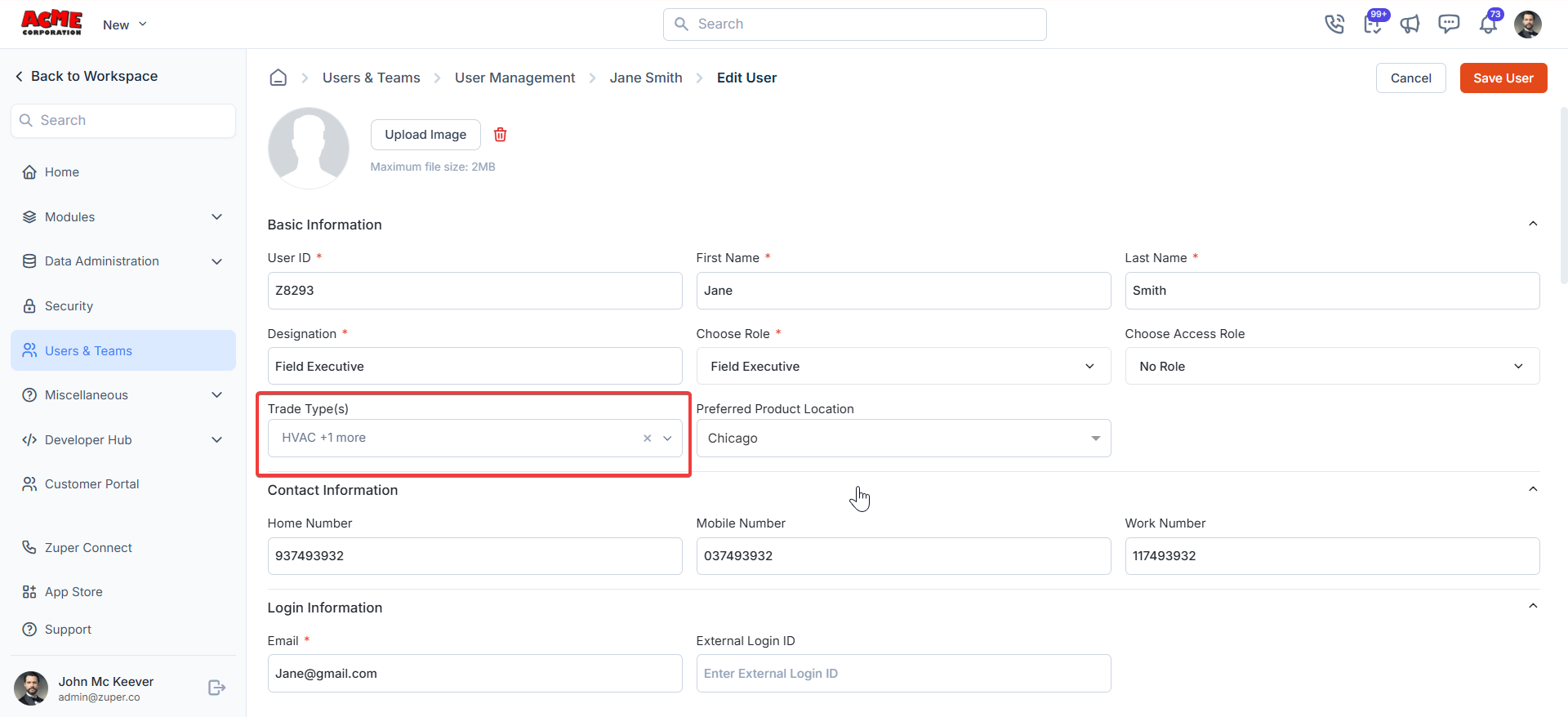
This is the last and most important part of the setup. This is the first step towards ensuring that users working on specific trades will see details specific to them and do not tread into/tamper other trade specific data even by mistake. User Creation & Edits: Mapping the correct trade types to user(s) is crucial while creating a user (or) editing it for existing user(s). As mentioned in the mapping table above, each user can be associated with one or more trade type(s) based on their scope of responsibilities within your business. Illustration: Assume an organization is part of both HVAC and Plumbing trades. They can assign users to specific trade types while creating/editing an existing user. Go to:Navigation: Settings —> Users —> + New/Edit User.
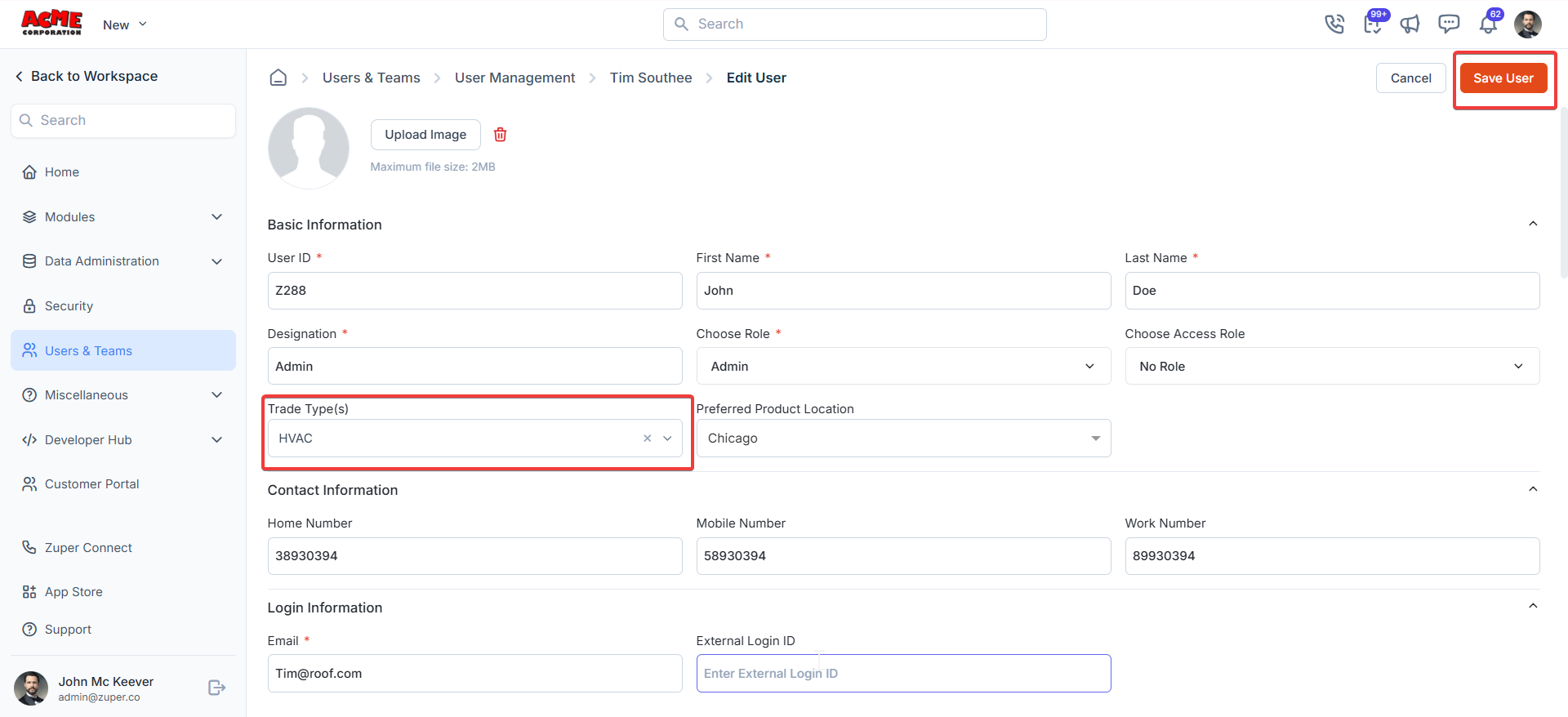
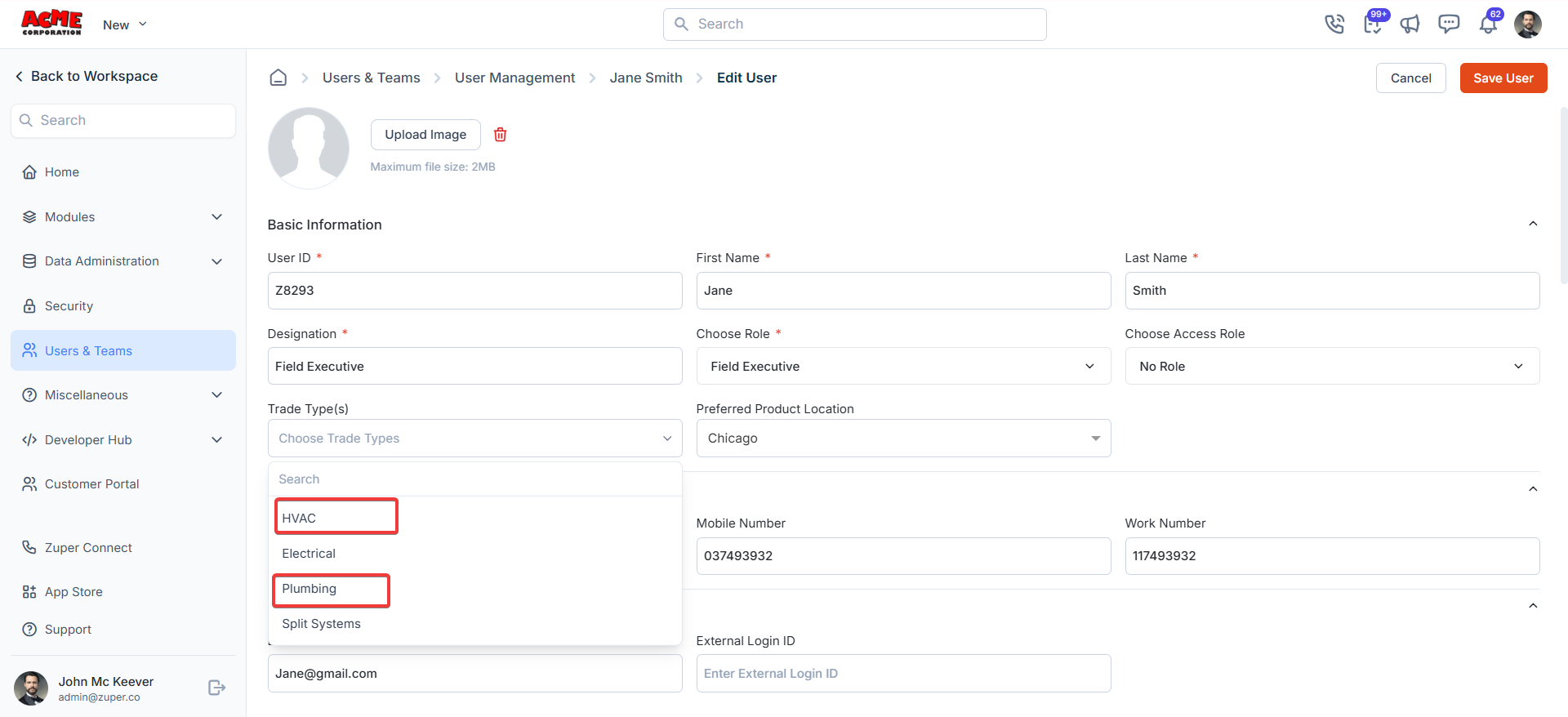
- HVAC User(s): Accesses HVAC jobs, invoices, quotes, products, etc.
- Plumbing User(s): Accesses Plumbing jobs, invoices, quotes, products, etc.
- Multi-Trade User(s): Accesses both HVAC & Plumbing jobs, invoices, quotes, products, etc.
Note: Visibility of all entities will also take into consideration the role/custom role of the user. For e.g., an admin will have visibility to all jobs, but TLs will be able to view only jobs belonging to them or their teams. Trade type filters will be applied on top of role-based restrictions.
Automatic flow of trade types between Jobs, Quotes & Invoices:
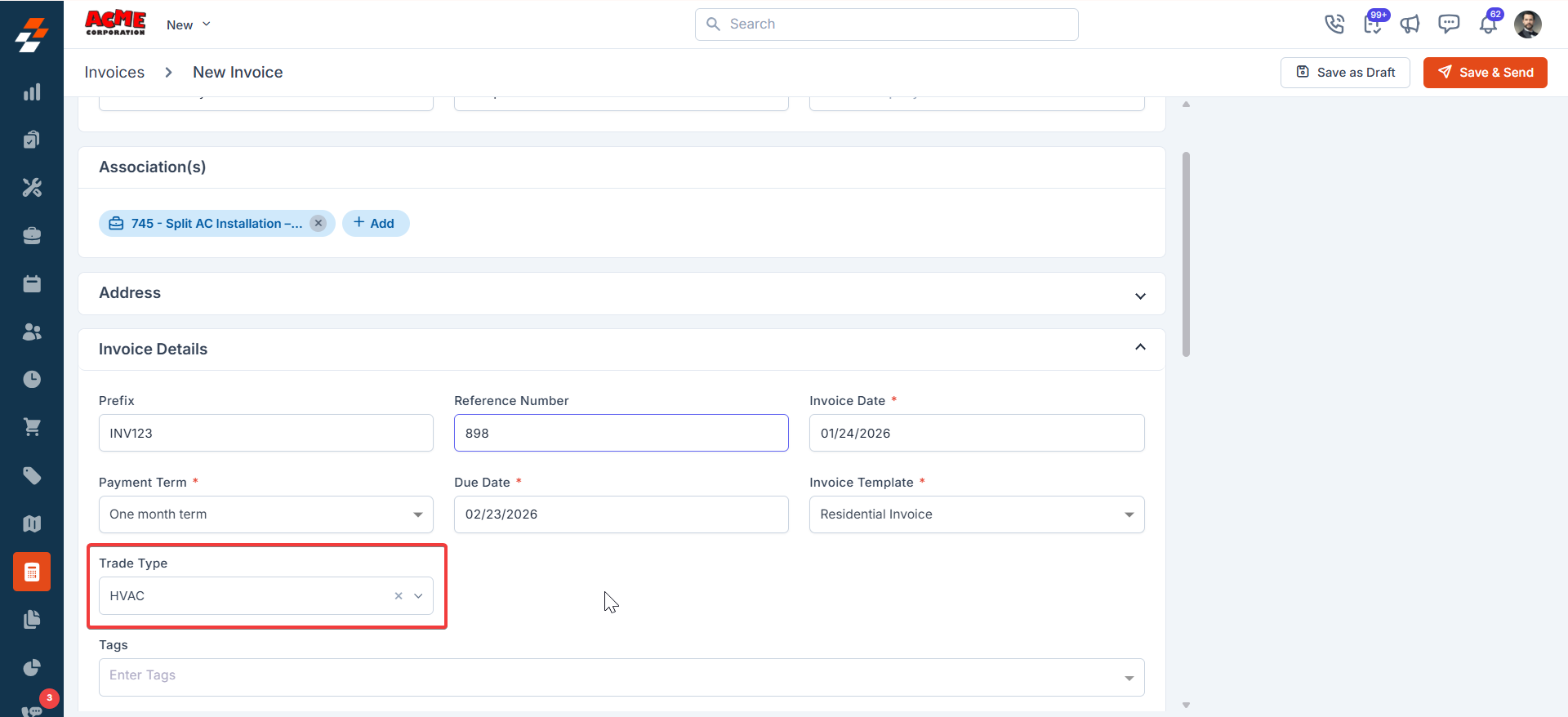
After a quote is accepted by a customer, when job(s) are created from the quote, the job automatically inherits to trade type of the quote from which it is created. Subsequently, when invoices(s) are generated for the job, they too automatically inherit the trade type from the job. The traceability and flow of trade type between jobs, quotes, and invoices are automatically maintained by Zuper. The same applies irrespective of the order of their creation. For example, if a job precedes the quote (or) invoice precedes a job, the downstream entity automatically inherits the trade type from its predecessor. As with a job, both invoices and quotes shall be mapped to only one trade type. Trade types of quotes and invoices are available in their respective details sections. Sample screens are presented below for reference.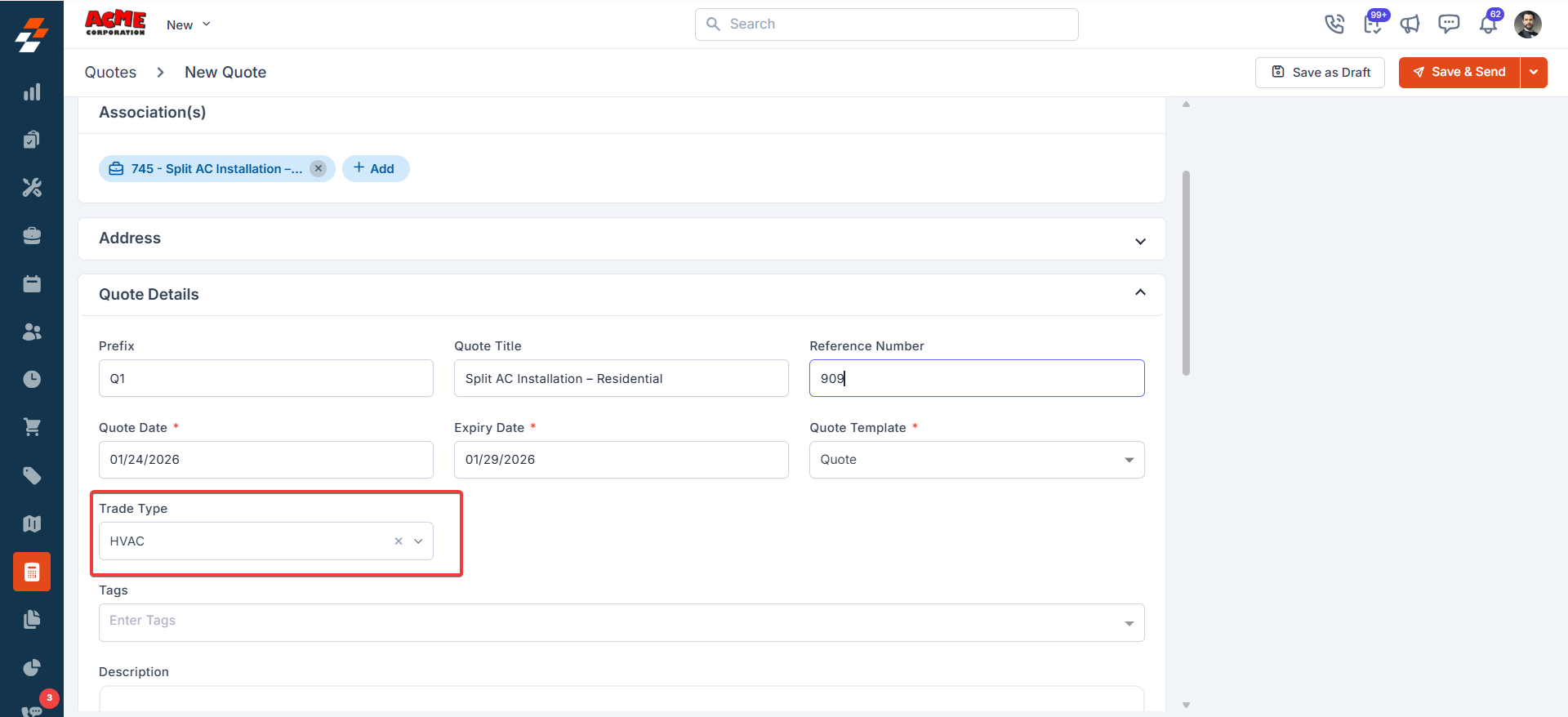
Note: Manually disturbing the traceability of trade type between a job and its quote/invoice will impact business reporting. Hence, it’s recommended to maintain the same.
Filters, Views & Reports:
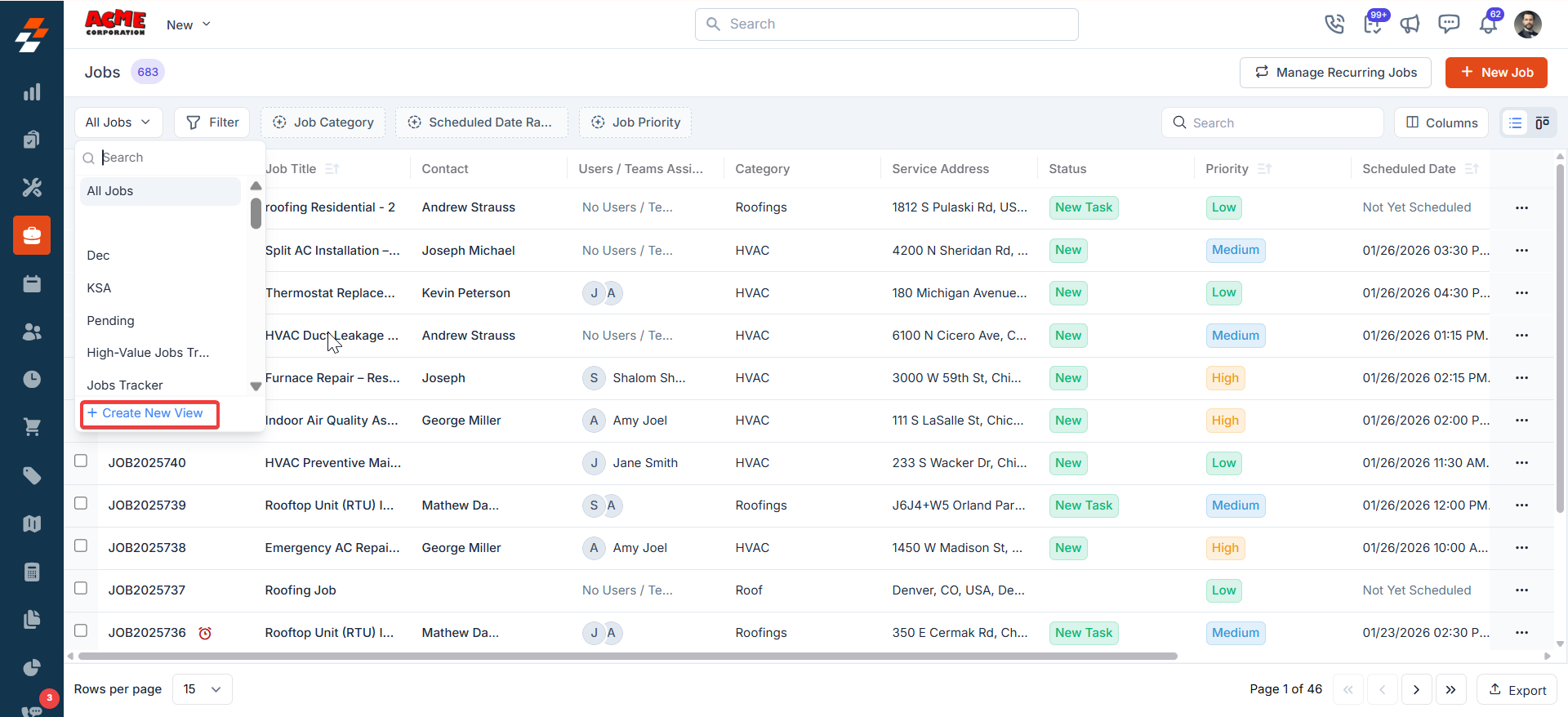
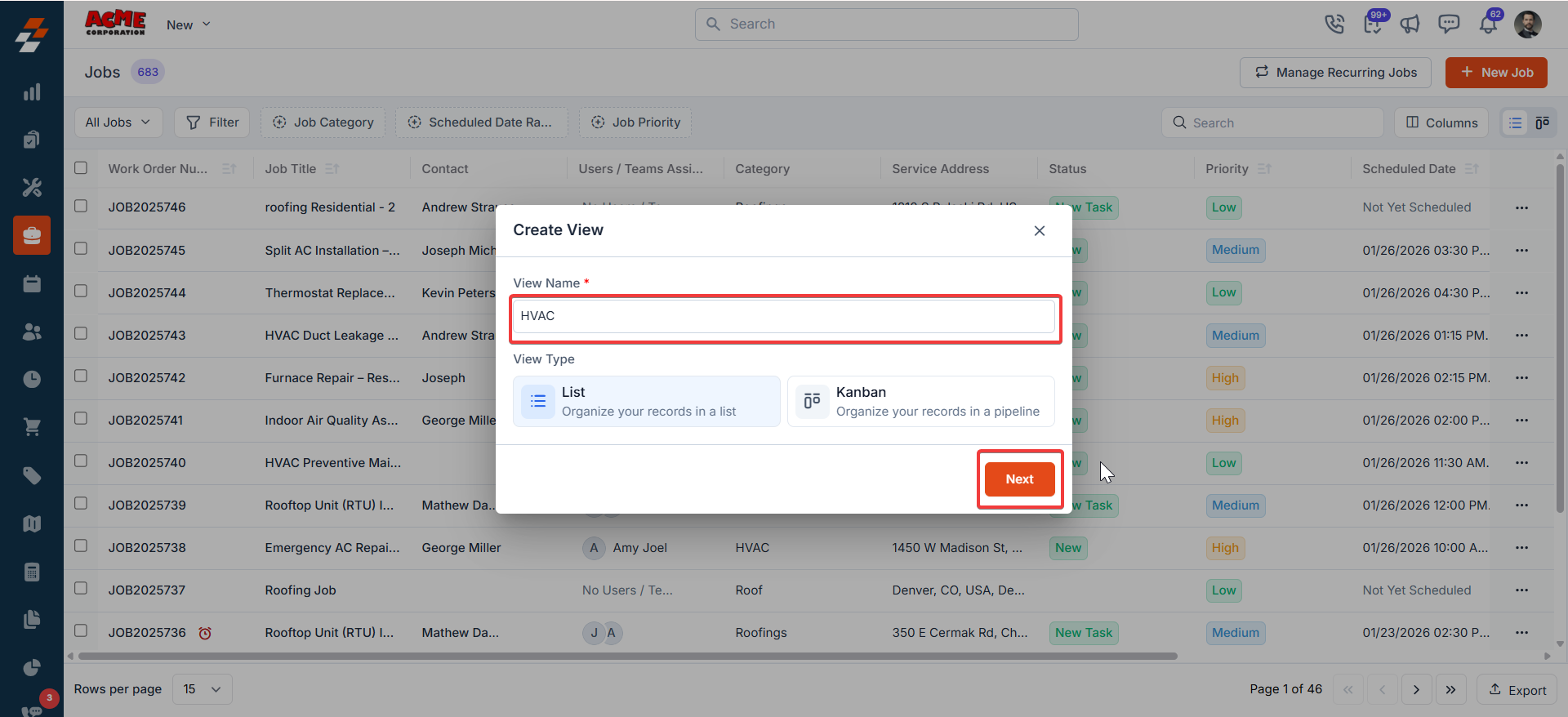
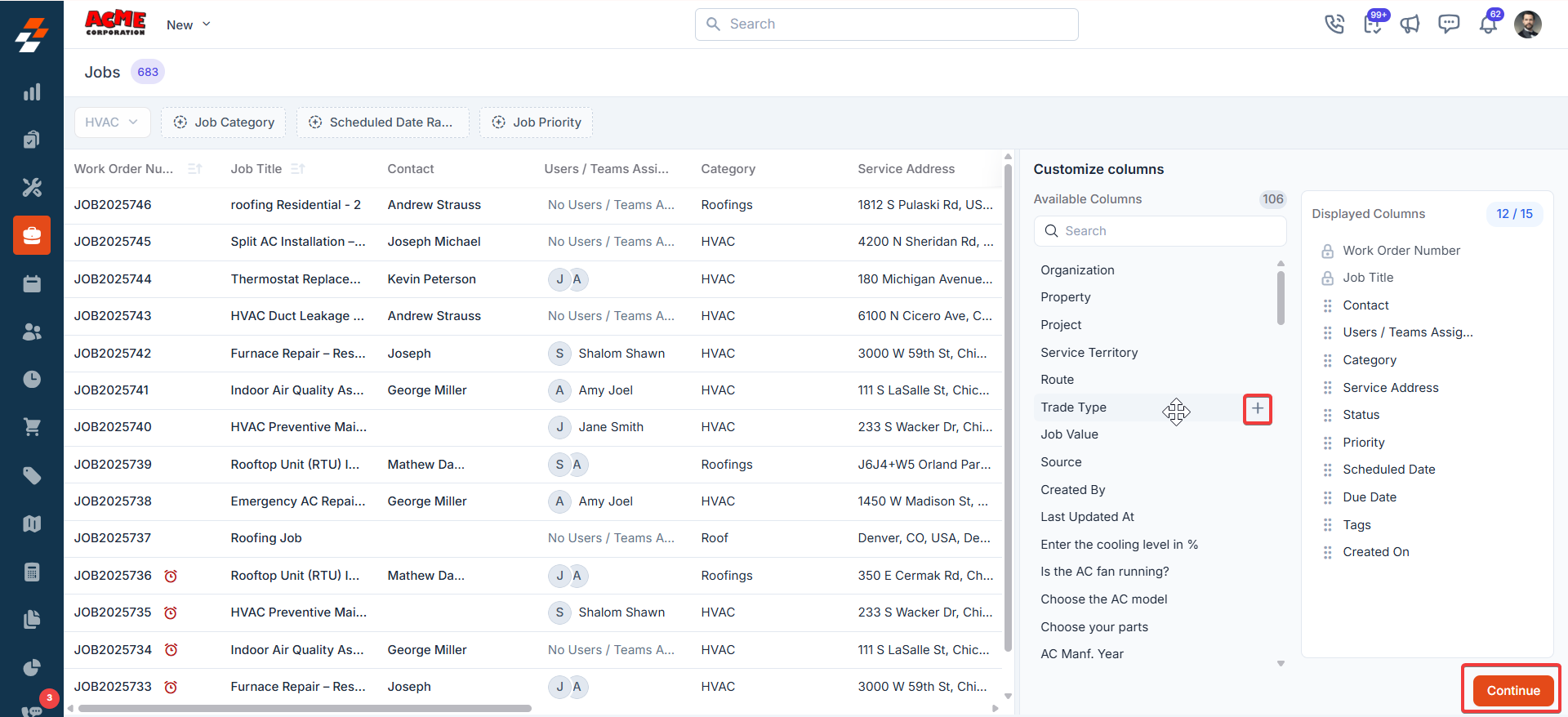
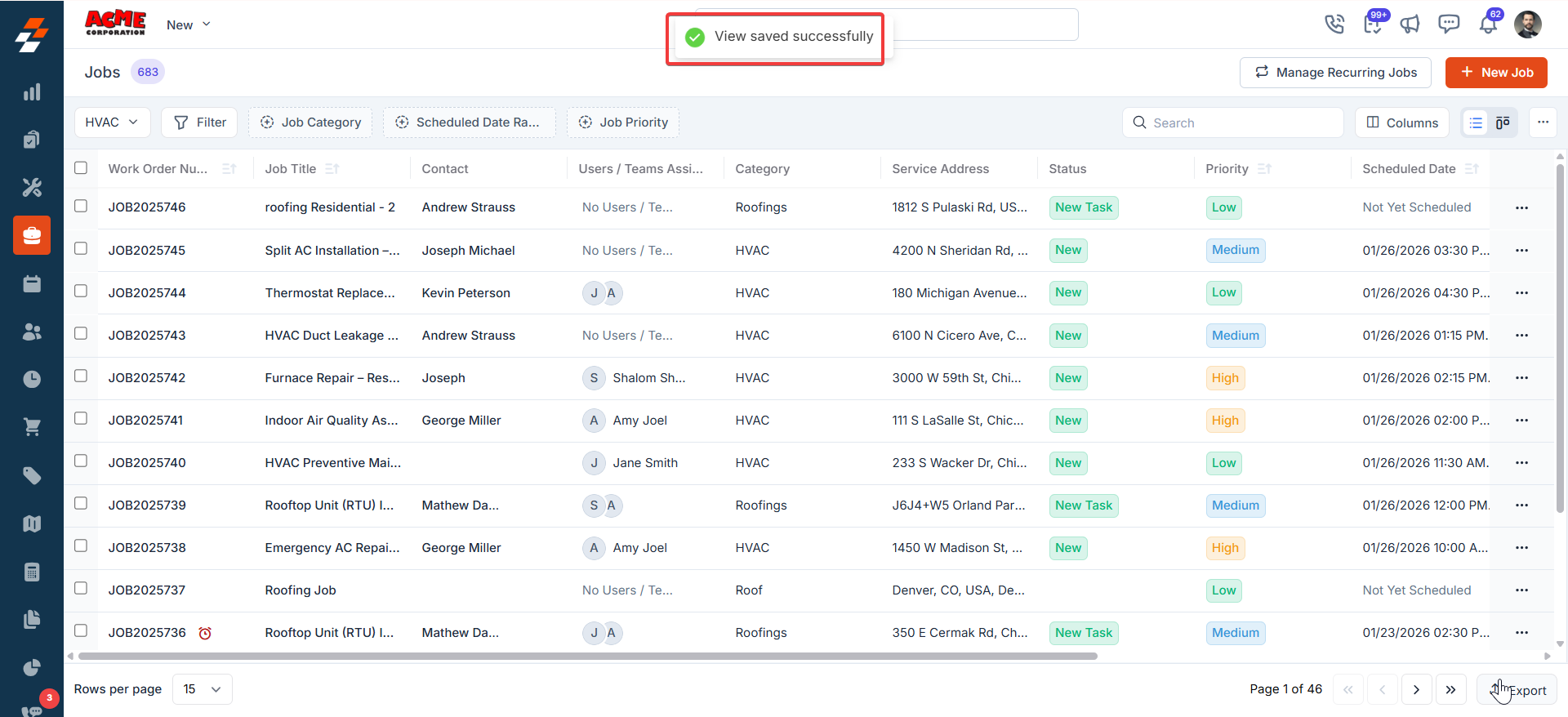
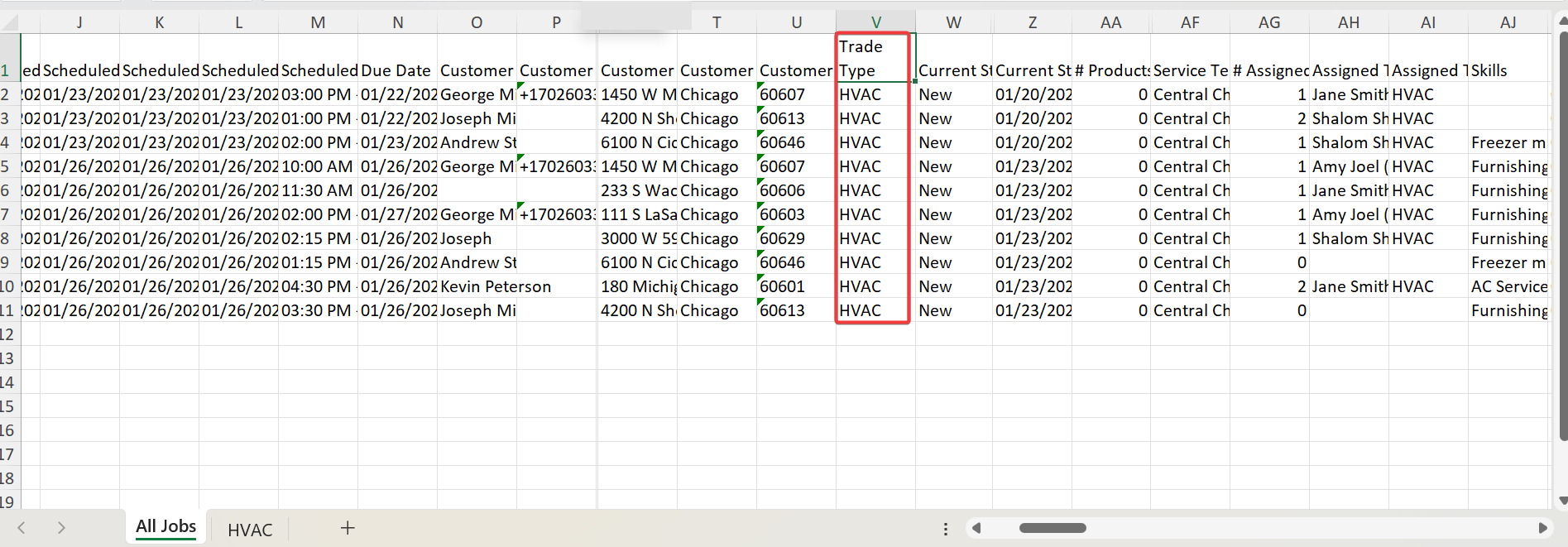
Filters & Views: With the introduction of trade types, it’ll be possible for you to create filters and views across all the listing pages based on trade types. This includes jobs, quotes, and invoice listing pages. Filter: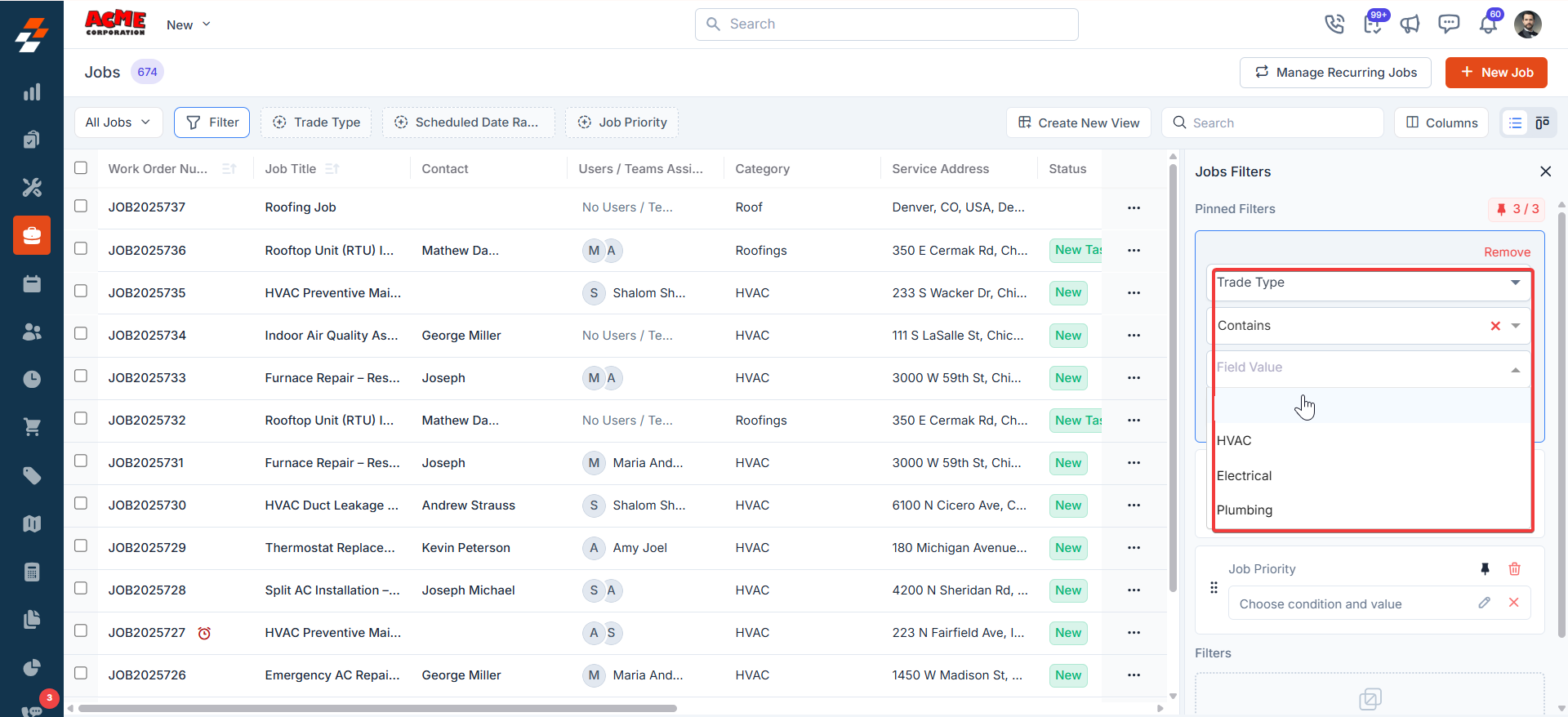
Note: Filtered will only be applied based on trade type association of individual users. Meaning – A user belonging to the plumbing trade can filter only plumbing jobs, invoices, quotes, etc.
In summary, trade types in Zuper serve as the foundation for organizing operations across multiple business lines/trades, or specialties. By carefully setting up trade types and aligning them with jobs, users, teams, products, and categories, you define the right boundaries for each business area/function, while enabling access to all the critical capabilities of Zuper.
FAQs
- What will happen to existing jobs, quotes, and invoices that do not have trade types associated?
- What if a pricelist associated with a certain trade type gets linked to a job from a different trade type (due to the customer being associated with that pricelist)?
- What will happen to my existing/saved filters & views?
- Data Restriction Flag is OFF → Behavior will remain largely unchanged.
- Data Restriction Flag is ON → User will only see records inside their trade type. Hence, a saved filter/view might show up “lesser data” for few users based on their trade type.
- Is it possible to add a part/service belonging to a trade type to a job, invoice, quote from a different trade?
- Can I create a quote belonging to a trade type and then edit the association of its job/invoice to a different trade?
- Does Zuper synchronize with QuickBooks Online (QBO) based on trade types?
- When the visibility flag is on, will users be able to view ALL jobs, invoices and quotes belonging to their trade types?
- Admin view all the jobs, invoices & quotes belonging to the trades that they’re mapped to
- TLs will view only jobs, invoices & quotes that belong to their teams/team members filtered by trade types that they’re associated with
- FEs will view only job, invoices & quotes that belong to them filtered by trade types that they’re associated wit