

Overview
The Zuper Connect dialer works seamlessly inside HubSpot, so you can make and receive calls without switching apps. This lets you stay focused on your contacts, deals, and other HubSpot tasks while handling calls. Zuper Connect – HubSpot Integration: Call Activities SyncKey Capabilities
- Make calls to customers or other Zuper Connect agents.
- Receive incoming calls with alerts.
- Check your recent call history.
- Initiate calls directly from customer or user profiles within HubSpot.
- Use basic call tools like hold, mute, transfer, warm, and cold call transfers.
Prerequisites
Before starting, ensure these are set up:- HubSpot Account: You need an active HubSpot account.
- Zuper-HubSpot Integration: Connect your Zuper account to HubSpot.
- Active Zuper Connect Subscription: You must have a valid subscription.
Accessing the Dialer
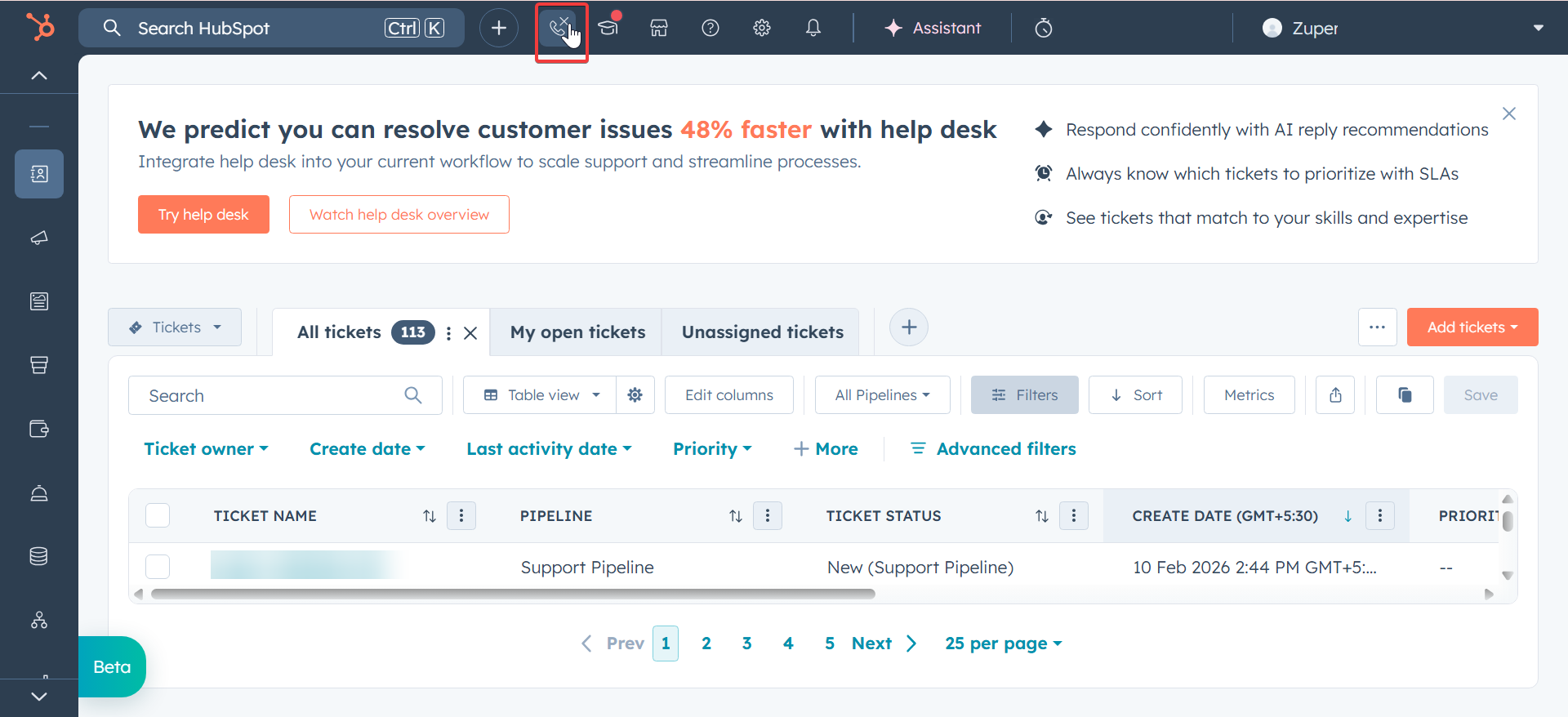
To open the Zuper Connect dialer from HubSpot:- Click the HubSpot calling icon.
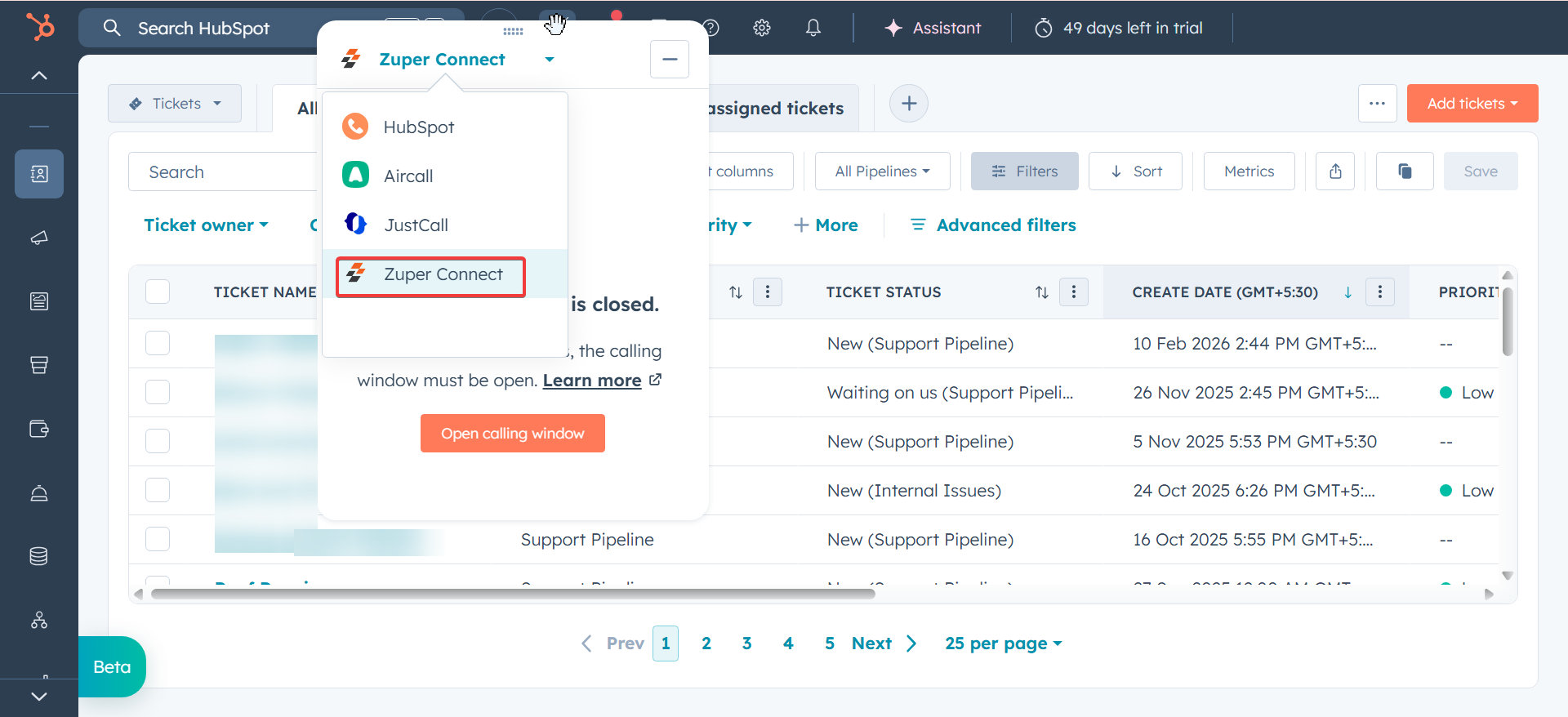
- Choose Zuper Connect, with the connect dialer opens as a dialog window.
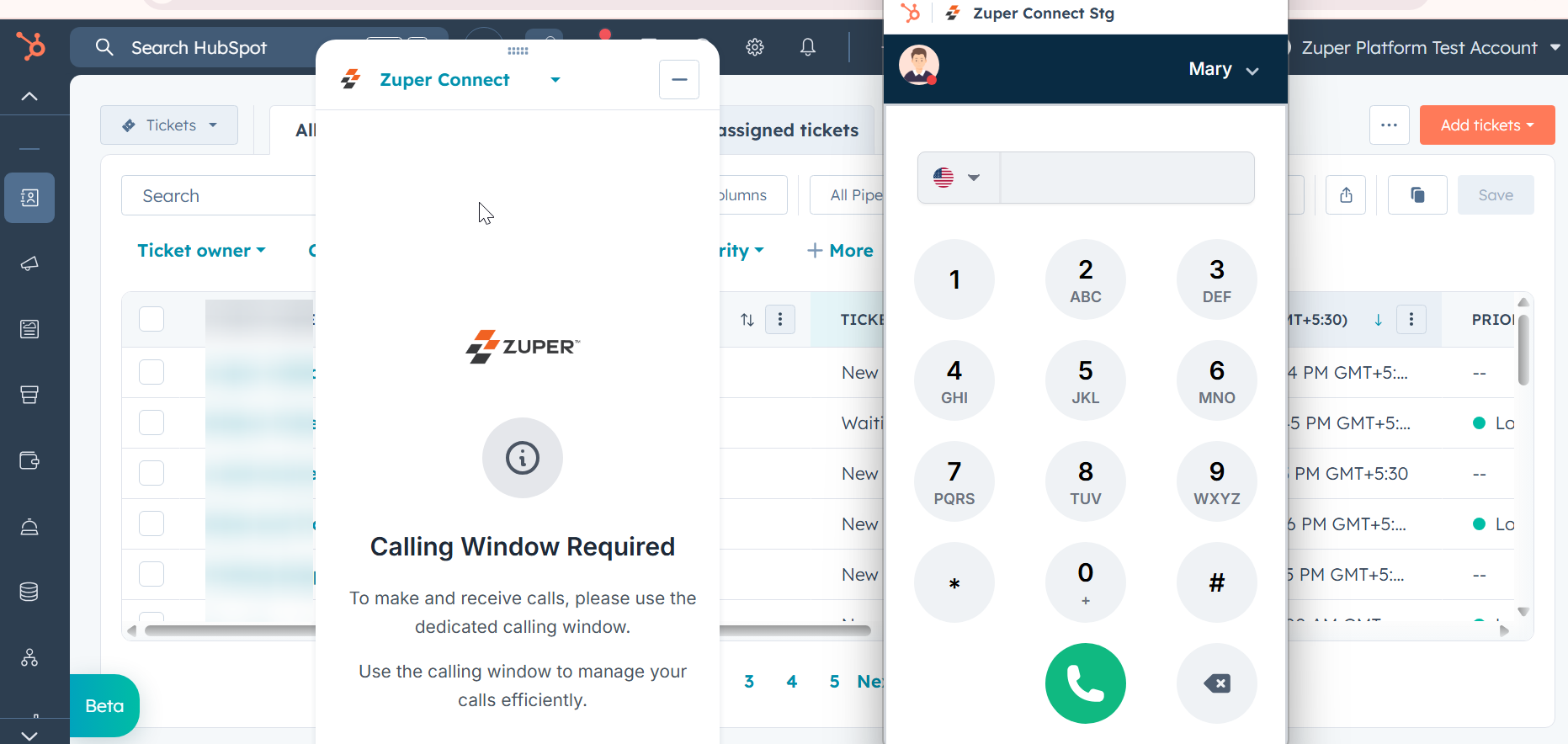
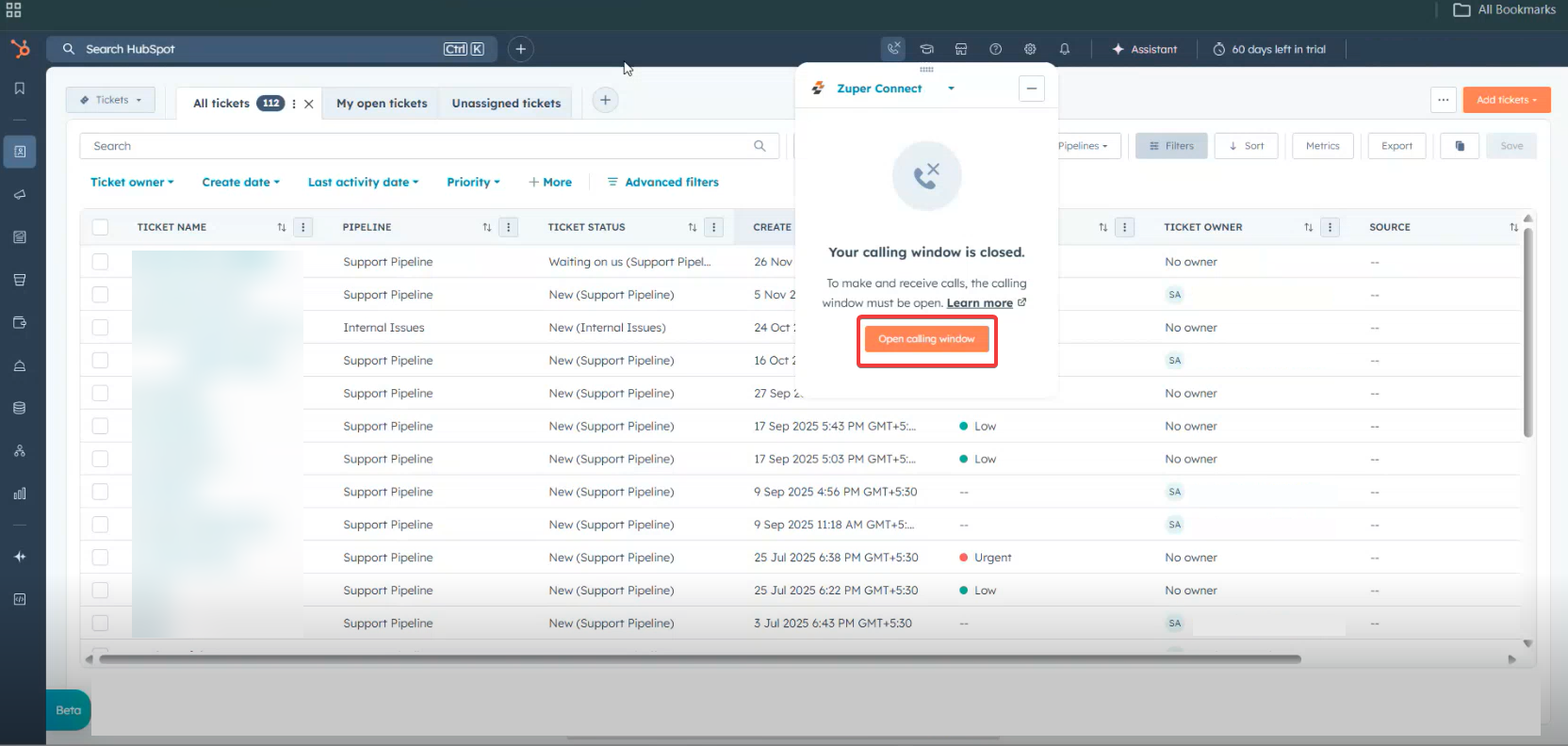
Important: The “Open calling window” button appears only when the dialer window is closed
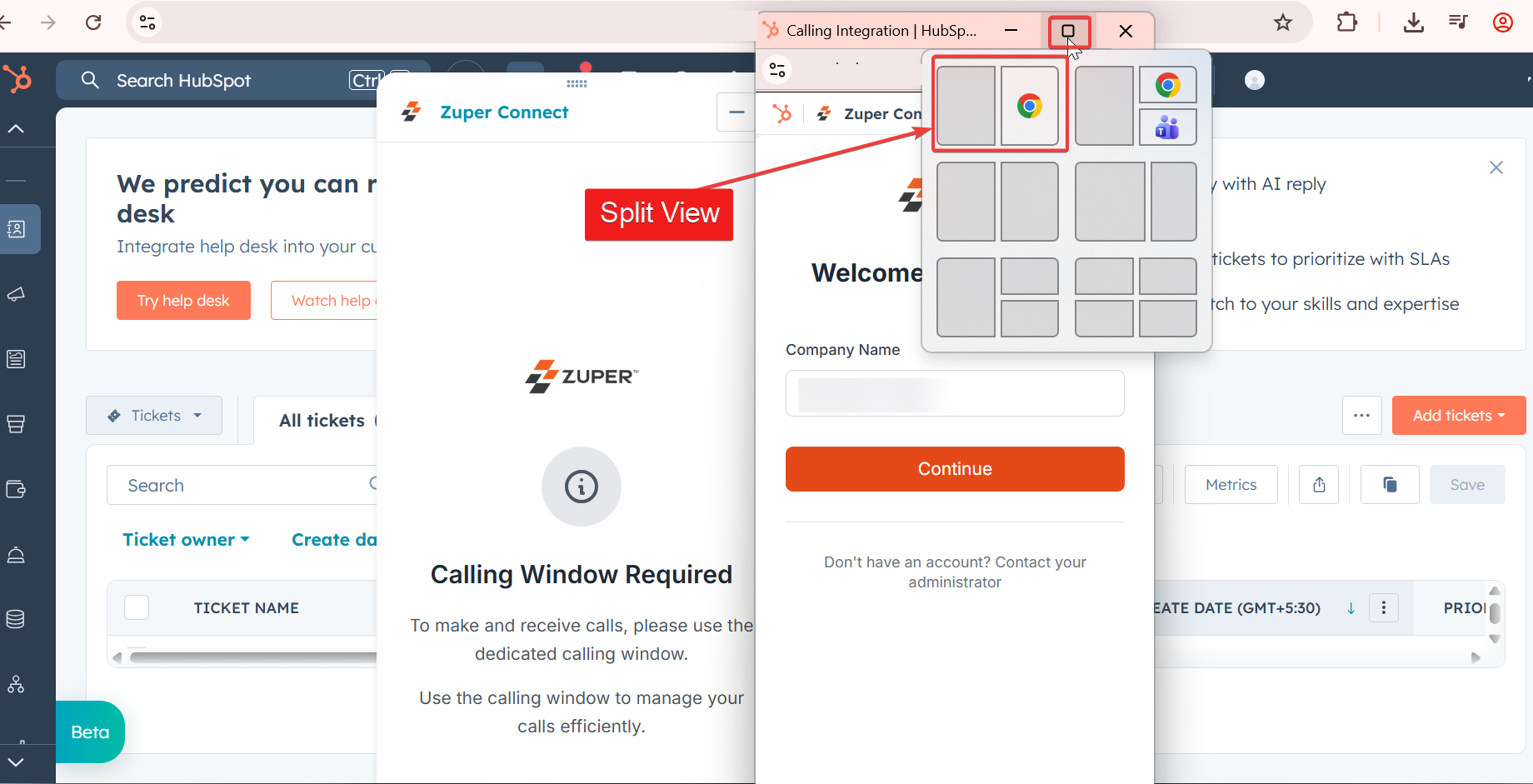
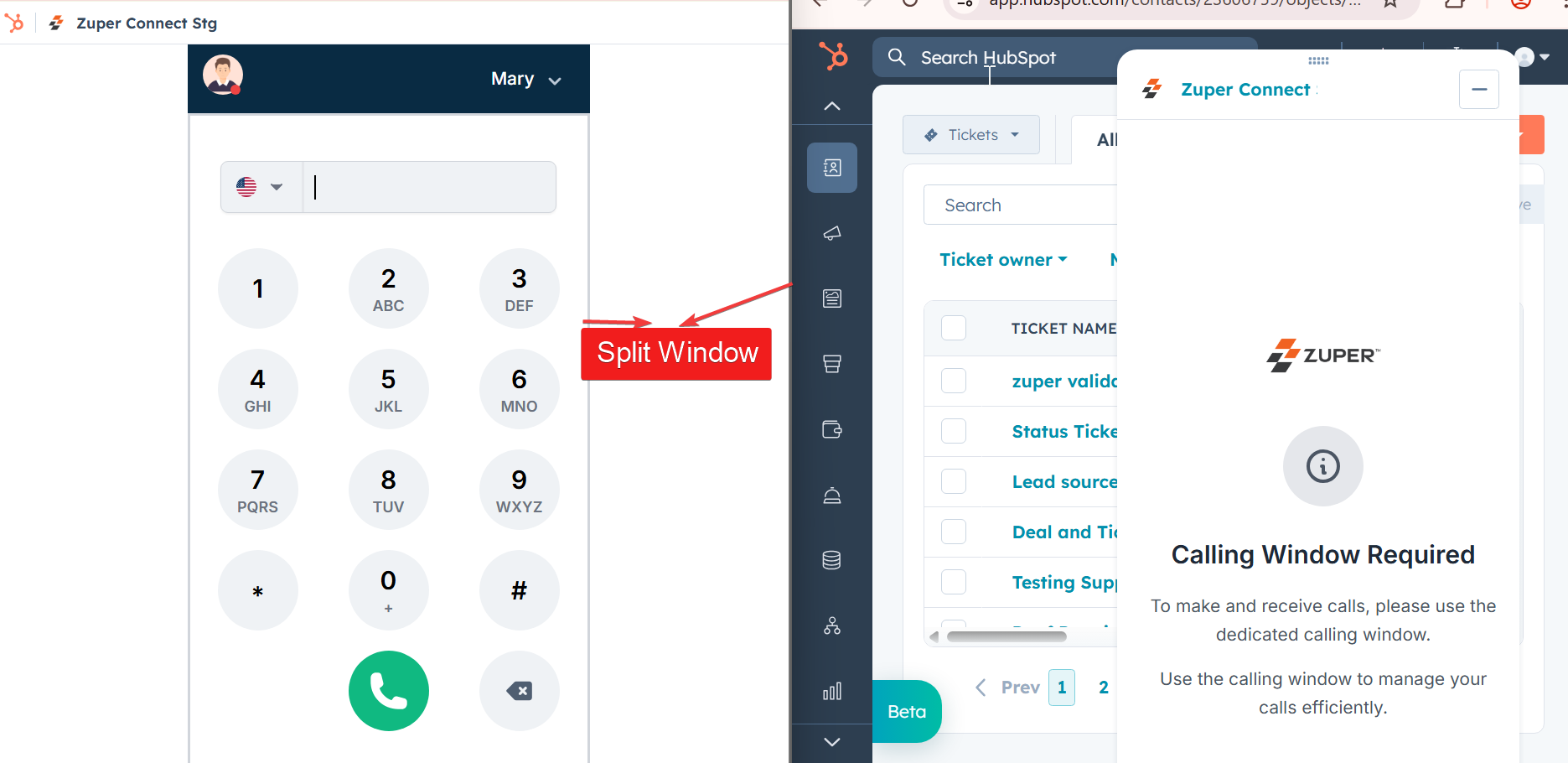
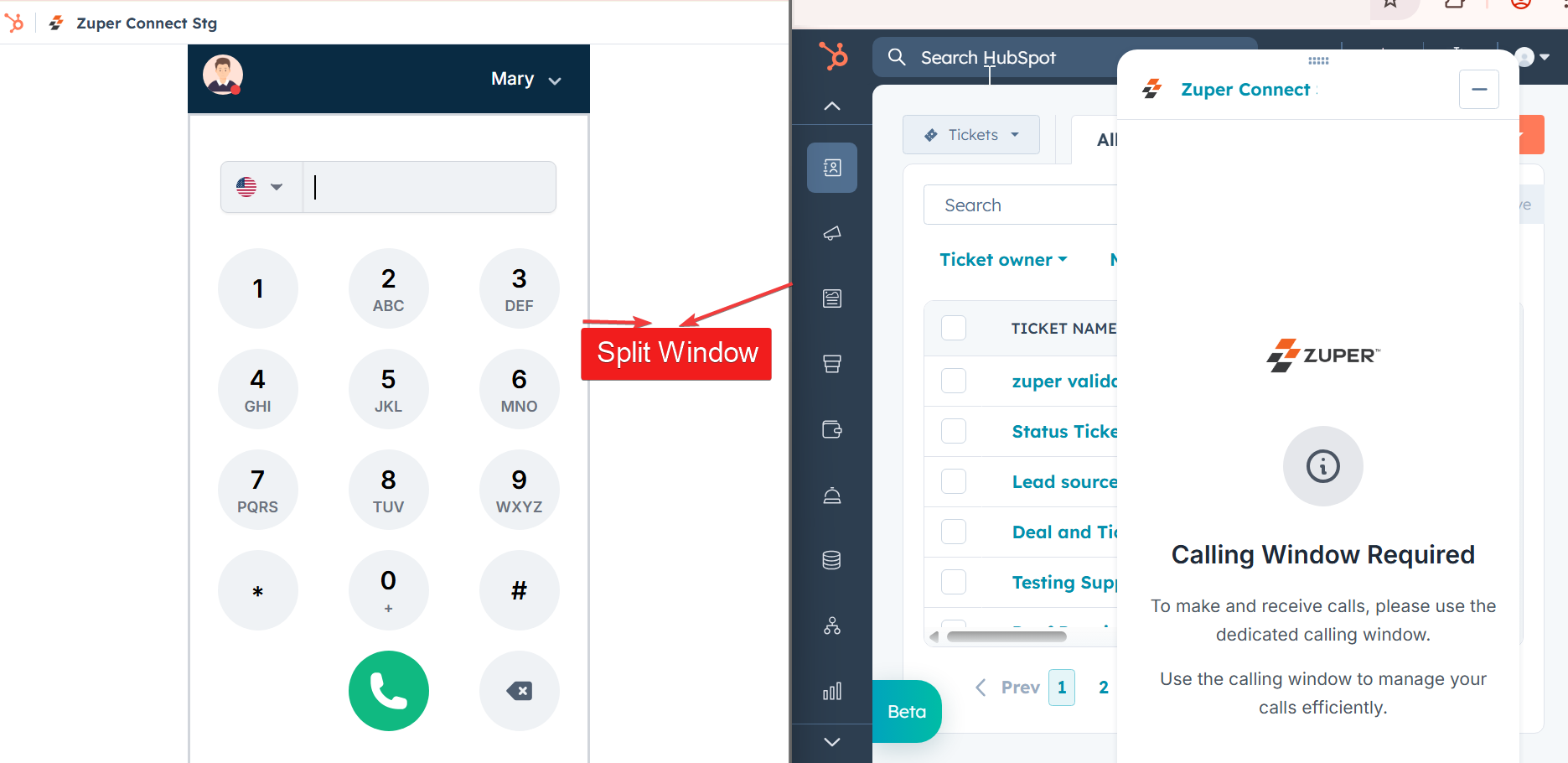
Set up split screen
- Open the Zuper Connect Dialer window.
Logging into Zuper from HubSpot
Accessing the Dialer
To open the Zuper Connect dialer from HubSpot:- Click the HubSpot calling icon.
- Choose Zuper Connect, with the connect dialer opens as a dialog window.
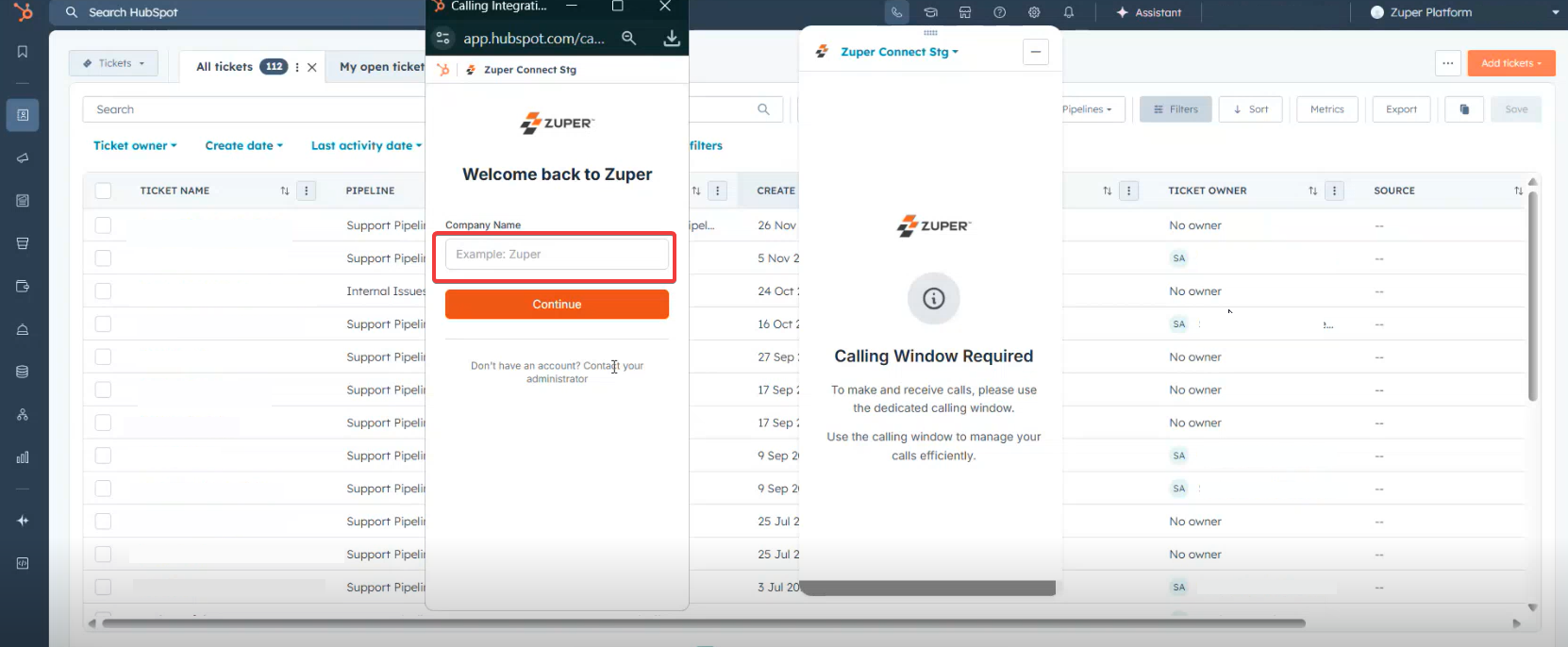
- Enter your Company Name.
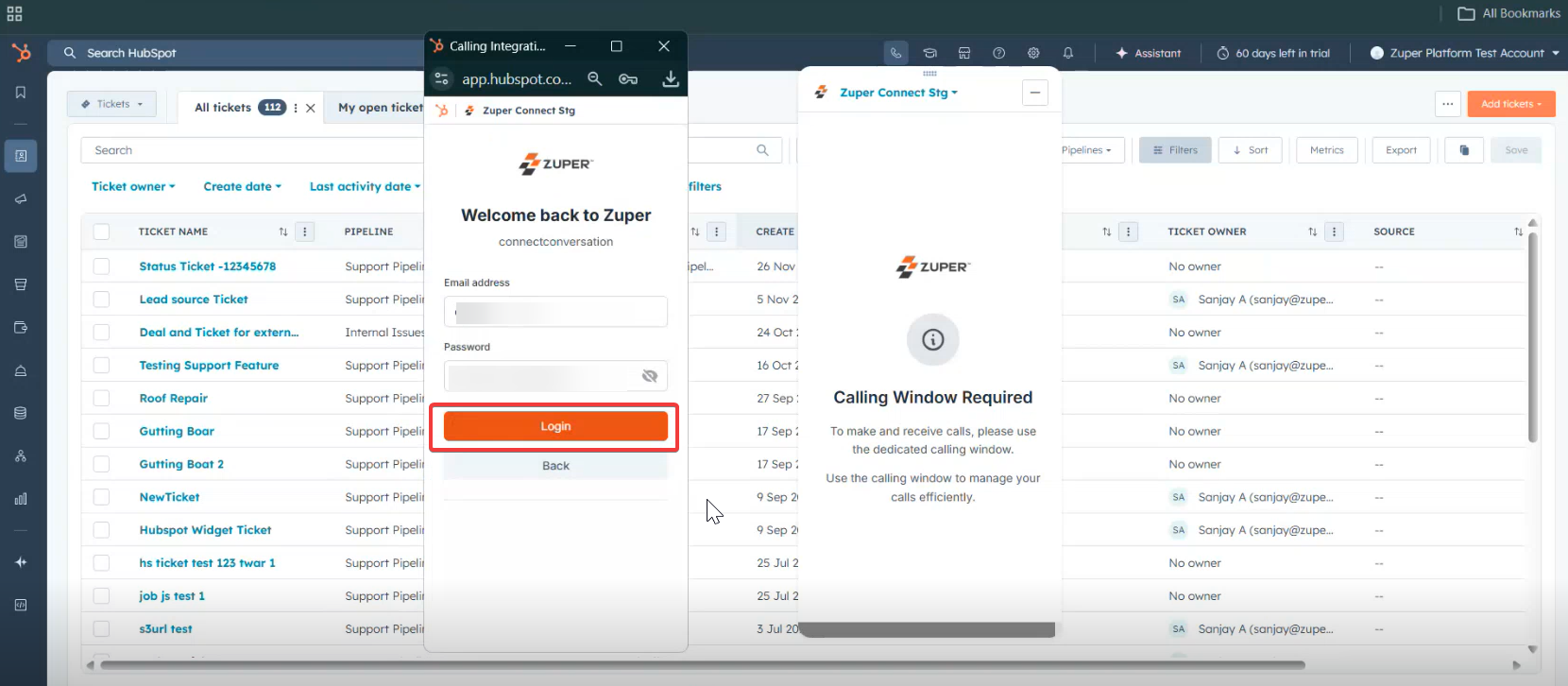
- Enter your Email Address.
- Enter your Password.
- Click Login.
Best Practices: Window Management
Understanding the Window Setup
The Zuper Connect dialer runs in a separate browser window from HubSpot. This allows you to:- Keep the dialer visible while working in HubSpot.
- Receive call notifications while multitasking.
- Manage calls independently of HubSpot navigation.
Handling Incoming Calls
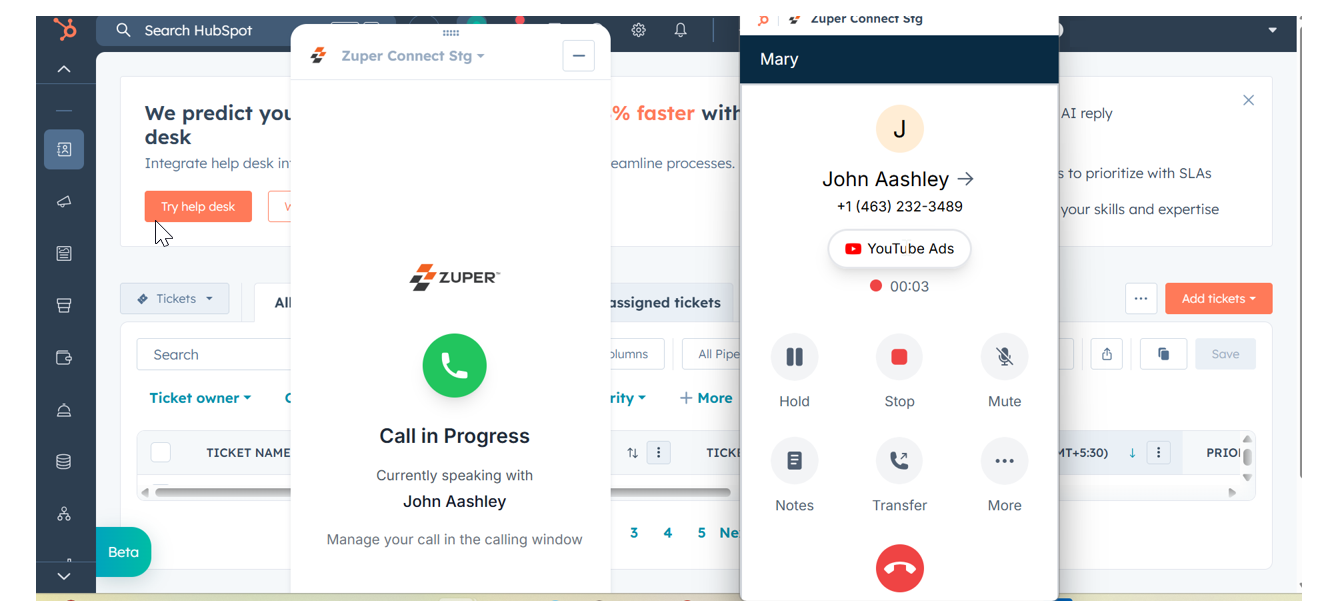
When the Dialer Window Is Open
- You will hear an audio notification.
- The dialer window does not automatically come into focus.
- Manually click the dialer window.
- Click Answer to accept the call.
When the Dialer Window Is Closed
Using split screen helps avoid missed calls and improves efficiency.- A notification appears in the HubSpot widget.
- Message shown: “Please use the calling window to answer this call.”
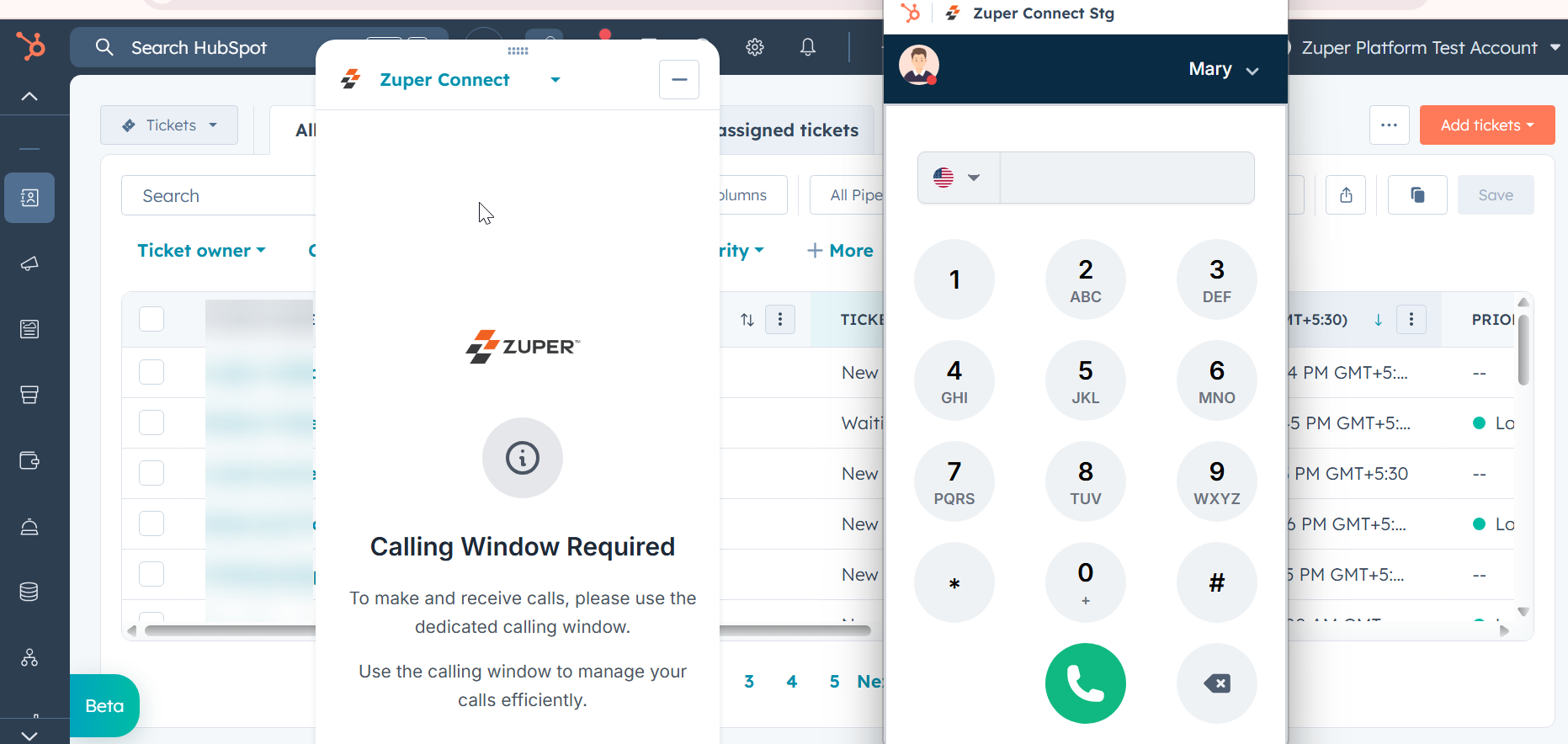
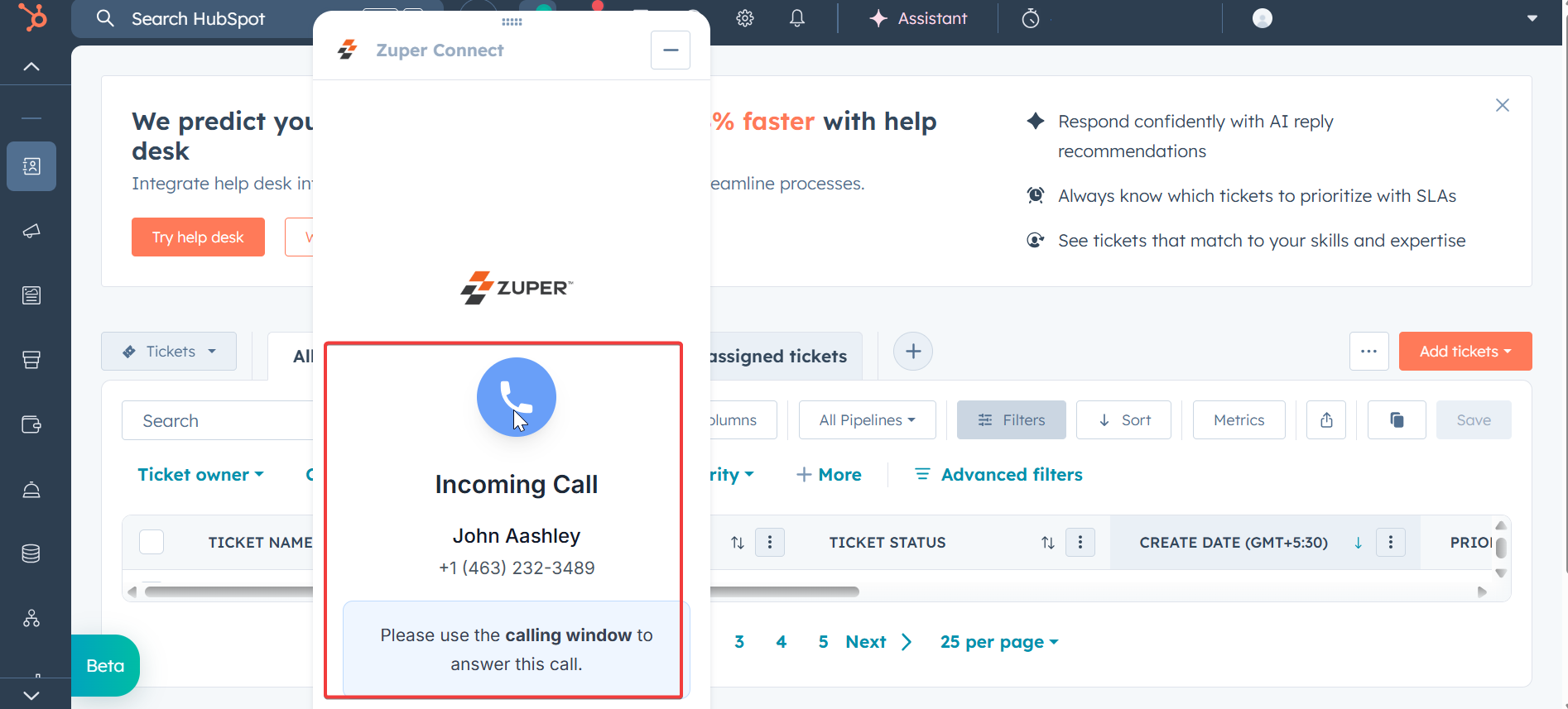
- Click Open calling window.
- Log in if required and answer the call.
Reopening the Dialer
If the dialer window is closed:- The widget returns to its default state.
- Open calling window becomes available again.
- Click to reopen the dialer.
- Log in again if the session has expired.
Best Practices
Split Screen Setup (Recommended)
Using split screen helps avoid missed calls and improves efficiency. Benefits- Dialer always visible
- Instant access to call controls
- Easy multitasking in HubSpot
- Open the Zuper Connect Dialer window.
Key points
- Keep the dialer window open during working hours
- Set a default phone number
- Ensure your status is Available when ready to receive calls
Troubleshooting
Cannot see the Dialer Icon
- Confirm Zuper Connect is integrated with HubSpot
- Check user permissions
- Refresh HubSpot
- Clear browser cache
Login Issues
- Verify company name, email, and password
- Ensure Zuper Connect subscription is active
- Contact your admin if credentials are forgotten
Unable to Make or Receive Calls
One Call at a Time Limitation
You can only be active on one call at a time across all Zuper Connect instances. Scenario- If you are on a call in the native Zuper app, the HubSpot dialer cannot be used
- You may see: “You are on another call.”
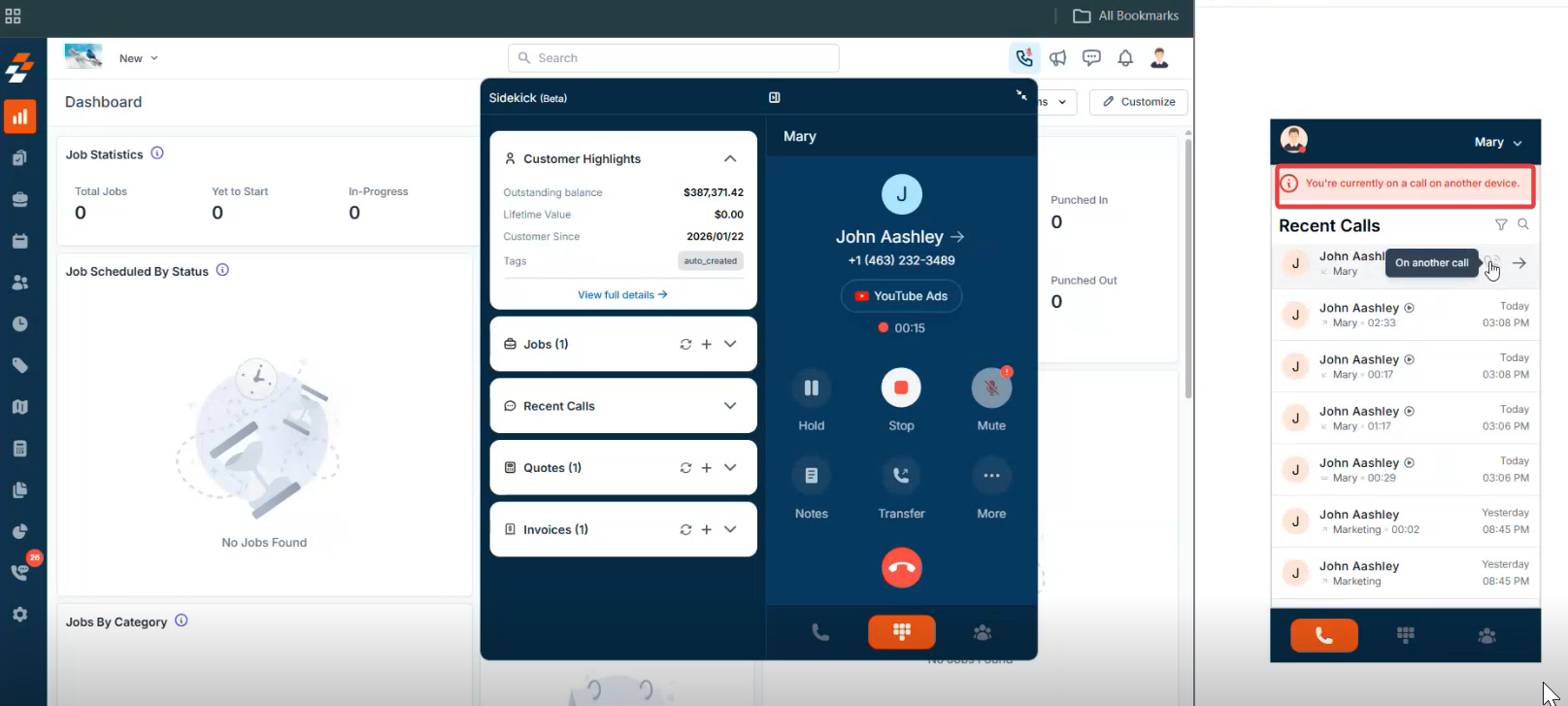
Solution
- End the active call first.
- Use only one Zuper Connect instance at a time.
- Close and reopen the dialer.
- Hard refresh (Ctrl+Shift+R / Cmd+Shift+R).
- Try a different browser.
- Check internet connectivity.
Support
Before Contacting Support Please verify:- Active HubSpot account
- Zuper–HubSpot integration is complete
- Active Zuper Connect subscription
- Correct login credentials
- Updated browser
- Not logged into Zuper Connect on multiple platforms with the same account
FAQs
What is the Zuper Connect Dialer, and what are its main features in HubSpot?
What is the Zuper Connect Dialer, and what are its main features in HubSpot?
The Zuper Connect Dialer is a calling tool built directly into HubSpot, so you can make and receive calls without switching applications. It includes outgoing calls to customers or internal Zuper users, incoming call notifications, recent call history, direct dialing from contact and deal records, and in-call controls such as hold, mute, transfer, and conference.
What do I need before I can use the Zuper Connect Dialer in HubSpot?
What do I need before I can use the Zuper Connect Dialer in HubSpot?
You need the following:
- An active HubSpot account, on any plan.
- A Zuper account connected to HubSpot.
- An active Zuper Connect subscription.
How do I log in to the Zuper Connect Dialer from HubSpot?
How do I log in to the Zuper Connect Dialer from HubSpot?
Follow these steps to log in:
- Select the HubSpot dialer icon, and choose Zuper Connect.
- Enter your Company Name.
- Enter your Email Address.
- Enter your Password.
- Select Login.
How do I open the Zuper Connect Dialer from inside HubSpot?
How do I open the Zuper Connect Dialer from inside HubSpot?
Follow these steps to open the dialer:
- Select the HubSpot dialer icon to open the Zuper Connect dialog box.
- Open the widget.
- Select Open calling window.
How do I control whether I receive incoming calls?
How do I control whether I receive incoming calls?
Set your status to control incoming calls:
- Available (green): you are ready to receive calls.
- Unavailable: incoming calls do not come through.
How do I make an outgoing call using the dialer?
How do I make an outgoing call using the dialer?
Follow these steps to make a call:
- Go to the Dialer tab.
- Select your country code.
- Enter the number on the dial pad.
- Select the Call icon.
What are the best practices for avoiding missed calls and working efficiently?
What are the best practices for avoiding missed calls and working efficiently?
Follow these best practices:
- Use split-screen view, and snap the dialer to one side with HubSpot on the other.
- Keep the dialer open during working hours.
- Set a default phone number.
- Stay Available when you are ready to take calls.
- Never log in with the same account on multiple devices at the same time.
Why can I not make or receive calls, and what does 'You are on another call' mean?
Why can I not make or receive calls, and what does 'You are on another call' mean?
You can be on only one active call at a time across all Zuper Connect applications. If you are on a call in the native Zuper app, the HubSpot dialer is blocked, and you see the message You are on another call.To fix this, end the other call first, or use separate user accounts for each application.If the issue continues, contact Support.
What should I check if the dialer icon is missing or I cannot log in?
What should I check if the dialer icon is missing or I cannot log in?
If the dialer icon does not appear, follow these steps:
- Confirm that the integration is active.
- Confirm that your permissions are correct.
- Refresh HubSpot.
- Clear your browser cache.
What do I do if the dialer window is frozen or not responding?
What do I do if the dialer window is frozen or not responding?
Follow these steps:
- Close the window, and reopen it.
- Hard refresh your browser (Ctrl + Shift + R on Windows, or Cmd + Shift + R on Mac).
- Try a different browser.
- Check your internet connection.
How do I access settings or log out?
How do I access settings or log out?
To access settings, select the settings icon in the top bar.To log out, select Logout, and then select Confirm. Zuper Connect returns you to the login screen.