

Overview
Zuper Connect can automatically create customer records the moment you receive a call from an unknown phone number. This feature eliminates manual data entry, saves valuable time, and lets your team create jobs, invoices, and quotes immediately during the call.Key Benefits
- Faster customer creation: No more manual entry before or after calls.
- Immediate action: Start jobs, quotes, or invoices directly from the sidekick while on the call.
- Better tracking: Every incoming call (including missed calls) is automatically captured.
- Automation-ready: Auto-created customers can trigger workflows for instant job creation.
Navigation
Settings —> Zuper Connect —> Numbers and User Permissions
Zuper Connect —> Incoming Call (New Number Ringing) —> Customer (Creation done automatically)
Enable Auto-Create Customer
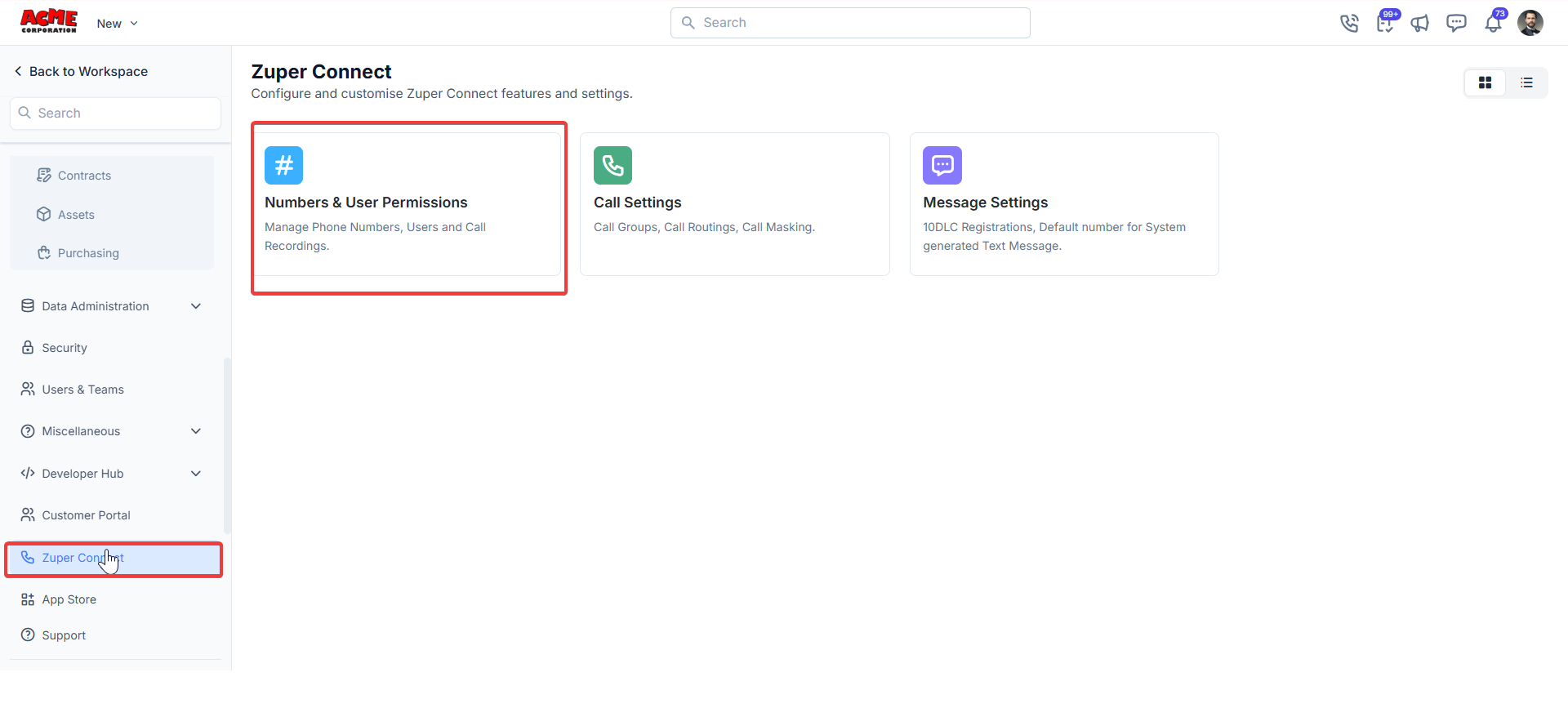
- From the left navigation menu, select Settings and under Zuper Connect, choose Numbers and User Permissions.
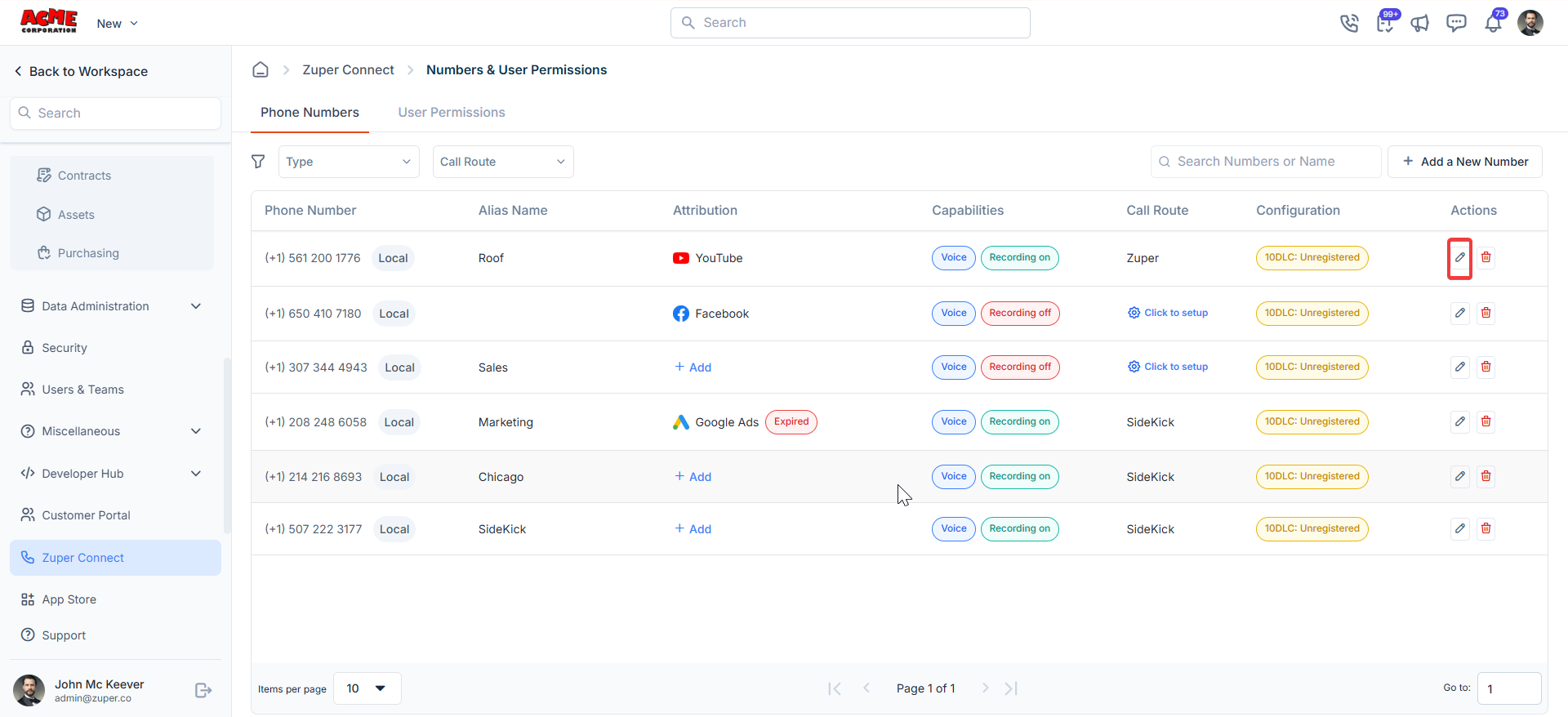
- Click the pencil icon next to the relevant number.
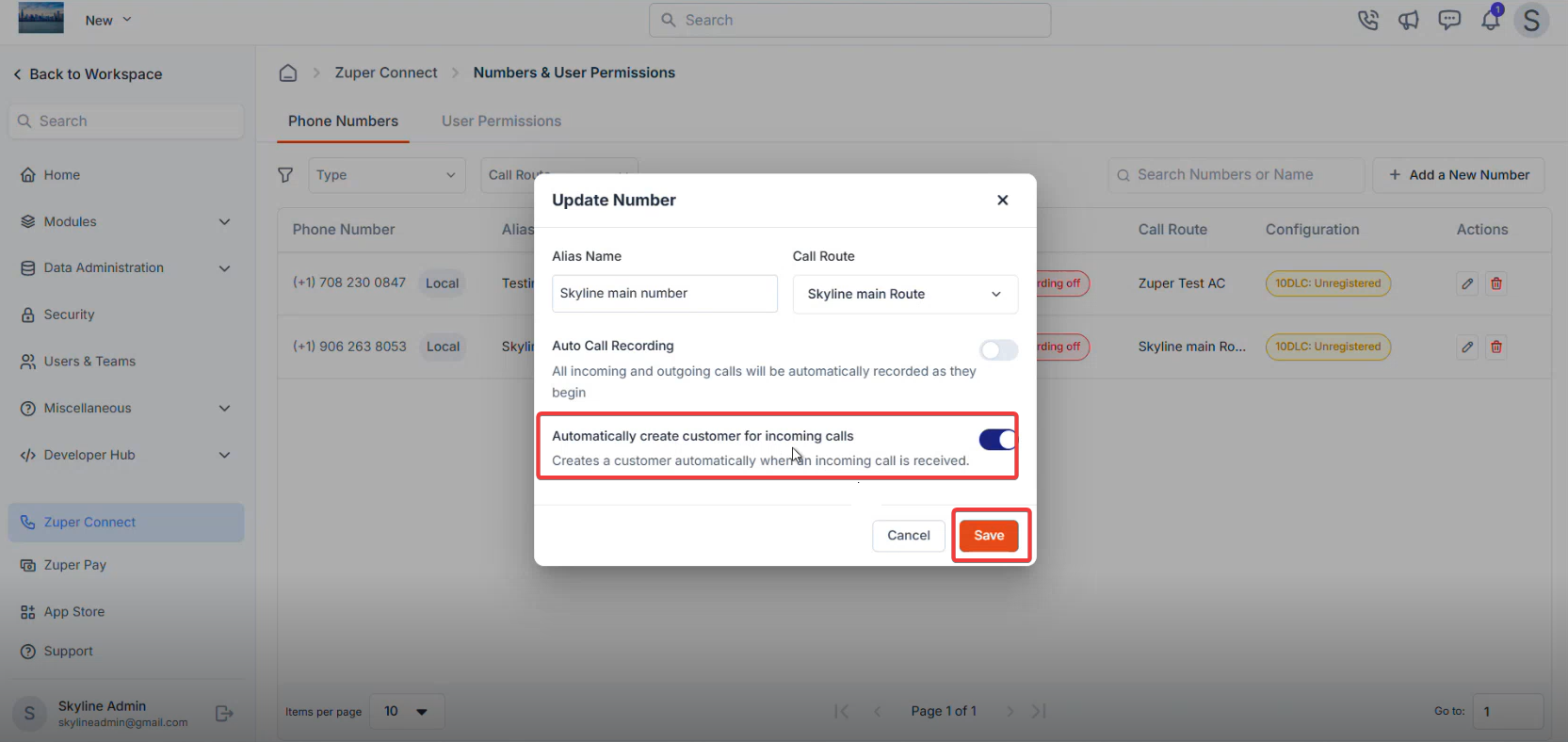
- In the “Update Number” dialog, turn on the toggle labeled “Automatically create customer for incoming calls.” Click Save.
- Zuper Connect instantly checks whether the phone number already exists in your customer database.
- If no match is found and the feature is enabled, a new customer record is created automatically.
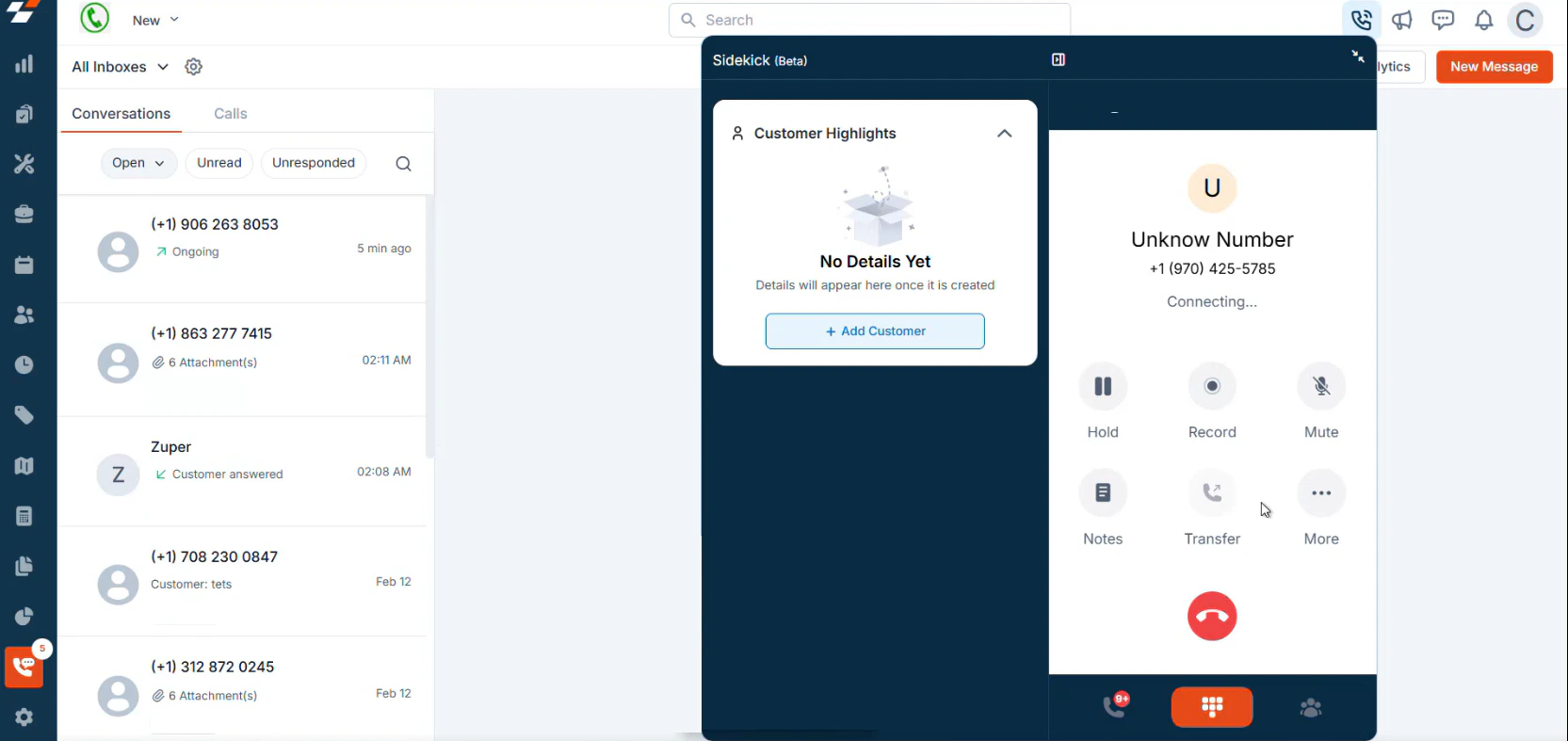
- The caller’s phone number appears in the dialer (example: “14025642345”).
- If the “Automatically create customer for incoming calls” feature is enabled, the screen will look like this:
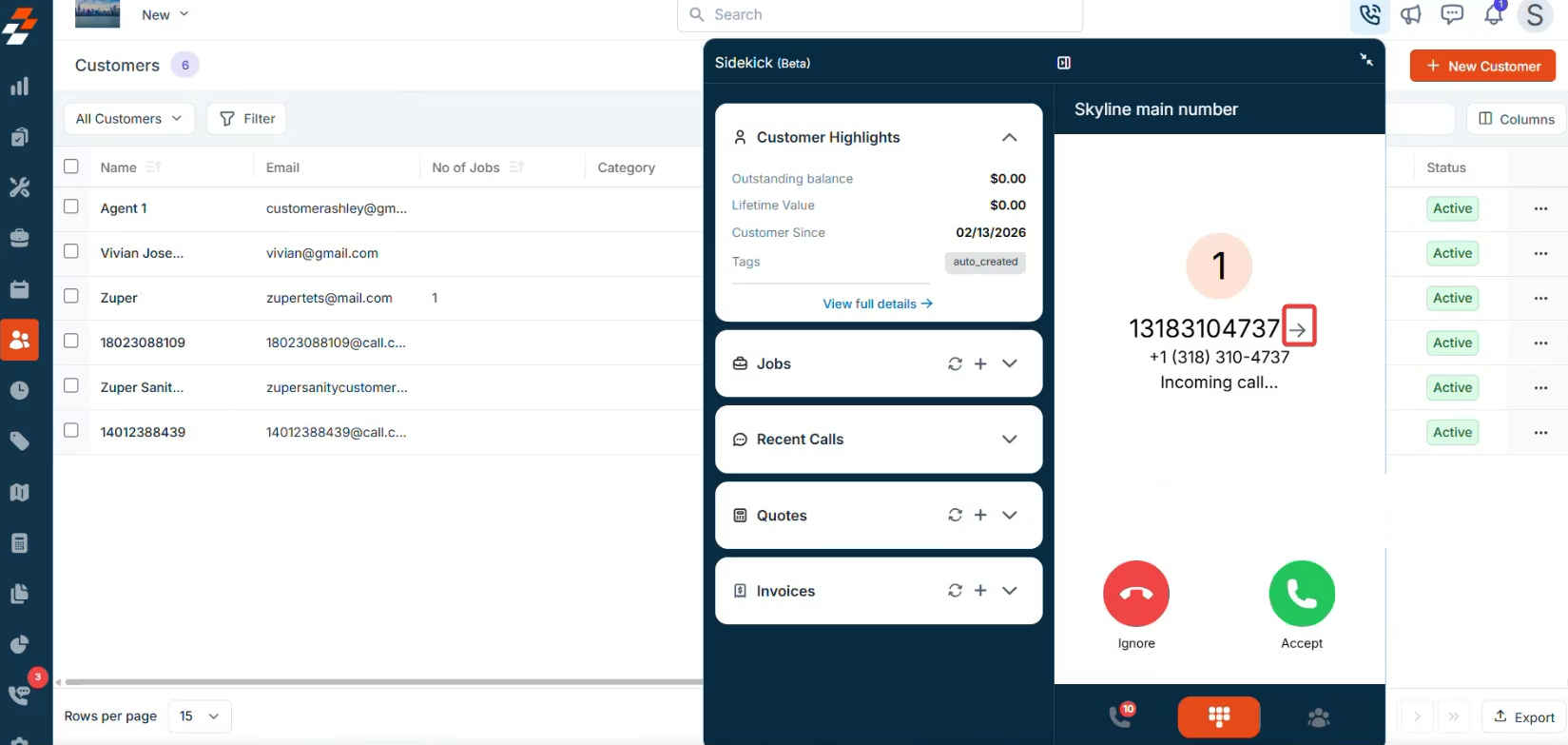
- Click the redirect icon in the dialer to jump straight to the new customer profile.
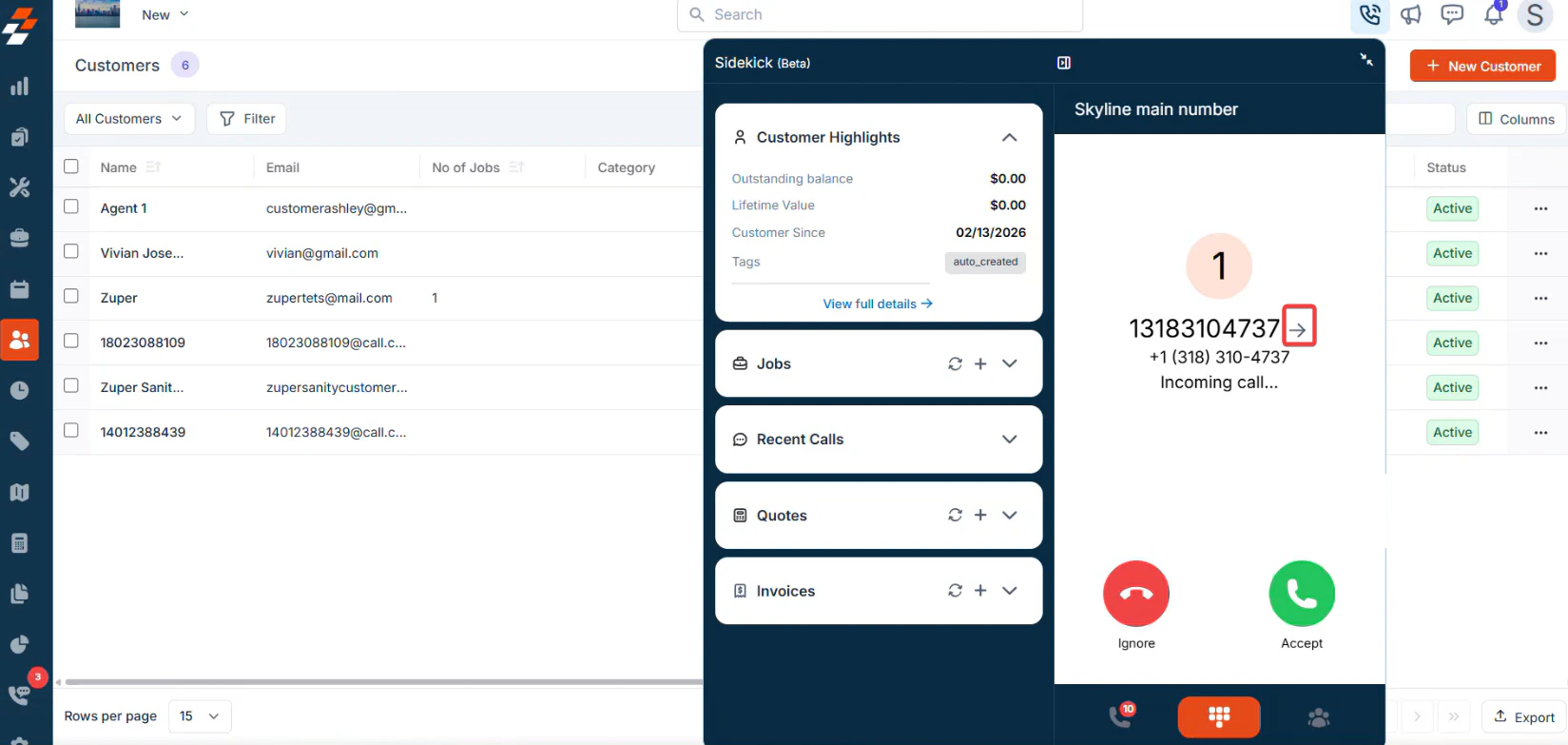
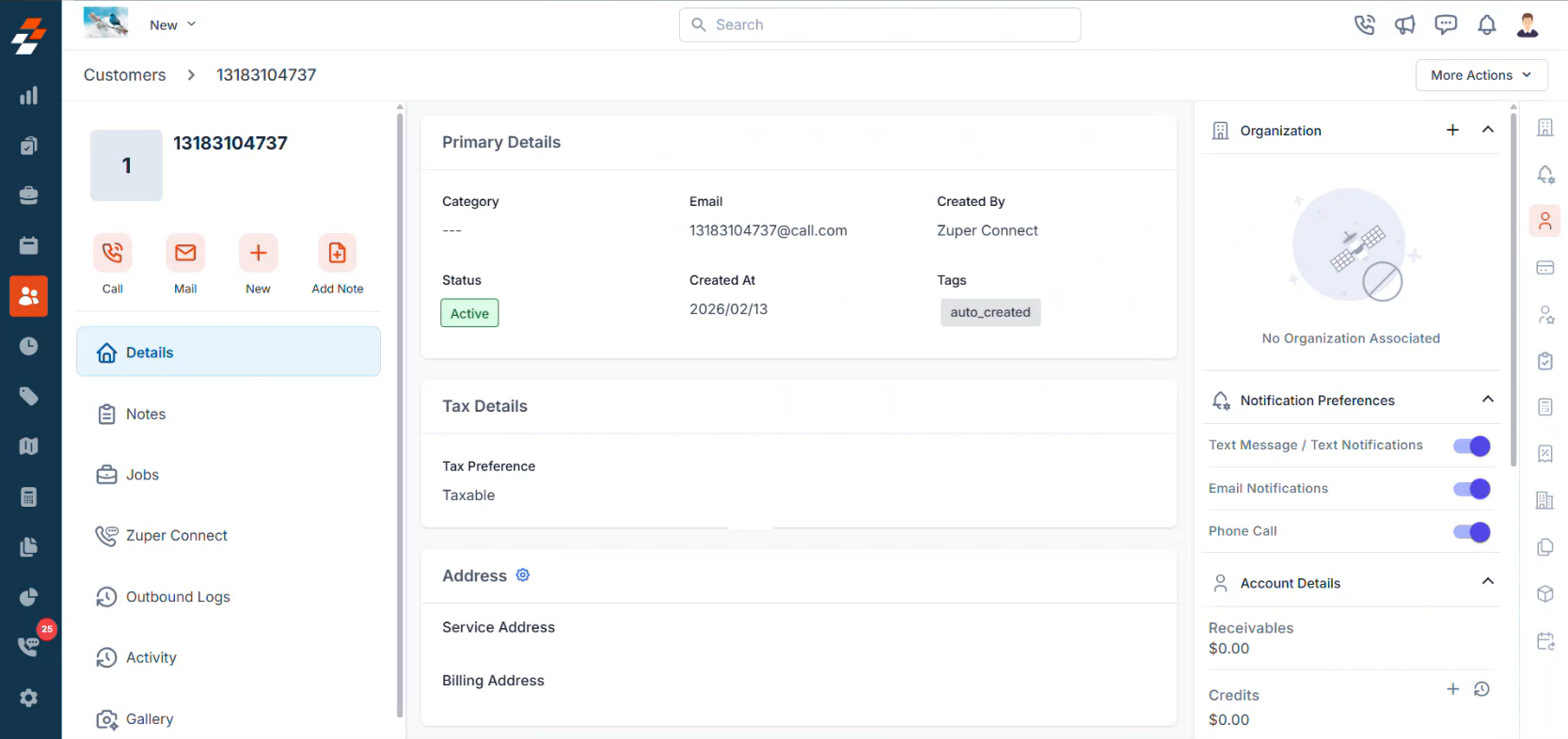
- Auto-Created Customer Details. The following fields are automatically populated:
Managing Auto-Created Customers
- Viewing: Auto-created customers appear in the Customer module exactly like manually created ones. You can easily spot them with the auto_created tag and the phone-number name.
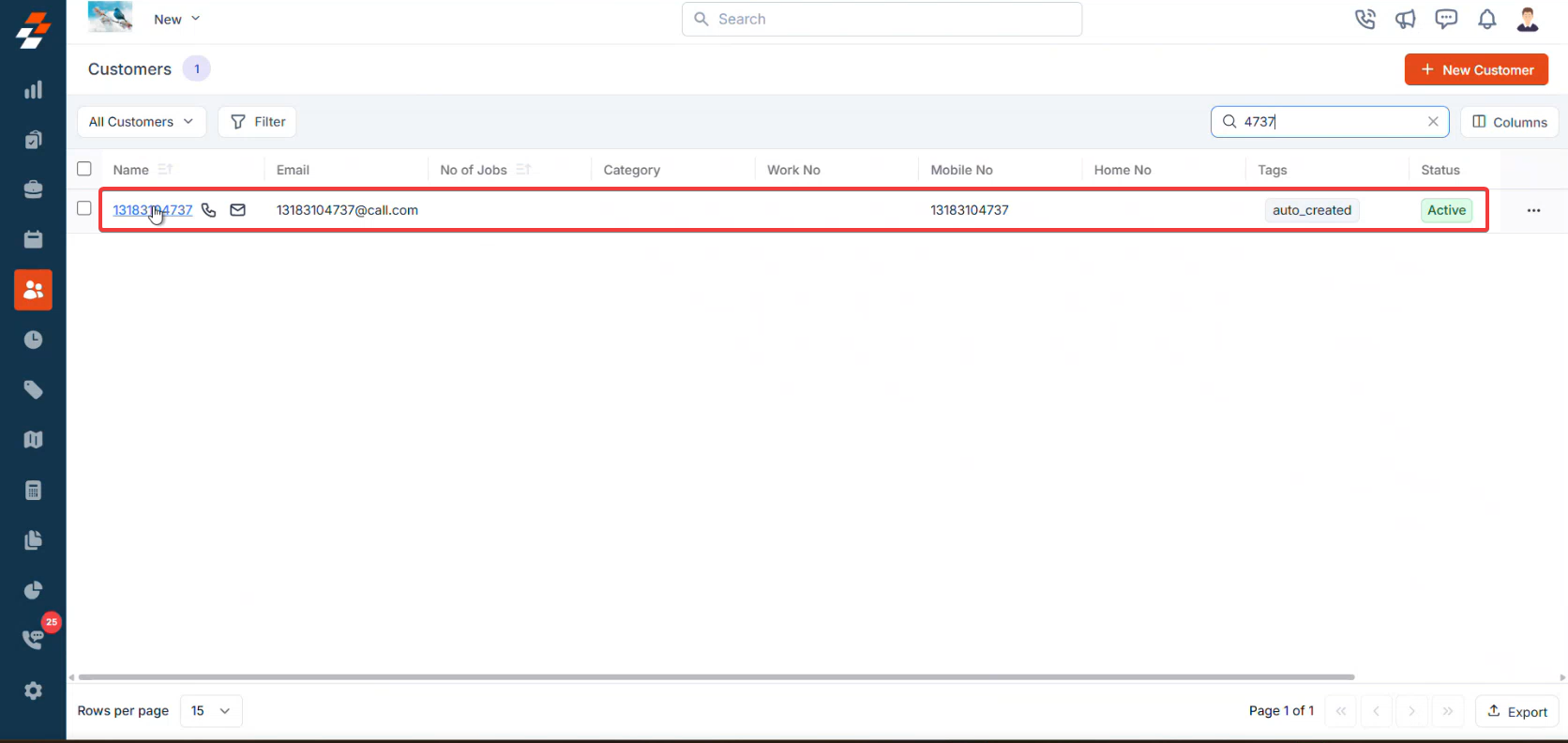
- Editing: Open the customer profile and update the real name, email, address, notes, etc., at any time.
- Deleting: Delete them the same way you delete any other customer record.
CSR Agent Integration
If you use the CSR Agent, calls handled by the feature automatically trigger customer creation with all mandatory fields populated, ensuring your database remains complete and up to dateBest Practices
- Update customer details promptly after the call (add real name, email, addresses, etc.).
- Use the auto_created tag to filter and review records that still need enrichment.
- Set up workflows so that auto-created customers automatically trigger job creation.
- Periodically review and merge any duplicate records to keep your data clean.
FAQs
What happens if the same number calls multiple times?
What happens if the same number calls multiple times?
Zuper Connect recognizes returning customers by their phone number. After Zuper Connect creates a customer record, every later call from that number links to the same record automatically. Zuper Connect does not create duplicate customer records for a caller.
Is the Auto-Create Customer toggle turned on by default?
Is the Auto-Create Customer toggle turned on by default?
No, the Auto-Create Customer toggle is turned off by default. Go to Settings, select Zuper Connect, and then select General Settings to turn it on.
What happens when I turn off the toggle?
What happens when I turn off the toggle?
When you turn off the toggle, calls from unknown numbers show as Unknown Number in your dialer. Zuper Connect does not create a customer record for these calls until you add the customer yourself.
Can I still create customers manually?
Can I still create customers manually?
Yes, turning on automatic customer creation does not change how you create customers manually. You can continue to add customers through the regular process at any time.
Do missed calls also create customer records?
Do missed calls also create customer records?
Yes, when you turn on this feature, Zuper Connect creates a customer record for every incoming call from an unknown number, including missed calls. This way, you do not lose potential leads.
Does a spam number that calls repeatedly create duplicate customer records?
Does a spam number that calls repeatedly create duplicate customer records?
No, spam calls do not fill your database with duplicate records. Zuper Connect checks whether a phone number already has a customer record before it creates a new one. The first call creates the customer. Every later call, even one that arrives seconds later, links to that same record. You see multiple call logs listed under one customer, not multiple customers.
What should I do if an automatically created email address is incorrect and bounces?
What should I do if an automatically created email address is incorrect and bounces?
Zuper Connect generates a placeholder email address for unknown callers, for example, the customer’s phone number combined with @call.com. If this address is incorrect and bounces, follow these steps:
- Open the customer record, and replace the automatically generated email address with the correct one.
- Add a note that states you corrected the email address and the date you made the change.
- Pause any automated email workflow linked to that customer until you confirm the new address is correct.
What should I do if a customer profile is still loading while I am on a call?
What should I do if a customer profile is still loading while I am on a call?
Stay on the Sidekick Dialer screen, and collect the customer’s details, such as name and address, verbally. Enter these details directly into the customer form, since it refreshes in real time as the profile finishes loading. The profile opens in a new tab, so the call is never interrupted.If the issue continues, contact Support.