

Navigation:
- Jobs > Job > Communication > Emails
- Customers > Customer > Communication > Emails
Unified communication console
The Communication tab is your unified console for this job or customer/contact. Texts and emails already sit together here, so you never check two places for one conversation.- Select All Inboxes to unify every number and mailbox, or filter down to one specific number or email inbox.
- Select a conversation to open it and see the full thread.
- Select Emails to see only email conversations for this job or customer/contact.
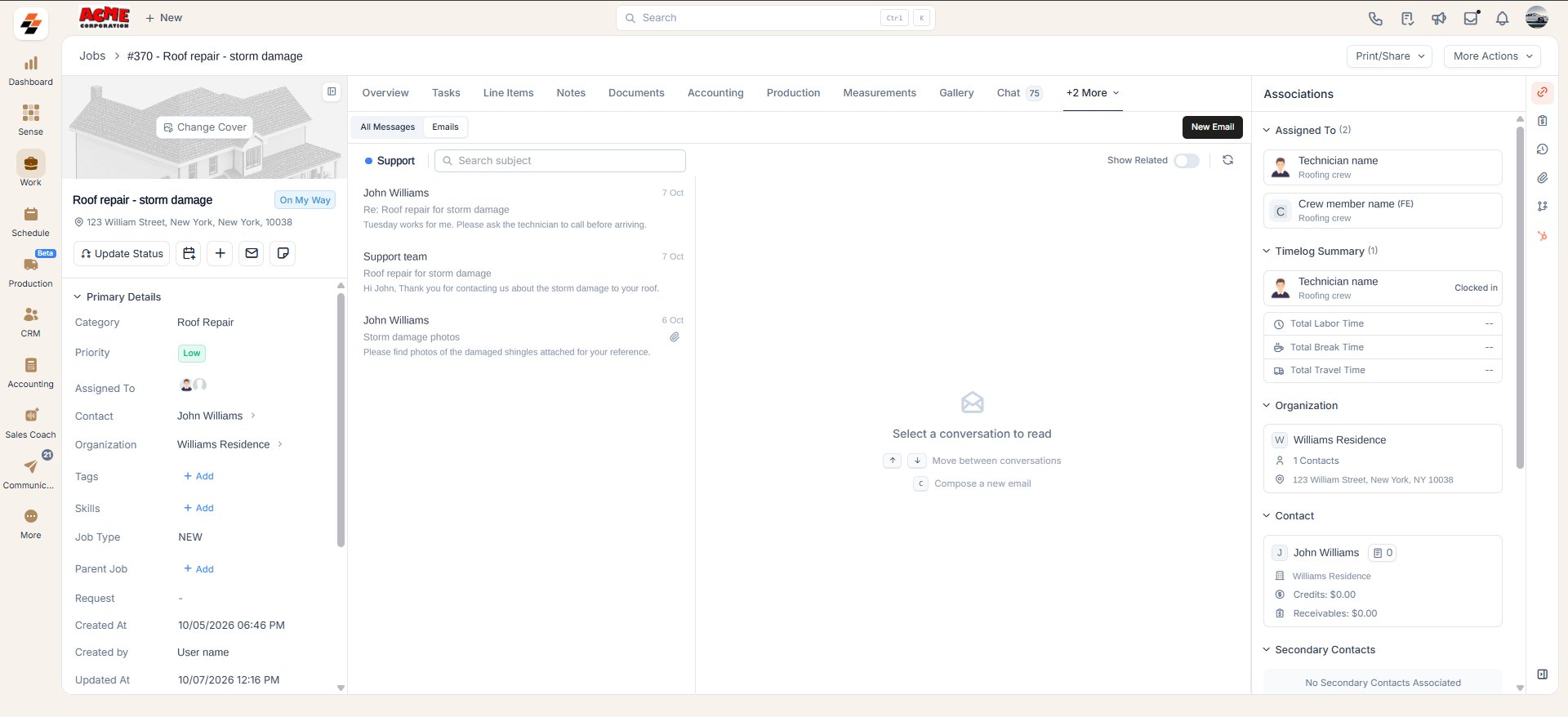
Access emails from a job or a customer/contact
- From a job: Select Jobs, open a job, then select Communication, followed by Emails.
- From a customer/contact: Select Contacts, open a customer/contact, then select Communication, followed by Emails.
Compose a new email
Select New Email from a job’s or a customer/contact’s Emails view to compose one. Zuper automatically links the email to this job or customer/contact. See Emails in the communications module for the full composing steps, including formatting, templates, attachments, and dictation.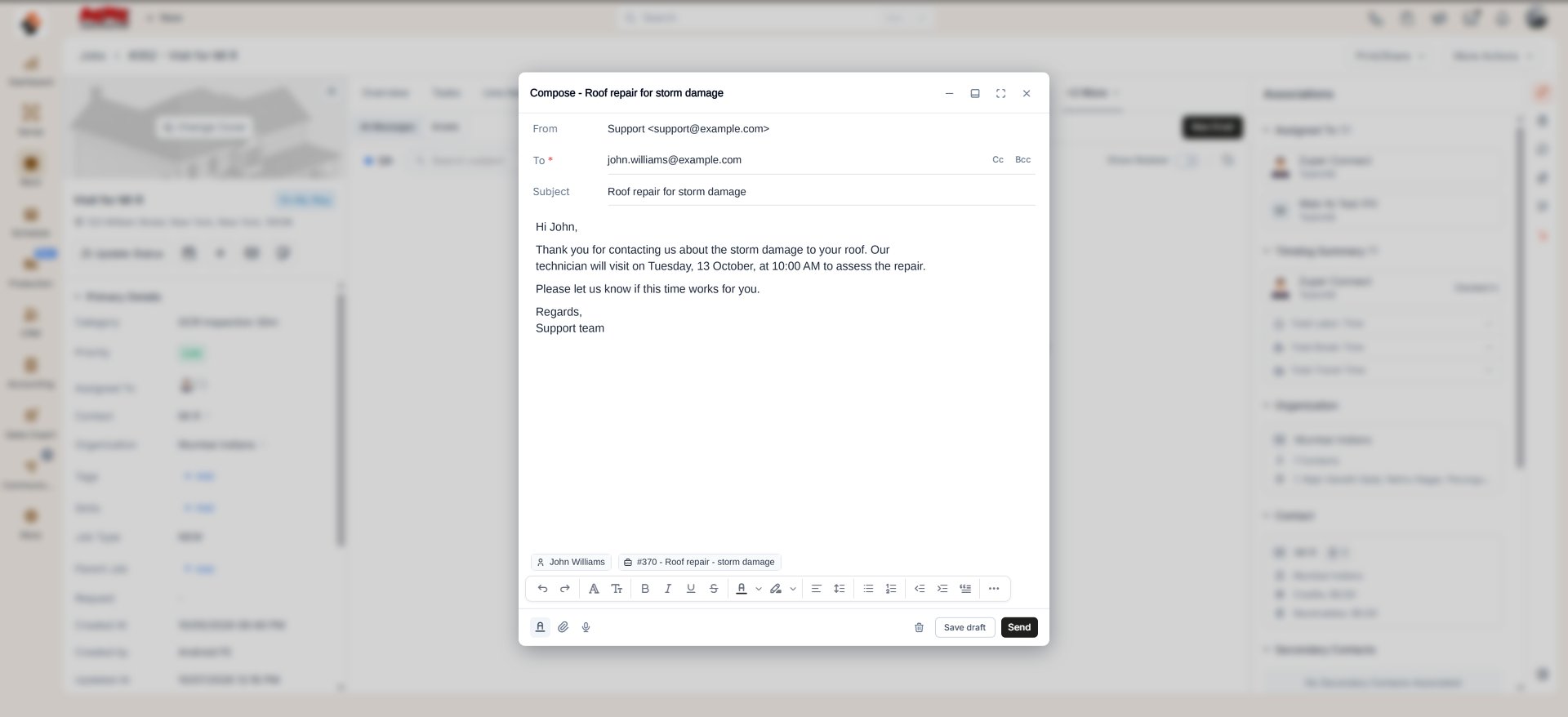
Insert dynamic fields
Select the dynamic field icon in the composing toolbar to add job or customer-specific fields, the same as from the standalone Emails tab. Which tabs you see depends on what is already linked to the email.- If both a job and a customer/contact are linked, both the Job and Contact tabs appear.
- If only a customer/contact is linked, only the Contact tab appears.
Associate a job or customer/contact
Select Add job below the message fields to link a job. Select the context menu (three-dot icon) on an existing chip to Change or Remove it. Zuper automatically links the customer/contact. It also links the job automatically when you compose from a job’s Emails view, so you often do not need to add anything yourself.Attach a file
This works the same as in Emails in the communications module. Gallery needs either a customer/contact or a job linked, and Document Gallery needs a job linked specifically.Use email templates
Select Email Template at the top of the composing window to insert one. See Emails in the communications module. Since a customer/contact is always linked automatically here, Email Template is always available, even before you add a job. Managing the composing window, replying, forwarding, and moving an email to trash all work the same way as in the Communication module. See Emails in the communications module.FAQs
Can I change the job or customer/contact that Zuper added automatically?
Can I change the job or customer/contact that Zuper added automatically?
Yes. Select the context menu (three dots) next to the chip, then select Change or Remove, the same as with any manually added chip.
Why is the job not added automatically when I email a customer/contact?
Why is the job not added automatically when I email a customer/contact?
A customer/contact can have more than one job, so Zuper cannot guess which one you mean. Select Add job to choose the right one.
Where do emails appear on a job or customer record?
Where do emails appear on a job or customer record?
Emails appear in two places, and each one shows something different.The Communication tab shows email from inboxes you have View access to. If a colleague sent an email from an inbox you do not have access to, that thread does not appear here for you.The Activity log records every email sent from the job or customer. Anyone with access to the record can open the thread from there, regardless of their inbox permissions.
Why does a thread show in Activity but not in my Communication tab?
Why does a thread show in Activity but not in my Communication tab?
The two views follow different rules. Communication follows inbox access, so it reflects only the inboxes you work in. Activity follows record access, so it gives everyone working the job the complete history of what was said to the customer.If the issue continues, contact Support.
Can I read emails from an inbox I do not have access to?
Can I read emails from an inbox I do not have access to?
Through the Activity log, yes, for emails sent from that job or customer. Inbox access controls which inboxes appear in your Communication views. It does not restrict the record history.
Why is Activity built this way?
Why is Activity built this way?
A job’s email history is part of the job. A technician picking up work someone else started needs to know what the customer has already been told, even if the original email went out from an inbox they do not work in.
Does the Activity log show the whole thread or just the sent message?
Does the Activity log show the whole thread or just the sent message?
The whole thread.
Do inbox permissions still matter if Activity shows everything?
Do inbox permissions still matter if Activity shows everything?
Yes. Inbox permissions control which inboxes you can see and send from in the Communication tab, the standalone Emails tab, and the Conversations view. They also control whether you can reply.Activity is a read-only record of what was sent from that job or customer, not a working inbox.
Does Zuper always link the customer automatically?
Does Zuper always link the customer automatically?
Yes, when the sender’s address is already saved on a customer or contact. Zuper does not link the job automatically in most cases, because a customer can have several jobs, and Zuper cannot infer which one applies. Select Add job to link it yourself.The exception is composing from inside a job’s Emails view. There, Zuper links both the customer and the job automatically.
Will emails sent by workflows appear in the job or customer record?
Will emails sent by workflows appear in the job or customer record?
Not at the moment. Workflow emails do not yet appear in the Communication tab. This is planned as an upcoming enhancement.
Related articles
- Getting started with email in Zuper: connect Gmail or Outlook and work customer email against the right job or customer.
- Emails in the communications module: compose, attach, template, and manage emails from the standalone Emails tab.
- Configuring inboxes: set up a Zuper-only or fully synced mailbox for your team.
- Email from the field: read, reply to, and send customer email from the Zuper mobile app.
- Managing job details: work with the tabs and details on a job record.
- Managing the contact detail: work with the tabs and details on a customer/contact record.