

Note: Sense notifications are available only in the Zuper web app. They are not sent through the Zuper mobile app, email, or SMS.
When Sense sends notifications
Sense notifies you when a conversation or an agent task reaches an outcome that needs your attention.- Response ready: Sense has completed your request and its response is ready to review.
- Input required: Sense needs you to provide additional information or approve an action before it can continue.
- Request unsuccessful: Sense couldn’t complete your request. Open the conversation to review it and try again.
- Agent task completed: An agent you asked Sense to involve has finished its assigned task.
Open a Sense notification
You can return to a Sense conversation in two ways.From the notification bell
- Select the notification bell in the Zuper top bar.
- Find the Sense notification in the Unread or All tab.
- Select the notification to open the related conversation.
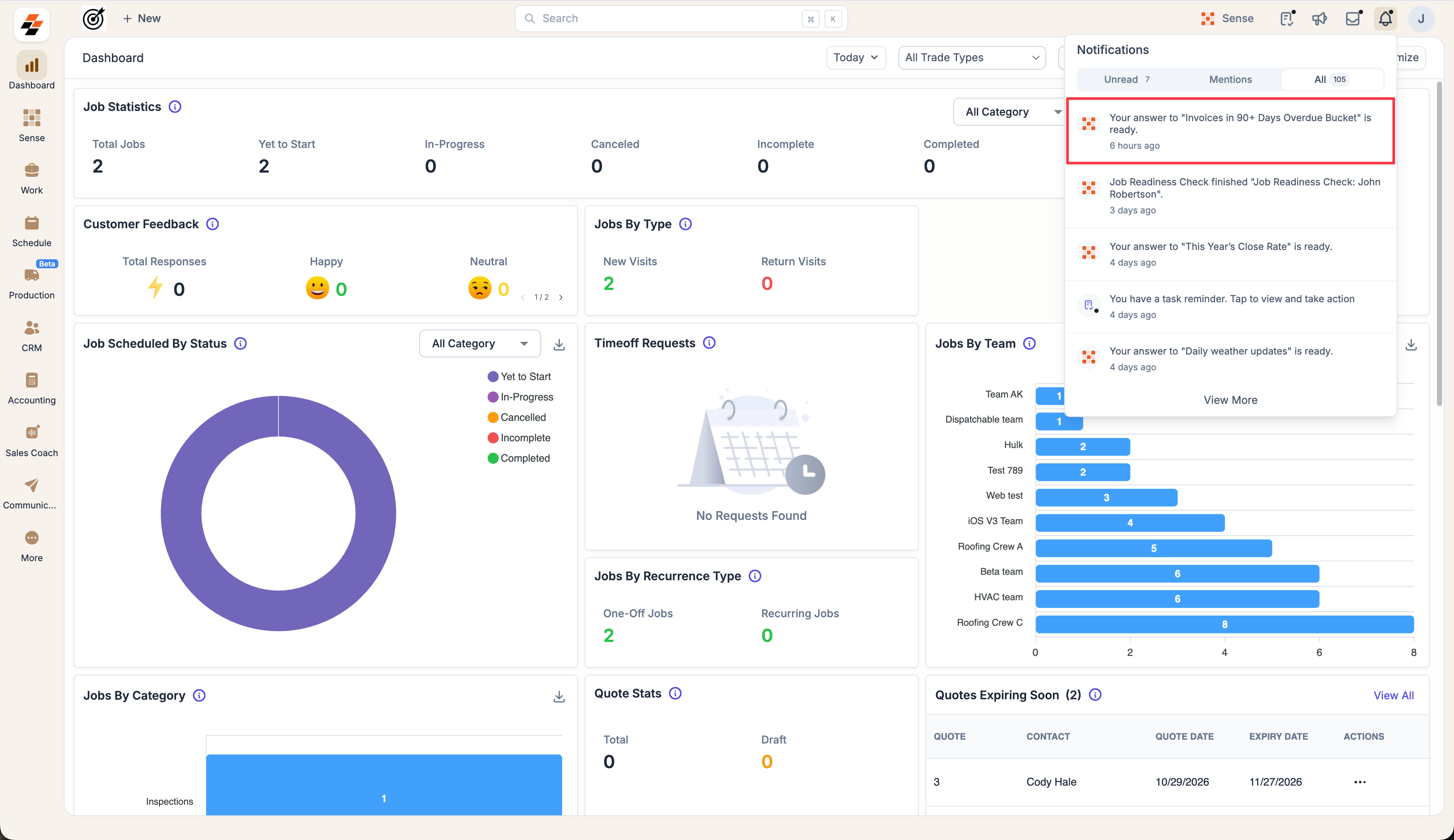
From a notification pop-up
If you are working on another page in Zuper when a Sense notification arrives, a notification pop-up (toast) appears.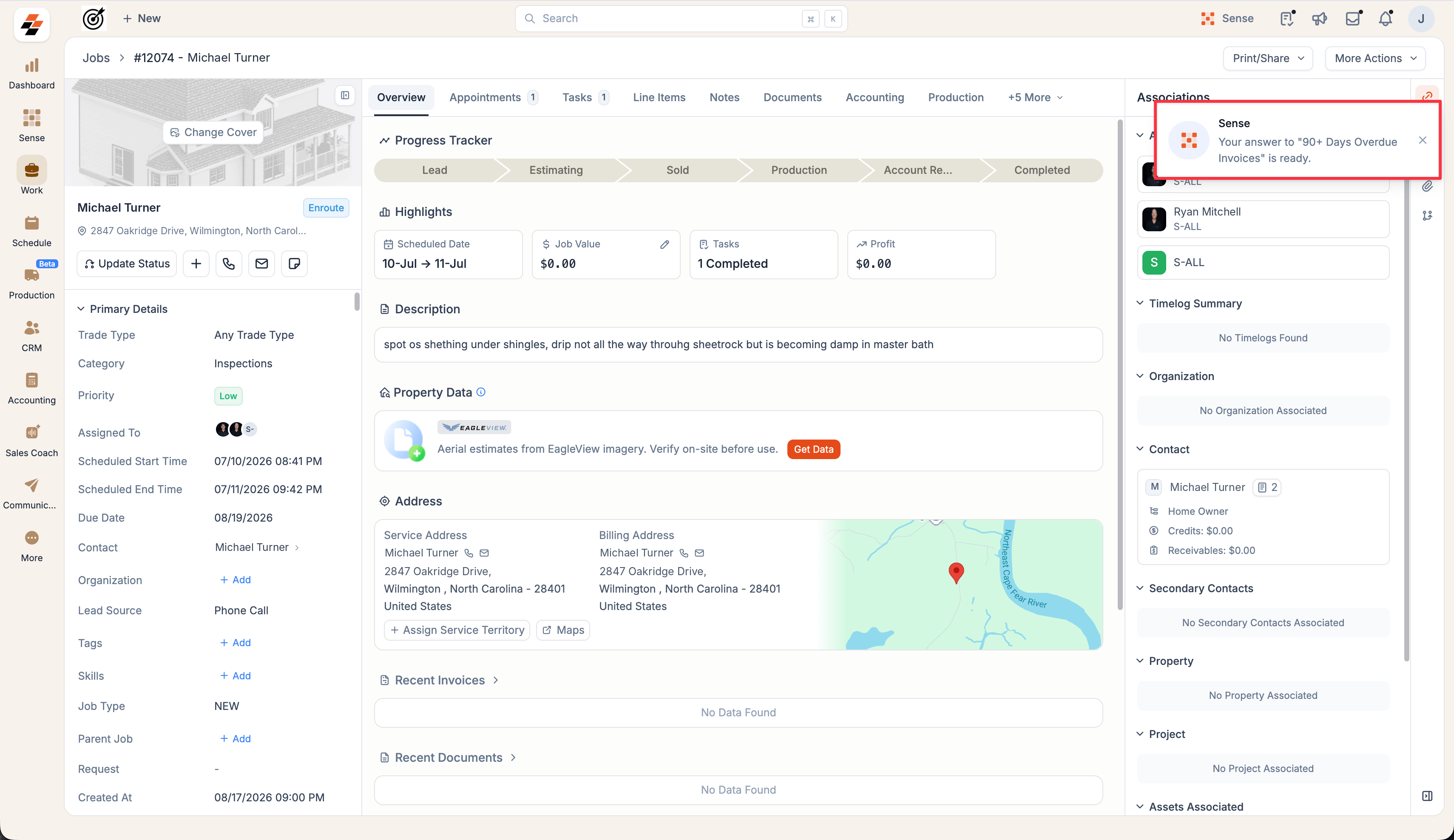
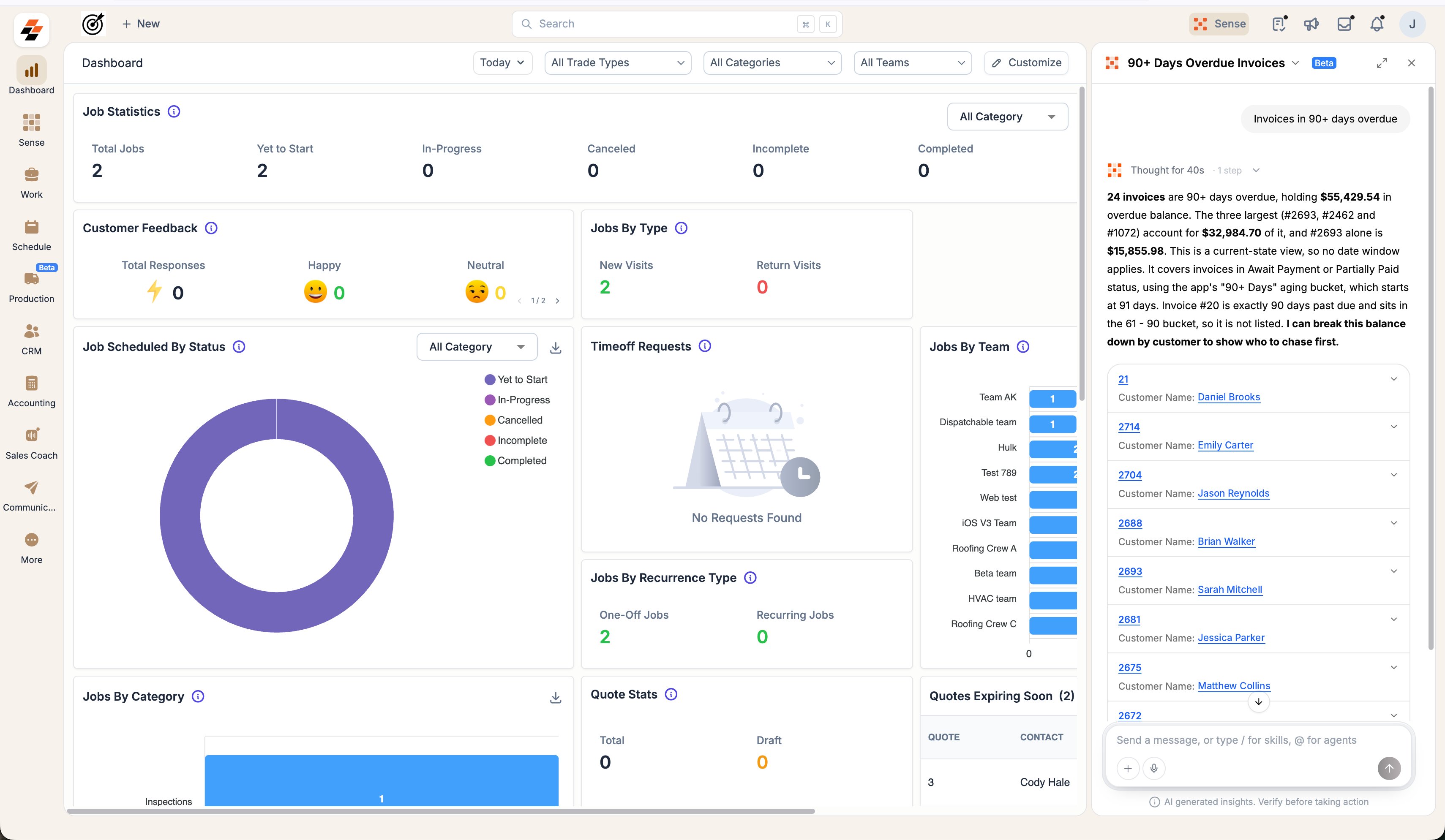
When Sense doesn’t send notifications
Sense doesn’t send a notification in the following situations:- You are already viewing the conversation: If you are on the thread when Sense completes its response, you won’t receive a notification for that outcome.
- The conversation is archived: Archived threads don’t generate Sense notifications.
- You submit another question in the same thread: If you submit another question before a notification is sent, Sense sends a notification only for the latest outcome.
Manage your Sense notifications
Sense notifications appear alongside your other Zuper notifications.- Find notifications: Look for the Sense icon in the Unread and All tabs of the notification panel.
- Check read status: Opening a conversation marks its related Sense notifications as read.
- Return to a conversation: Select a notification to open the corresponding thread and review the latest activity.