

Navigation: Sense -> Personalization
Open Personalization
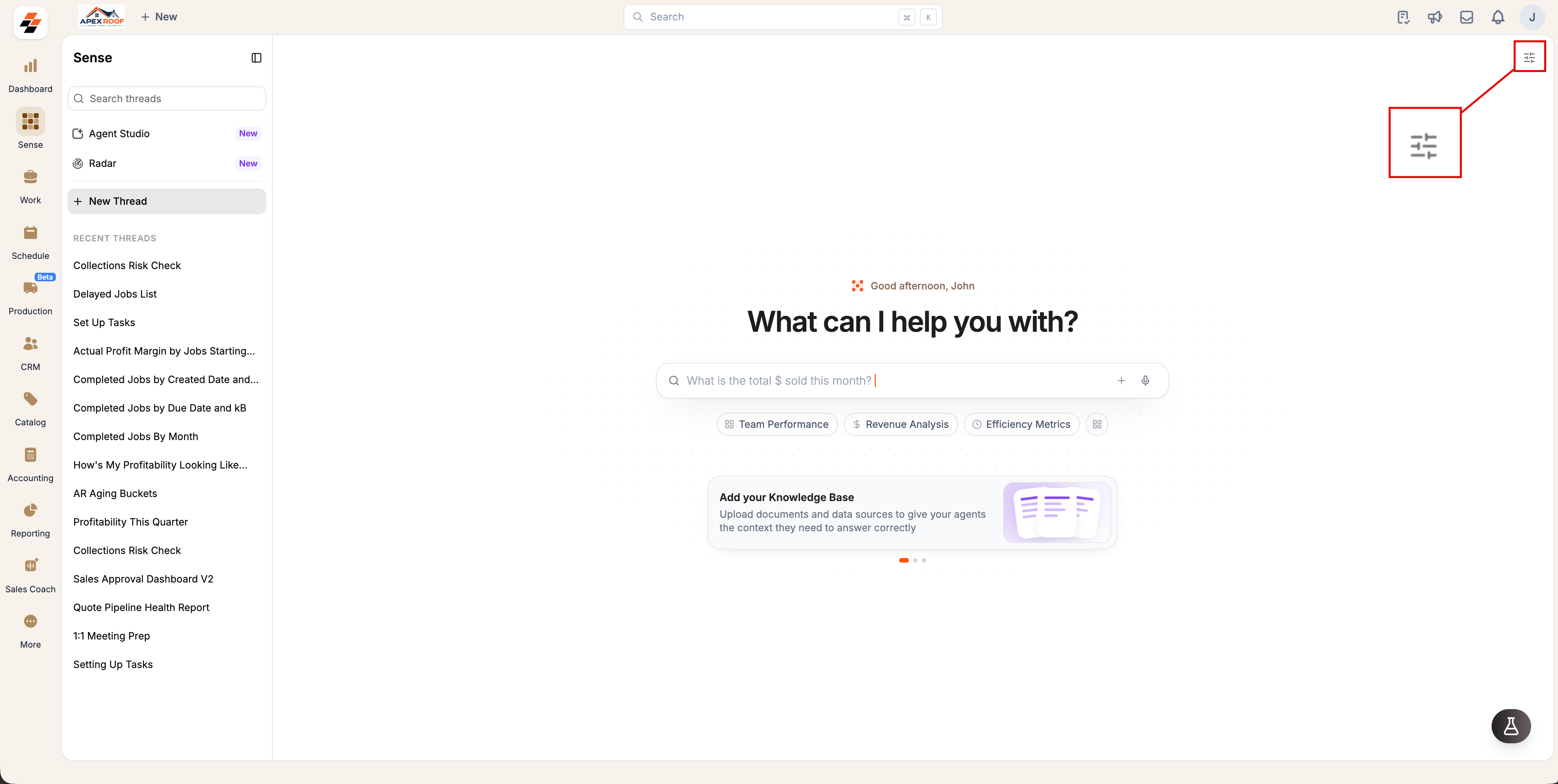
- Open Sense from the left navigation.
- Select the Settings icon in the top-right corner.
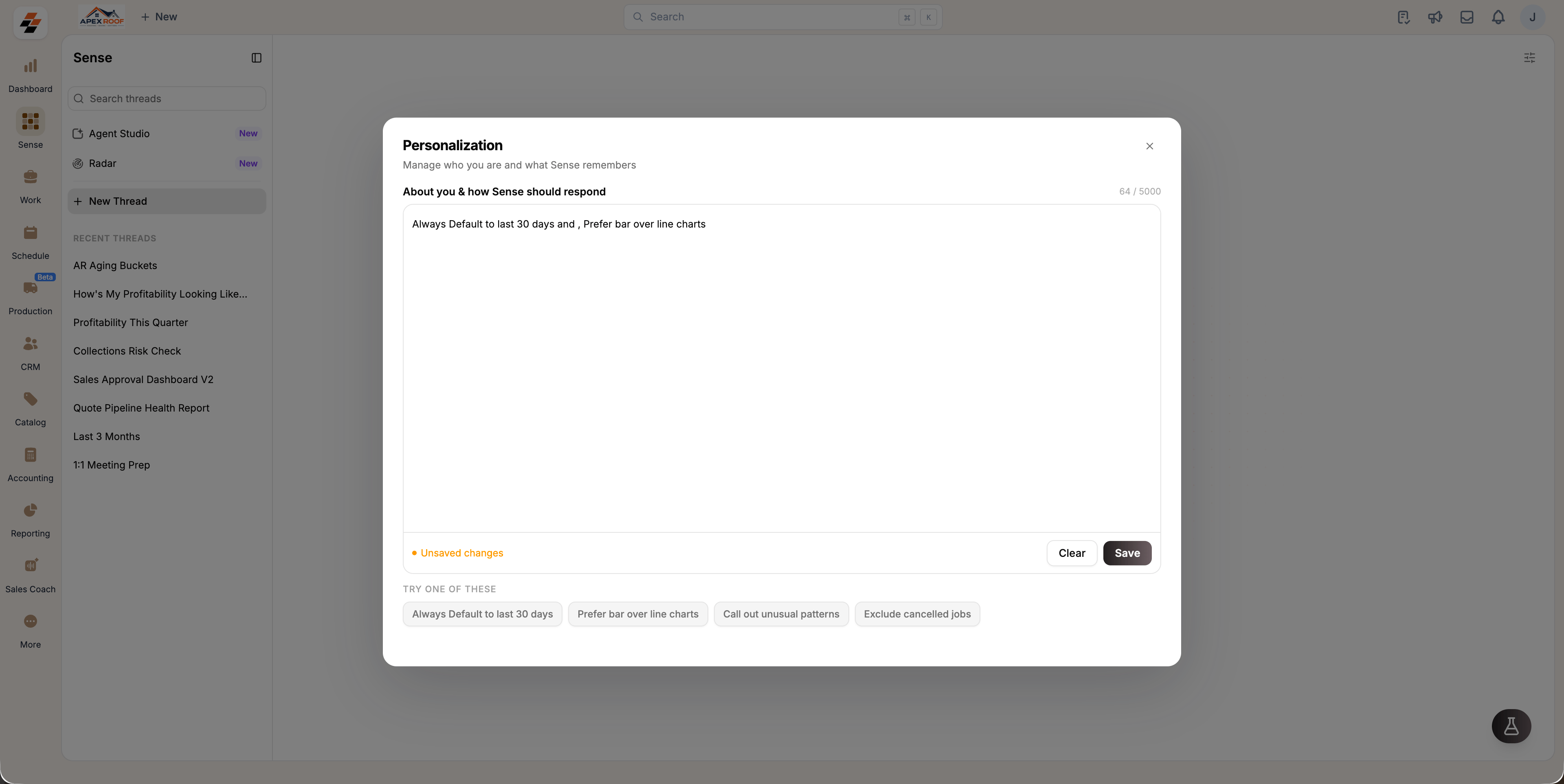
- The Personalization dialog box opens.
Save your preferences
- Enter your preferences into the About you & how Sense should respond text box, one per line or as a sentence.
- (optional) Select any chip under TRY ONE OF THESE to insert standard preference templates instantly.
- Select Save.
- Always default metrics to the last 30 days.
- Prefer bar charts over line charts for comparisons.
- Exclude cancelled or refunded jobs from summaries.
- Highlight unusual spikes or patterns in financial metrics.
Note: Preferences apply exclusively to your account (they will not alter results for your teammates). The text box supports up to 5,000 characters.
Edit or clear your preferences
To update or remove your custom instructions:- To edit: Reopen Personalization, modify your instructions, and select Save.
- To delete everything: Select Clear, then confirm. Selecting Clear permanently removes all saved preferences and resets Sense to its default account behavior. This action cannot be undone.