

- On listing pages: Filter and sort records, manage saved views, and retrieve record details. You can also ask questions about the records in the list, including counts, totals, rankings, and trends.
- On details pages: Summarize the open record, ask about its fields, and explore related records and activity history.
Ask Sense is in beta. You see it when Sense and Ask Sense are enabled for your account, and only admins can use it.
Access the Ask Sense sidebar
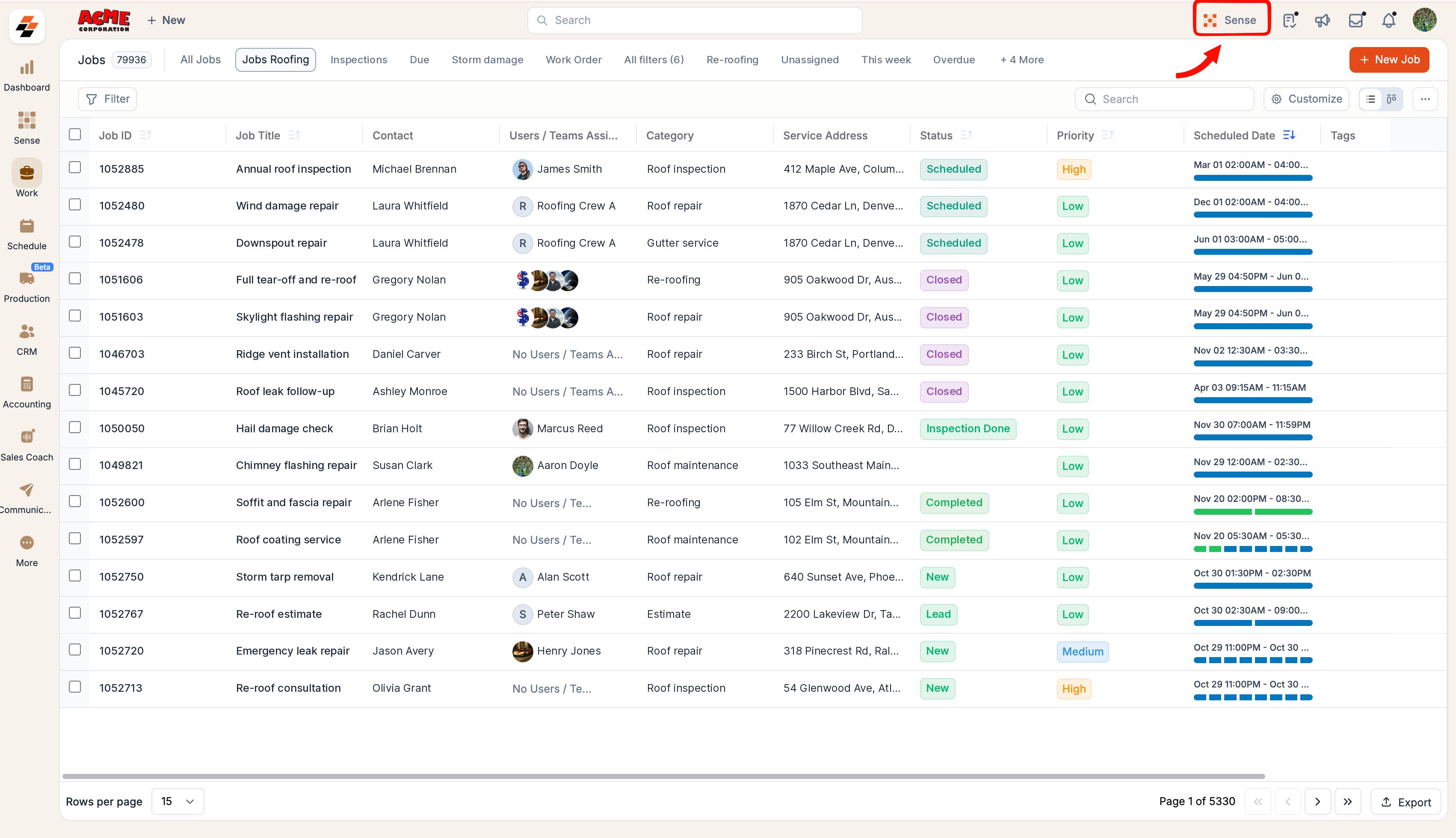
- Click Sense in the top bar. The sidebar opens on the right, beside the page you are on.
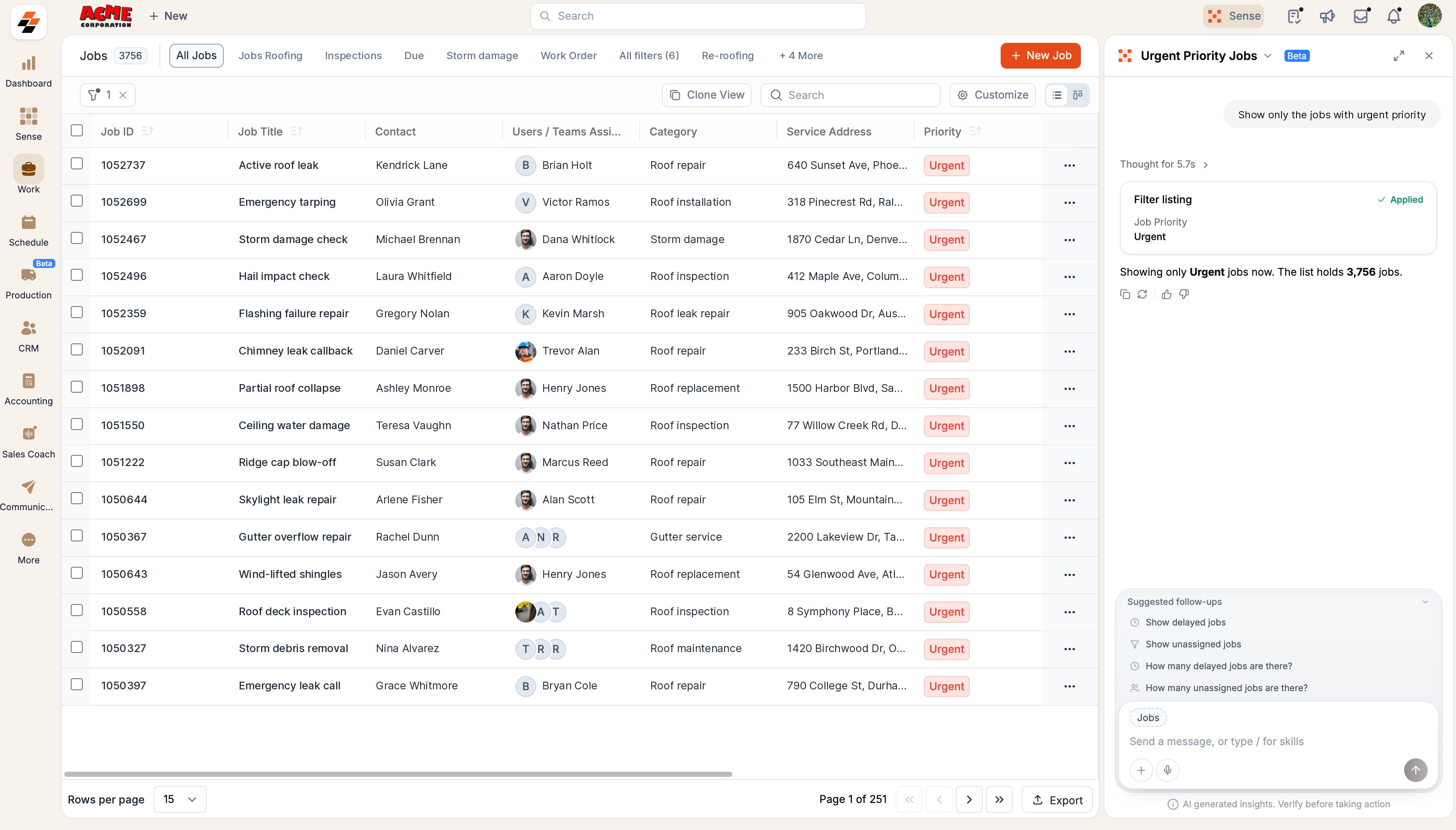
- Click one of the starter cards, or type your question in the message box.
- Press Enter or click the send arrow.
Manage your conversations
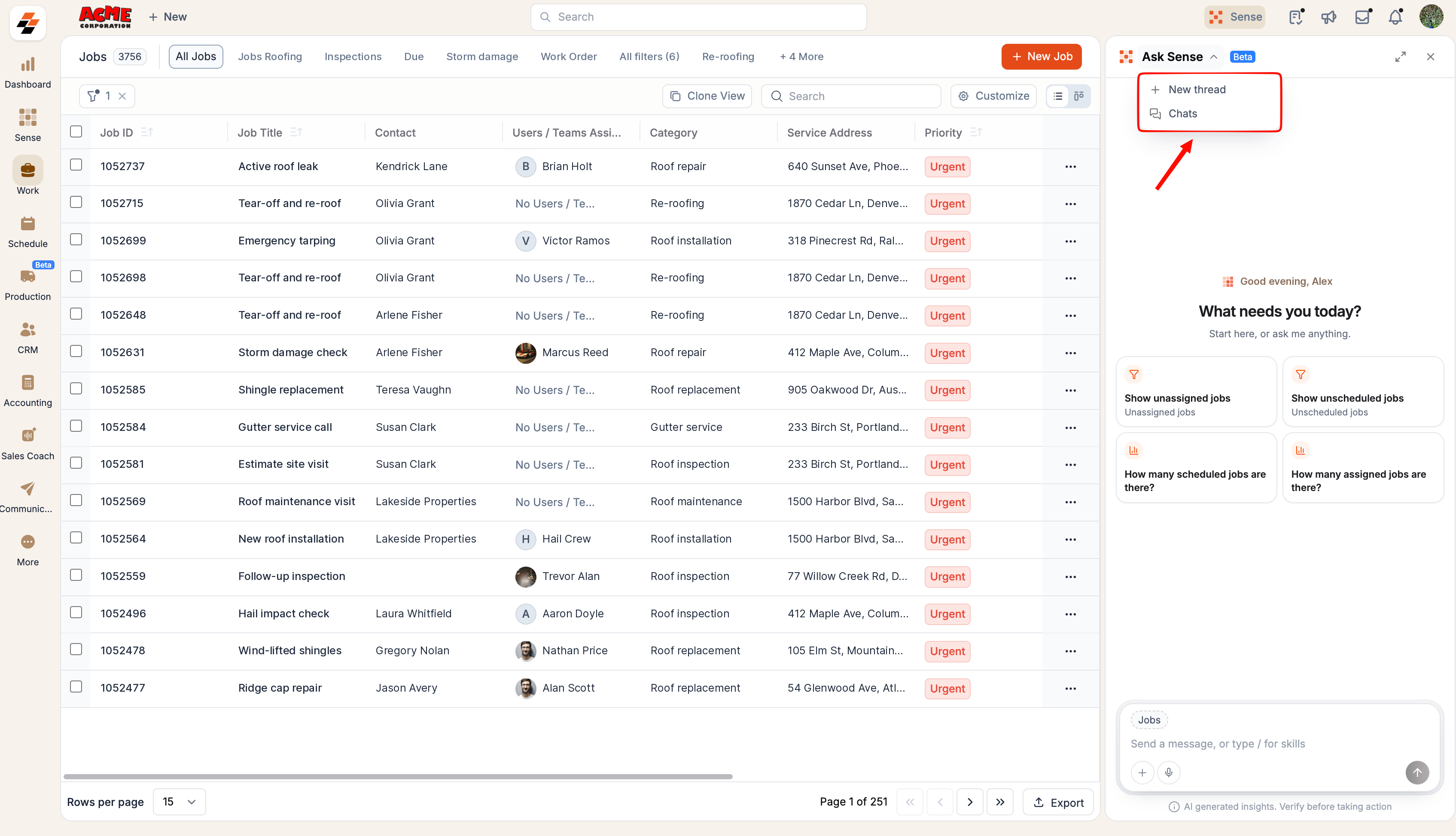
Each conversation with Ask Sense is a thread. Sense names the thread from your first question, and the panel title changes from Ask Sense to that name. Threads keep their own context, so start a new one when you move to an unrelated question. Click the panel title to open its menu.- New thread: Starts a new conversation.
- Chats: Lists your earlier conversations. Click one to reopen it.
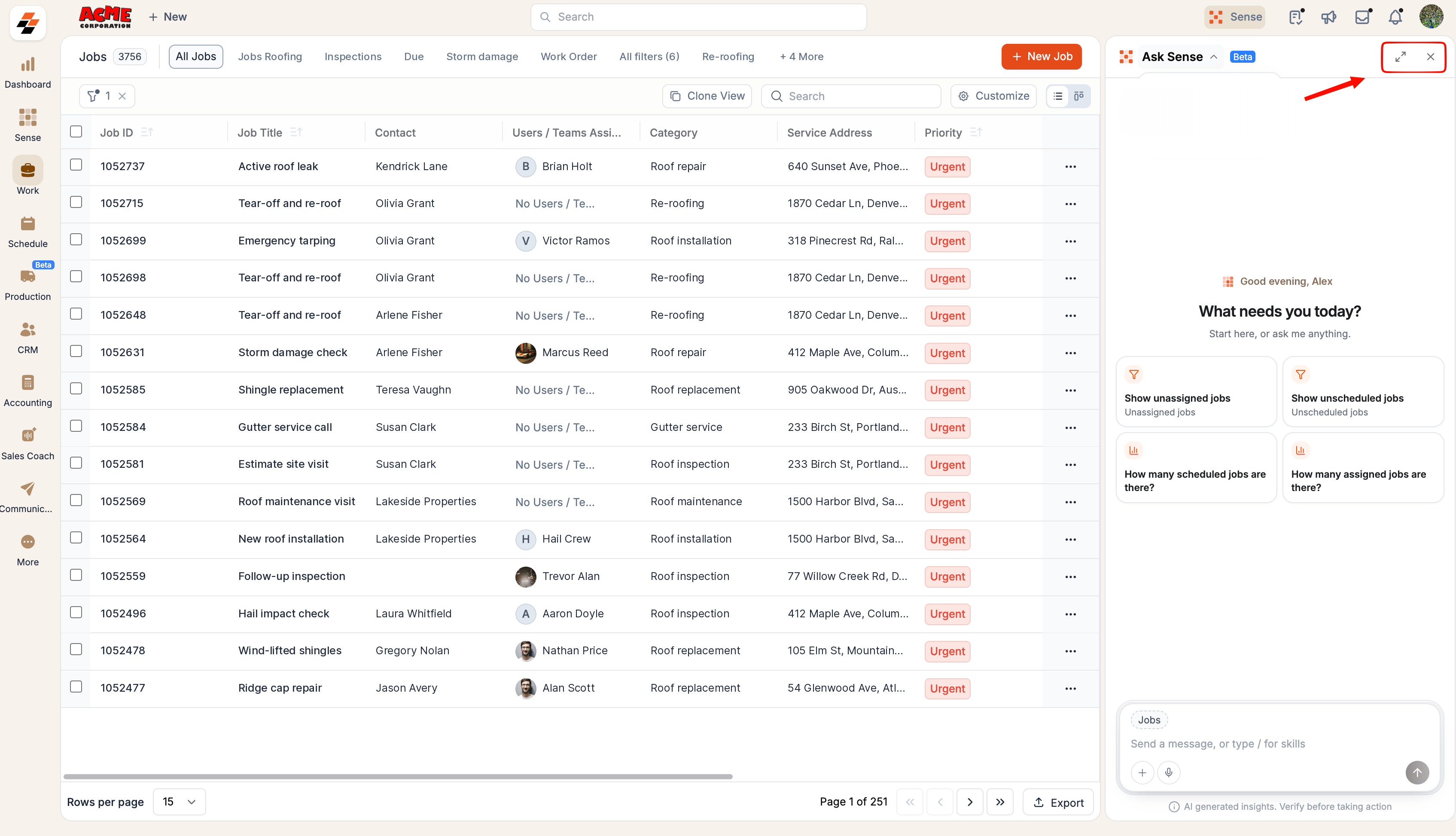
- Expand continues the conversation on the full Sense page.
- Close closes the panel, and Esc does the same.
Listing pages
Ask Sense helps you find records, filter and sort lists, manage saved views, and analyze list records. It works in list view and, where available, board (Kanban) view.Supported listing pages
Supported listing pages
- Jobs
- Contacts
- Organizations
- Properties
- Quotes
- Invoices
- Payments
What you can do on a listing page
Good to know
- Filtering records: Ask Sense adds the requested filters to those already applied. To start over, ask it to clear the filters.
- Unsupported fields: If a field isn’t available for filtering or sorting, Ask Sense explains the limitation and may offer similar fields or the option to leave the list unchanged.
- Current list: Ask Sense changes only the list you’re working with. To filter jobs, open the Jobs list first.
- Page-specific capabilities: Available filters, sorting fields, and saved-view actions may vary by listing page.
Details pages
On a details page, Ask Sense answers questions about the open record and its related data. It can summarize record information, explain field values, and help you explore linked records and activity history.Supported details pages
Supported details pages
- Job
- Contact
- Organization
- Property
- Quote
- Invoice
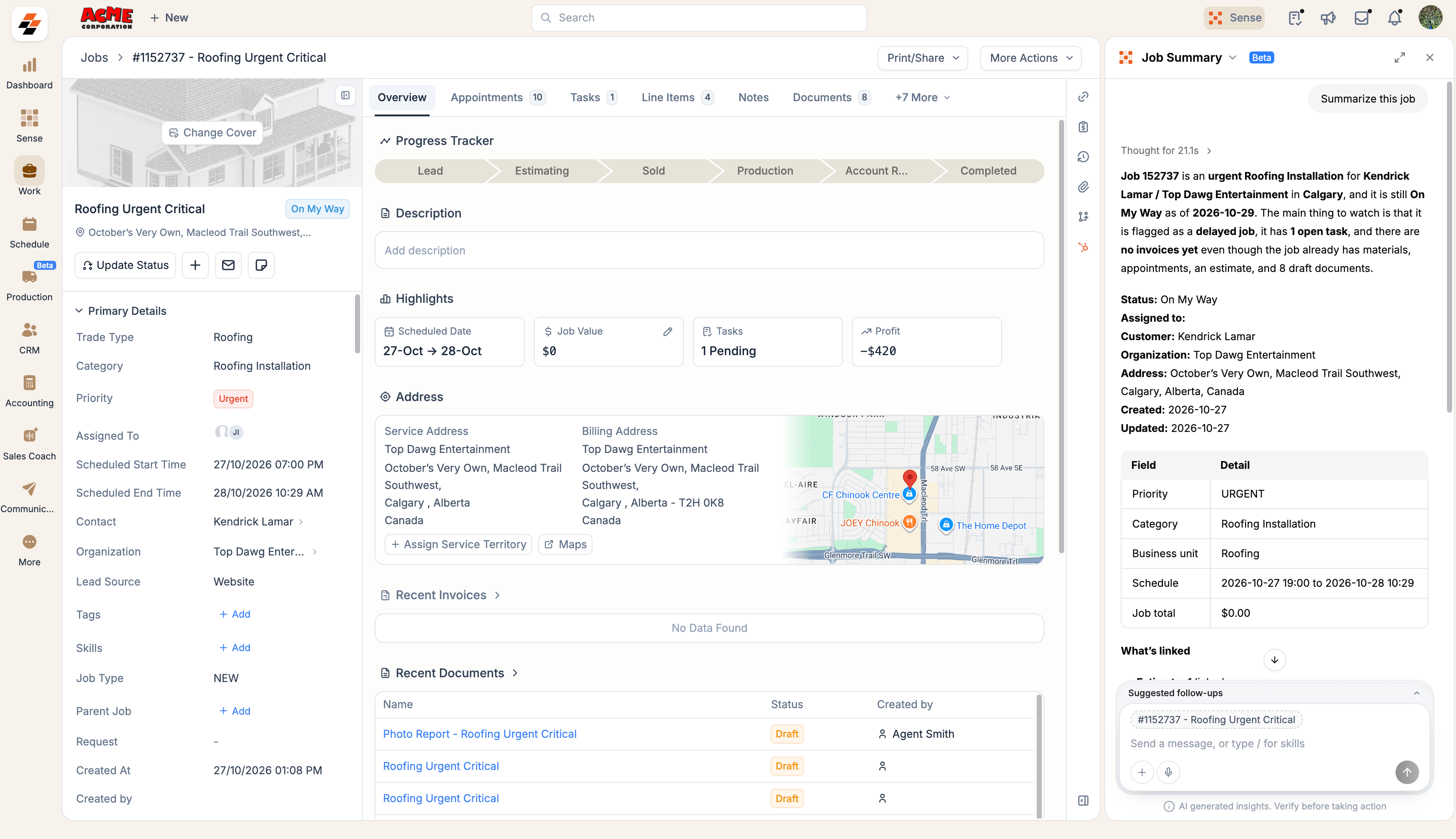
What you can do on a details page
Ask Sense is read-only on details pages. You can ask questions and get summaries, but you can’t use it to update records or perform record actions. Support for record actions is coming soon.Example prompts
Jobs
Jobs
- Show only high-priority jobs.
- Sort by Scheduled Date, newest first.
- Which team has the most jobs in this list?
- Summarize this job.
- What is the status history of this job?
Contacts, organizations, and properties
Contacts, organizations, and properties
- Show contacts created this month.
- Summarize the records in this list.
- What open jobs are linked to this organization?
- When was the last job at this property?
Quotes
Quotes
- Show quotes in Draft status.
- What is the total value of these quotes?
- Who is the customer on this quote, and what is the total?
Invoices and payments
Invoices and payments
- Show unpaid invoices due this month.
- Save this as a view called Due this month.
- How much is still due on this invoice?
- What invoices are linked to this job?