

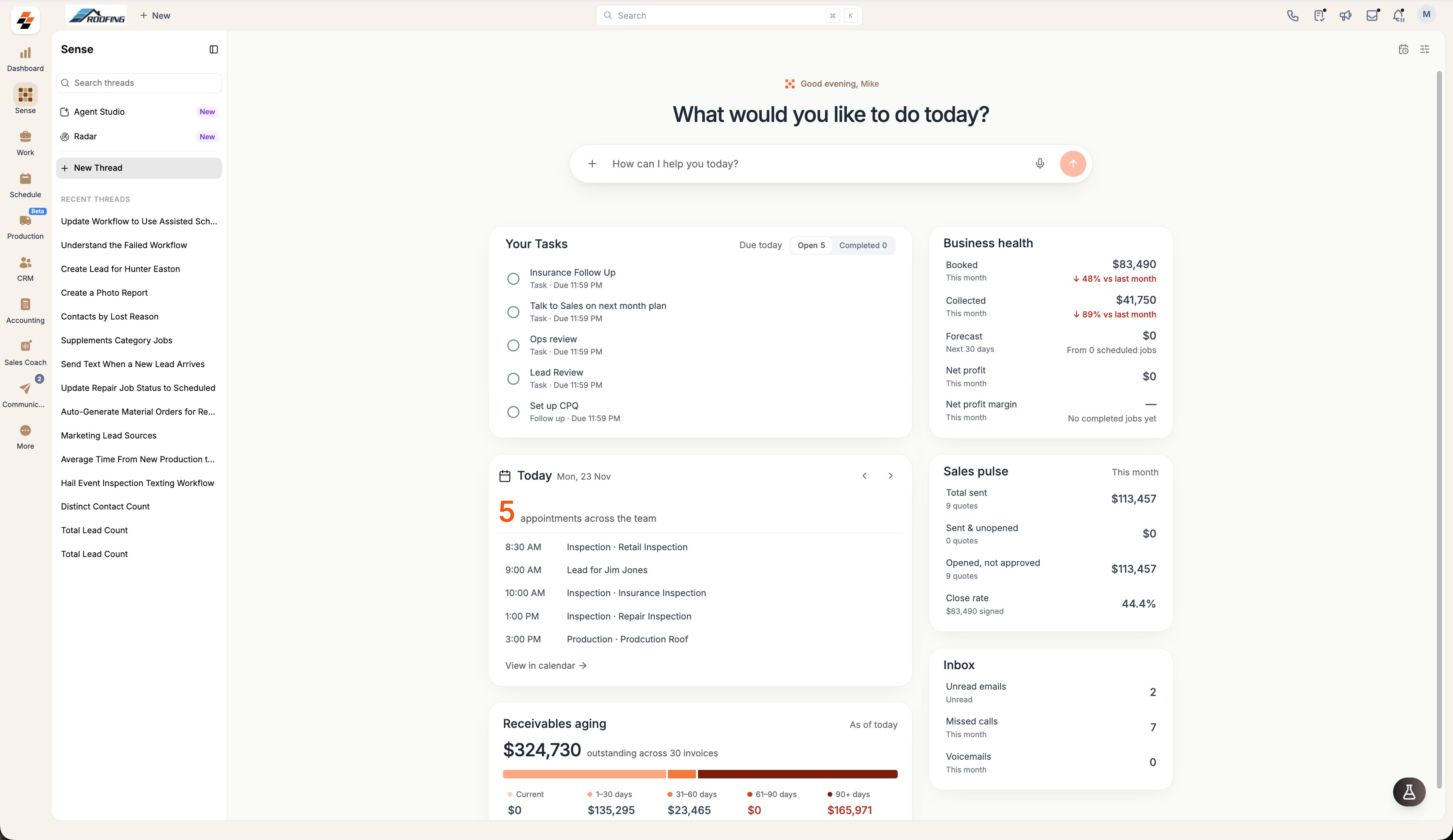
Note: The Sense home page is available to admins when Sense is enabled for your organization. The cards displayed depend on the modules enabled for your organization and the records you have permission to access. See Which cards you see.
Open the Sense home page
- Click Sense from the left navigation menu.
- The Sense home page opens alongside New thread. You can also return to the home page at any time by selecting New thread.
Ask Sense a question
Use the question box below the greeting to ask Sense about your business.- Select the question box.
- Enter your question or choose one of the suggested prompts.
- Press Enter.
Understand the home page cards
The home page contains cards that give you an overview of your daily activities and business performance.
Most figures and items on these cards are clickable. Select a figure or item to open the corresponding list in Zuper with the relevant filters applied.
The Business health card is for reference only. Its figures are not clickable.
Your Tasks
The Your Tasks card shows tasks assigned to you that are due today. You can review their status and update tasks directly from the card. The card has two tabs:- Open: Shows tasks with the statuses Yet to Start, In Progress, On Hold, or Incomplete.
- Completed: Shows tasks that are completed.
- Open a task: Select a task to view its details in the tasks drawer.
- Update a task’s status: Select the status circle beside the task, choose a status, add remarks if needed, and select Update.
- View all tasks: If a tab contains more than five tasks, select View all to view the complete list in the tasks drawer.
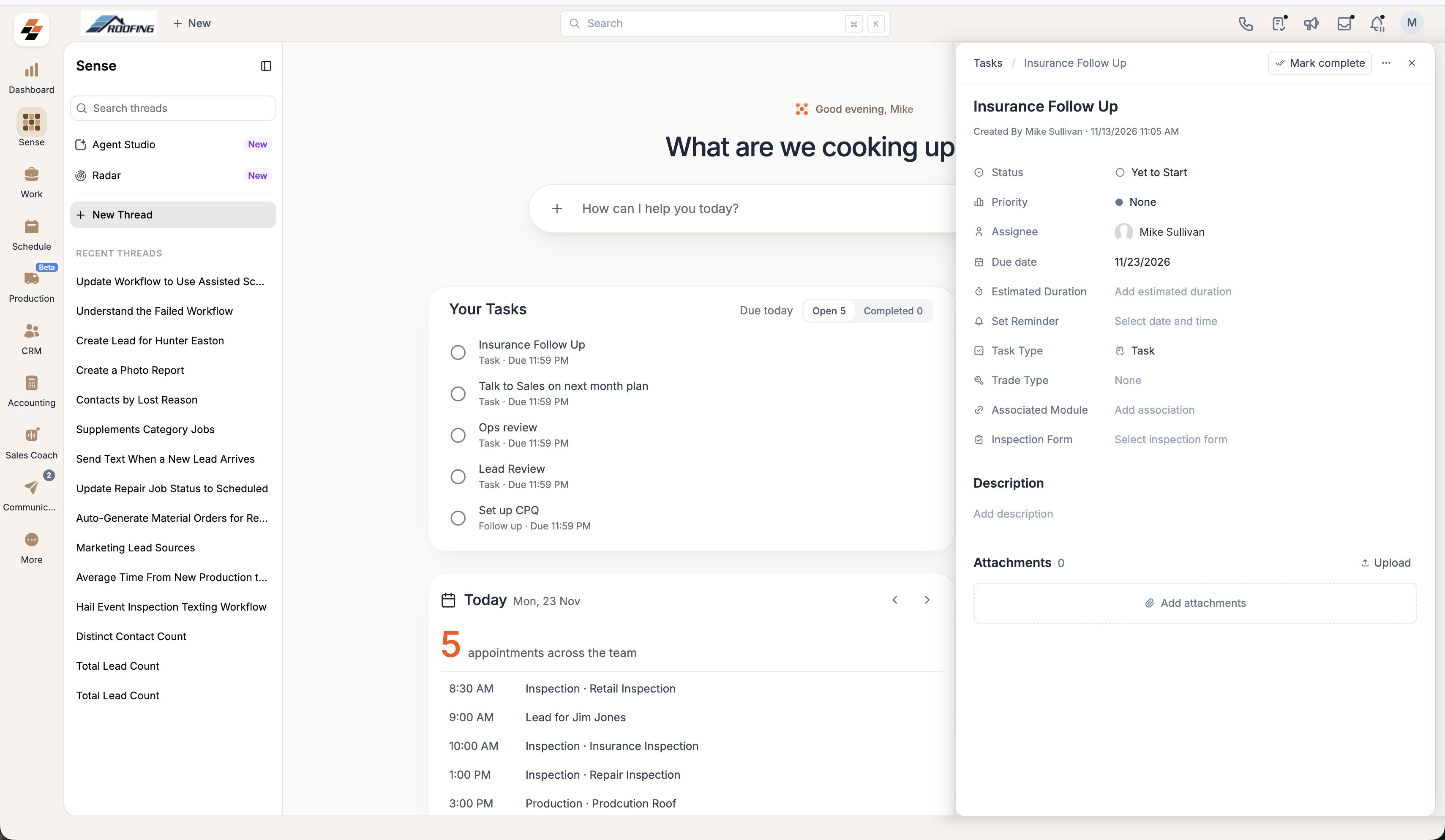
Note: If a task has an inspection form, you must submit the form before marking the task as Completed. When you select Completed, select Fill form to complete and submit the inspection form. The task is marked as completed after submission.
Today
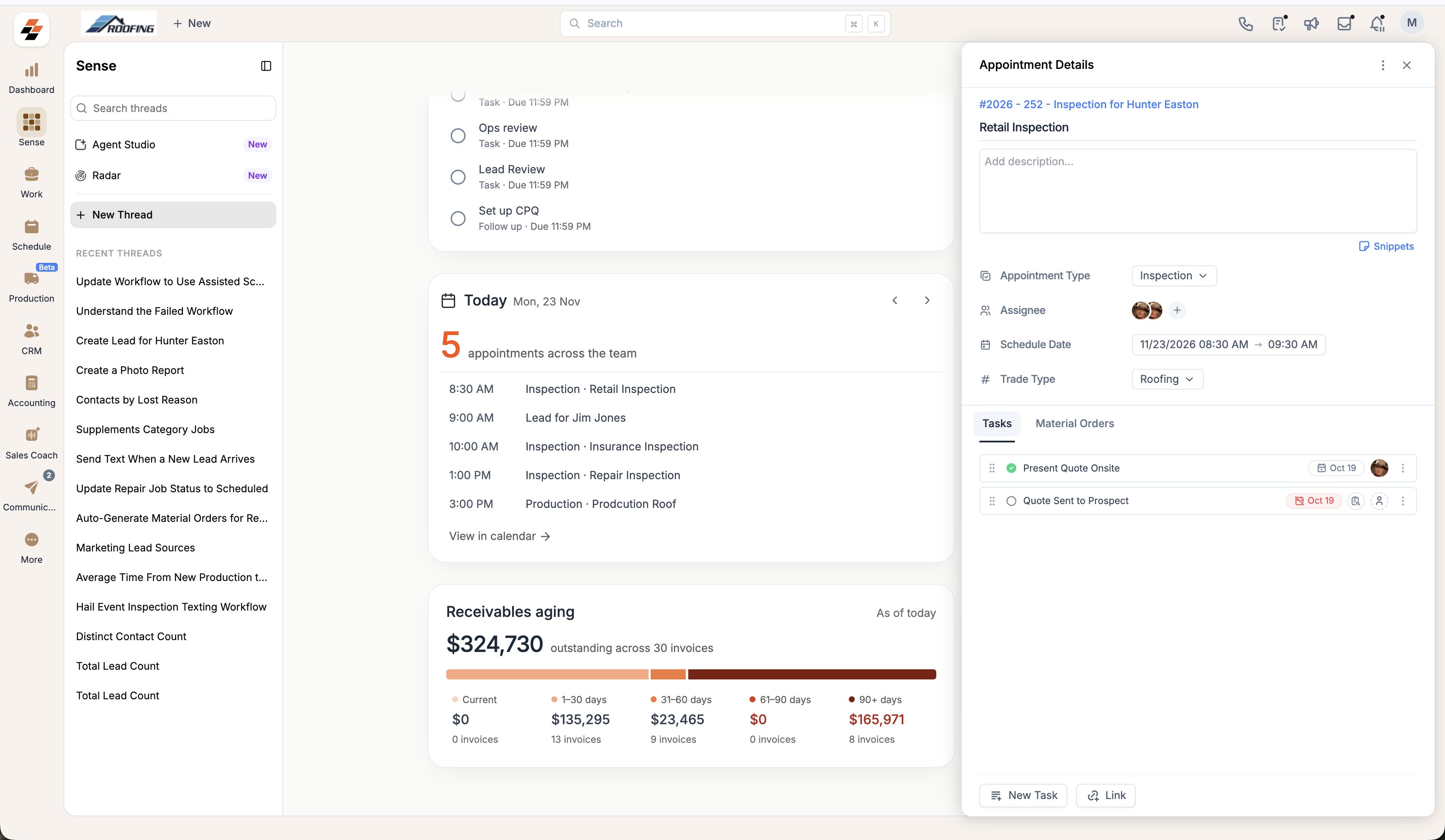
The Today card shows the number of appointments scheduled across your company for the selected day. It also displays the first six appointments and their start times. You can:- View another day: Use the left and right arrows to move to the previous or next day.
- Return to today: Select Today to return to the current date.
- Open an appointment: Select an appointment to view its details.
- View all appointments: Select View in calendar to see the day’s appointments in the calendar.
Business health
The Business health card provides an overview of your company’s financial performance. It displays five metrics to help you monitor booked revenue, payments collected, upcoming work, and job profitability.
Each monthly value is compared with the previous month. A green arrow indicates an increase, and a red arrow indicates a decrease. For example, 12% vs last month. Net profit margin is compared in percentage points (pts), for example, 1.2 pts vs last month.
- If the previous month’s value was zero, no comparison is shown.
- If no jobs have been completed or closed this month, Net profit margin displays — and No completed jobs yet.
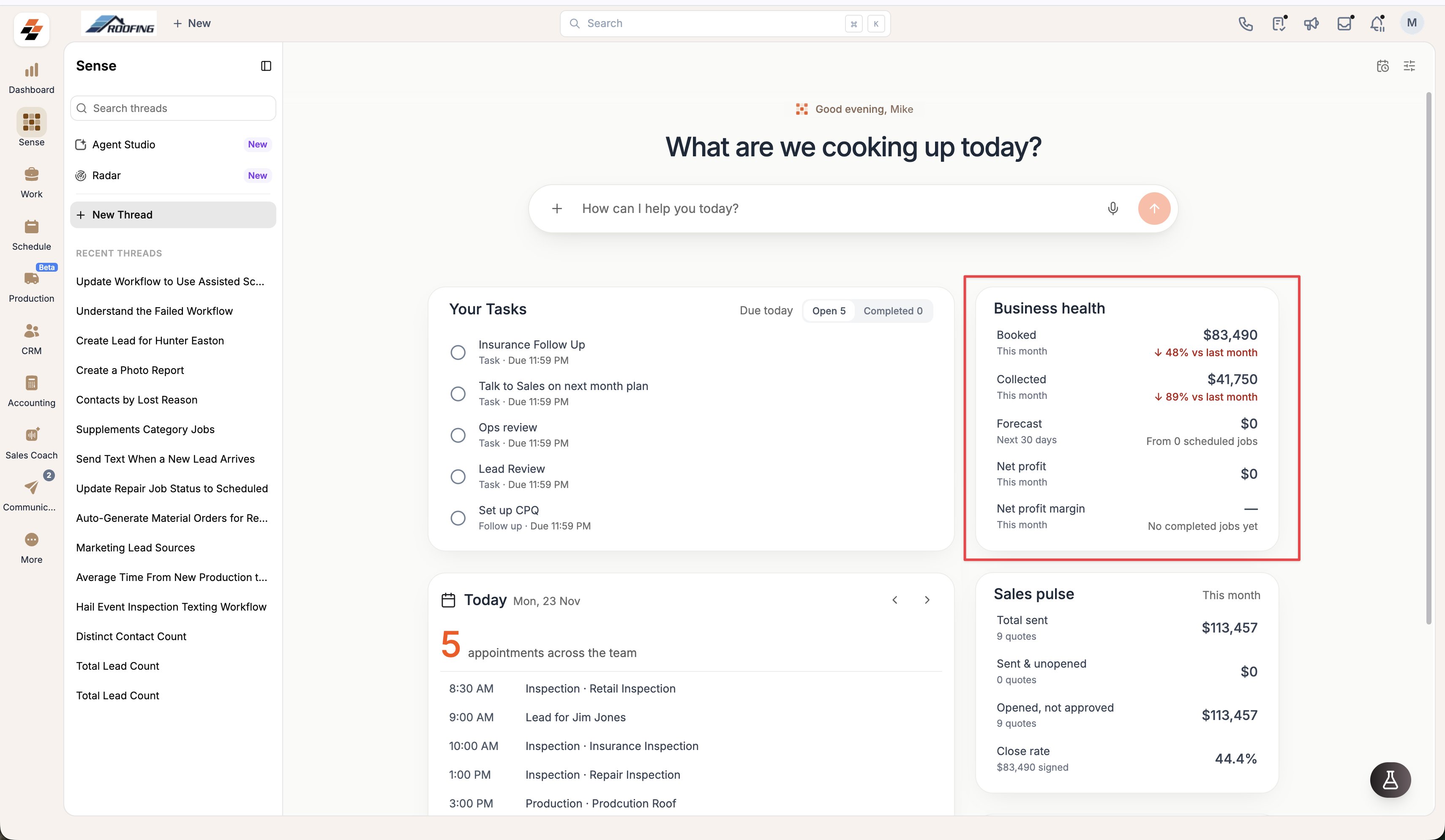
Note: Net profit and Net profit margin depend on job profitability data. Your organization must configure job costs, such as labor costs, overhead, and commission, for these metrics to display meaningful values. If job costs are not configured, the values may appear as zero or —.
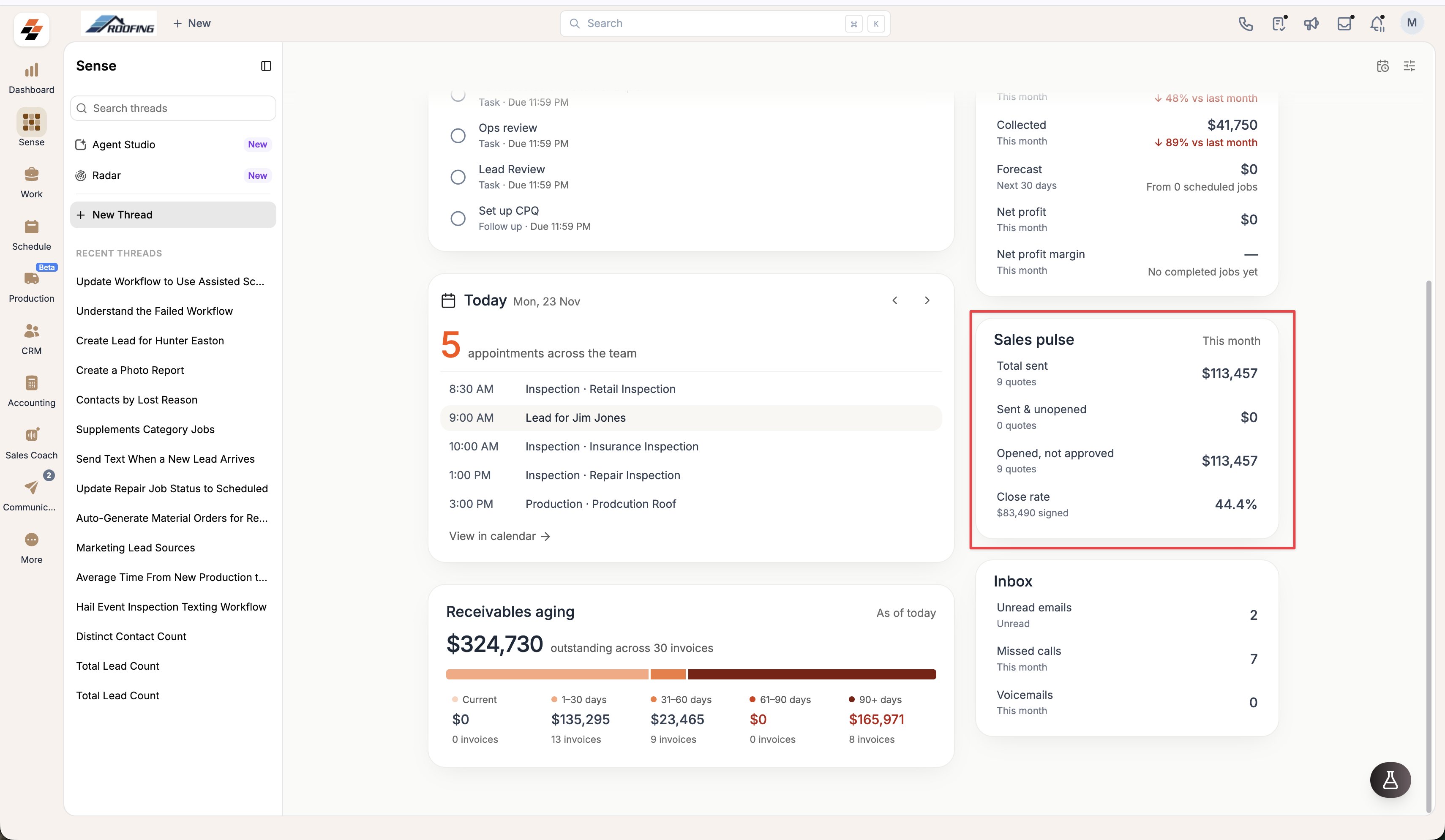
Sales pulse
Sales pulse shows how this month’s quotes are moving. Each row shows the total value and the number of quotes.- Total sent: Quotes dated this month in Sent status.
- Sent & unopened: Sent quotes the customer hasn’t opened yet.
- Opened, not approved: Sent quotes the customer has viewed but not approved.
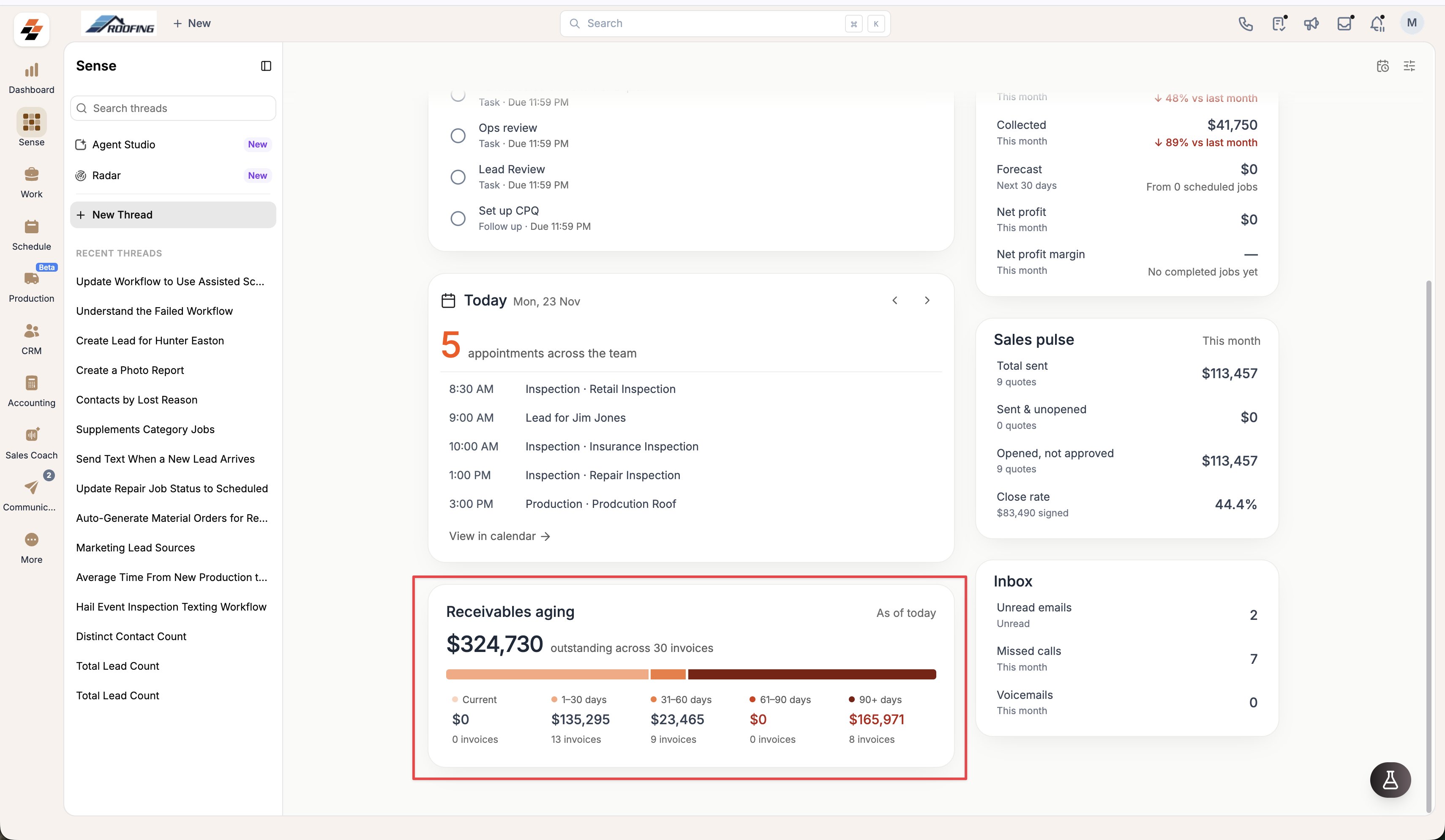
Receivables aging
Receivables aging shows the total amount outstanding across your unpaid invoices, as of today. A bar splits the total by how long invoices are past their due date:- Current: due today or later
- 1–30 days, 31–60 days, 61–90 days: overdue by that many days
- 90+ days: overdue by more than 90 days
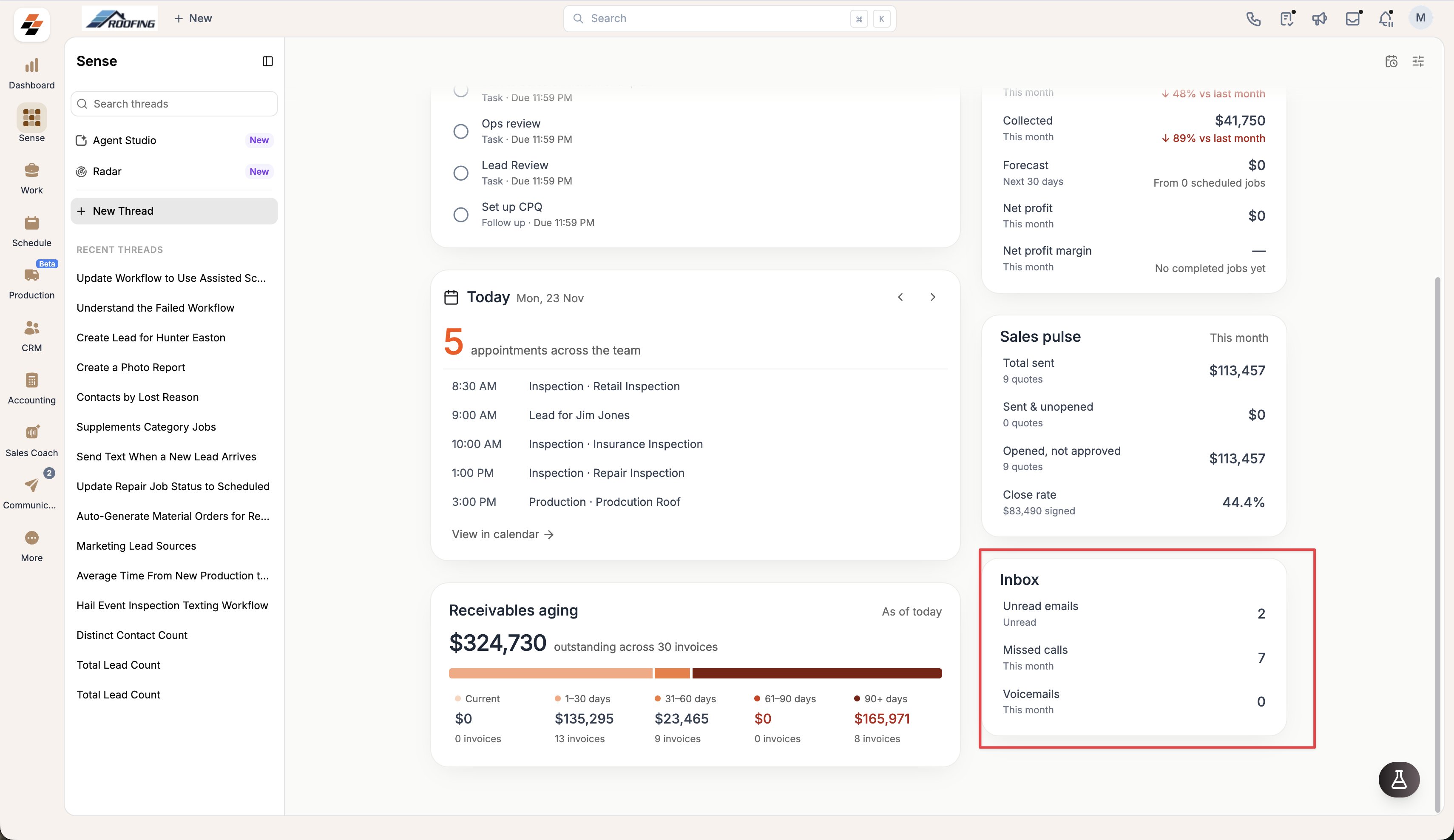
Inbox
The Inbox card gives you an overview of incoming communications that need your attention. It displays:- Unread emails
- Missed calls this month
- Voicemails this month
Which cards appear on the home page
The cards displayed on your Sense home page depend on the modules enabled for your organization.Good to know
- Time zone: The Today card follows your company’s time zone. The other cards, including Business health, follow the time zone set on your Zuper profile, if you have set one. “This month” and “last month” are counted in that time zone.
- Your Tasks is personal: It shows only tasks assigned to you. The other cards show figures for the whole company.
- Currency: Amounts use your company’s currency.