

Before you begin
Before you begin
- Create the call groups and CSR Agents you want to use in the route. See Creating Call Groups.
- Review the general call route setup in Create and Manage Call Routes. Schedules, welcome greetings, If no one answers fallbacks, and missed-call texts work the same way for Rollover and Simultaneous routes.
- Set up Rollover routes in the web app; your team can answer rollover calls in the web app, Chrome extension, iOS app, and Android app.
Create a Rollover route
- On the Call Routings tab, select + New Route.
- Under How should this route ring your team?, select Rollover.
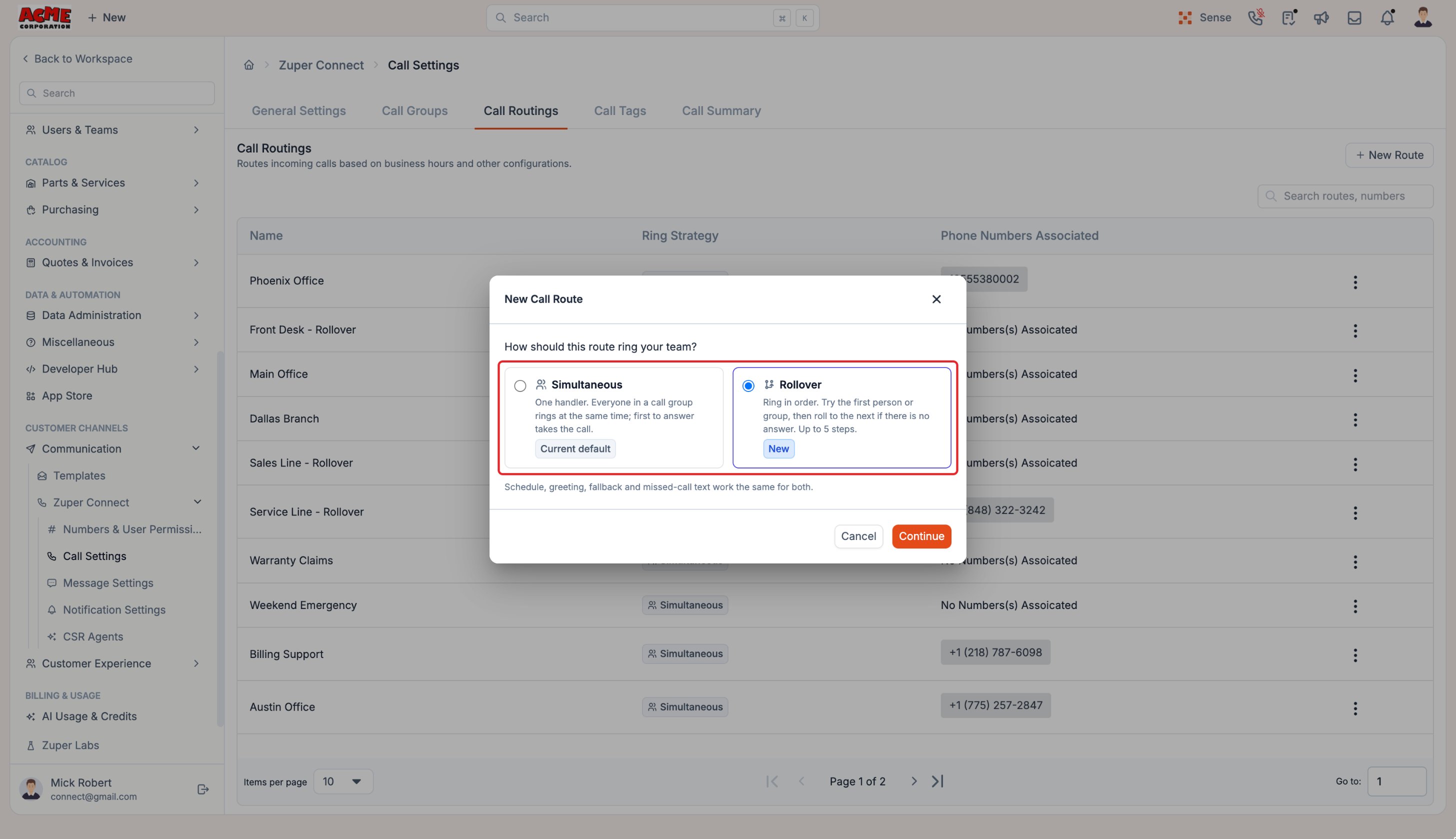
- Select Continue. The New Call Route panel opens with a Rollover label next to the title.
- Enter a Route Name and select a Schedule.
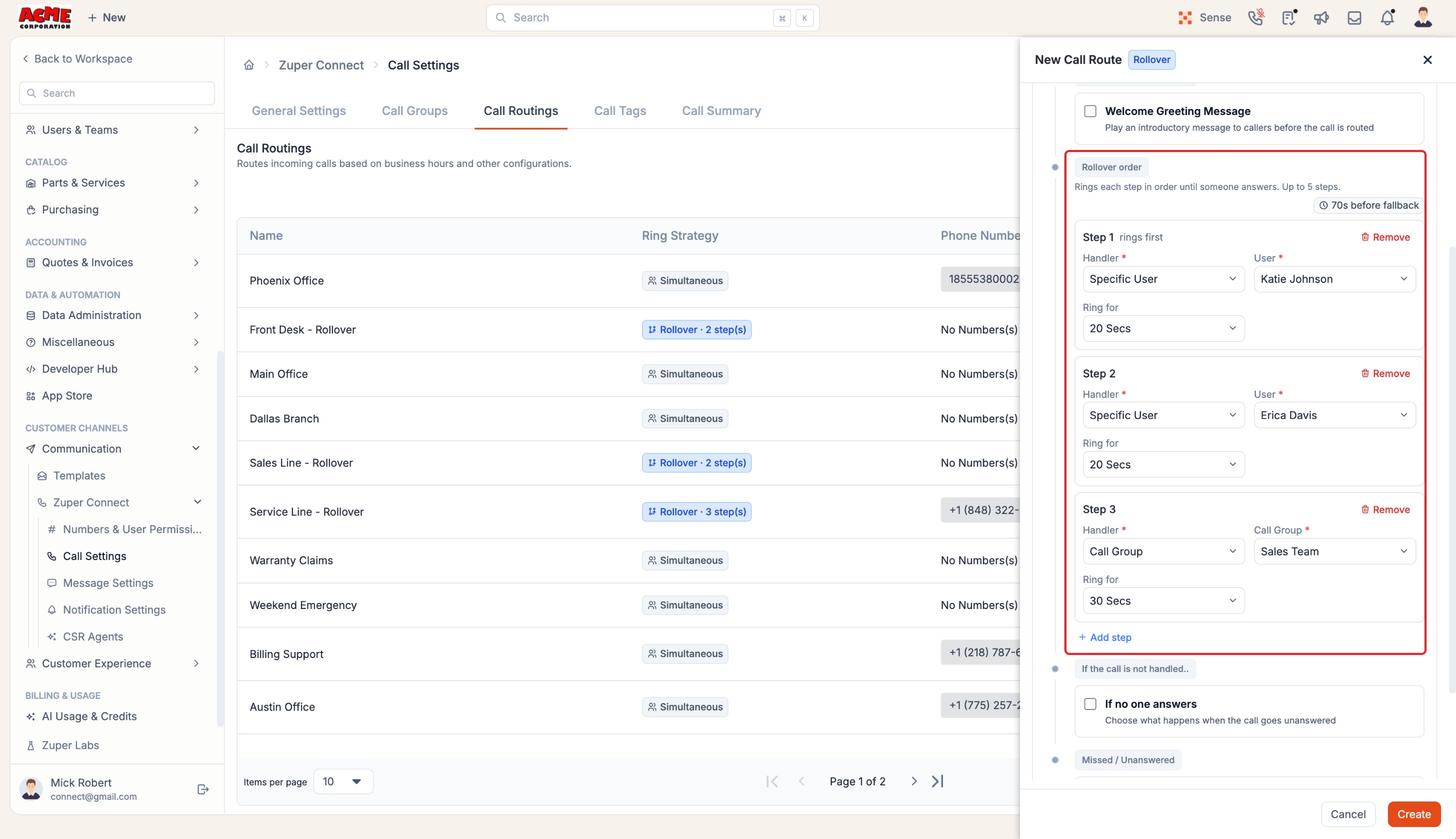
- On the Incoming Calls tab, configure your Rollover order steps as described below.
Set up the Rollover order
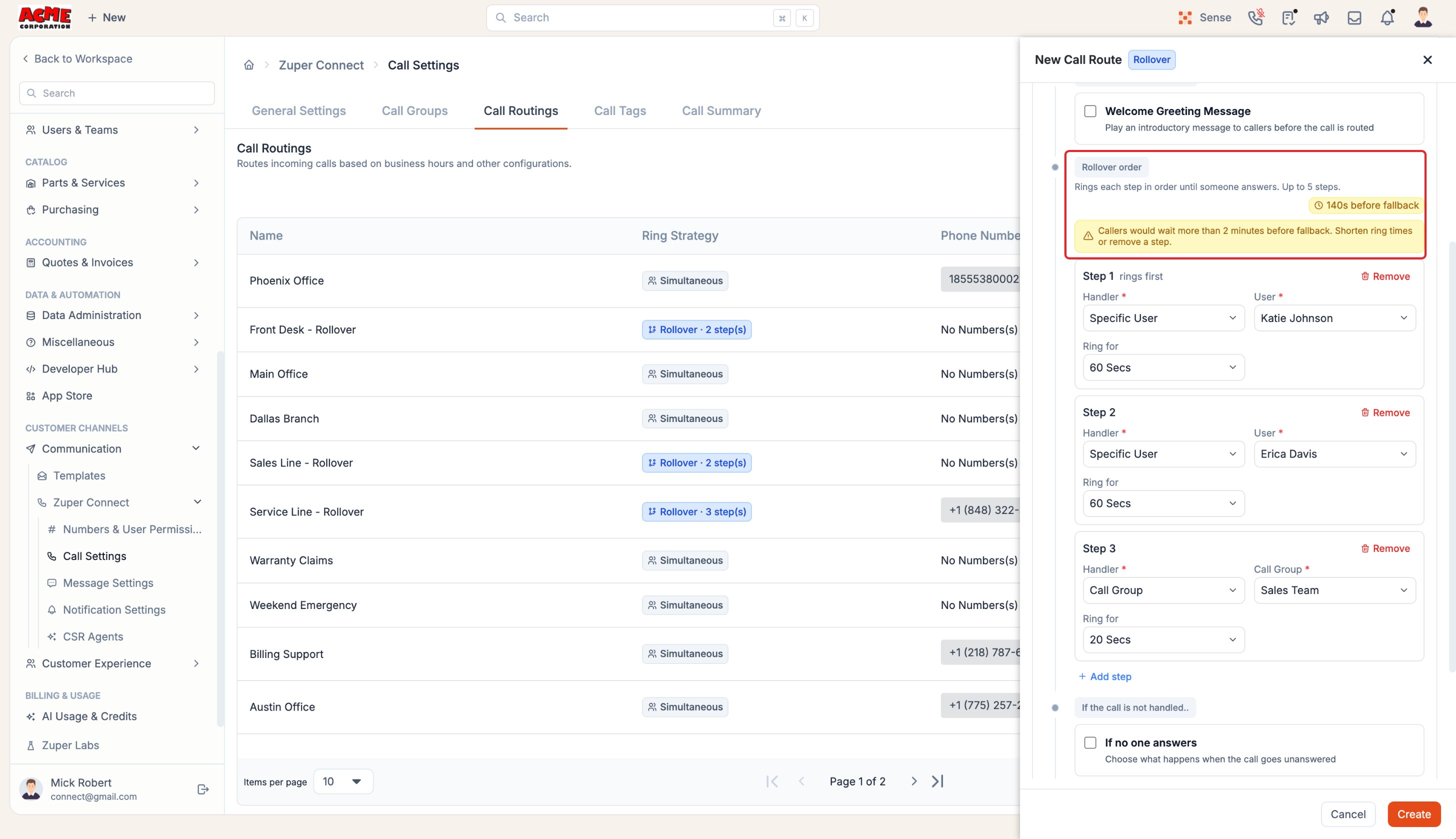
On a Rollover route, the Rollover order configuration helps Zuper Connect ring in order until someone answers. A section can have 1 to 5 steps, starting with Step 1.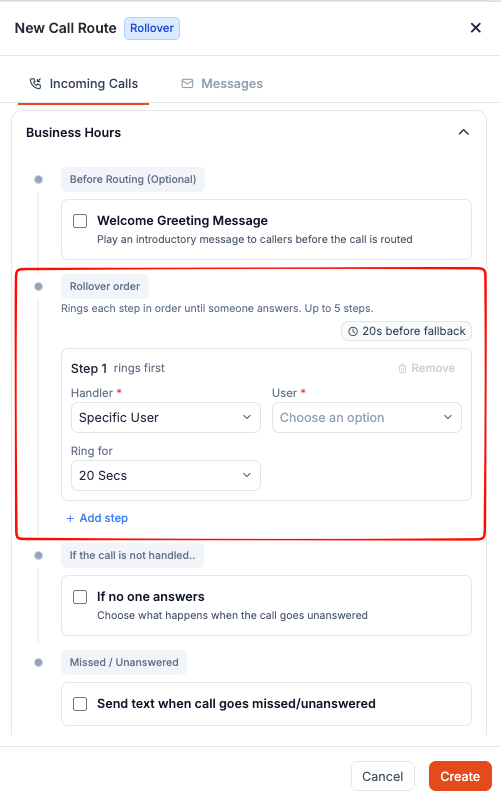
- Under Handler, select Specific User, Call Group, or CSR Agent.
- In the adjacent selector (User, Call Group, or CSR Agent), choose who receives the call at this step.
- Under Ring for, choose how long the step rings: 15 Secs, 20 Secs, 30 Secs, 45 Secs, or 60 Secs. New steps default to 20 Secs.
- Select Add step to add another step.
To remove a step, select Remove on that step (at least one step must remain).
- Missing target: Saving without choosing who receives a step displays Select who should receive the call in this step under that step.
- Step limit: When a section reaches 5 steps, the button changes to Maximum 5 steps.
Note: A user or call group chosen in one step is excluded from other steps in the same section. However, a user selected individually can still belong to a call group in another step, meaning they can ring twice during the same call.
Set up steps for Business Hours and After Hours
The sections you set up depend on the route’s schedule:- Always (24/7): Configure a single step list.
- Default hours or Custom schedule: Configure separate step lists under Business Hours and After Hours.
Check how long callers wait
A counter above the steps totals the Ring for durations of all steps to show how long a caller can ring before reaching If no one answers (for example, steps of 60, 60, and 20 seconds show 140s before fallback).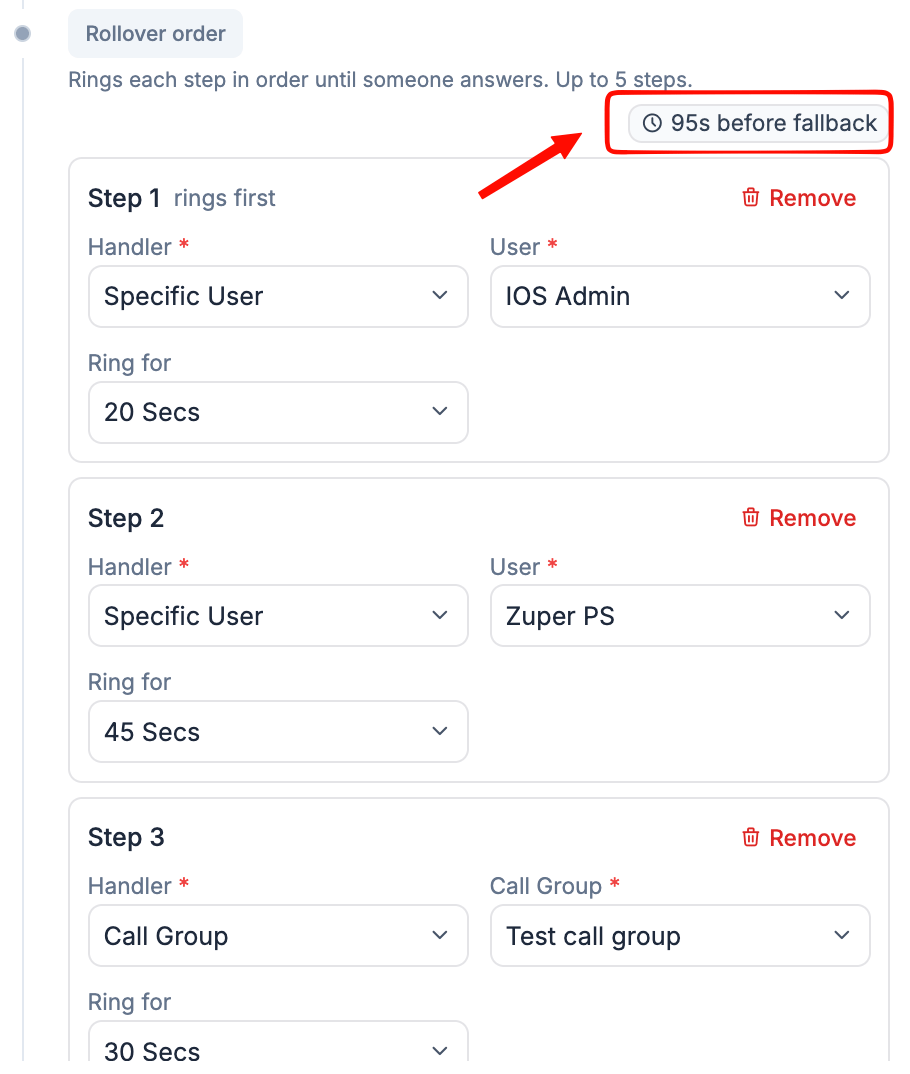
Use a CSR Agent as the last step
A CSR Agent answers every call that reaches its step, so calls cannot roll past it. Selecting CSR Agent as a step’s handler applies these rules:- The step becomes the final step, and any steps after it are removed.
- The step displays a Last step label and has no Ring for option.
- Allow Intervention to Human Agent can be toggled on so team members can take over active calls.
- Add step is disabled.
- The wait counter displays ends at CSR Agent (for example, 20s before fallback · ends at CSR Agent) and does not add ring time for the CSR Agent step.
- Add step becomes available again.
- Ring for resets to 20 Secs.
- Steps that were removed when you selected the CSR Agent are not restored automatically; add them again manually if needed.
Set what happens when no one answers
The If no one answers setting decides what happens when no step answers the call.- Select If no one answers.
- Choose a fallback option:
- Forward to an external number: Forwards the call to a phone number outside Zuper.
- Voicemail: Plays a voicemail greeting and records a message.
- CSR Agent: Hands the call to a CSR Agent selected in Choose Agent.
- End call with greeting message: Plays a closing message and disconnects.
Note: If no one answers is optional when the final step in a section is a CSR Agent, and required in all other sections. Business Hours and After Hours are checked separately, so configure a fallback for each non-CSR-ending section.
How Zuper Connect handles unavailable users
Zuper Connect checks availability before ringing each step:Note: Rollover is not supported inside IVR menus, and Rollover routes do not offer the IVR (Interactive Voice Response) handler.
Frequently asked questions
How many steps can a Rollover route have?
How many steps can a Rollover route have?
1 to 5 in each section. With Default hours or Custom schedule, Business Hours and After Hours each have their own steps.
Why can't I select a user or call group in a step?
Why can't I select a user or call group in a step?
You already selected it in another step of the same section. Each user and each call group can be used in only one step. A user can still belong to a call group selected in another step.
Why is Add step turned off?
Why is Add step turned off?
The section already has 5 steps, or one step uses the CSR Agent. The CSR Agent is always the last step. Remove it or change its handler to add more steps.
What happens to the steps after a CSR Agent?
What happens to the steps after a CSR Agent?
Zuper Connect removes them when you select the CSR Agent. If you change the handler back, the removed steps don’t return, so add them again.
Does a busy user slow the call down?
Does a busy user slow the call down?
No. If the user in a step is on another call or Away, Zuper Connect skips that step right away.
Can I save a route whose steps add up to more than 2 minutes?
Can I save a route whose steps add up to more than 2 minutes?
Yes. You see an amber warning, but you can still save.
Do I need to set If no one answers on a Rollover route?
Do I need to set If no one answers on a Rollover route?
Yes, unless the last step is a CSR Agent. Business Hours and After Hours are checked separately. If a required fallback is missing, Zuper Connect outlines If no one answers in red and doesn’t save the route.
Can I change a Simultaneous route to Rollover?
Can I change a Simultaneous route to Rollover?
No. The ring strategy is fixed when you create the route. Create a new Rollover route and assign your phone numbers to it.
Do my existing routes change?
Do my existing routes change?
No. They stay Simultaneous and keep working as before.