

#eta, instead of typing the same text each time.
Admins create and manage snippets. All users in your company can insert them from the same shared list.
Insert a snippet
You can insert a snippet using the snippet icon or its shortcut. Inserting a snippet only adds the text to the field. You can review and edit it before sending or saving.Use the snippet icon
- Place your cursor in the field where you want to insert the snippet.
- Click the snippet icon next to the field or in the editor toolbar.
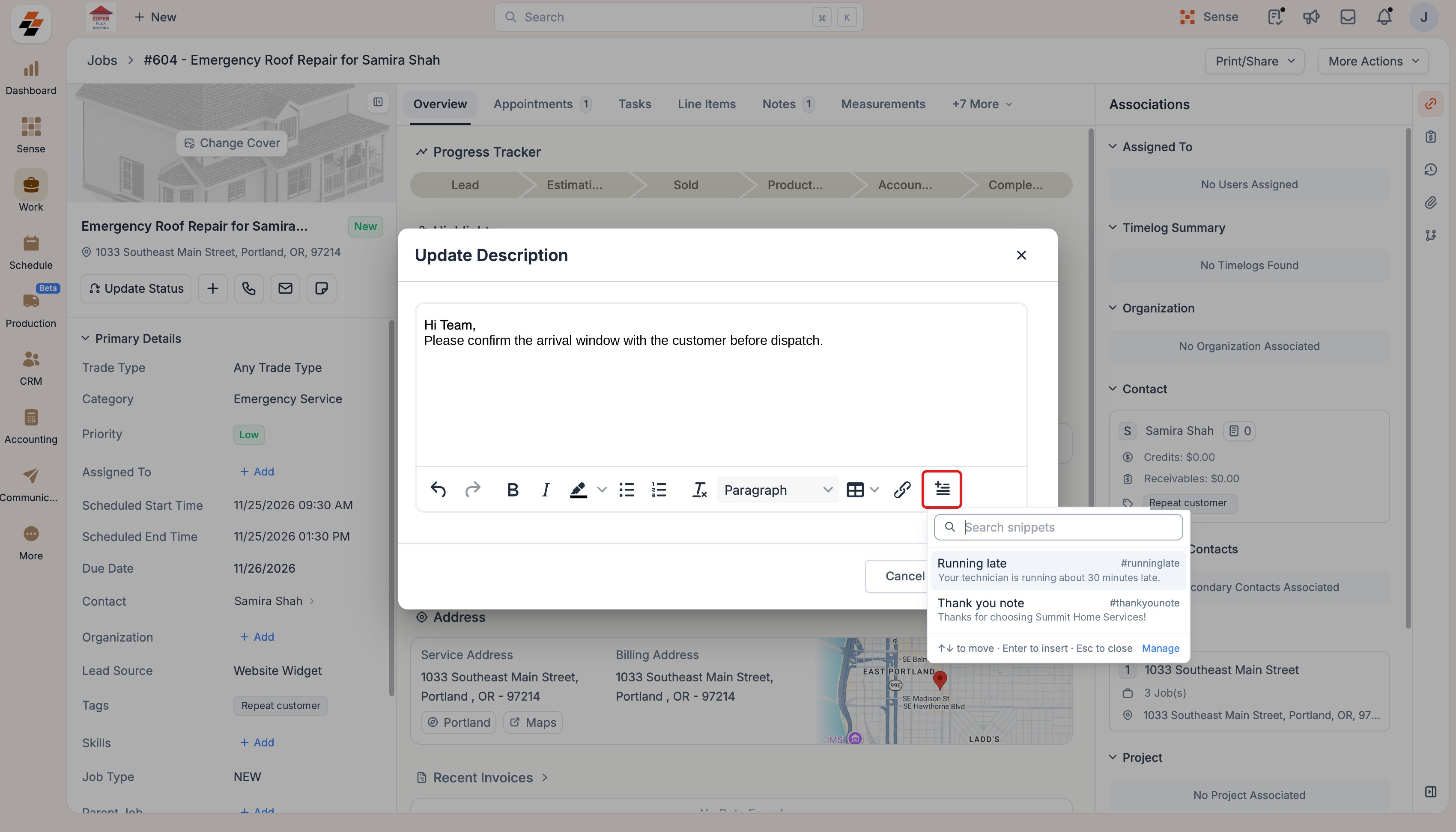
- Search for the snippet you need.
- Select the snippet to insert it.
Use a shortcut
If a snippet has a shortcut, you can insert it without opening the snippet list.- Type
#followed by the shortcut, such as#eta. A list of matching snippets appears.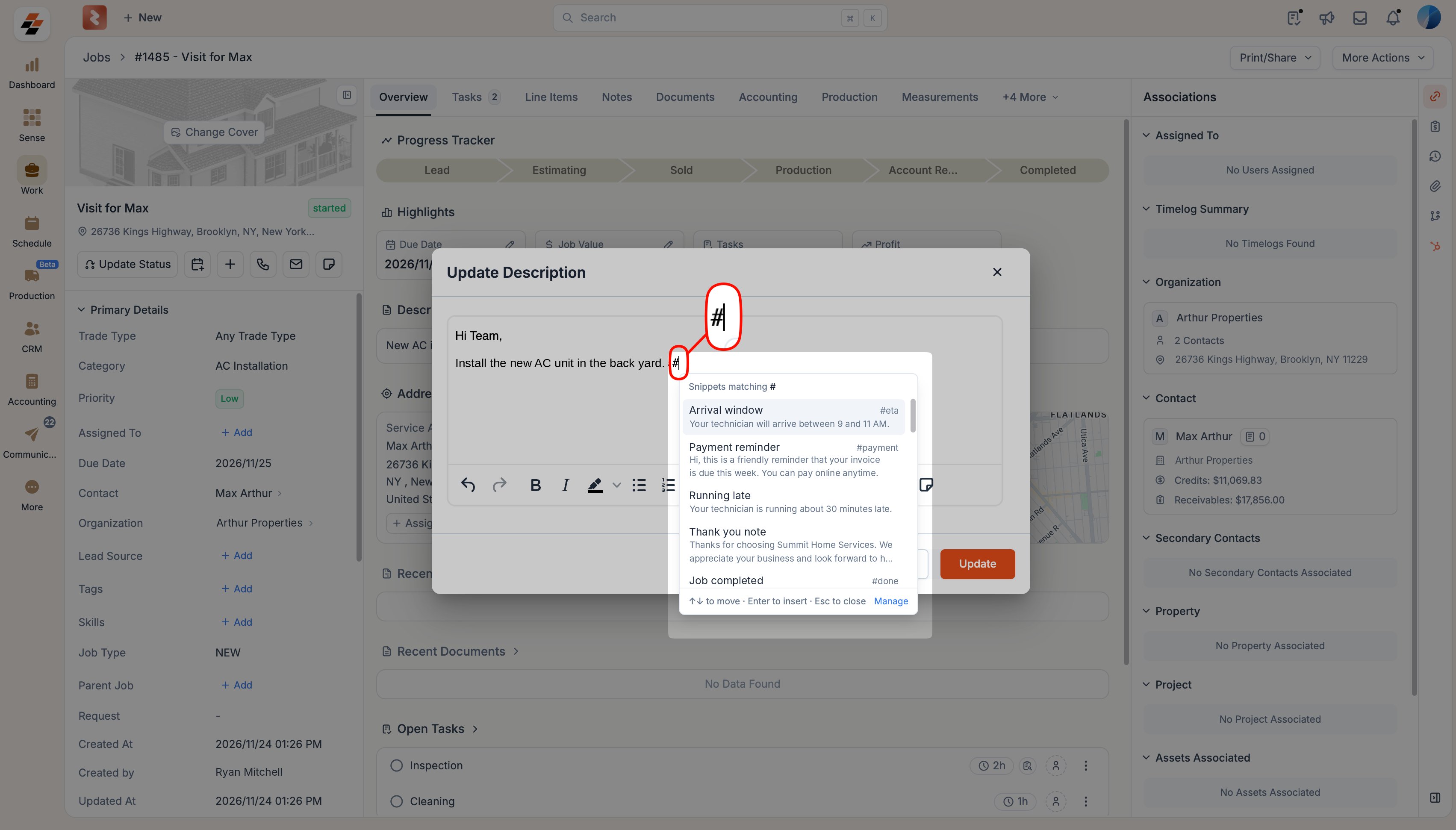
- Use the Up and Down arrow keys to navigate the list.
- Press Enter to insert the highlighted snippet.
Insert snippets in the Zuper Field Service app
You can insert snippets in the Zuper Field Service app on Android and iPhone using the snippet icon.Note: Keyboard shortcuts (
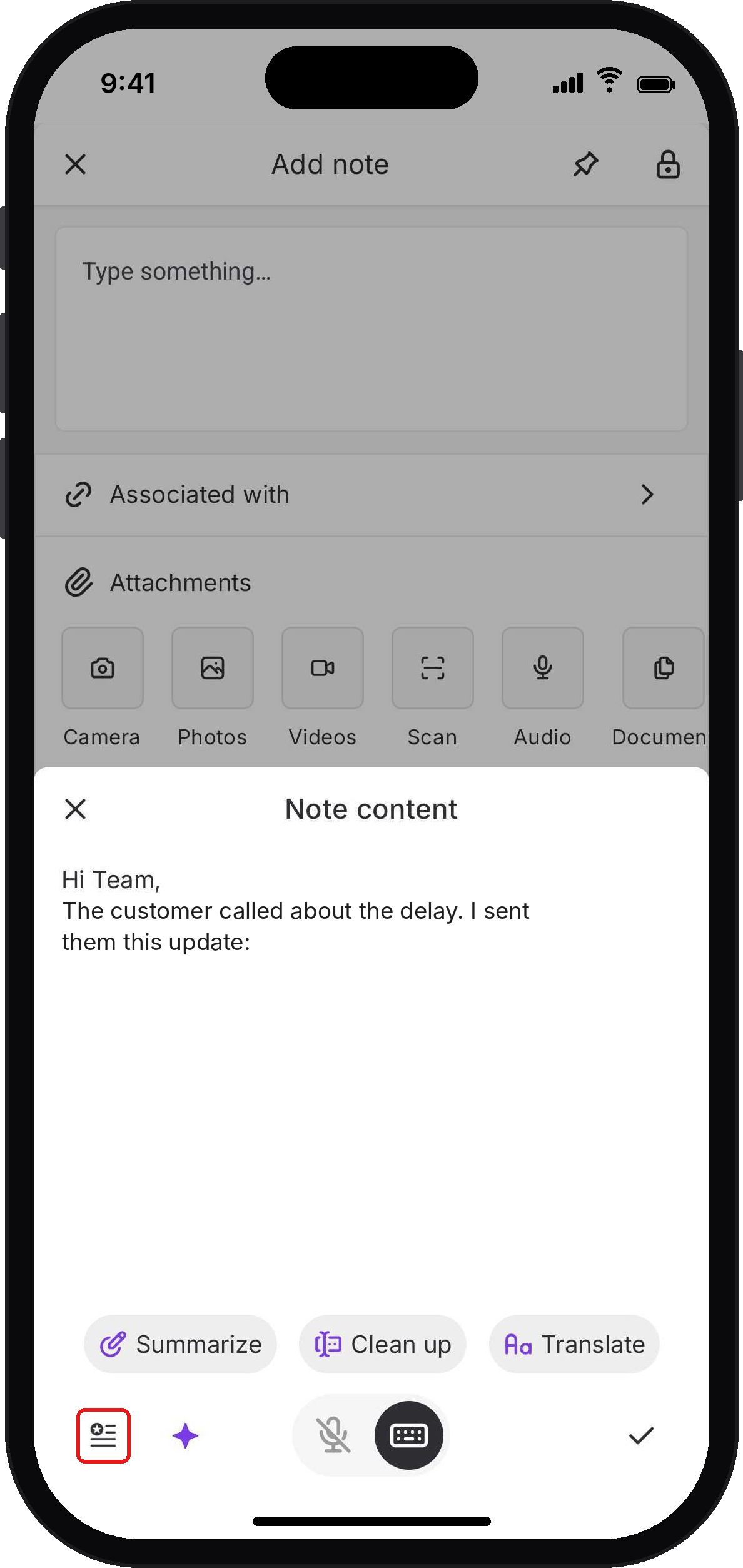
#) aren’t supported in the mobile app. Tap the snippet icon instead to browse and insert snippets.- Open the field where you want to add text, such as a note, and place your cursor.
- Tap the snippet icon.
- In the Snippets list, search for a snippet by name or shortcut.
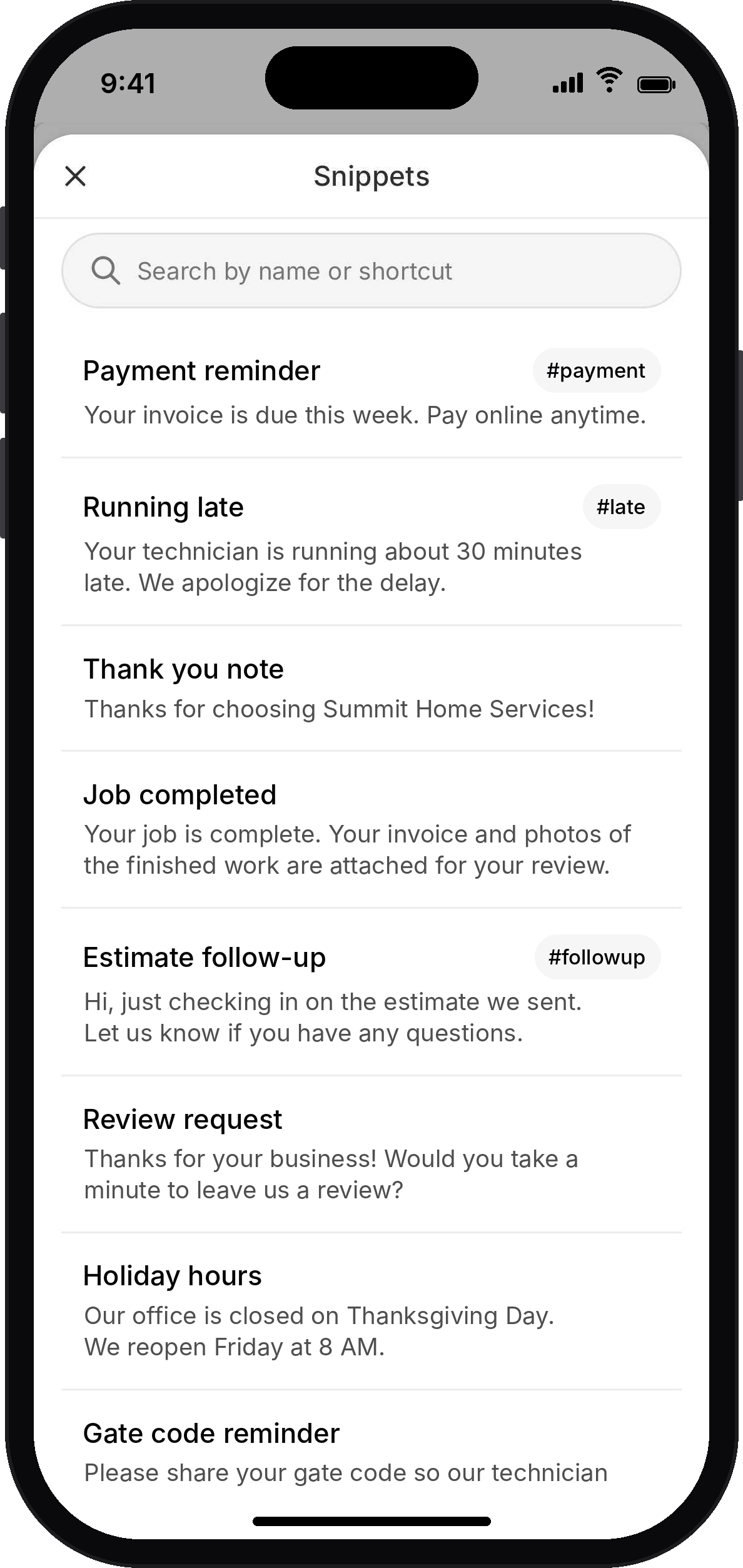
- Tap a snippet to insert it at your cursor.
Snippet formatting
Snippets retain formatting, such as bold text and links, in emails, notes, and supported description fields. In SMS messages, comments, and remarks, snippets are inserted as plain text.Set up snippets
Admins can create, edit, clone, deactivate, activate, and delete snippets.Create a snippet
- Go to Settings > Miscellaneous > Snippets.
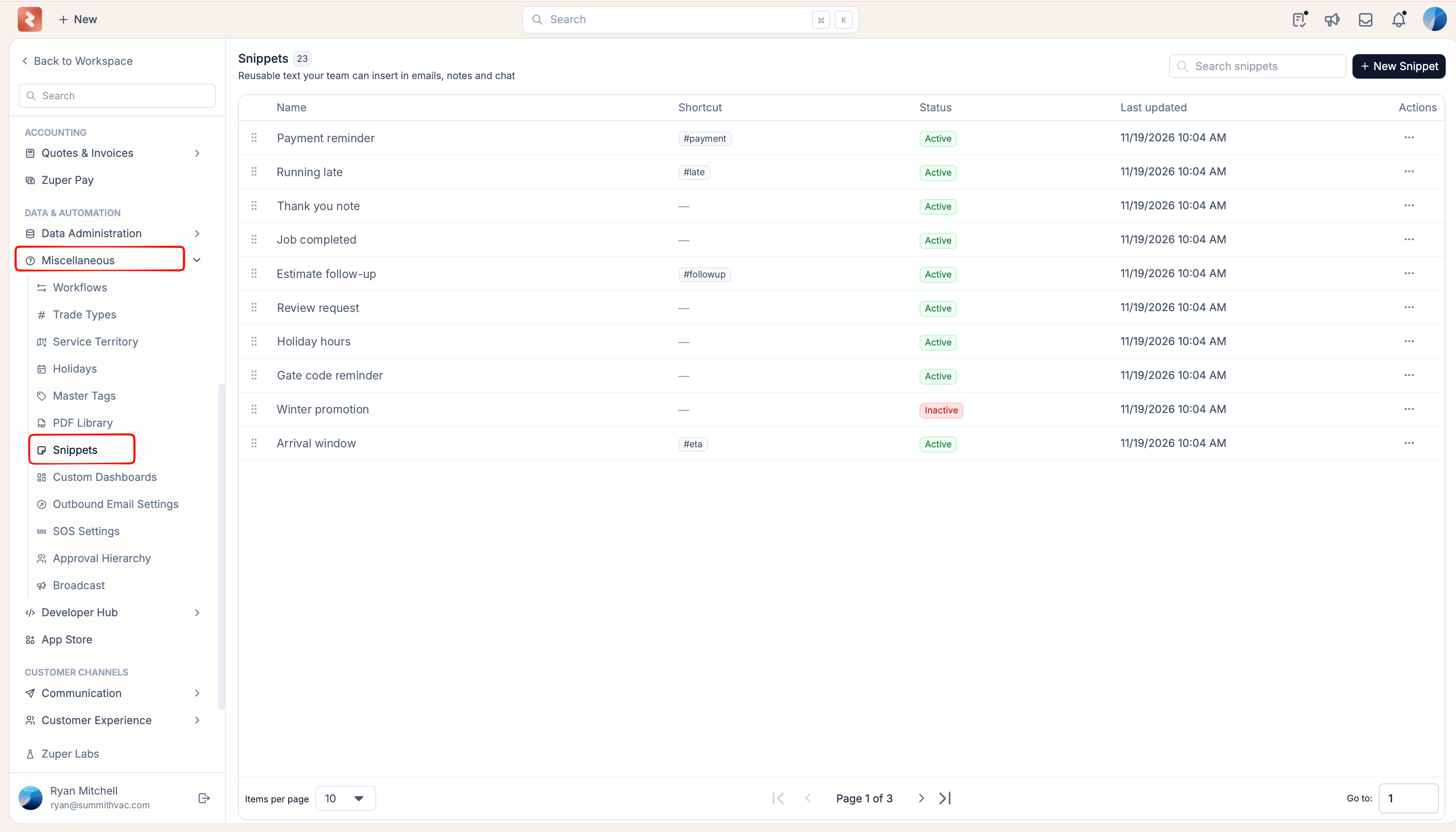
- Click + New Snippet.
- Enter a Name that your team can recognize, such as
Arrival window. - (Optional) Enter a Shortcut, such as
eta. Users can type#etato insert the snippet. Use only letters and numbers, without spaces. - Enter the text in the Snippet field. You can format it using bold, italic, underline, and links.
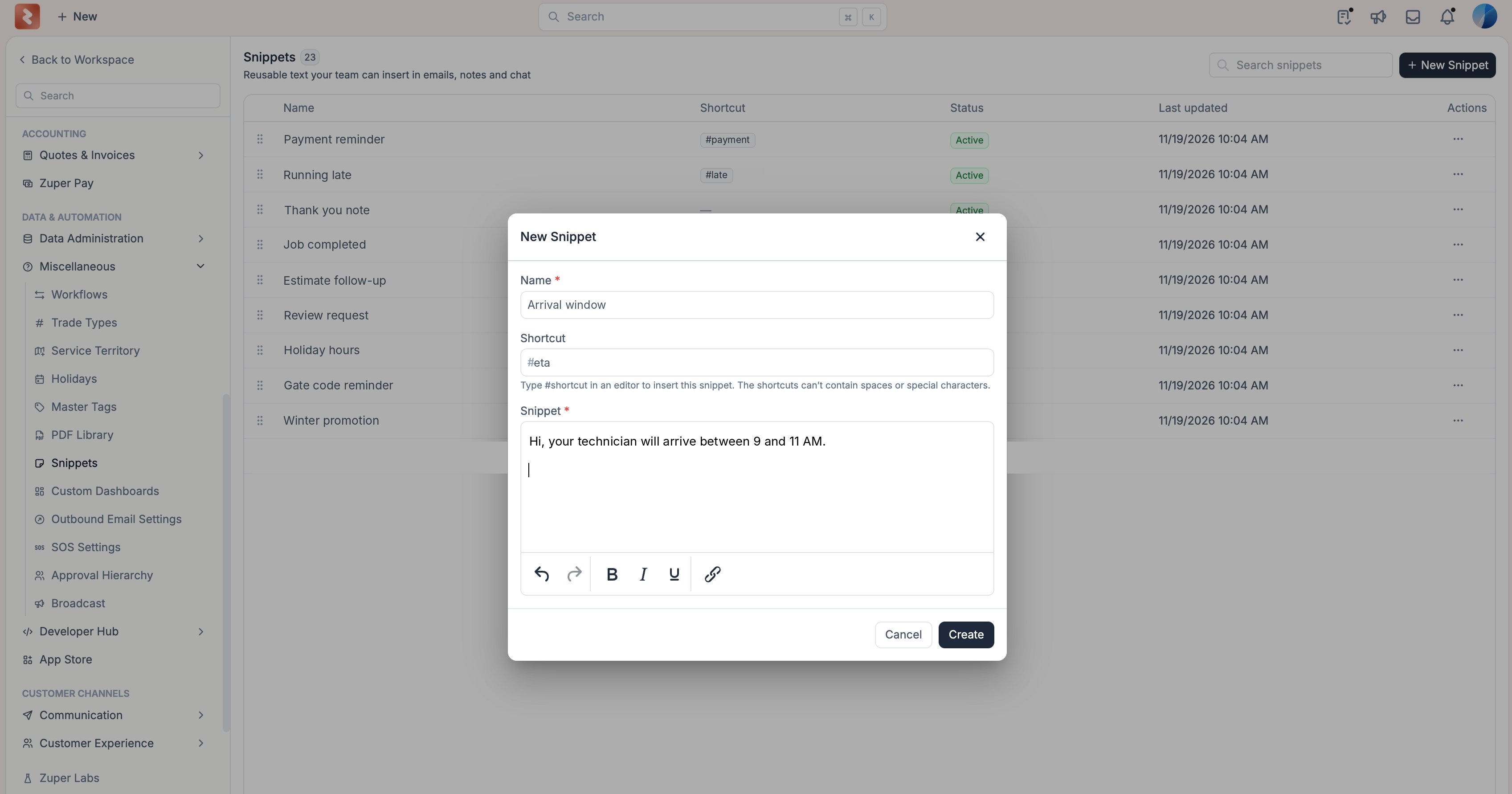
- Click Create.
Note: Snippets contain fixed text. They don’t automatically fill in details such as a customer’s name or job number. Write the text so it works for any customer.
Manage snippets
The Snippets page displays your company’s snippets, along with their shortcuts, status, and last updated date. Click the … icon on a row to manage a snippet.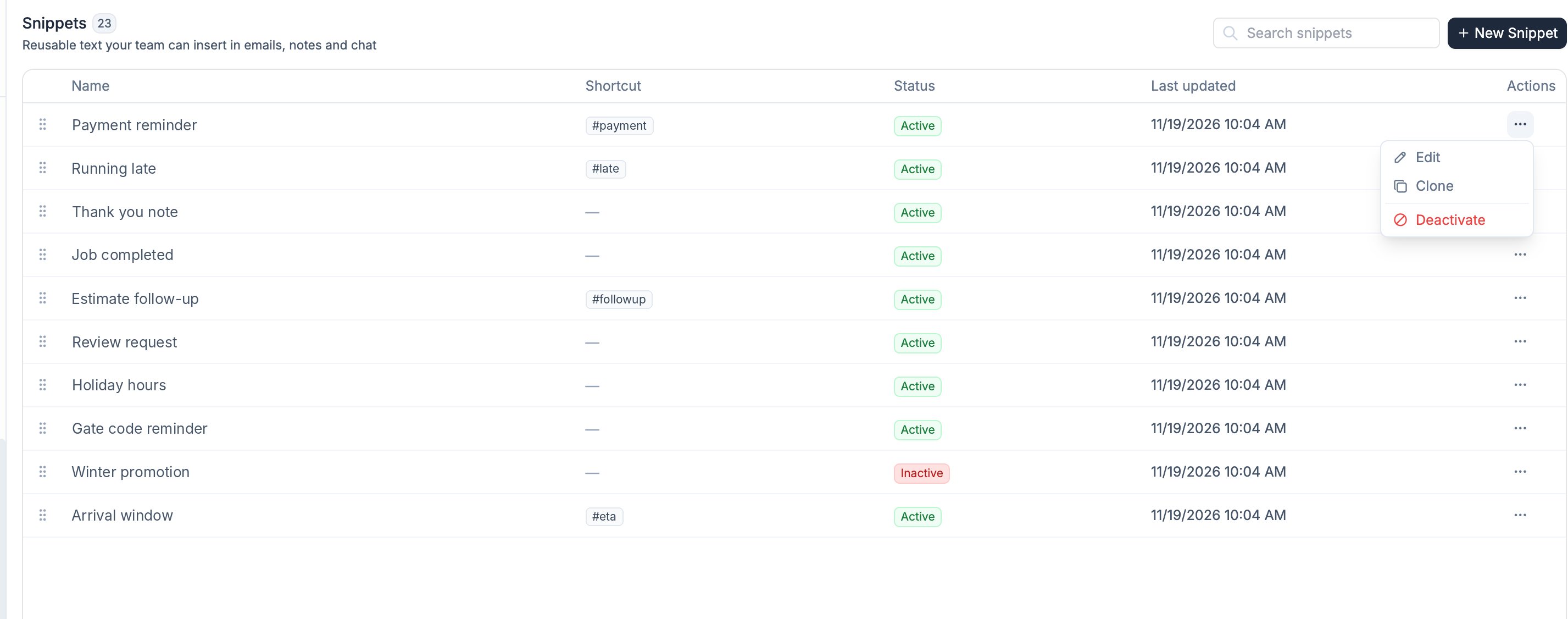
- Edit: Change the snippet’s name, shortcut, or text.
- Clone: Create a copy that you can use as a starting point for another snippet.
- Deactivate: Remove the snippet from the list available to your team without deleting it.
- Activate: Make an inactive snippet available to your team again.
- Delete: Delete an inactive snippet. Deactivate it before deleting it.
FAQ
Why can't I find a snippet I used before?
Why can't I find a snippet I used before?
Your admin may have deactivated it. Only active snippets appear in the list. Ask your admin to check Settings > Miscellaneous > Snippets.
Why doesn't typing # show any snippets?
Why doesn't typing # show any snippets?
The shortcut list appears when you type
# at the beginning of a word. If you’re typing after existing text, add a space before #. Also, check that the snippet is active and has a shortcut assigned. If a field doesn’t show the snippet icon, it may not support snippets.Will inserting a snippet send my message automatically?
Will inserting a snippet send my message automatically?
No. Inserting a snippet only adds text to the field. You must review it and select Send or Save yourself.
I changed a snippet on the web. When will the app show the change?
I changed a snippet on the web. When will the app show the change?
The app shows the change the next time you open the snippet list while you’re online.
Can I use snippets offline in the app?
Can I use snippets offline in the app?
Yes. When you’re offline, the app shows the snippet list it last downloaded.
How can I request a new snippet?
How can I request a new snippet?
Ask your admin to create one. Only admins can create and manage snippets.
Why can't I save my shortcut? (admins)
Why can't I save my shortcut? (admins)
Shortcuts can contain only letters and numbers, and each shortcut must be unique. Shortcuts are case-insensitive, so
eta and ETA are treated as the same shortcut.Why don't I see the Delete option? (admins)
Why don't I see the Delete option? (admins)
You can delete only inactive snippets. Deactivate the snippet first, then delete it.