Note:
- You must have an active CloudTalk Essentials plan or above to use this integration.
- Ensure that Text Message/Text Notifications are enabled for your contacts. Navigation: Contacts → Contacts Listing page → Edit (via three-dot icon) → Edit Contact page → Notification Preferences
A. Connecting CloudTalk with Zuper
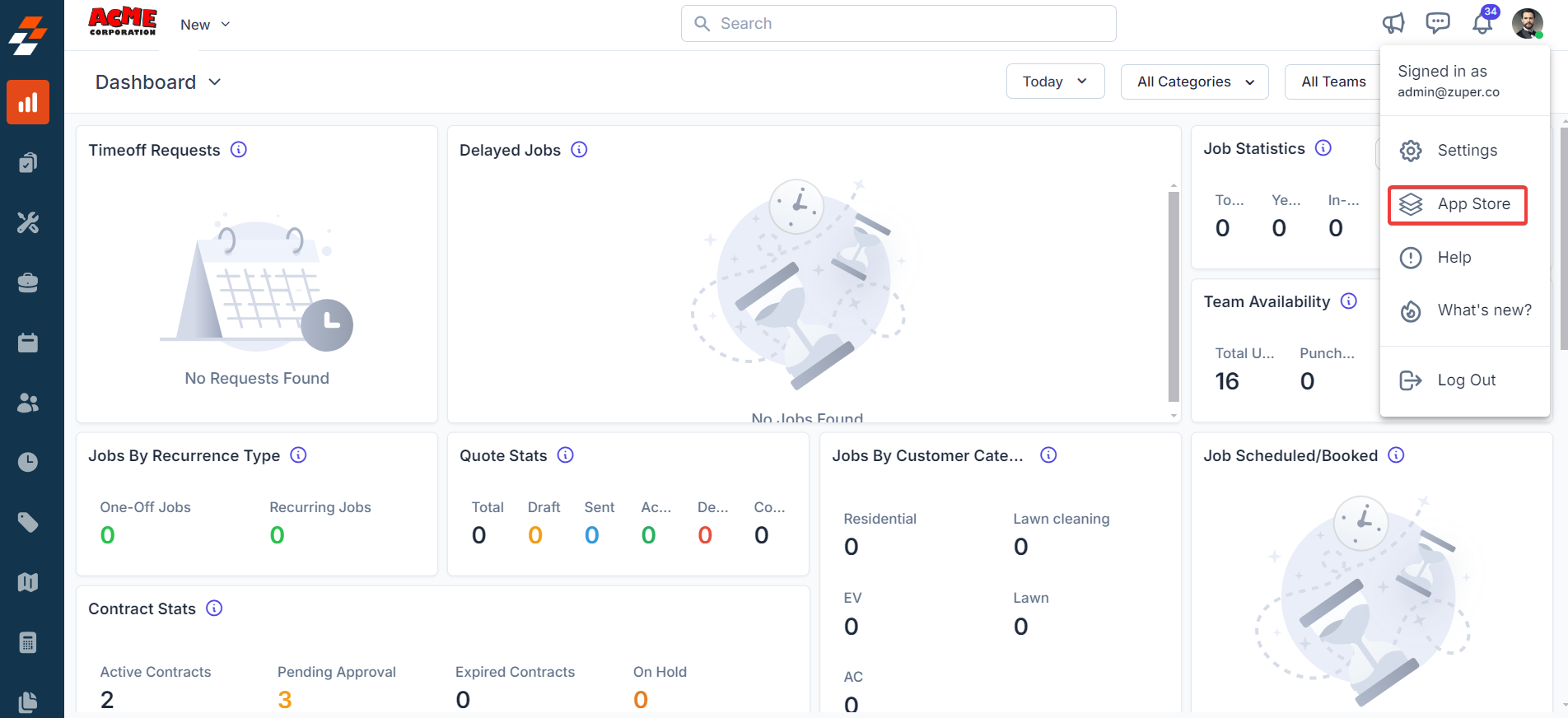
Follow the steps below to integrate your CloudTalk account with Zuper.- Log in to your Zuper web app. Click your Profile Picture in the top-right corner. Select App Store from the dropdown menu.
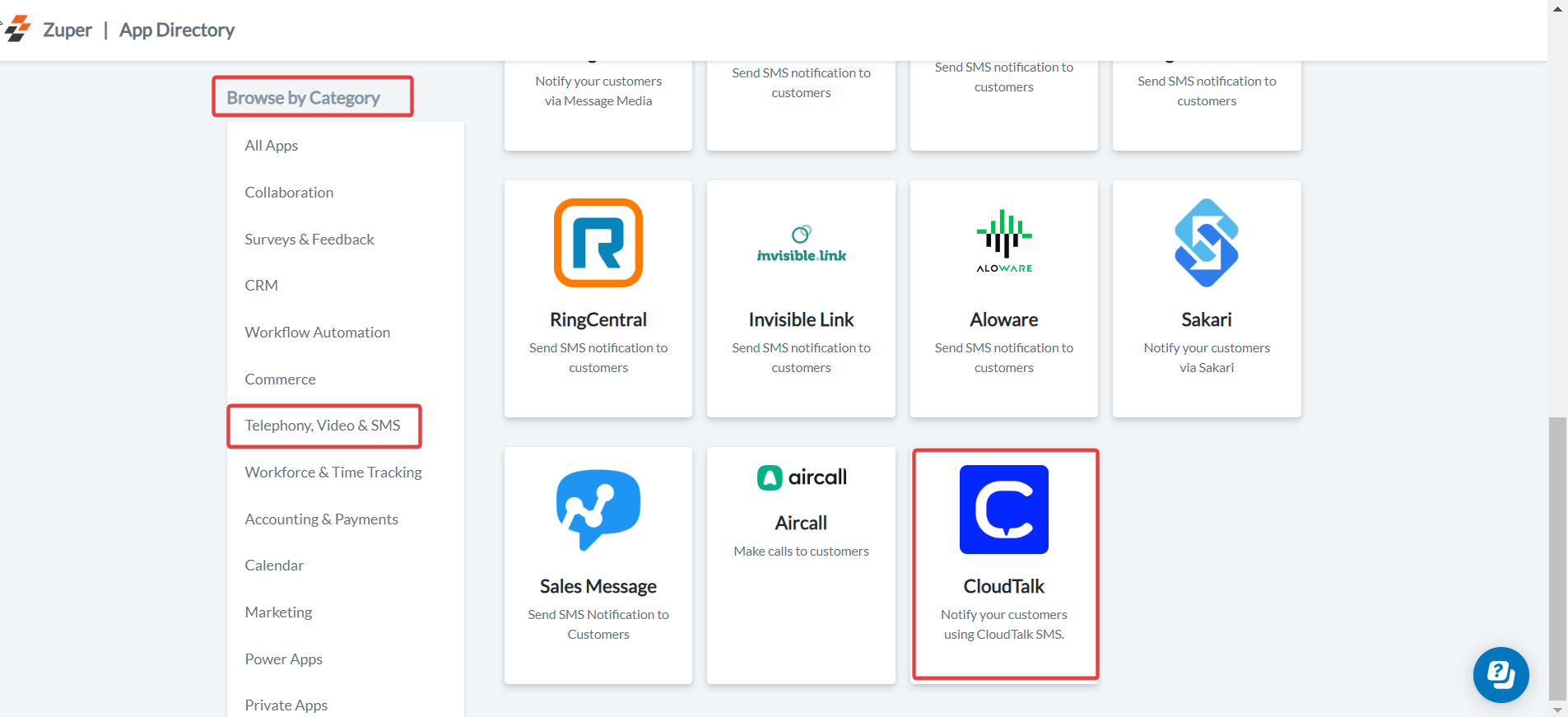
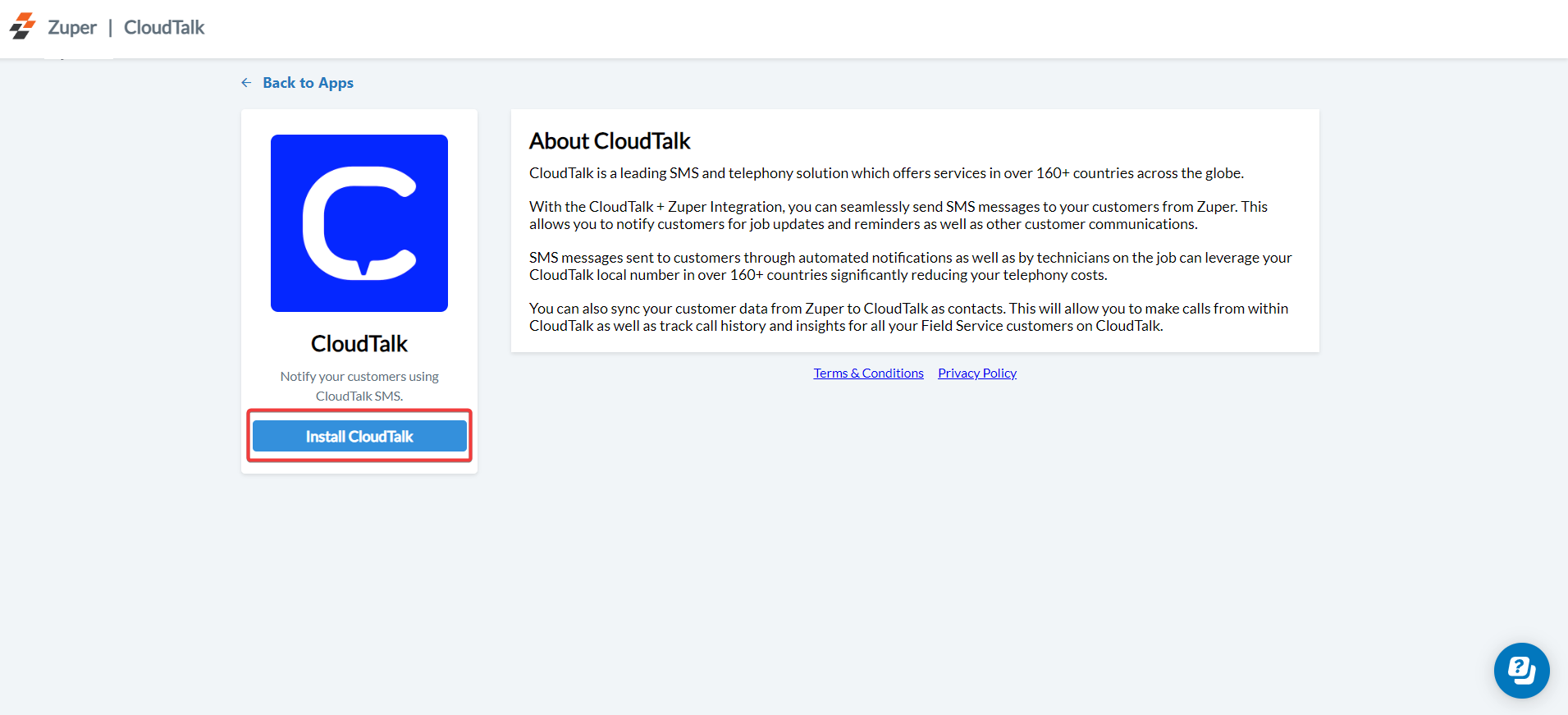
- Under Browse by Category, select Telephony, Video & SMS. Choose CloudTalk from the list of available integrations. Click Install CloudTalk.
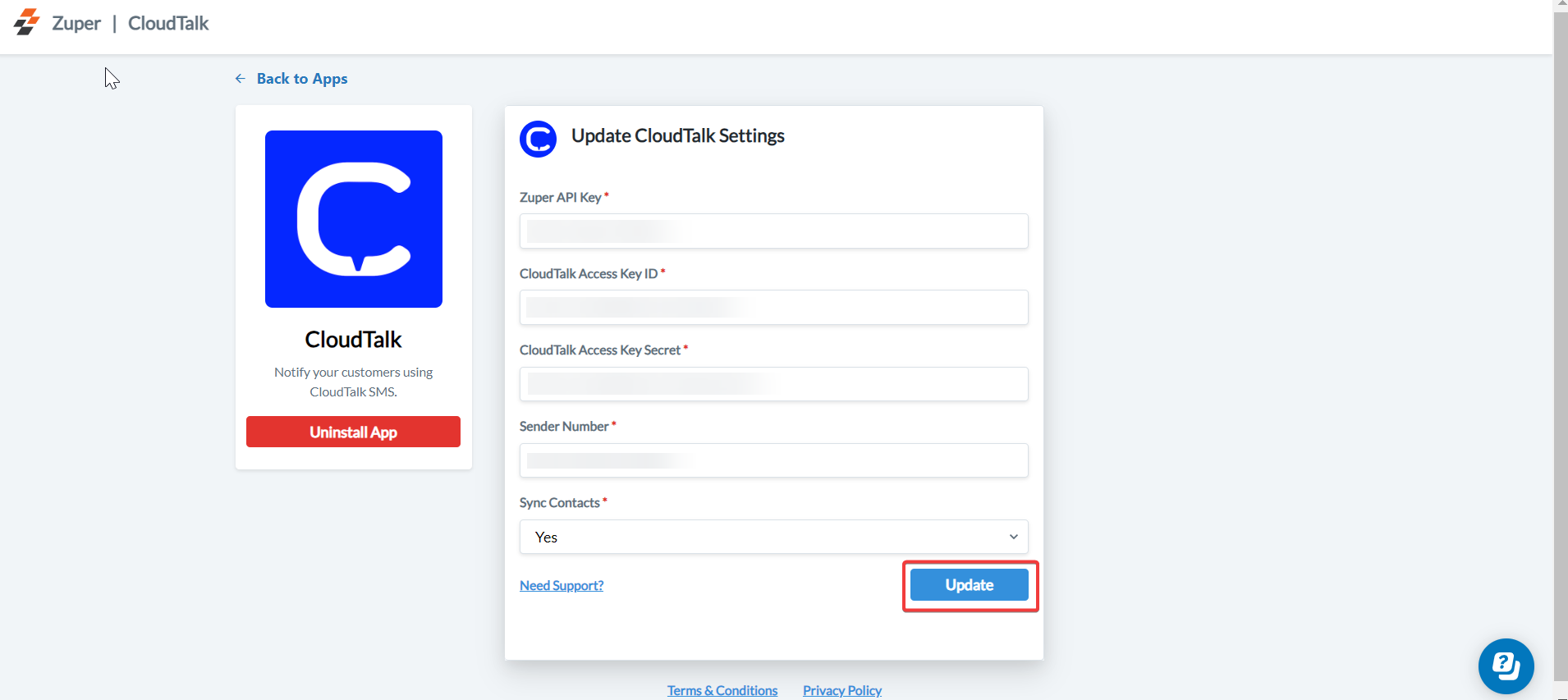
- Update the following fields with details from your CloudTalk account:
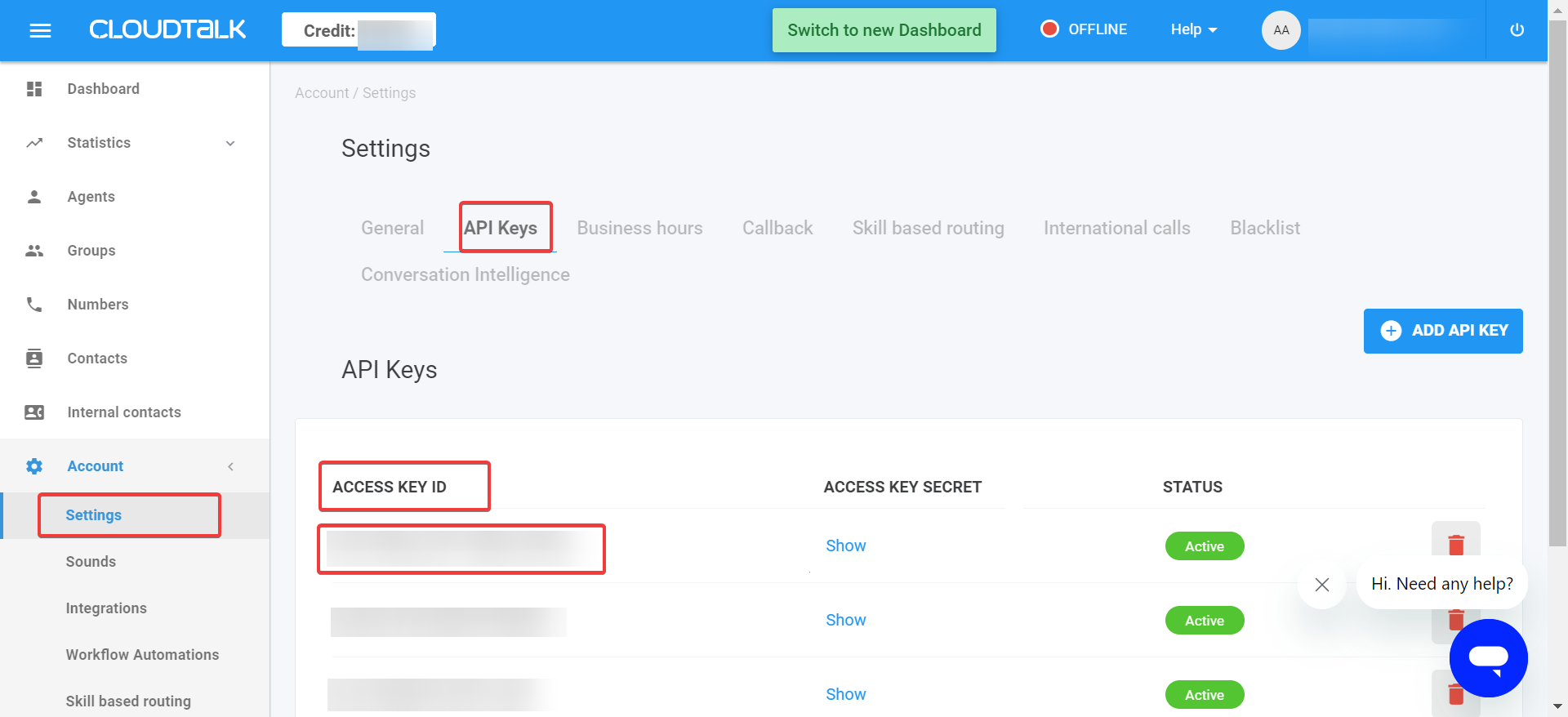
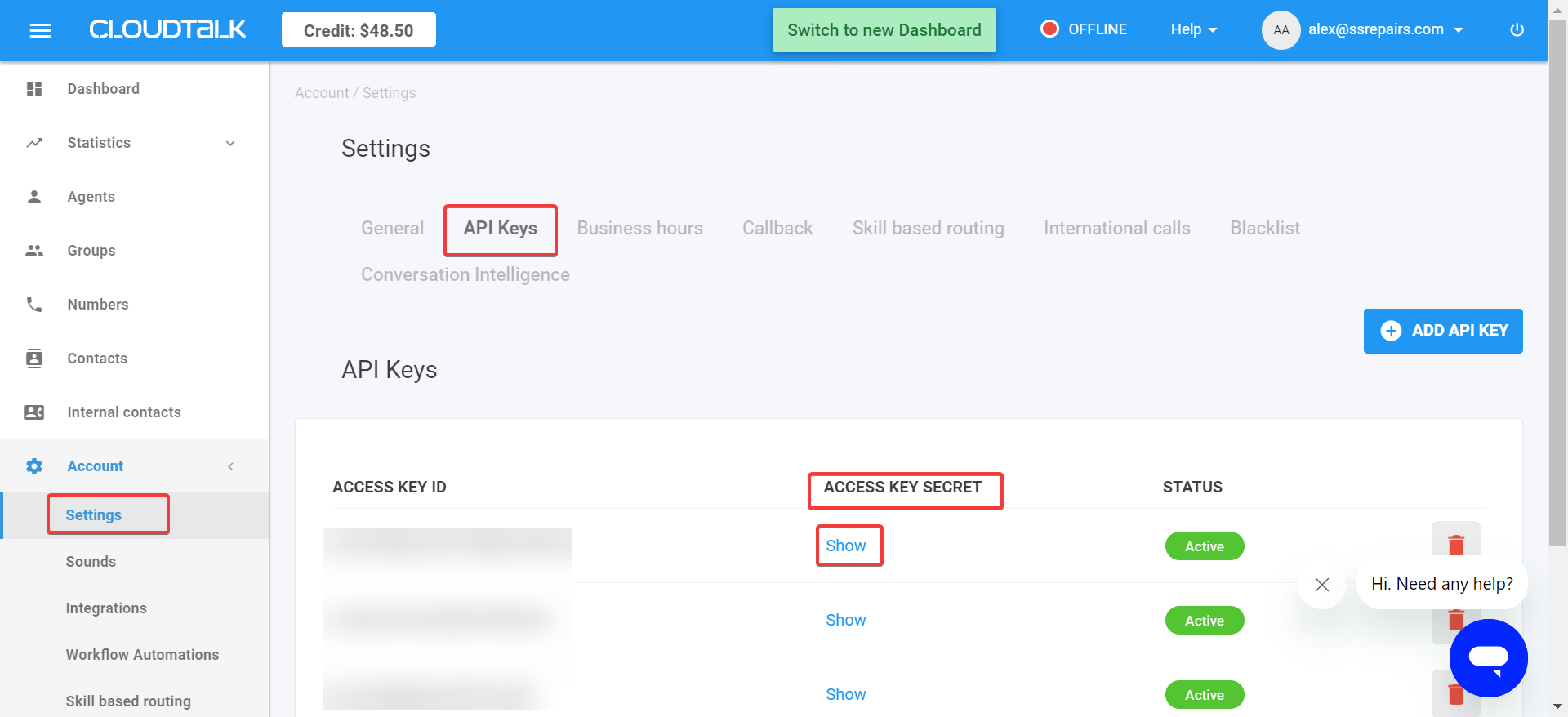
B. Using the Zuper–CloudTalk Integration
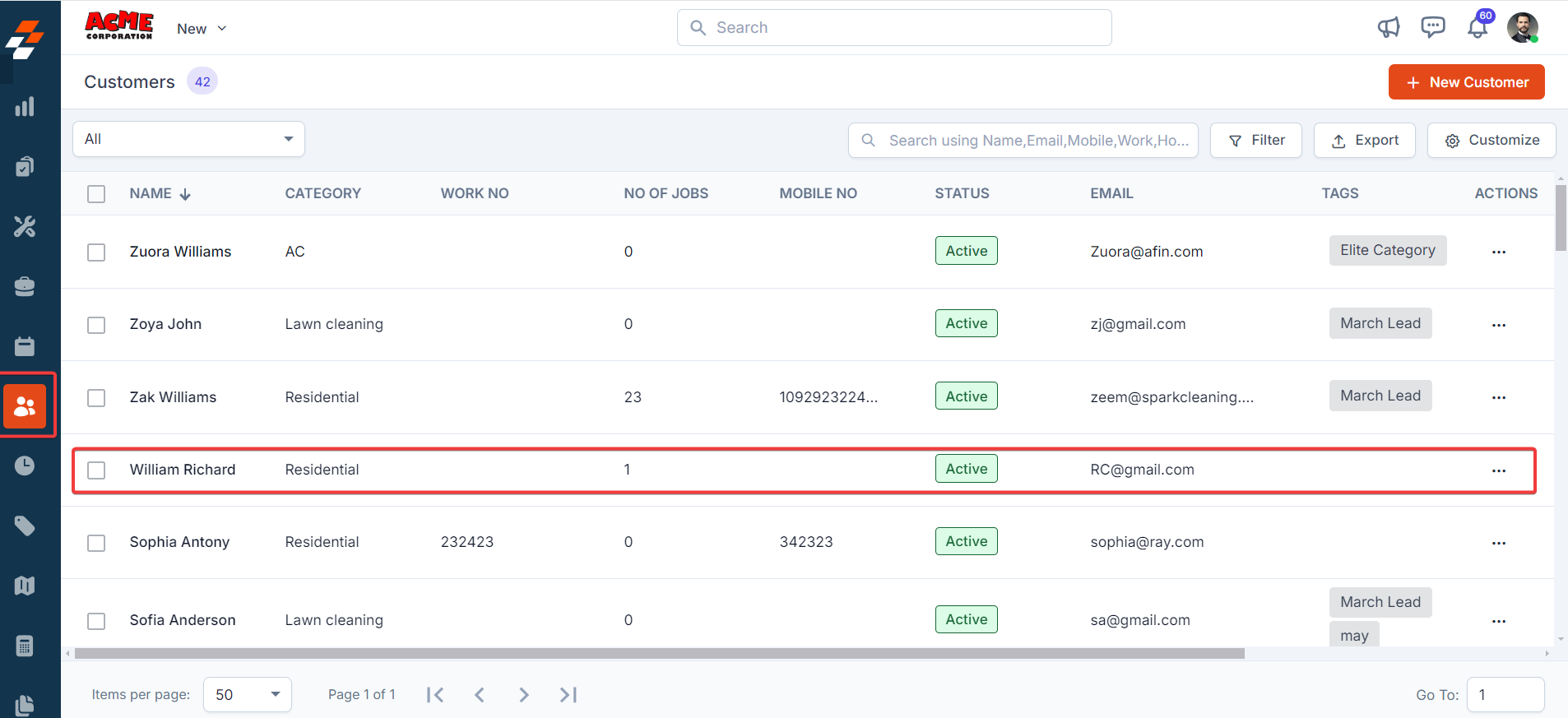
Once the integration is configured, you can send Text Messages directly from Zuper using your CloudTalk number.- Navigate to the Contacts module from the left panel.
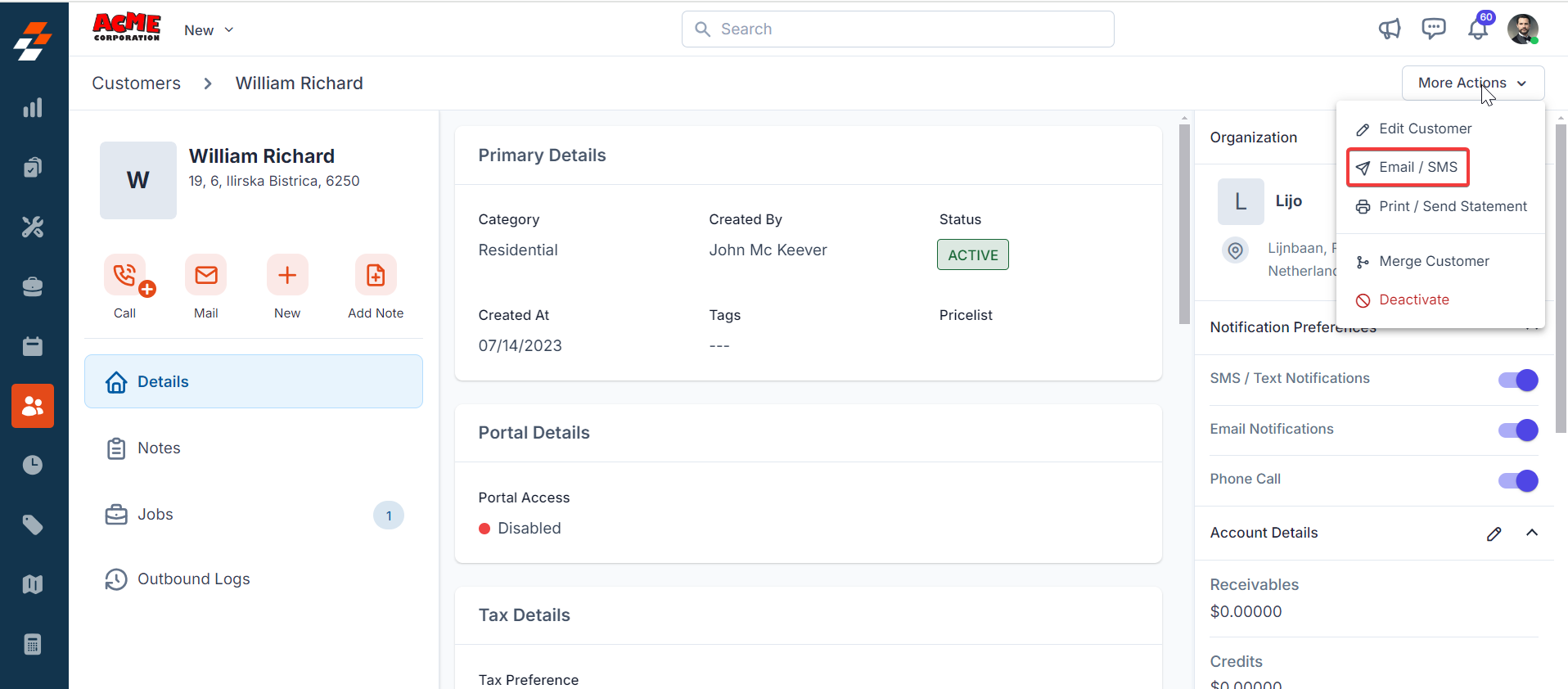
- Select a contact on the listing page to open its details. On the Contact Details page, click More Actions (top-right corner) and select Email/Text Message from the dropdown menu.
- Fill in the following fields:
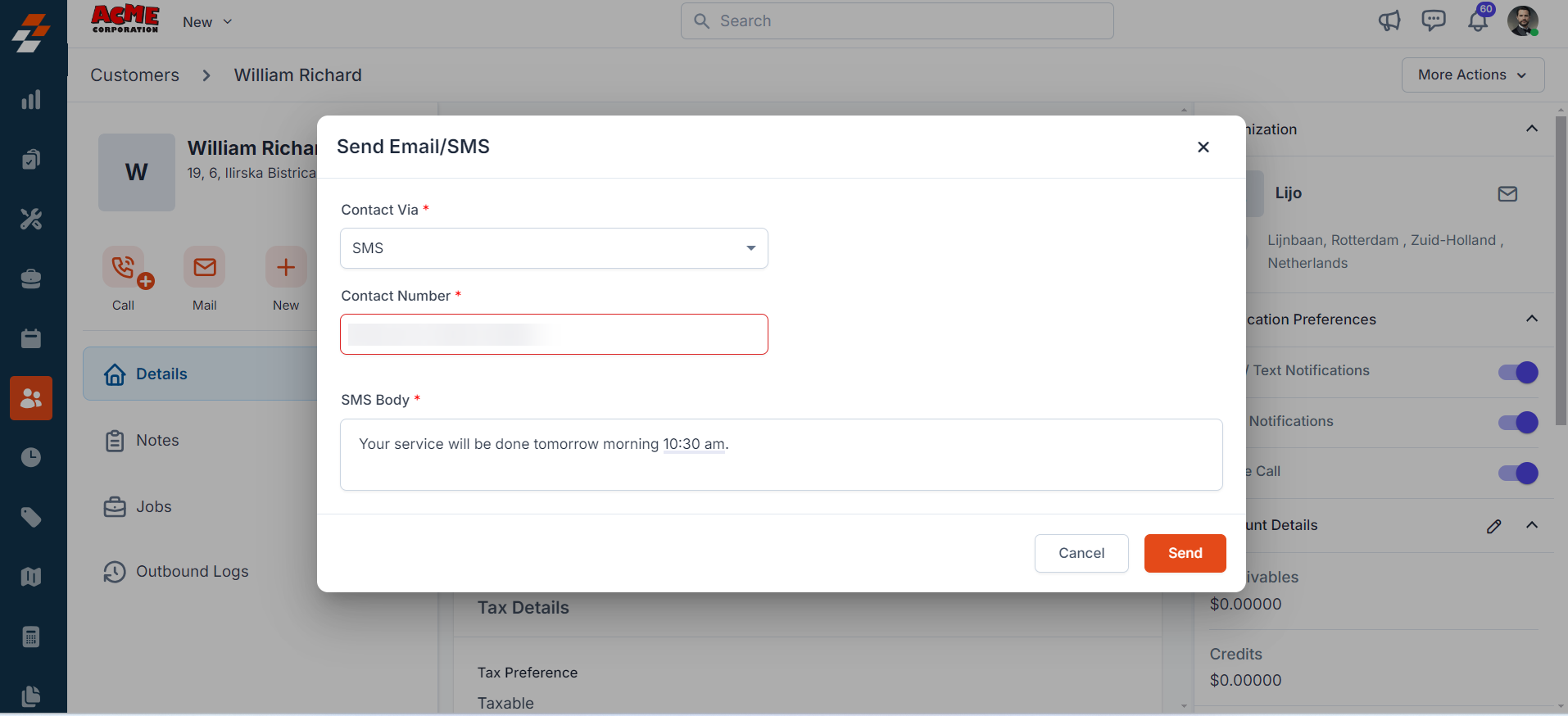
Note: You can trigger messages via the Contacts module, Bulk Text Message action, or Workflow automation.
C. Uninstalling CloudTalk from Zuper
If you no longer need the integration, follow the steps below to uninstall the CloudTalk app.- Log in to your Zuper web app. Click your Profile Picture in the top-right corner. Select App Store.
- Under Browse by Category, select Telephony, Video & SMS. Choose CloudTalk.
- The CloudTalk is uninstalled successfully..