

- Record one payment against multiple invoices.
- Keep an amount unapplied until the customer has another invoice.
- Change how a payment is distributed across invoices.
Before you begin
Before you begin
- Account configuration is required to use this feature. Please contact our support team for details.
- Check the invoice permissions assigned to your role.
- Standalone payment synchronization is supported with QuickBooks Online. Sage and Xero aren’t currently supported.
- The customer must have an email address. If the customer doesn’t have one, Zuper prompts you to enter it before saving the payment.
Record a standalone payment
You can record a standalone payment from a customer or job in the Zuper web app or the Zuper Field Service app.Start a payment
Customer
Customer
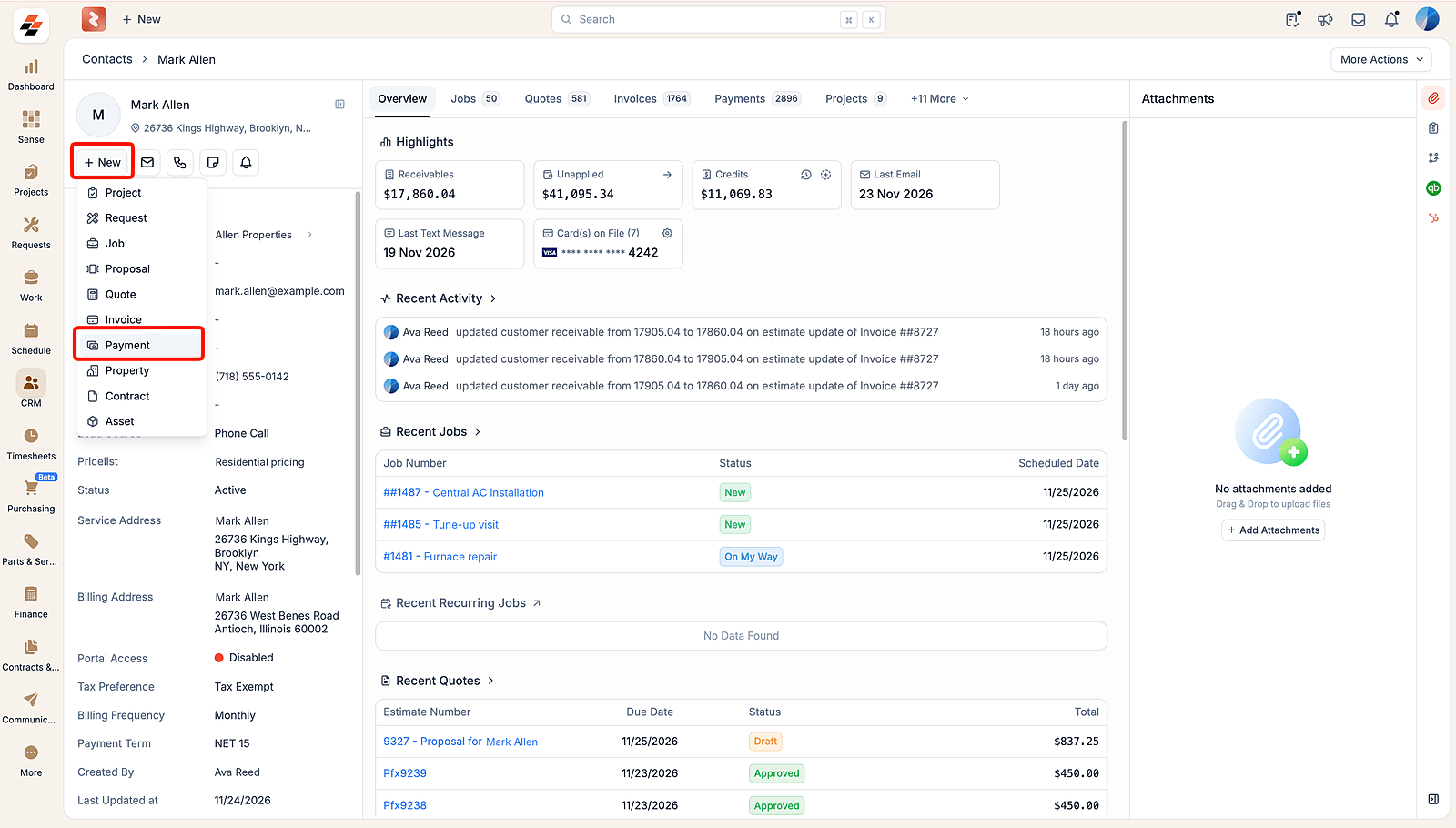
- Open the customer
- Select New > Payment.
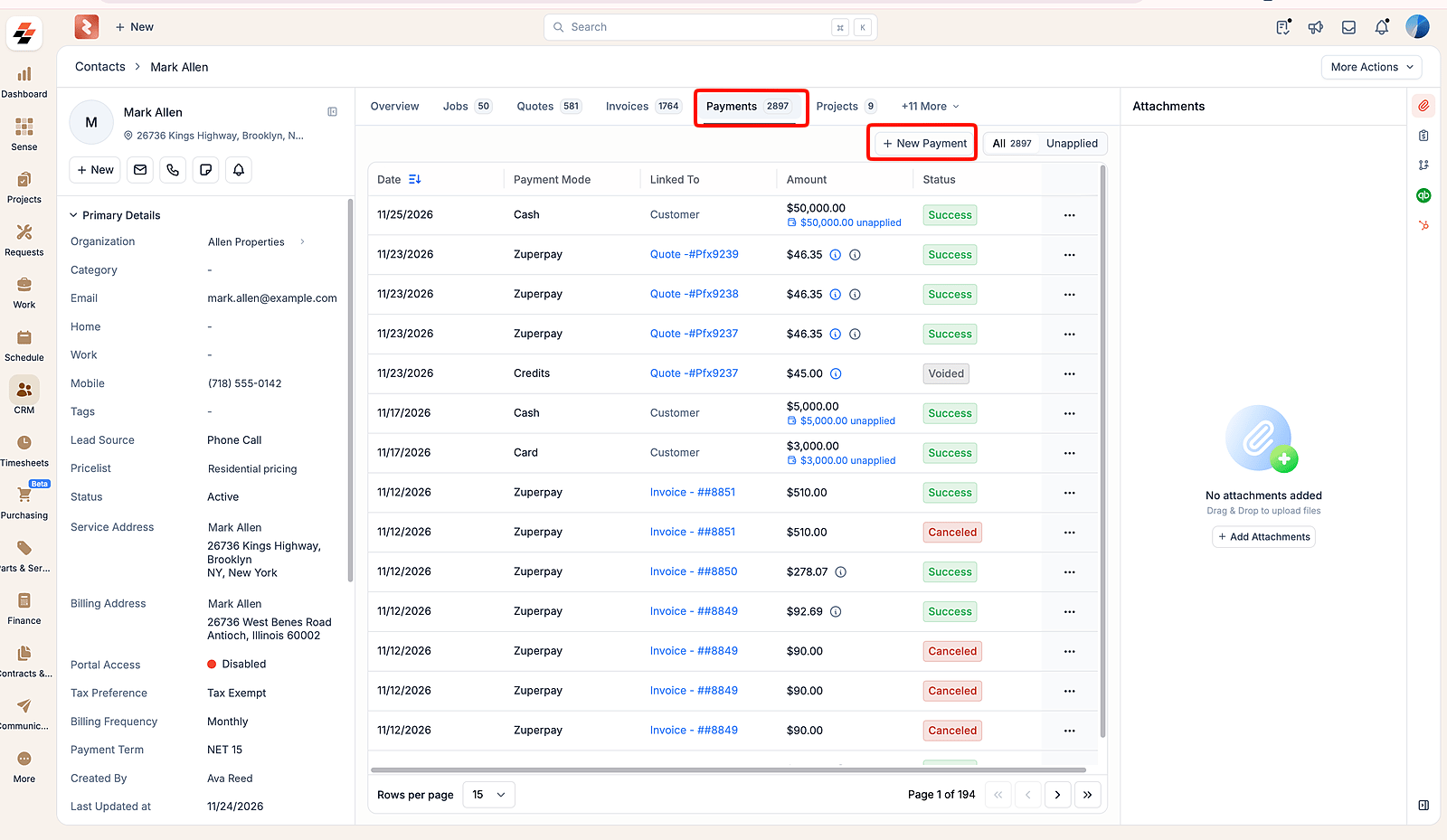
- Or open the Payments tab and select New Payment.
Job
Job
Open the job, select the + icon next to Update Status, and select Payment.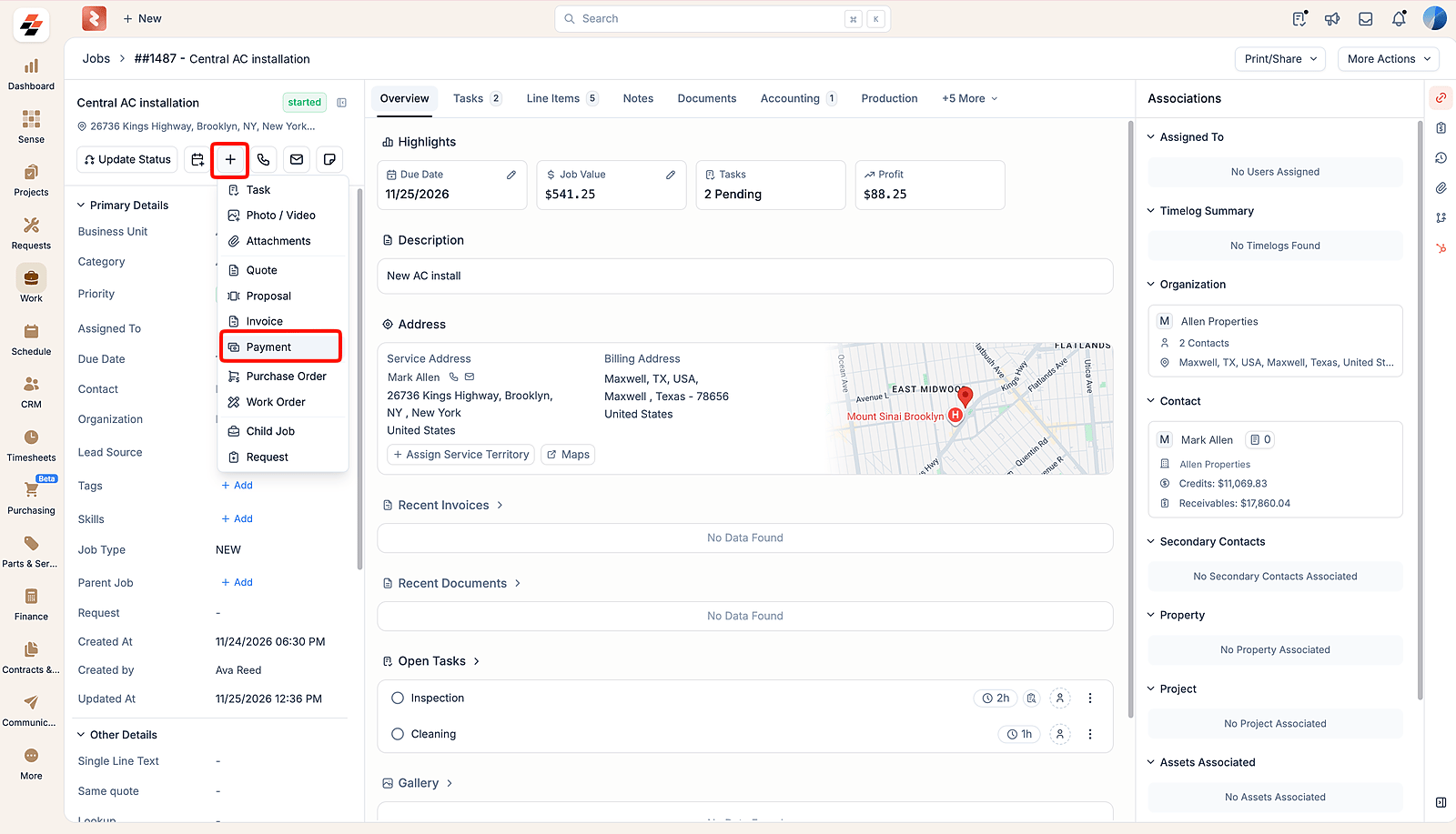
- Invoices associated to this job: Invoices linked to the current job.
- Other invoices: Other open invoices for the same customer.
Mobile app
Mobile app
Open the job or customer, tap +, and tap New payment.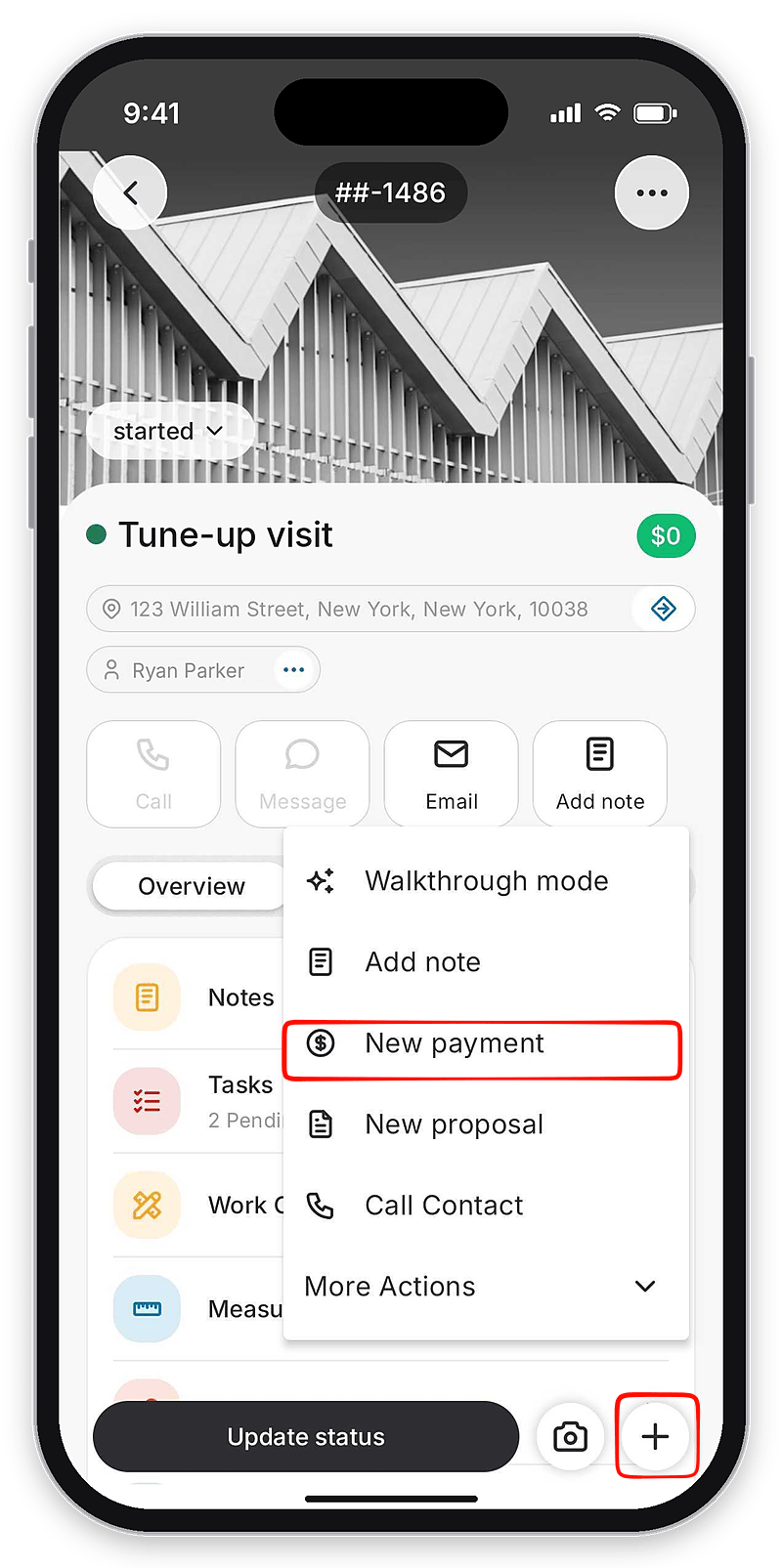
Enter the payment details
Complete the payment form:- Enter the amount the customer paid in Amount Paid.
- Select a Payment Mode. The available options depend on your company’s payment mode settings.
- Set the Payment Date. You can’t select a future date.
- Enter the additional details required for the selected payment mode.
 For payment modes other than Zuperpay, Remarks are optional.
Choose how to apply the payment
Under Apply to Invoices, choose how to distribute the payment. You can distribute the amount manually or let Zuper allocate it automatically.To select invoices manually
To select invoices manually
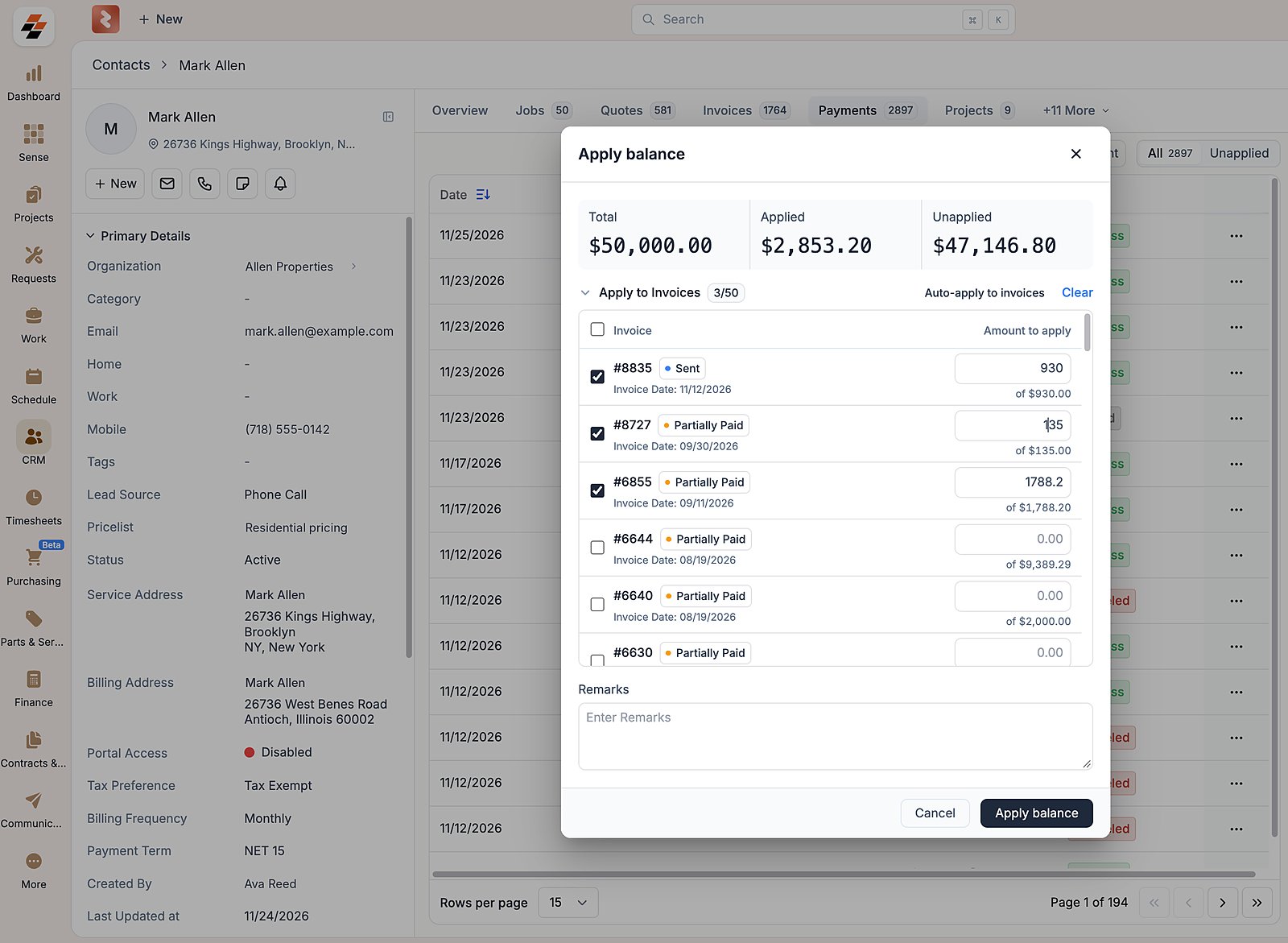
- Select the invoices you want to pay.
- Review the amount Zuper fills in for each invoice. By default, Zuper uses the lower of the invoice’s remaining balance or the payment amount remaining.
- Change the amount if needed.
To apply the payment automatically
To apply the payment automatically
Select Auto-apply to invoices. Zuper allocates the payment in invoice list order, applying it to each invoice up to its remaining balance until the payment amount is used.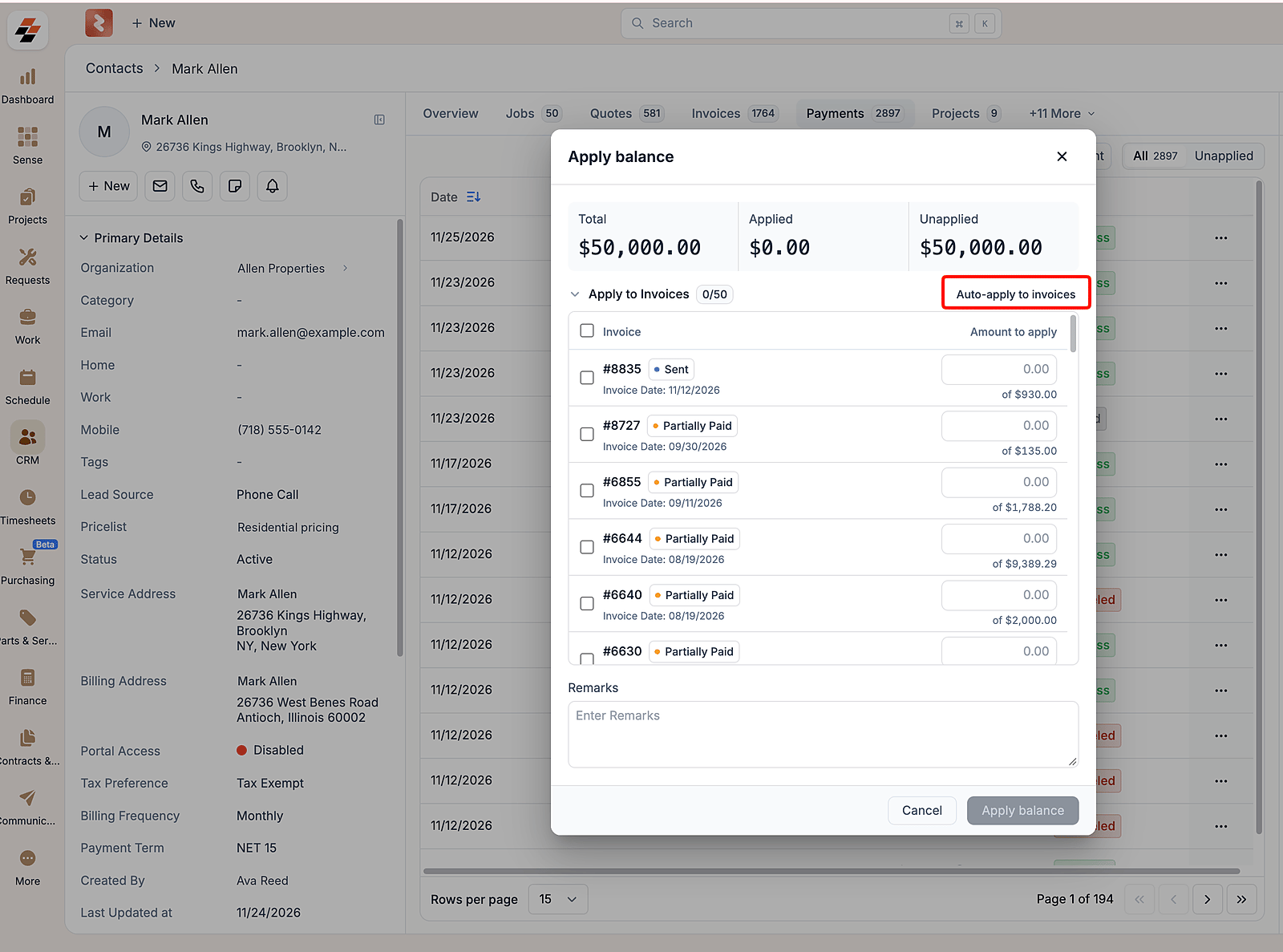
- Amount to apply: The total amount allocated to invoices.
- Will be unapplied: The remaining payment amount that will stay on the customer’s account.
Record the payment
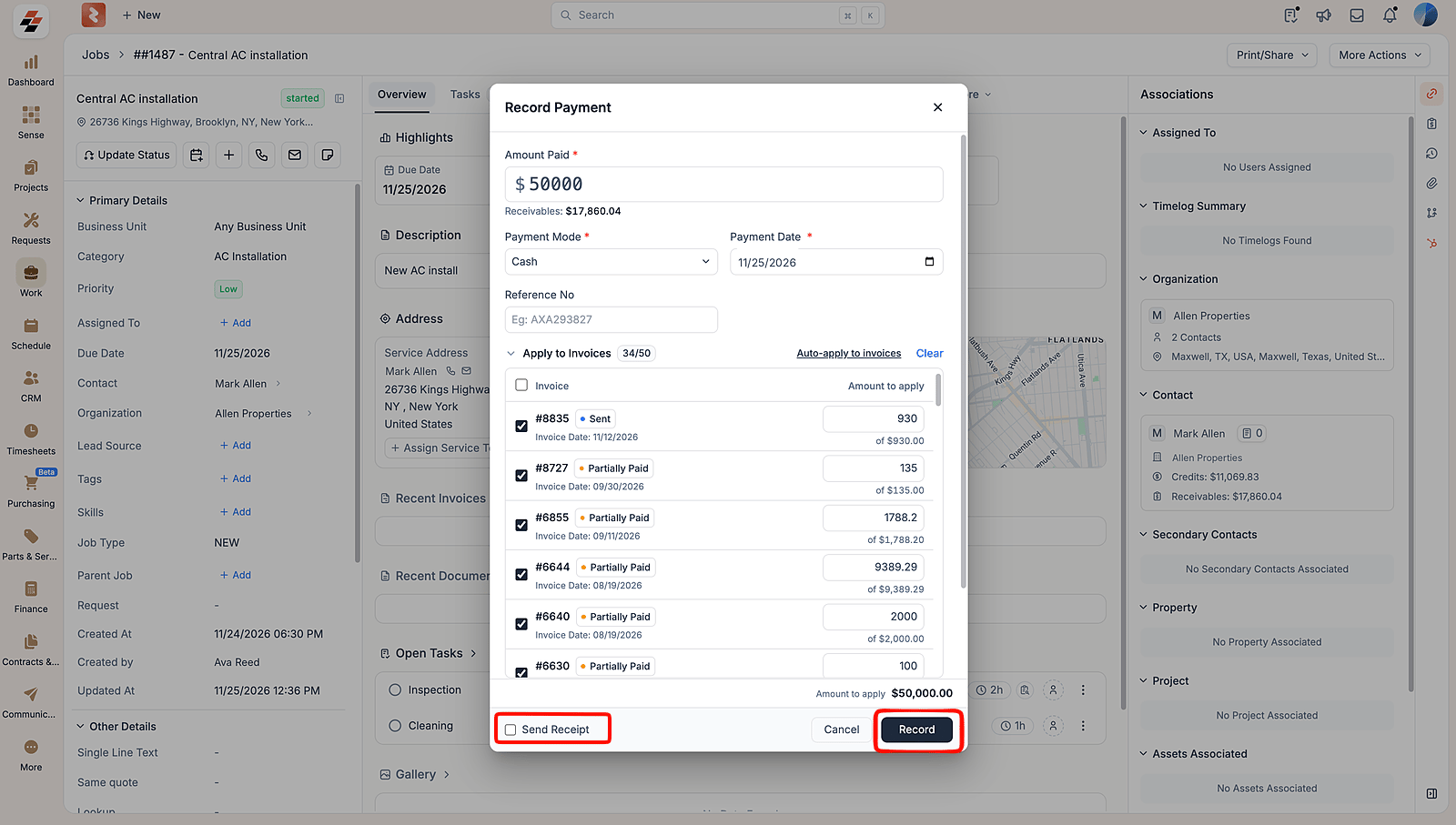
- Select Send Receipt if you want to email a payment receipt to the customer. Your company settings determine whether this option is selected by default.
- Review the payment amount, payment mode, and invoice allocations.
- Select Record.
- Review the selected card, payment amount, and surcharge rate.
- Select the acknowledgement checkbox.
- Select Confirm & Collect.
Payment allocation rules
Payment allocation rules
Keep these rules in mind when applying a standalone payment:
- You can’t allocate more than an invoice’s remaining balance. If you enter a higher amount, Zuper displays Amount to apply exceeds the invoice balance.
- The total allocated across invoices can’t exceed the payment amount. If it does, Zuper displays an error and disables Record.
- Only unpaid and partially paid invoices appear in the invoice list.
- If no eligible invoices are available, you can still record the payment as an unapplied balance.
- You don’t have to select an invoice to record a payment. The full amount remains unapplied if you leave all invoices unselected. This applies to all payment modes, including Zuperpay.
- Zuperpay card payments are charged immediately. Zuper automatically sets the payment date to today.
- If a surcharge is configured, the Enable surcharge fee option appears for Zuperpay payments. The surcharge is added to the amount charged. Only the amount entered in Amount Paid is available for invoice allocation.
Apply an unapplied balance
An unapplied balance is the portion of a recorded payment that hasn’t been allocated to an invoice. You can use this amount to pay another invoice for the same customer later. You can apply an unapplied balance from the customer’s Payments tab or while recording a payment against an invoice.Apply a balance from the customer’s Payments tab
- Open the customer and select the Payments tab.
- Select the Unapplied filter to display payments with a remaining balance.
- In the Amount column, select the unapplied amount under the payment.
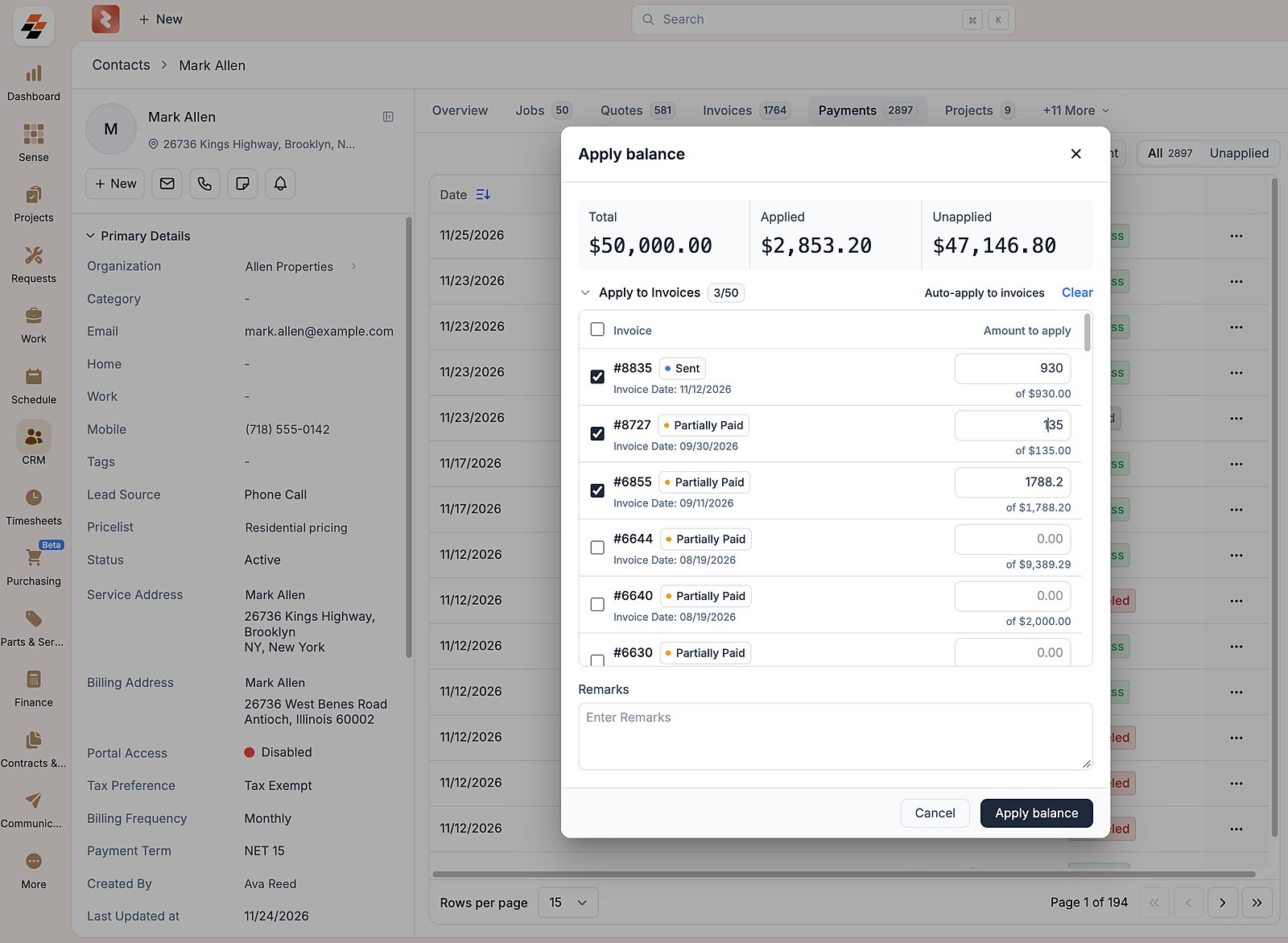
- In the Apply balance dialog, review the Total, Applied, and Unapplied amounts. Invoices that already have an allocation from this payment are listed and selected.
- Select the invoices you want to pay and enter the amounts to apply. To distribute the balance automatically, select Auto-apply to invoices.
- Optionally, enter Remarks.
-
Select Apply balance.
Apply a balance from an invoice
You can also apply an existing unapplied balance when recording a payment against an invoice.- Open the invoice.
- Select More Actions > Record Payment.
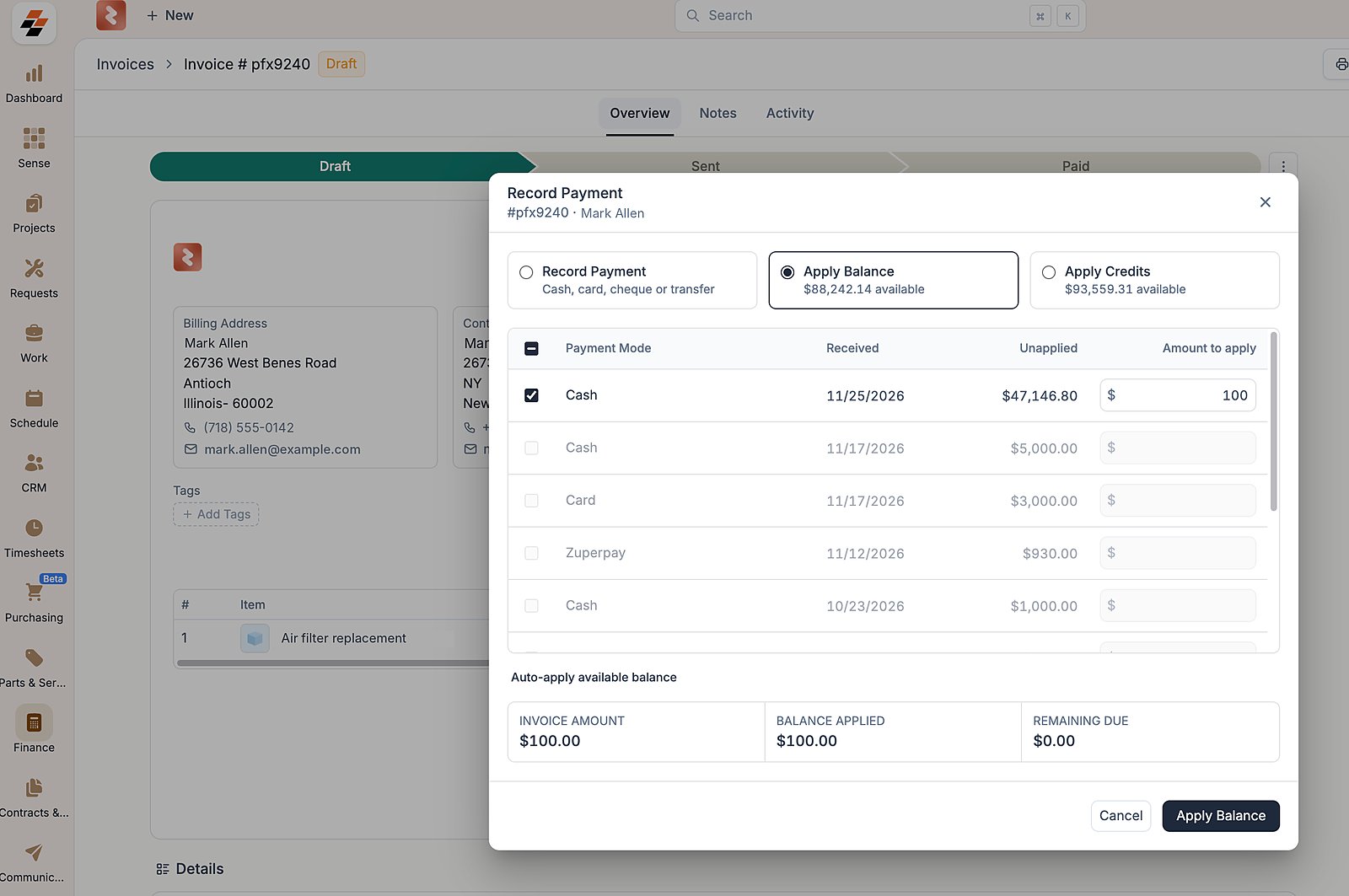
- Select Apply Balance to view the available unapplied balance.
- Select the payments you want to use and enter the Amount to apply for each payment. To apply the available balances automatically, select Auto-apply available balance. Each payment displays its Payment Mode, the date it was Received, and its Unapplied amount.
- Review the Invoice Amount, Balance Applied, and Remaining Due.
-
Select Apply Balance.
Note: You can’t use credits and an unapplied balance in the same payment.
Manage payment allocations
You can change how a recorded payment is distributed across invoices. You can also remove a payment from an invoice and return the allocated amount to the customer’s unapplied balance.Change the invoices a payment is applied to
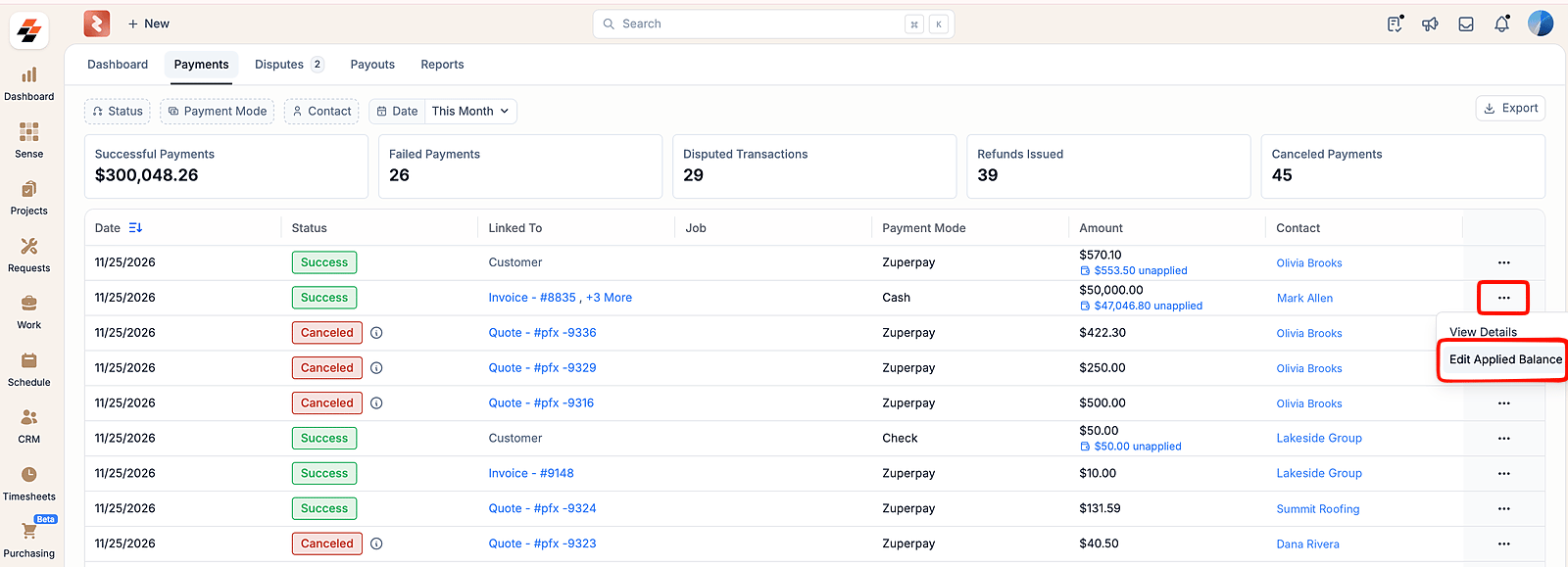
Use Edit Applied Balance to change an allocation or return an amount to the unapplied balance.-
Open the payment’s ⋯ menu from either location:
- The customer’s Payments tab.
- Finance > Payments.
-
Select Edit Applied Balance.
This option appears when some of the payment has been applied to invoices. If none of the payment has been applied, the menu displays Apply Balance instead.
- Change the amount allocated to an invoice, or clear an invoice to remove its allocation.
- Review the notice at the bottom of the dialog. It summarizes the changes. For example, it may show that $200.00 will be unlinked from 1 invoice and added back to the unapplied balance.
- Select Save Changes.
Remove a payment from an invoice
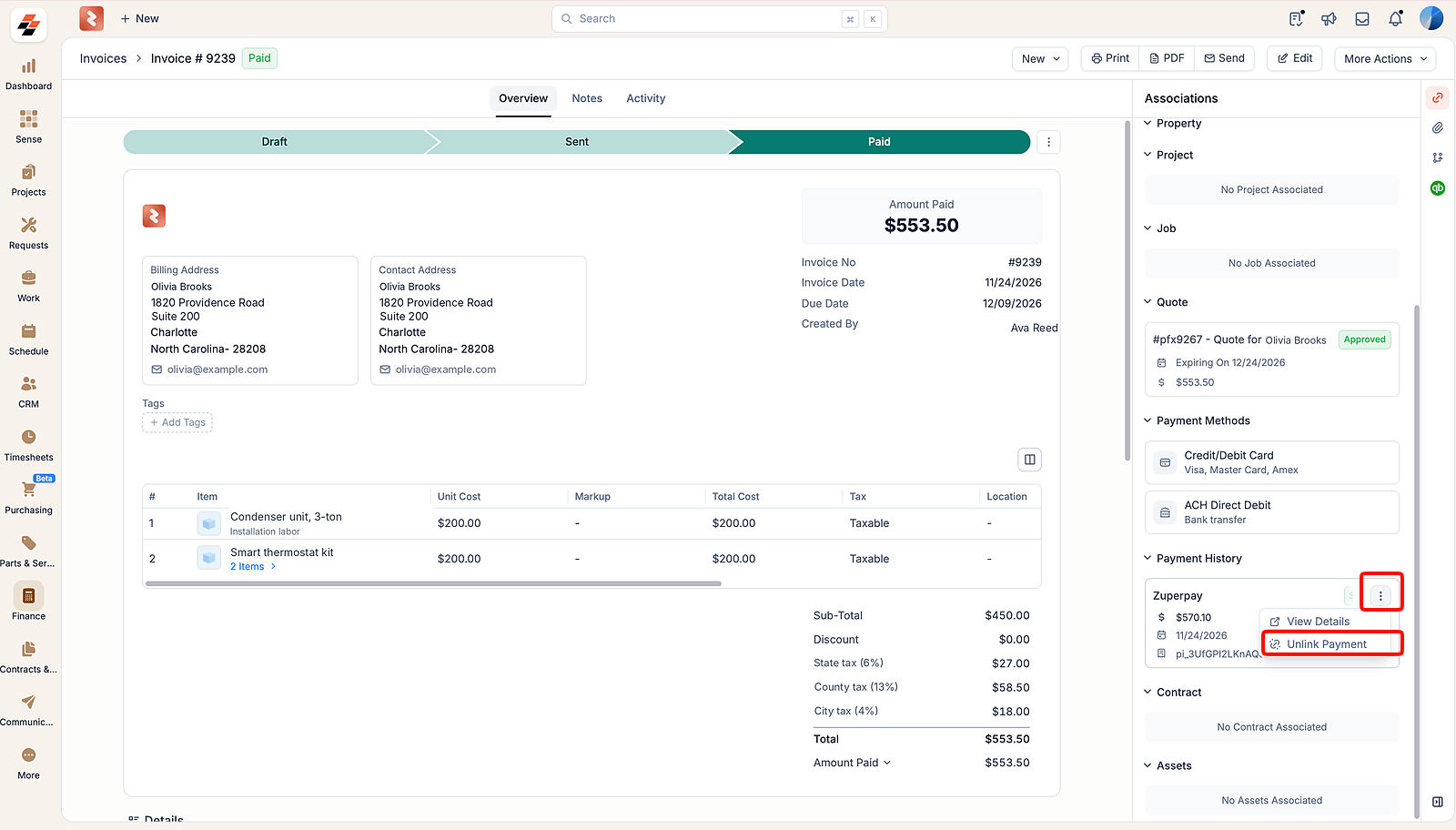
Use Unlink Payment to remove a payment’s association with an invoice. The allocated amount returns to the customer’s unapplied balance, and the invoice’s balance due increases.- Open the invoice.
- In the Payment History section of the right panel, select the ⋮ menu on the payment.
- Select Unlink Payment.
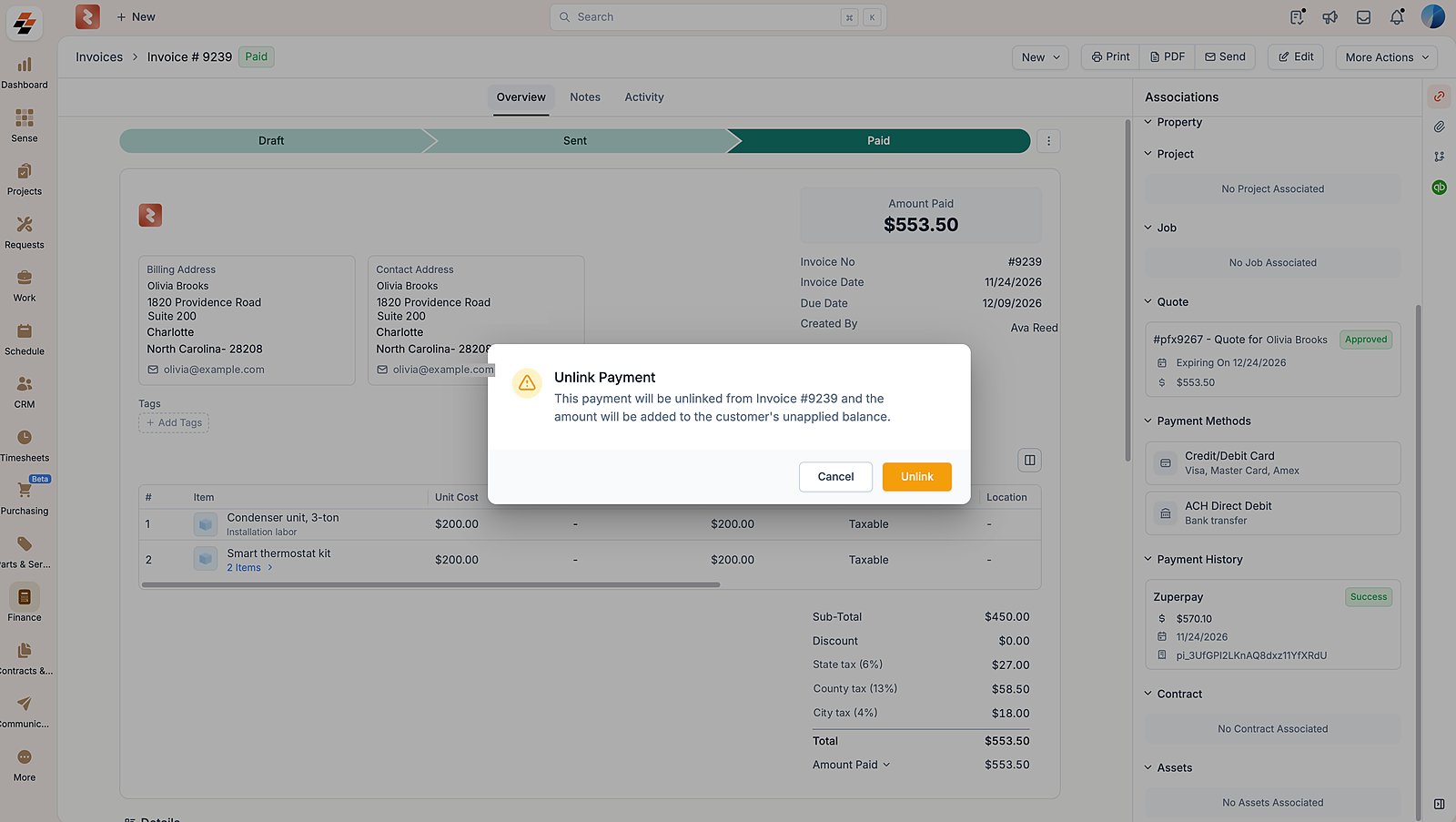
- In the confirmation dialog, select Unlink.
Note: You can apply, edit, or unlink an unapplied balance only from the Zuper web app.
Refund or void a payment
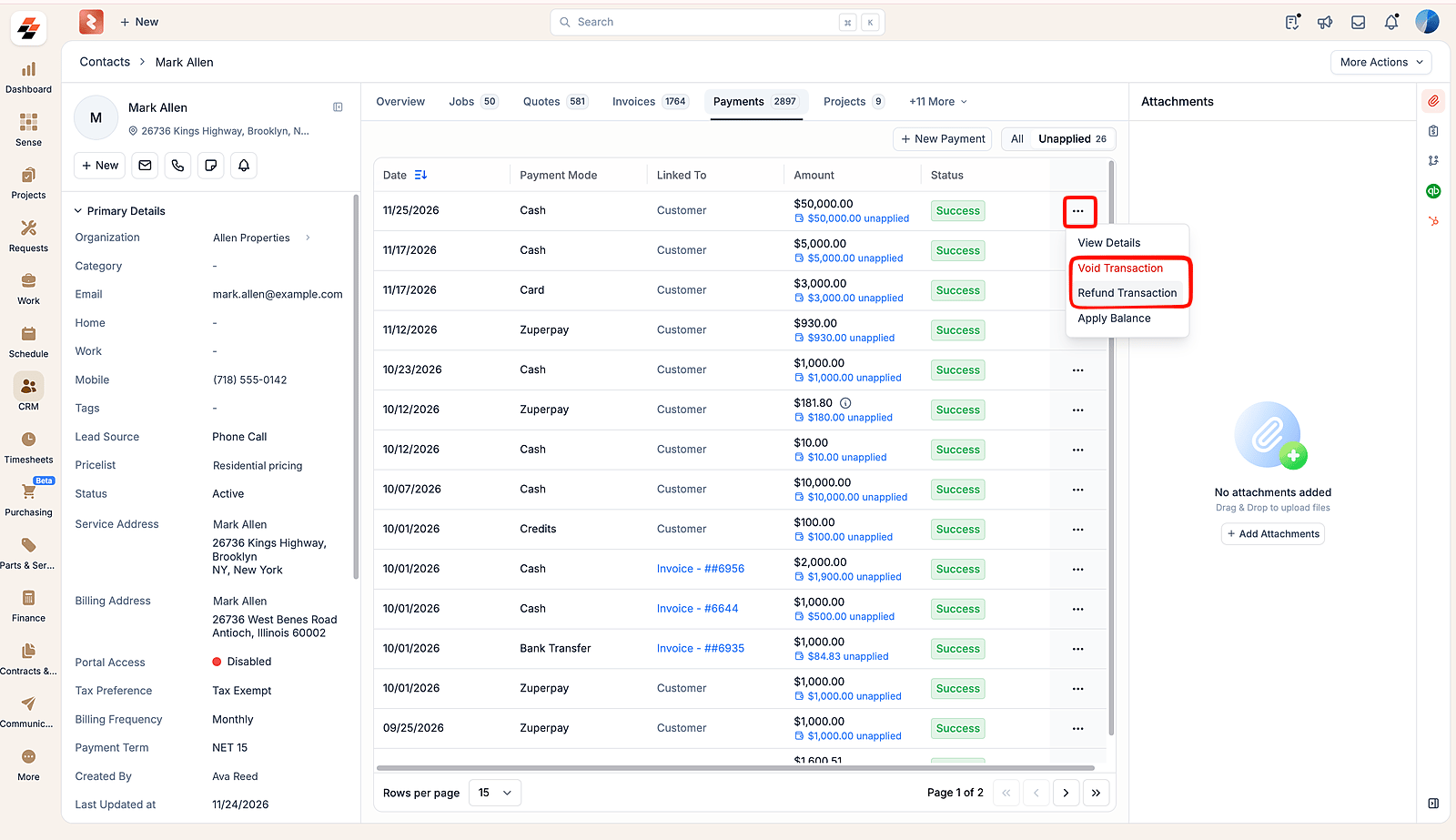
You must remove a payment’s allocations from all invoices before refunding or voiding it. The Void Transaction and Refund Transaction options are unavailable while any portion of the payment is applied to an invoice.- Open the payment and unlink it from every invoice it’s applied to.
- Go to Finance > Payments.
- Open the payment’s ⋯ menu.
- Select Void Transaction or Refund Transaction, as required.
Troubleshoot payment issues
A payment was applied to the wrong invoice
A payment was applied to the wrong invoice
If you applied a payment to the wrong invoice, change its allocations to remove the incorrect association and apply the amount to the correct invoice.
- Open the payment’s ⋯ menu.
- Select Edit Applied Balance.
- Clear the incorrectly selected invoice.
- Select the correct invoice and enter the amount to apply.
- Select Save Changes.
A check bounced after the payment was applied to multiple invoices
A check bounced after the payment was applied to multiple invoices
If a check bounces after you’ve applied its payment to multiple invoices, unlink the payment from all associated invoices before voiding it.
- Unlink the payment from every invoice it was applied to. The amount returns to the customer’s unapplied balance, and the invoice balances are restored.
- Go to Finance > Payments and void the payment.
- When the customer makes the payment again, record the new payment and apply it to the relevant invoices.
Frequently asked questions
Can I record a payment without selecting an invoice?
Can I record a payment without selecting an invoice?
Yes. You can record a payment without selecting an invoice, regardless of the payment mode, including Zuperpay. The full amount remains as an unapplied balance on the customer’s account.
Where can I find a customer's unapplied balance?
Where can I find a customer's unapplied balance?
You can find the unapplied balance in either location:
- Customer Overview: Under Highlights > Unapplied.
- Customer Payments: In the Amount column for a payment with a remaining balance.
What's the difference between an unapplied balance and a credit?
What's the difference between an unapplied balance and a credit?
An unapplied balance is money the customer has paid that hasn’t been allocated to an invoice. Credits are tracked separately and appear under Highlights > Credits on the customer’s Overview tab.You can’t use credits and an unapplied balance in the same payment.
Do standalone payments sync with QuickBooks Online?
Do standalone payments sync with QuickBooks Online?
Yes. A payment applied across multiple invoices syncs to QuickBooks Online as a single payment, with a separate line for each invoice. Any unapplied amount remains unapplied in QuickBooks Online. Payment edits and unlinks also sync.
Do standalone payments sync with Sage or Xero?
Do standalone payments sync with Sage or Xero?
No. Standalone payment synchronization with Sage and Xero isn’t currently supported.