Note: To enable this feature, kindly contact your account manager.
Navigation: Jobs → Select a Job
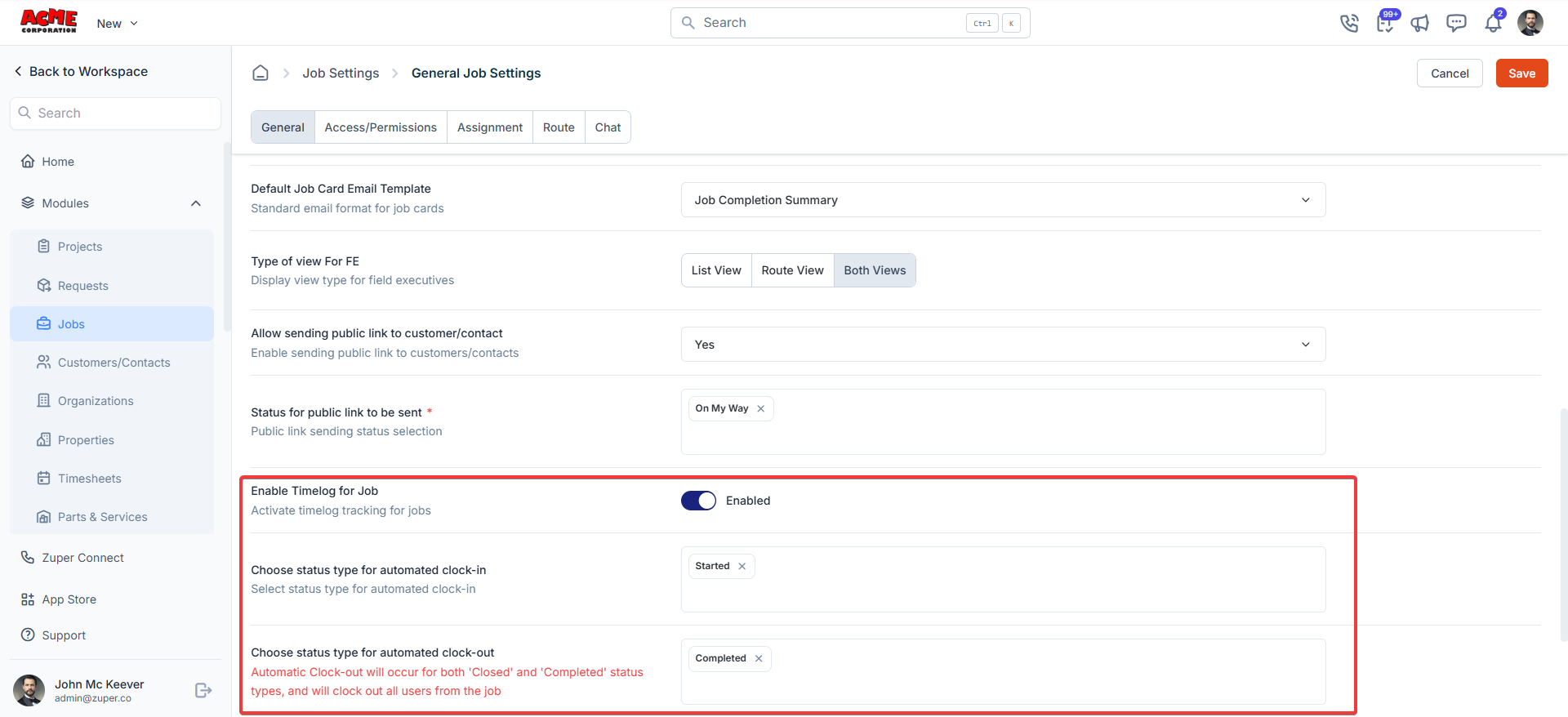
Delink Status and Timelog
- To further streamline operations, Zuper now decouples the Timelog entirely from job statuses.
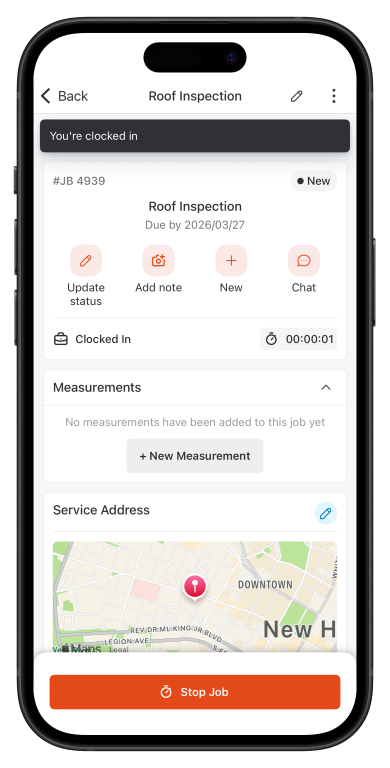
- Always-Available Controls: The Start Travel, Stop Travel, Start Job, and Stop Job buttons remain visible on the job details screen regardless of the job’s current status.
Note: Even when Job Delink Status is enabled, closing or cancelling a job will automatically stop any active timer
- Select the “Jobs” module from the top-left hamburger icon.
- You will see a list of jobs assigned to you for the day.
- Click on the job you want to begin working on.
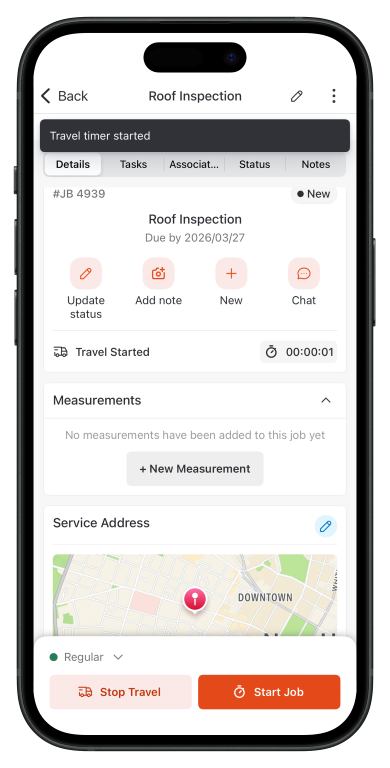
- When you begin traveling to the job site or for related tasks (e.g., picking up materials), click “Start Travel” to log your travel time. This will not automatically change the status to On My Way; this just starts the travel timer.
- Optional: Click Start Navigation and select a navigation option, such as Google Maps.
- Once you arrive at the job site or decide to stop traveling for any reason, click “Stop Travel” to end your travel time logging.
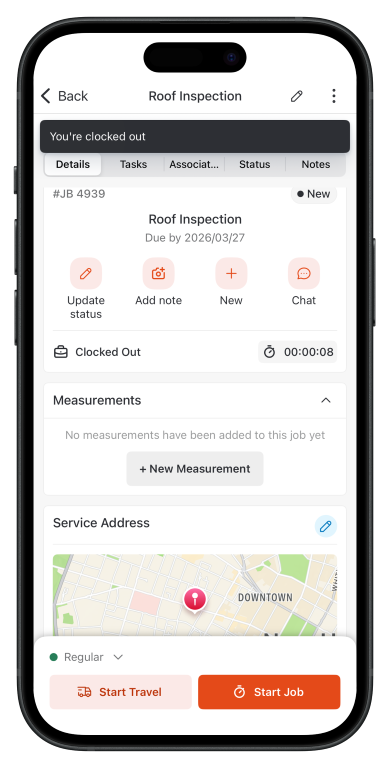
- When you’re ready to begin working on the job, click “Start Job.” This will track your labor time and clock you in. Again, this will not automatically change the status to ‘started’; it will just start the timer.
- Once you complete the Job, click “Stop Job.”
- Independent Operation:
- Travel timers run separately from job timers—start travel without affecting job status, and vice versa.
- Visual indicators (e.g., timer badges like “Travel Started – 00:05:23”) update dynamically without altering the job’s overall status.
- Conditional Visibility for Travel:
- If travel time tracking is disabled (Settings -> Job Category -> Job Status -> Toggle off Travel Time), only the Start Job and Stop Job buttons appear.
- When enabled, all four buttons are shown, with intuitive icons.