

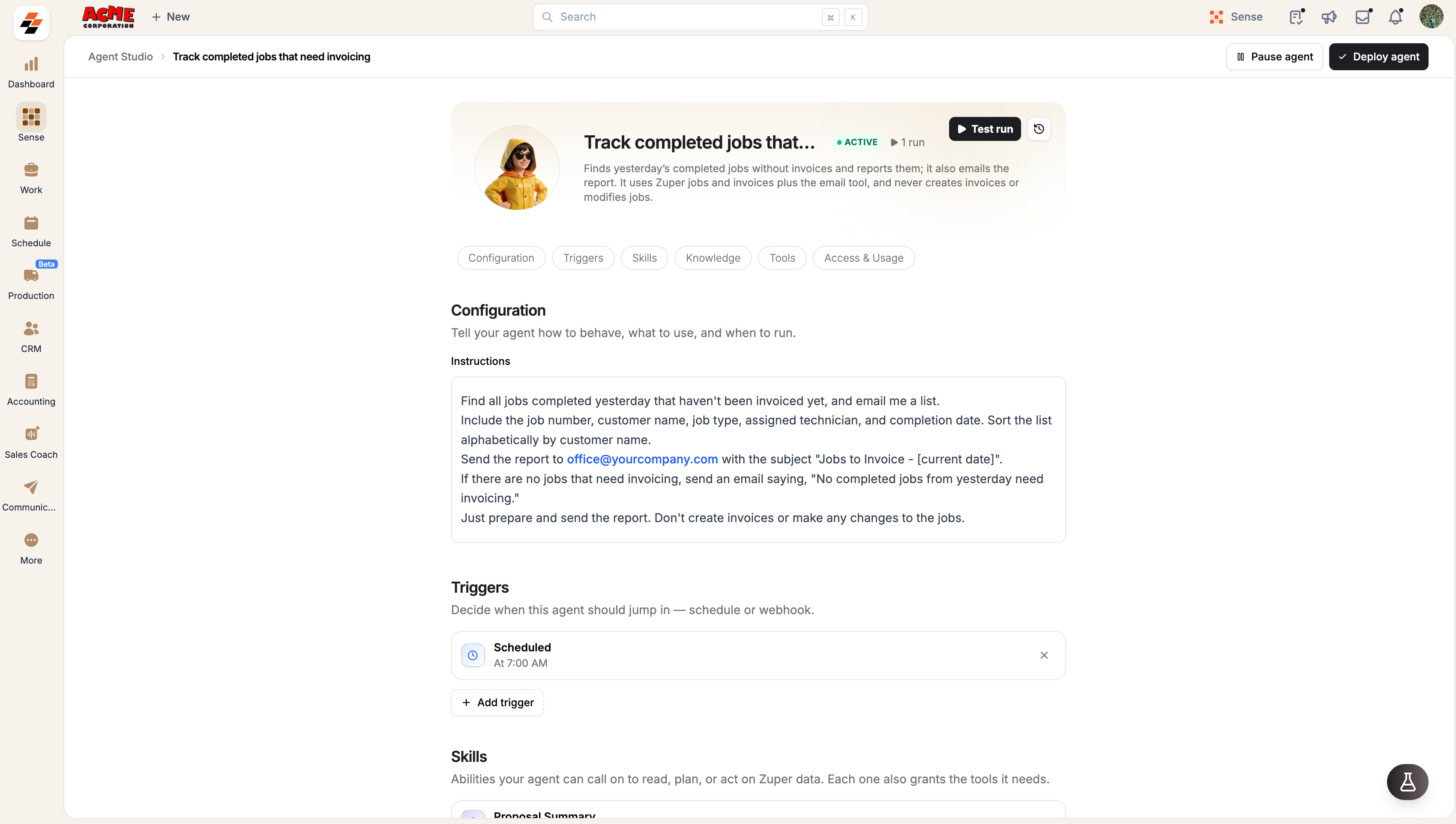
Before activating a custom agent, you can test it using your Zuper data to verify its behavior. Once activated, you can review its run history to monitor execution and confirm that it works as expected. To compare custom agents with Marketplace agents, skills, and workflows, see Choose what to build.
Custom agents must be enabled for your organization. If Create agent or Create your own is unavailable, contact your Zuper account manager or Zuper Support.
Understand how custom agents work
A custom agent combines instructions, tools, skills, knowledge, and triggers to perform a specific task.
Configure the components according to the task. Not every agent needs additional skills, knowledge, or an automatic trigger.
Create an agent
Navigation: Sense → Agent Studio → My agents
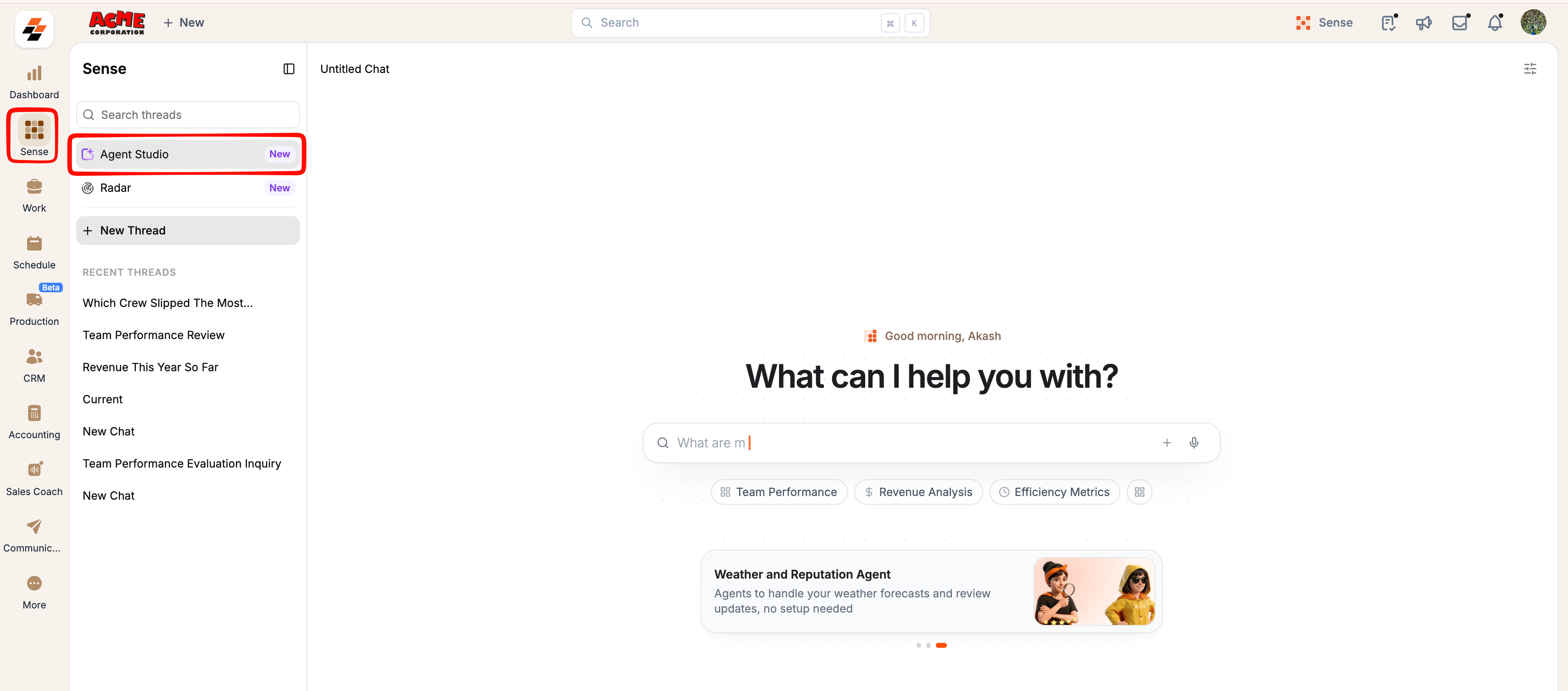
- Open Sense from the left navigation, then select Agent Studio.
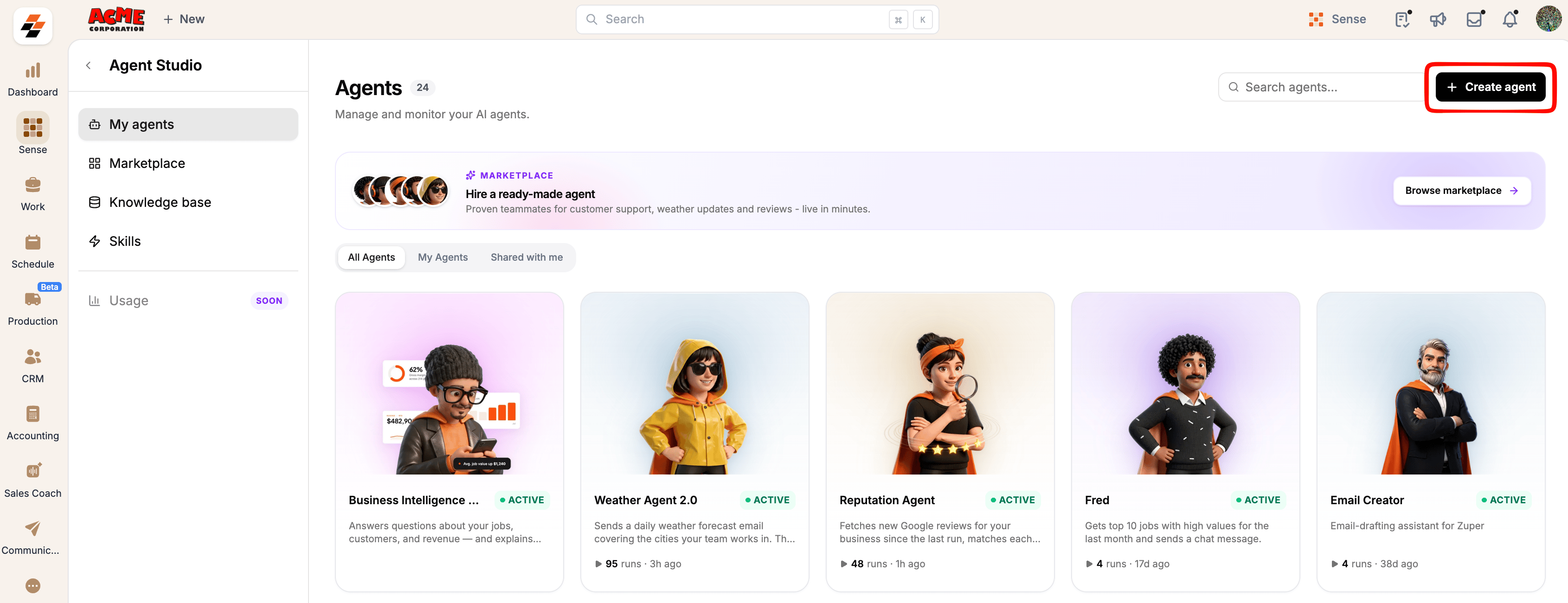
- On My agents, select Create agent at the top right or select the Create agent card after your existing agents.
- Enter a name for the agent. It opens in draft status.
- Select Add a description and enter a short description of the agent’s purpose. This description appears on the agent’s card.
- Select the avatar to choose a different image.
- Under Configuration, write instructions that describe the task, expected behavior, rules, and output.
- Configure the tools, skills, and knowledge the agent needs.
- Set a trigger if the agent should run automatically.
- Test the agent using your Zuper data.
- Review the results and refine the configuration as needed. Deploy the agent when it behaves as expected.
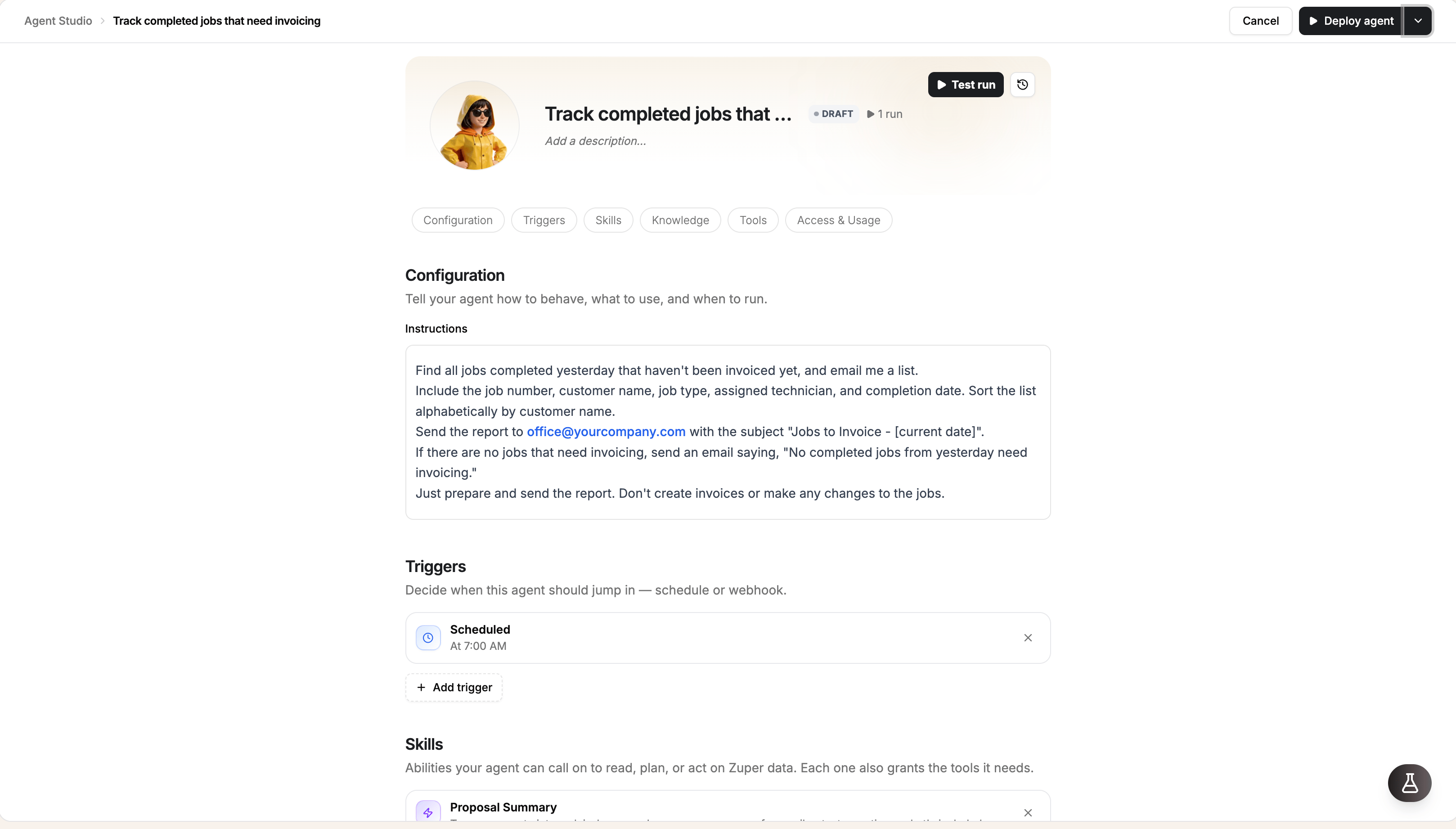
Changes are not saved automatically. Select Save as draft from the dropdown next to Deploy agent to save your work and return to it later. Select Deploy agent when the agent is ready to go live.
Write effective instructions
Write effective instructions
Instructions define what your agent should do, which records it should work with, and how it should deliver the results.In Agent Studio, go to Configuration and select the Instructions field to open the editor. Enter the instructions, then select Done.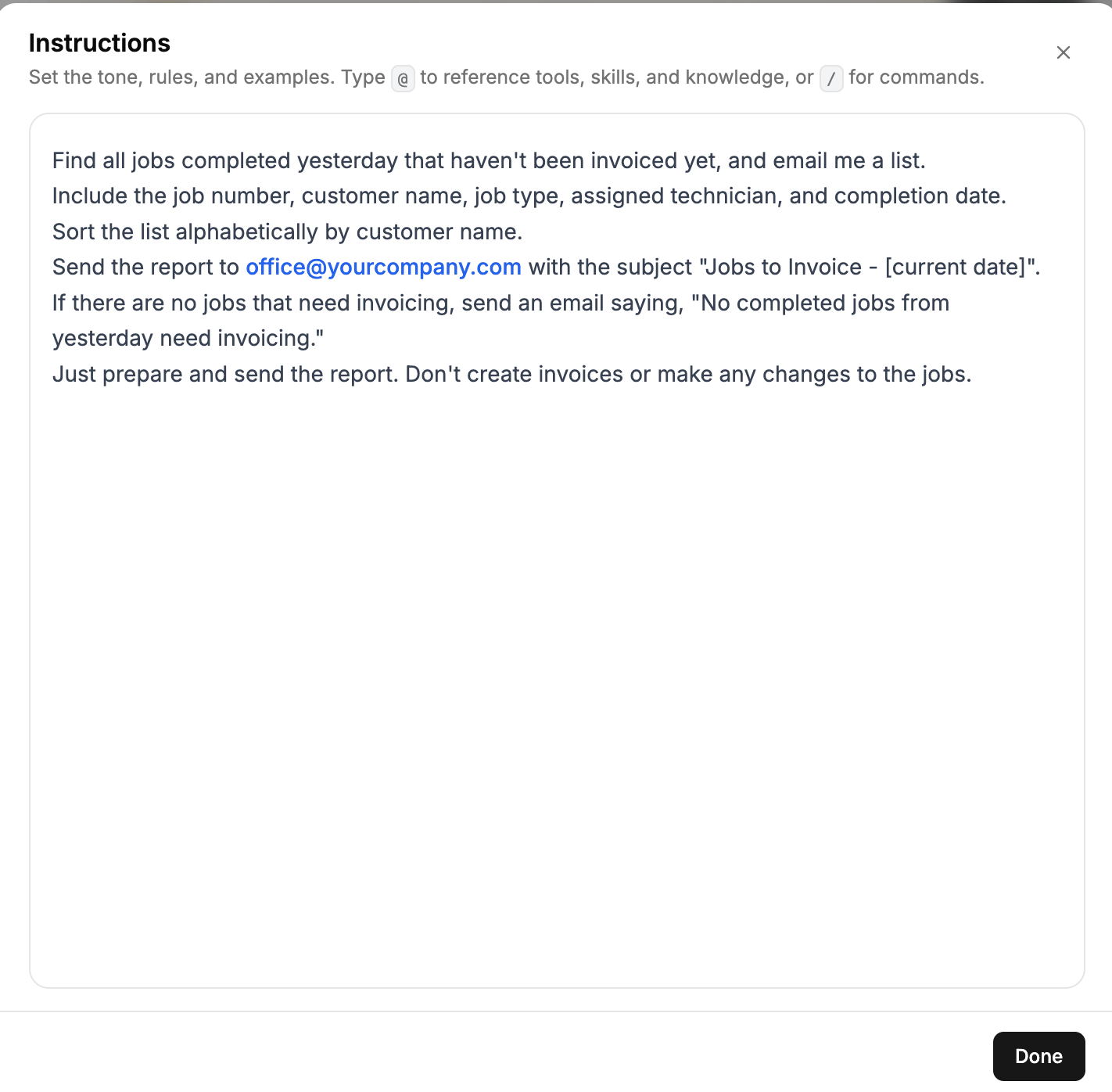
What to include in your instructions
Good instructions answer four questions:Example instructions
For an overdue invoice report, you could use the following instructions:Compare these instructions with “Send me overdue invoices.” The shorter request leaves the agent to interpret what overdue means, which details to include, how to organize the results, and where to send them. Clear instructions help the agent produce more consistent results.Tips for reliable instructions
- Specify the filters. Define the date range, status, team, or other criteria the agent should use. Filtering for relevant records helps keep the task focused and within the data limits.
- Explain what to do when no records match. Tell the agent whether to send a message, return an empty result, or take another action.
- Use exact Zuper field and status names. This helps the agent identify the intended records and conditions.
- Give each agent one primary job. Focused agents are easier to test, troubleshoot, and maintain than agents handling several unrelated tasks.
Reference tools, skills, and knowledge
You can reference tools, skills, and knowledge entries directly in your instructions.- Add a reference: Type
@in the editor to find an item by name. If the item is not already configured for the agent, referencing it adds it when you save. If a tool requires additional settings, the editor opens those settings first. - Remove a reference: Select × on its chip. Make sure no other reference to the same item remains, then select Done.
- Format instructions: Type
/to access formatting options, including headings, lists, and tables.
Give your agent tools, skills, and knowledge
Give your agent tools, skills, and knowledge
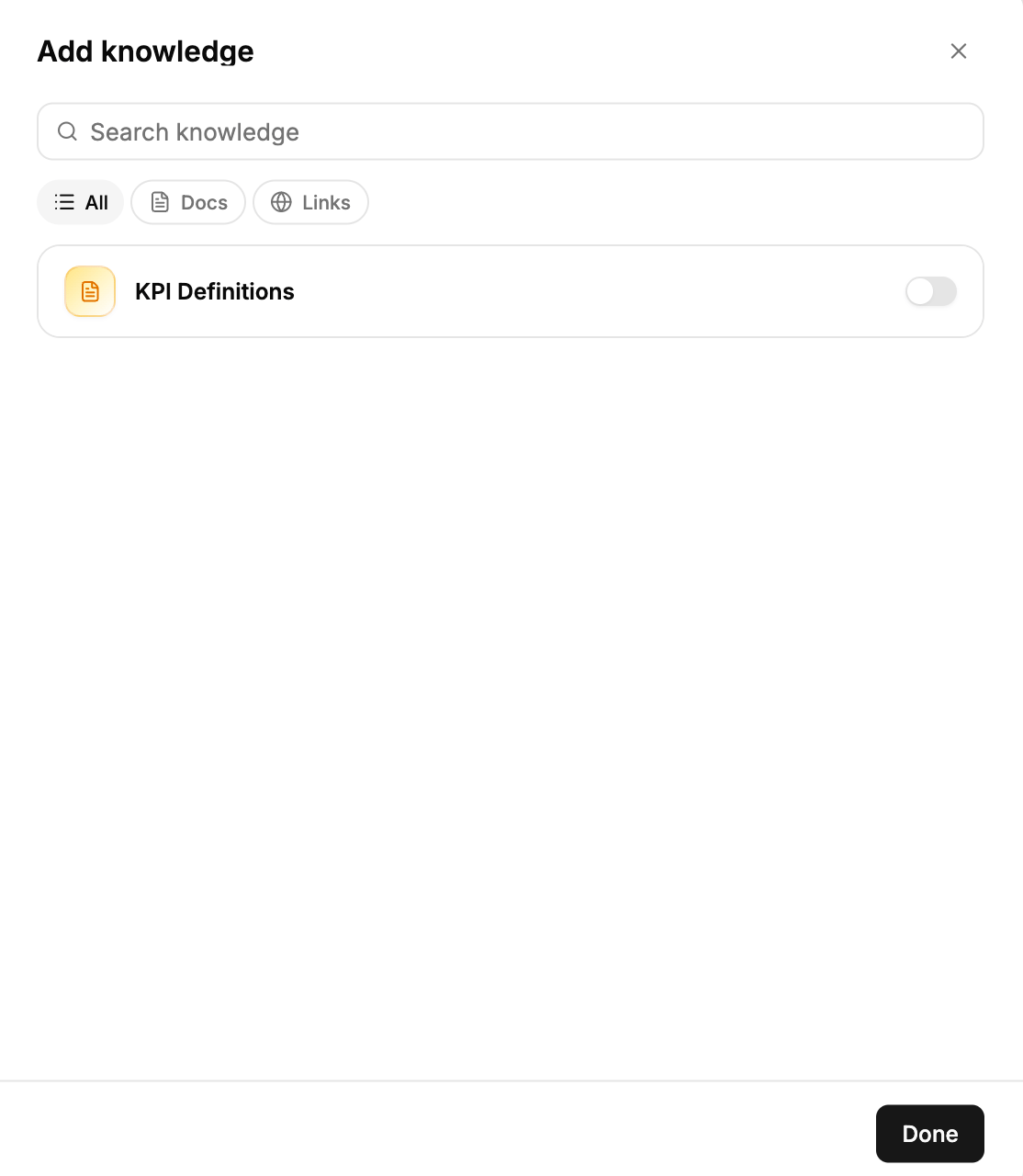
Configure the capabilities and business context your agent needs. In Agent Studio, select Add tools, Add skills, or Add knowledge in the corresponding section. Choose the items you need, then select Done.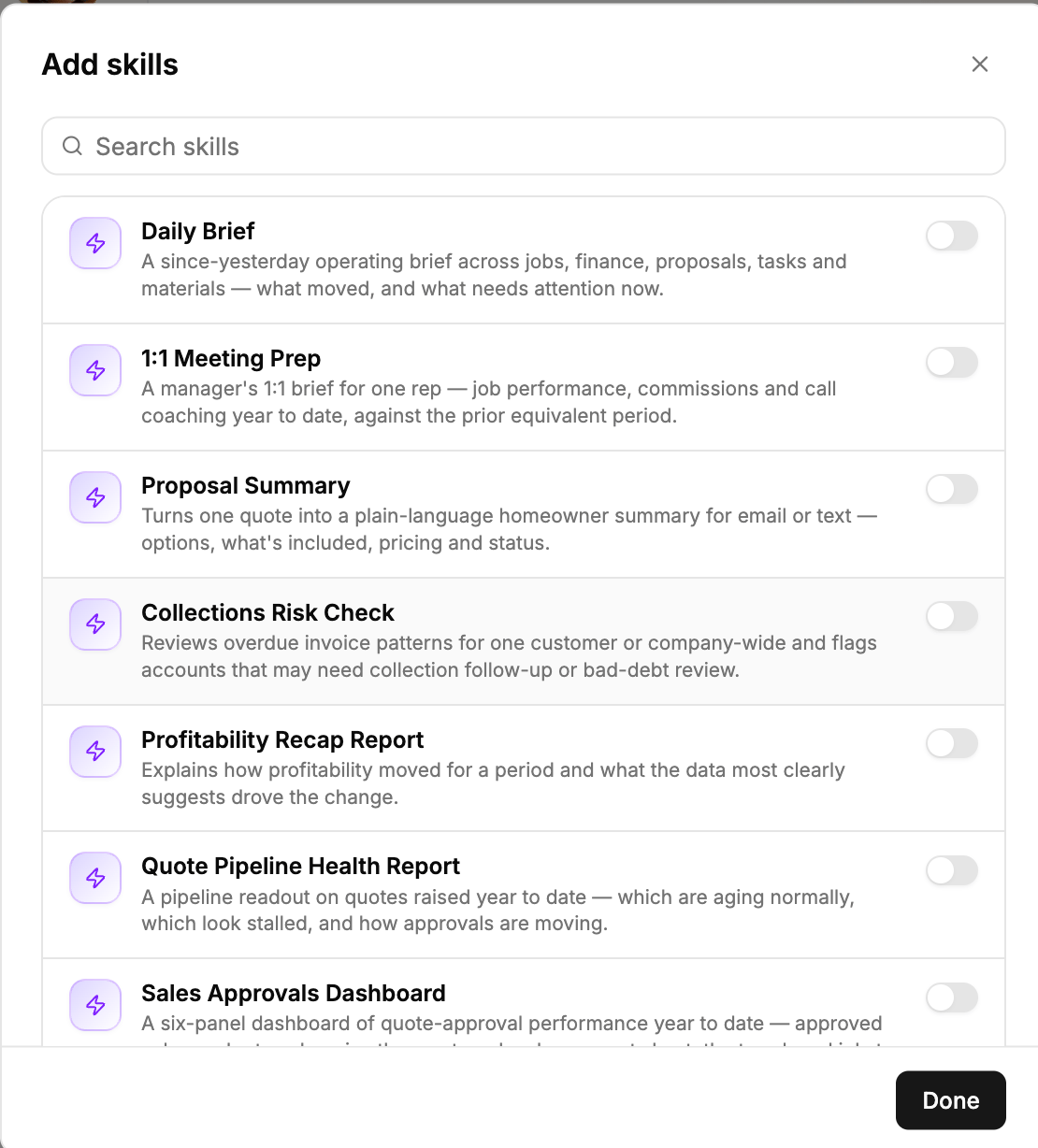
Add tools
Tools determine which data your agent can access and which actions it can perform. Choose tools based on the task in its instructions.Some tools require additional settings, such as a recipient email address or Chat channel. Complete the settings when prompted. To change them later, select the Configure icon on the tool row. Tools with incomplete settings display Configuration required.Add only the tools the agent needs. For example, an agent that identifies overdue invoices and emails a report needs Read Zuper data to retrieve the invoices and Send Email to deliver the report.Use Write Zuper data carefully. This tool can create or update live records in your account. Add it only when the task requires those changes, and test the agent thoroughly before deploying it.
Add skills
Skills are reusable instructions that help an agent perform a task consistently. Each skill also provides the tools it needs.Add knowledge
Knowledge base entries provide business-specific context, such as terminology, policies, and internal rules.Choose when your agent runs
You can start an agent manually with Run now or configure it to run automatically using a scheduled or webhook trigger.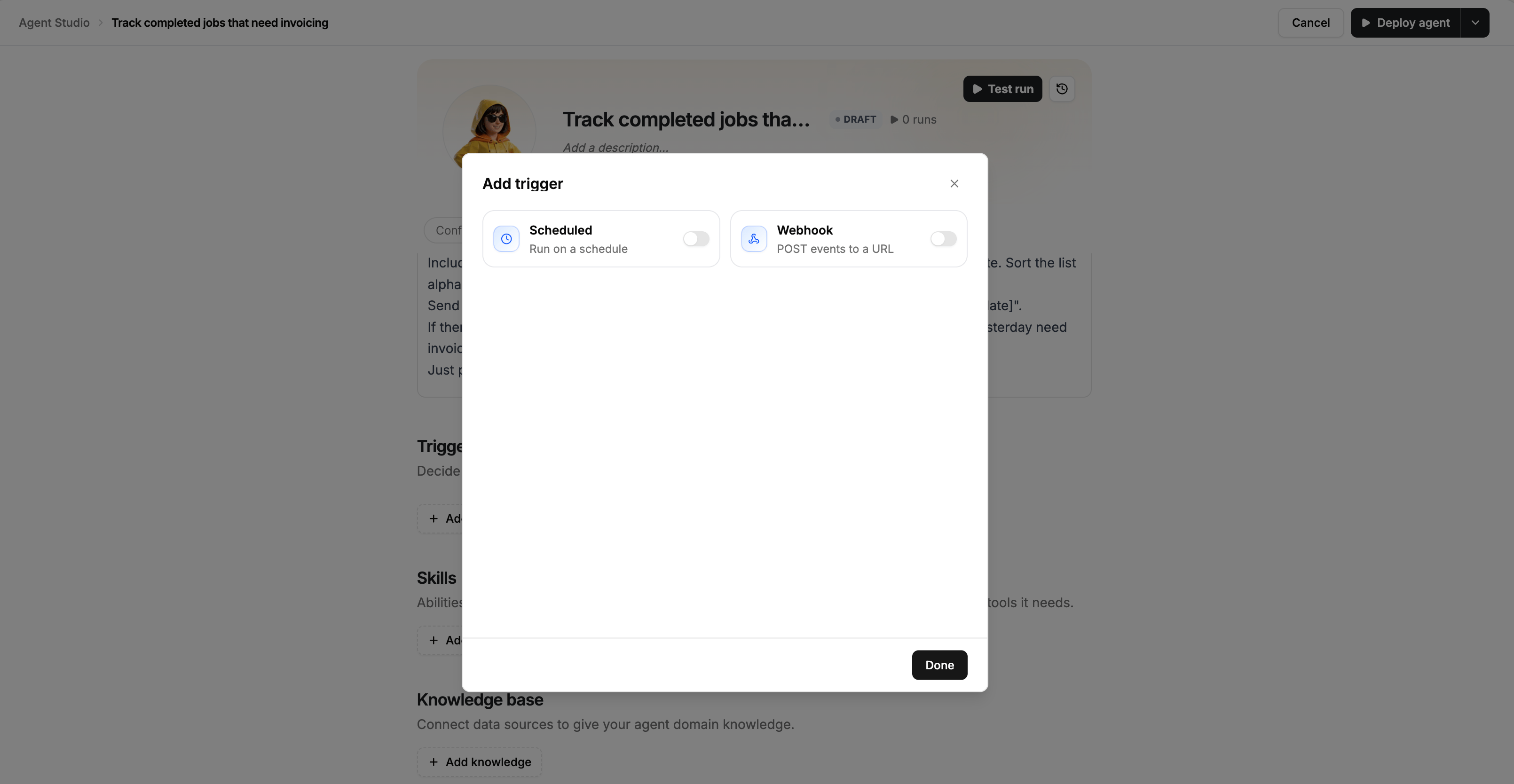
Configure a scheduled trigger
Configure a scheduled trigger
Use a scheduled trigger to run an agent automatically at specific times.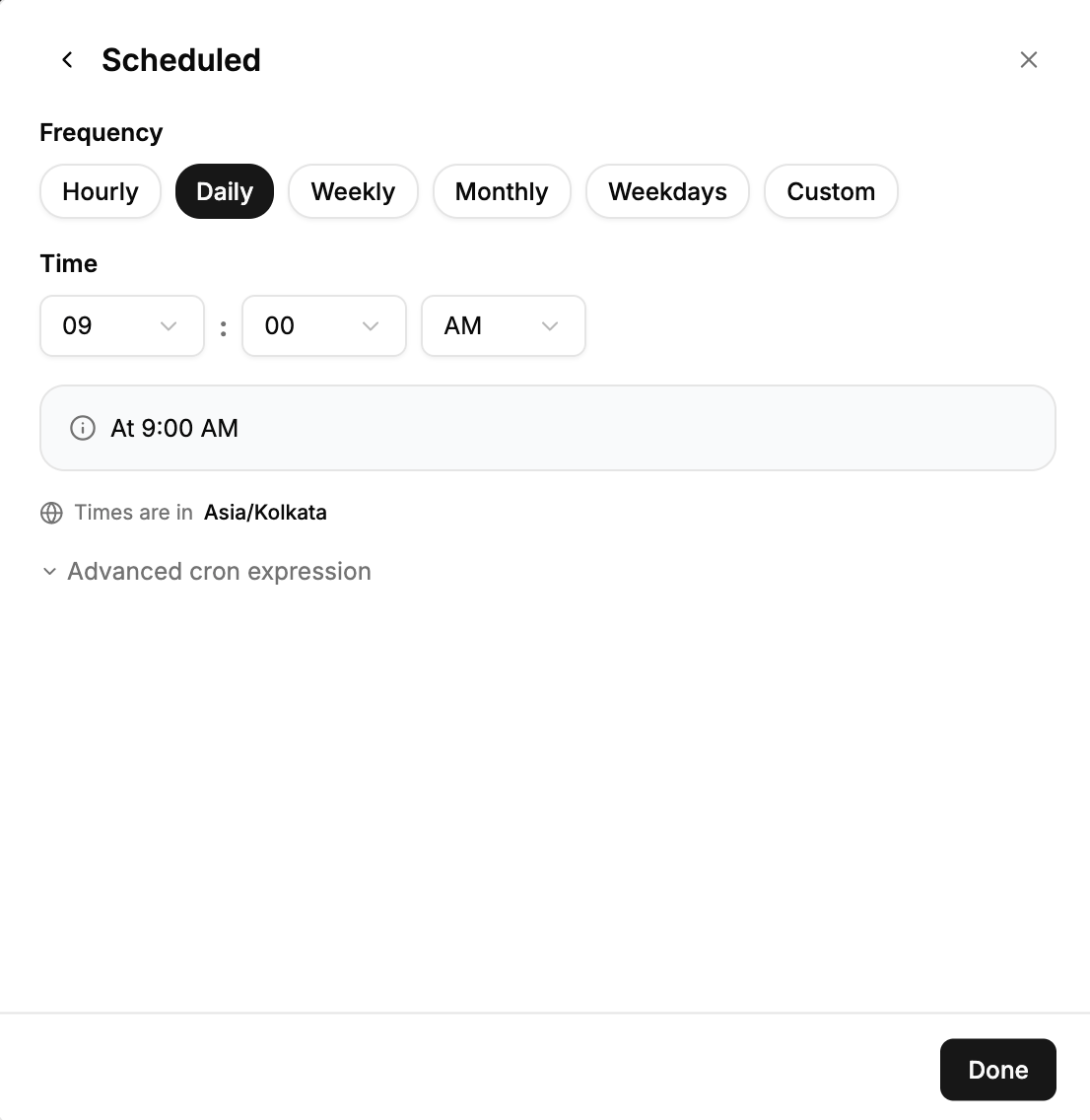
- Open the Triggers section and select Add trigger.
- Turn on Scheduled and choose a Frequency:
- Hourly
- Daily
- Weekly (every Monday)
- Monthly (on the first day of the month)
- Weekdays
- Custom
- Choose a Time. Check the Times are in … line below the schedule summary to confirm the timezone.
- Select Done to return to the trigger configuration, then select Done again to add the trigger.
0 16 * * 5 runs every Friday at 4:00 PM. Review the schedule summary to confirm when the agent will run.Choose a frequency that matches how often the data changes. A daily overdue invoice report, for example, may be sufficient without running the agent every hour.Configure a webhook trigger
Configure a webhook trigger
A webhook lets another system start an agent by sending a request to a unique web address. The agent receives the request body along with its instructions.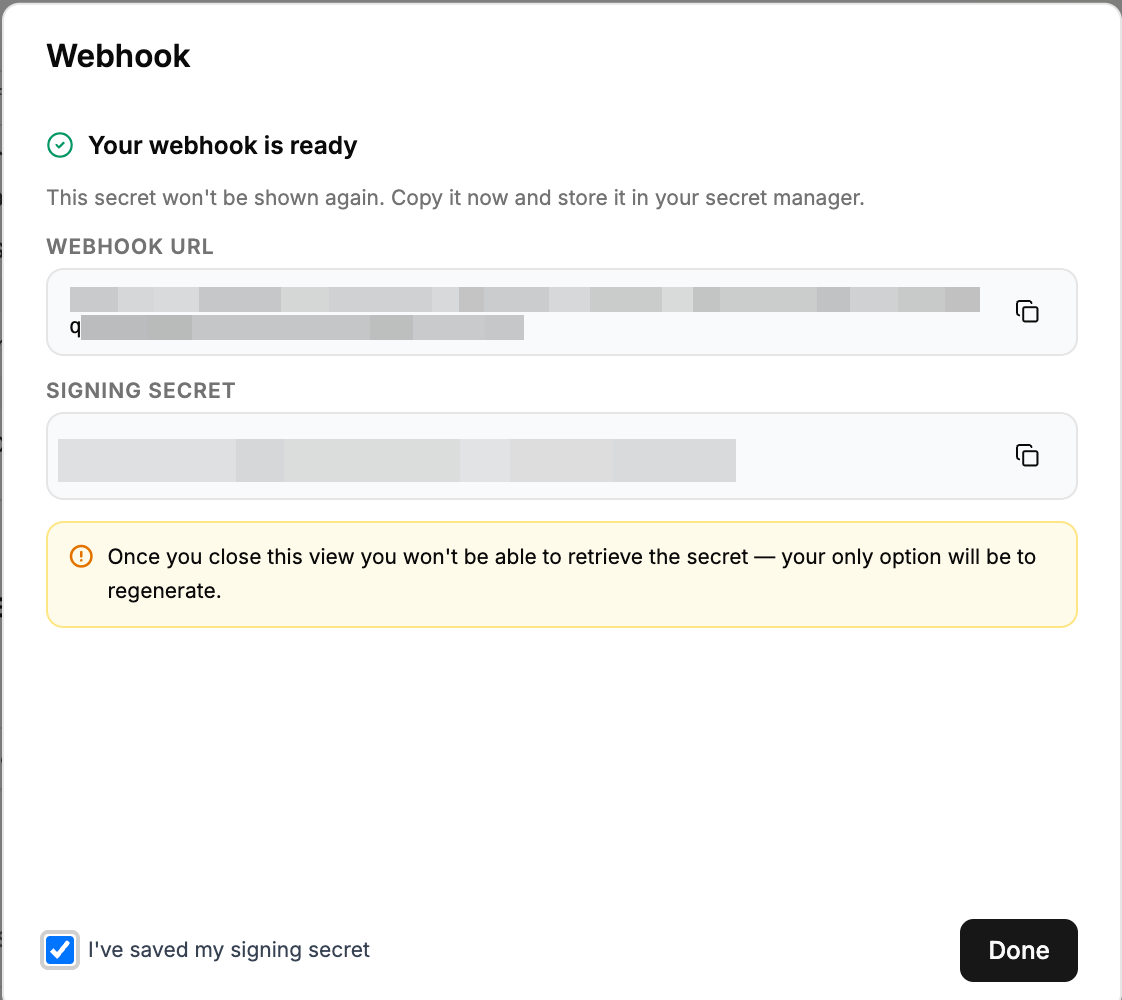
Set up the webhook
- Open the Triggers section and select Add trigger.
- Turn on Webhook. Zuper generates the webhook and displays Your webhook is ready, along with the Webhook URL and Signing secret.
- Copy the URL and signing secret. Store the secret securely, such as in a password manager or the calling system’s secret settings.
- Select I’ve saved my signing secret, then select Done to close the secret dialog.
- Select Done to return to the trigger list.
- Select Done again to add the trigger.
- Select Deploy agent to save the trigger, including when updating an already deployed agent.
The signing secret is displayed only once. If you close the dialog without saving it, regenerate the secret before configuring the calling system.
Define how the agent handles requests
The agent receives the body of each webhook request. Explain the request’s structure and the action the agent should take in its instructions.For example:Each request contains a new lead from our website form, with the fields name, email, phone, and message. Look up the email and phone in Zuper customers. Email sales@yourcompany.com the lead’s name, their message, and whether they are an existing customer. If they are, include their last job.
Configure the calling system
Configure the external system to send requests that meet these requirements:- Method:
POST - URL: The webhook URL generated by Zuper
- Body: JSON, up to 512 KB
- Authentication: Sign the request using the webhook’s signing secret.
An accepted request returns a
202 response and creates a run in the agent’s run history. The history includes the request content.For supported response codes and implementation examples in cURL, Node.js, and Python, see the Webhook Signing Policy.Manage the webhook
- Disable the webhook: Select × on the Webhook row in Triggers, then save the agent. Requests are rejected while the trigger is disabled. You can enable it again through Add trigger. Pausing the agent also stops webhook-triggered runs.
- Regenerate the signing secret: Open the Webhook trigger and select the Regenerate signing secret icon next to Signing secret. Confirm the change and update every system that calls the webhook. The previous secret stops working immediately.
- Review request limits: A webhook accepts up to 60 requests per minute. See Limits and good practice.
Test and deploy an agent
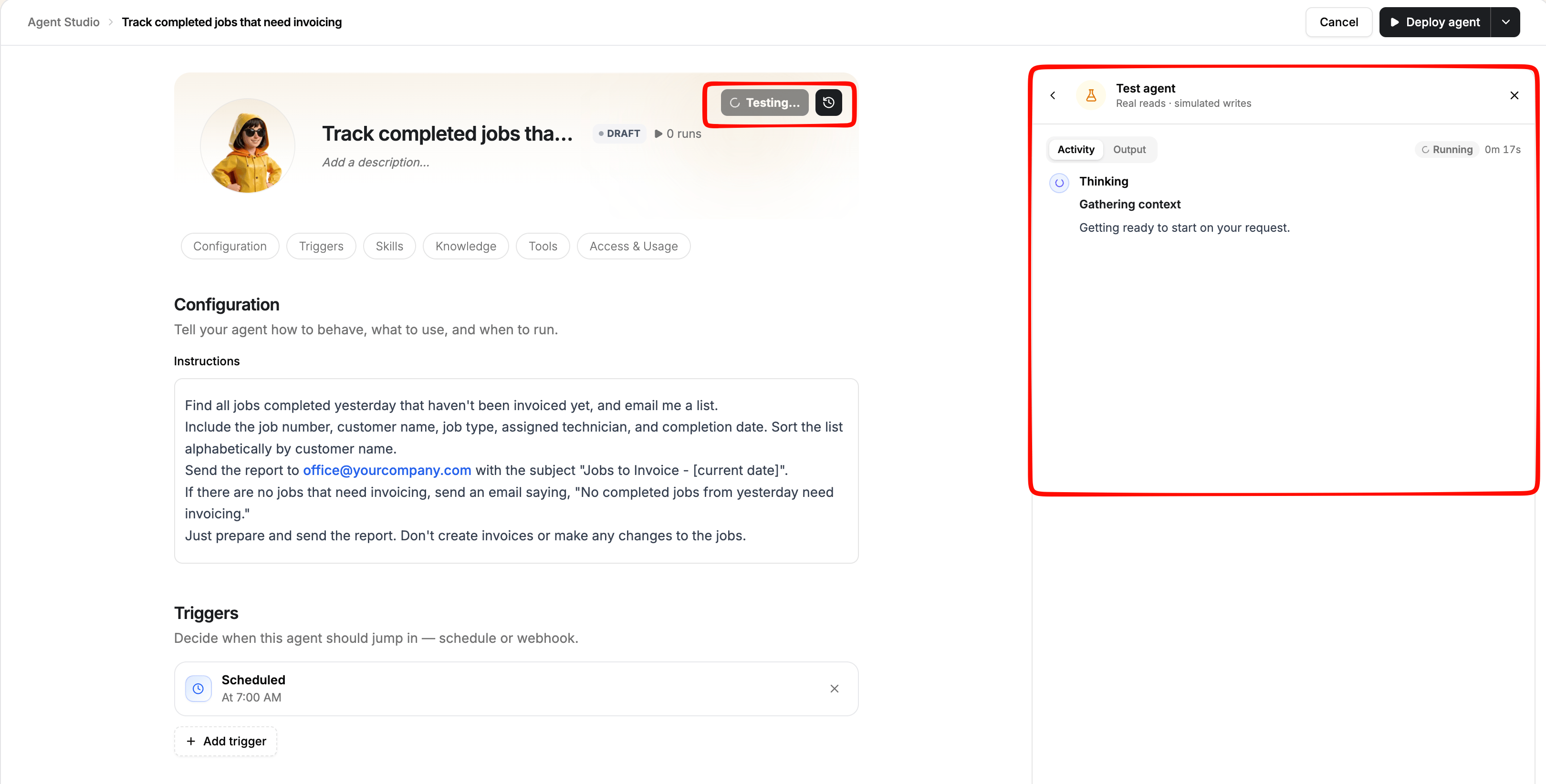
Test an agent before deploying it to verify that its instructions, tools, skills, and knowledge produce the expected results. While the agent is a draft or has unsaved changes, Test run appears at the top right of the agent card. A test run uses your latest configuration, including unsaved changes. During a test run:- The agent reads real data from your Zuper account.
- Emails, Chat messages, and changes to Zuper records are not carried out. Instead, the agent prepares the action, and the activity marks the step as held back.
You cannot provide a sample webhook request during a test run. A webhook-triggered agent therefore has no incoming request to process during testing. To test a webhook end-to-end, configure the agent to email you, deploy it, and send a signed request from the calling system. This starts a live run.
Review a test run
Select Test run to open the Test agent panel on the right.- Activity shows the steps the agent took and the calls it made. Review these details to confirm that it accessed the right records and applied the correct filters. For example, check that it filtered invoices by due date rather than invoice date.
- Output shows the result the agent prepared, such as the email it would have sent.
- The results match the records in Zuper for the same filters.
- The output indicates how many records were processed. If it reports 1,000 of 4,517, the agent has reached the data limit. Narrow the instructions with additional filters.
- The email or Chat message contains the information your team needs and uses the expected format.
- Every step marked held back represents an action you expect the agent to perform during a live run.
Deploy the agent
When the test results meet your expectations, select Deploy agent. Zuper runs pre-deployment checks and lists items that need attention under Before you deploy.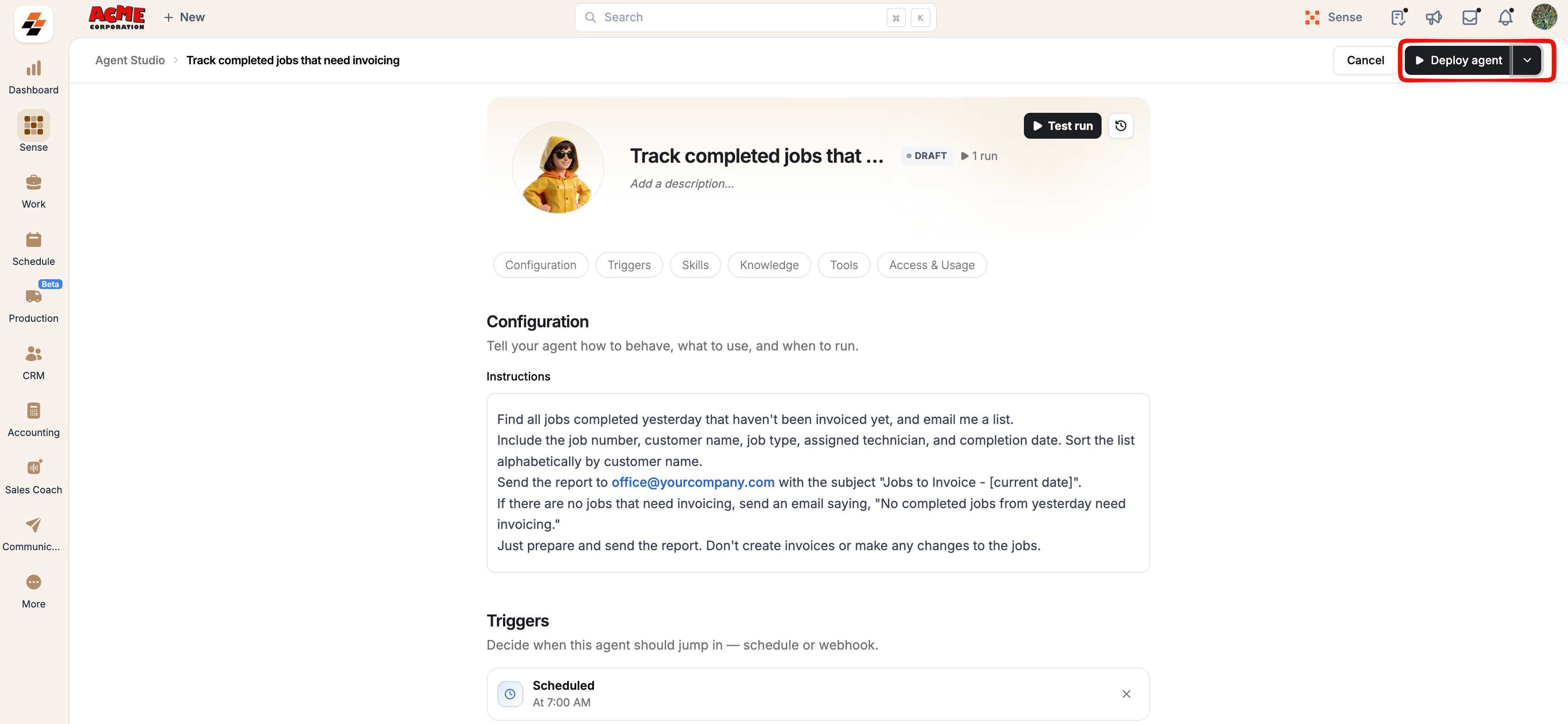
- Required fixes: Issues such as empty instructions or incomplete tool settings prevent deployment. Resolve each issue, then select Deploy agent again.
- Suggestions: Items such as instructions that may be too short or an agent without a trigger are recommendations. Address them, select Ignore for suggestions that do not apply, or select Deploy anyway.
Selecting Run now on an active agent with no unsaved changes starts a live run. Emails are sent, Chat messages are posted, and records can be changed if the agent has the Write Zuper data tool. Review the configuration carefully before running the agent.
Manage your agent
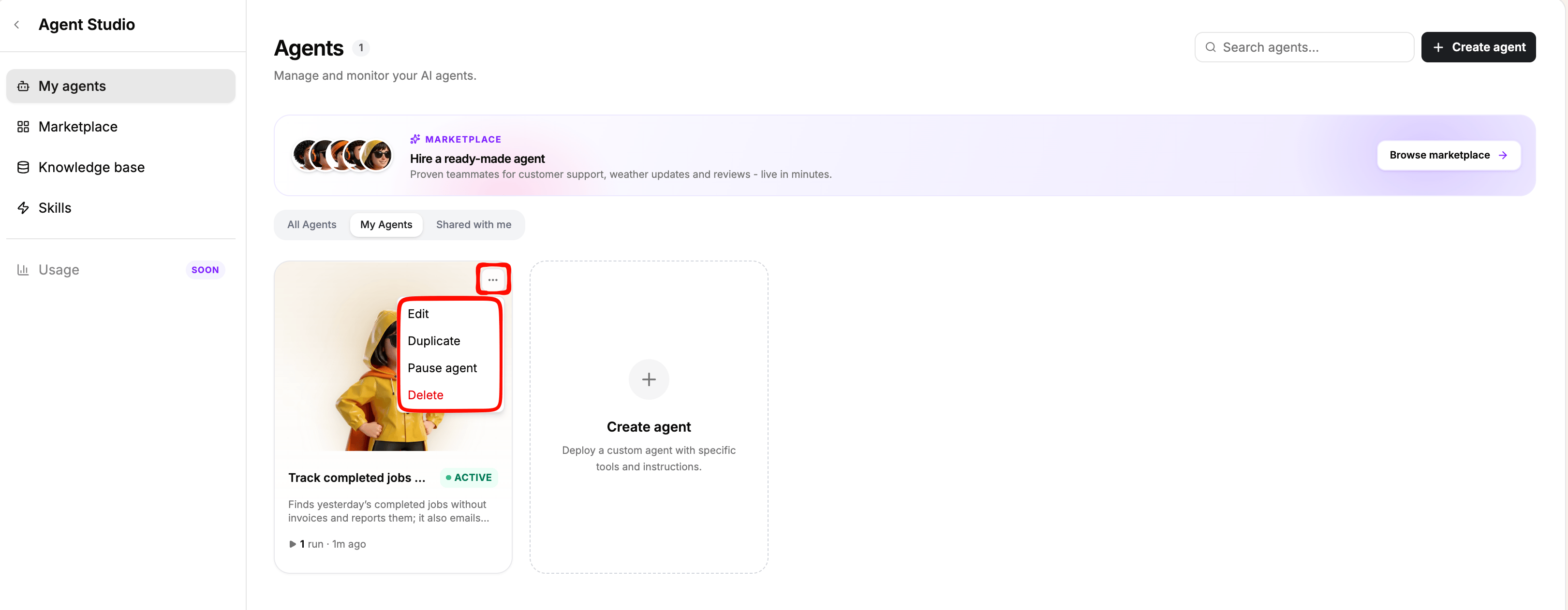
Open an agent from My agents to review or change its configuration. Select Deploy agent to apply changes to an active agent. For a paused agent, select Save agent. Zuper runs the Before you deploy checks again when you apply changes. From the ··· menu on an agent card in My agents, you can perform the following actions:- Duplicate: Create a new draft based on an existing agent. The duplicate’s schedule is switched off, and webhook triggers are not copied. Before deploying the duplicate, open Triggers, select Add trigger, and enable the required triggers. A new webhook has its own URL and signing secret.
- Pause agent: Stop the agent from running on its triggers.
- Resume agent: Resume a paused agent. Webhook requests are refused while the agent is paused.
- Delete: Permanently delete the agent.
Custom agents for common tasks
Use these examples as starting points for common business tasks. For each example, create a custom agent, add the specified tools and trigger, enter the instructions, and test the agent before deploying it. Replace the sample email addresses, Chat channels, field names, and business rules with values appropriate for your organization. Verify that the referenced statuses and fields match your Zuper configuration.Finance: Track completed jobs that need invoicing
Finance: Track completed jobs that need invoicing
Use this agent to identify completed jobs that may still need an invoice.Tools: Read Zuper data, Send EmailTrigger: Daily at 7 AMInstructions:
- Find jobs with the status Completed and a completion date of yesterday.
- Identify jobs that do not have an invoice.
- Email
office@yourcompany.coma table with the job number, customer, category, assigned technician, and completion date. - Sort the results by customer.
- Use the subject
Jobs to invoice – [today's date]. - If no jobs need invoicing, send a one-line email confirming that no jobs need invoicing.
Sales: Follow up on stalled quotes
Sales: Follow up on stalled quotes
Use this agent to help your sales team follow up on quotes that have not been accepted or declined.Tools: Read Zuper data, Send Message (Chat)Trigger: Every Monday at 8 AMInstructions:
- Find quotes with the status Sent that are more than 14 days old and have not been accepted or declined.
- Group quotes by the Sold by field.
- List the customer, quote number, amount, and number of days since the quote date.
- Sort each group by quote date, oldest first.
- Mark quotes over $20,000 with ⚠️.
- Include the total number and value of stalled quotes.
- Post the summary in the Sales channel.
- If no stalled quotes are found, post
No stalled quotes this week.
Dispatch: Identify tomorrow's unassigned jobs
Dispatch: Identify tomorrow's unassigned jobs
Use this agent to help dispatchers spot scheduling gaps before the next workday.Tools: Read Zuper data, Send Message (Chat)Trigger: Weekdays at 3 PMInstructions:
- Find jobs scheduled for tomorrow that have no assigned technician.
- List the job number, customer, address, scheduled time, and category.
- Sort jobs by scheduled time, earliest first.
- Post the list in the Dispatch channel under Unassigned for tomorrow.
- If all jobs are assigned, post
All of tomorrow's jobs are assigned.
Data quality: Find customer records that need updating
Data quality: Find customer records that need updating
Use this agent to identify recently created customer records that are missing contact information.Tools: Read Zuper data, Send EmailTrigger: Every Friday at 4 PMInstructions:
- Find customer records that have neither an email address nor a phone number.
- Email
admin@yourcompany.coma list containing the customer name, creation date, and created by. - Sort the results by creation date, newest first.
- If no records need updating, do not send an email.
Lead management: Review new website leads
Lead management: Review new website leads
Use this agent to help your sales team review website leads, identify existing customers, and flag urgent requests.Tools: Read Zuper data, Send EmailTrigger: Webhook called by your website form or an integration such as Zapier, Make, or n8nInstructions:
- Read the lead’s name, email, phone number, address, and message from the incoming request.
- Search Zuper for existing customers using the email address or phone number.
- Email
sales@yourcompany.comthe lead details and indicate whether the lead is a new or existing customer. - For existing customers, include their most recent job and its status.
- If the message mentions a leak, outage, or urgent issue, prefix the email subject with
🔴 Urgent.