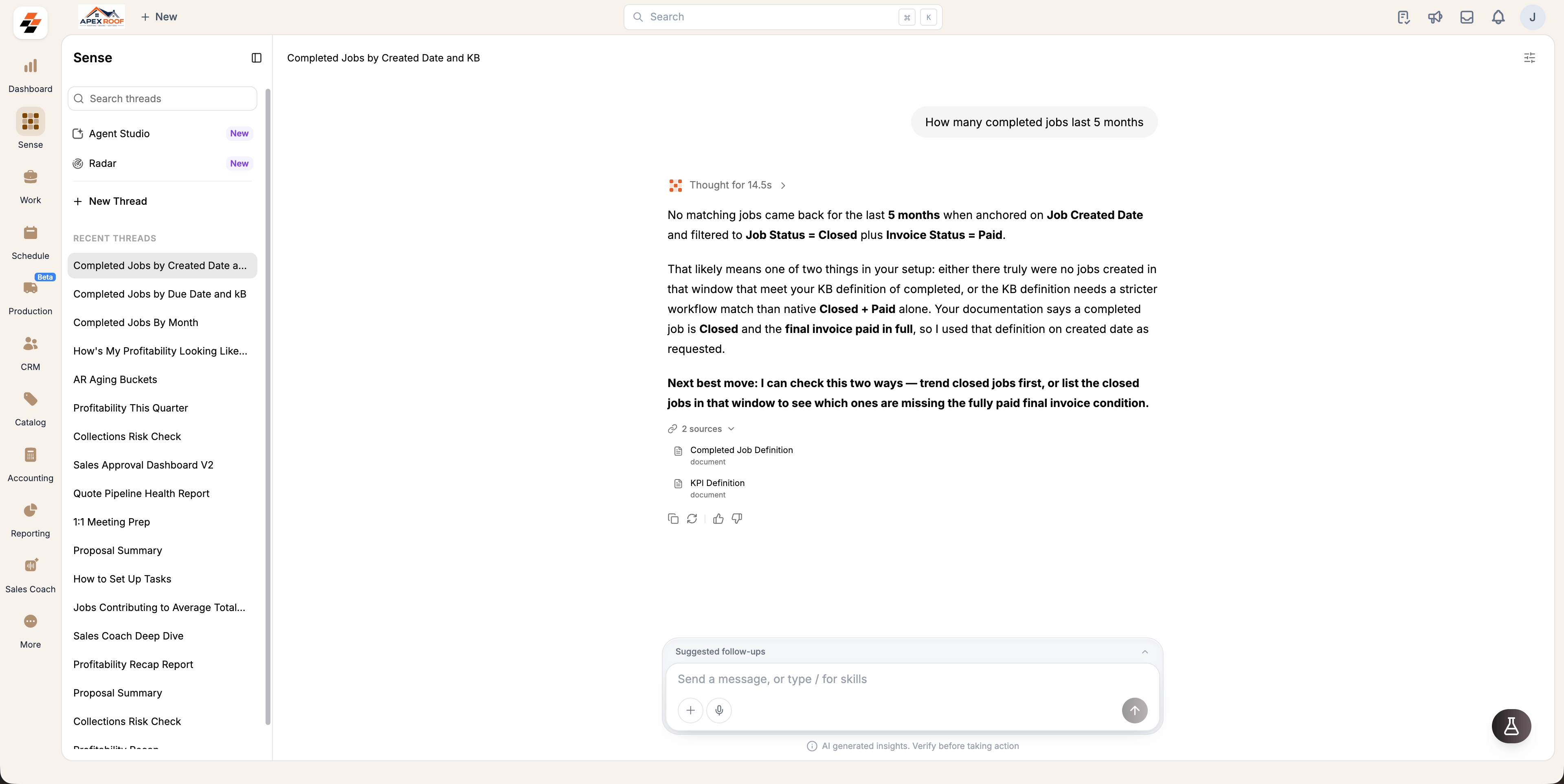
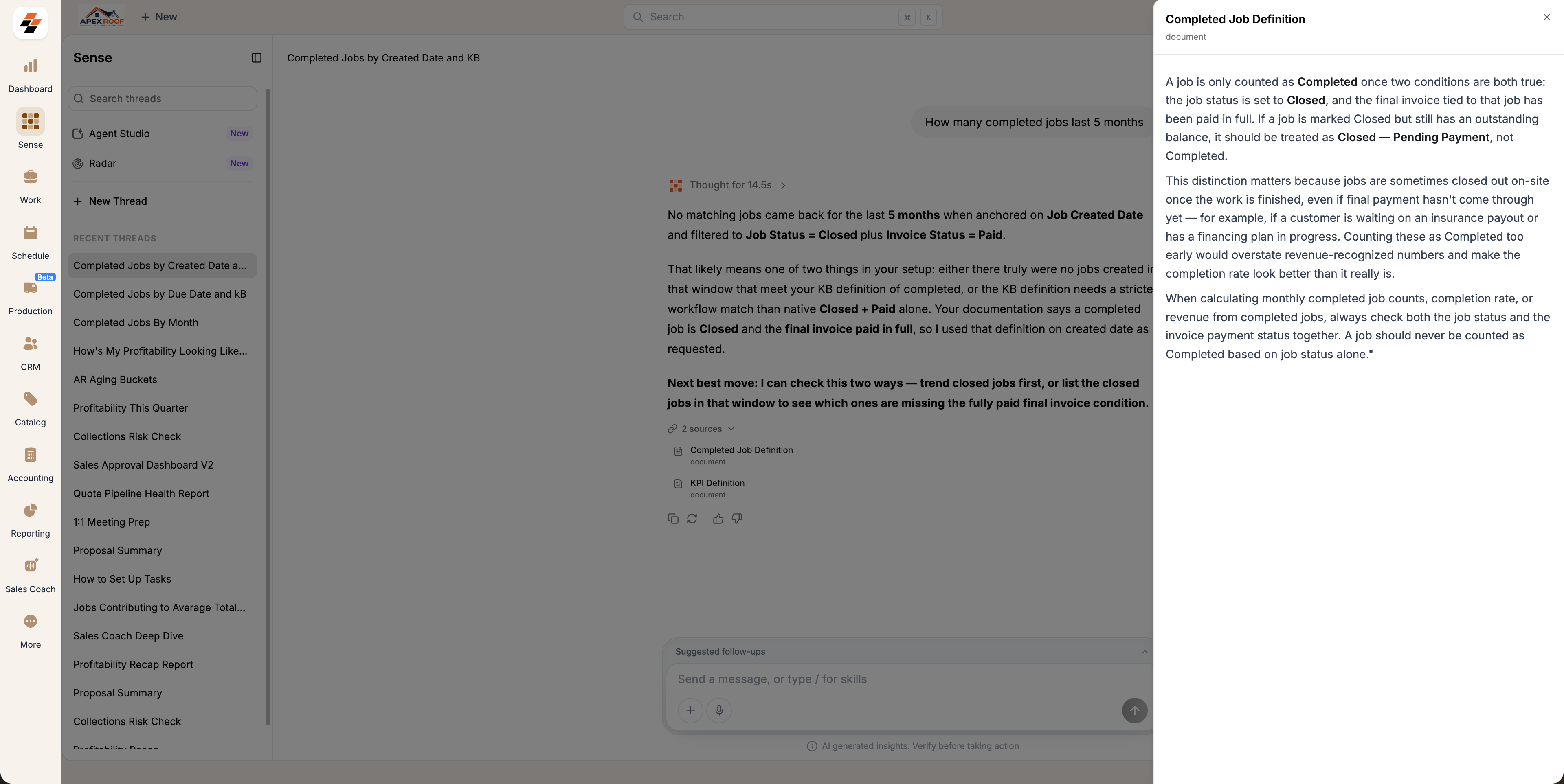
Navigation: Sense -> Agent Studio -> Knowledge base
Add an entry
- Open Sense from the left navigation, then select Agent Studio.
- Select the Knowledge base in the left panel.
- Select + Add Knowledge at the bottom of the list.
- Choose Write knowledge to type context, policies or FAQs directly.
- Paste a link to have Sense crawl a webpage, or upload a file to add a PDF, doc or sheet.
- Whichever way you add it, Sense extracts the content and shows it as text in the knowledge editor. For a link, select Refresh to re-crawl the page and pull in any changes..
- Enter your content, then give the entry a clear title.
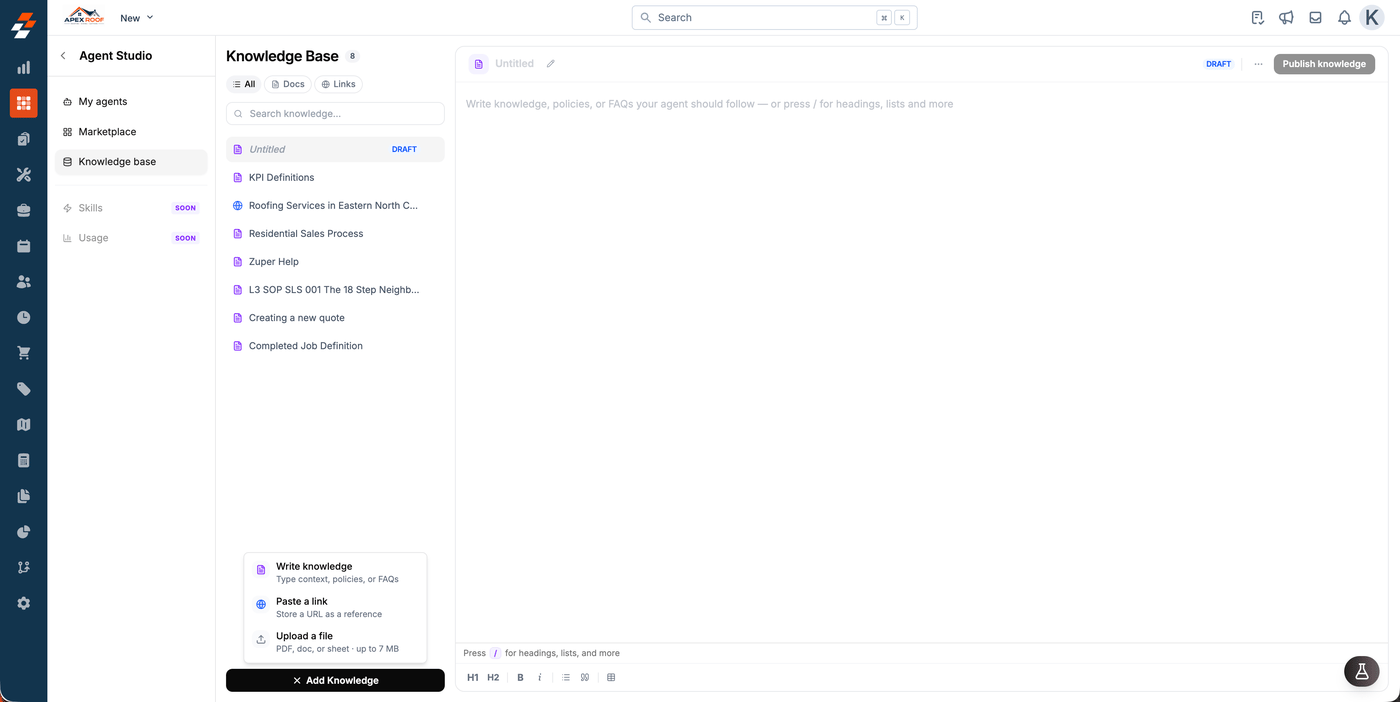
Note: Uploaded files are limited to 7 MB each. Use the All, Docs and Links filters above the list to find an entry later.
Publish an entry
Select Publish knowledge when the entry is ready for agents to use. Until then, it stays a draft, and no agent reads it.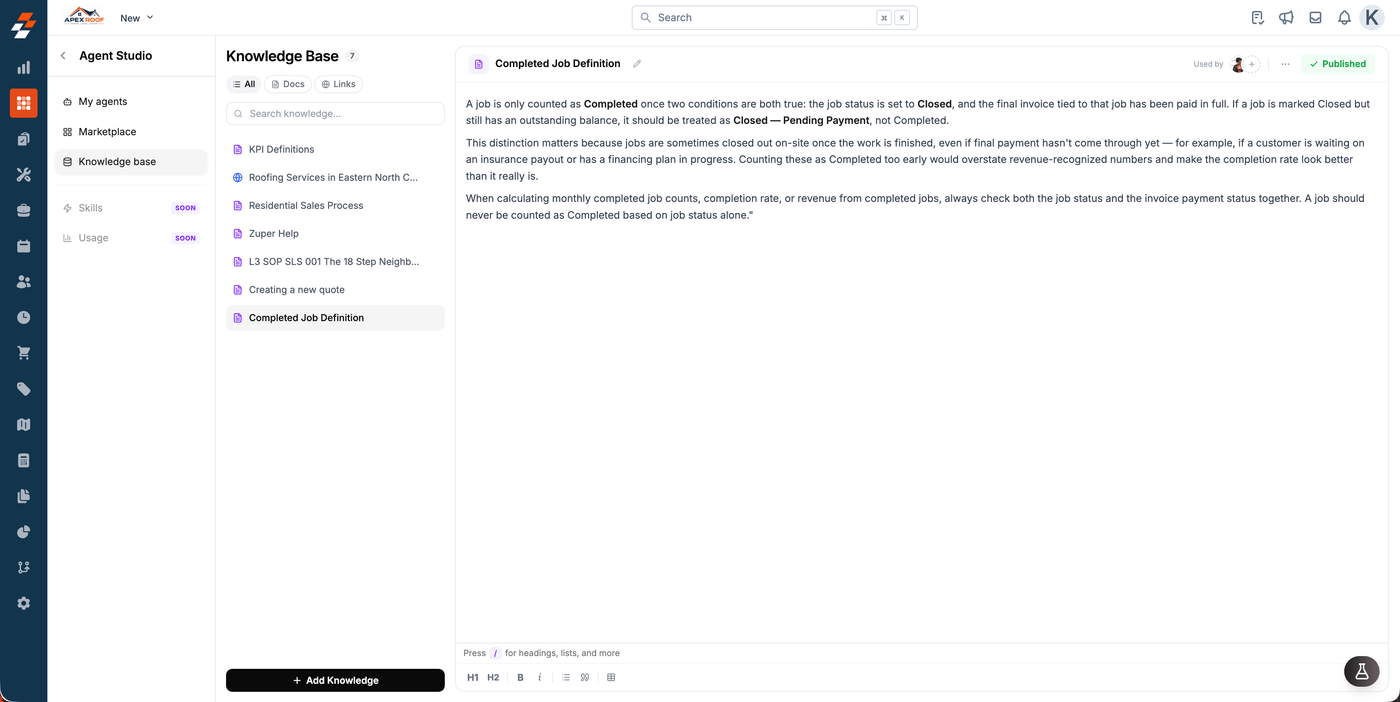
Link an entry to an agent
You can link an entry from either side.From the agent
- Open the agent from My agents.
- Go to its Knowledge section and select Add knowledge.
- Toggle on the entries this agent should use, then select Done.
- Select Save changes.
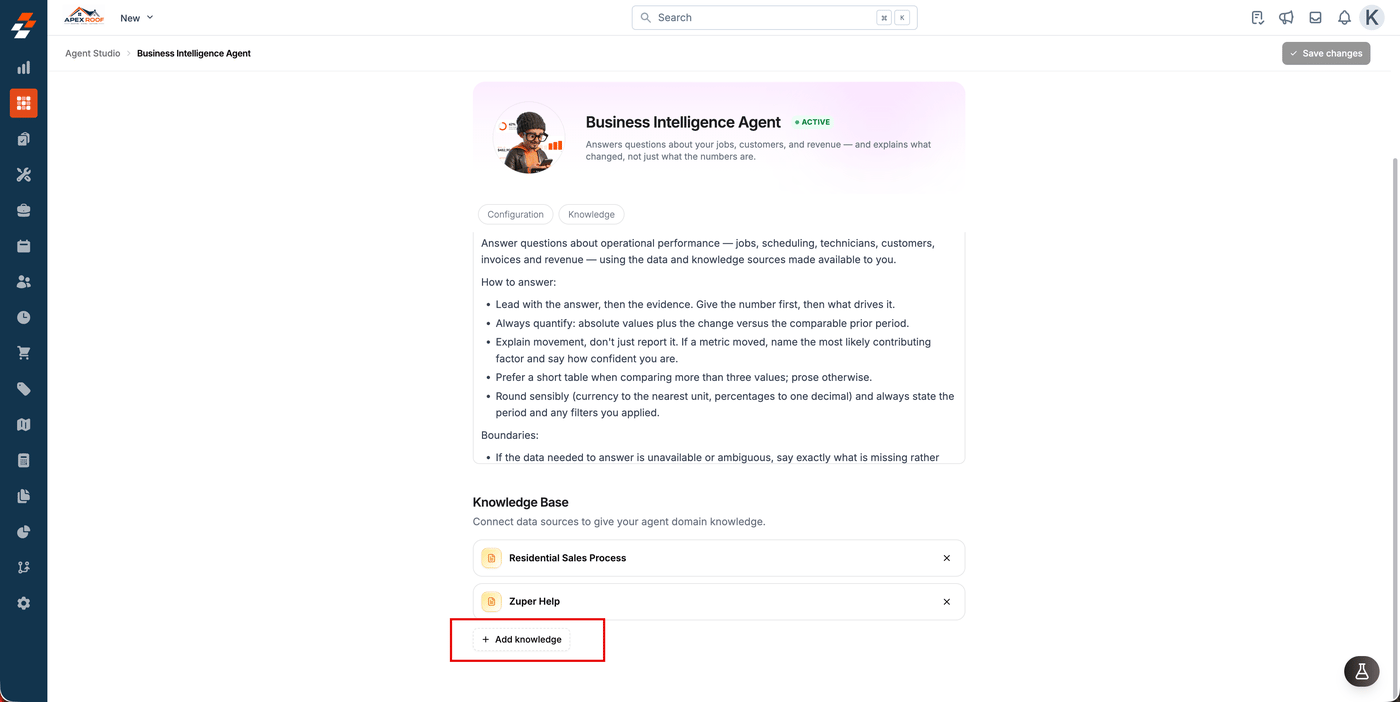
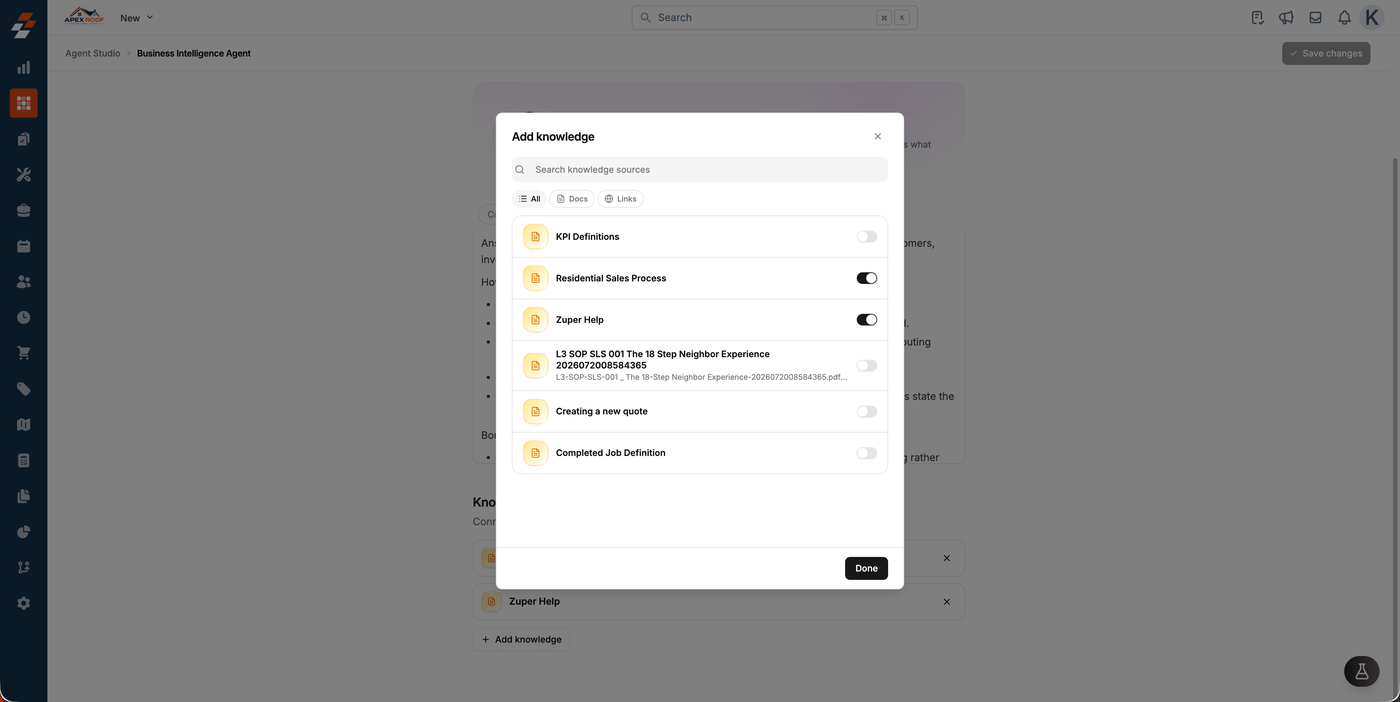
From the entry
- Open the entry from the Knowledge base.
- Select Add agents next to Used by at the top right.
- Select + Add beside each agent that should use it.
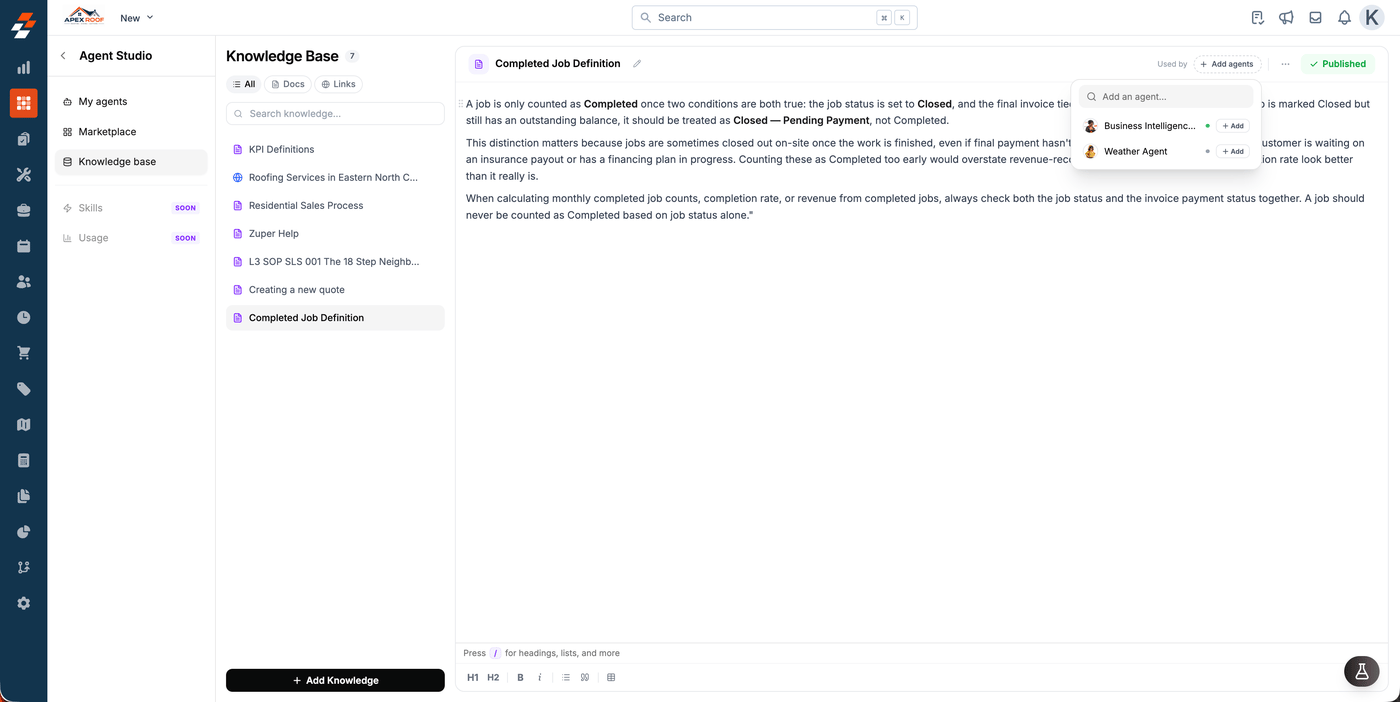
Note: One entry can be linked to several agents, and one agent can use several entries. Updating an entry updates it for every agent it is linked to.
How agents use knowledge
Once an entry is published and linked, ask Sense a related question, and it applies your rule instead of guessing, and it names the entry it used.