

/command, or attached to an agent. Zuper provides a set of ready-to-use Skills out of the box, and you can also create your own.
Skills available out of the box
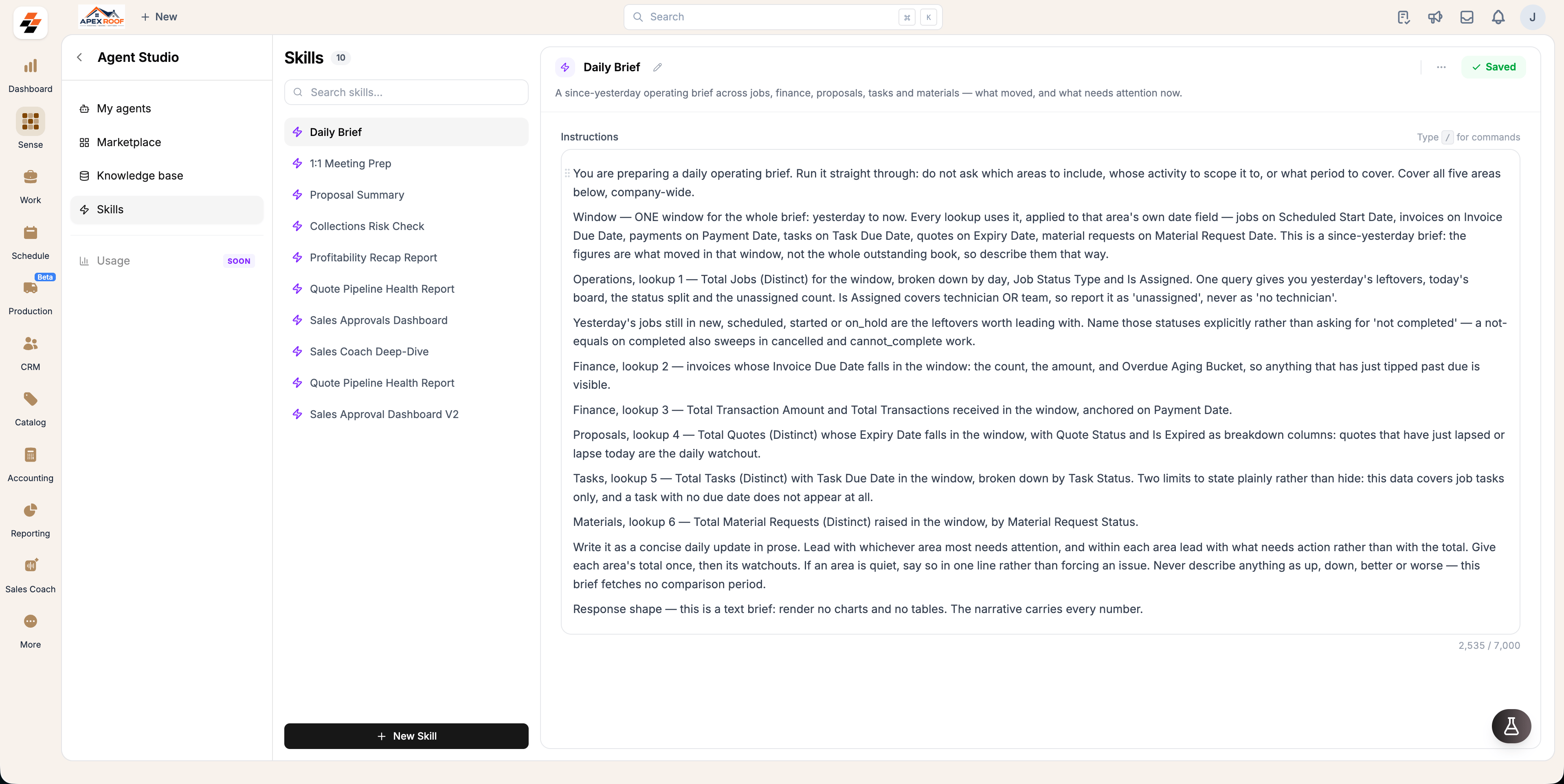
Zuper provides these Skills by default:- Daily Brief: A personalized daily overview of jobs, finance, proposals, and tasks, with key watchouts highlighted.
- 1:1 Meeting Prep: A concise manager brief for a 1:1 with a specific rep, covering job performance, commissions, and call coaching.
- Proposal Summary: A plain-language homeowner summary of a proposal, ready to send by email or text.
- Collections Risk Check: A review of overdue invoice patterns for one customer or company-wide, flagging accounts that may need follow-up.
- Profitability Recap Report: A short explanation of how profitability moved for a period and what likely drove the change.
- Quote Pipeline Health Report: A weekly view of which open quotes are aging normally and which look stalled or at risk.
Create a custom Skill
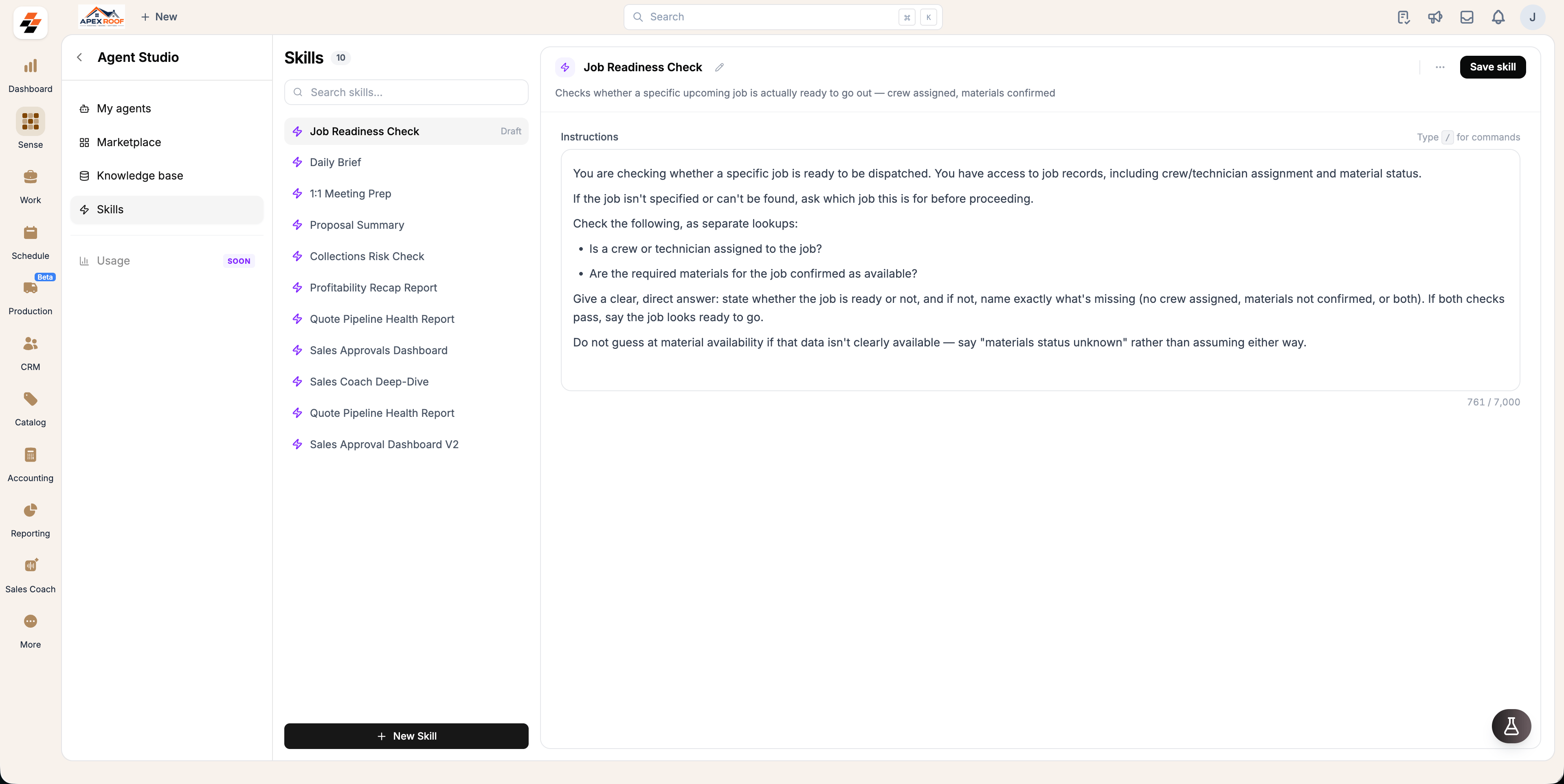
You can create your own Skills to match how your team works.- Go to Agent Studio > Skills.
- Select New Skill.
- Give it a name. This becomes its slash command (for example, “Job Readiness Check”).
- Add a short description, and write the instructions for what the Skill should do.
- Save. The Skill is now available to run.
Skills you create are specific to your account. They won’t appear for other Zuper customers, and other customers’ Skills won’t appear for you.
Attach a Skill to an agent
Skills can also be attached to a custom agents, so that agent knows how to do that specific task whenever it’s relevant.- Open the custom agent in Agent Studio.
- Go to its Skills section.
- Select the Skill you want to attach from your available Skills.
- Save the agent.
Note: Skills can’t be attached to Zuper-provided agents (like Weather Agent or Reputation Agent). If you want to customize how one of these agents behaves, add instructions directly to that agent instead.
Run a Skill with a slash command
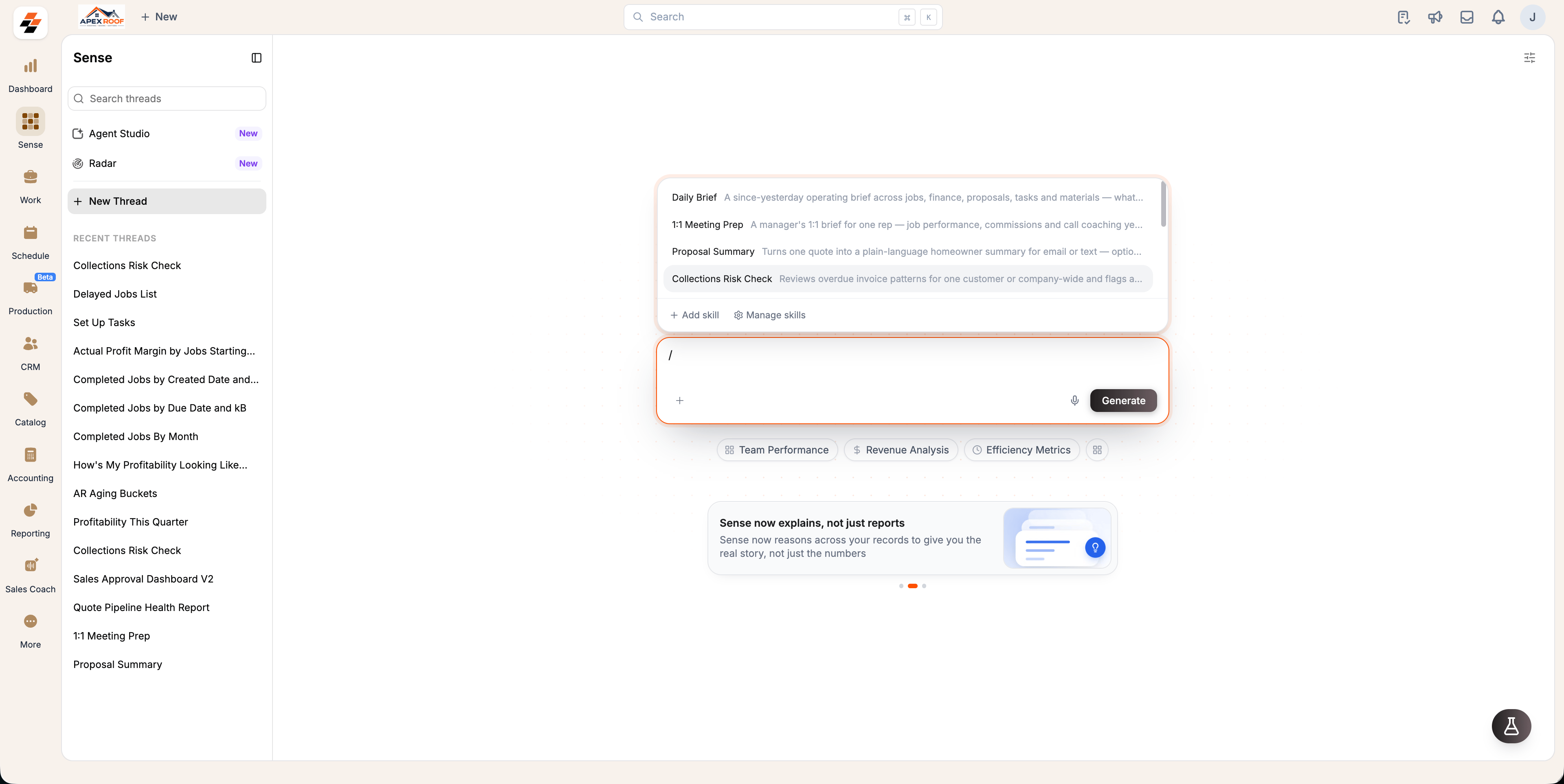
- Type
/in the Sense chat input, on the home screen or inside a thread. - A list of available Skills appears, each with its name and a short description.
- Keep typing to filter the list, or use the arrow keys to move through it.
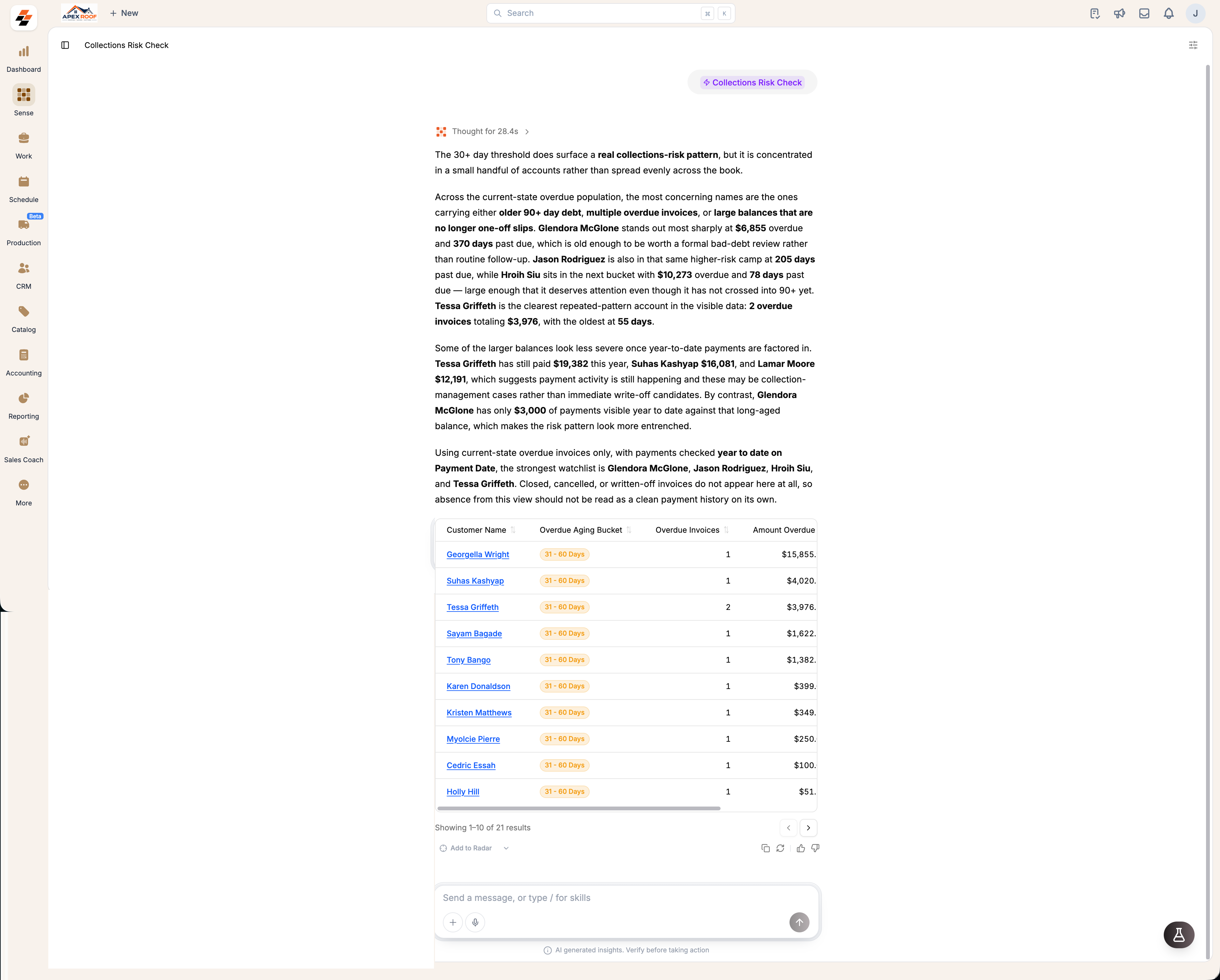
- Select a Skill to insert it, then press enter to run it.
If more information is needed to complete the Skill (for example, which customer, which time period, or which proposal), you’ll be asked before the result is generated.
Note: If more information is needed to complete the Skill (for example, which customer, which time period, or which proposal), you’ll be asked before the result is generated.