

Prerequisite: Zuper Connect with calling must be enabled for your organization. If it is not enabled, contact support@zuper.co to have it activated.
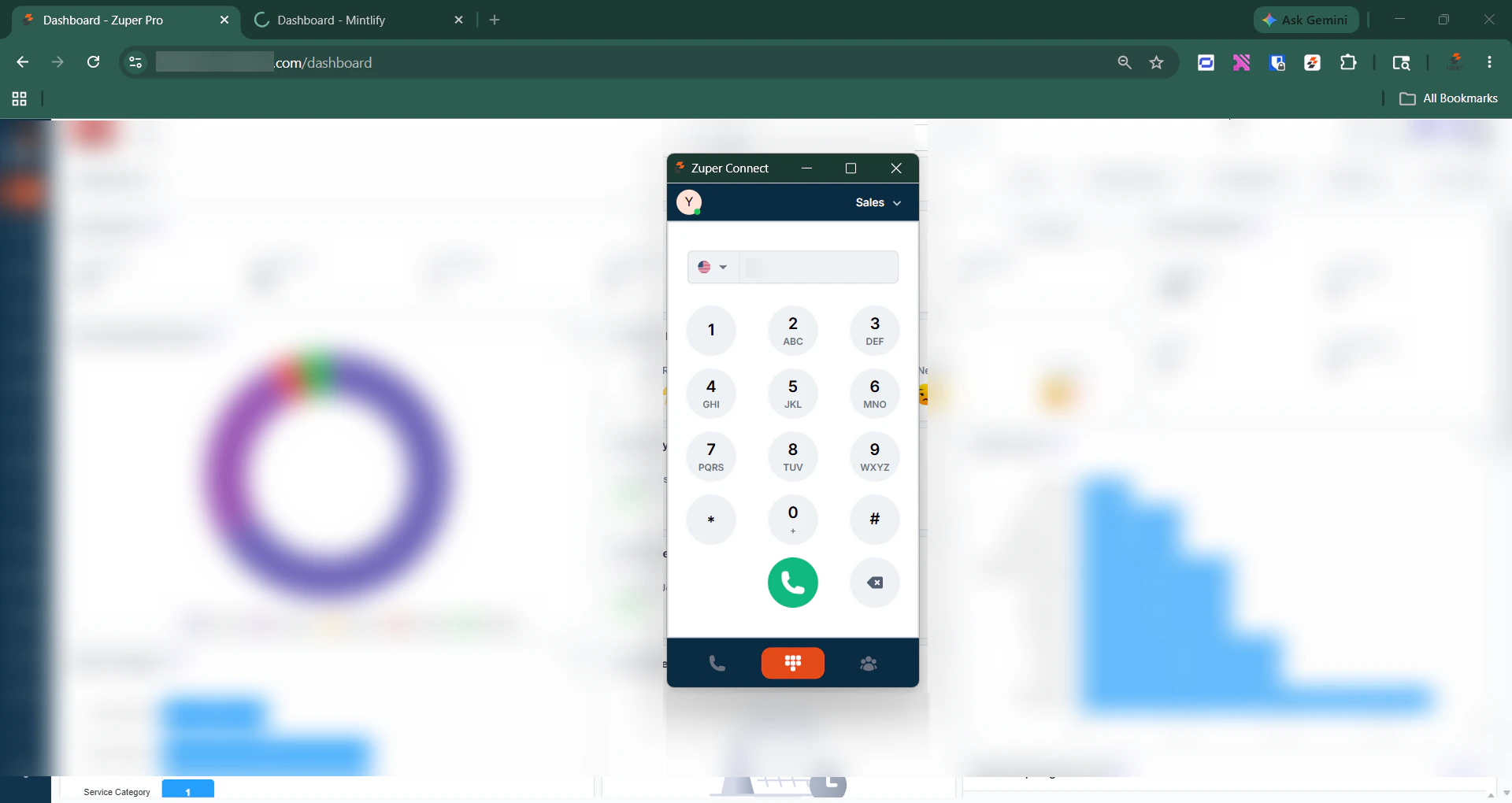
Install Zuper Connect – Browser Extension for Chrome
You can use Zuper Connect directly from your Chrome browser by installing the official extension. Follow the steps below to set it up:- Open Google Chrome.
- Click the three-dot menu (vertical ellipsis) in the top-right corner.
- Navigate to Extensions and click Visit Chrome Web Store at the bottom of the menu.
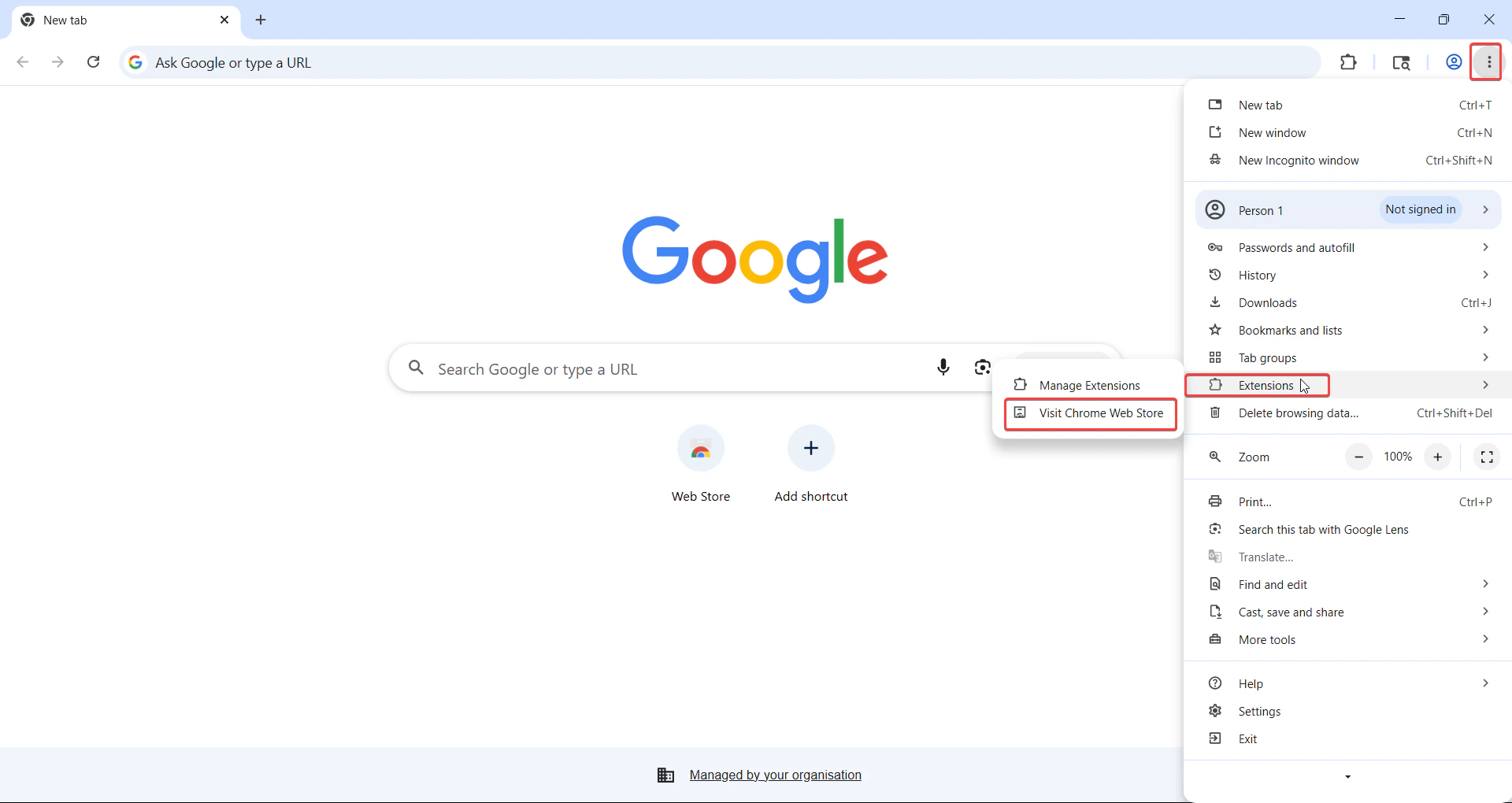
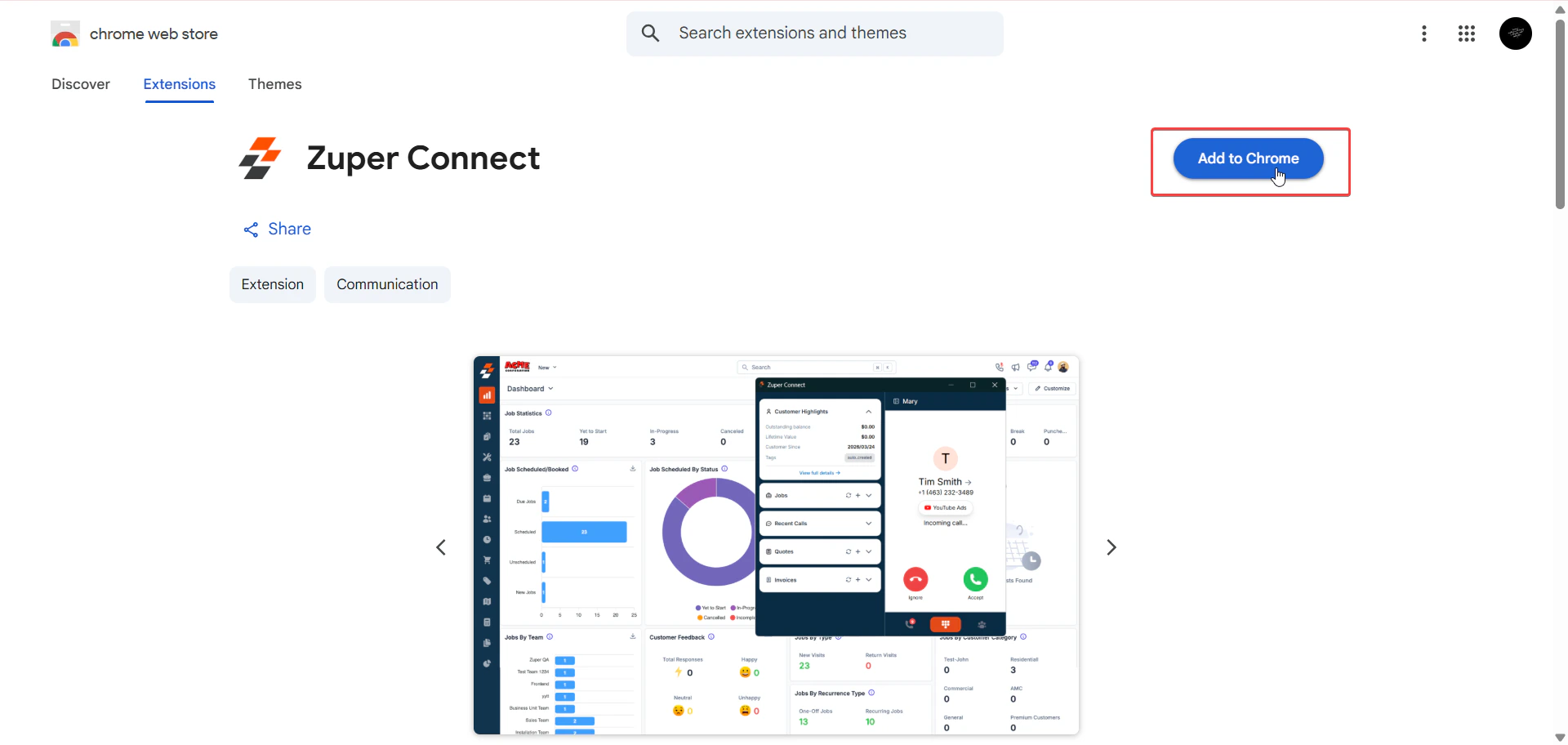
- Search for Zuper Connect - Chrome extension in the search bar, or click this Chrome store link to get the extension.
- Click Add to Chrome.
Note: You can’t add the browser extension in Incognito or Guest mode.
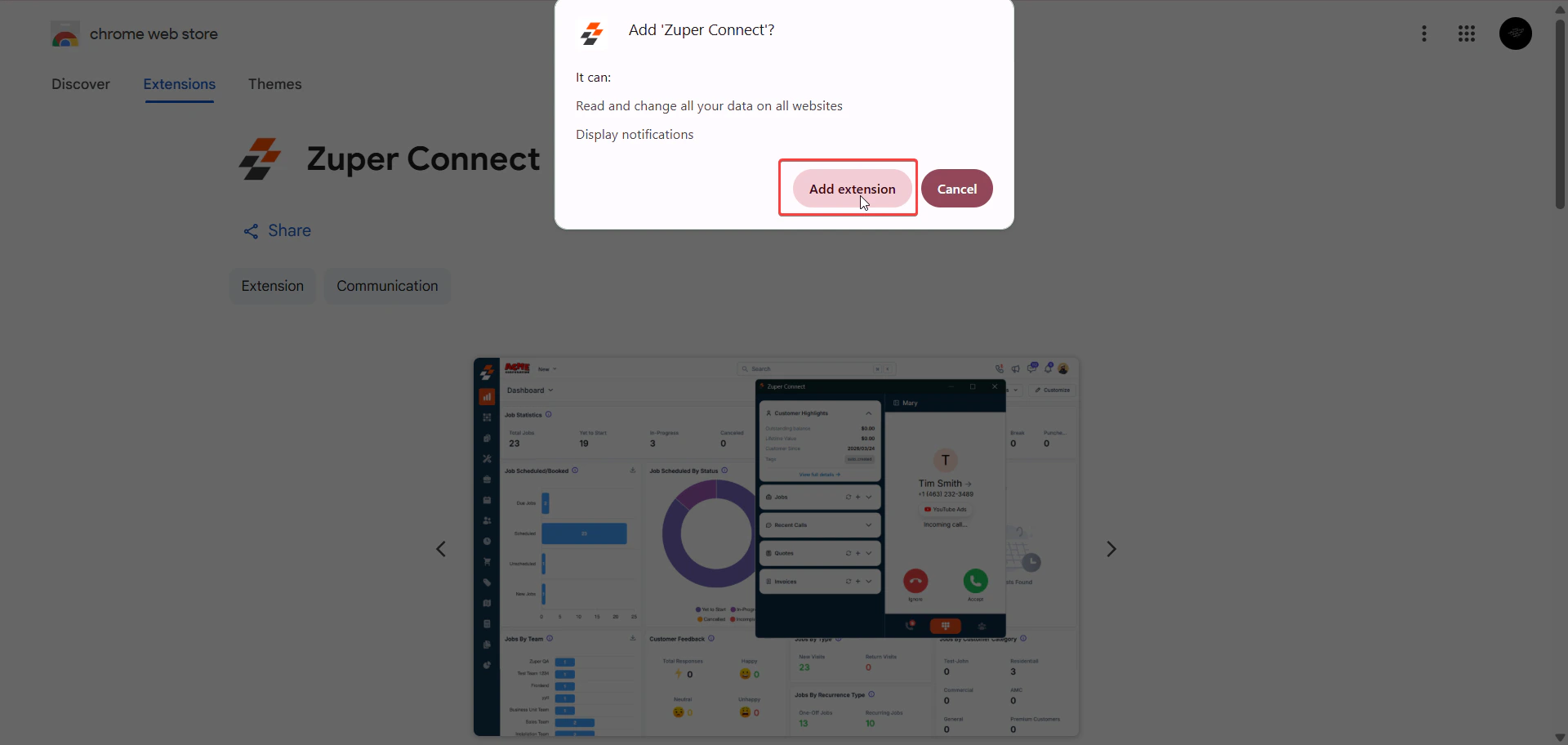
- Confirm by clicking Add Extension to add the extension to your browser.
- Click the Extensions icon on your Chrome toolbar.
- Select Zuper Connect to open the login window.
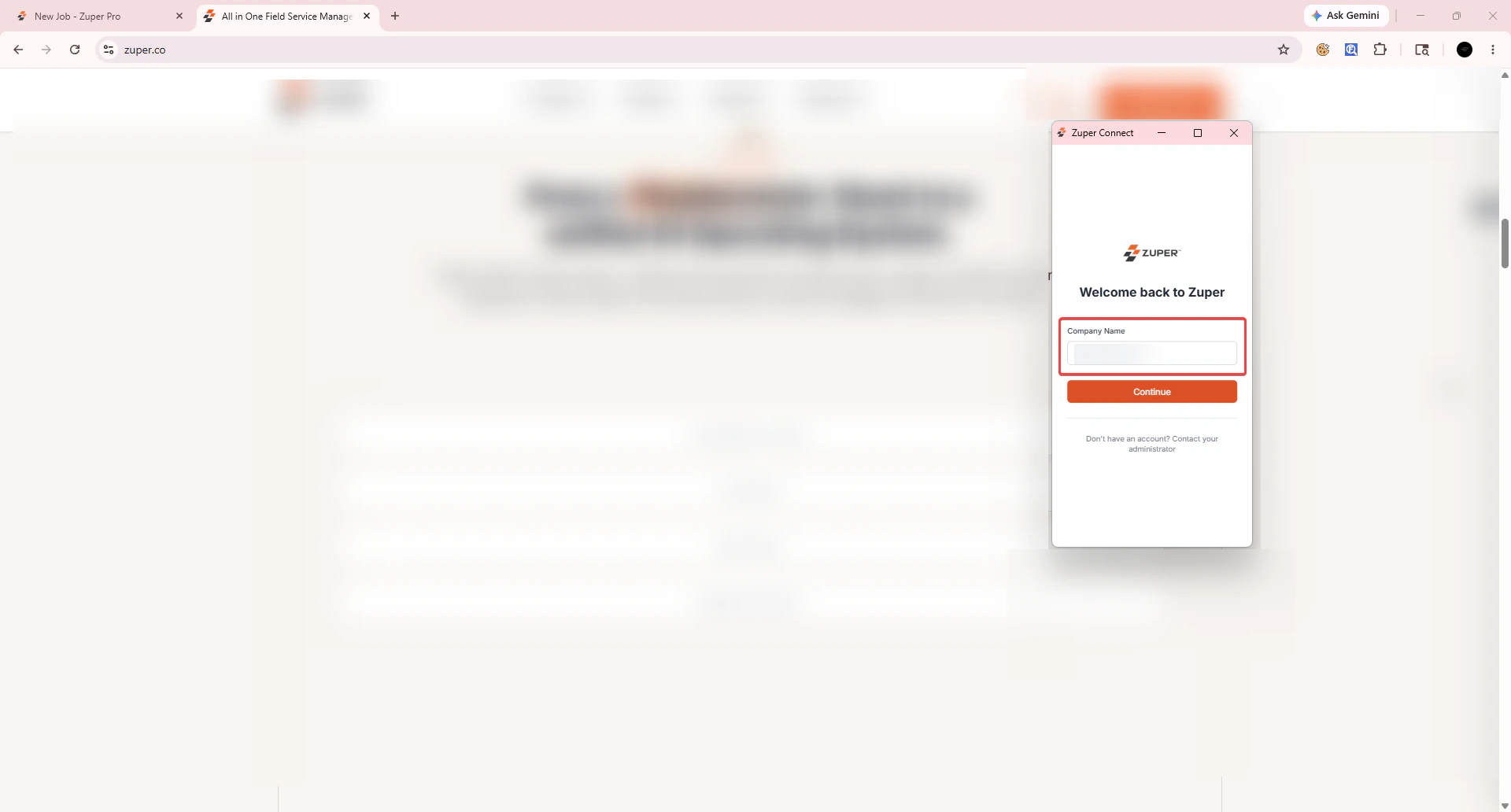
- Enter your Zuper credentials and log in.
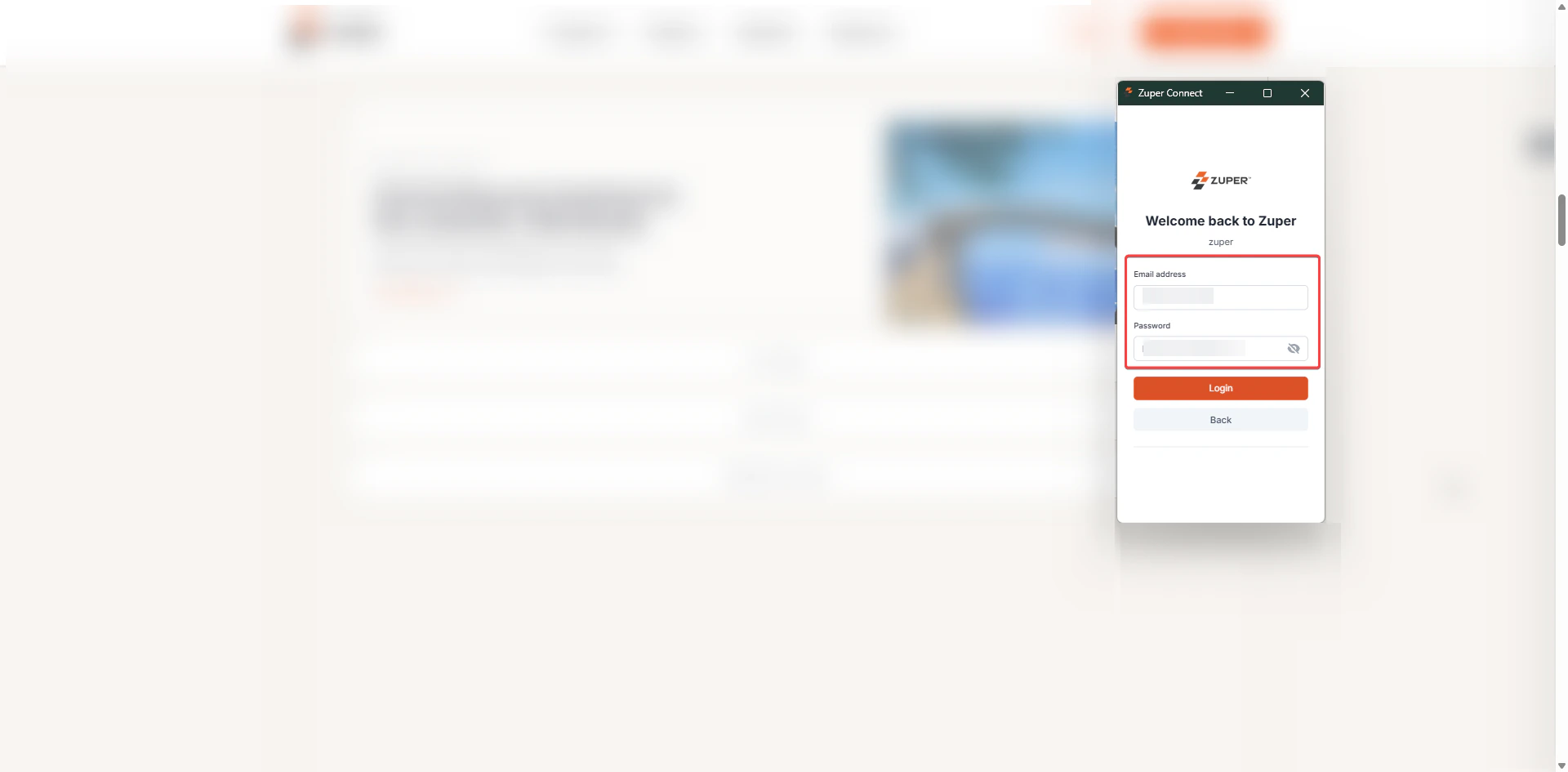
- Review and accept the necessary permissions. Zuper Connect extension is ready. The dialpad opens by default.
Recommended: To keep the Zuper Connect extension visible on your toolbar at all times, click the Extensions icon, then click the pin icon next to Zuper Connect. This prevents you from having to open the Extensions menu each time you want to use the dialer.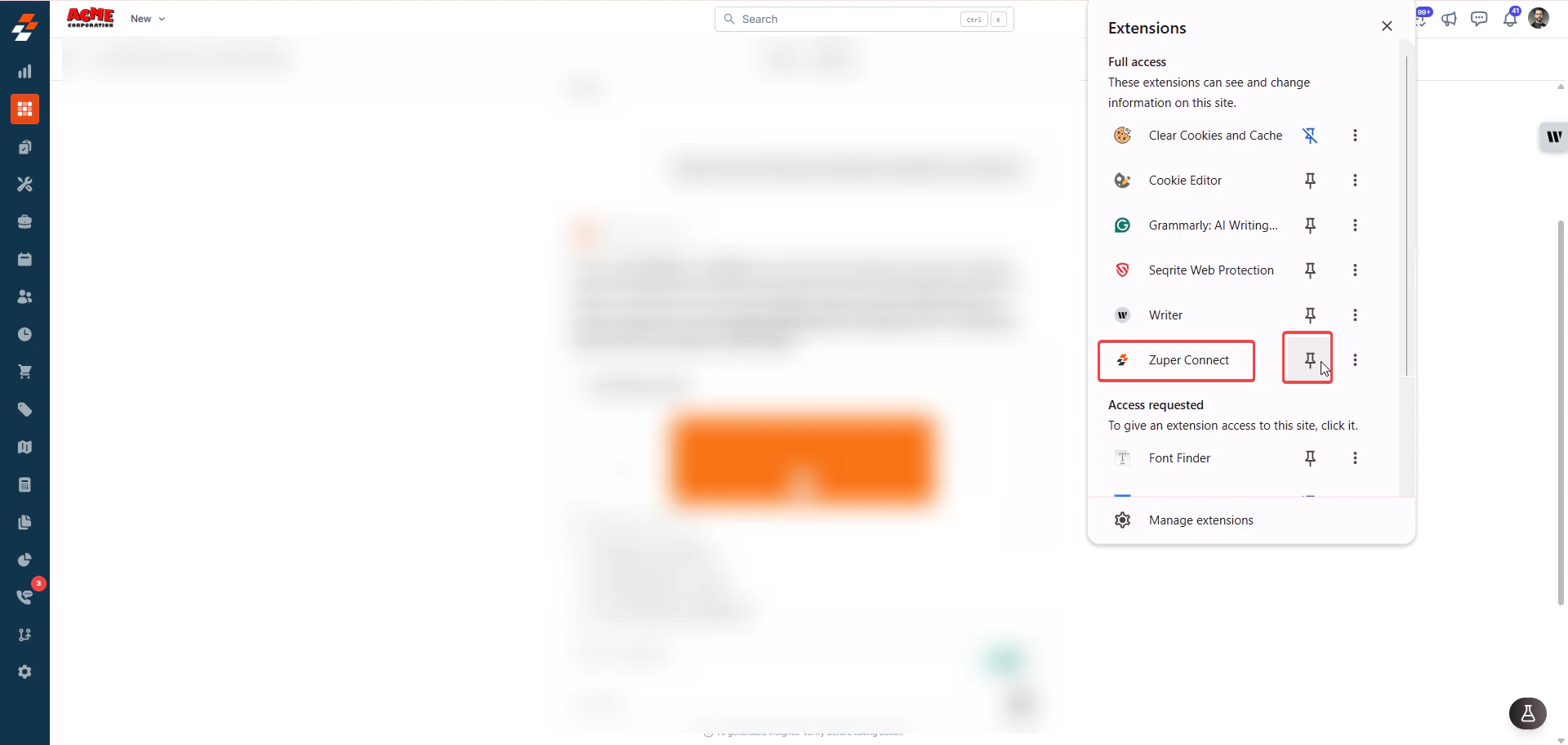
Frequently asked questions
Q: Can I install the Zuper Connect extension in Incognito or Guest mode?
Q: Can I install the Zuper Connect extension in Incognito or Guest mode?
No. Chrome does not allow browser extensions to be added in Incognito or Guest mode. Use a standard Chrome profile to install and use Zuper Connect.
Q: Can I use Zuper Connect with a different Zuper account than the one I am logged in to on the web app?
Q: Can I use Zuper Connect with a different Zuper account than the one I am logged in to on the web app?
No. The Zuper Connect extension must use the same account as your active Zuper web app session. If you try to log in with a different account, you will see the User Account Mismatch warning and be asked to log in again with the correct account.
Q: What happens to the Zuper Connect extension when I log out of the Zuper web app?
Q: What happens to the Zuper Connect extension when I log out of the Zuper web app?
The Zuper Connect extension automatically logs you out the moment you log out of the Zuper web app. You will need to log in again before you can make or receive calls through the extension.
Q: Can I use the Zuper Connect extension without having the Zuper web app open?
Q: Can I use the Zuper Connect extension without having the Zuper web app open?
Yes. If you have not opened the Zuper web app in your browser, the extension works independently and handles calls on its own. The account-matching rules only apply when the Zuper web app is open in an active browser session.
Q: What call controls are available in the Zuper Connect extension?
Q: What call controls are available in the Zuper Connect extension?
The Zuper Connect extension supports the same controls as the native Zuper dialer: hold, mute, stop recording, transfer to another agent, and end call.
Q: Why does clicking "Open in Zuper" open a new tab instead of the same page?
Q: Why does clicking "Open in Zuper" open a new tab instead of the same page?
This is the expected behavior for the Chrome extension. In the native Zuper dialer, Open in Zuper navigates within the same page. In the Zuper Connect extension, it always opens in a new tab to keep the extension panel accessible.
Q: I closed the Zuper Connect Chrome Extension. How do I open it again?
Q: I closed the Zuper Connect Chrome Extension. How do I open it again?
Click the Zuper Connect icon pinned on your Chrome toolbar to reopen the extension panel.
Q: I reinstalled the Zuper Connect extension, and the window looks blank. Is something broken?
Q: I reinstalled the Zuper Connect extension, and the window looks blank. Is something broken?
No. Chrome retains the extension window position after an uninstall, but it has no content because the extension is no longer loaded. After reinstalling, open the panel and log in with your Zuper credentials to restore full functionality.