

Overview
Sections replace Headers across Service Packages, Proposals, Quotes, Invoices, and Job line items. With Sections, you can control what customers see, from individual line-item details to whether a section appears at all.How sections work?
- When you add a section to a quote, invoice, or proposal, all line items inside it are treated as a group. Reordering a section moves every item in it together — you do not need to reorder each item individually.
- Each section has its own configuration settings that control what your customer sees in PDFs, public links, previews, and presentation mode.
- You can add line items directly to a section.
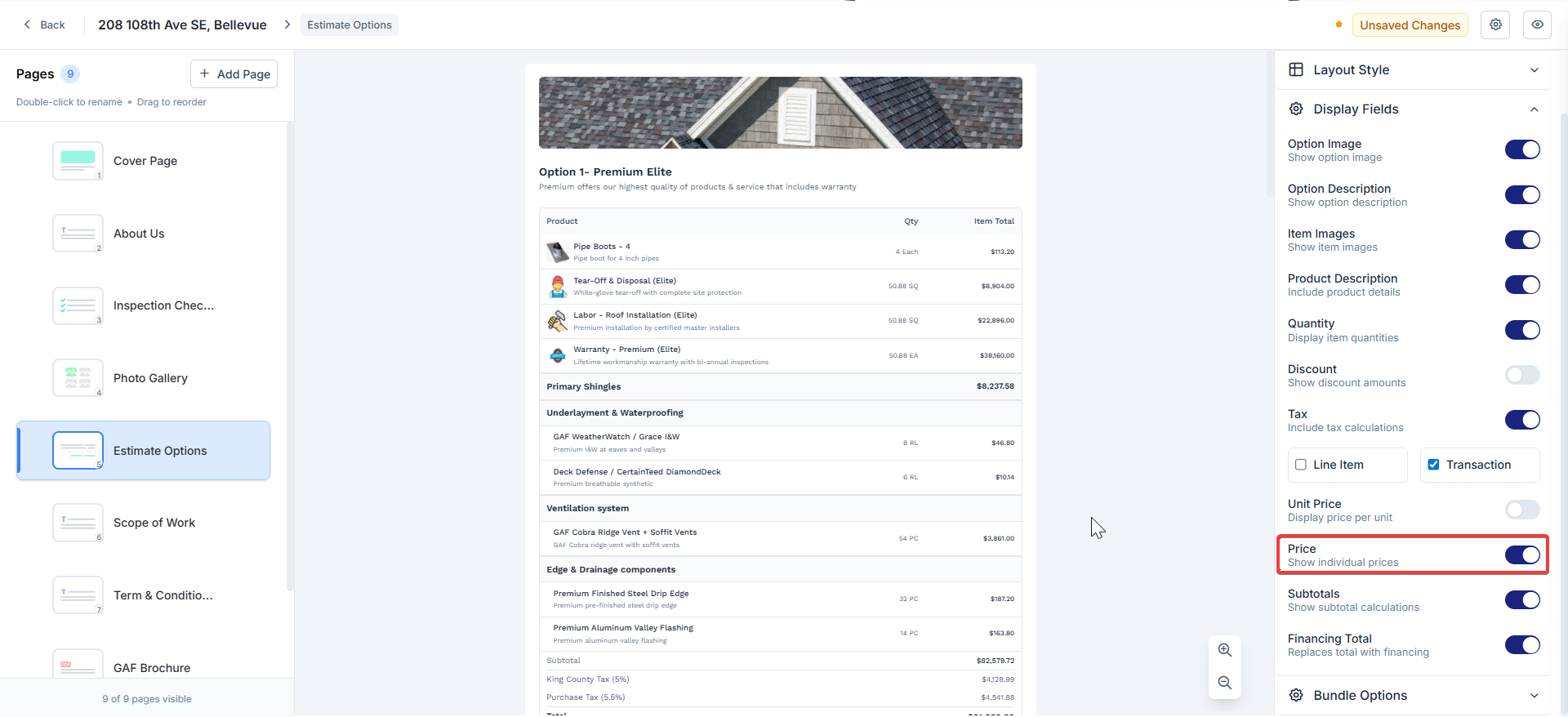
Note: To ensure Sections configuration works correctly, make sure the ‘Price’ toggle is enabled under Estimate Options in the Proposal layout, and ‘Show Selling Price in Transaction’ is enabled for the relevant custom role.
Adding sections in transactions
- Web
- Mobile
The web app supports Jobs, Quotes, Invoices, Proposals, and CPQ.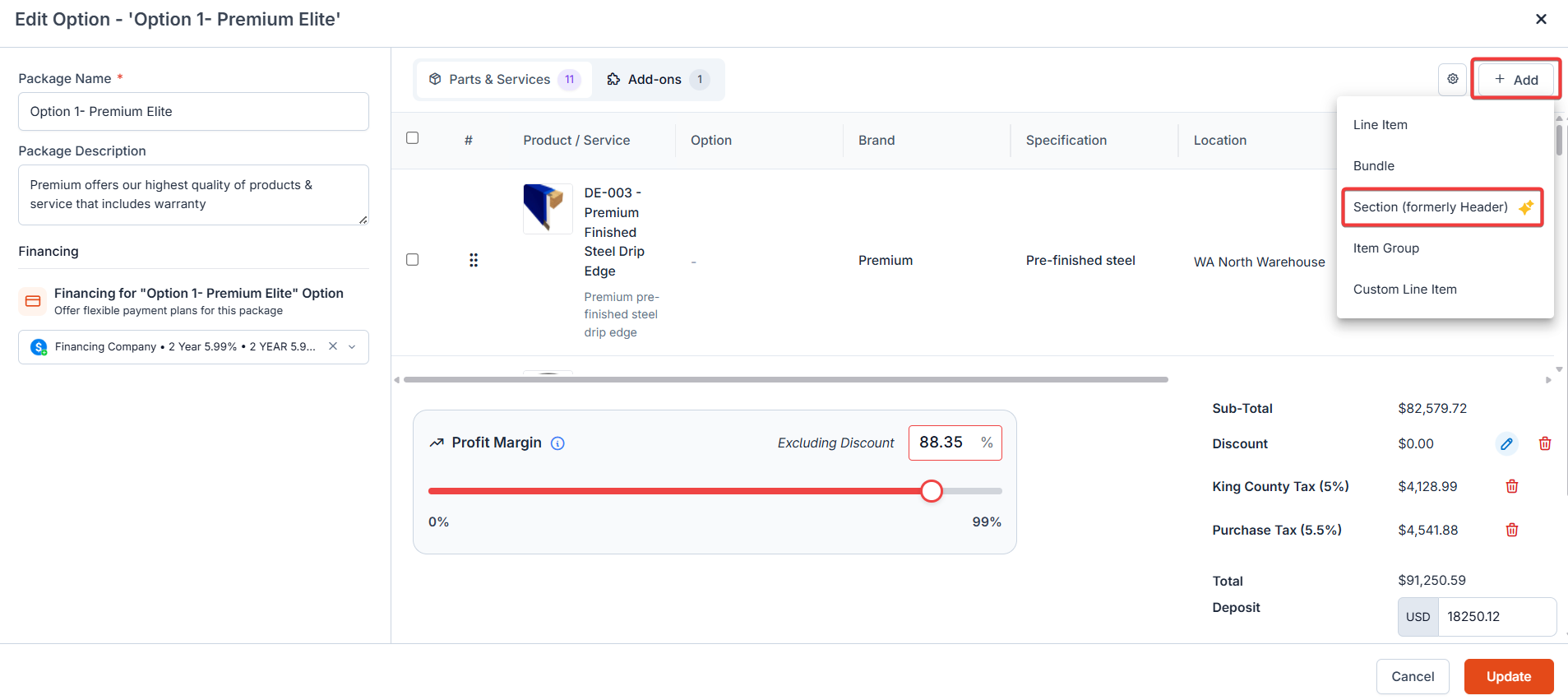
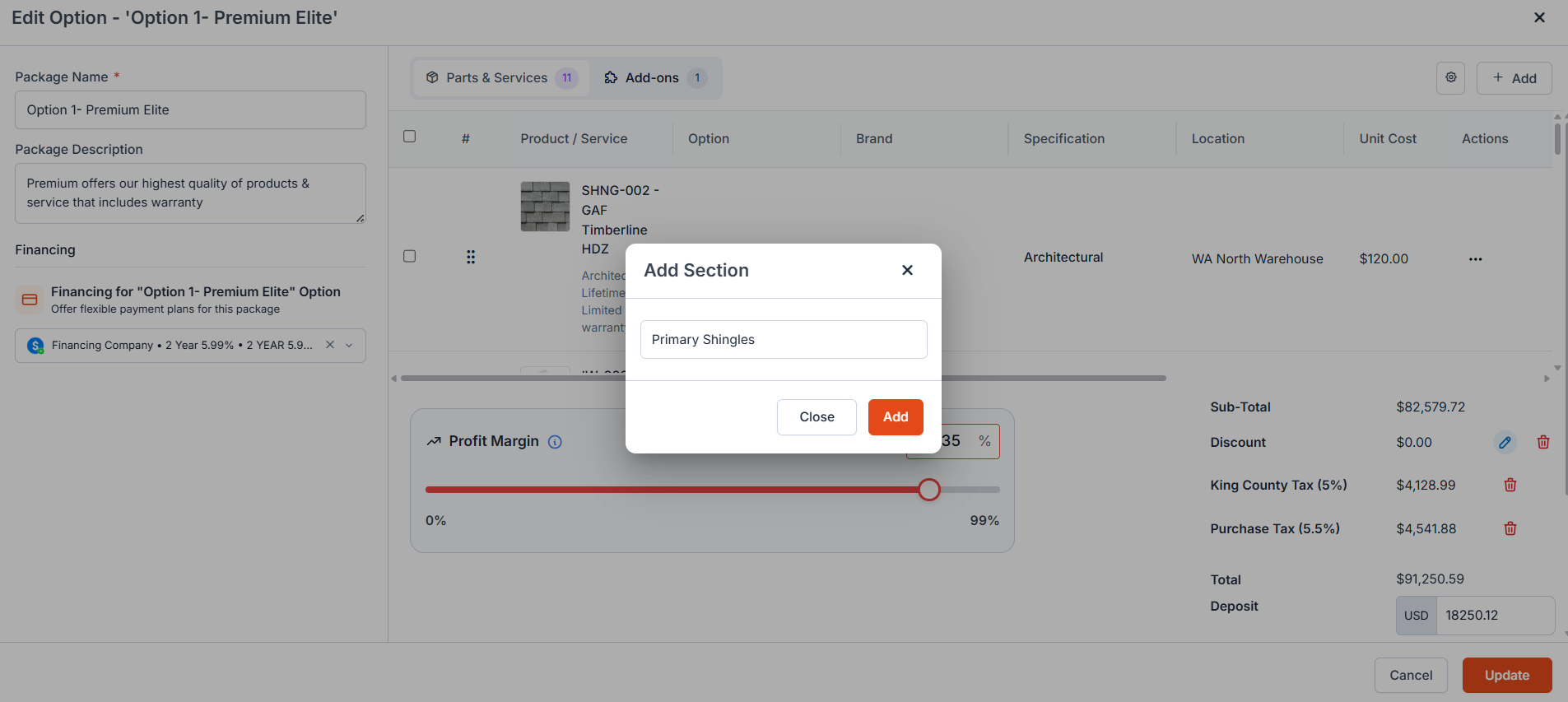
- Use the “+ Add” button to add the Section:
- Enter the section name and select the “Add Section” button.
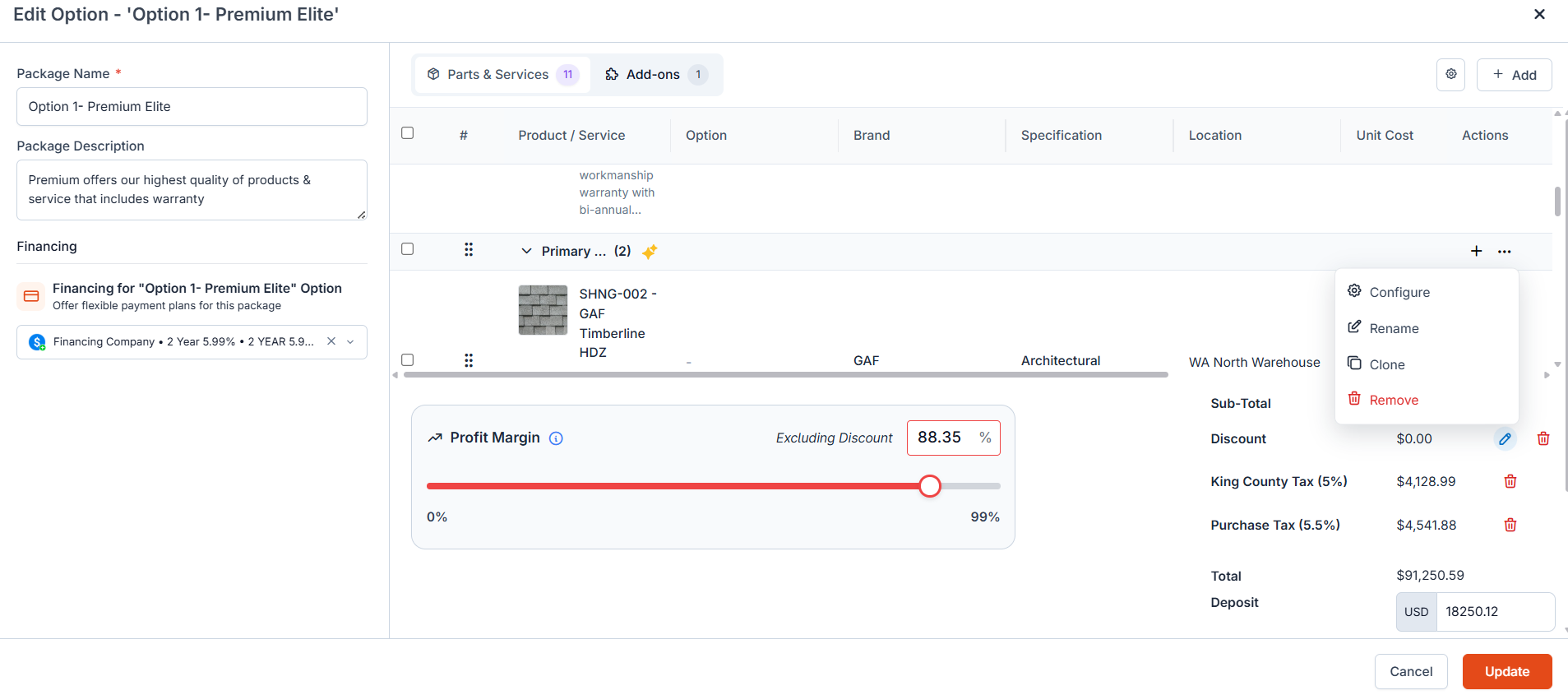
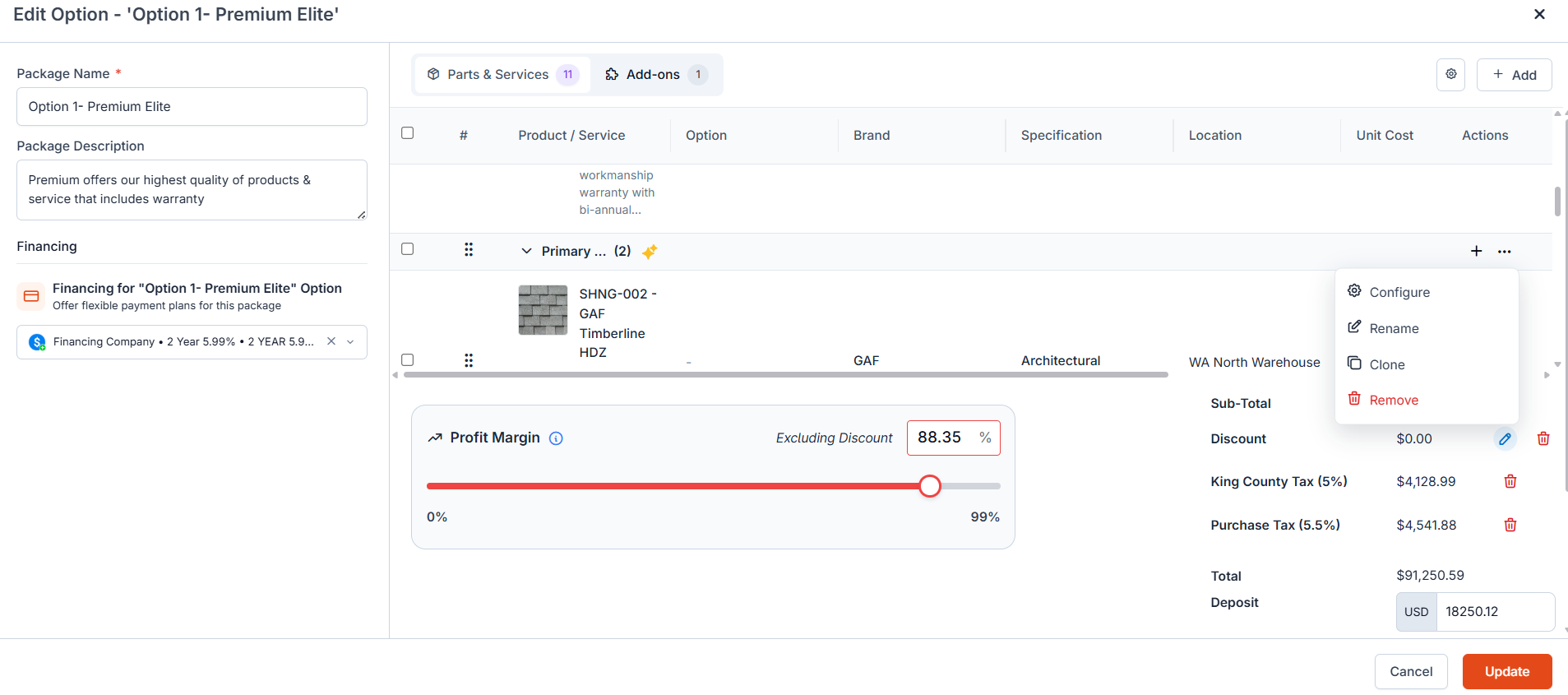
- Under “Actions,” select the context menu. Choose “Configure” to access the section settings.


Note: A line item added using the generic “Add” button, rather than being added to a specific section, is placed in the last section.
Section configuration
Each section has four settings that control how it appears to the customer, in the PDFs, Public links, previews, and presentation mode. When a new section is added, it inherits the configuration of the previous section.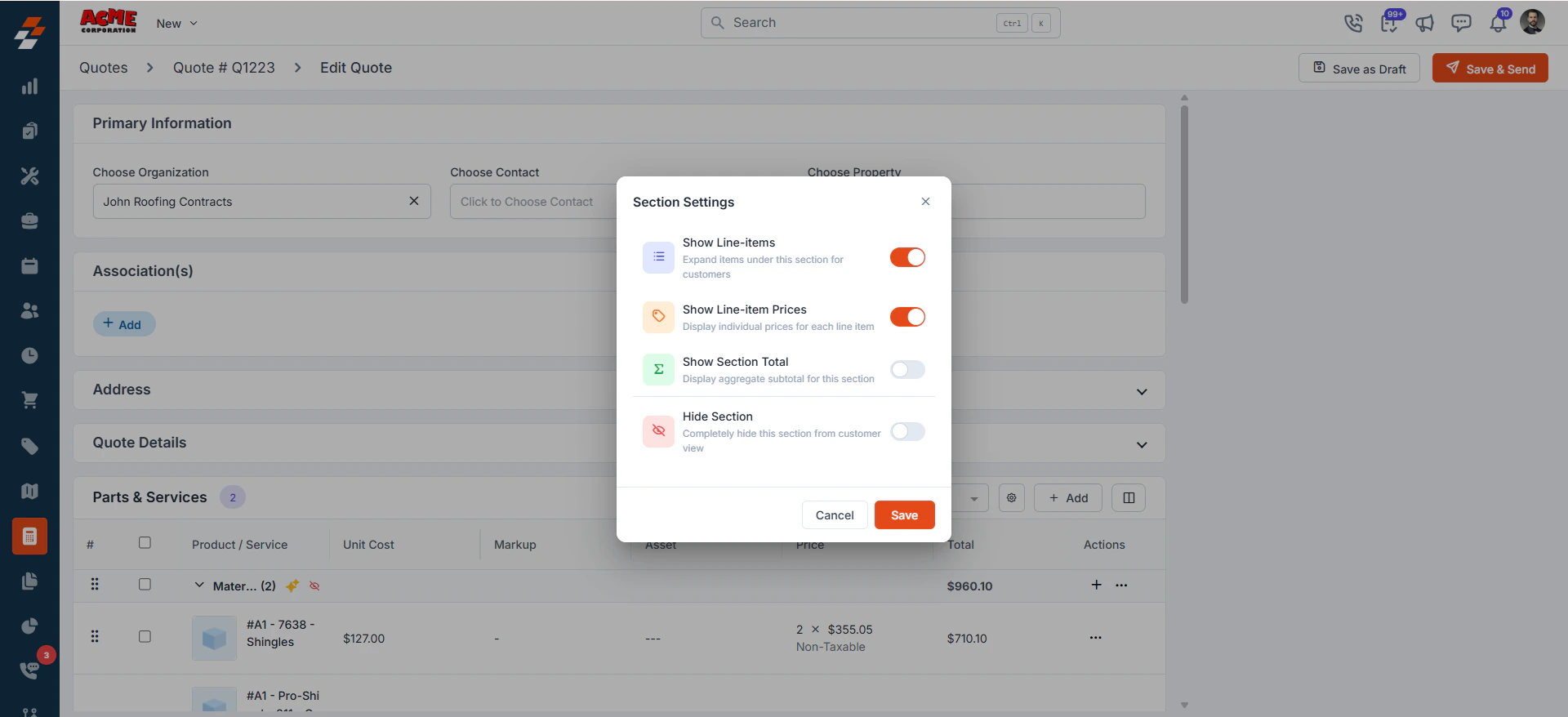
- You create a quote from a proposal option.
- You generate an invoice from a quote or job.
- You create a job from a quote or invoice.
Key points to note on hiding a Section
- Customers cannot see hidden sections or their line items in PDFs, public links, or presentation mode.
- Hidden line items still count toward the overall estimated total.
- You can hide multiple sections at once.
- The section total and all line-item prices are hidden from the customer throughout the quote/invoice/proposal.
- When you enable Hide Section, Zuper turns off the Price toggle in Proposal Layout → Estimate Options.
Section actions
- Configure — Controls how line items and prices appear within the section.
- Rename — Changes the section name.
- Clone — Duplicates the section and all its line items.
- Remove — Deletes the section. Select one of the following options:
- Remove header only — Deletes the section but keeps the line items.
- Remove section and all items — Deletes the section and all line items within it.
Moving line items between sections:
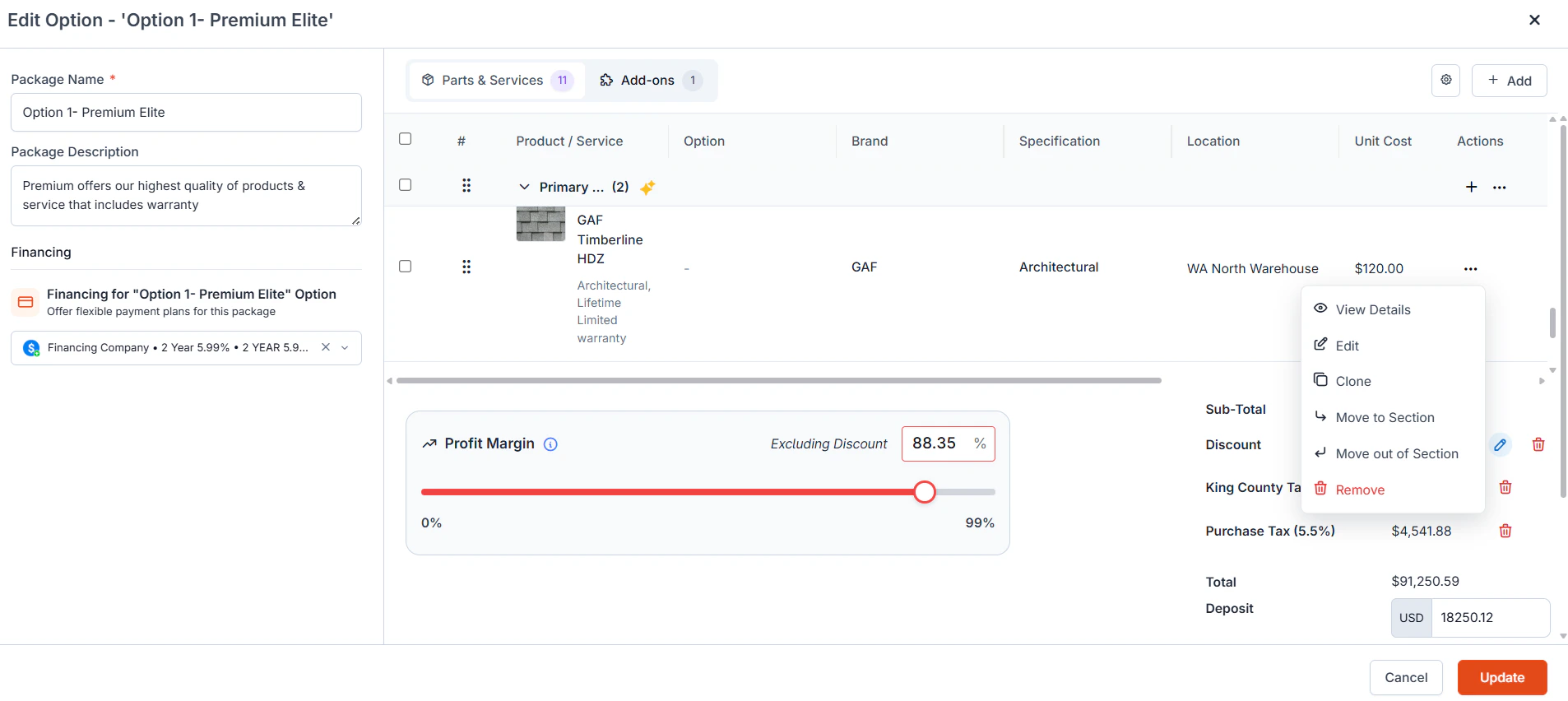
You can move any line item out of a section or into a section.- Move out of Section — Removes the item from its current section and places it at the top above all sections, ungrouped.
- Move to Section — Move a line item from a section or an ungrouped item to a preferred section.
To move a line item
Locate the line item in the section.- In the line item actions, select Move out of section or Move to section from the line-item actions, depending on the item’s current position.
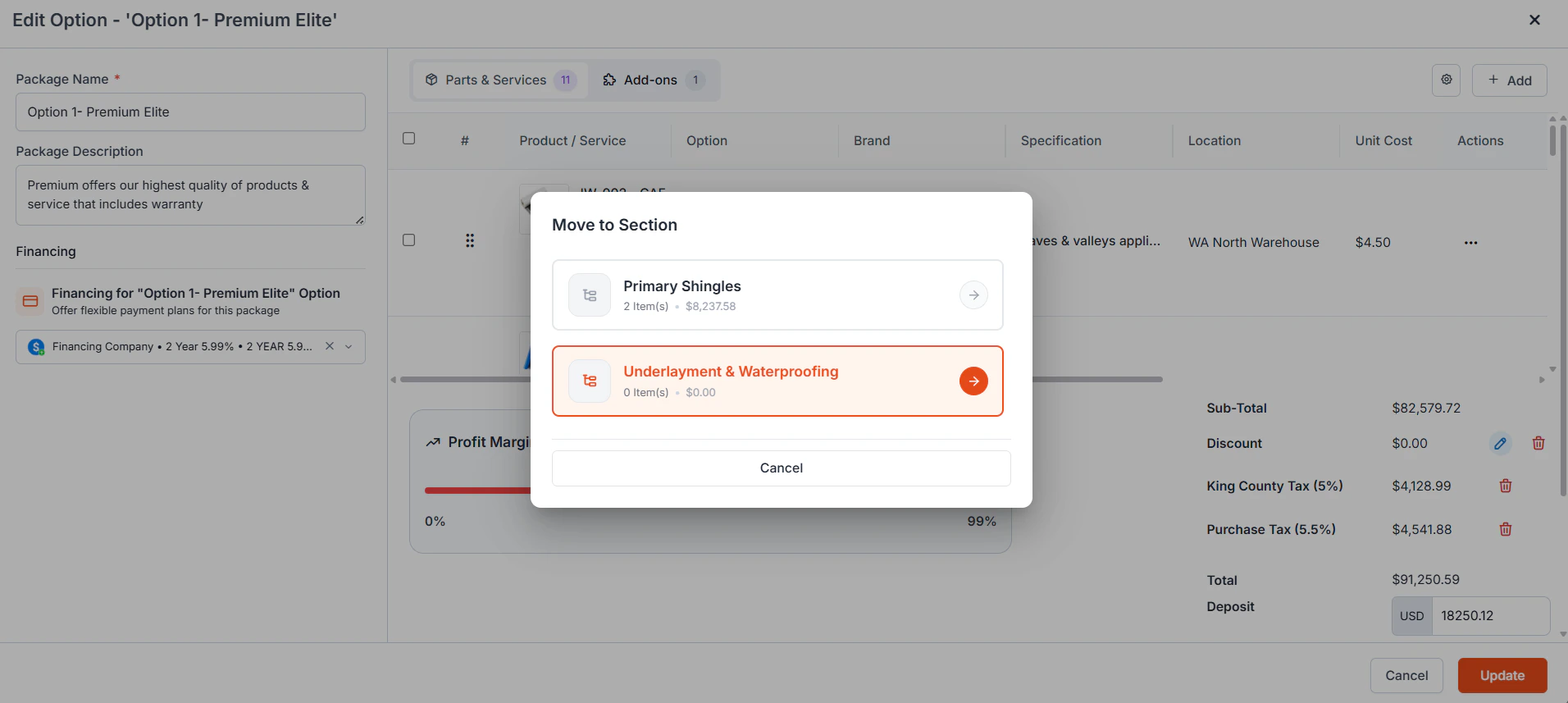
- If moving to a section, select the destination section from the list.
Customer view
- When only Show Section Total is enabled, the customer sees only the section total. Individual line items and their prices stay hidden.
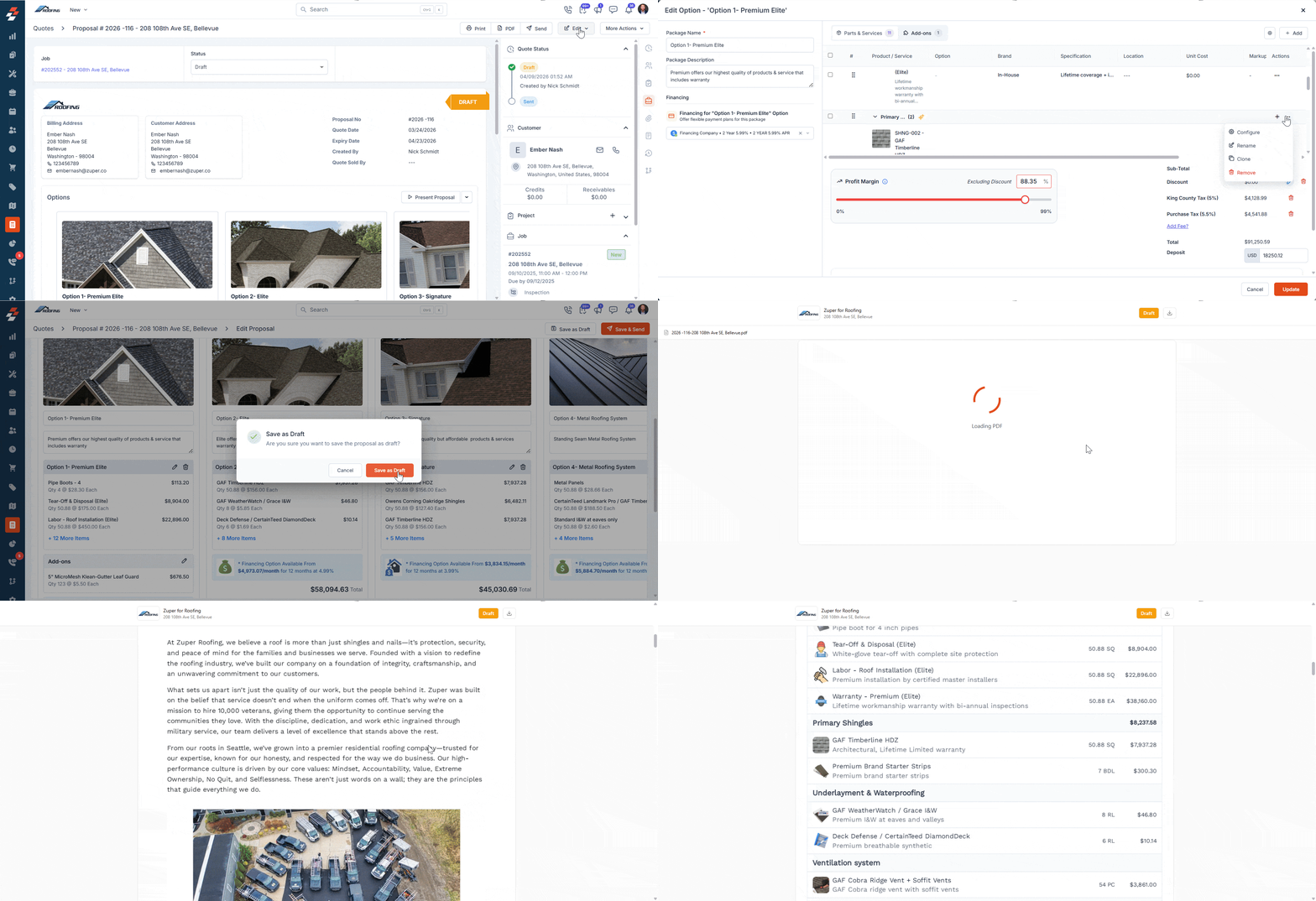
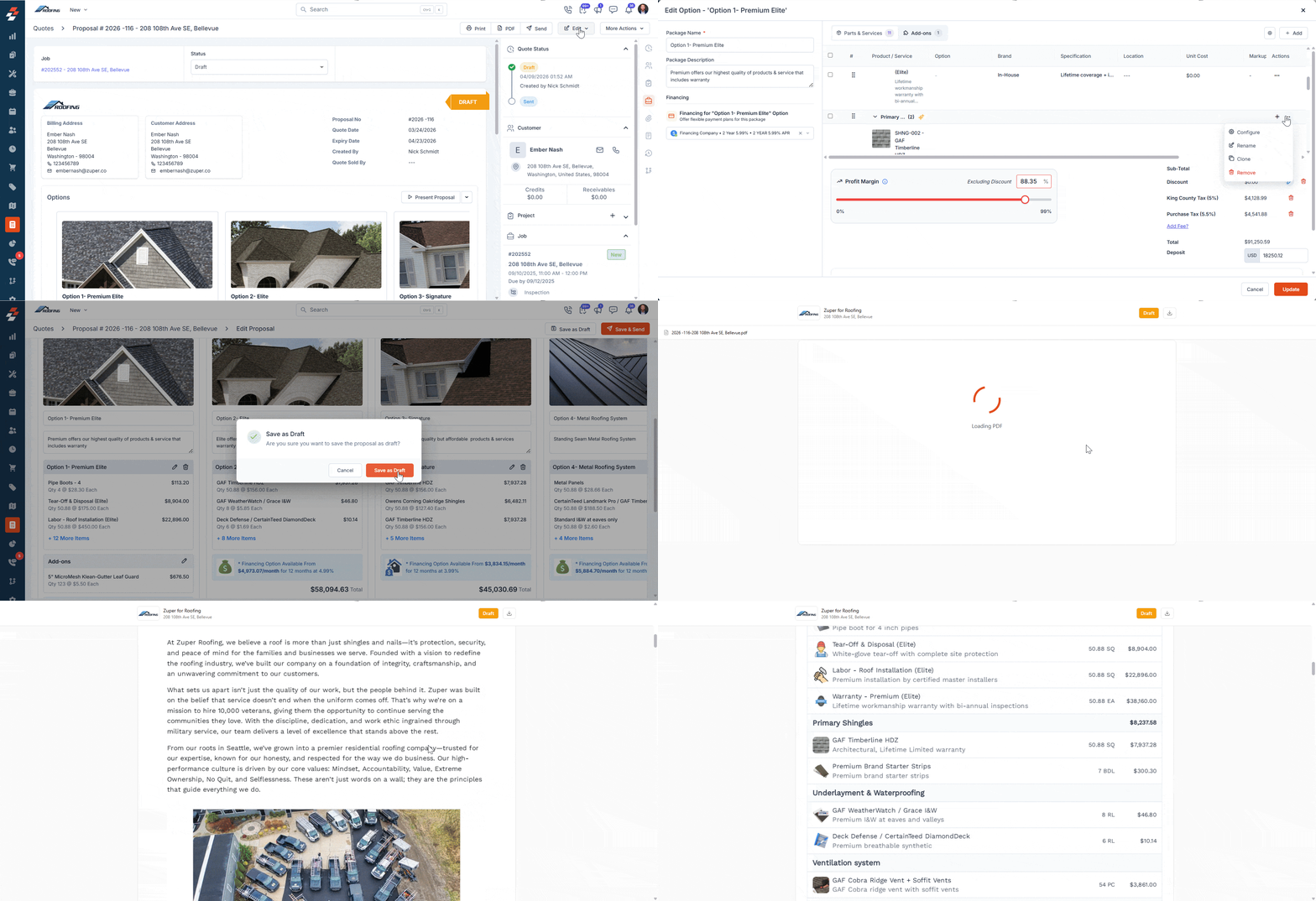
- When Show Line Items, Show Line-Item Prices, and Show Section Total are all enabled, the customer sees each line item, its unit cost, markup, and price. The section total also appears against the sections.
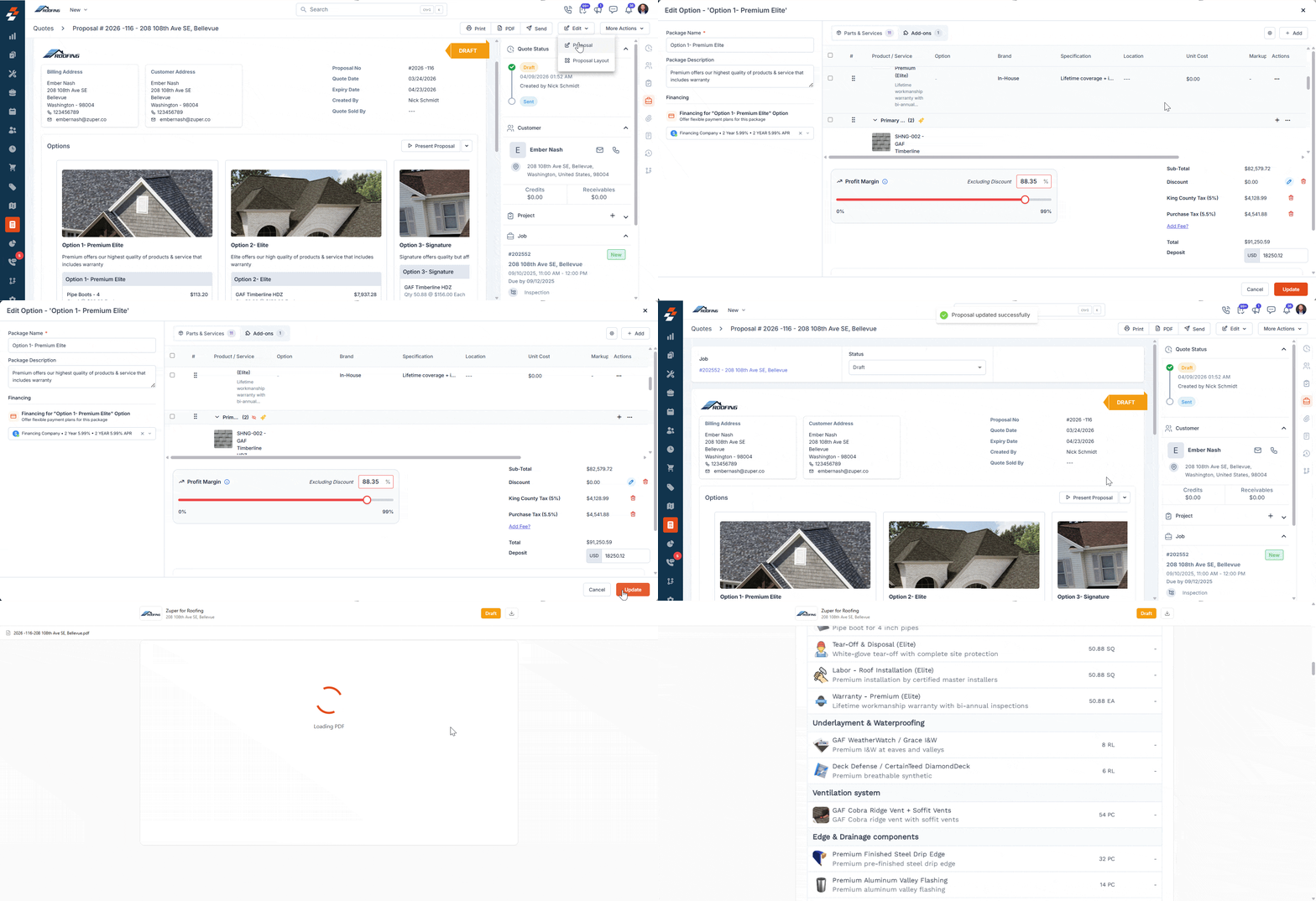
- When Hide Section is enabled, the customer does not see the section or any of its line items. Additionally, the prices for all the other line items are hidden from the customer as well.
Important note on templates
No changes required if:- You continue using the default configuration (where line items and prices are visible and section totals are hidden), your existing templates — both native and custom — will continue to work as expected.
- Proposals: No impact. Sections are supported by default.
- Quotes & Invoices (Native Templates): You will need to create new templates to use these capabilities. Check out how to create quote & invoice templates.
- Quotes & Invoices (Custom Templates): Updates are required to support these capabilities. Please reach out to support@zuper.co for assistance.
Note: Custom template changes affect all documents using that template. Before requesting changes, confirm the update won’t impact other quotes or invoices. For document-specific formatting, request a separate template from support@zuper.co.