

Sending the proposal
The first step is to send the proposal by email to the customer. Sending moves the proposal status from Draft to Sent, and that is what activates the approval flow for your customer. To send a proposal, open the Proposal Details page and click Send in the top right corner. If you are still building the proposal, you can click Save & Send instead. The Send dialog opens.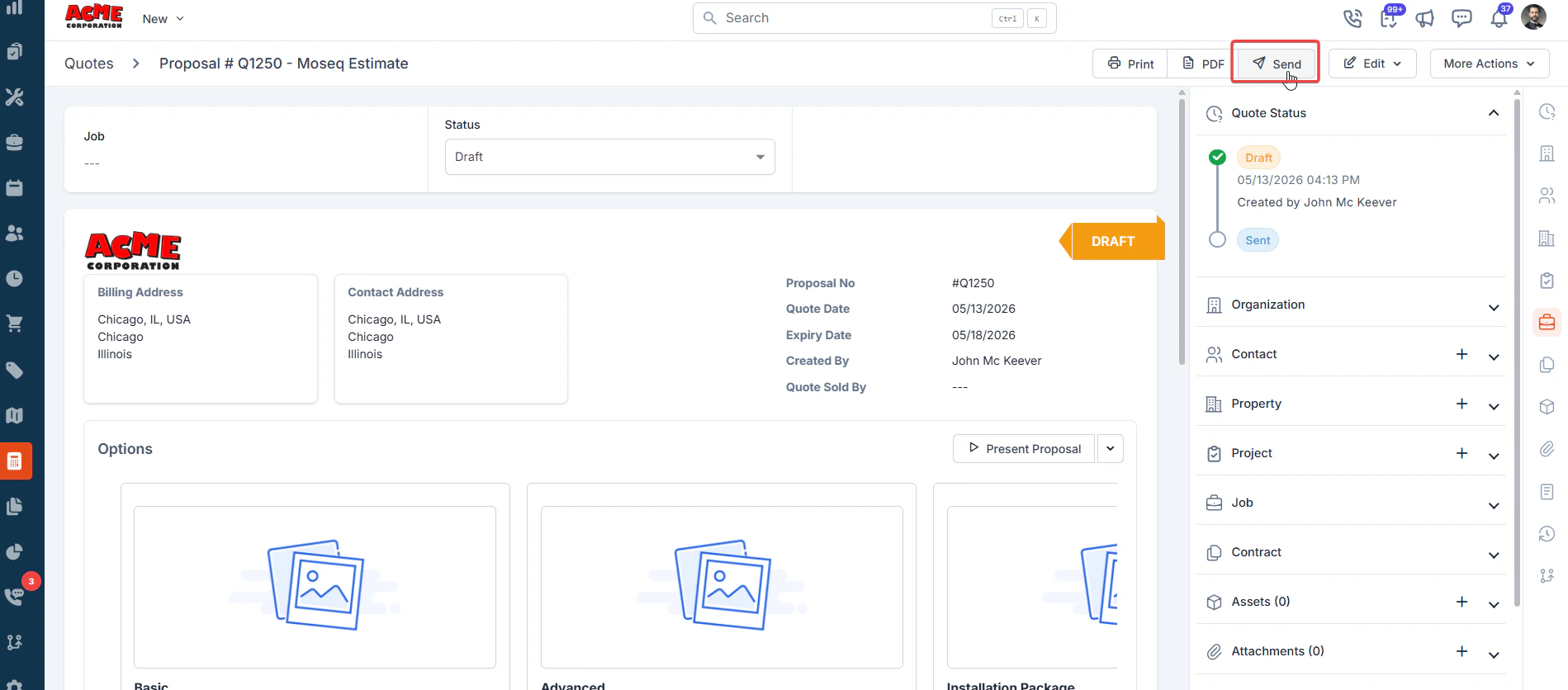
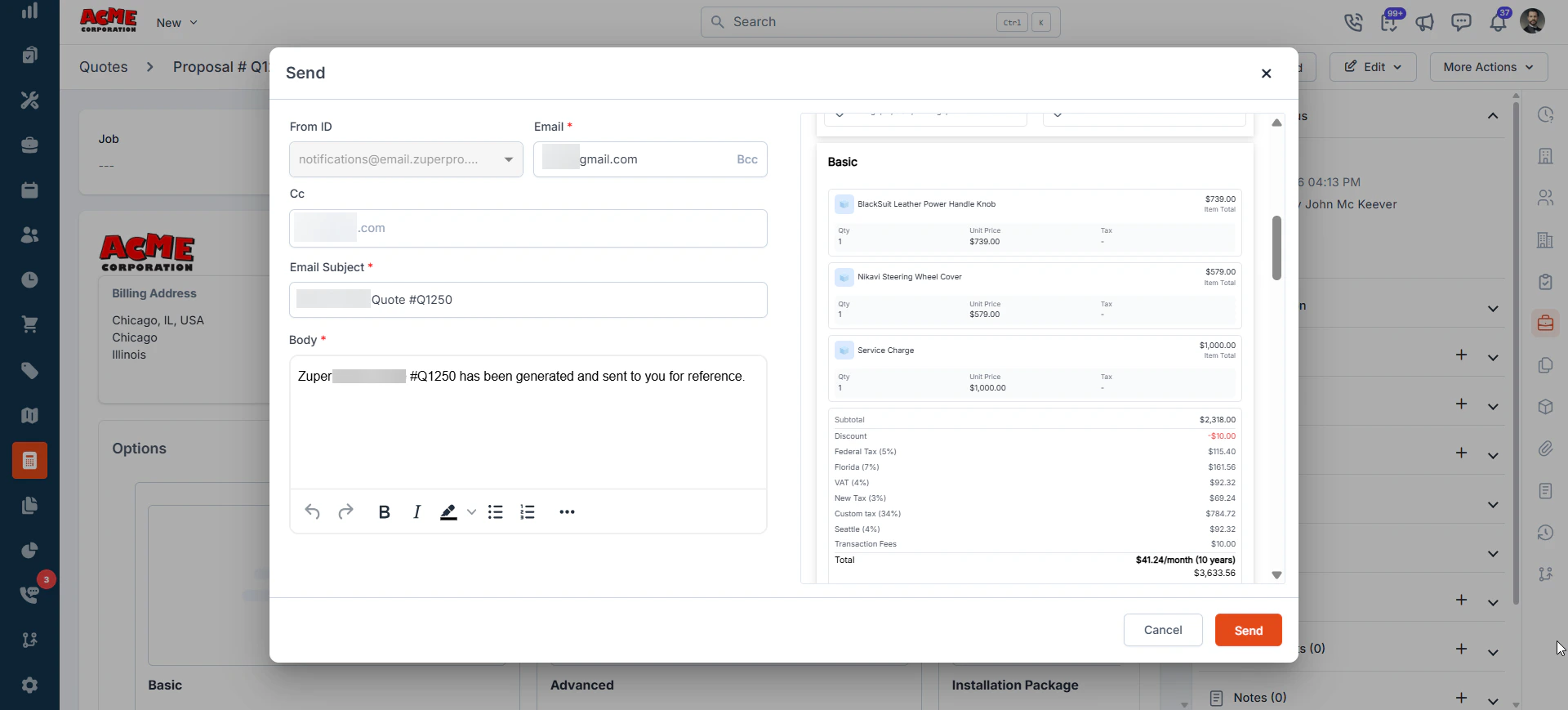
Sharing the proposal link
If you want to share the proposal through WhatsApp or any other channel outside Zuper’s email system, you can use the Share Links. Click the copy icon to copy the URL to your clipboard, the WhatsApp icon to share the link directly via WhatsApp, or the open in browser icon to preview exactly what your customer will see. Keep in mind that sharing the link does not change the proposal status. The customer approval flow is only active once you have sent the proposal by email and the status is Sent.What your customer sees
When your customer opens the “View to Approve Proposal” link from their email, they land on a branded proposal page with your company logo, the proposal title, their billing and contact details, and all package options with full pricing. From here, your customer can take one of three actions: click Review & Sign to select a package and approve, click Request Change to send a change request back to your team, or click Decline to decline the proposal.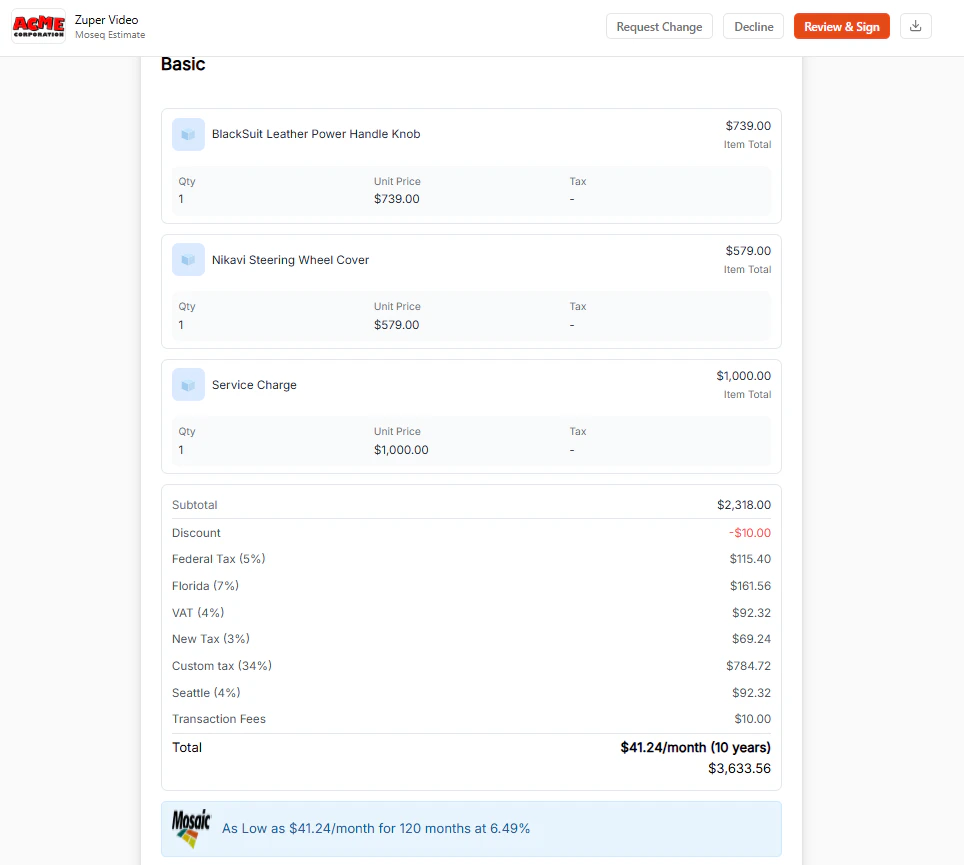
How does your customer approve the proposal
When your customer clicks Review & Sign, the Complete Your Signature panel opens on the right side of the screen. Here’s what they do: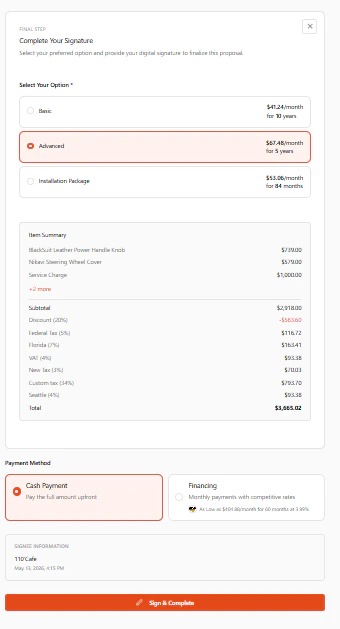
Select a package
Your customer sees all available options; for example, Basic, Advanced, or Installation Package with pricing for each. If you enabled financing for a package in the proposal template, that option shows a monthly payment amount and term (for example, “$41.24/month for 10 years”) alongside the cash price. Once they pick an option, the Item Summary updates instantly with the line items, discounts, taxes, transaction fees, and total for that package.Choose a payment method
Under Payment Method, your customer picks how they want to pay:- Cash Payment - Pay the full amount upfront
- Financing - Monthly payments through your financing provider you configured, with the rate, term, and an “as low as” comparison shown.
Note: Financing only shows up if Enable Financing? is turned on in settings and financing is enabled for that package in your proposal template.