

Navigation: Sense -> Radar
Note: Creating and editing Radars is restricted to account Administrators.
Create a Radar
- Navigate to Sense in the left menu and select Radar.
- Click + New next to MY RADARS in the side panel.
- Enter a title for your Radar.
- (Optional) Click the Radar title in the header to rename it at any time, or click Add a description to document the dashboard’s purpose.
Note: Your account can host up to 20 individual Radars.
Add cards to a Radar
Cards are created by pinning Zuper Sense insights to a board. If an answer already exists in a chat thread, simply pin it to your target Radar. To generate and pin a new card directly from a Radar:- Open the Radar you want to add to.
- Click + Add KPI in the toolbar (or click Ask Sense to build your Radar on an empty board).
- Describe the KPI or metric in the dedicated thread that opens.
- Click Add to Radar on the generated response.
Note: Each Radar supports up to 50 cards. Remove unused cards before exceeding the limit.
Arrange and manage the board
Customize your dashboard layout and keep metrics current for your entire team:- Reposition & Resize: Click and drag a card’s handle to move it, or drag its borders to adjust its size.
- Update Data: Select Refresh to fetch the latest metrics across all cards simultaneously (“Refreshed just now” will appear upon completion).
- Global Date Filter: Select Filter to apply a unified date range across supported metrics.
- Card Metadata: Add custom labels to any card using the Add title and Add description options.
Note: Layout changes are saved globally and apply to all users who have access to the Radar.
Drill into a card
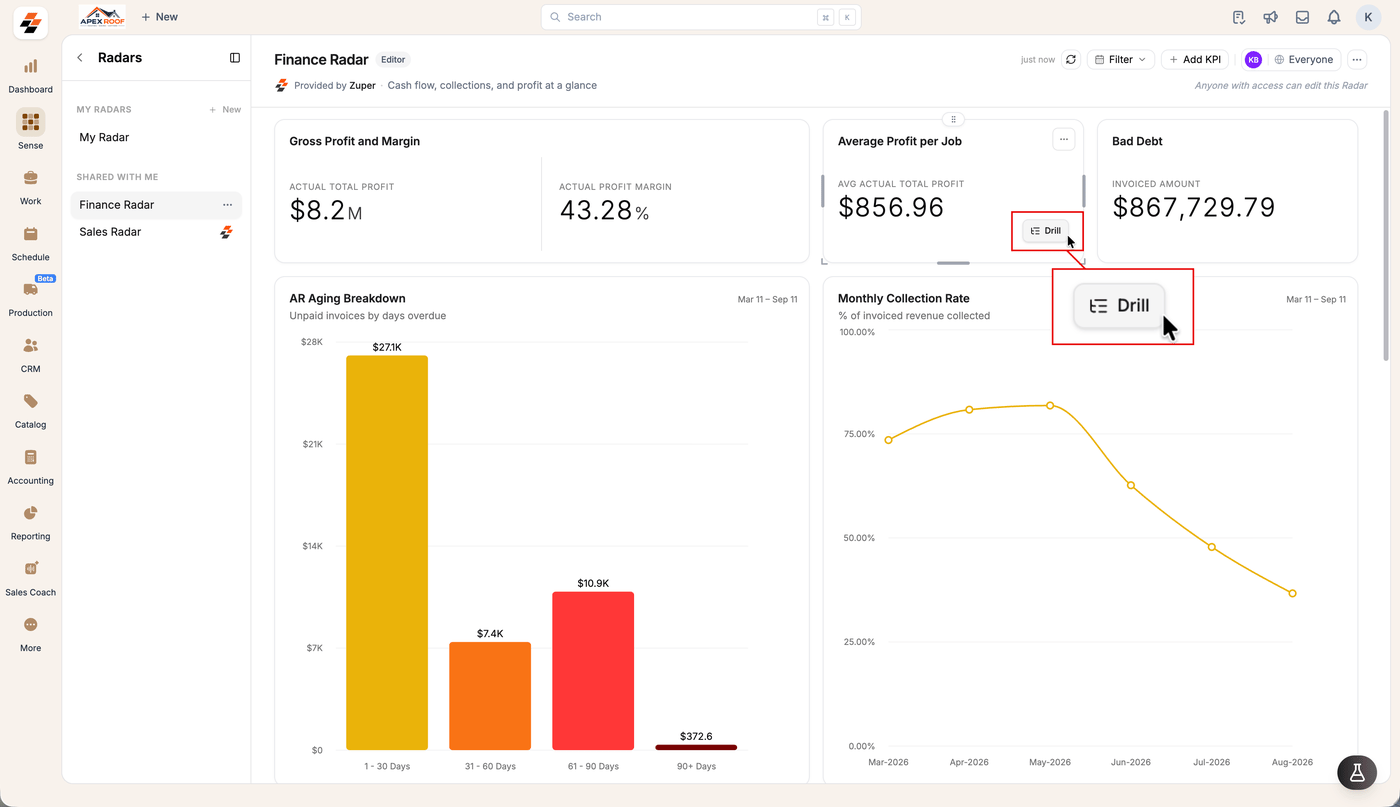
Explore detailed line items behind any metric without needing to write new prompts:- Hover over the target card.
- Select Drill.
- View the underlying transactional details pulled by Sense.
Note: The Drill action is supported across all card formats, including single-number KPI cards, tables, and charts.
Remove a card or a Radar
- To remove a card, select More options on the card, select Delete, then confirm Remove from Radar?.
- To ask a follow-up about a card, select More options and then Open in chat.
- To delete a whole Radar, open the three-dot Radar options menu in the header and select Delete radar.
- To take a Radar off your own list without affecting anyone else, open the same menu and select Leave radar.