

Navigation: Sense -> Radar -> Share
Note: Only the board owner can modify sharing permissions, and editing capabilities are restricted to Administrators.
Share a Radar
- Open the Radar you want to share.
- Select Share in the header.
- Choose your visibility scope: Only me, Everyone, or Selected.
- If choosing Selected, search for and select individual users or teams.
- Assign access permissions (Editor or View only) for each user or team.
- Click Done to apply your changes.
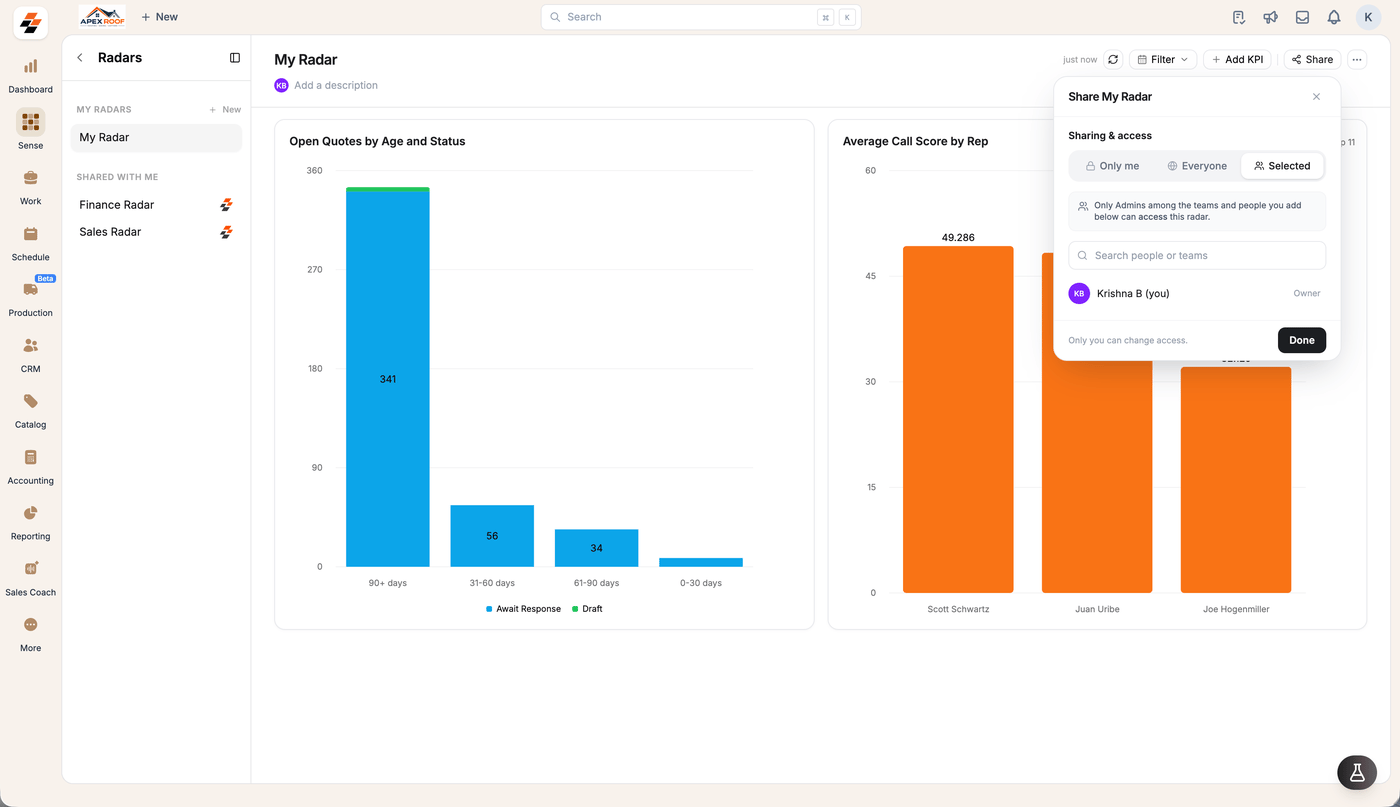
Sharing options
Notes: Setting visibility to Everyone defaults to read-only access for all company members.
You must explicitly assign the Editor role to permit specific Administrators to modify the board.
Default system dashboards (Sales Radar and Finance Radar) are editable by all Administrators and cannot be deleted or re-shared.
You must explicitly assign the Editor role to permit specific Administrators to modify the board.
Default system dashboards (Sales Radar and Finance Radar) are editable by all Administrators and cannot be deleted or re-shared.
Access roles & permissions
Users assigned to a board operate under one of two access tiers:- Editor: Can add, remove, and rearrange cards, as well as rename the Radar. (Note: Non-admin users assigned as Editors can still only view cards; administrative privileges are required to perform edits).
- View only: Can open and view live metrics on the Radar without making changes.
Note: On boards you do not own, a role badge (Editor or View only) displays next to the Radar title in the header. Owners do not see a role badge.
Unpublish or leave a Radar
Manage board access and personal sidebar lists using the header options menu:-
Unpublish a Radar: Open the Radar options (
...) menu in the header and select Unpublish to revoke company-wide access and make it private again. -
Leave a Shared Radar: Open the Radar options (
...) menu in the header and select Leave radar to remove the board from your personal sidebar. Leaving a Radar instantly removes it from your dashboard list. This action cannot be self-reverted; an Administrator or the Radar owner must re-add you to restore access.