

Navigation: Sense → Radar → Scorecard card → Set a goal
Note: Radar goals are available only on the web app.
Where you can set a goal
- You can set goals only for metrics on scorecards. Charts, tables, and other visualizations do not support goals.
- Each metric has its own goal. For example, the Gross Profit and Margin card can have separate goals for profit and margin.
- Goals are supported on your own Radars, shared Radars, and the default Finance Radar and Sales Radar.
Set a goal
Note: Only Administrators with edit access to the Radar can set goals. Users with View only access can see goals but cannot change them.Set a goal
- Open the Radar.
- Move the pointer over the metric on a scorecard card.
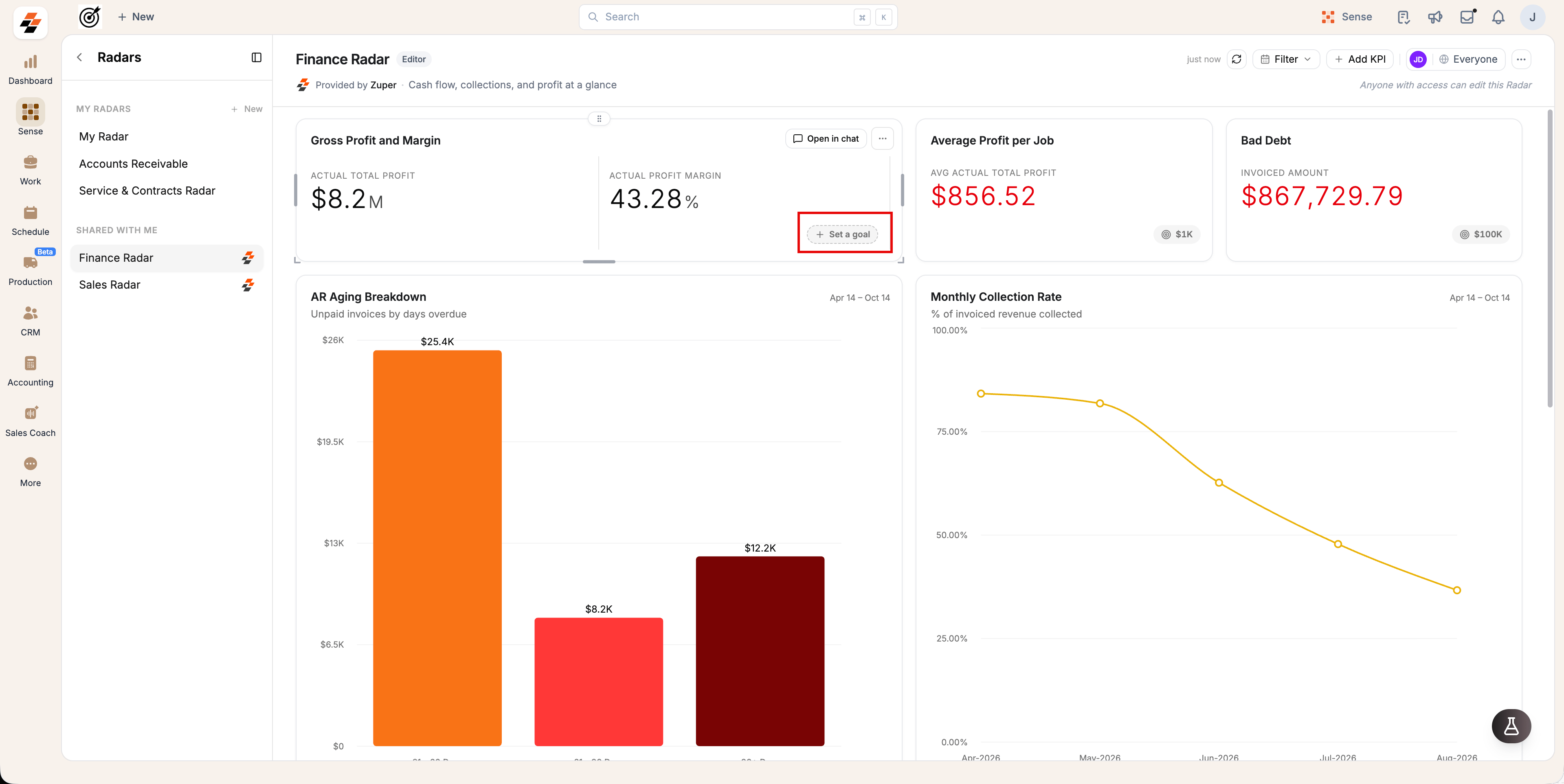
- Click + Set a goal in the lower-right corner of the metric.
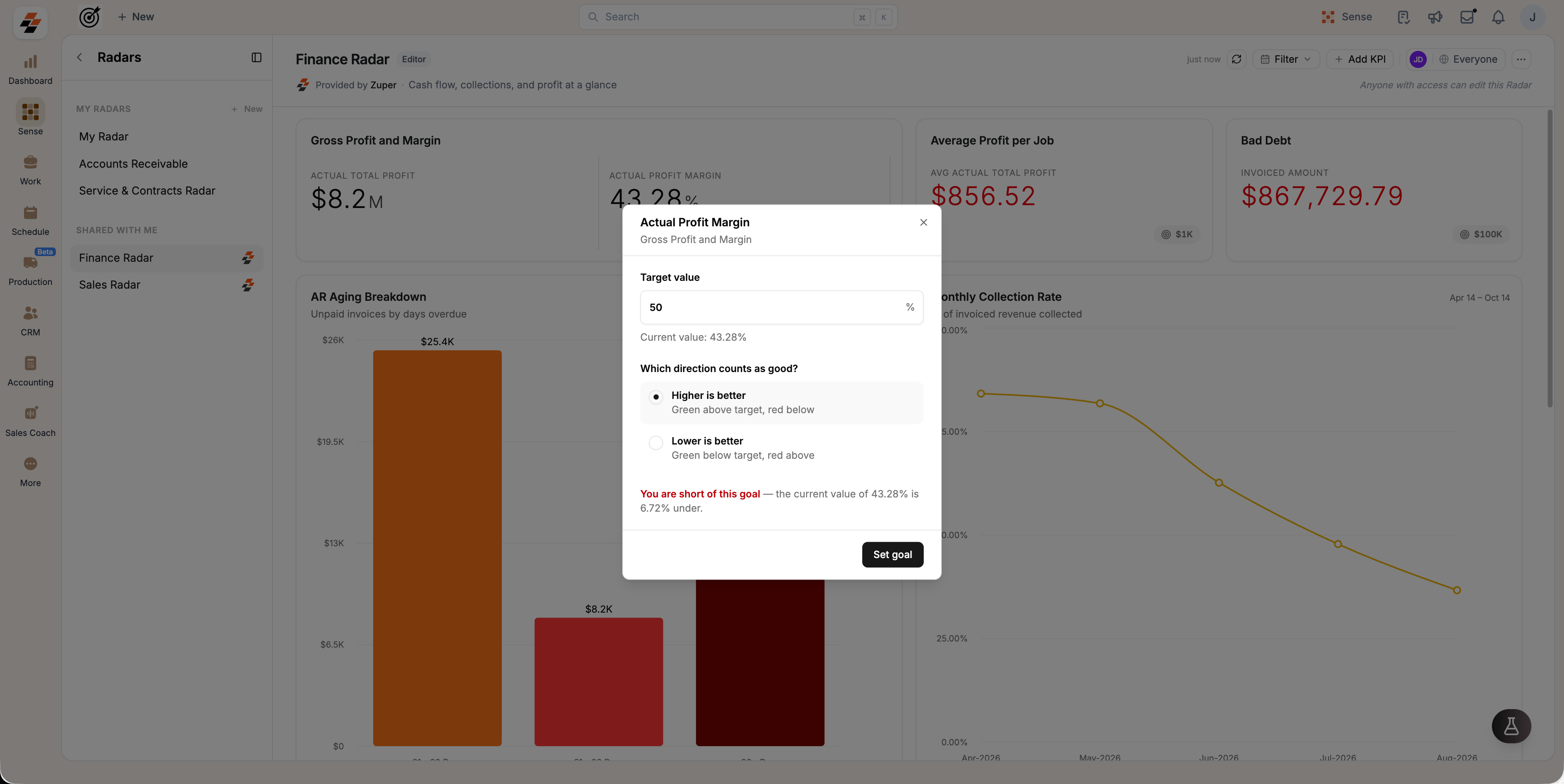
- In Target value, enter the number you want to reach. The field displays the metric’s unit, such as a percentage or currency, and the Current value below it.
- Under Which direction counts as good?, select an option:
- Higher is better: The metric is green when its value is above the target and red when it is below the target. Use this for metrics such as revenue or profit.
- Lower is better: The metric is green when its value is below the target and red when it is above the target. Use this for metrics such as bad debt or overdue invoices.
- Review the status message below the options to see how the current value compares with the target.
- Click Set goal.
Note: Only Administrators with edit access to the Radar can set goals. Users with View only access can see goals but cannot change them.
Read a goal on a scorecard
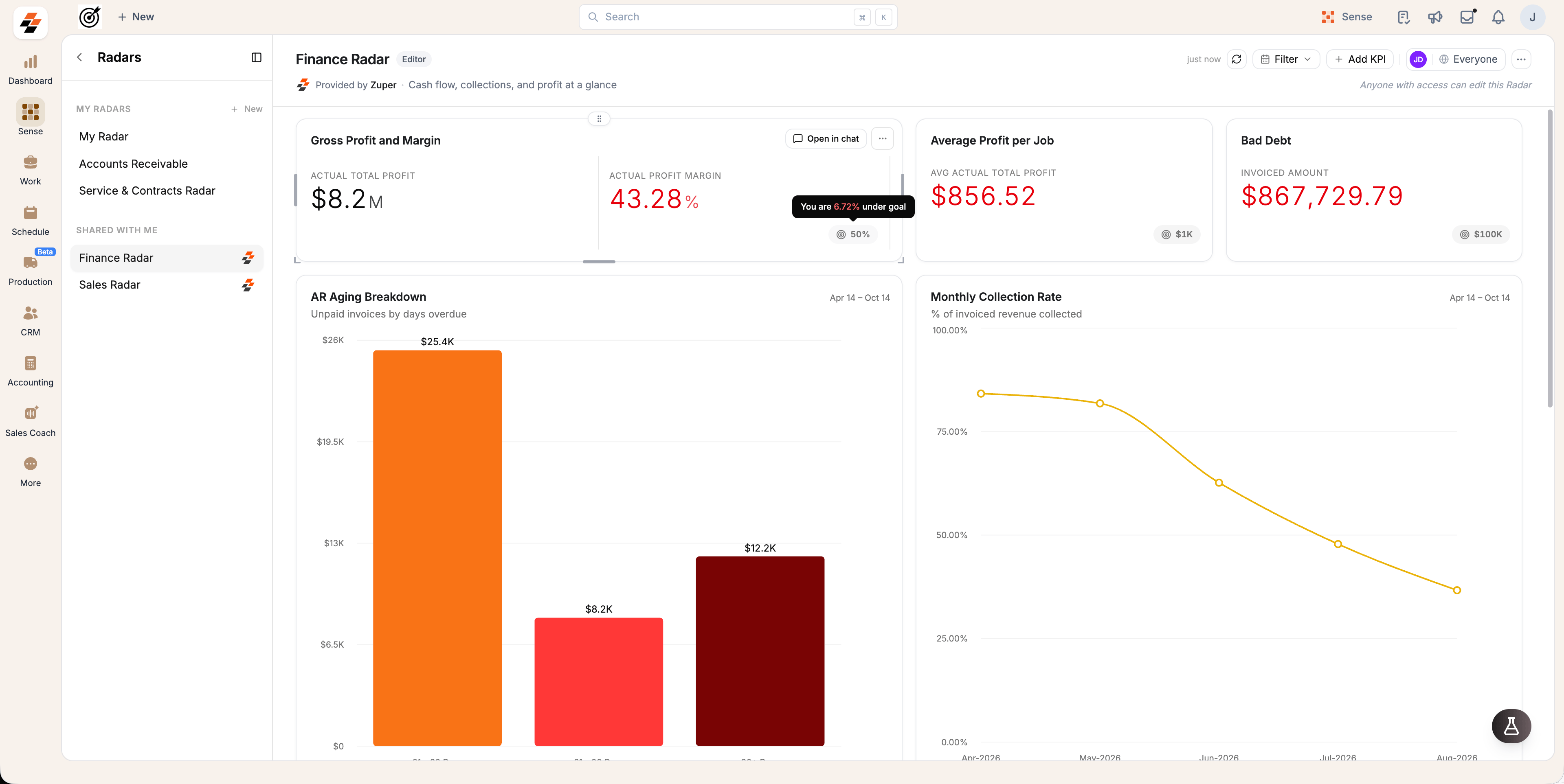
After you set a goal, the scorecard displays it in two places:- Metric value: Turns green when the goal is met and red when it is not.
- Goal pill: Displays the target value in the lower-right corner of the metric. Move the pointer over the pill to see how far the current value is from the target. For example, You are 6.72% under goal.
Note: A value exactly equal to the target counts as meeting the goal. The status updates when the scorecard data refreshes.
Change or remove a goal
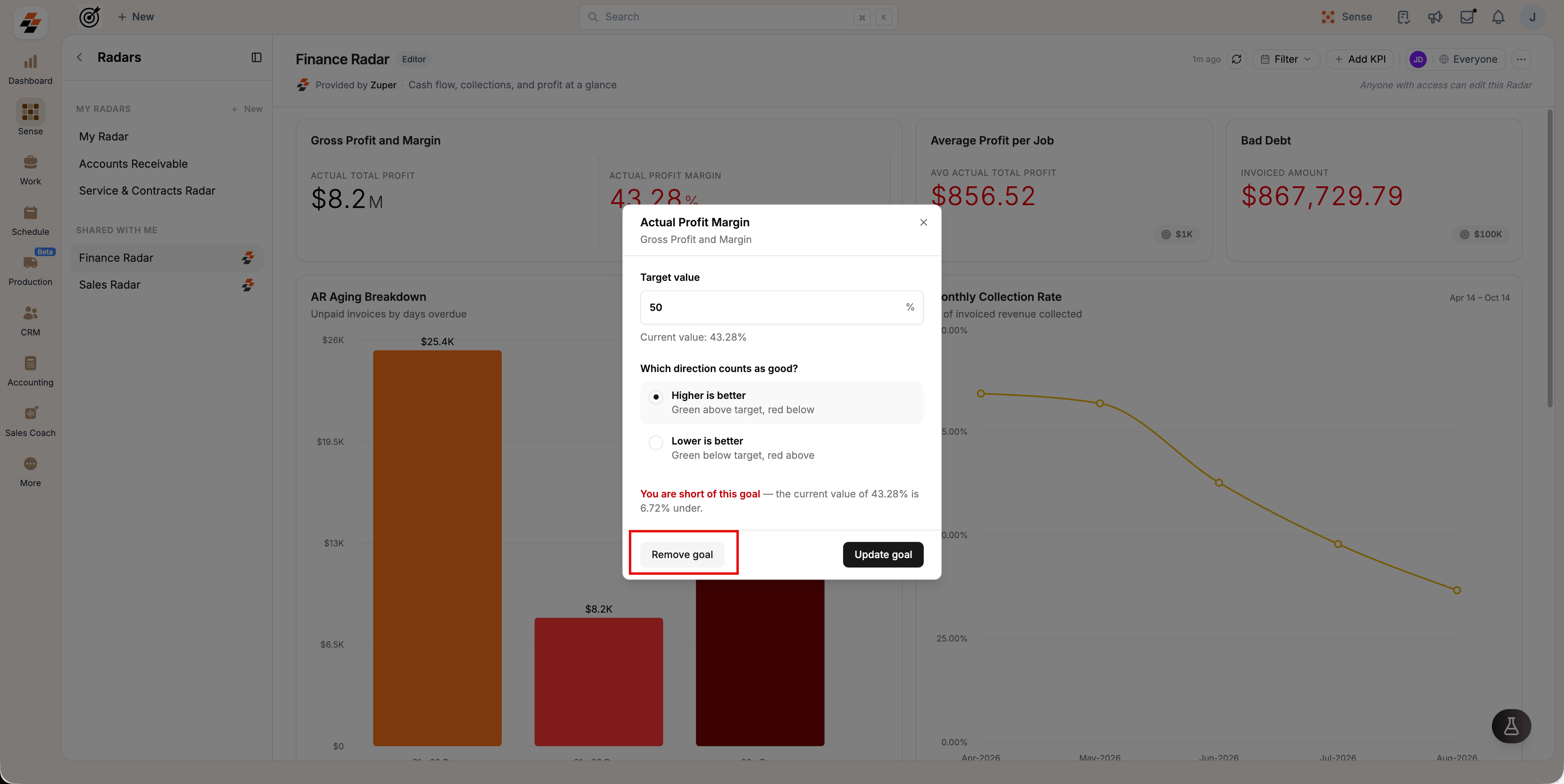
- Click the goal pill on the metric.
- Choose an option:
- Update a goal: Edit Target value or the direction, then click Update goal.
- Remove a goal: Click Remove goal.
Goals on shared and copied Radars
Goals belong to a Radar, not to an individual user. Everyone with access to a Radar sees its goals, but changes depend on the Radar type.- Shared Radars: Everyone with access sees the same goals. Administrators with the Editor role can change them.
- Default Radars: Any Administrator can set, change, or remove goals on the default Finance Radar and Sales Radar. Changes apply to everyone who can access the Radar.
- Copied Radars: Goals are copied along with the Radar. Changes to goals on the copy do not affect the original Radar.