

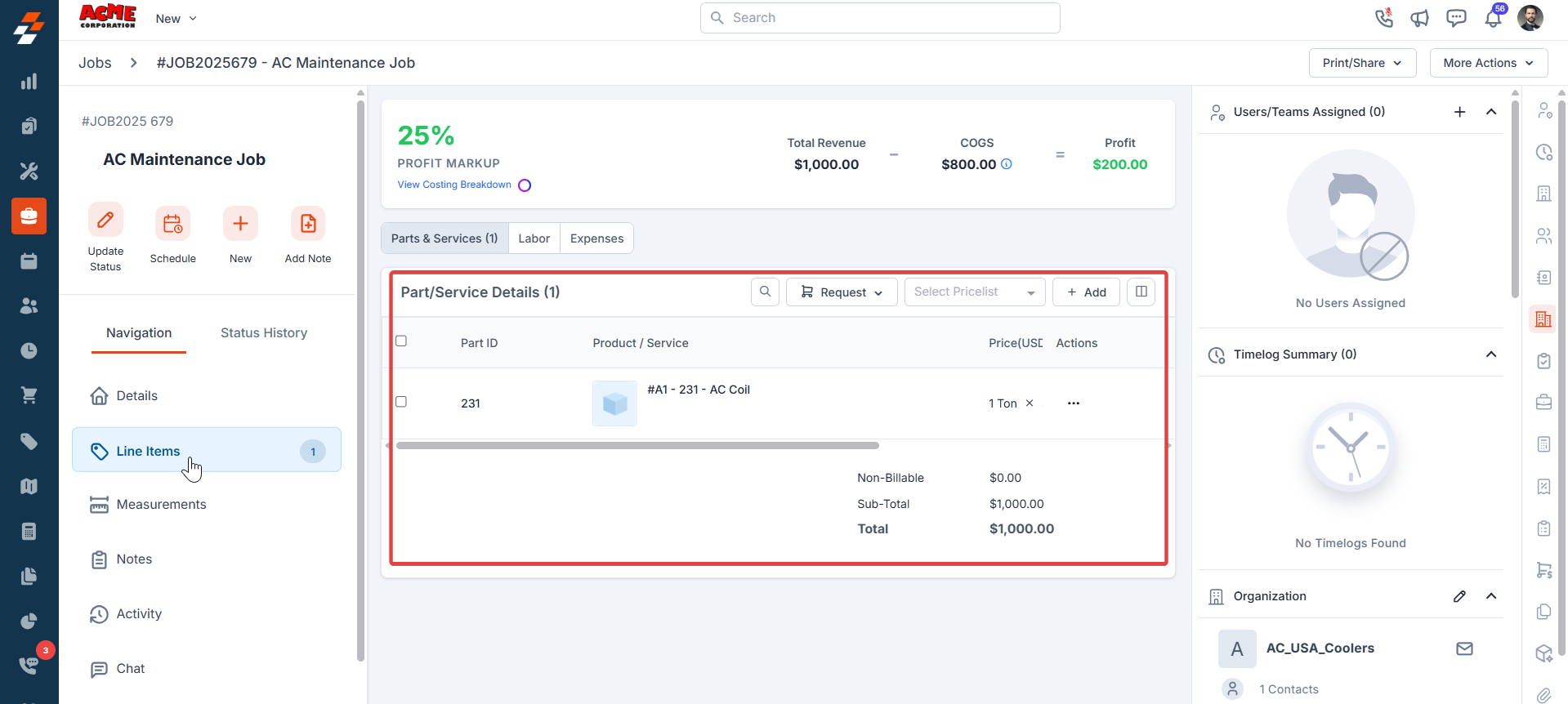
- Expense Tracking: Add credit card details in Clyr to automatically track expenses. Capture receipts via the Clyr mobile app, which sync as Parts & Services in Zuper jobs.
- Job-to-Project Sync: Zuper jobs sync as Clyr projects, enabling seamless expense association.
- Customer-to-Client Sync: Zuper customers sync as Clyr clients for consistent data.
- User Sync: Zuper users sync to Clyr, supporting role-based expense submission and approvals.
- Cost Visibility: Expenses mapped to Clyr projects appear in Zuper jobs, improving job costing and budget tracking.
Integrate and Use Clyr with Zuper
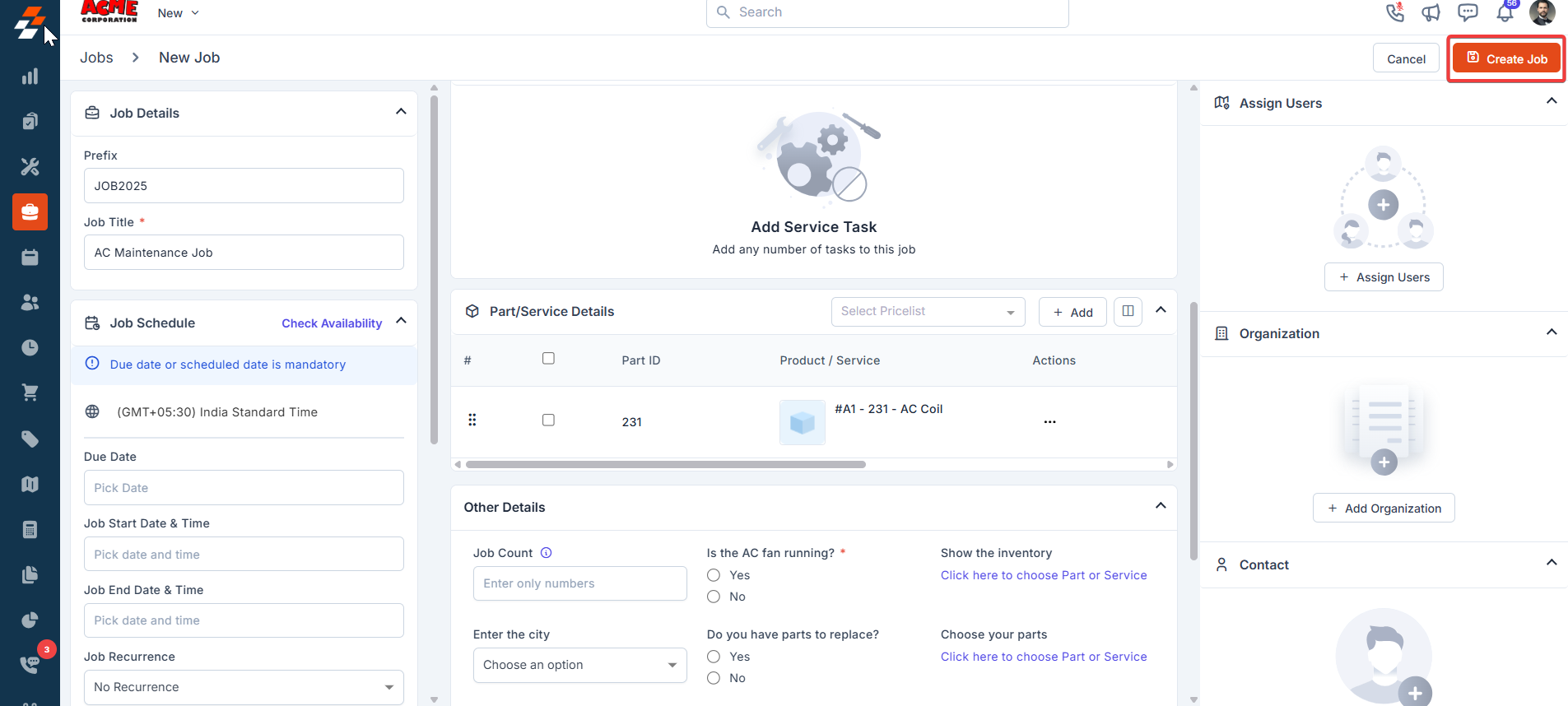
To set up and use the integration, follow these steps.- On Zuper, select the “Jobs” module from the left navigation menu and create a new job by filling in the necessary details.
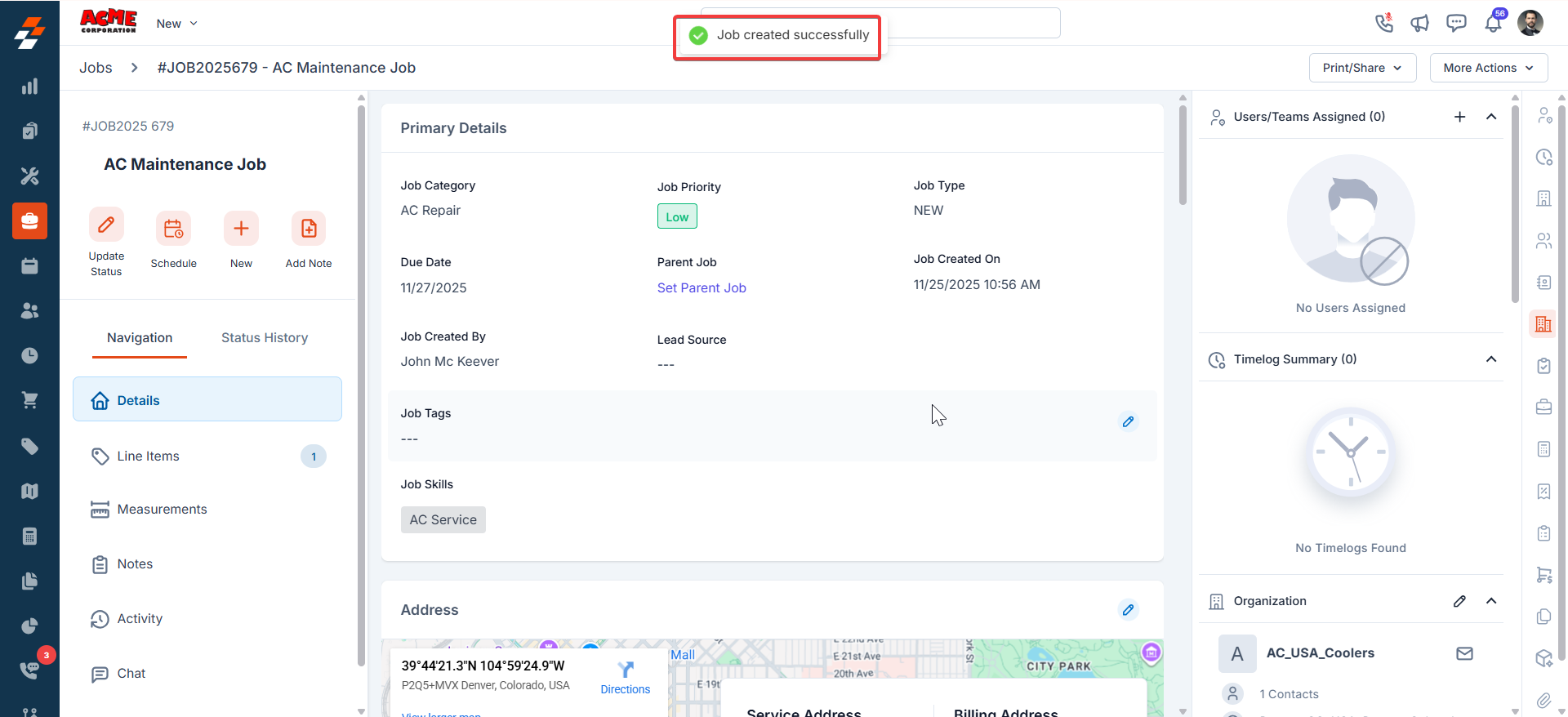
- The new job is created successfully.
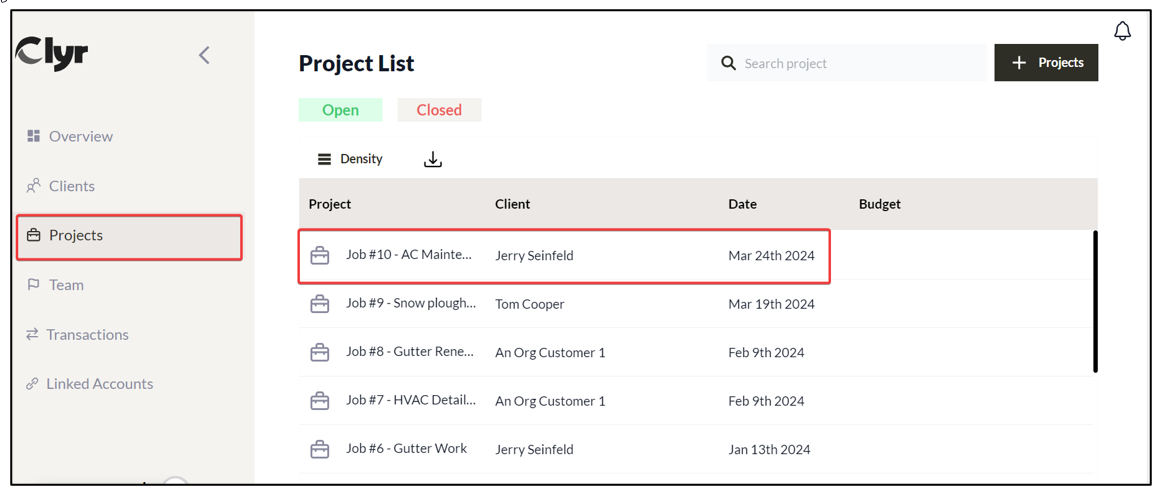
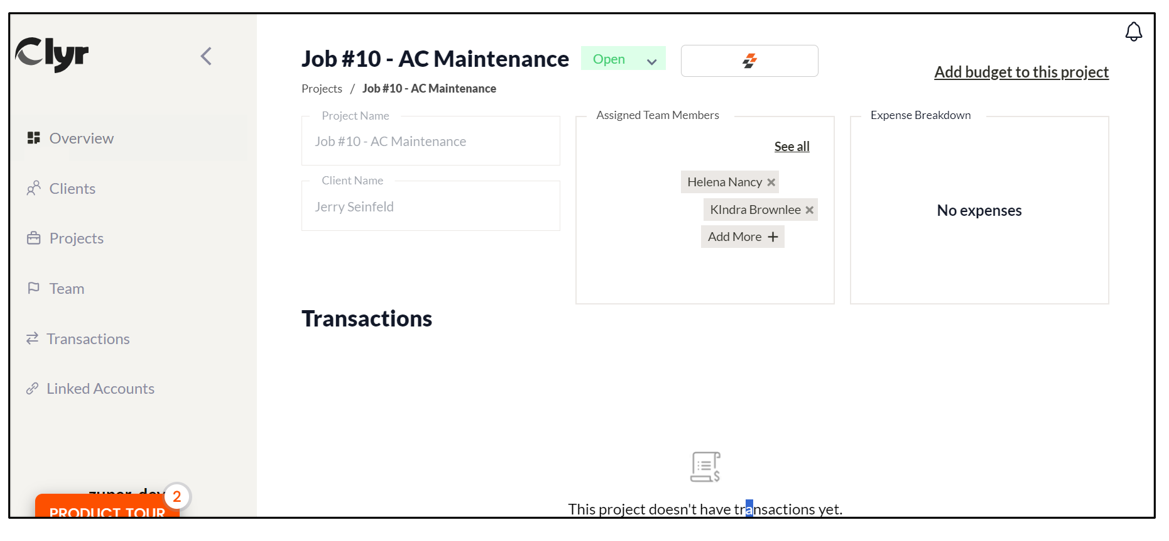
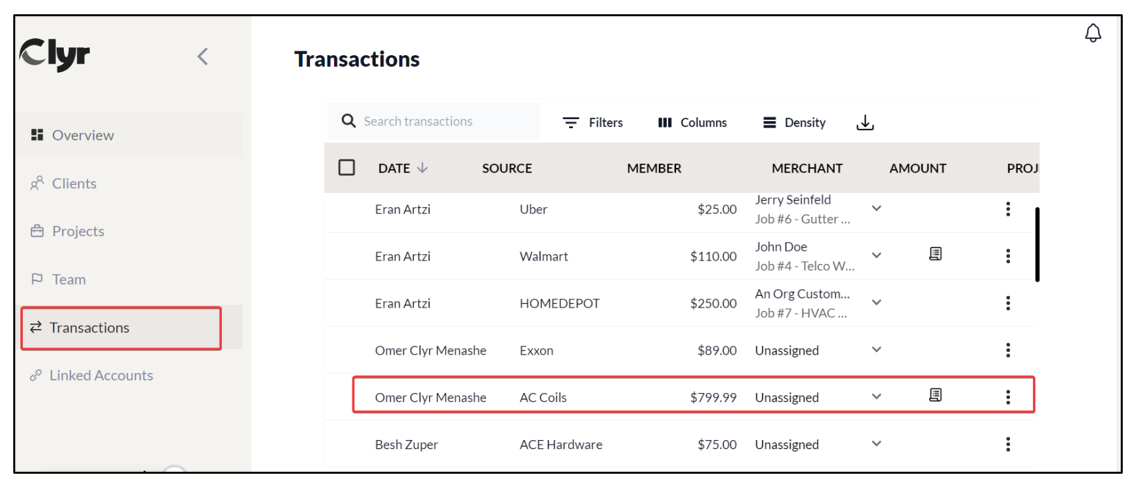
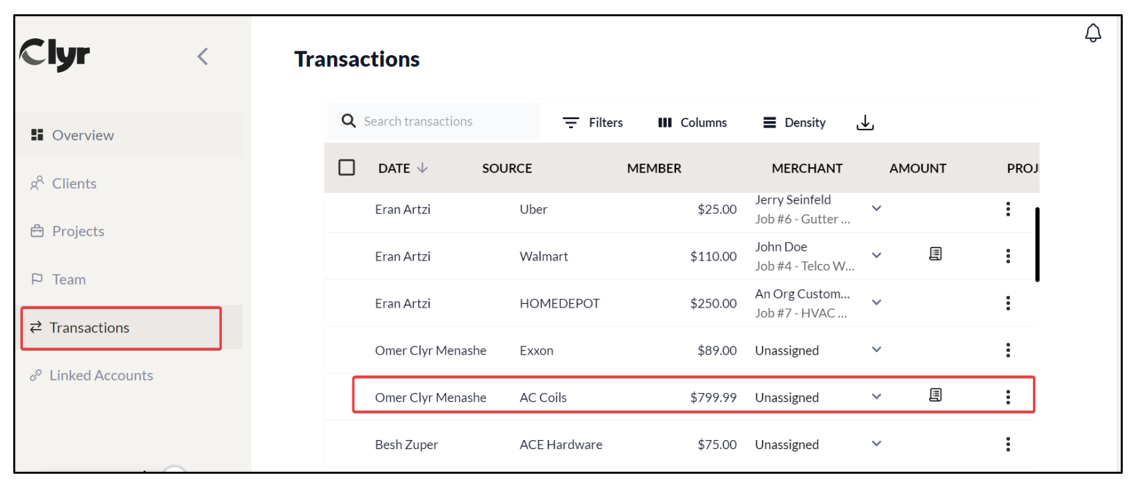
- Select the Transactions module and choose the exact transaction for which the project needs to be assigned.
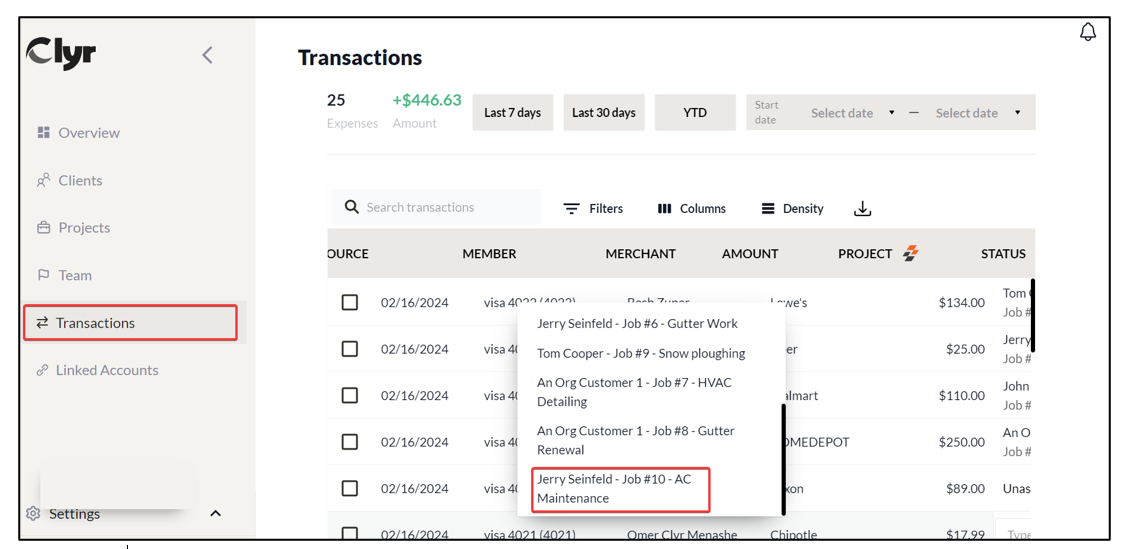
- Choose the project and map this to the transaction.
Note: Users on Zuper are synced as users on Clyr. The customers on Zuper are synced as clients on Clyr.