With our Zuper-Google Calendar integration, the user can install the Google Calendar from our Zuper store. Then, after installation, whenever jobs are created and scheduled for a particular date, this vital job information will be created and synced as an event from Zuper on the Google calendar for customers and field executives. 

Pre-Requisites:

API Keys. Click here to know how to create and use API keys.

Installation & How to use

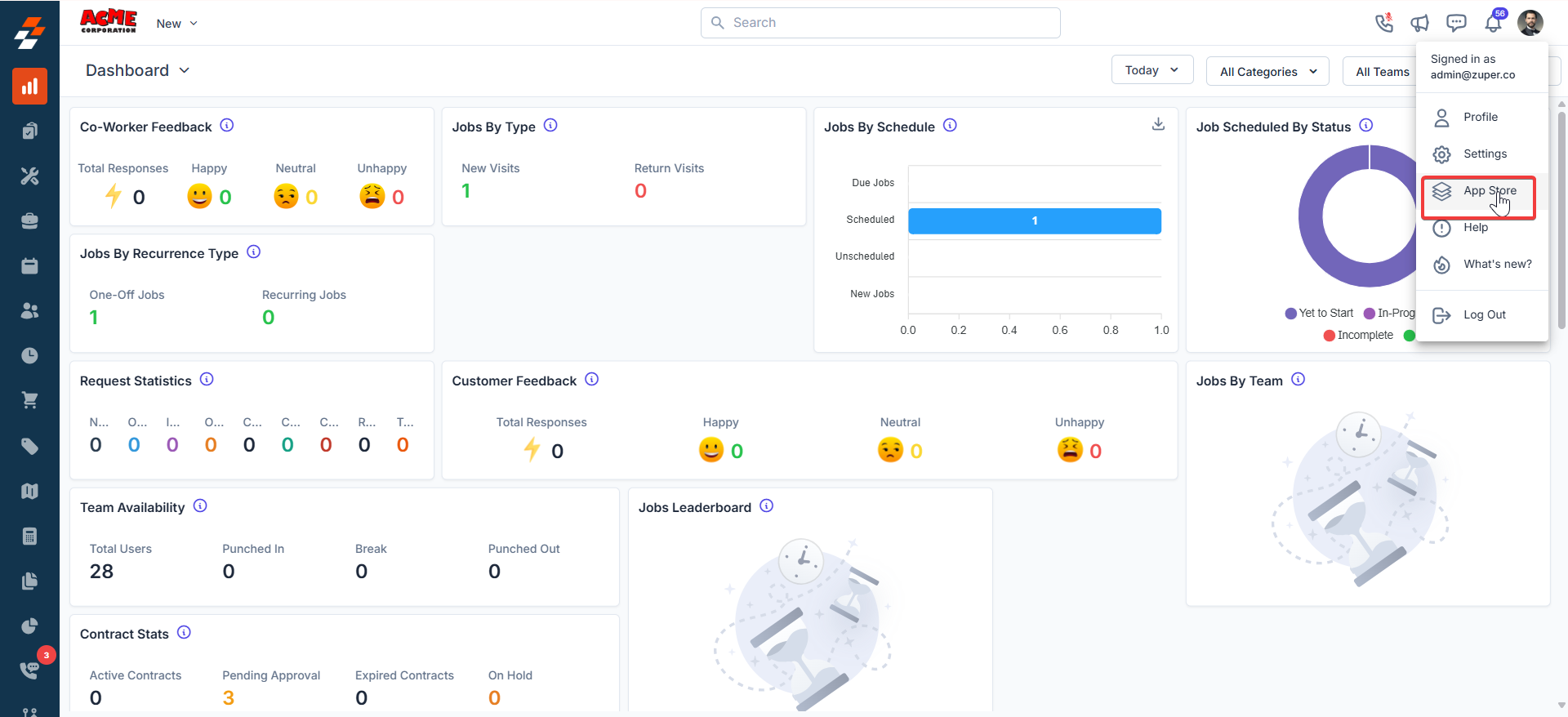
1. Open a new tab in your browser and once you are logged in to your Zuper Account, click your Profile Picture on the top right corner of the screen and click “App Store.” Googlec1 Pn
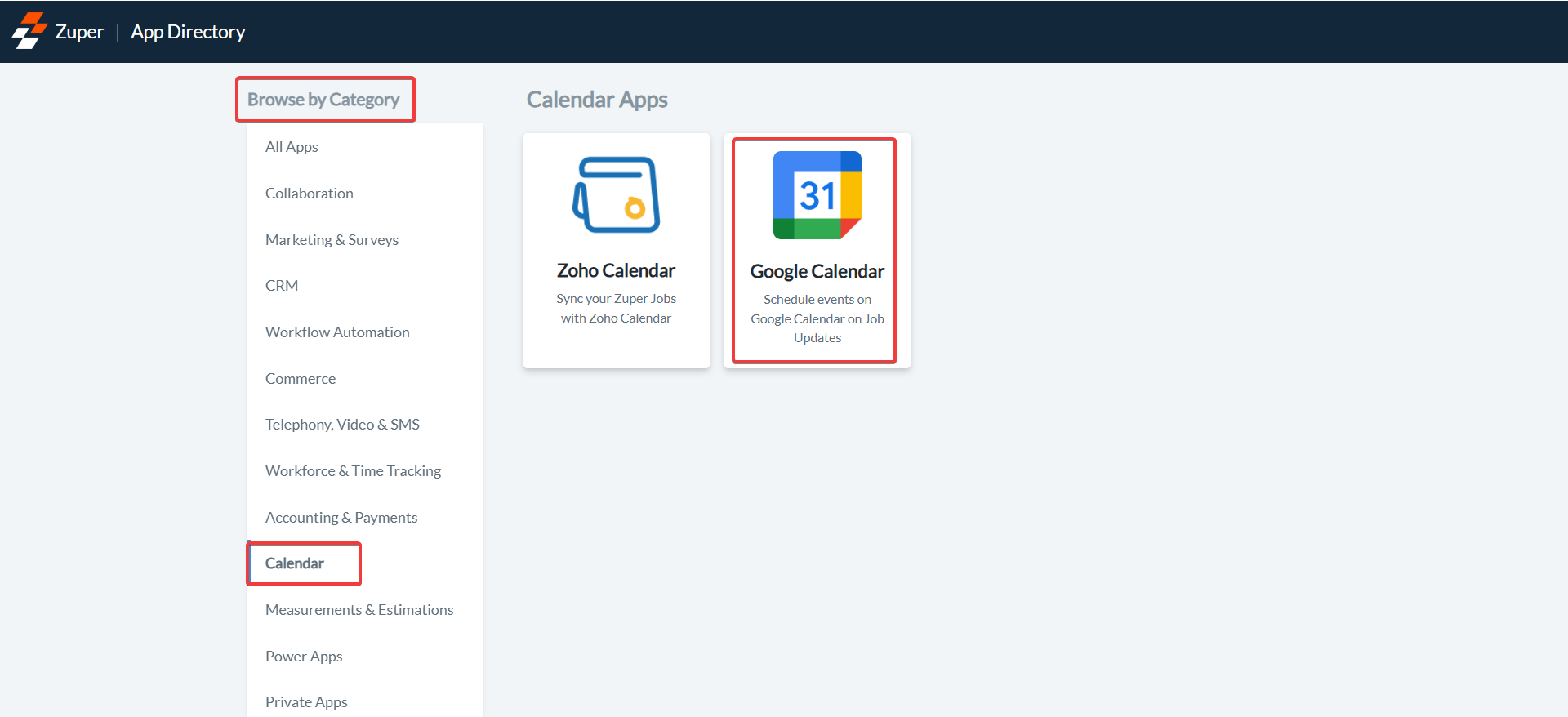
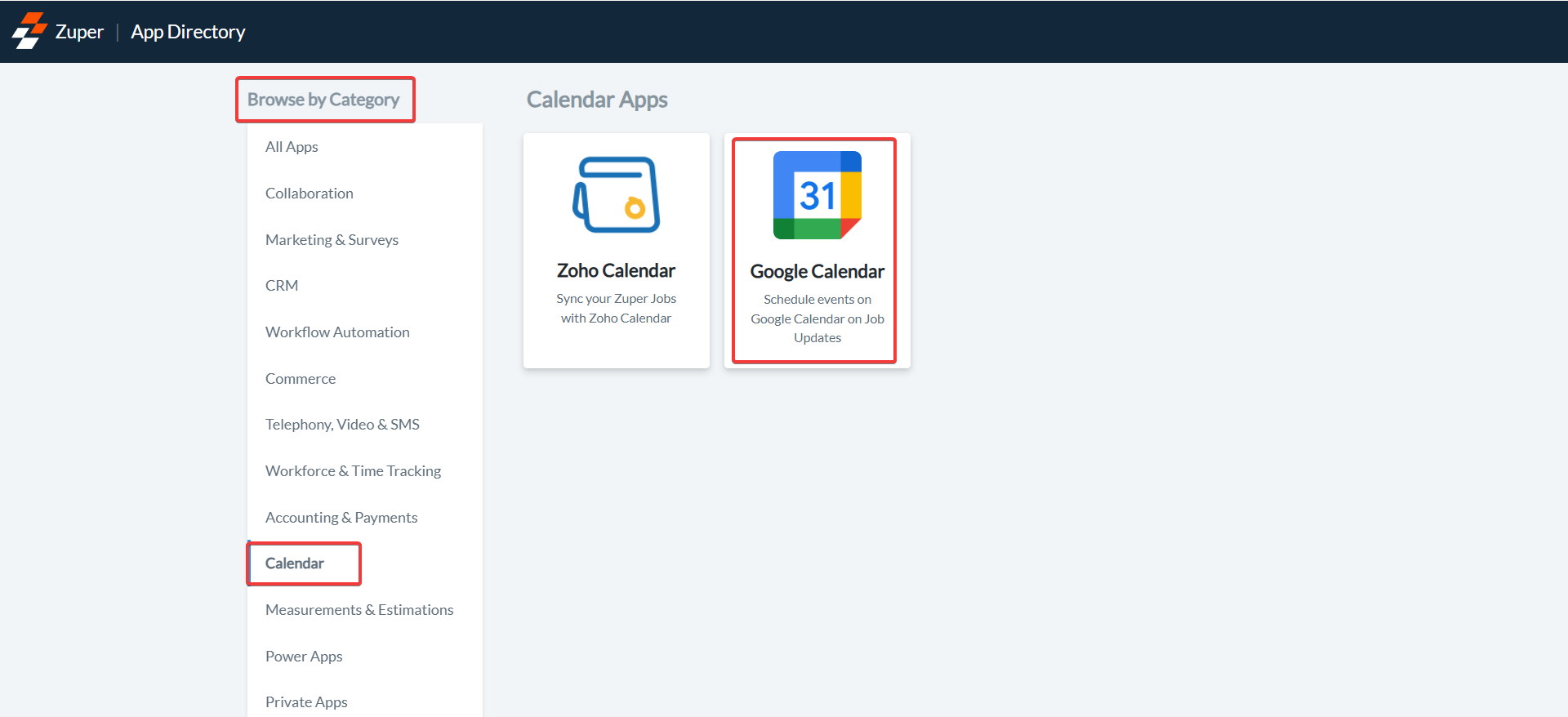
  1. You will be redirected to the “App Store.” Click on “Calendar” under “Browse by Category” on your left and click “Google Calendar.”
Googlec2 Pn
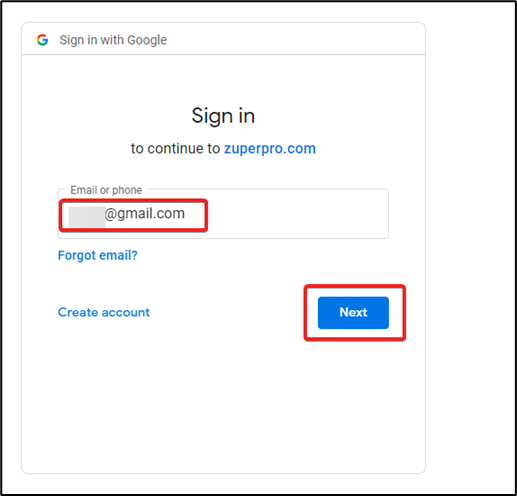
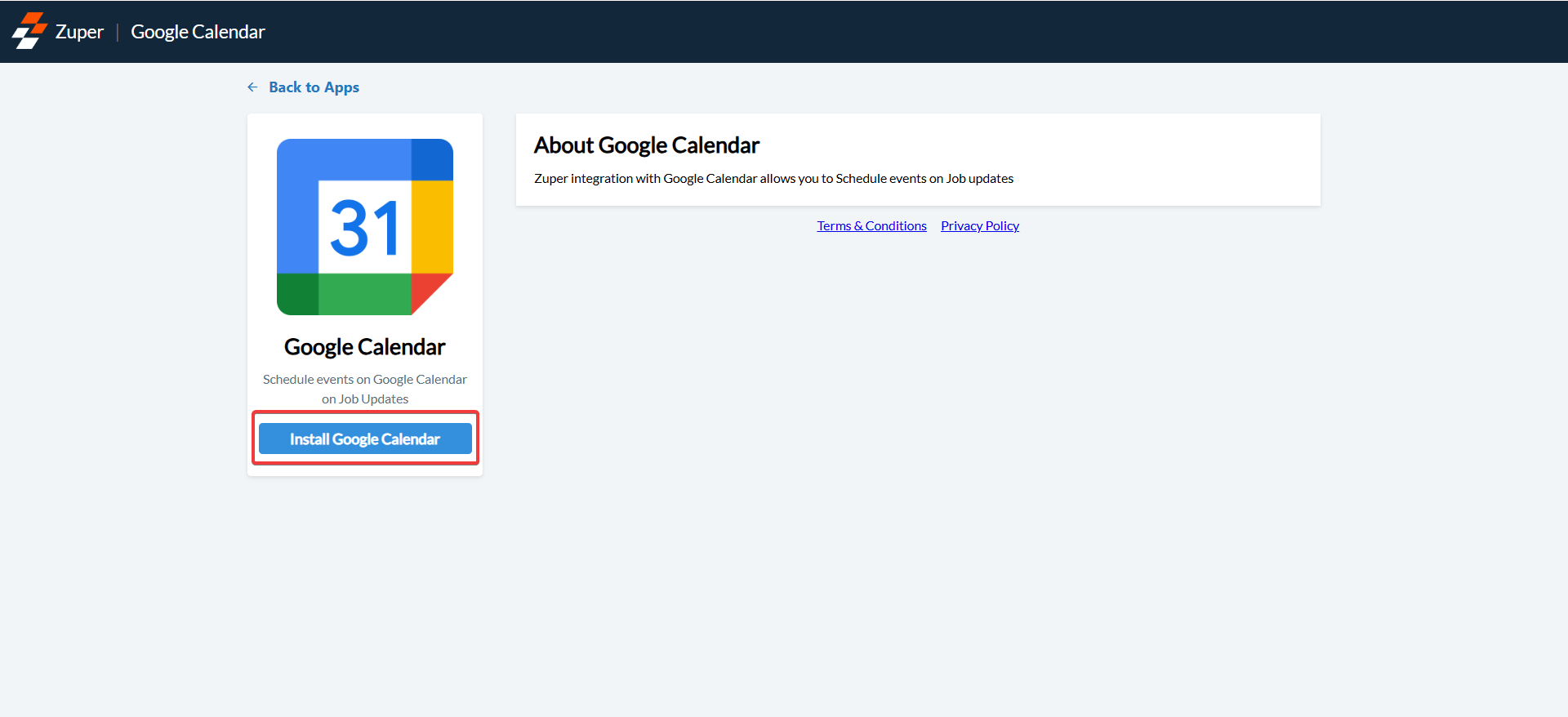
  1. Click on the “Install Google Calendar” button. Enter the “Email ID” and click on “Next.”
Googlec3 Pn
  1. Enter the email ID and click “Next.”
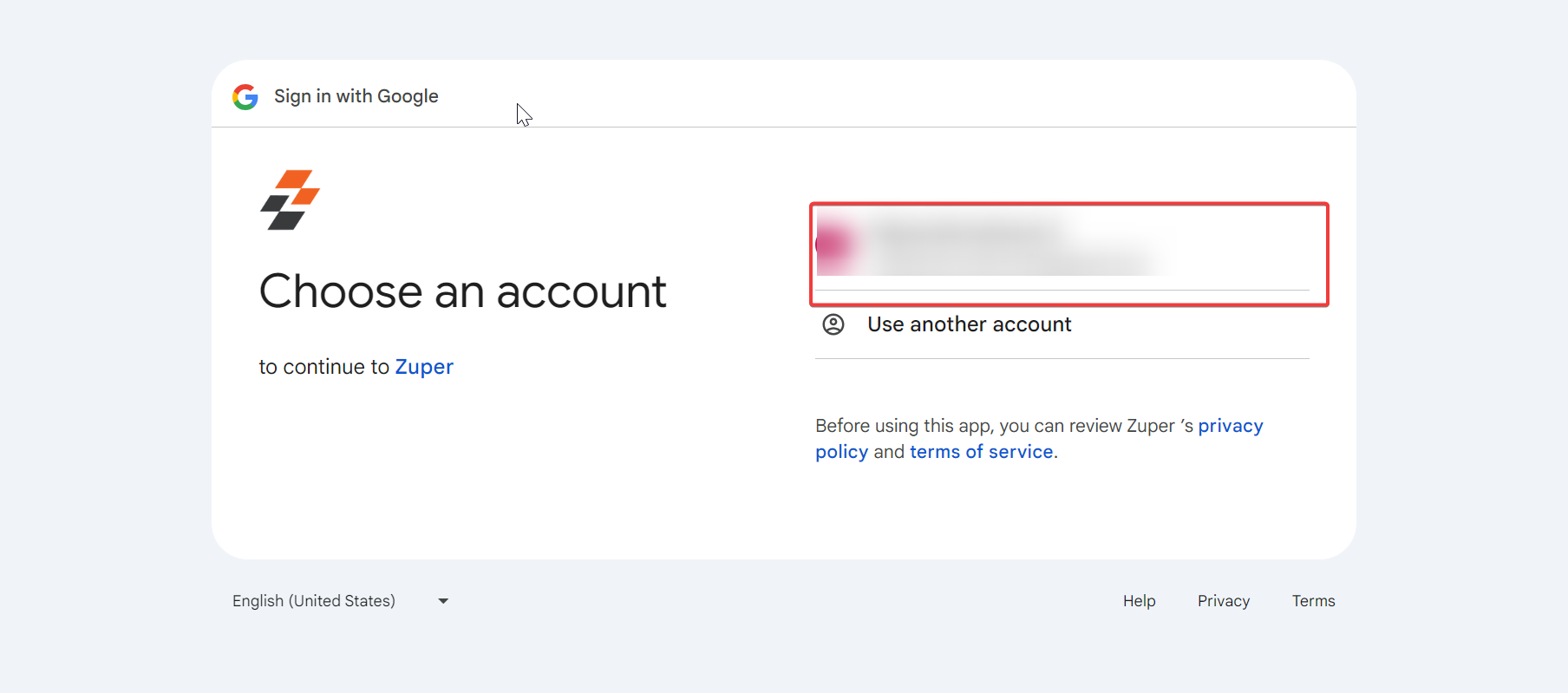
Googlec4 Pn Googlec5 Pn
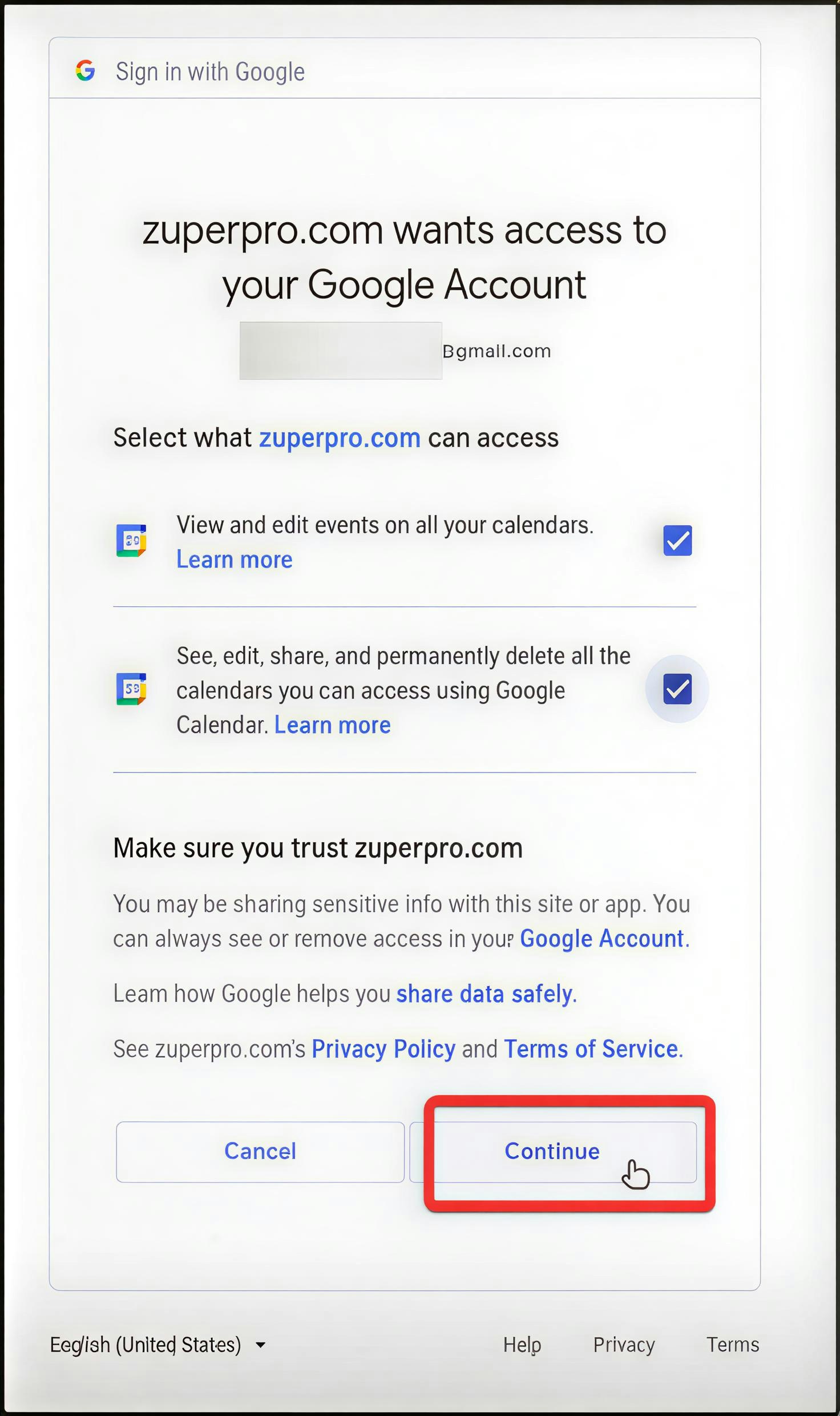
  1. Mark the check box to proceed with the access and click on the “Continue” button.
Googlec6 Pn
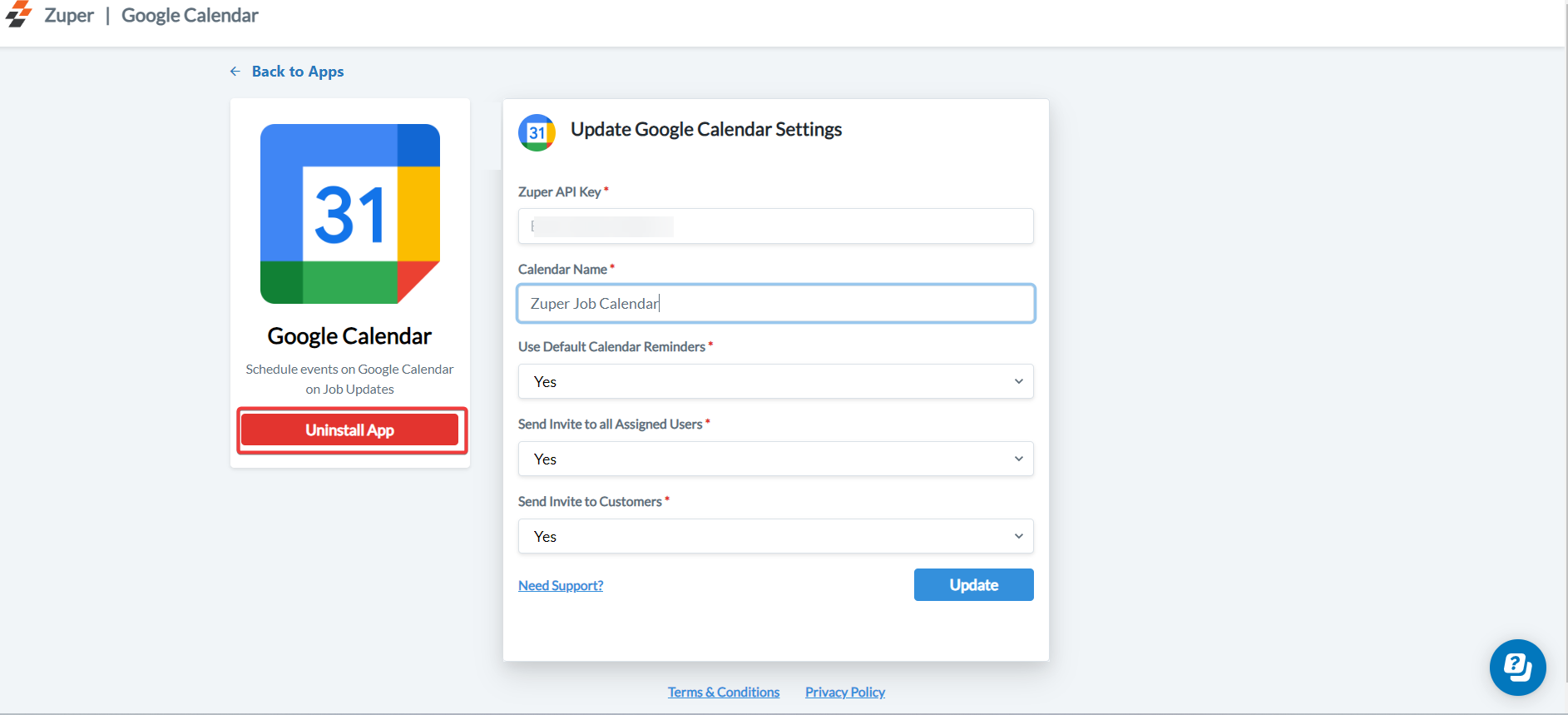
  1. Fill in the mandatory field details below to “Update Google Calendar Settings.”
i. Zuper API Key – The copied Zuper API Key. ii. Calendar Name – Enter the Calendar Name for sync.
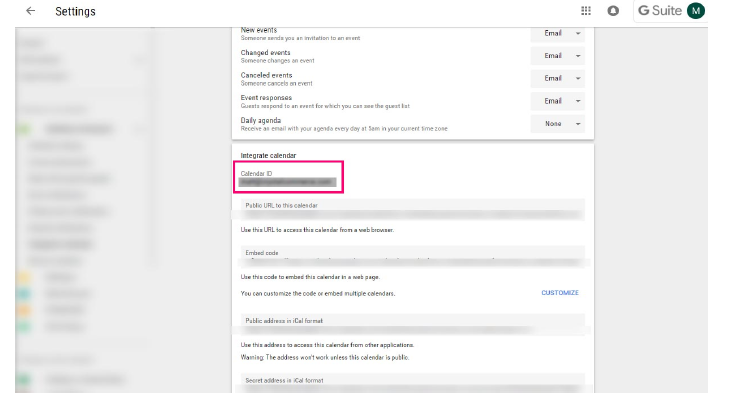
Note: The Calendar ID should be used to integrate the Primary calendar. The calendar name should be used to integrate the Secondary calendar. You can use either the primary calendar or the secondary calendar based on the scenario. 
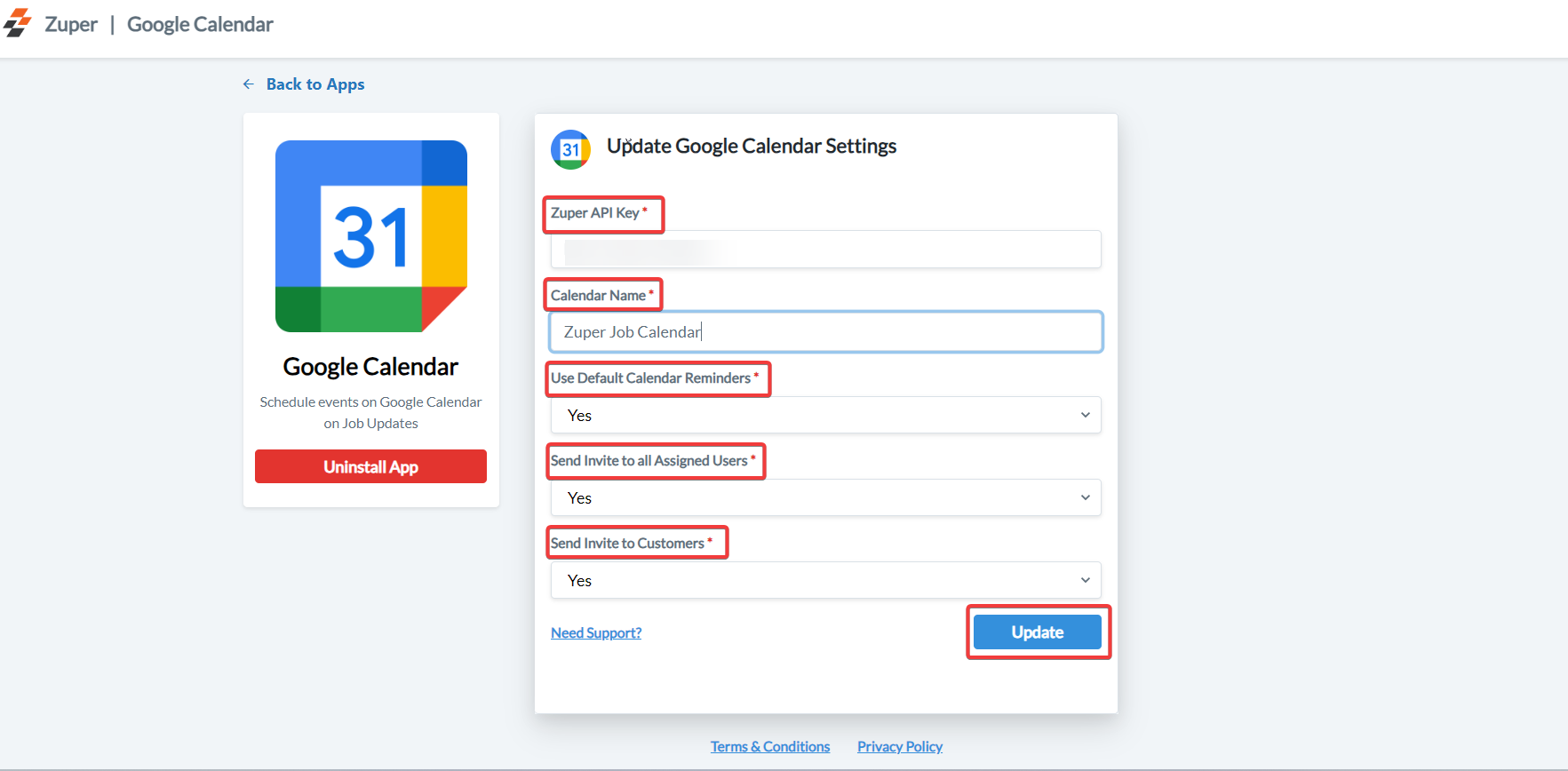
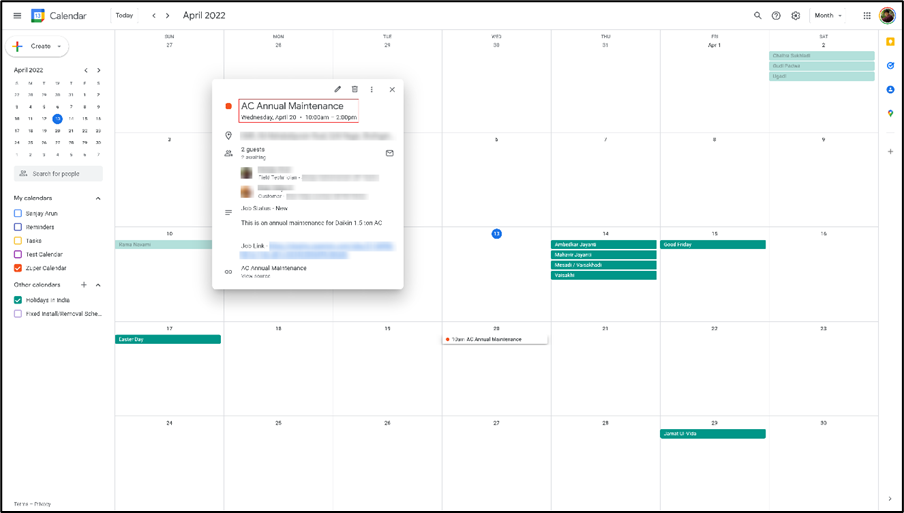
  iii. Use Default Calendar Reminders – Choose the option “Yes.” iv. Send Invite to all Assigned Users – Choose the option “Yes.” v. Send Invite to Customers – Choose the option “Yes.” Select the “Update” button to start the synchronization between Zuper and Google Calendar, and if you need any assistance, tap on the “Need Support” option.  Googlec7 Pn 7. Based on the settings saved, the Job details get synced on the Google Calendar as an event. Googlec8 Pn Follow these steps to get your Google Calendar ID:
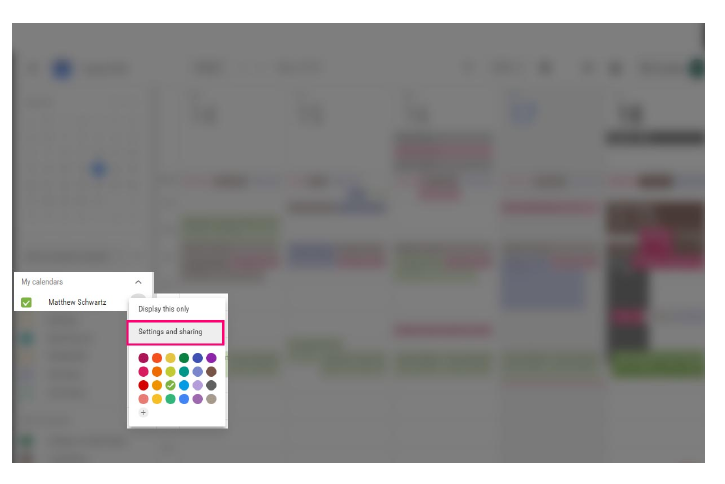
  • Go to your Google Calendar.
  • In the Google Calendar interface, locate the “My calendars” area on the left.
  • Hover over the calendar you need and click the downward arrow.
  • A menu will appear. Click “Settings & Sharing”.
Googlec9 Pn 8. Scroll down to the next page and under the “Integrate calendar” section, find the “Calendar ID.” Googlec10 Pn
Note: Please ensure the Google Account you have to connect during the installation is the same as the calendar to which you are connecting.

Uninstall

1. Open a new tab in your browser and once you are logged in to your Zuper Account, click your Profile Picture on the top right corner of the screen and click “App Store.” Googlec1 Pn 2. You will be redirected to the “App Store.” Click “Calendar” under “Browse by Category” on your left and click “Google Calendar.” Googlec2 Pn 3.  Click the “Uninstall App” button. Googlec11 Pn
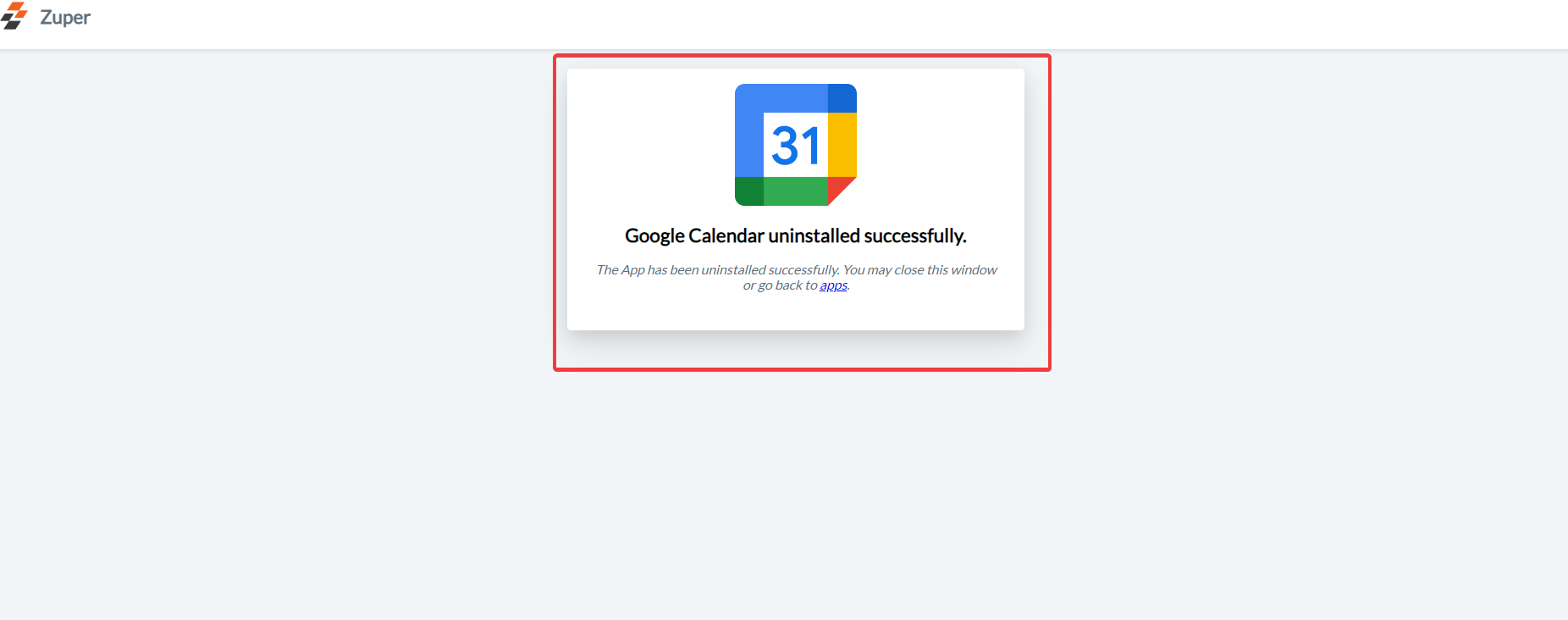
  1. The uninstall is successful. 
Googlec12 Pn The job data flow happens from Zuper to Google Calendar in a one-directional flow. Thus, with the Zuper – Google Calendar integration, users can easily schedule job updates as events.