

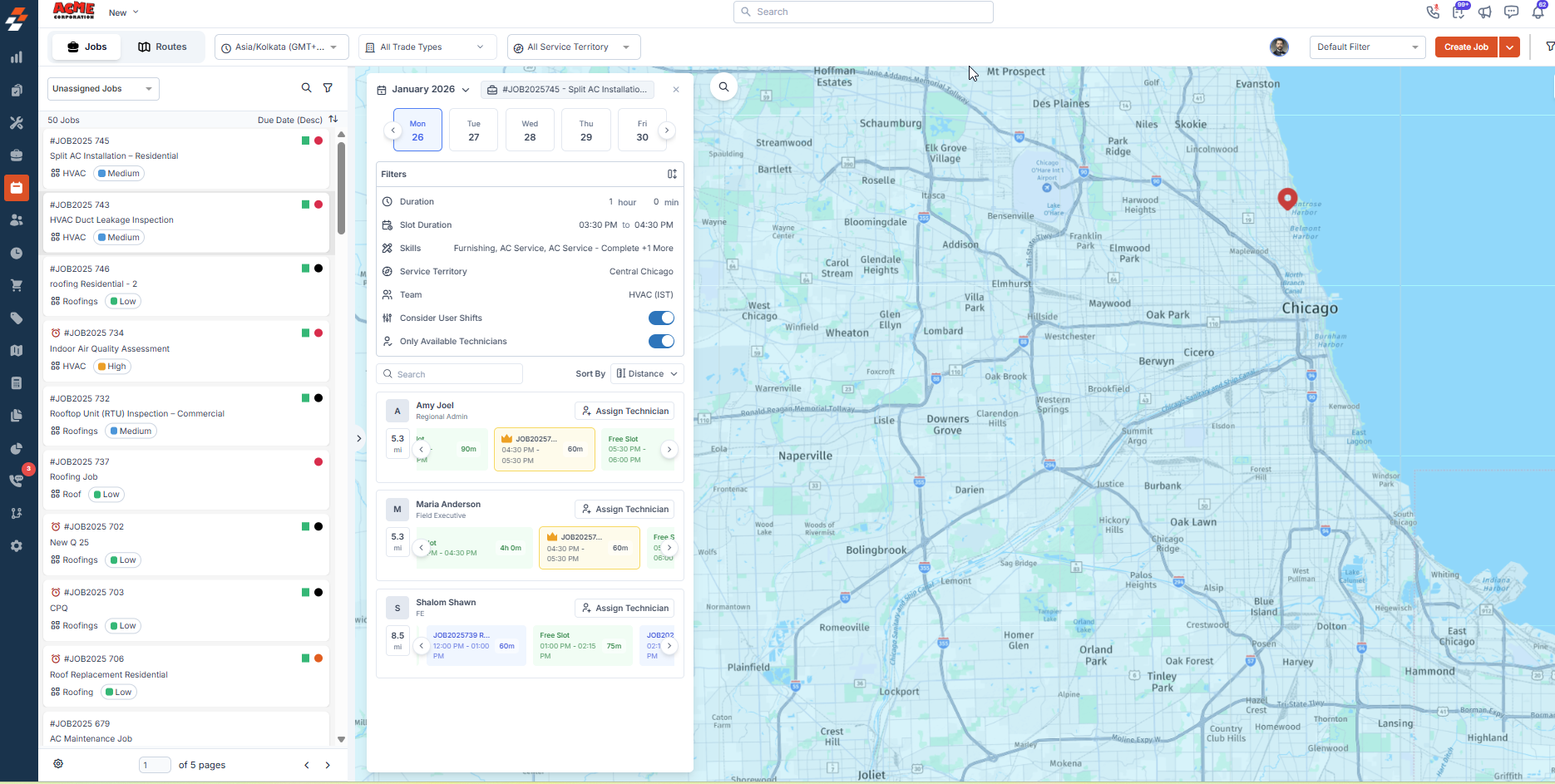
- Assign jobs faster with confidence
- Optimize assignments and minimize travel time
- Improve on-time arrivals and job sequencing
- Balance workloads across technicians
Availability
Dispatch PRO must be enabled for your organization. Please contact our support team to enable this feature.
Dispatch PRO must be enabled for your organization. Please contact our support team to enable this feature.
Accessing Assisted Scheduling
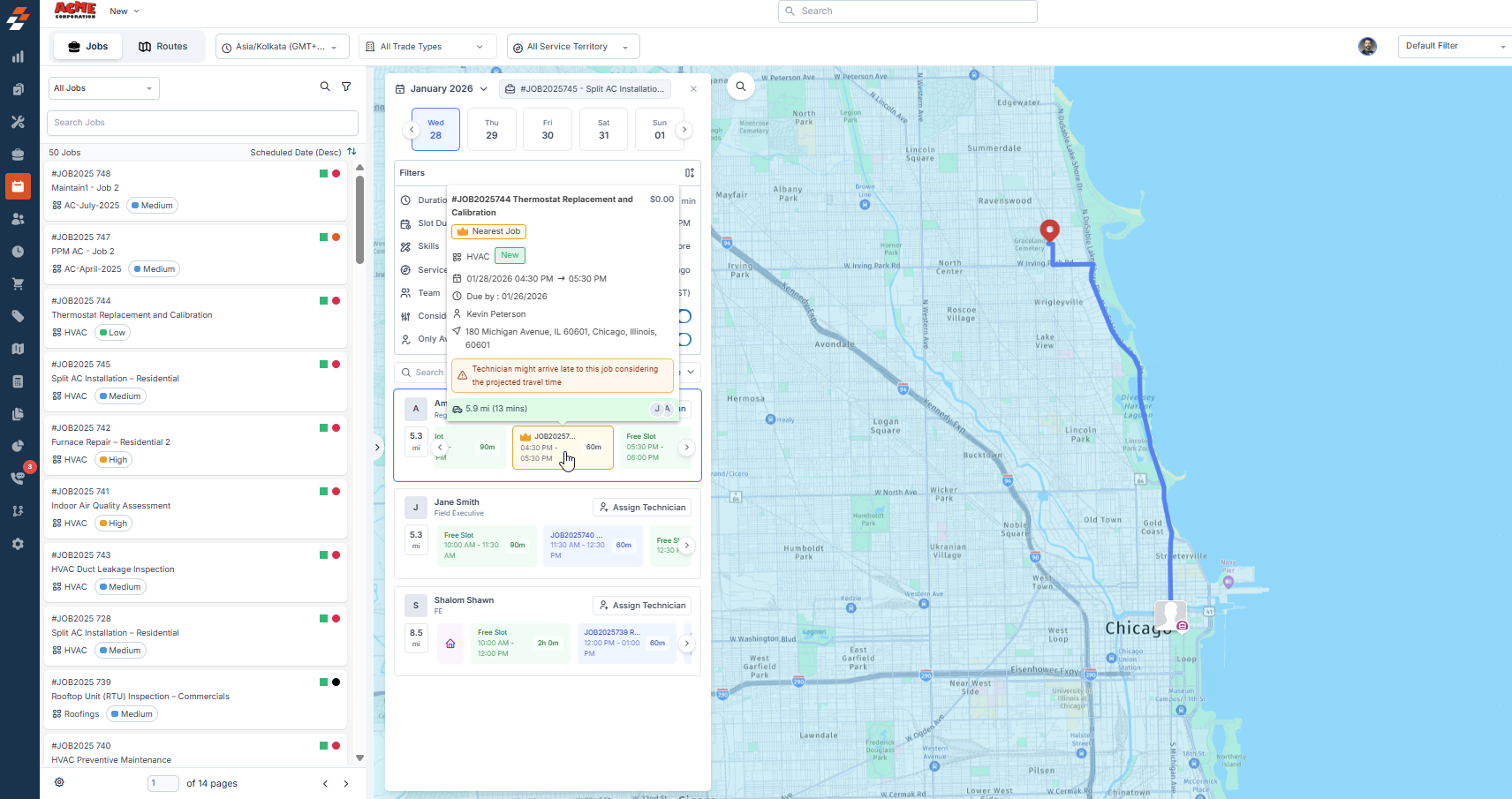
You can launch Dispatch Assistant directly from the Dispatch Board by right-clicking on the relevant job and selecting “Dispatch Assistant”.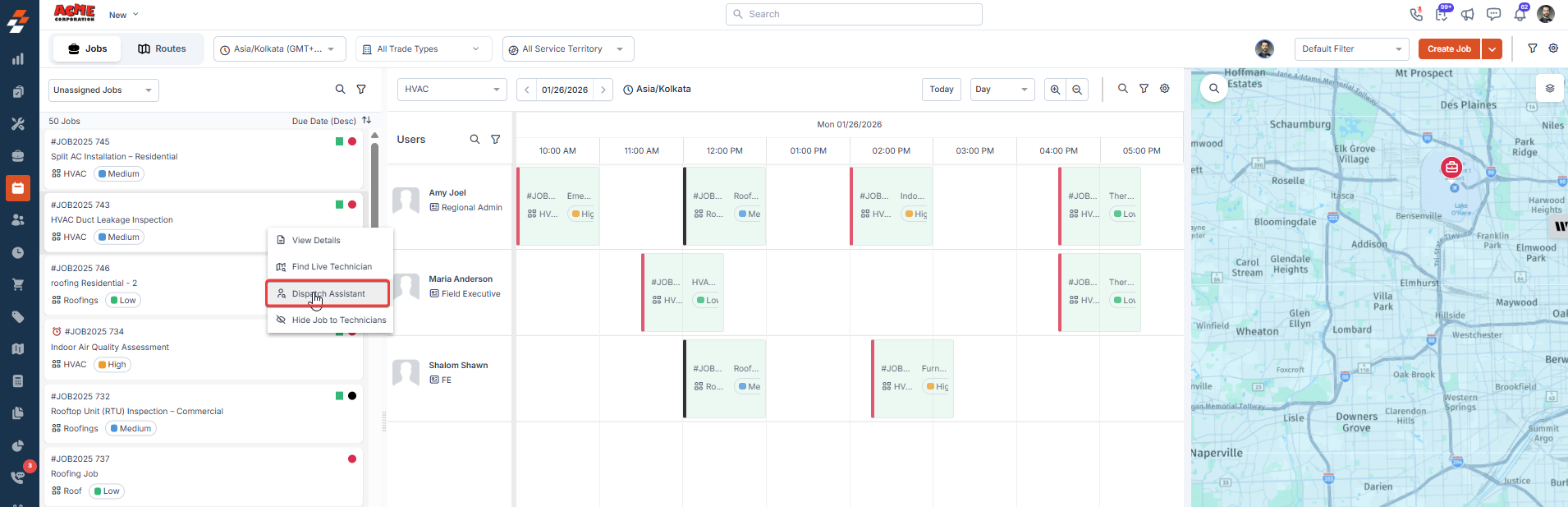
Understanding the Dispatch Assistant Panel
Dispatch Assistant progressively narrows down technicians using configurable criteria that are automatically pre-filled from the job details. You can also edit each criterion directly from the panel to fine-tune technician selection.-
Duration (Job Duration)
Job Duration reflects the total time required to complete the job. For scheduled jobs, it is derived from the scheduled start and end times. For unscheduled jobs, it uses the Estimated Duration defined in the job category. Only technicians who can accommodate the entire duration are considered. -
Slot Duration
Slot Duration defines the time window in which Dispatch Assistant searches for technicians who have enough continuous availability to complete the entire job. For scheduled jobs, it is automatically derived from the job’s scheduled start and end times. For unscheduled jobs, it defaults to your organization’s business hours. You can adjust it manually if needed, but the slot duration must always be equal to or longer than the job duration.
Examples:- A 1-hour job with a slot duration set from 10:00 AM to 3:00 PM: Dispatch Assistant looks for any technician available for a continuous 1-hour period anywhere within those 5 hours.
- A 1-hour job with a slot duration set from 10:00 AM to 11:00 AM: Dispatch Assistant looks for technicians free for the full fixed hour between 10:00 AM and 11:00 AM.
- A 1-hour job cannot have a slot duration of 10:00 AM to 10:30 AM, as the slot (30 minutes) is shorter than the job duration (1 hour), this is not allowed.
-
Skills and Skill Levels
Dispatch Assistant matches technicians who possess the required skills when shortlisting the technicians. Technicians will be shortlisted if they hold any of the necessary skill(s). The skillset filter is automatically inherited from the job, based on job category mapping. -
Service Territory
Technicians & teams are filtered based on the selected Service Territory to ensure territory alignment. This will be picked up automatically from the job, if applicable. -
Team Selection
Assisted Scheduling adapts to how you’re already using the Dispatch Board. When launched from the Dispatch Board, the currently selected team is pre-applied. However, if you want to look out for technicians from other teams, you can update the team from the dispatch assistant panel directly and search for the right technicians.Note: If that team doesn’t belong to the chosen Service Territory, Zuper automatically switches to Any Team and shows all eligible technicians. -
Consider User Shifts
When enabled, Dispatch Assistant respects real-world availability by factoring in existing job assignments, shift timings, work hours, time-offs, and non-job events. Only technicians whose shifts align with the selected arrival window are shown. -
Only Available Technicians
This toggle controls how strictly availability is enforced. When enabled, only technicians with uninterrupted availability throughout the job duration are shown. When disabled, even if they are occupied, closet technicians are considered. This is useful when prioritizing critical or high-priority jobs.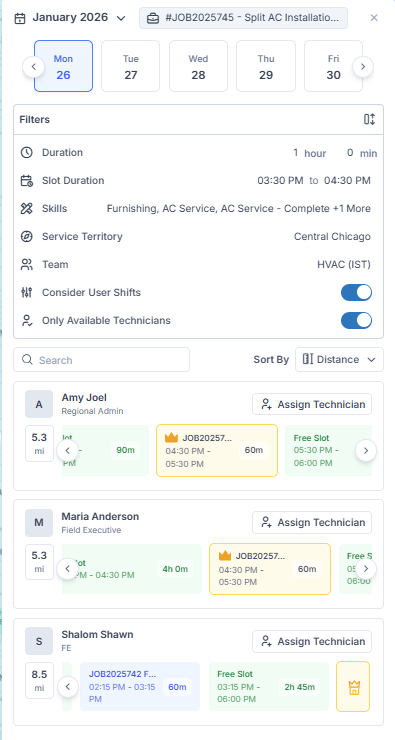
Technician Shortlisting and Sorting
After considering the key criteria, a list of technicians is shown.By default, technicians are sorted by Distance (proximity), so the nearest technicians appear at the top, helping you quickly find the technician closest to the job from their scheduled job or base location, minimizing travel. You can refine the technician list using the Sort By options:
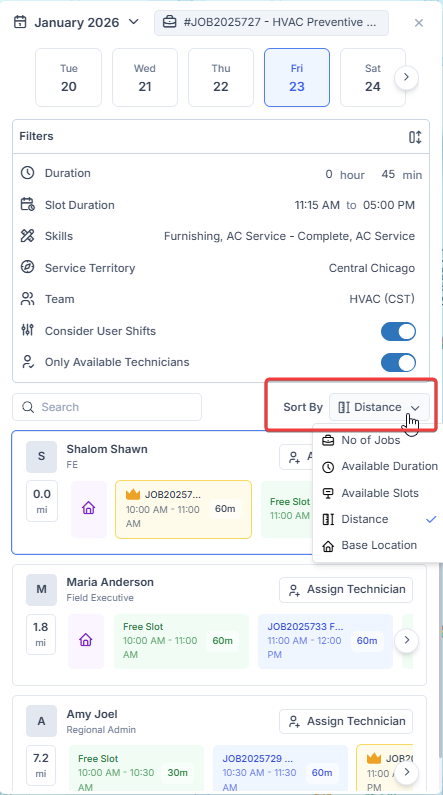
- Distance (Default): Lists technicians closest to their scheduled job or base location, reducing travel time.
- Available Duration: Shows technicians with the most free hours at the top, helping assign jobs to underutilized team members.
- Available Slots: Prioritizes technicians with the highest number of free slots, supporting flexible, multi-job scheduling.
- Number of Jobs: Highlights technicians with the fewest scheduled jobs, helping balance workloads across the team.
-
Base Location: Lists technicians by proximity to their base location, optimizing start-and end-of-day efficiency and enhancing work-life balance.
Base Location
A technician’s Base Location represents their primary start or end point for the workday, such as a home address, office, or depot. Base Location is configured on the technician’s user profile under Settings > Users > Edit Profile > Location.
Dispatch Assistant considers the base location alongside job locations when prioritizing technicians. This is especially helpful for early-morning or end-of-day assignments. For example, if one technician is finishing a job slightly farther away, but another technician’s base location is closer to the new job, the Dispatch Assistant prioritizes the technician with the shorter overall travel distance. This improves routing efficiency and supports better work-life balance for technicians.
Crown Indicator
The crown icon highlights the technician whose scheduled job or base location is closest to the job being dispatched. This indicates the technician who is likely to require the least travel. When you hover over a crowned technician card:- The estimated travel distance and time are displayed.
- Zuper shows the route on the map between the technician’s previous job or base location and the selected job.
Assigning a Technician
- Review the shortlisted technicians.
- Select the desired technician.
-
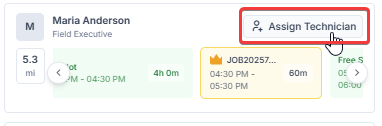
Click Assign Technician, or click an available free slot to schedule the job.
- Confirm the assignment.