

Overview
Every job in your business involves repeatable work — inspections, installations, cleanups, and follow-ups that your team carries out the same way every time. Task templates let you define work once and apply it to any job instantly. Think of a task template as a reusable blueprint. You build it once in Settings, and it is available to apply across your jobs whenever you need it.Navigation: Settings → Job Settings → Task Template
Before you begin
Make sure you have admin or settings access in Zuper. If you do not see Job Settings in your navigation, contact your Zuper administrator.View your task templates
- Go to Settings from the left navigation menu.
- Select Jobs to open Job Settings.
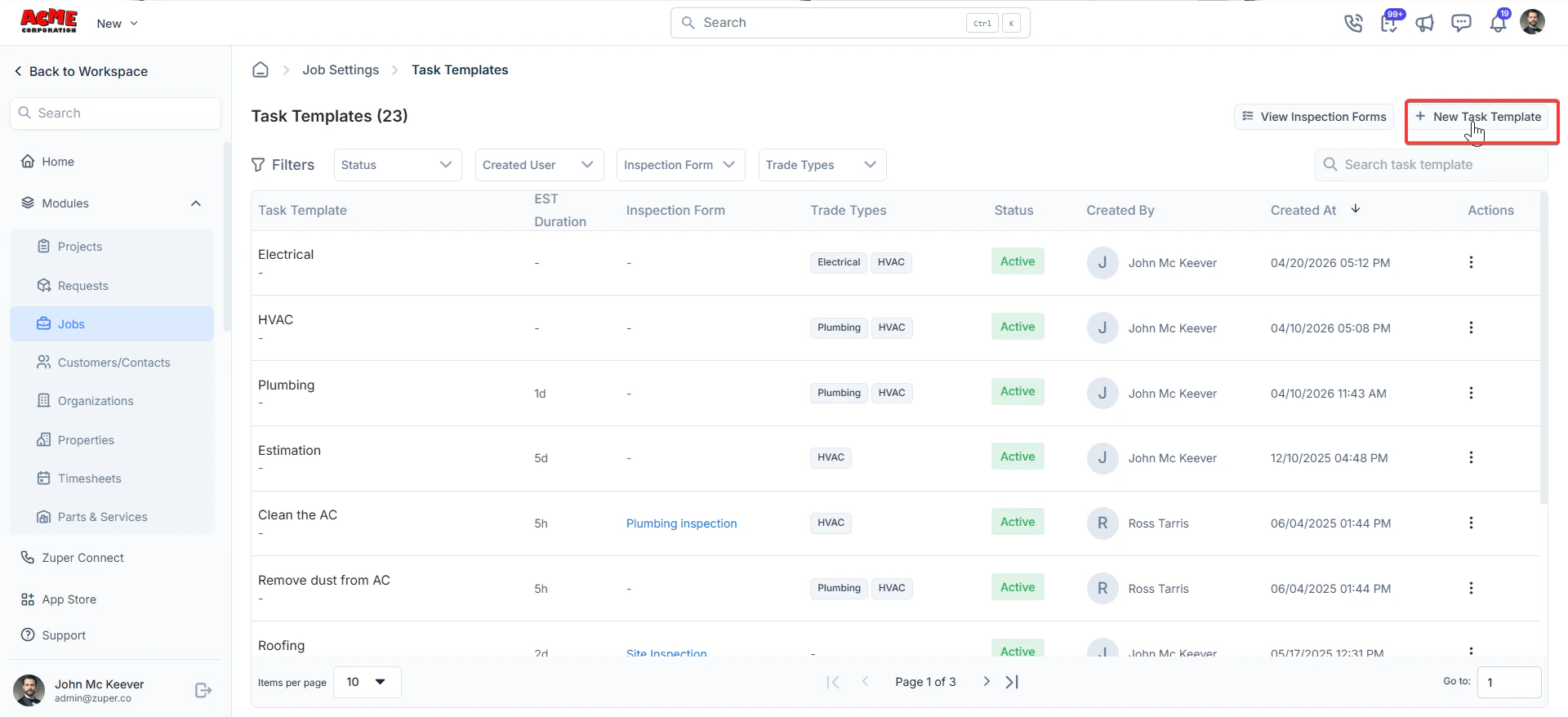
- Select Task Template. The Task Templates listing page opens.
- Task Template — the name of the template.
- EST Duration — the estimated time to complete the task.
- Inspection Form — any linked inspection form.
- Trade Types — the trade categories the template applies to.
- Status — whether the template is Active or inactive.
- Created By — the user who created the template.
- Created At — the date and time the template was created.
Create a task template
- On the Task Templates listing page, select + New Task Template in the top right corner. The Create Task Template panel opens on the right.
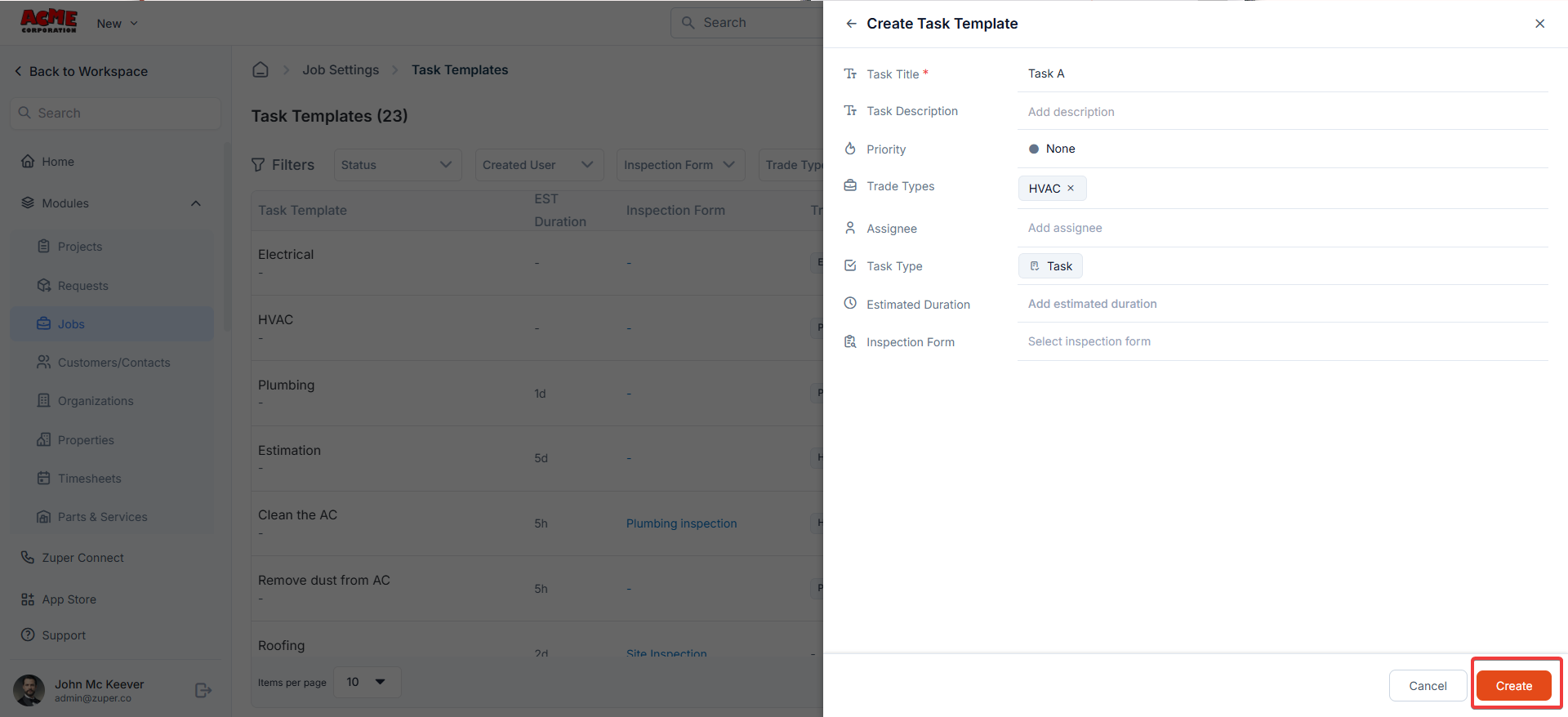
- Enter a name in the Task Title field. This field is required.
- Enter a description in the Task Description field. Use this to explain what the task involves so your team has the context they need.
- Select a Priority level for the task.
- Select one or more Trade Types to associate with this template. Trade types help you filter and apply the right templates to the right jobs.
- Select an Assignee if this task is always handled by a specific team member or role.
- Select a Task Type to categorize the task — for example, Task.
- Enter a value in the Estimated Duration field to indicate how long this task should take. Use this to help your team plan their time.
- Select an Inspection Form if this task requires your team to complete a form on the job. The form is automatically linked when the template is applied.
- Select Create to save the template.
Manage existing task templates
From the Task Templates listing page, select the context menu (⋮) in the Actions column next to any template to access the following options:- Edit — update any of the template’s details.
- Deactivate — make the template unavailable for use without deleting it.
- Delete — permanently remove the template.