Connect your Auto Invoice Generator with Zuper
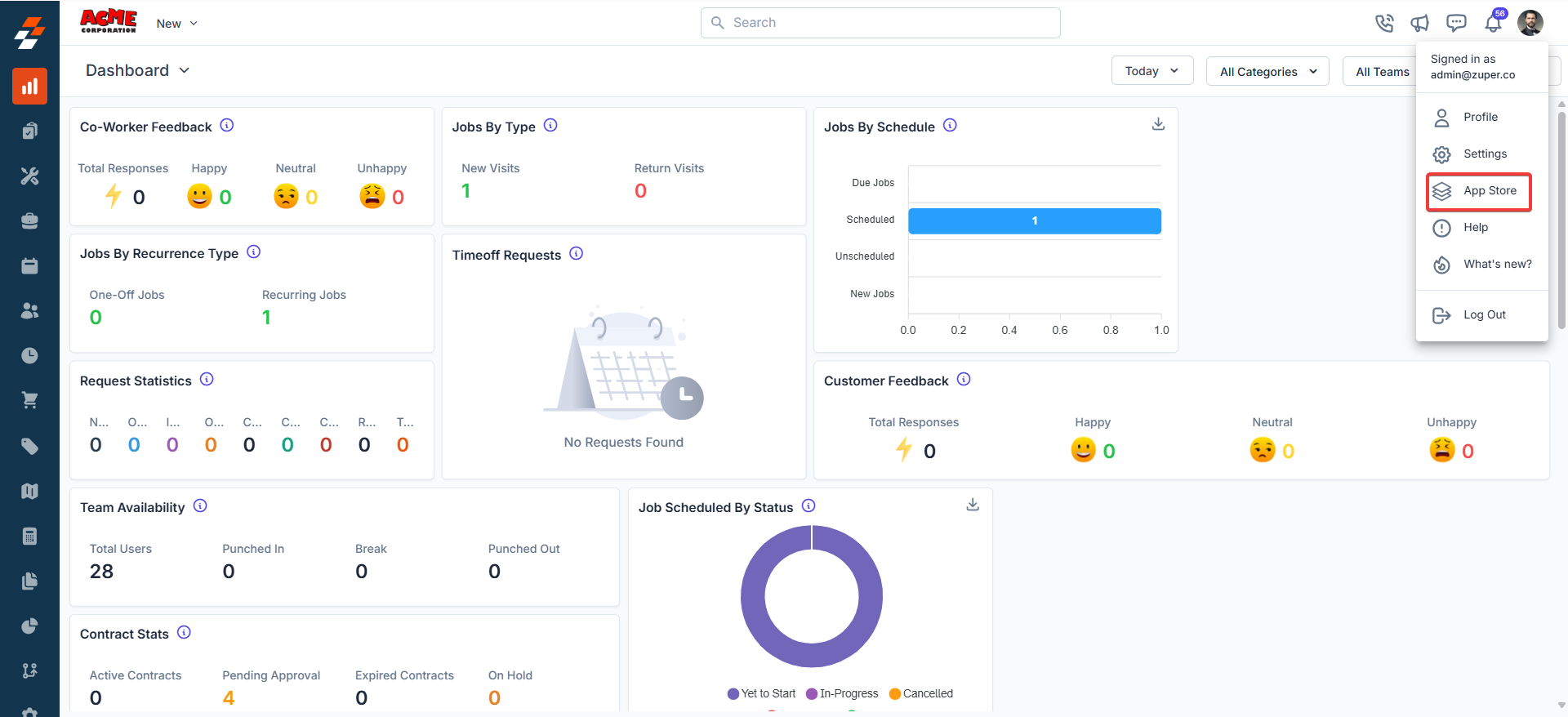
- Open a new tab in your browser once logged in to your Zuper Account. Click on your Profile Picture in the top right corner of the screen and select the “App Store.”
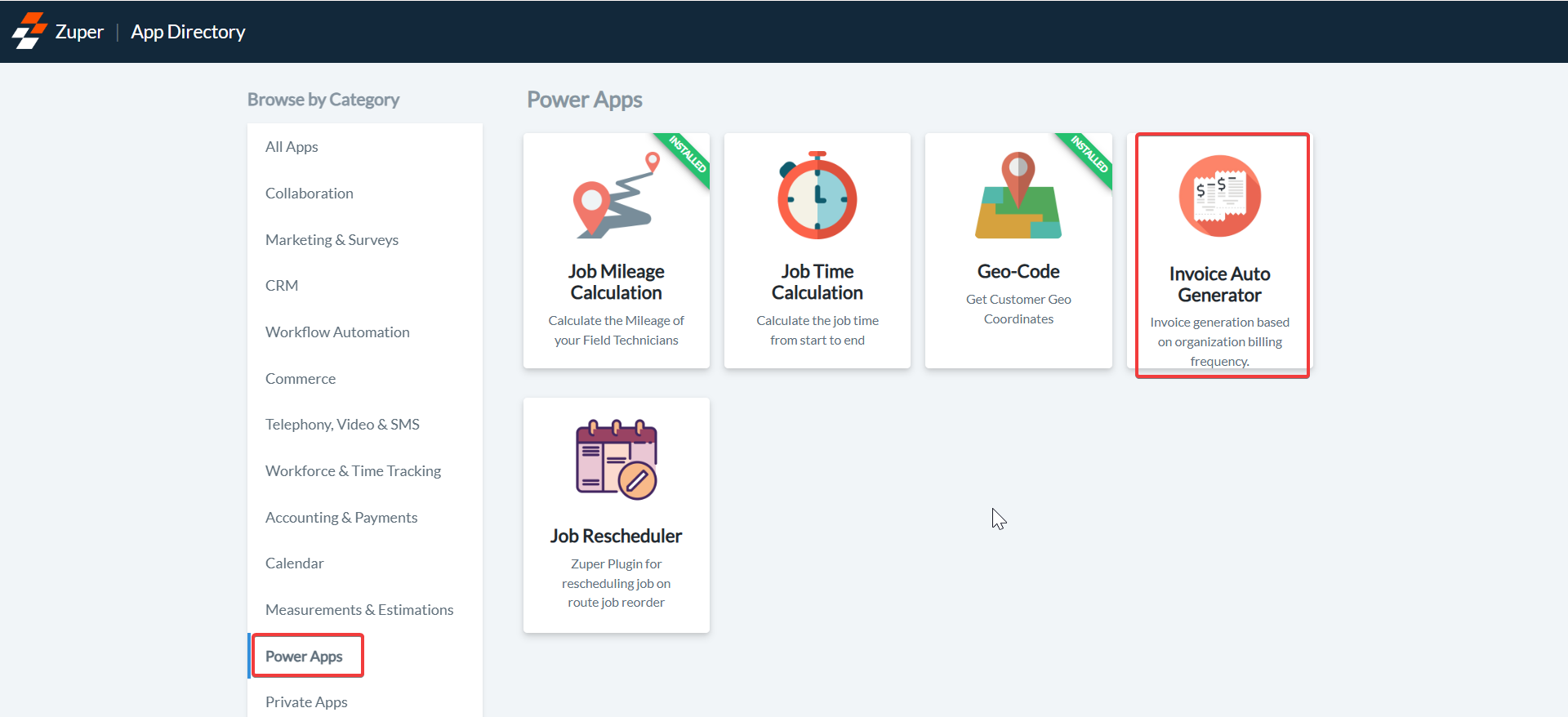
- Under the “Browse by Category”, select the “Power Apps” option and choose “Invoice Auto Generator.”
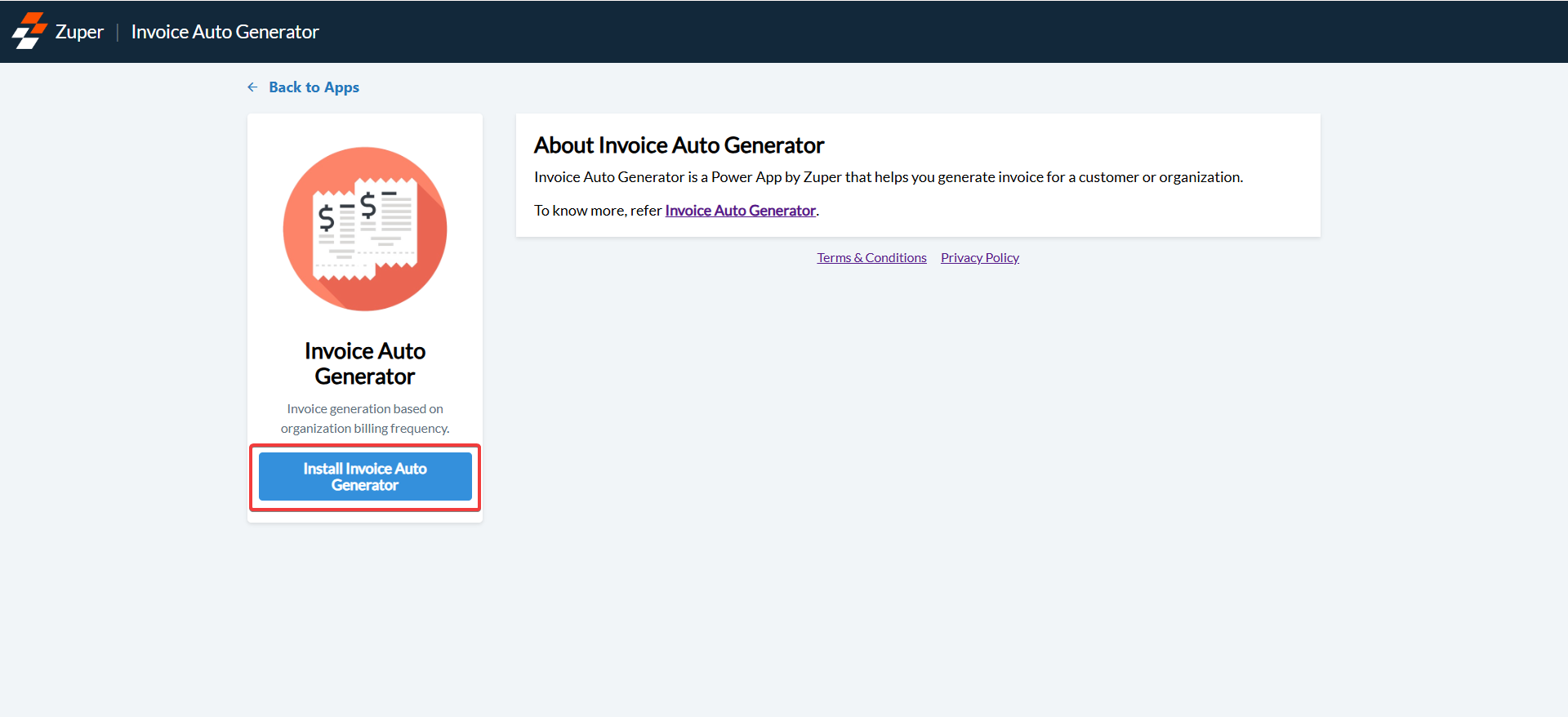
- Click on the “Install Invoice Auto Generator” button.
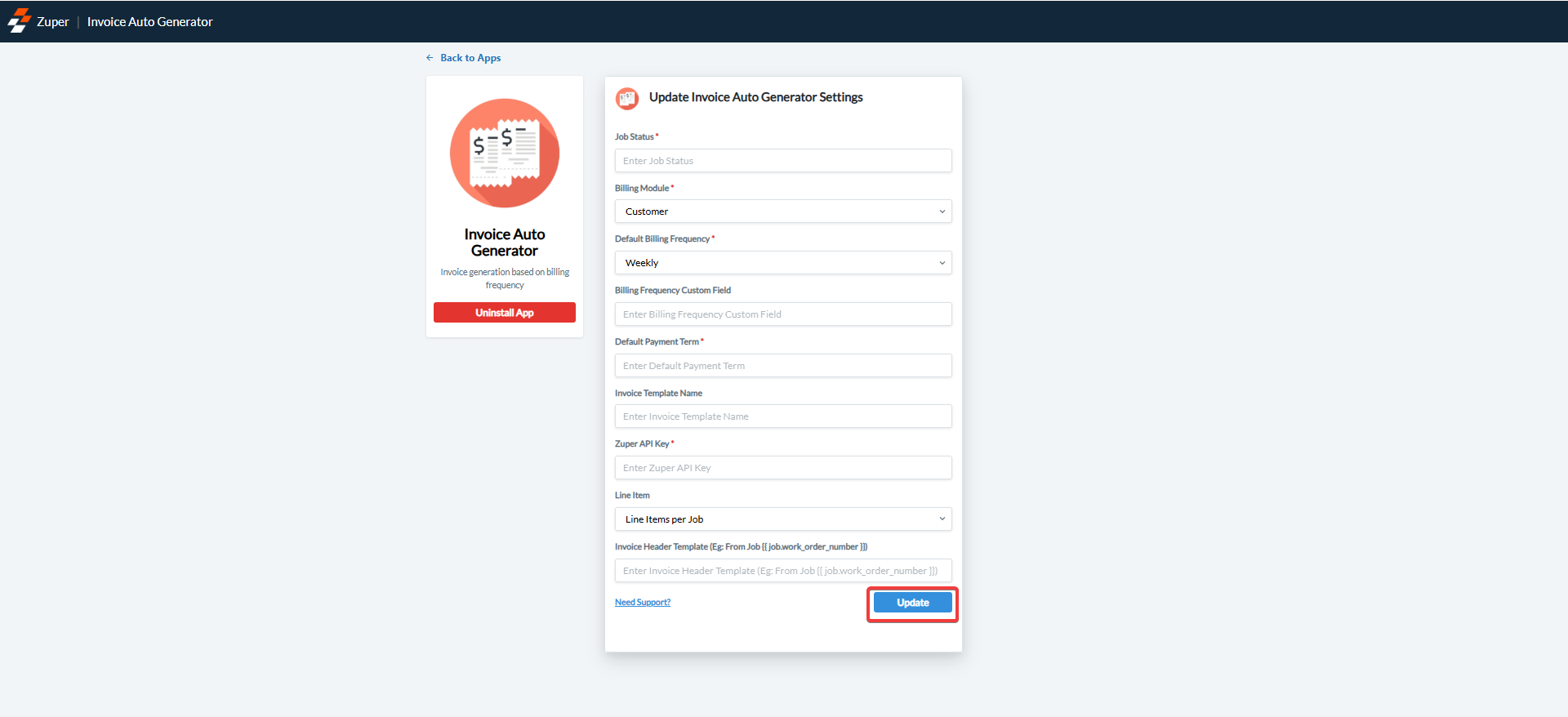
- Update Auto Invoice Generator Settings by configuring the following fields:
-
Job Status(Mandatory Field) – Enter the job status for which you want to configure the auto-generation of the invoice.
Note: You can enter multiple statuses using the comma (,) separator.
- Billing Module (Mandatory Field) – Select the module from the drop-down box to confirm the module from which the billing should be considered.
- Default Billing Period (Mandatory Field) – Select the default billing period for the auto invoice generation.
- Billing Frequency Custom Field (Optional Field) – Enter the custom field name for the billing frequency. (This is applicable when you choose “Organization” as the option in step (b).)
- Default Payment Term (Mandatory Field) – Enter the invoice payment term.
- Invoice Template Name (Optional Field) – Enter the template name of the invoice.
- Zuper API Key (Mandatory Field) – Enter the Zuper API key.(Click here: How to generate Zuper API Key).
- Select the “Update” button to connect the Auto Invoice Generator app with Zuper.
Zuper – Auto Invoice Generator Integration work
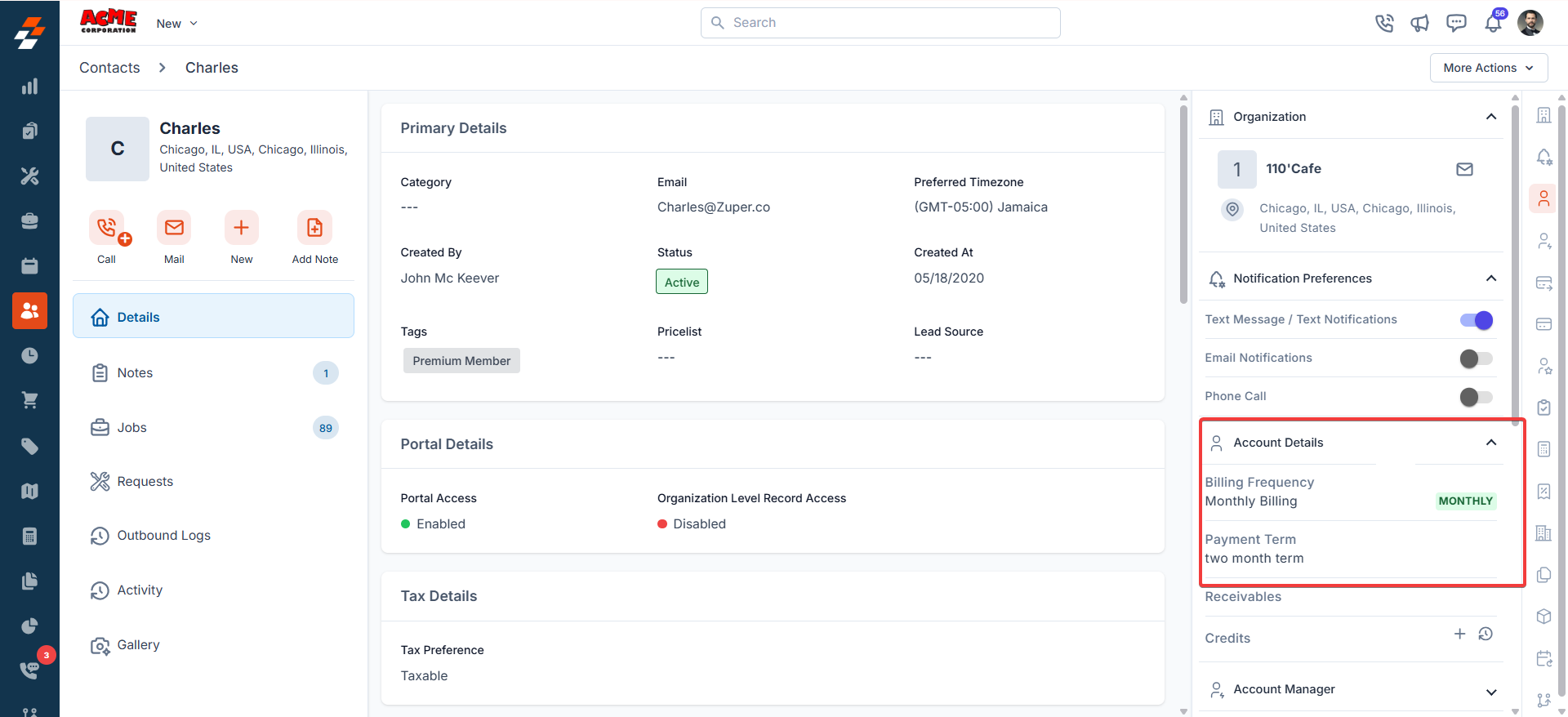
Customer Module:
- Log in to your Zuper account and open the customer’s module from the left panel. You view the customer’s account details from the right section.
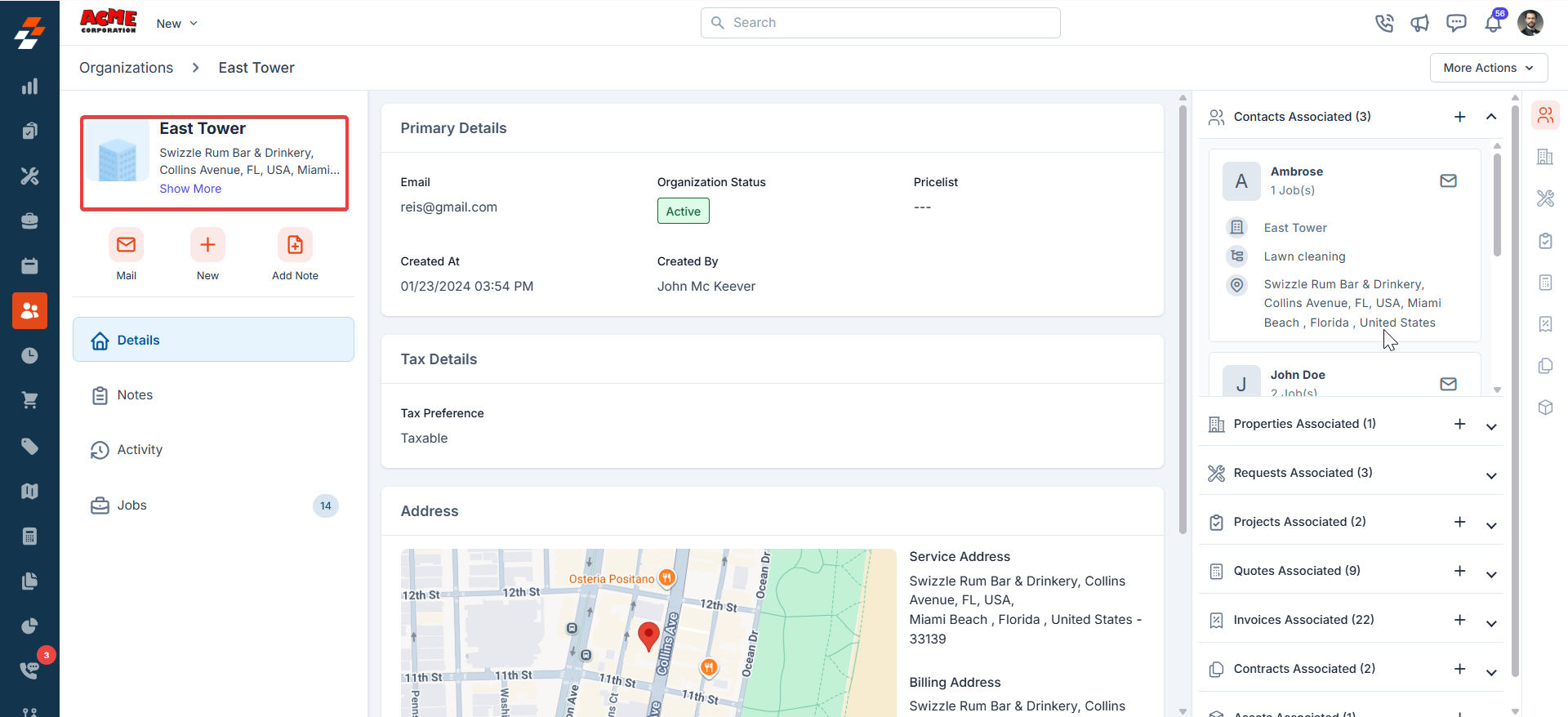
Organization Module
- Log in to your Zuper account and open the organization’s module from the left panel. You view the organization’s account details from the right section.
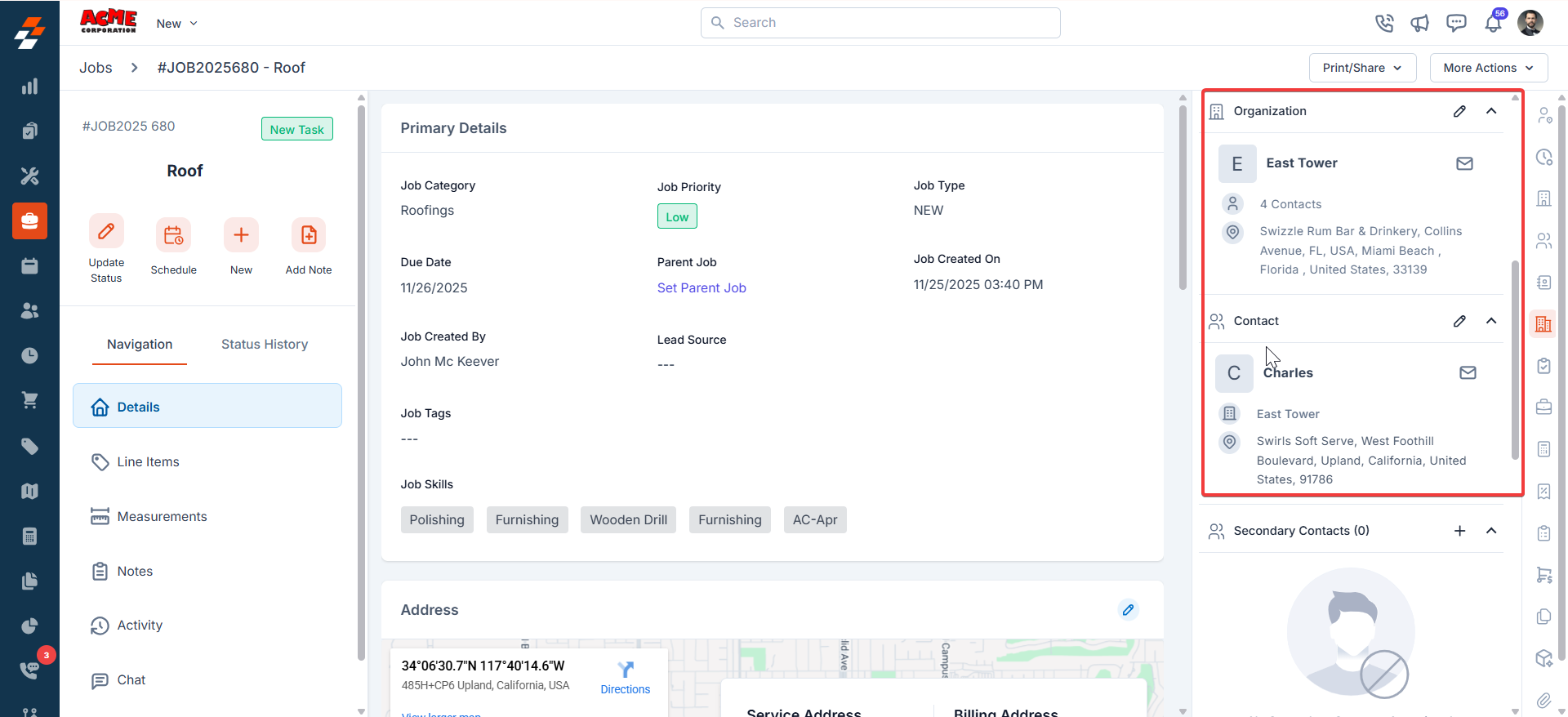
Jobs Module
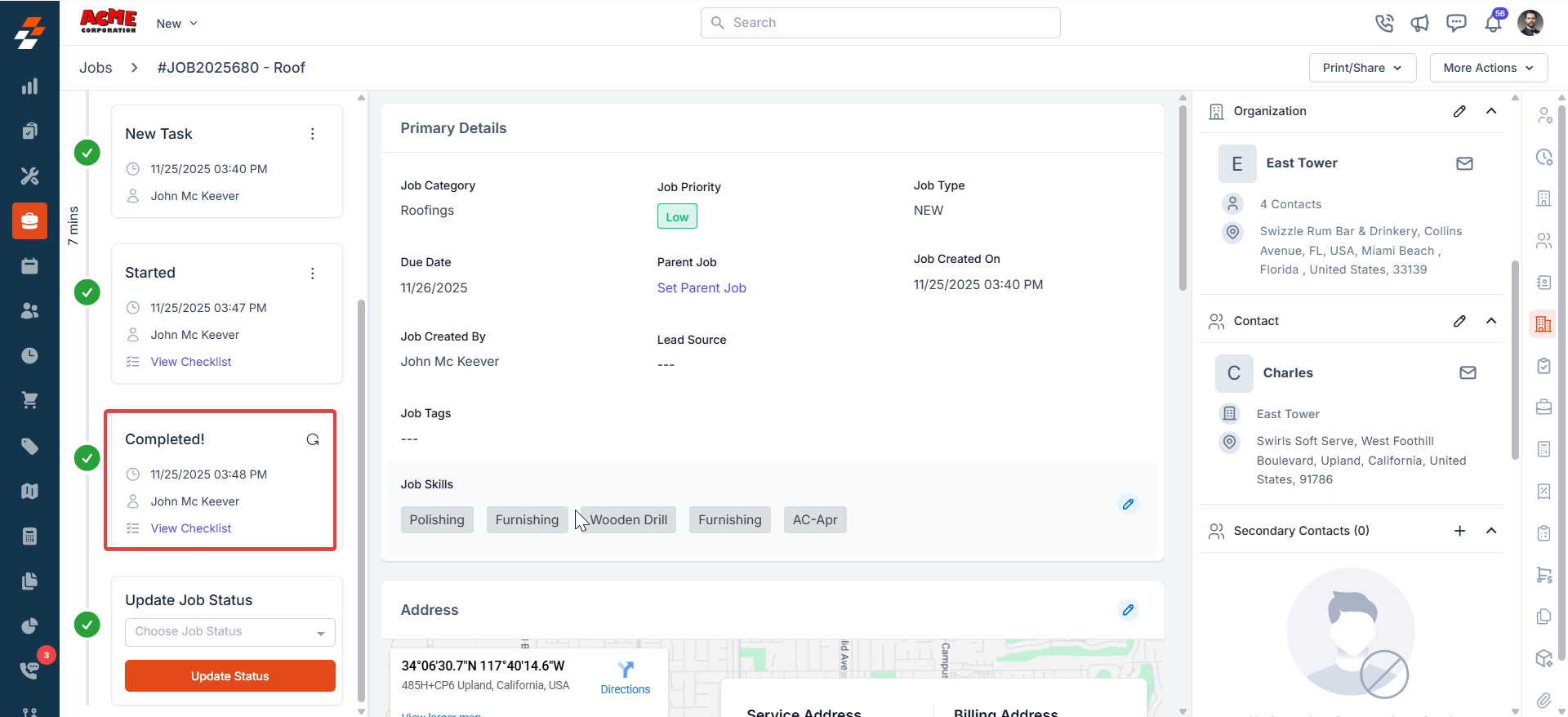
- Open the Jobs module and select the Job Details page. You can view the “Completed” status of the Job.
Invoice Module
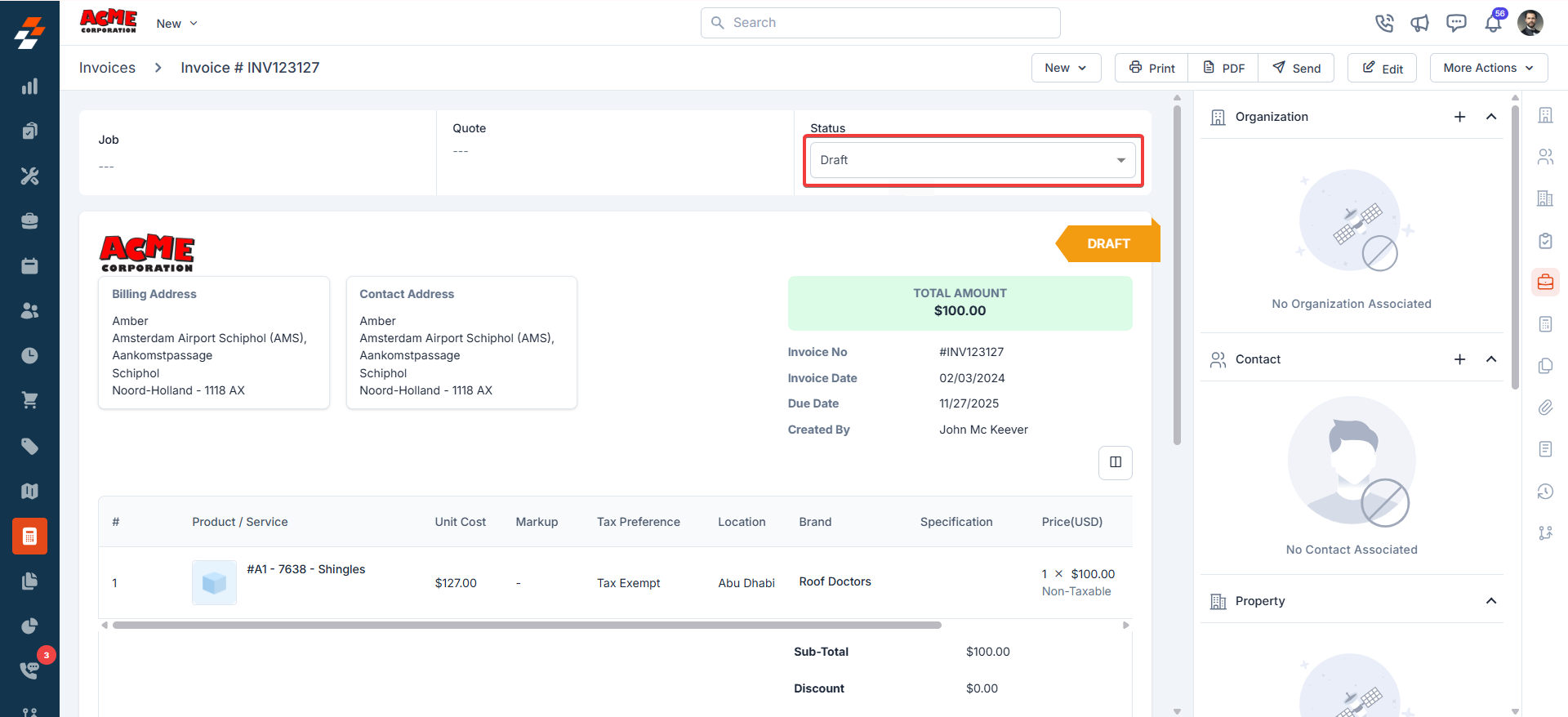
- You can view the auto-generated invoice based on your configured settings.
Uninstall Invoice Auto Generator from Zuper
- Open a new tab in your browser once logged in to your Zuper Account. Click your Profile Picture in the top right corner of the screen and select the “App Store.”
- Under the “Browse by Category,” select the “Power Apps” option and choose “Invoice Auto Generator.”
- Click on the “Uninstall App” button.
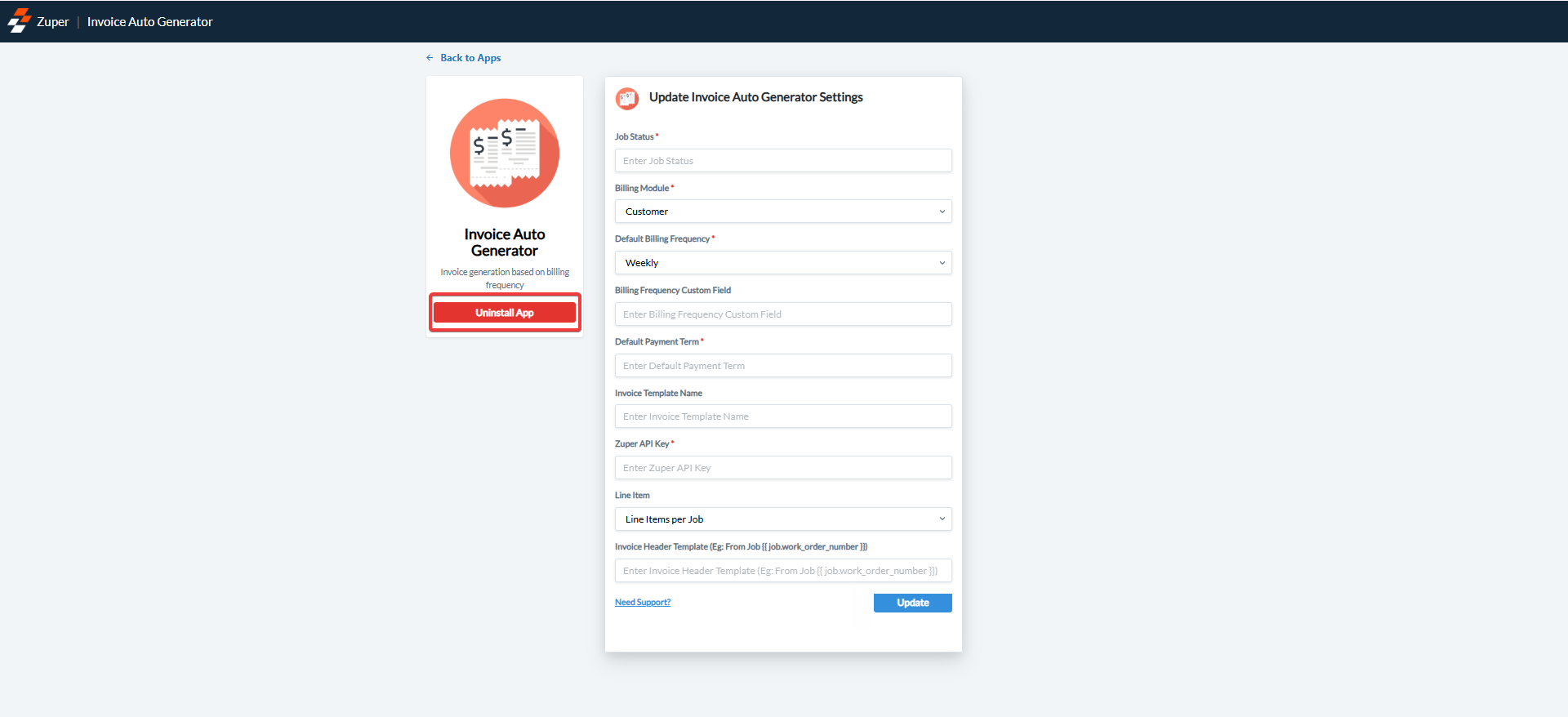
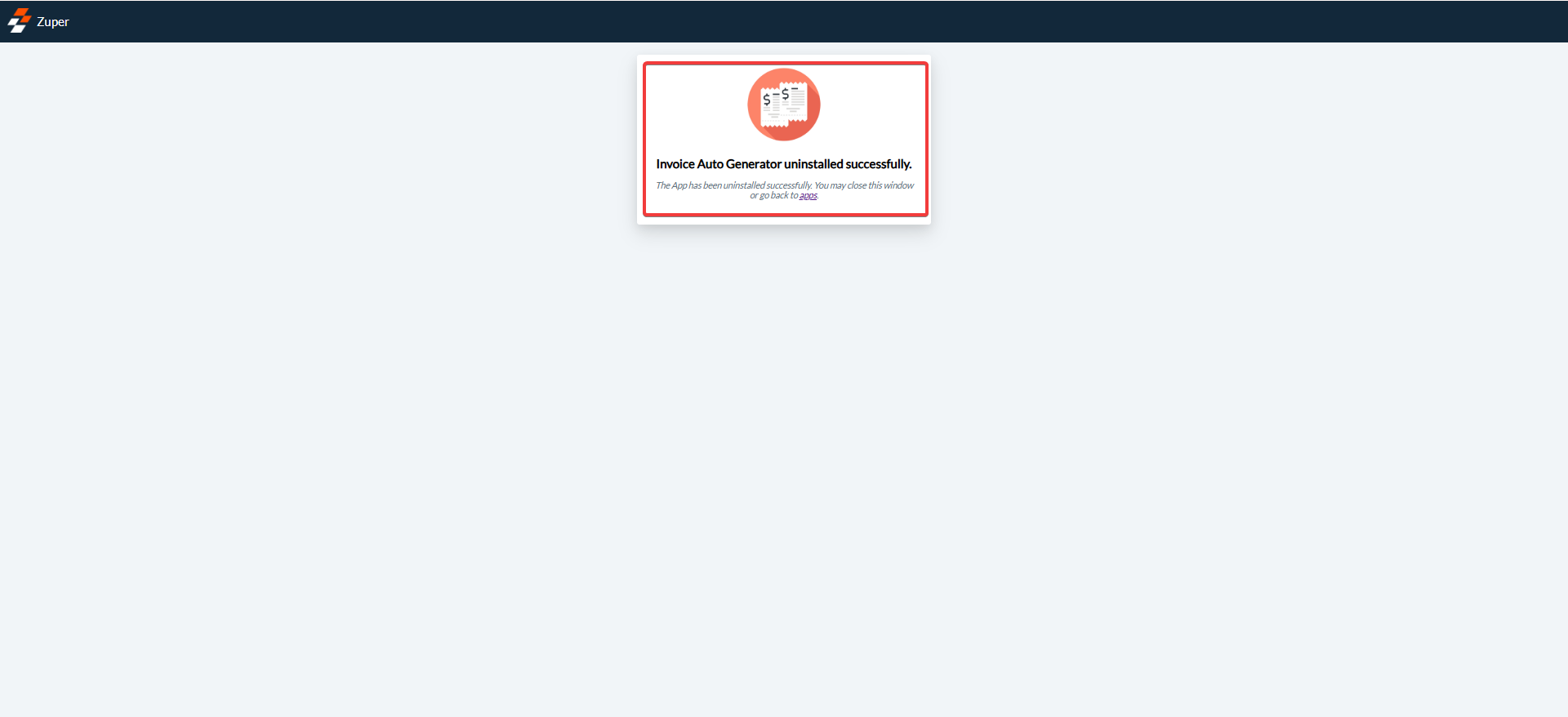
- The Auto Invoice Generator app will be uninstalled successfully.