Connect Job Reschedule with Zuper
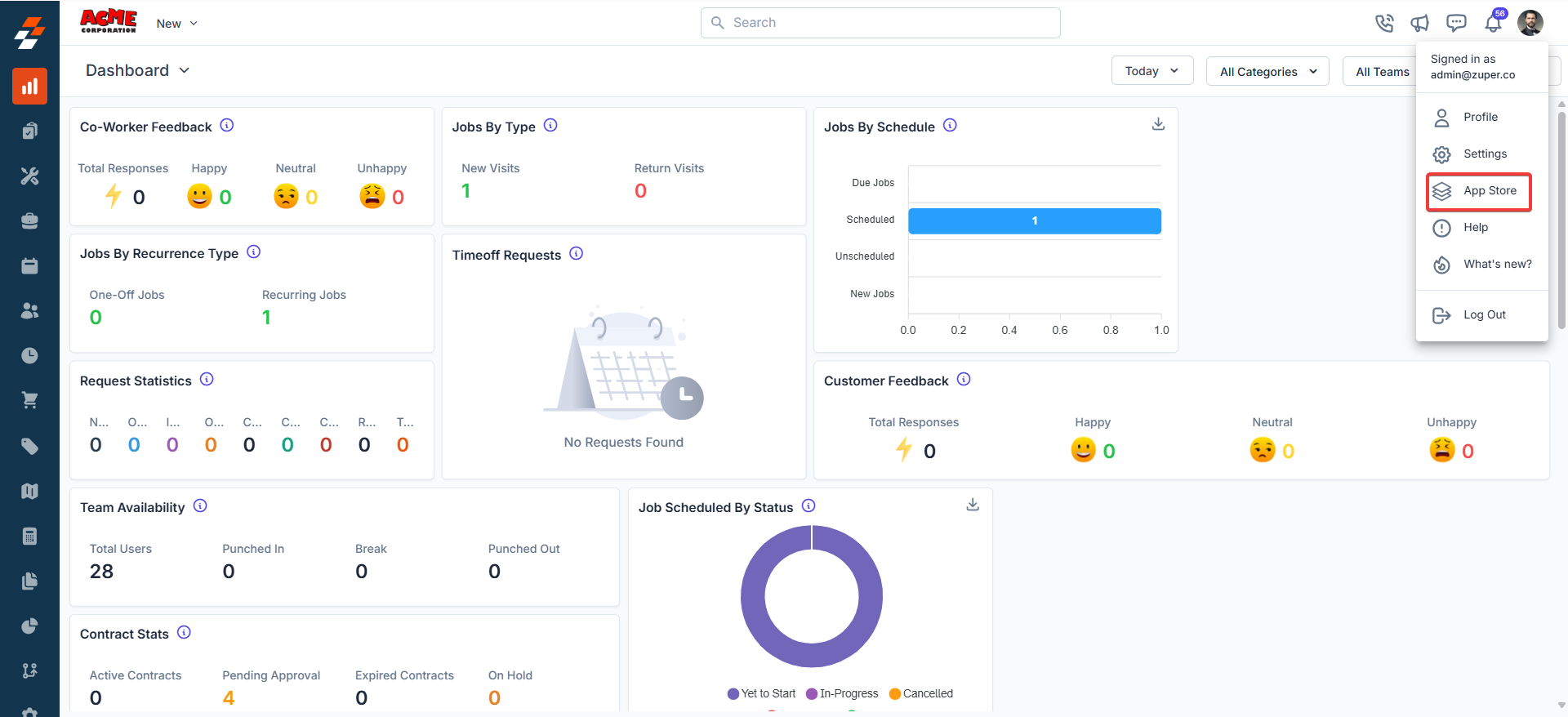
Follow these steps to enable the Job Rescheduler app on Zuper:- Log in to your Zuper Account. Click your Profile picture in the top right corner and select “App Store”.
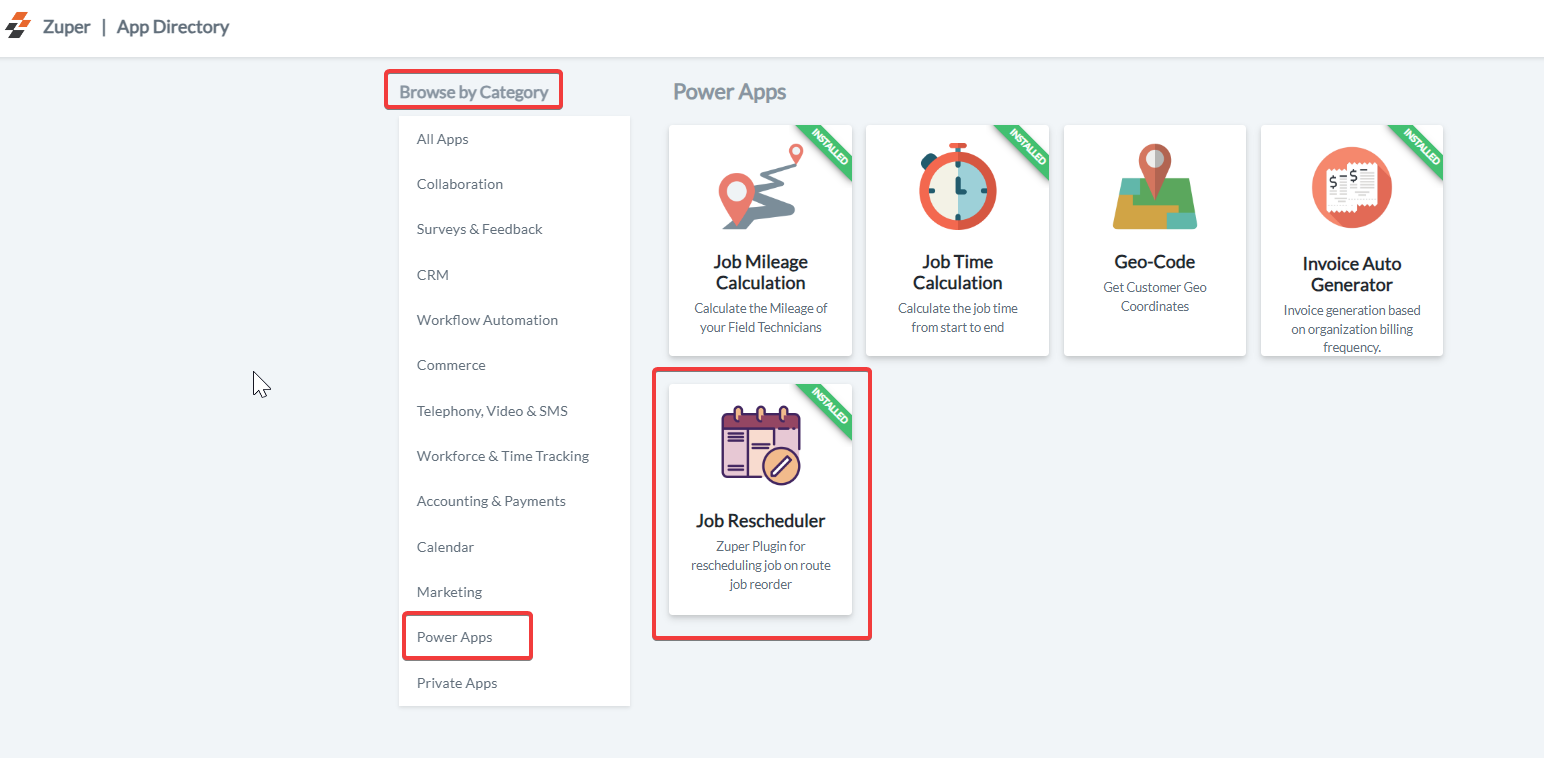
- Under “Browser By Category”, choose “Power App” and then select “Job Rescheduler”.
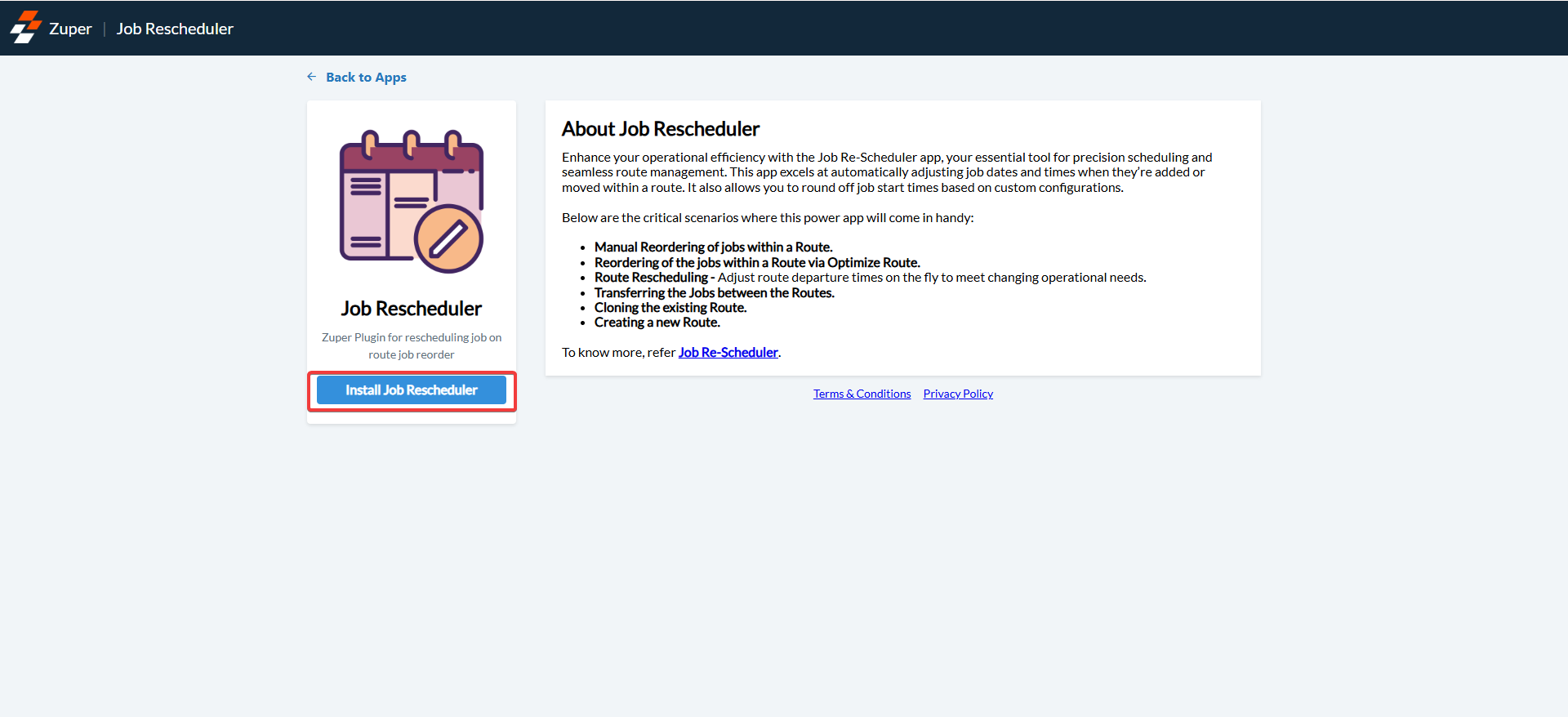
- Click the “Install Job Rescheduler” button.
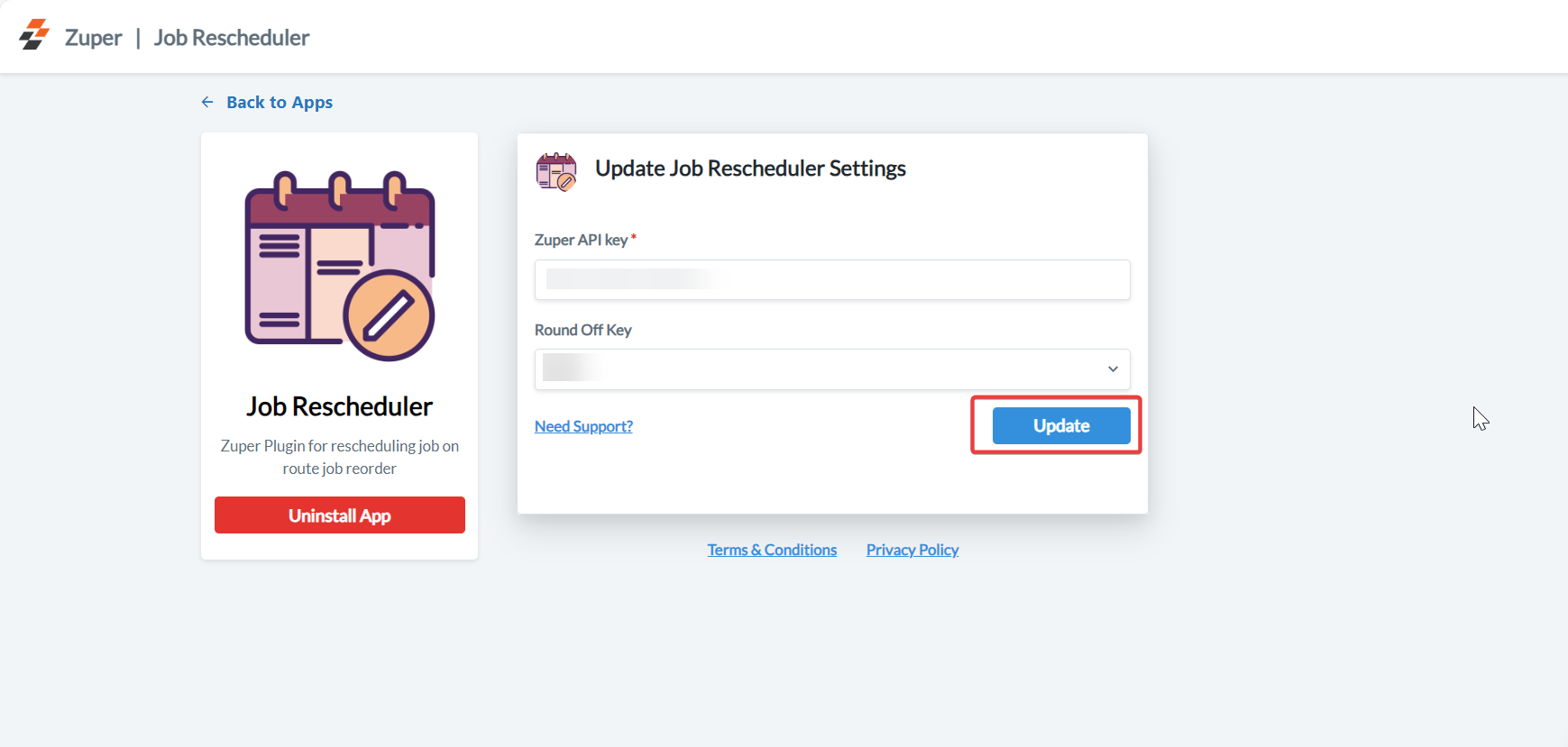
- On the “Update Job Rescheduler Settings”, enter the following details to enable the Job Rescheduler in Zuper.
- Zuper API Key(Mandatory)– Enter the Zuper API key. To learn more, see how I create an API key for my Zuper account.
-
Round-Off Key - Specify the number of minutes to which the job start date/time must be rounded off, considering travel duration. This field ensures that job start times are adjusted to the nearest specified interval. The available options are:
- NA: Schedules the job to start precisely at the calculated arrival time (e.g., 10:02 hours).
- 10-minute Round-off: This rounds off the job start time to the next 10-minute interval (e.g., arrival at 10:02 will round off to 10:10 hours).
- 15-minute Round-off: This rounds off the job start time to the next 15-minute interval (e.g., arrival at 10:02 will round off to 10:15 hours).
-
30-minute Round-off: This rounds off the job start time to the next 30-minute interval (e.g., arrival at 10:02 will round off to 10:30 hours).
When jobs are rescheduled within a route, subsequent jobs will be adjusted based on the value specified in the Round-Off Key setting.
-
Click the “Update” button to connect the Job Re-Scheduler app with Zuper.
Using the Job Rescheduler
Manual Reordering of Jobs
When you adjust job sequences within routes, the Job Rescheduler Zuper Power App automatically updates the scheduled date/times of each job within the route based on the new sequence, and subsequent job times are adjusted based on the value configured in the Round-Off field. Here’s how to reorder the jobs within the route:- Select the route containing the jobs you wish to reorder in the “Route” section.
- Click the “Reorder Jobs” under the “Kebab” menu.
- Drag-and-drop jobs to adjust the job sequence within the route.
- Click the “Reorder Jobs” button to save.
- After re-ordering the jobs, ensure that the system is refreshed.
Rescheduling Route Departure
When you adjust the departure time of a route to accommodate scheduling or operational needs, the Job Rescheduler Zuper Power App automatically adjusts the scheduled dates/times of each job within the route based on the new departure time and any round-off settings configured. Here’s how to reschedule a route departure:- Open the details of the route where departure adjustments are needed.
- Update the departure date and time as required.
- Save the changes and refresh the system to update job times within the route. For more information, see Routes (Edit Route).
Moving Jobs Between Routes
When jobs are transferred from one route to another, the Job Rescheduler Zuper Power App automatically adjusts each job’s scheduled dates/times within the source and target routes based on the new sequence and any round-off settings configured. Here’s how to move jobs between routes:- Choose the jobs you want to transfer from their current route.
- Click the “Assign to another Route” under the “Ellipsis” menu.
- Specify the target route and assign the job by clicking the “Re-assign” button.
- Confirm the job transfer in both the source and target routes.
- Refresh the system to update the job times in both routes.
Cloning a Route
Duplicate an existing route to replicate job schedules and operational plans efficiently. When routes are cloned, the Job Rescheduler Zuper Power App automatically replicates job schedules from the original route, adjusting job times based on any round-off settings configured. Here’s how to clone a route:- Choose the route you want to duplicate.
- Click the “Clone Route” button under the “Kebab” menu in the “Route” section.
- Provide a new name for the cloned route and adjust any necessary details.
- Click the “Clone” button to save the cloned route.
- Optionally, you can customize job sequences within the cloned route. For more information, see Routes.
Creating a New Route
When you create a new route and add jobs to it, the Job Rescheduler Zuper Power App automatically adjusts the scheduled times of each job within the route based on any round-off settings configured. Here’s how to create a new route:- Click the “+” icon next to Routes.
- Fill in the required details.
- Click “+ Add Job” to add jobs to the new route by selecting them from the job list.
- Arrange job sequences within the new route to optimize operational efficiency and refresh the system. For more information, see Create New Route.
Best Practices
- Avoid Terminal Status Jobs: Do not include/reorder jobs in terminal statuses (Closed, Completed, Cancelled) when managing routes.
- Manage Unscheduled Jobs: Consider unscheduled jobs as zero-duration events. Adding an unscheduled job to a route does not affect the route’s overall duration; only the travel durations “To” and “From” the job location are factored into scheduling.
Uninstall Job Rescheduler from Zuper
- Log in to your Zuper Account. Click your Profile picture in the top right corner and select “App Store”.
- Under “Browser By Category”, choose “Power App” and then select “Job Rescheduler”.
- Click the “Uninstall App” button.
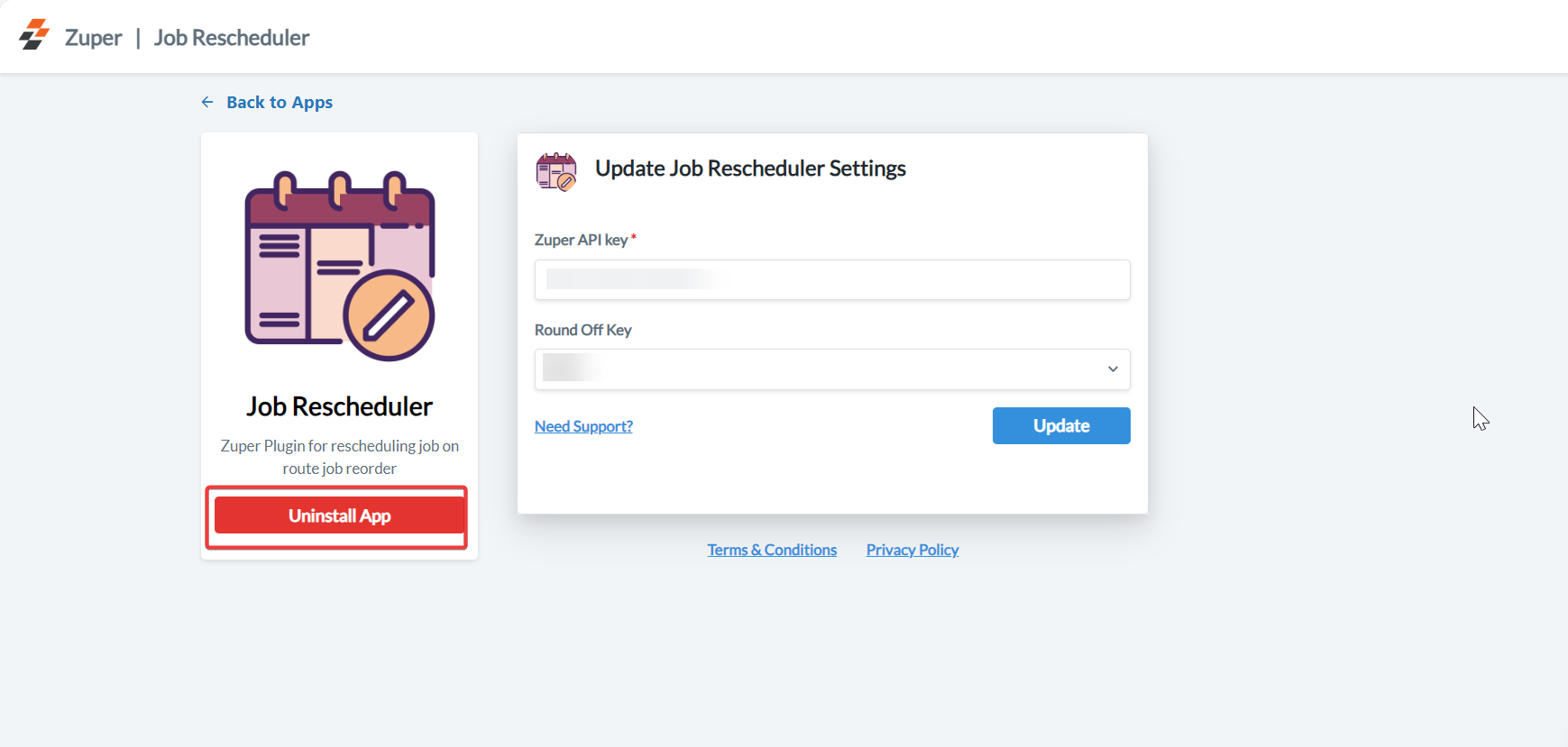
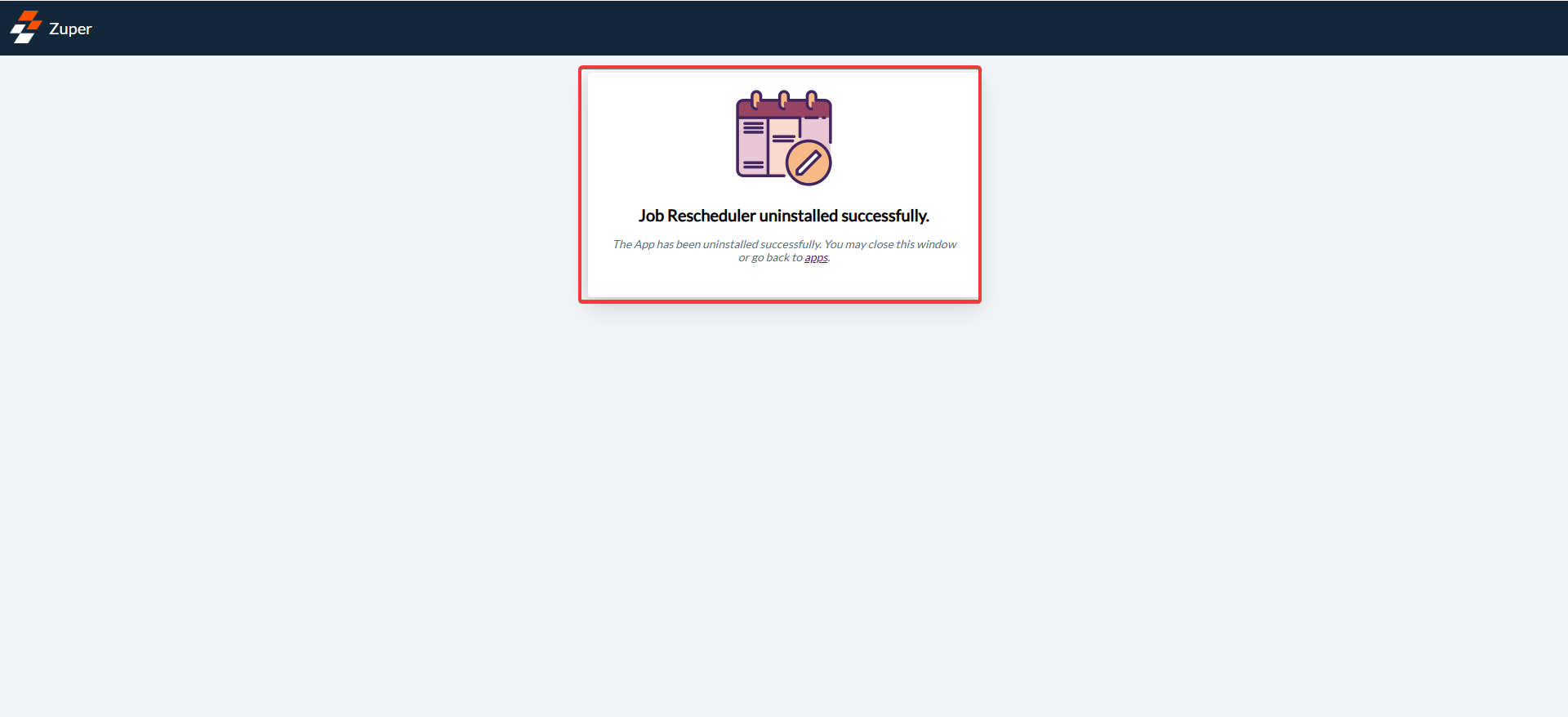
- The Job Rescheduler app is uninstalled successfully.