Pre-Requisites:
Google API Key and Zuper API Key
Google API Key and Zuper API Key
Connect Geo-Code with Zuper
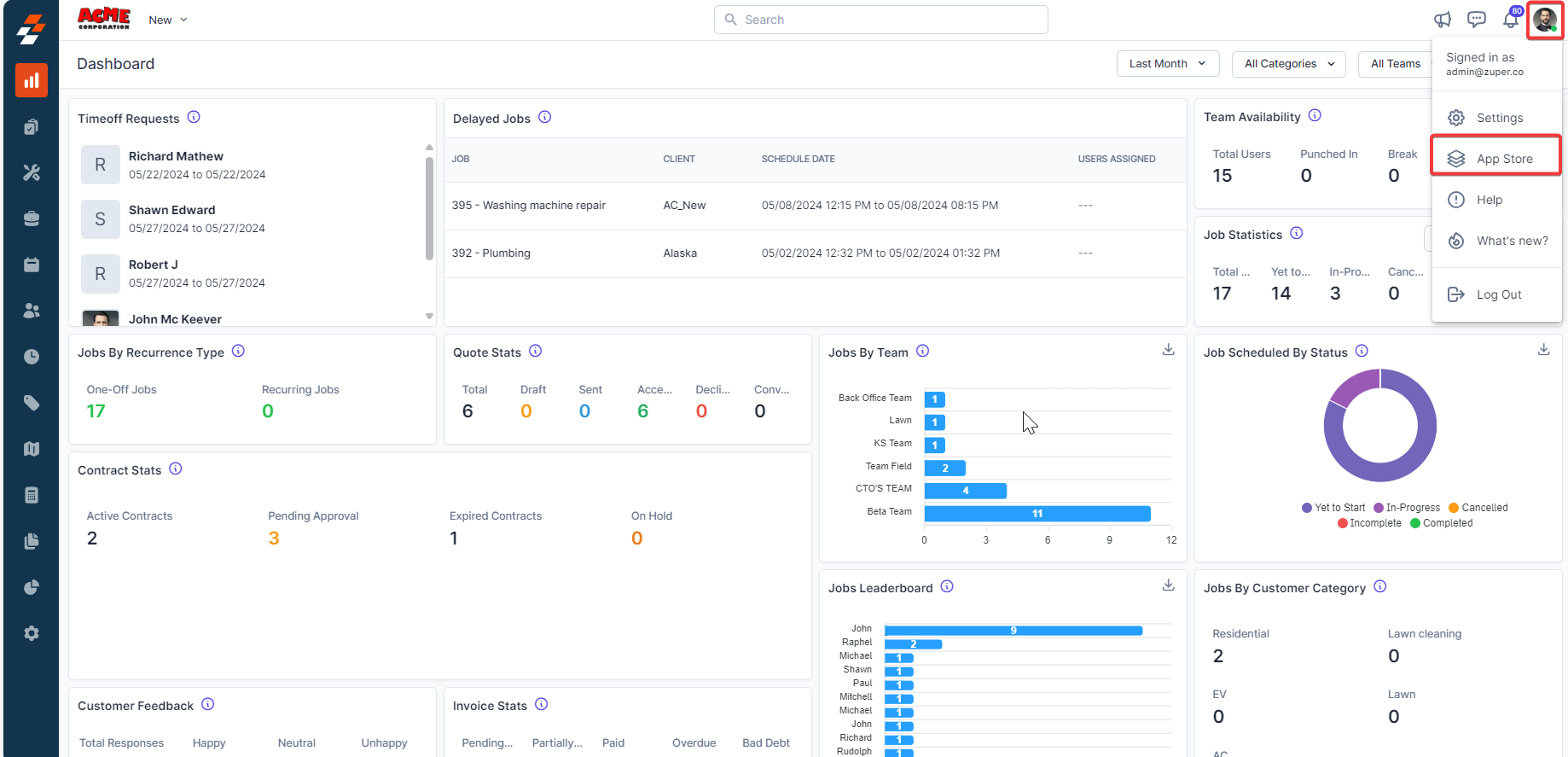
Listed below are the steps to enable the Geo Code app on Zuper.- Open a new tab in your browser after logging in to your Zuper Account. Click on your Profile Picture in the top right corner of the screen and click on “App Store.”
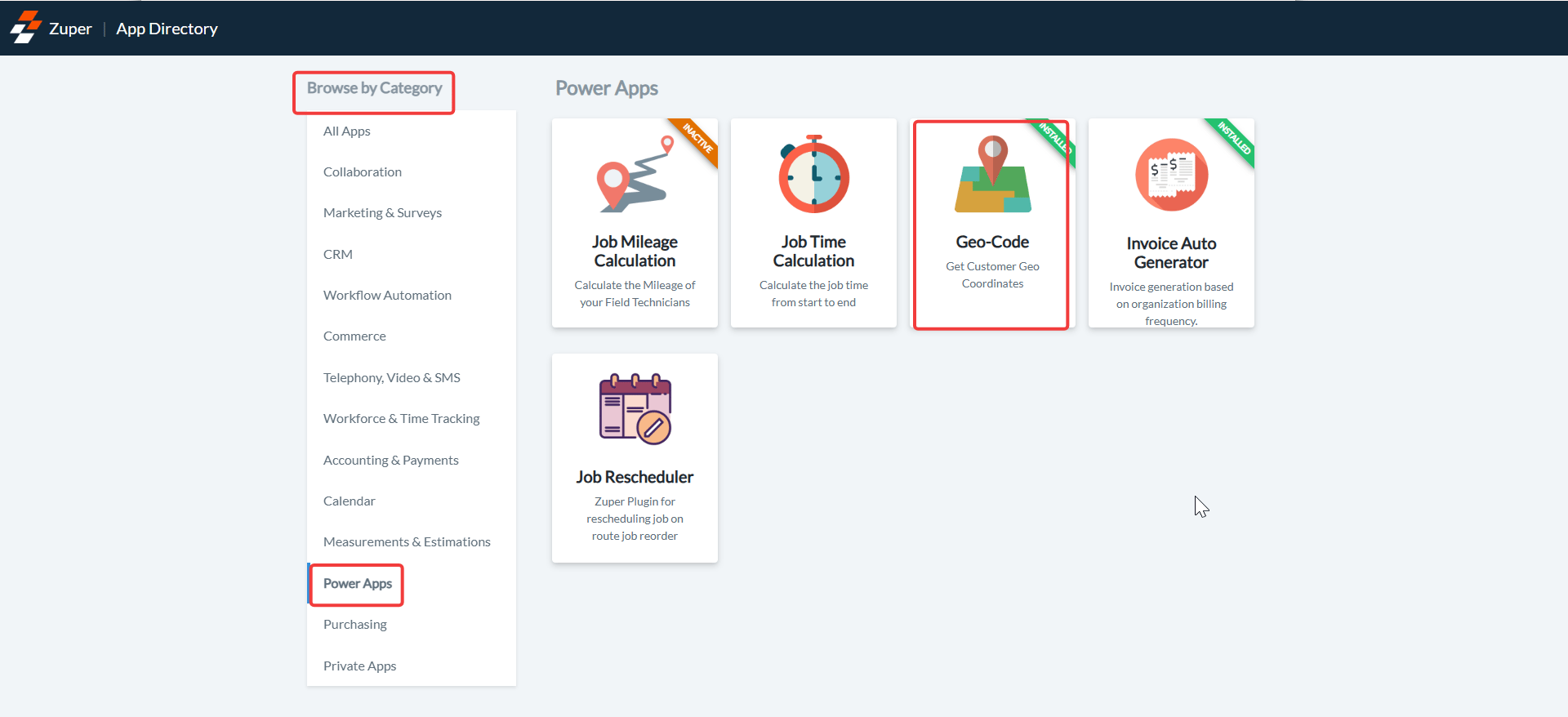
- Under the “Browse by Category,” select the “Power Apps” option and choose “Geo Code.”
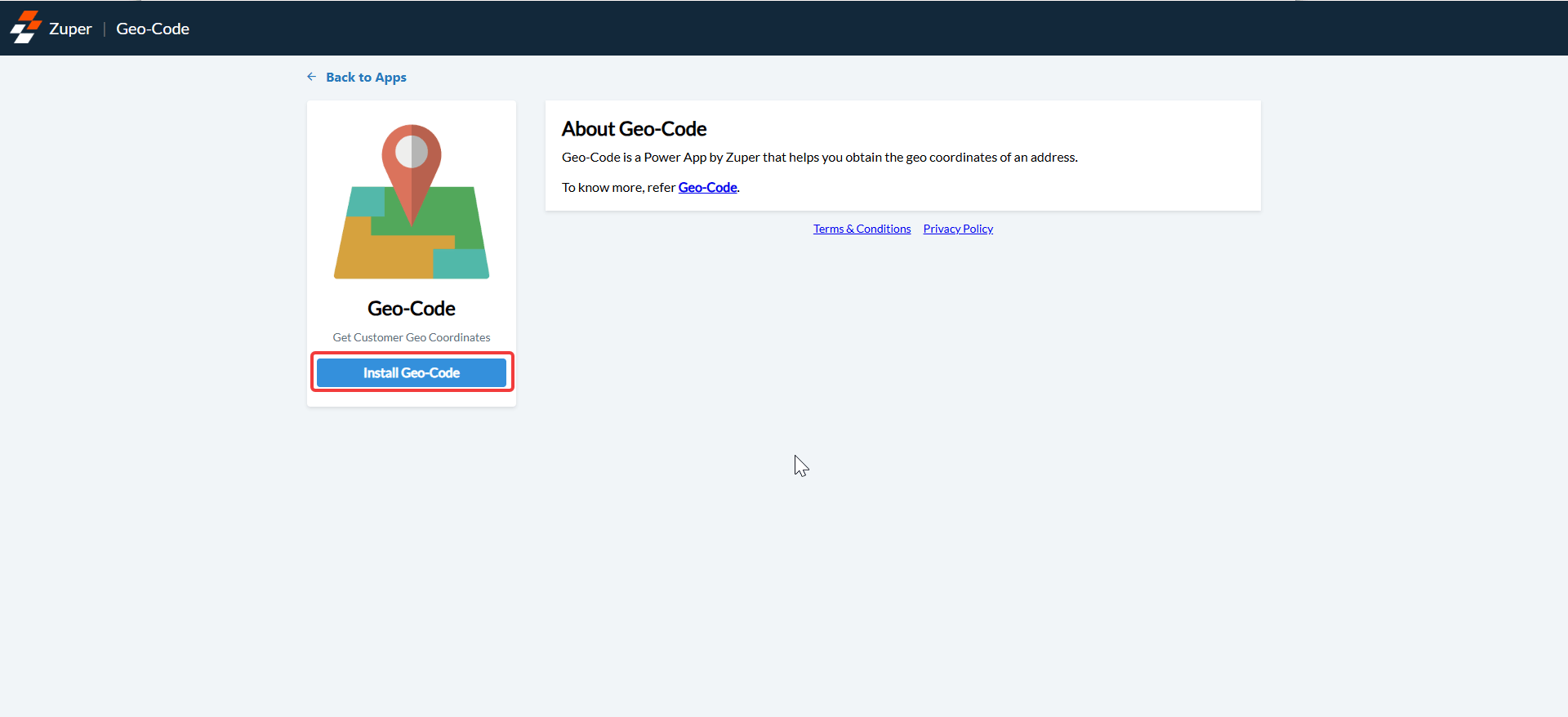
- Click on the “Install Geo Code” button.
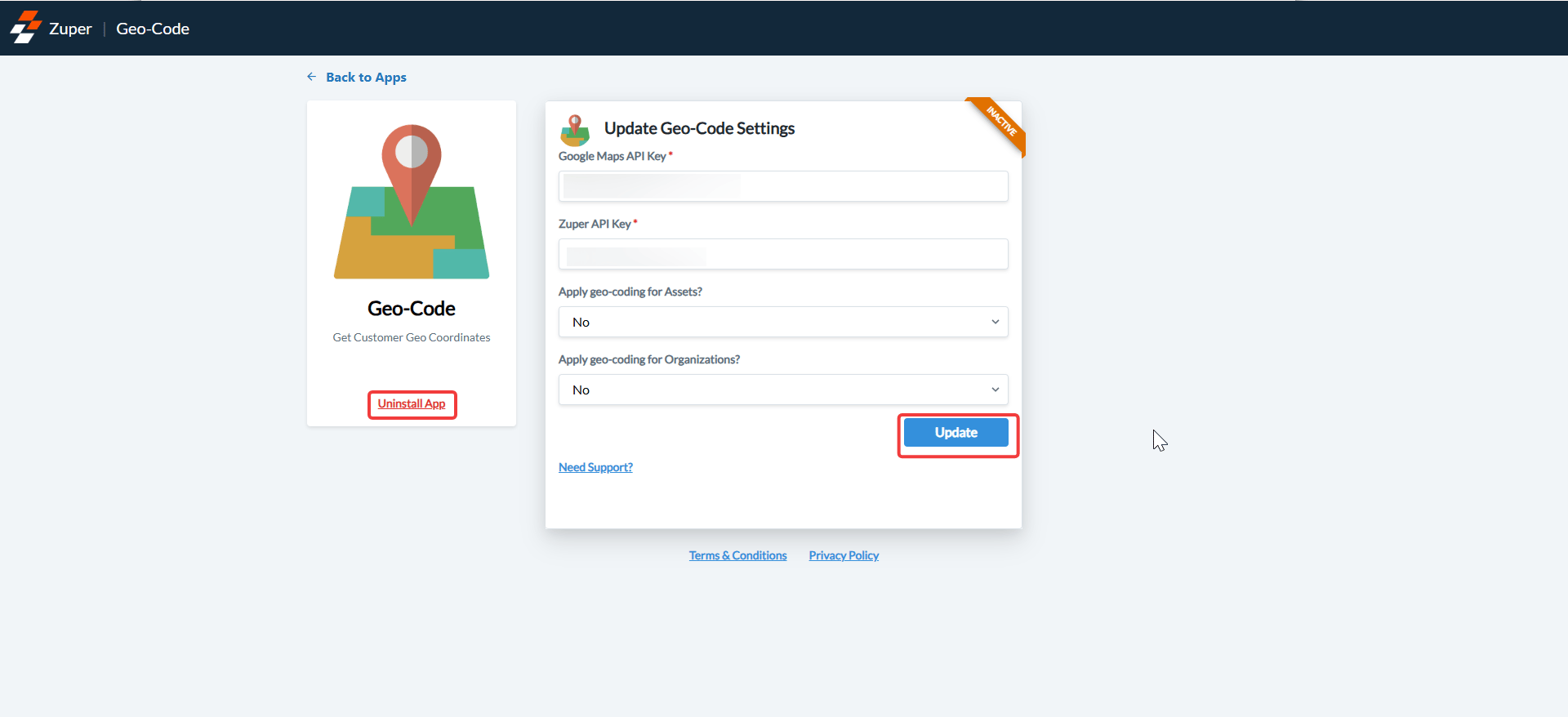
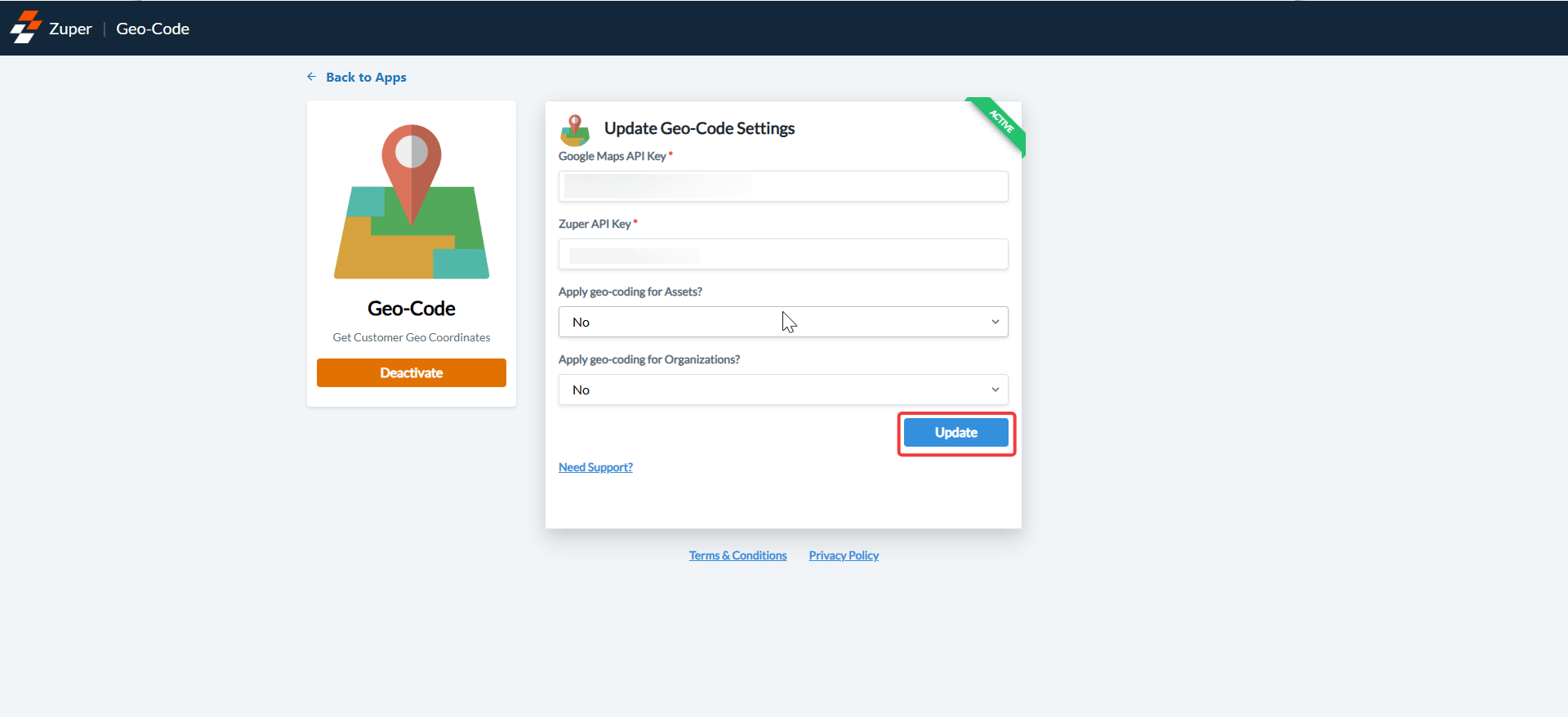
- Now, you can enable “Update Geo Codes Settings” by entering the following details.
- Google Maps API Key (Mandatory Field) – Enter the Application Programming Interface key. (This is fetched from the Google Maps API obtained from the Customer).
- Zuper API Key (Mandatory Field) - Enter the Zuper API key (Click here: How to generate Zuper API Key).
- Apply geo-coding for Assets? – Choose “Yes” to enable geo-coding for the assets.
- Apply geo-coding for Organization? – Choose “Yes” to enable geo-coding for your organization.
- Select the “Update” button to connect the Geo Code app with Zuper.
Note: If you choose “Yes” for the above settings, only the exact location of the assets or organization will be captured.
View Geo Codes on the Zuper
Based on your Zuper settings, whenever Customers, Jobs, Organizations, or Assets are created without specific geo-coordinates, the Google API will fire up and automatically fetch geo-coordinates for the address entered.- Select the “Jobs” icon from the left panel and choose the “Job” for which you want to view the Geo Coordinates of your Customer.
- Under the “Job Details” tab, scroll down so you can view the Geo-Codes fetched by our Power Apps.
Note: You need to enable the settings for an organization or asset to capture the Geo-coordinates, whereas Job and Customer addresses are automatically fetched as a part of the in-built settings.If you want to enable the Geo-coordinates later in time, the update is possible. For this to happen, a user should visit the customer or job module and perform an edit action.
Uninstall Geo-Code
Listed below are the steps to disable the Geo Code app on Zuper.- Open a new tab in your browser after logging in to your Zuper Account. Click on your Profile Picture in the top right corner of the screen and click on “App Store.”
- Under the “Browse by Category,” select the “Power Apps” option and choose “Geo Code.”
- Click “Uninstall App.” The Geo-code app will be uninstalled successfully.