A. Connect Job Mileage Calculation with Zuper
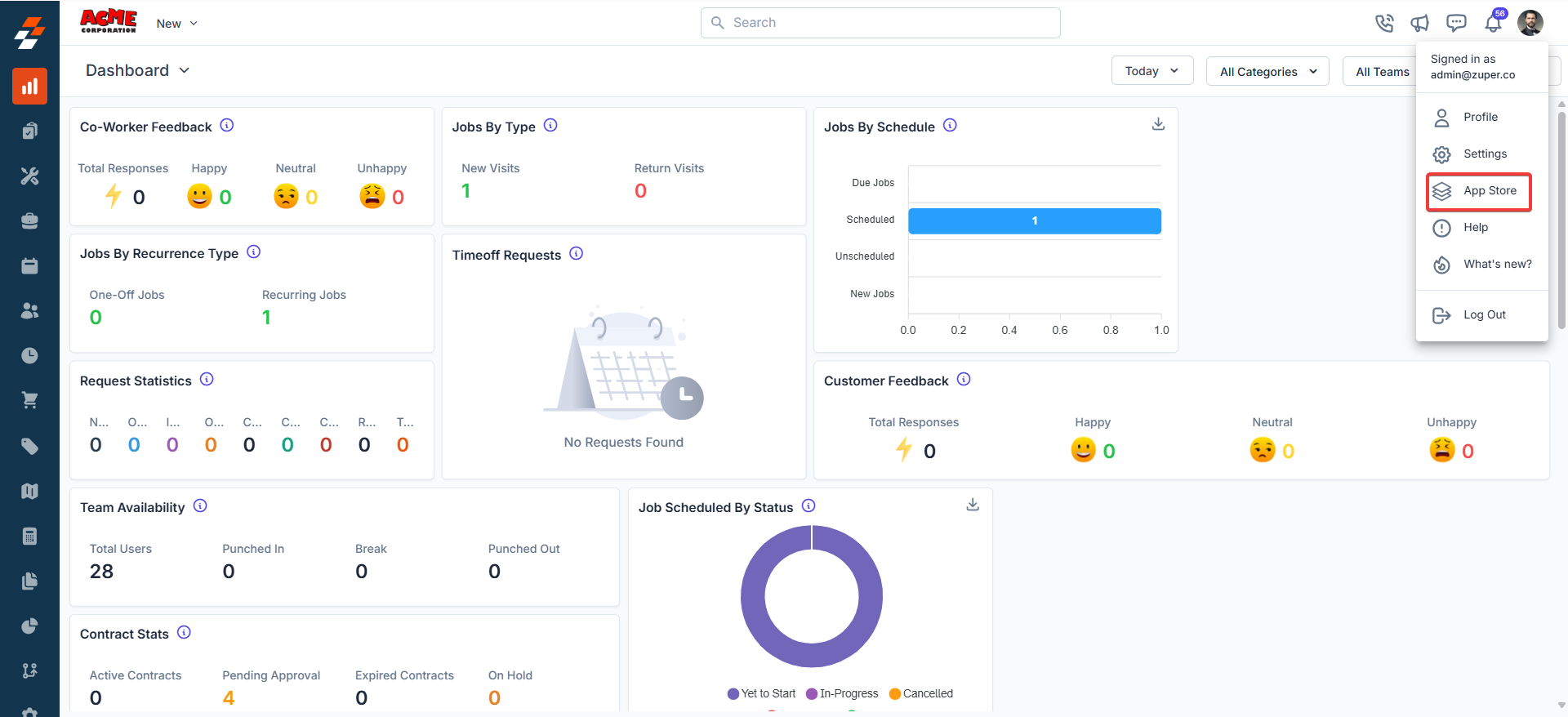
Listed below are the steps to enable the mileage calculation app on Zuper.- Open a new tab in your browser once you are logged in to your Zuper Account. Click your Profile Picture in the top right corner of the screen and select “App Store.”
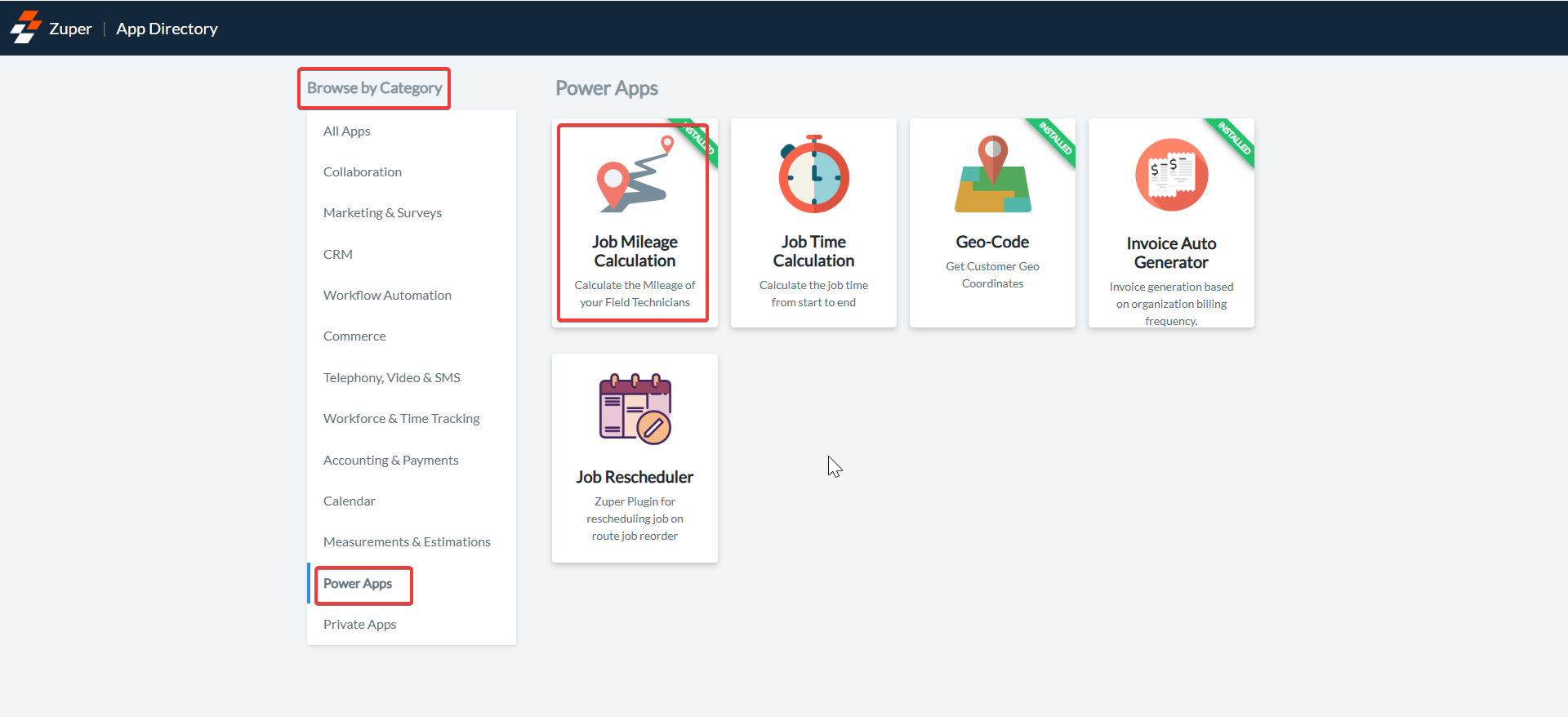
- Under the “Browse by Category,” select the “Power Apps” option and choose “Job Mileage Calculation.”
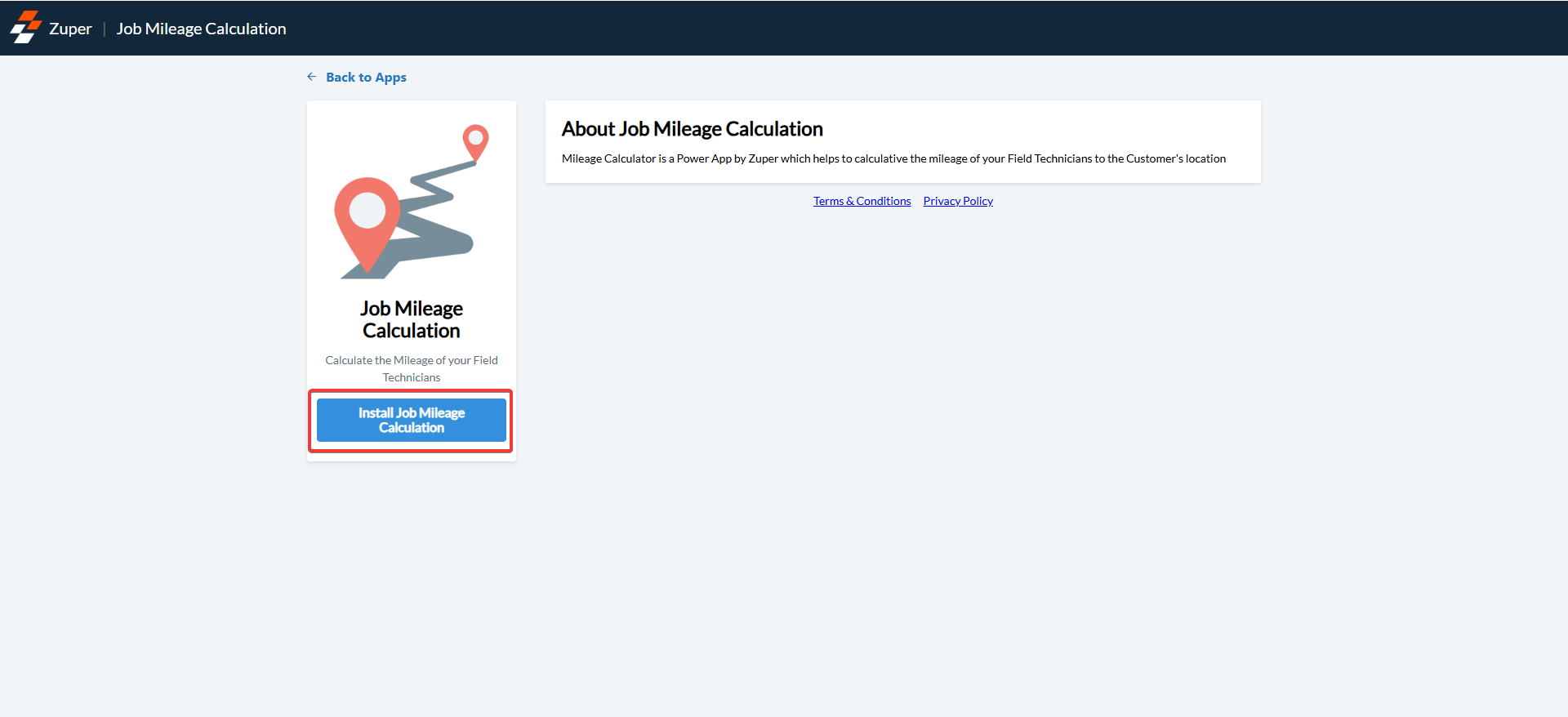
- Click on the “Install Job Mileage Calculation” button.
-
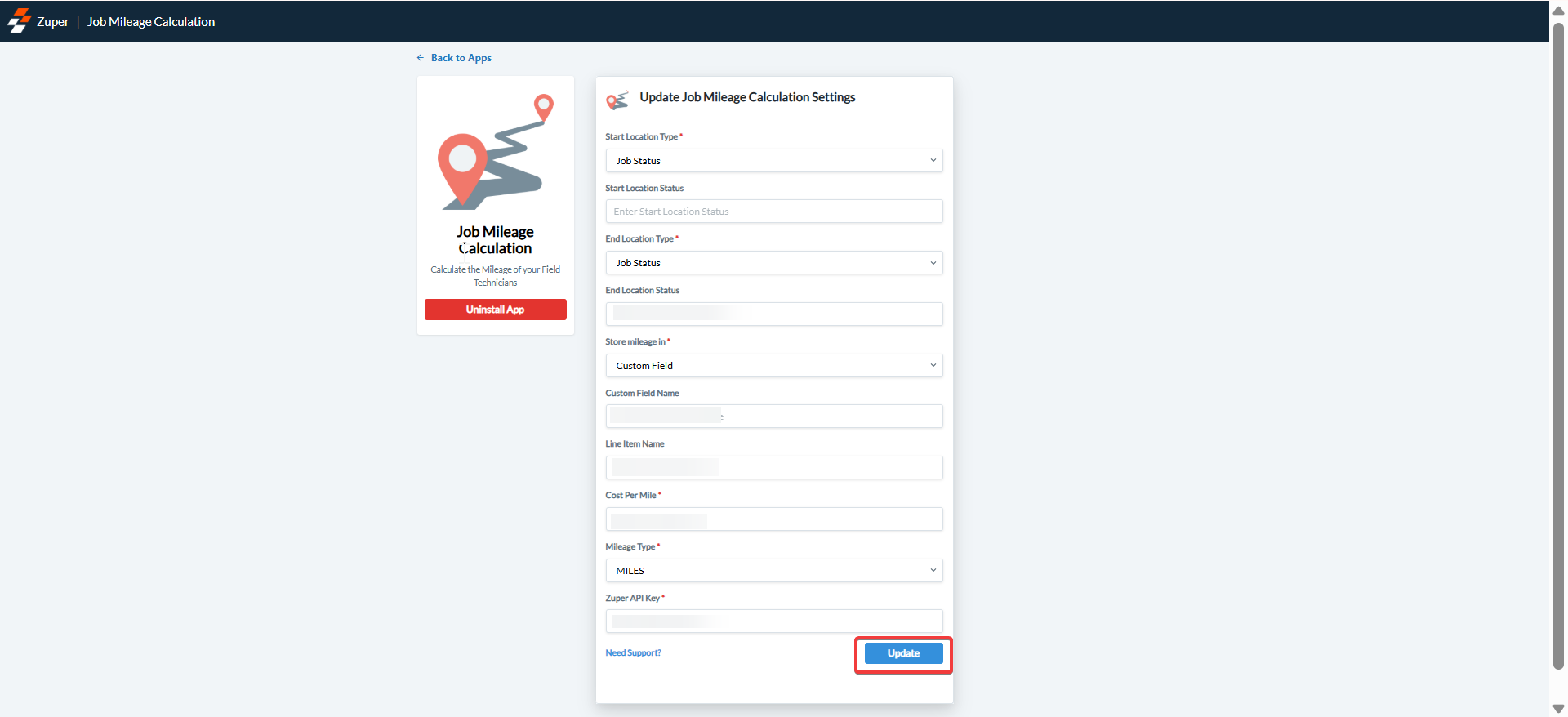
Now, you can enable “Update Job Mileage Calculation Settings” by entering the following details.
a. Start Location Type (Mandatory Field) – The start point of the field executive’s location. The options can be either Job Status or Employee Start Location.
- Job Status – Choose if the starting point mileage calculation is based on Job status.
- Employee Start Location – Choose if the starting point mileage calculation is based on the Employee Start Location.
- Job Status – Choose if the ending point mileage calculation is based on the Job Status.
- Job Service Address – Choose if the ending point mileage calculation is based on the Job Service Address.
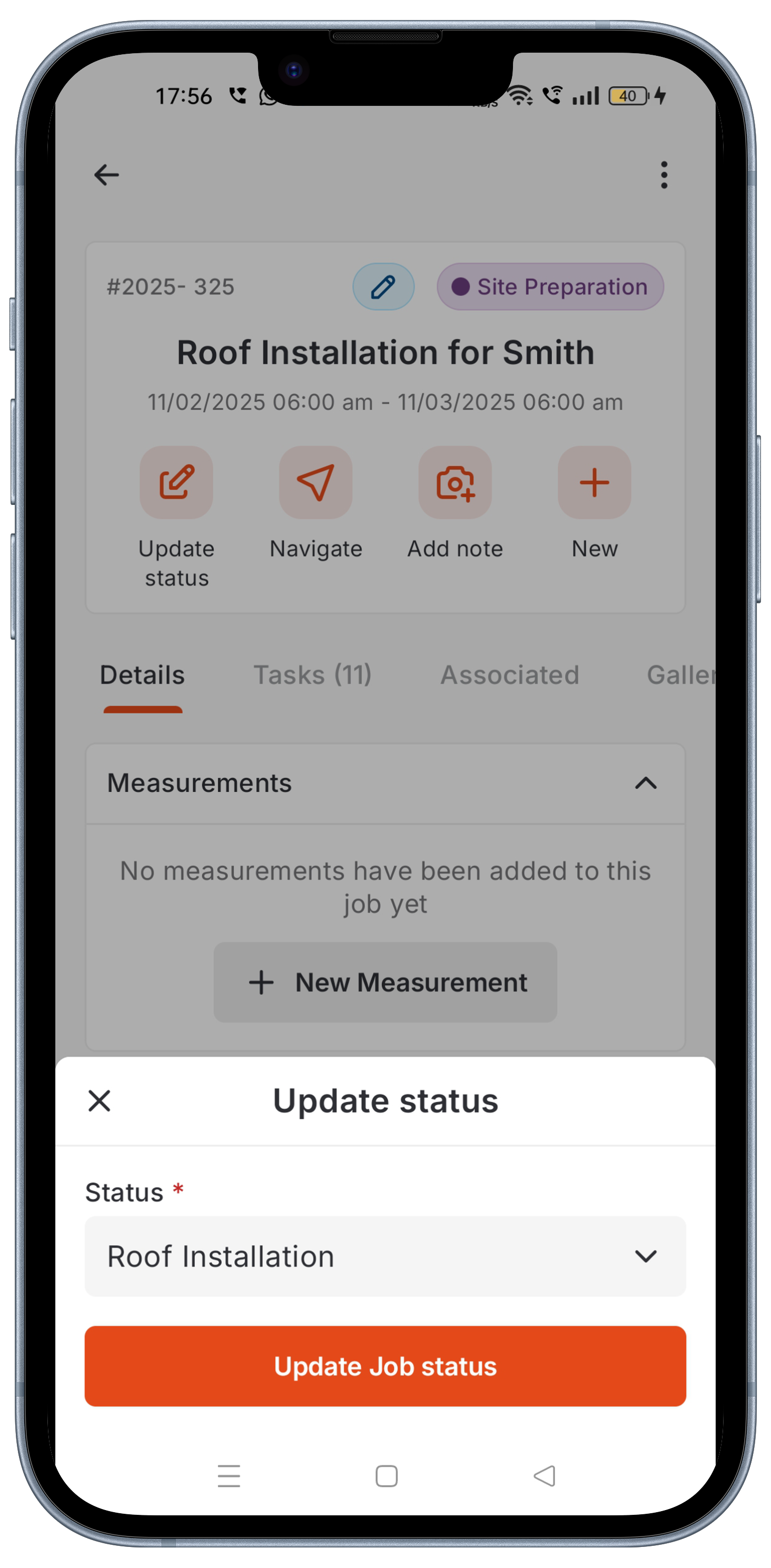
Update Job Status on the Zuper Mobile App:
As a part of the mileage calculation for the field executives, based on the status updates (as per your current settings), select an appropriate Job Status.- Select the “Jobs” module from the top-left hamburger icon. Update the “Job Status.” Based on this status, the mileage calculation will be automatically done on the Zuper Web App.
View Mileage Calculation on the Zuper Web App:
By taking your Zuper App Store settings and status updates on the Zuper Mobile App into account, you can now view the mileage calculation for your field executive.- Select the “Jobs” icon from the left panel and choose the “Job” for which you want to view the mileage calculation for your field executive.
- If you chose the custom field option during the initial setup, scroll down the job details page to view the mileage calculations under the “Other Details” section (This is taken from A. How to Connect Job Mileage Calculation with Zuper? 4) f) point in the initial Settings setup).
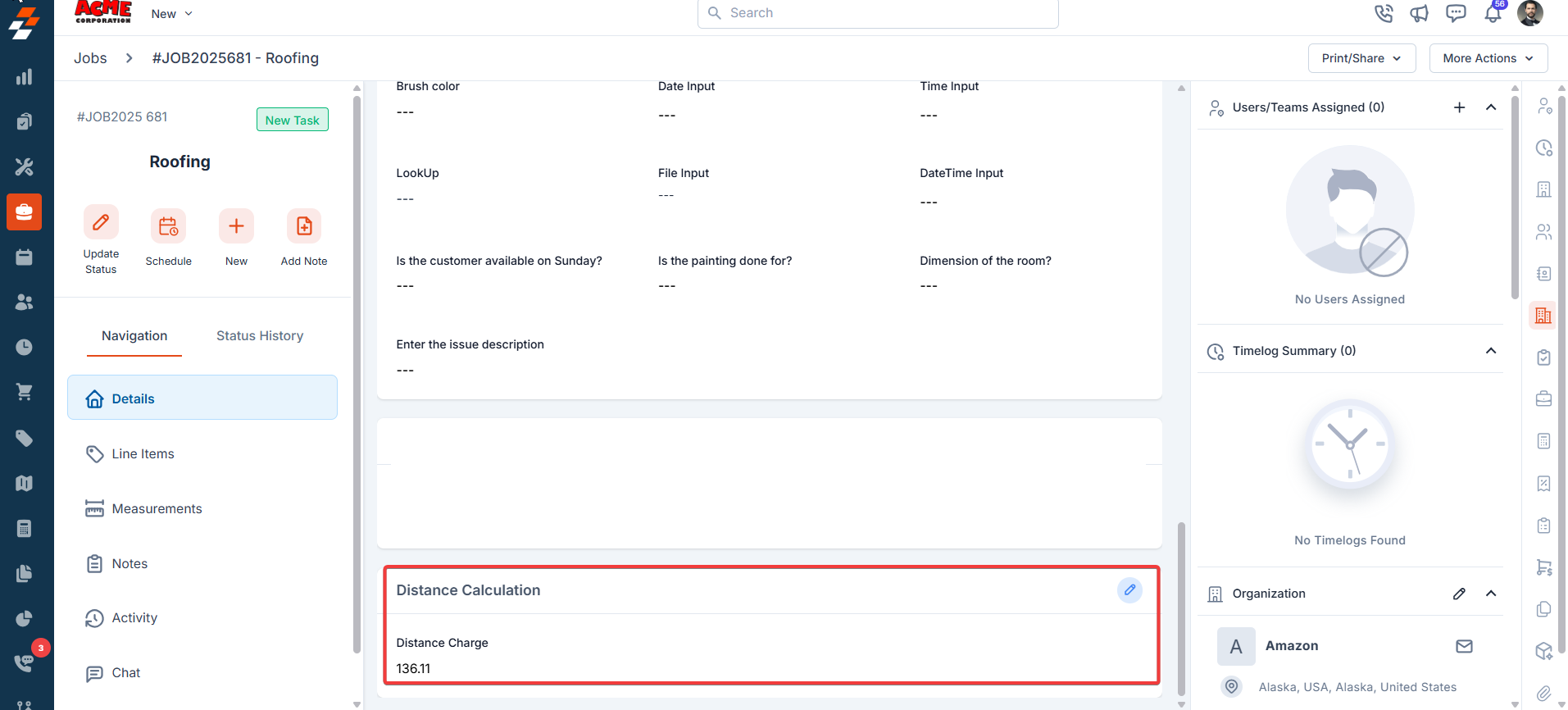
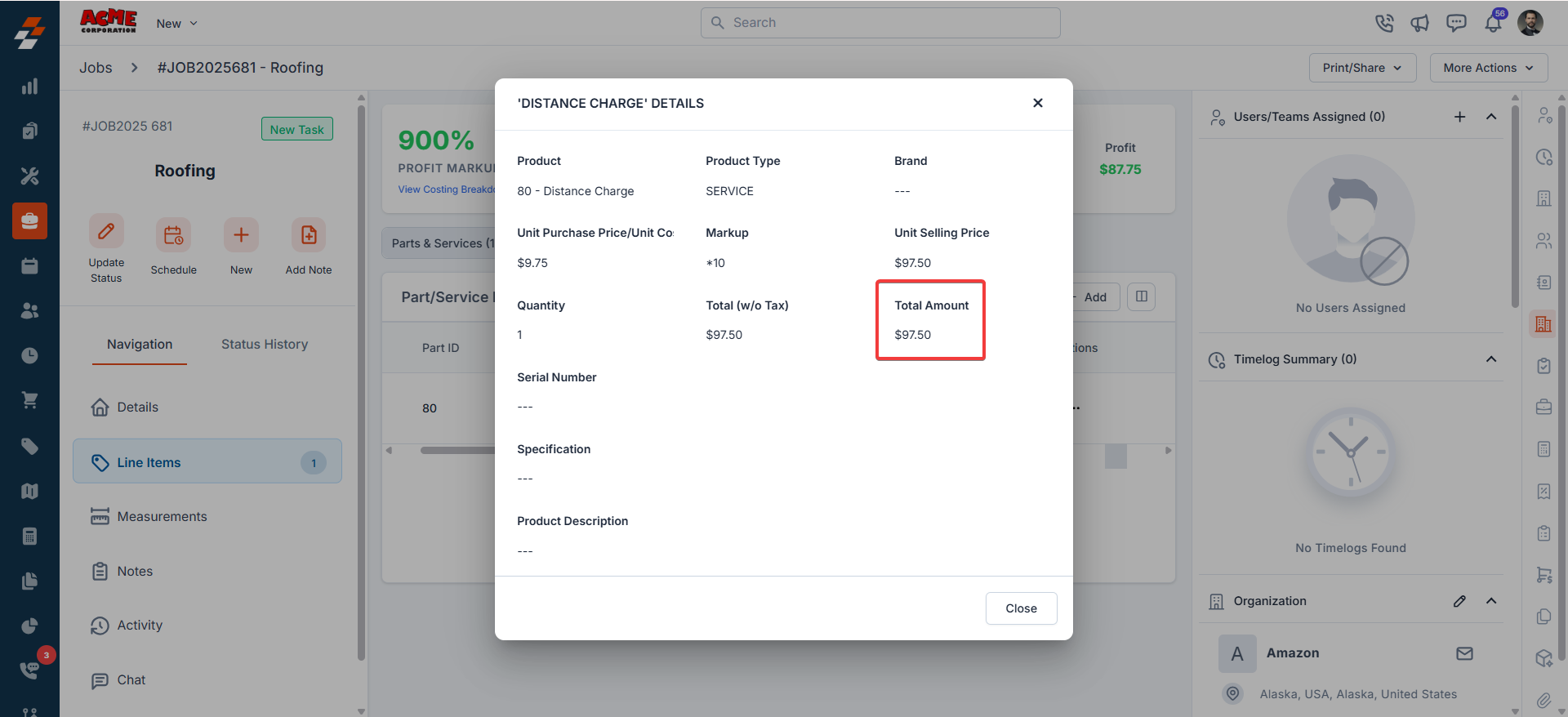
- If you chose the line item option during the initial setup, scroll down the job details page to view the mileage calculations under the “Parts / Services” section (This is taken from A. How to Connect Job Mileage Calculation with Zuper? 4) g) point in the initial Settings setup).