

This feature is currently in beta. To enable it for your account, contact your Account Manager or reach out to support@zuper.co.
Overview
The QXO integration connects Zuper to your local QXO branch, so your team can order roofing materials without switching between systems. Once connected, Zuper pulls live, account-specific pricing into every part in your Parts and Services inventory, so your estimates, proposals, and profitability calculations stay accurate without manual price entry. When you submit a material order, Zuper sends it to your preferred QXO branch and Job account, and you place the order without ever leaving Zuper. As the order moves through fulfillment, delivery updates, and delivery photos sync back to the material order automatically, giving everyone on your team a single place to track materials from quote to delivery. To get started, you install the app and sign in with your QXO credentials. The sections below walk you through each step in order.Before you begin
Have the following ready before you install the integration, since gathering this in advance prevents interruptions during setup.- Your QXO account username and password. If you do not have a QXO account, contact your QXO representative to set one up before you continue.
Install the QXO app
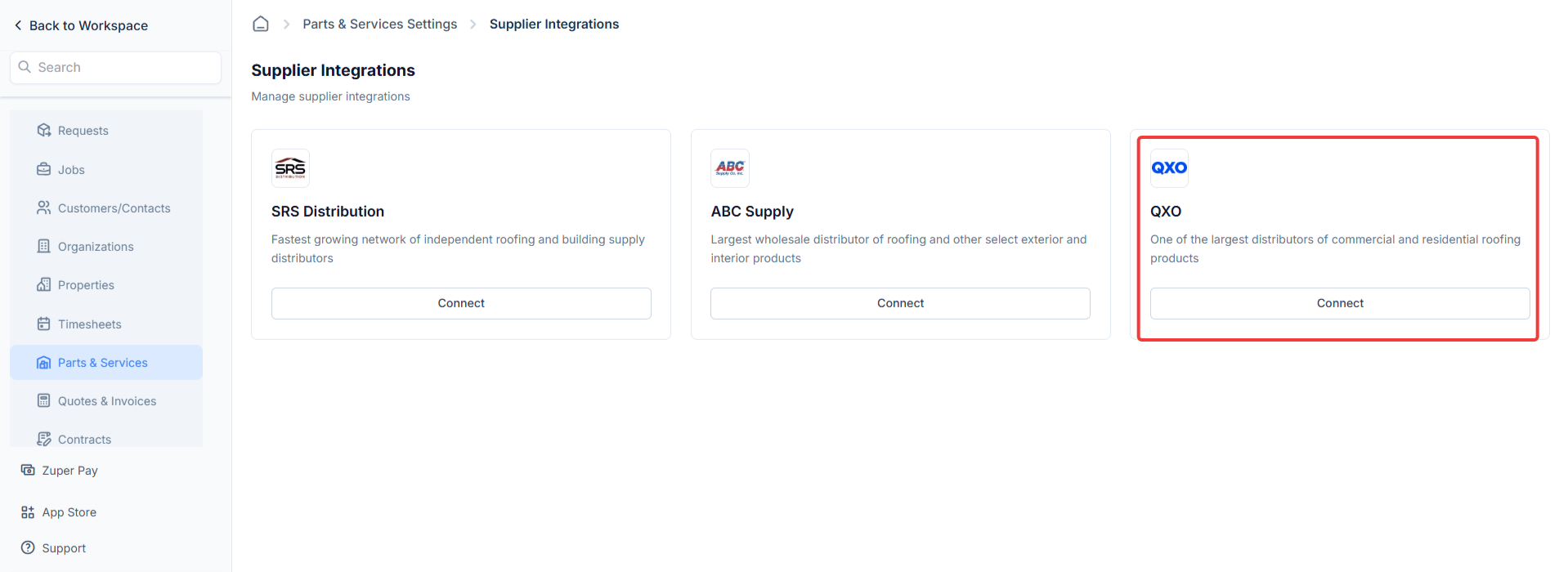
- From the Settings, under the Parts and Services, navigate to Supplier Integrations.
- On QXO, select Install QXO.
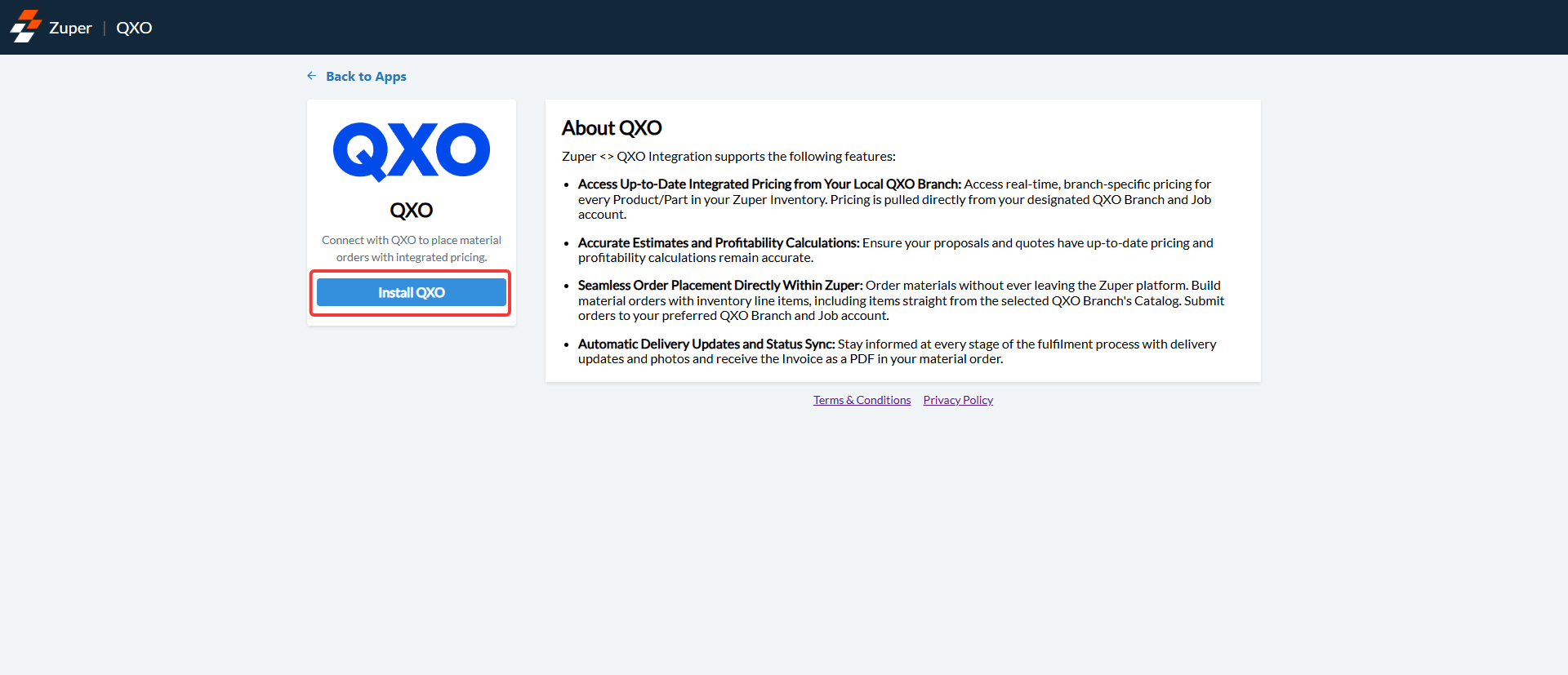
- The QXO sign-in screen opens, and you continue to the next section to connect your account.
Sign in to your QXO account
Zuper uses a secure sign-in to connect to your QXO account, so you sign in directly through QXO’s portal.- Enter your QXO username in the Username field.
- Enter your password in the Password field.
- Select Sign in. Zuper verifies your credentials with QXO, and when the connection succeeds, your account is linked and Zuper loads your branch information.
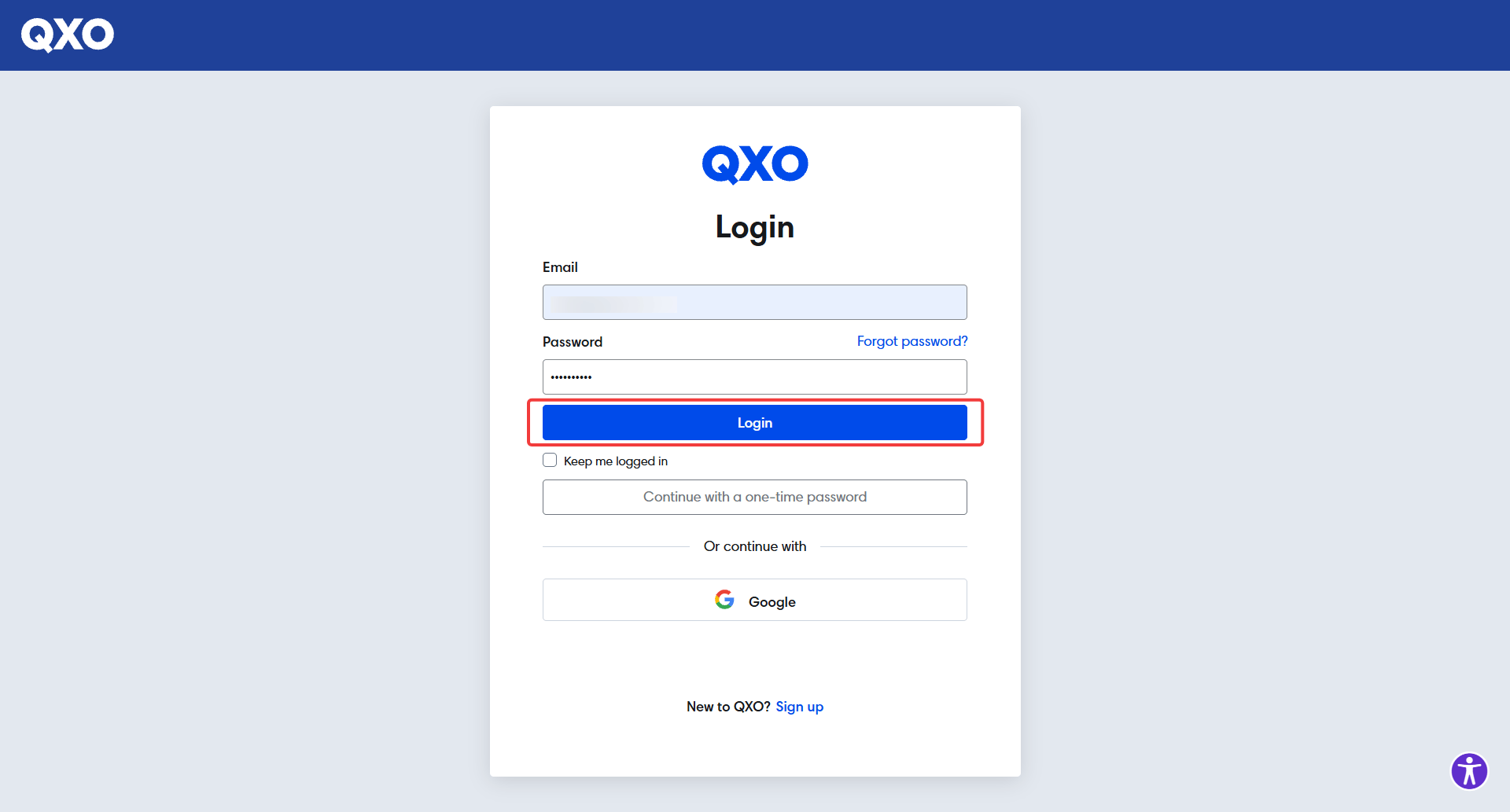
If the sign-in screen does not open, or it returns an error, confirm that your QXO account is active and that your credentials are correct. If the issue continues, contact Support.
Choose your branches
After you sign in, Zuper loads the QXO branches linked to your account, and you select the branches you order from and assign a Job account to each one.- Review the list of QXO branches linked to your account.
- Select the checkbox next to each branch you want to use in Zuper.
- Open the Job account dropdown for each selected branch, and select the account to use for orders at that branch.
- Select the star icon next to a branch to set it as your preferred branch. Zuper uses the preferred branch for daily pricing updates across your catalog.
- Select Save to confirm your branch selections.
You must assign a Job account to every branch you select, and you can update your branch selections and preferred branch at any time from Supplier Settings.
Import your parts catalog
Zuper imports your product catalog from the order templates linked to your QXO account, so importing from templates keeps your Parts and Services catalog focused on what you actually use.- Review the list of templates available in your QXO account on the Select Template step. Each row shows the Template ID, Template Name, and number of products.
- Select the checkbox next to each template you want to import.
- Select Import from QXO to begin the import. Zuper imports the selected templates in the background, and each product becomes a part in your Parts and Services catalog. Pricing updates automatically on a daily schedule.
Each template can only be imported once, and if you add new products to a template in QXO after importing, those additions do not sync automatically. You can select the Import Templates tab in Supplier Settings at any time to bring in new templates.
If no templates appear, your QXO account does not have any order templates set up yet. Create templates of your frequently ordered products in your QXO account, and then return to Zuper to complete the import.
.png?fit=max&auto=format&n=K4YBMSXhTX-BdyV_&q=85&s=dca308d32e4290c568c9cd054944e7bf)
.png?fit=max&auto=format&n=K4YBMSXhTX-BdyV_&q=85&s=357f3441d112f622dd26e4b95168a6f6)
Manage your branches
After setup, you can view and manage all connected QXO branches from the Branches listing page. To get there, go to Settings, select Parts and Services Settings, select Supplier Integrations, and select QXO.
The Branches listing page shows each branch name, address, assigned Job account, and status.
Add a branch
- Go to Settings, select Parts and Services Settings, select Supplier Integrations, and select QXO.
- Select + Add Branch at the top right.
- Select the new branch from the list, and assign a Job account to it.
- Select Save.
Edit a branch
- Hover over the branch you want to update on the Branches listing page.
- Select the pencil icon that appears on the right.
- Update the Job account details.
- Select Save.
Set a preferred branch
- Locate the branch you want to set as your preferred branch on the Branches listing page.
- Select the star icon next to it. A filled star indicates the preferred branch.
Zuper uses the preferred branch for daily catalog pricing updates, and only one branch can be set as preferred at a time. Selecting a new preferred branch removes the designation from the previous one.
Deactivate a branch
- Hover over the branch you want to deactivate on the Branches listing page.
- Select the deactivate icon that appears on the right.
- Select Deactivate in the confirmation dialog to confirm.
Deactivated branches remain in your account and continue to receive pricing updates, but they are not available for selection when you create estimates or material orders.
Disconnect the QXO integration
If you need to remove the QXO integration from your Zuper account, you can uninstall it from the App Store.- Select your profile icon, select App Store, select Purchasing, and select QXO.
- Select Uninstall App on the left panel.
- Select Uninstall App in the confirmation dialog to confirm.
FAQs
What credentials do I need to connect QXO?
What credentials do I need to connect QXO?
You need your QXO account username and password. If you do not have a QXO account, contact your QXO representative to set one up before you continue.
Is my password stored in Zuper?
Is my password stored in Zuper?
QXO uses OAuth, which is a secure sign-on method. Your credentials go directly to QXO, and Zuper receives only a secure token to identify your account. Your QXO password is never stored in Zuper.
Can I connect more than one QXO branch?
Can I connect more than one QXO branch?
Yes, you can connect as many branches as your QXO account supports, and each branch requires a Job account assignment before you can use it for orders.
What does the preferred branch do?
What does the preferred branch do?
Zuper uses the preferred branch as a fallback when no branch is selected during pricing, and the preferred branch is also pre-filled in quotes and proposals.
What happens to a deactivated branch?
What happens to a deactivated branch?
A deactivated branch remains in your account and continues to receive daily pricing updates, but it is not available for selection when you create estimates or material orders. You can reactivate it at any time.
Will uninstalling the app delete my parts catalog?
Will uninstalling the app delete my parts catalog?
No, your existing parts and supplier records in Zuper are not deleted when you uninstall the app, though those records no longer receive QXO pricing updates.