

This feature is currently in beta. To enable it for your account, contact your Account Manager or reach out to support@zuper.co.
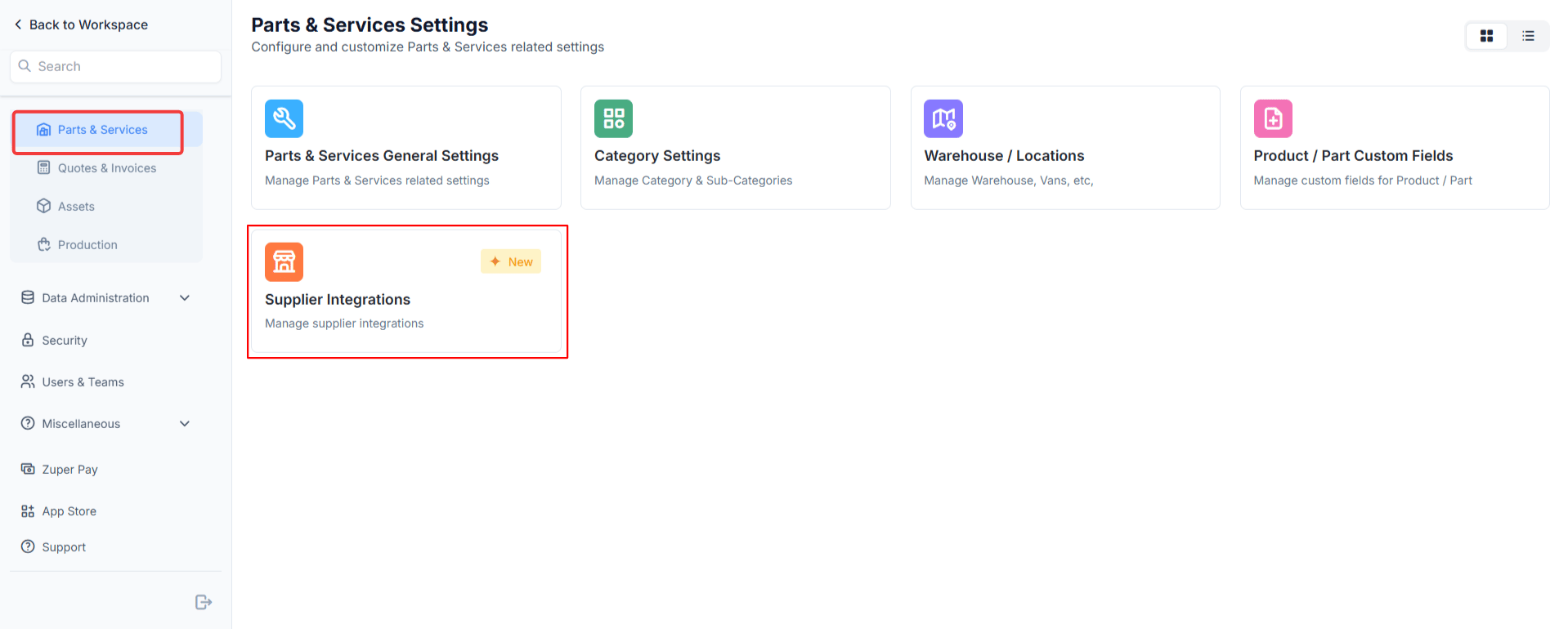
Navigation: Settings → Parts and Services → Supplier Integrations → SRS Distribution
Before you begin
Have the following ready before you install the integration. Gathering these in advance prevents interruptions during the setup steps:- Your SRS Customer Code (also called your account number). You will find it in the account details section of any SRS invoice.
- A recent SRS invoice issued more than two days ago. You will need the Invoice Number and Invoice Date to verify your account.
- Alternatively, your SRS Integration Key. Go to Integrations → Integration Key in your RoofHub account to find it.
- Your Zuper API Key. Your Zuper administrator can provide this.
Install the SRS Distribution app
- From the Settings, under the Parts and Services, navigate to Supplier Integrations.
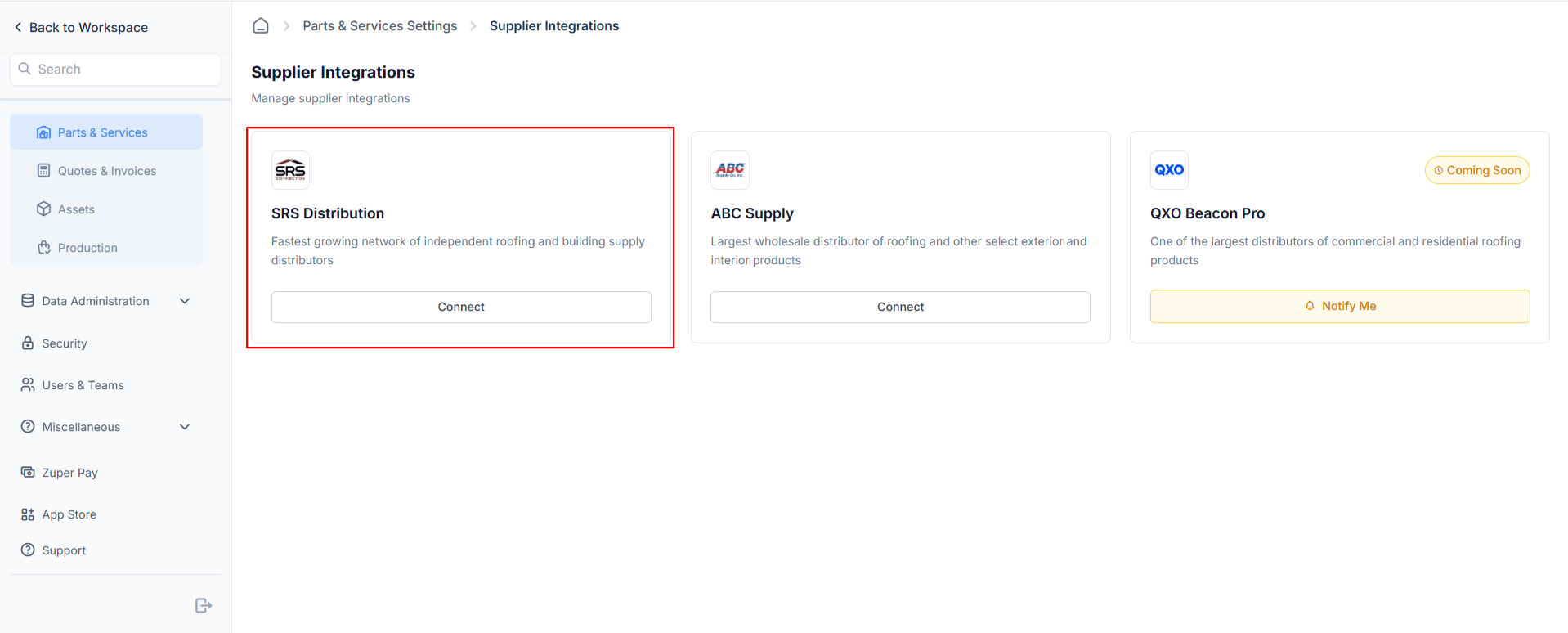
- On SRS Distribution, Click Connect.
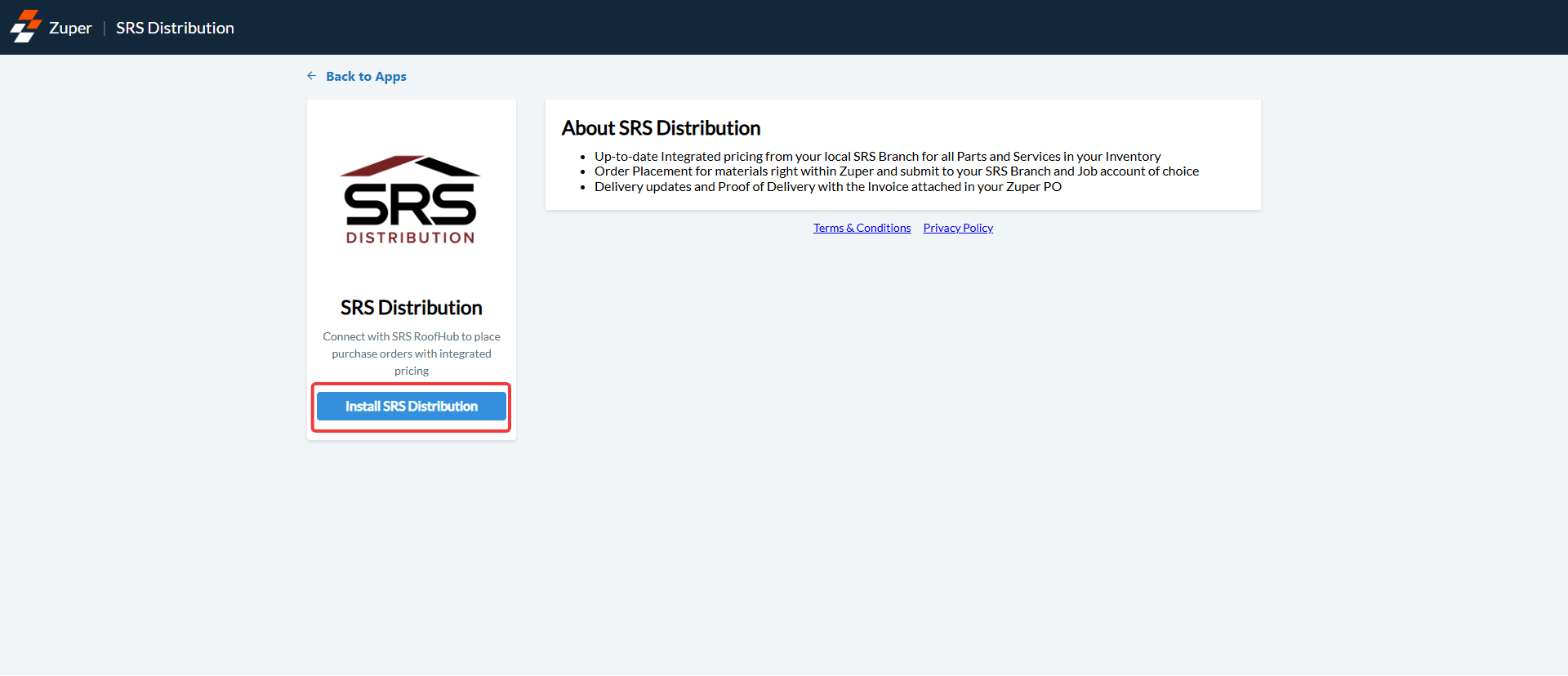
- On the app detail page, select Install App.
Validate your SRS account
Zuper offers two ways to verify your account. Use whichever method you have credentials for.Method 1: Verify with invoice details
Use this method if you have a recent SRS invoice that is more than two days old.- In the Customer Code field, enter your SRS account number.
- In the Invoice Number field, enter the invoice number from your SRS invoice.
- In the Invoice Date field, enter the invoice date.
- In the Zuper API Key field, enter your Zuper API key.
- Select Update.
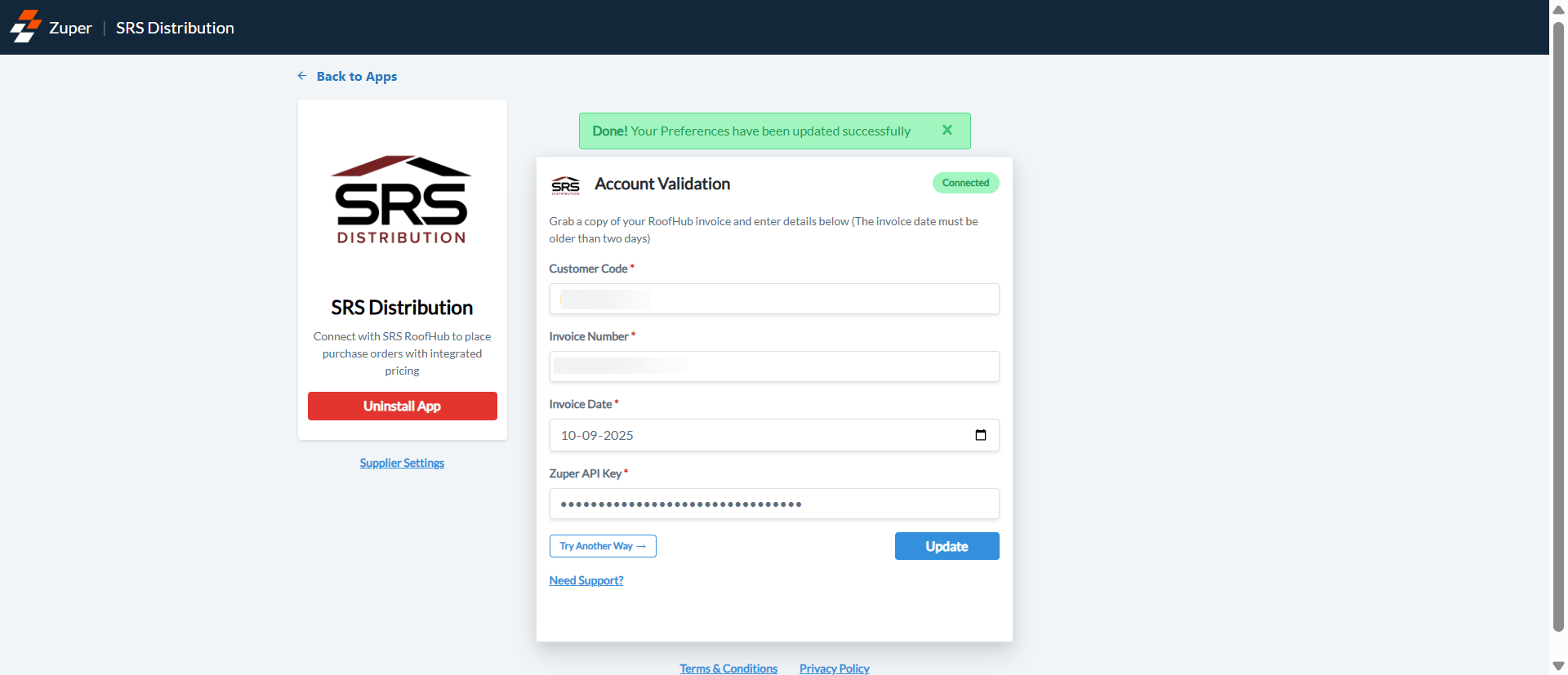
The invoice date must be more than two days in the past. A same-day or next-day invoice will cause validation to fail.
Method 2: Verify with an integration key
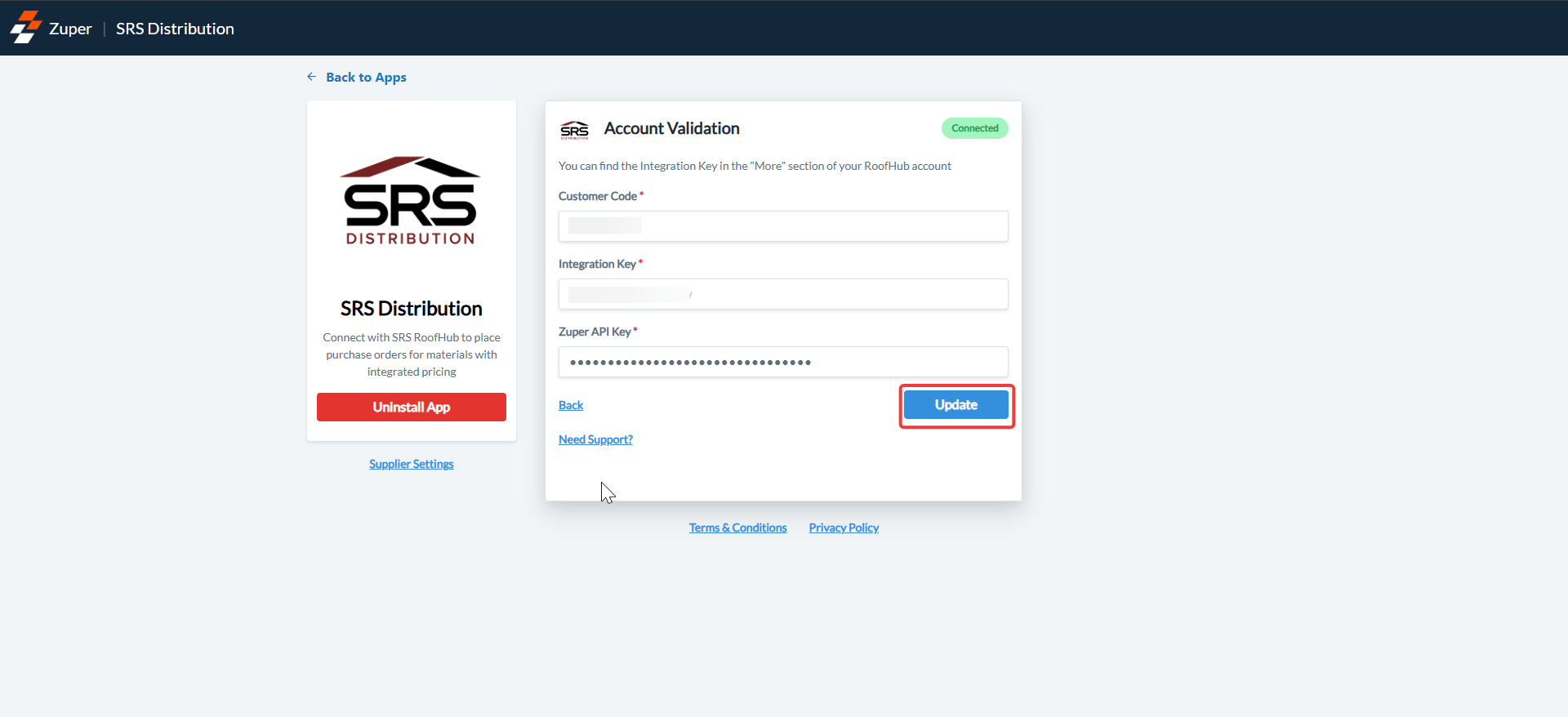
Use this method if you do not have a recent invoice available.- Select Try Another Way on the Account Validation screen.
- In the Customer Code field, enter your SRS account number.
- In the Integration Key field, enter the key from your RoofHub account. To find it, go to Integrations → Integration Key in RoofHub.
- In the Zuper API Key field, enter your Zuper API key.
- Select Update.
If validation fails, confirm that your Customer Code is correct and that your invoice details match your SRS account exactly. Select Update again after correcting your details. If the issue continues, contact support@zuper.co.
Choose your branches
After your account is validated, Zuper loads the SRS branches linked to your account. You select the branches you order from and assign a job account to each one.- From the app detail page, select Supplier Settings. The branch setup screen opens.
- On the Choose Branches step, review the list of SRS branches near your location. A map shows their positions alongside the list.
- Select the checkbox next to each branch you want to use in Zuper.
- For each selected branch, open the Select Job Account dropdown and select the job account to use for orders at that branch.
- To set one branch as your preferred branch, select the star icon next to it. Zuper uses the preferred branch for daily pricing updates across your catalog.
You must assign a job account to every branch you select. Zuper uses this account when placing orders at that branch. You can change job accounts and update your preferred branch at any time from Supplier Settings.
Import product templates from SRS
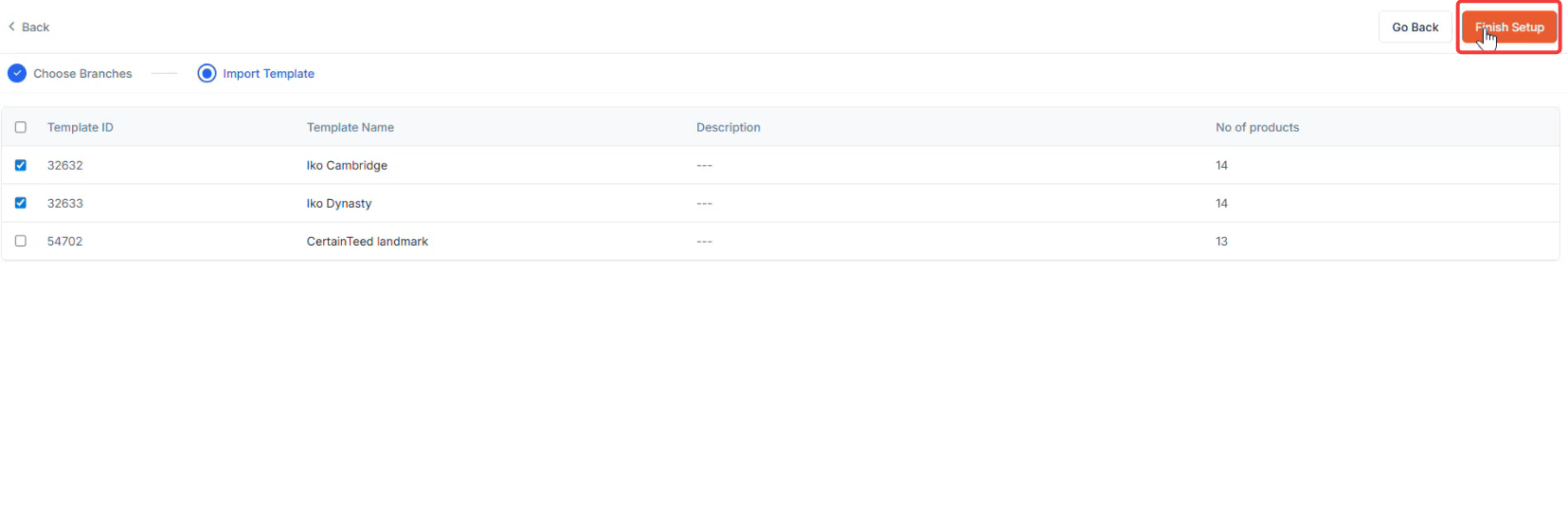
Zuper imports your product catalog from the order templates you have already built in SRS RoofHub. Each template groups products you order regularly — for example, by manufacturer or shingle type. Importing from templates rather than the full SRS catalog keeps your Zuper product list focused on what you actually use.- On the Import Template step, review the list of templates available in your RoofHub account. Each row shows the Template ID, Template Name, Description, and number of products.
- Select the checkbox next to each template you want to import.
- Select Finish Setup to begin the import. Zuper imports the selected templates in the background. Each product becomes a part in your Parts and Services catalog. Pricing updates automatically every day at 6:30 AM UTC.
Each template can only be imported once. If you add new products to a template in RoofHub after importing, those additions will not sync automatically. To bring in new templates created in RoofHub after the initial setup, use the Import Templates tab in Supplier Settings at any time.
If no templates appear, your RoofHub account does not have any order templates set up. Create templates of your frequently ordered products in RoofHub first, then return to Zuper to import them.
.png?fit=max&auto=format&n=F0kOJn5OlyUbOjIs&q=85&s=97dcc353f20435402adde6886ce2ea34)
Manage your branches
After setup, you can view and manage all connected SRS branches from the Branches listing page.Navigation: Settings → Parts and Services Settings → Supplier Integrations → SRS Distribution
Add a branch
- Go to Settings → Parts and Services Settings → Supplier Integrations → SRS Distribution.
- Select + Add Branch at the top right.
- Select the new branch from the list and assign a job account to it.
- Select Save.
Edit a branch
- On the Branches listing page, hover over the branch you want to update.
- Select the pencil icon that appears on the right.
- Update the job account details.
- Select Save.
Set a preferred branch
- On the Branches listing page, locate the branch you want to set as your preferred branch.
- Select the star icon next to it. A filled star indicates the preferred branch.
Only one branch can be set as preferred at a time. Selecting a new preferred branch removes the designation from the previous one.
Deactivate a branch
- On the Branches listing page, hover over the branch you want to deactivate.
- Select the deactivate icon that appears on the right.
- In the confirmation dialog, select Deactivate to confirm.
Disconnect the SRS Distribution integration
If you need to remove the SRS integration from your Zuper account, you can uninstall it from the App Store.- Go to your profile icon → App Store → Purchasing → SRS Distribution.
- Select Uninstall App on the left panel.
- In the confirmation dialog, select Uninstall App to confirm.
FAQs
What credentials do I need to connect SRS Distribution?
What credentials do I need to connect SRS Distribution?
You need your SRS Customer Code and either a recent invoice (more than two days old) or your SRS RoofHub Integration Key. You also need your Zuper API key, which your Zuper administrator can provide.
Can I connect more than one SRS branch?
Can I connect more than one SRS branch?
Yes. You can connect as many branches as your SRS account supports. Each branch requires a job account assignment before it can be used for orders.
What does the preferred branch do?
What does the preferred branch do?
Zuper uses the preferred branch as a fallback when no branch is selected during pricing. The preferred vendor is also pre-filled in Quotes and Proposals.
What happens to a deactivated branch?
What happens to a deactivated branch?
A deactivated branch remains in your account and continues to receive daily pricing updates. It is not available for selection when creating estimates or material orders. You can reactivate it at any time.
Will uninstalling the app delete my parts catalog?
Will uninstalling the app delete my parts catalog?
No. Your existing parts and vendor records in Zuper are not deleted when you uninstall the app. However, those records will no longer receive SRS pricing updates.
My validation keeps failing. What should I check?
My validation keeps failing. What should I check?
Confirm that your Customer Code matches your SRS account exactly and that the invoice you are using is more than two days old. If you are using an Integration Key, verify that you copied the key correctly from your RoofHub account. If the issue continues, contact support@zuper.co.