

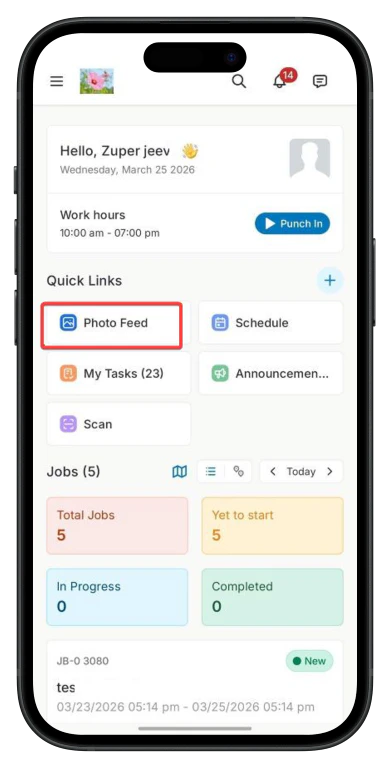
Navigation: Zuper Mobile App → Dashboard → Photofeed
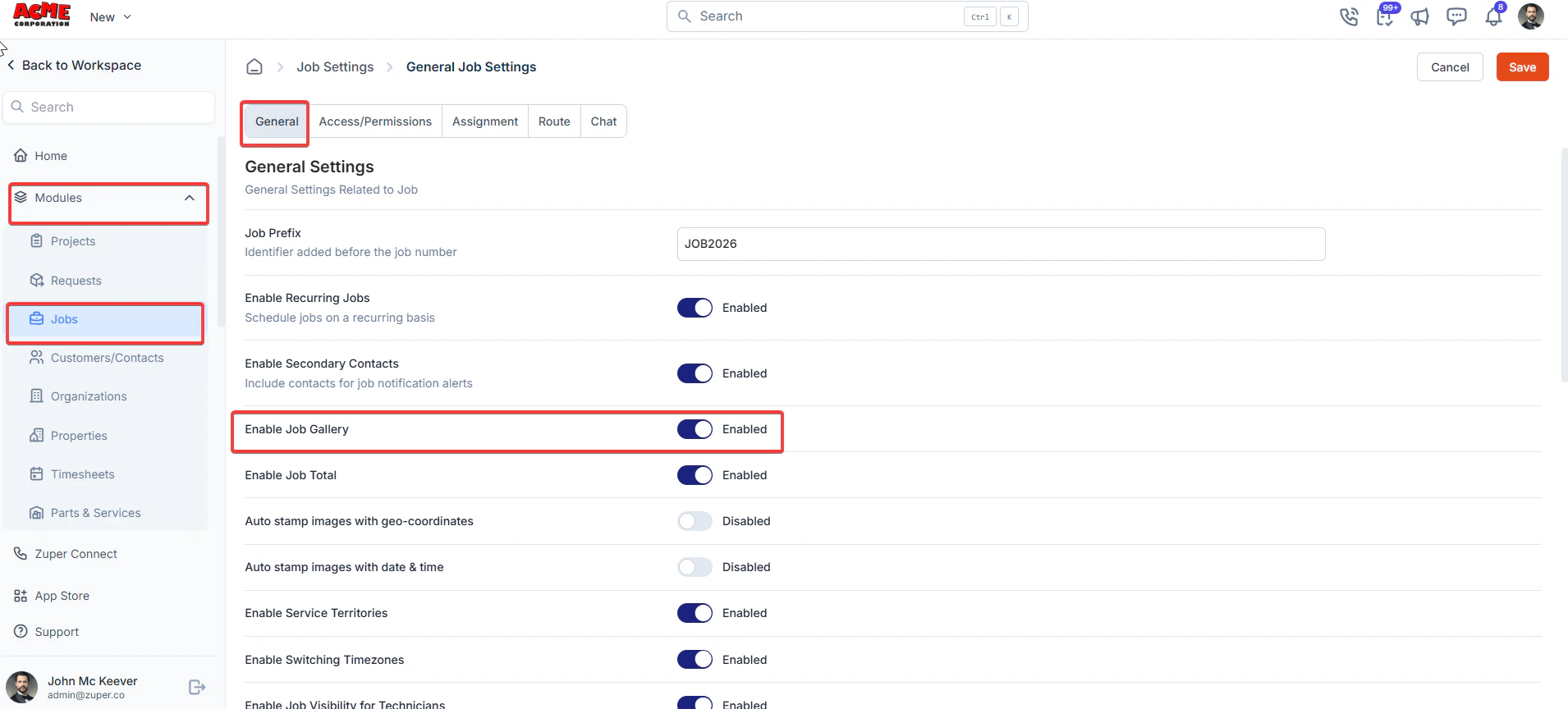
- The feature must be enabled by your Zuper admin (if not visible)
[Enable Job Gallery from Zuper Web App: In the left navigation menu, go to_ Settings > Modules > Jobs > General Job Settings _and turn on the Enable Job Gallery] - You have access to the Zuper mobile app.
- Photos or videos have been uploaded to jobs.
- Your user role has permission to view job attachments.
Availability — Who can use this
The Photo Feed is available on the Zuper Mobile App. Typical users include:- Field Technicians can upload photos and videos directly from the job site and attach them to specific jobs for documentation and recordkeeping. Each technician can only view the media they have personally uploaded.
- Team Leads can upload, view, and review media submitted by their team’s technicians, as well as their own uploads. They use this visibility to verify work performed, monitor job progress, and ensure quality standards are met.
- Admins have full visibility into all media submitted across the organization. They can access and review attachments across all jobs for auditing and compliance purposes.
Access Photo Feed
- Open the “Photo Feed” from the Dashboard.
Photo Feed tabs
Below the Photo Feed title, two tabs allow you to change how media is displayed.1. Photos (Default) tab
- Displays all photos and videos in a grid layout for quick browsing.
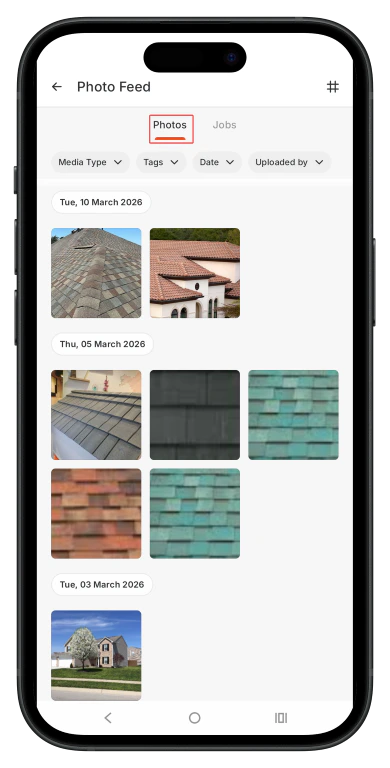
- Media is sorted by upload date (newest first).
- The grid displays 3, 4, or 6 images per row, which can be adjusted in the top-right corner.
- Both images and videos appear in the feed.
- Videos display a play icon in their thumbnails.
- Tap any photo or video thumbnail.
- The media opens to the full-screen media viewer.
Using filters in Photo Feed
Filters let you narrow the media displayed in the feed. Apply filters- Open Photo Feed.
- Tap a filter option.
- Select the required values.
- Tap Apply.
View media on full screen
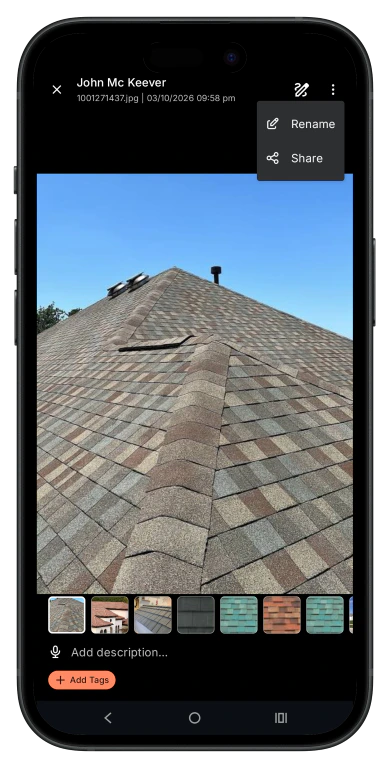
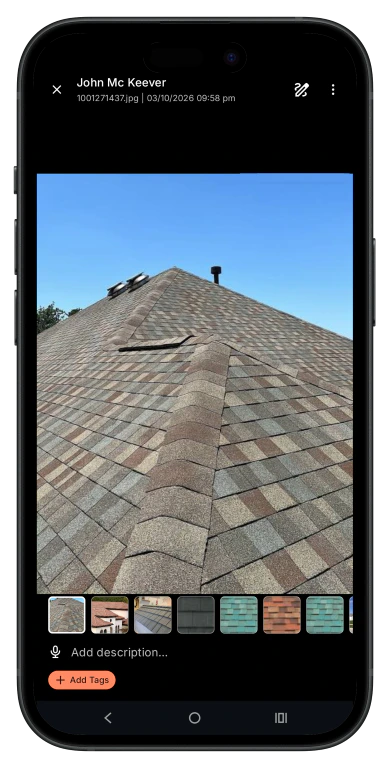
When you tap a photo or video, the Media Viewer opens in full-screen mode. Available actions include:- Swipe left or right to move between media items.
- View media in a carousel sequence.
- Zoom in on images for closer inspection.
- Add tags
- Remove tags
- Displays the attachment description if one exists.
- Image Annotation can be done.
2. Jobs tab
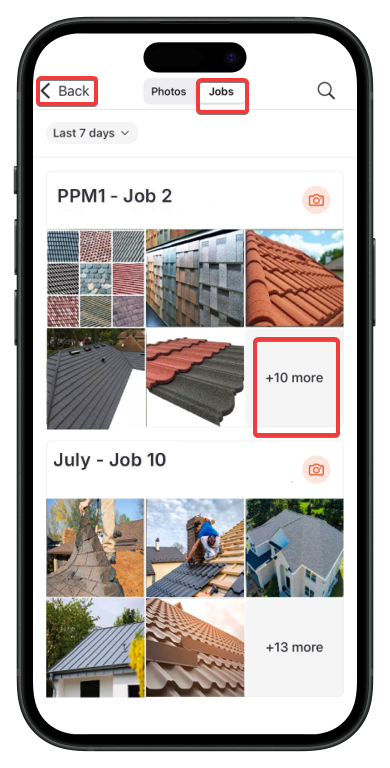
The Photo Feed screen opens and displays media from all jobs.- Displays media grouped by job present in the format of cards, showing only jobs with a scheduled date, allowing you to review attachments associated with a specific job.
- The date range filter includes Today, Yesterday, Last 7 days, Last 30 days, This month, Last month, and Custom date range.
- Tapping More opens the Job’s Gallery.
- Use the Camera icon to capture pictures.
- To return to the Jobs tab, tap the Back button within the Job Gallery
Troubleshooting geo-tag discrepancies
Check location permissions
The Zuper app requires location access to accurately geo-tag photos. Verify the permission is set correctly on your device. On iOS:- Open Settings on your iPhone.
- Scroll down and tap Zuper.
- Tap Location.
- Select While Using the App or Always.
- Ensure Precise Location is toggled on.
- Open Settings on your device.
- Tap Apps → Zuper.
- Tap Permissions → Location.
- Select Allow only while using the app or Allow all the time.
- Ensure Use precise location is enabled if shown.
Note: Selecting “Only this time” or “Deny” will prevent Zuper from reading your GPS, causing photos to be tagged inaccurately or not at all.