

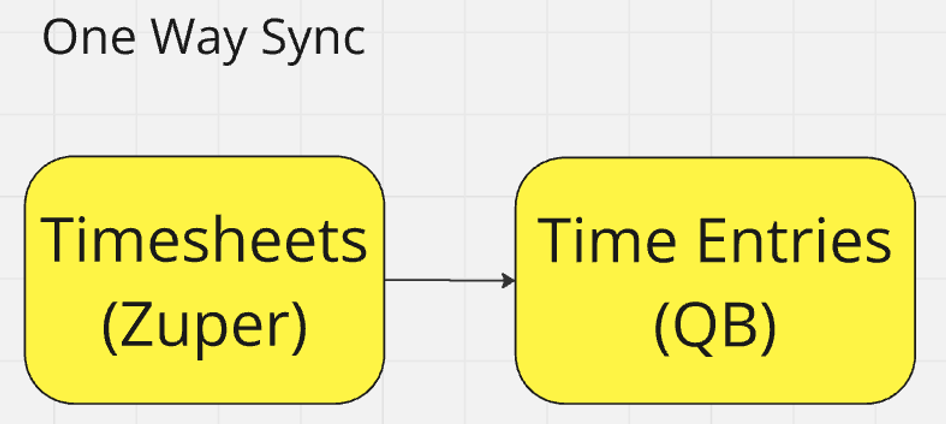
Note: We currently sync time entries from all Zuper users to QuickBooks Time. There are no restrictions based on role.
Installation
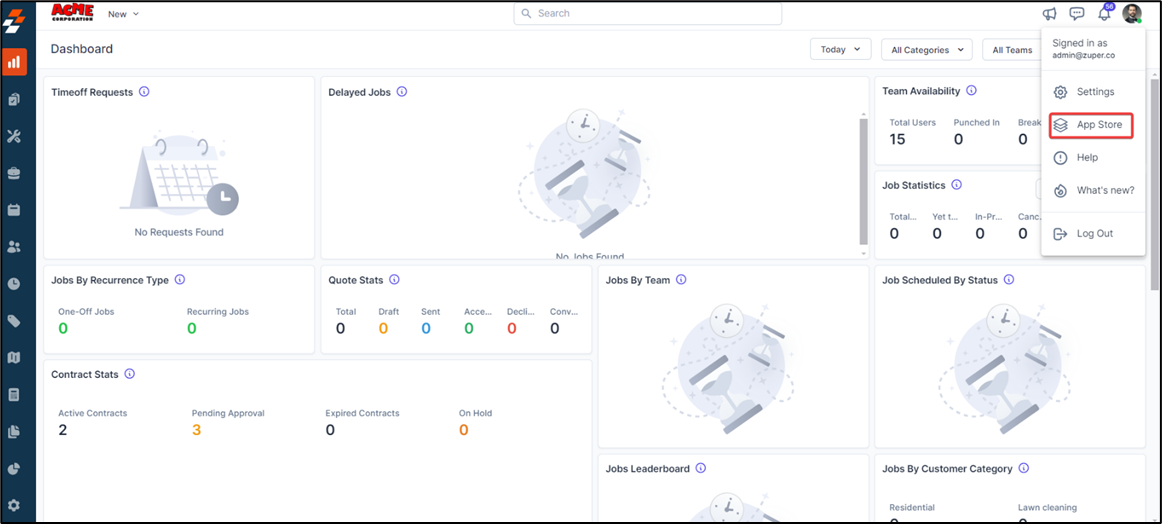
- Open a new tab in your browser once logged in to your Zuper Account. Click on your Profile Picture in the top right corner of the screen and select the “App Store.”
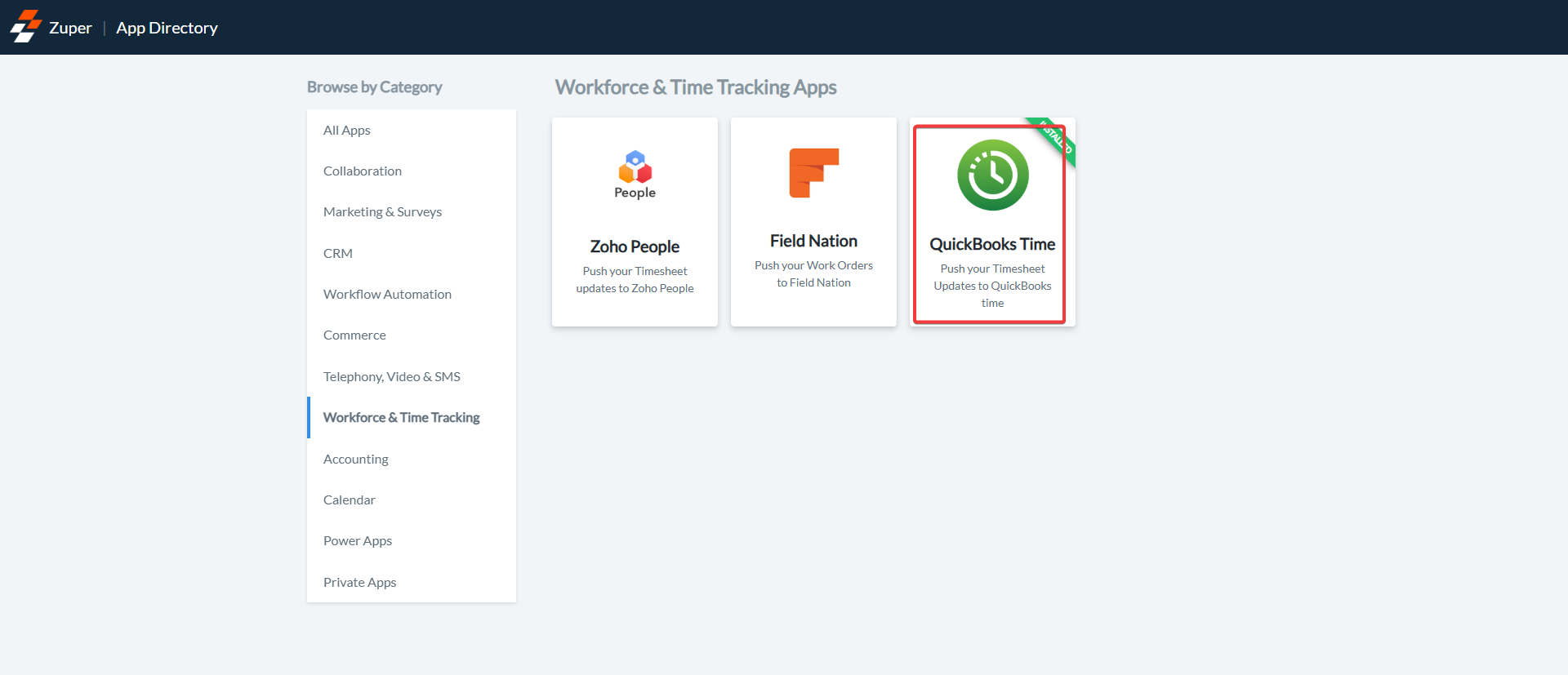
- Under the “Browse by Category,” select the “Workforce & Time Tracking” option and choose “QuickBooks Time.”
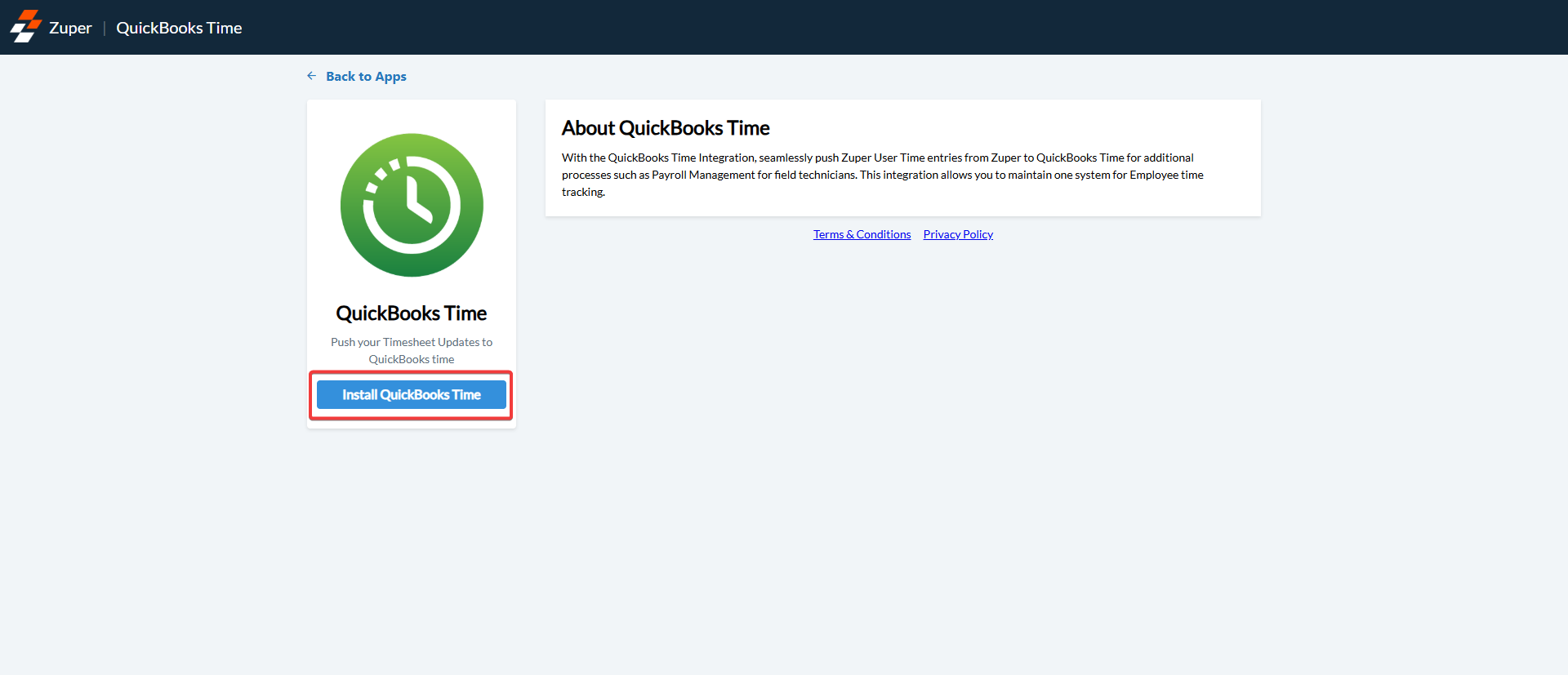
- Click on the “Install QuickBooks Time” button.
-
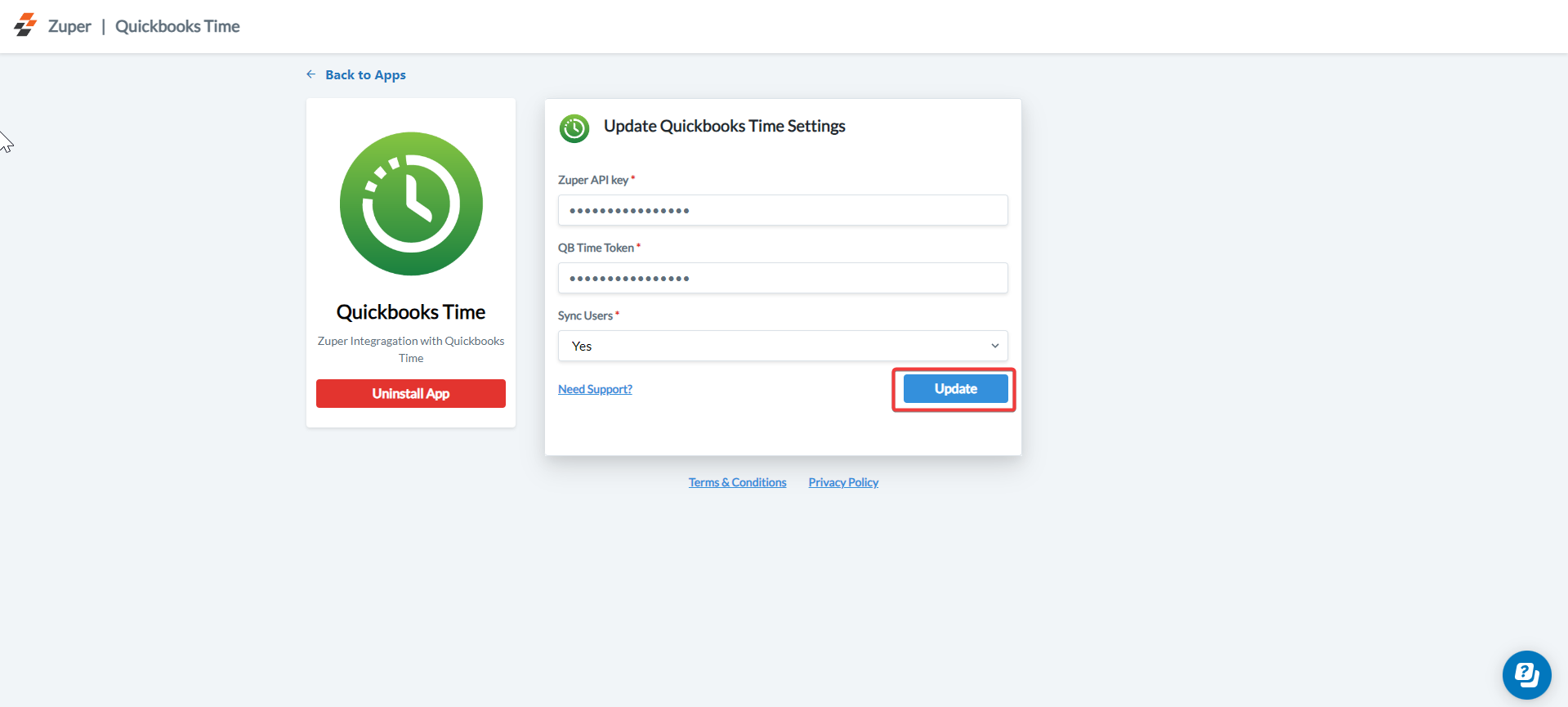
Update Zuper Settings by configuring the following fields:
- Zuper API Key (Mandatory) – To create the Zuper API, refer to the article (How do I create an API Key for my Zuper account?).
- QuickBooks Time Token (Mandatory) – Enter the QuickBooks Time Token. The token should be taken from QuickBooks Time.
To retrieve the token from QuickBooks Time
- Under “QuickBooks Time” Choose the “Feature Add-ons” and select the “Manage Add-ons.”
 2. Install the “API”.
 3. After installing the “API,” click the “Add a new application.”
 4. Add the “Name”, “Description”,“Technical Contact”, and “OAuth Redirect URL”.
 5. Kindly use the OAuth Redirect URL in QuickBooks Time - https://apps.zuperpro.com/app/quickbooks_time/oauth/callback 4. Click “Add Token” and enter the “User Name” and “Expiry Date.”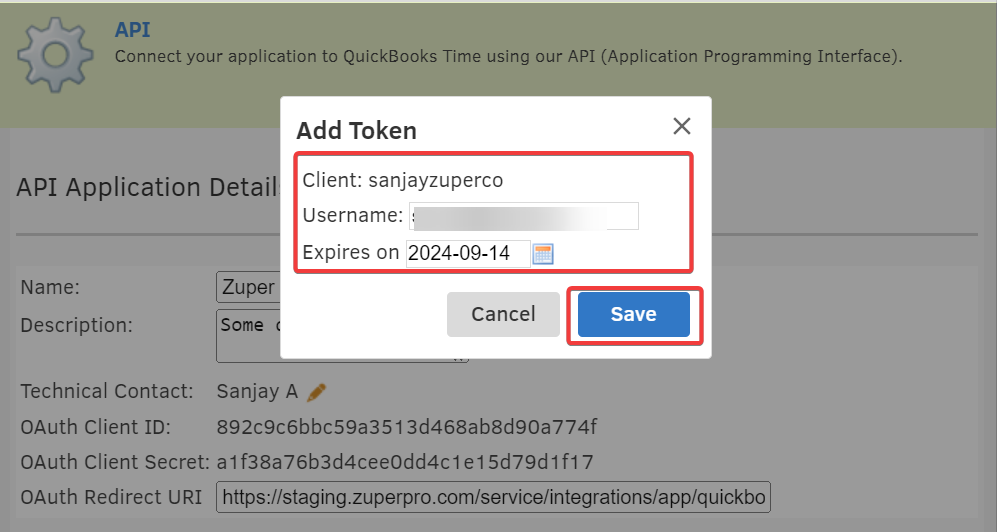
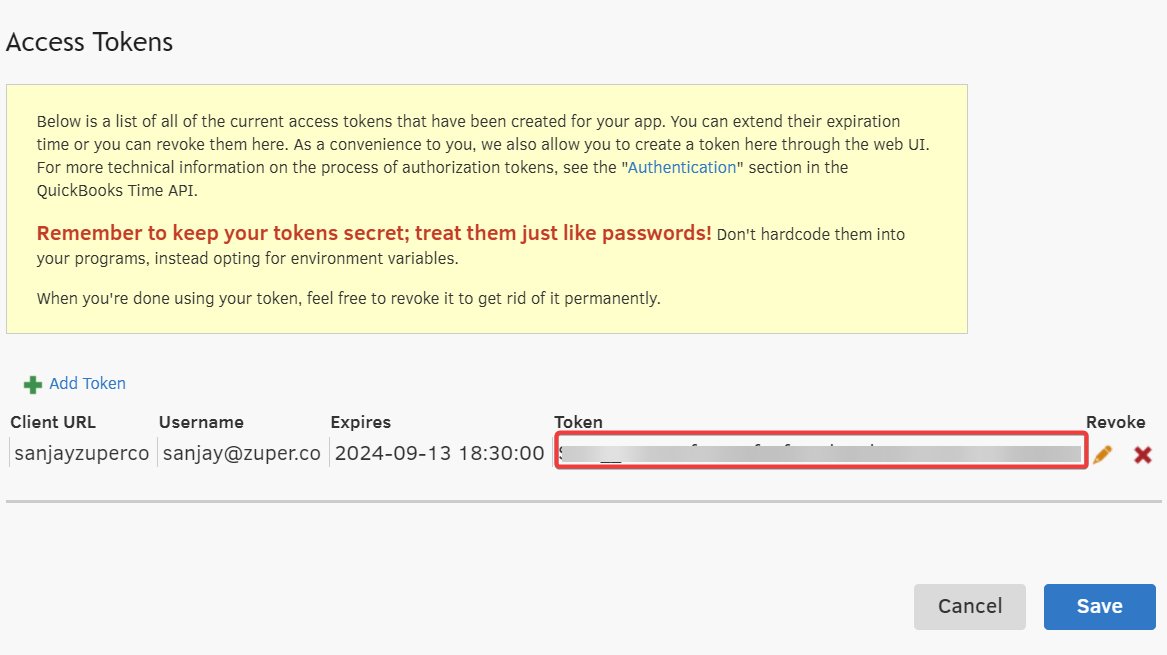
- Sync Users(Mandatory)—Enter the QuickBooks Desktop Connector Username. If you select “Yes,” Users will be pushed one-way from Zuper to QuickBooks Time. If you choose “No,” then the User sync will not happen from Zuper to QuickBooks Time.
- Click the “Update” button to save the settings.
Uninstallation
- Open a new tab in your browser once logged in to your Zuper Account. Click on your Profile Picture in the top right corner of the screen and select the “App Store.”
- Under the “Browse by Category,” select the “Workforce & Time Tracking” option and choose “QuickBooks Time.”
- Click the “Uninstall App” button.
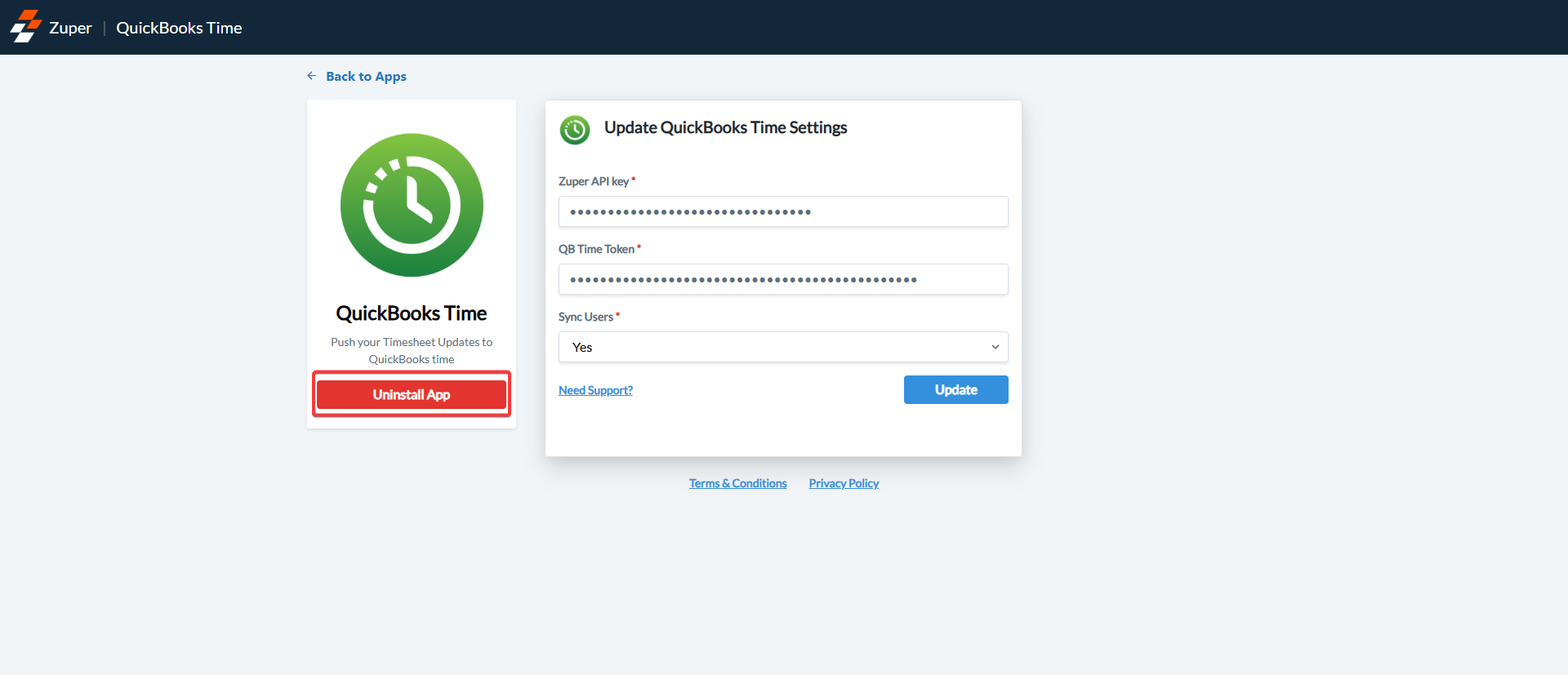
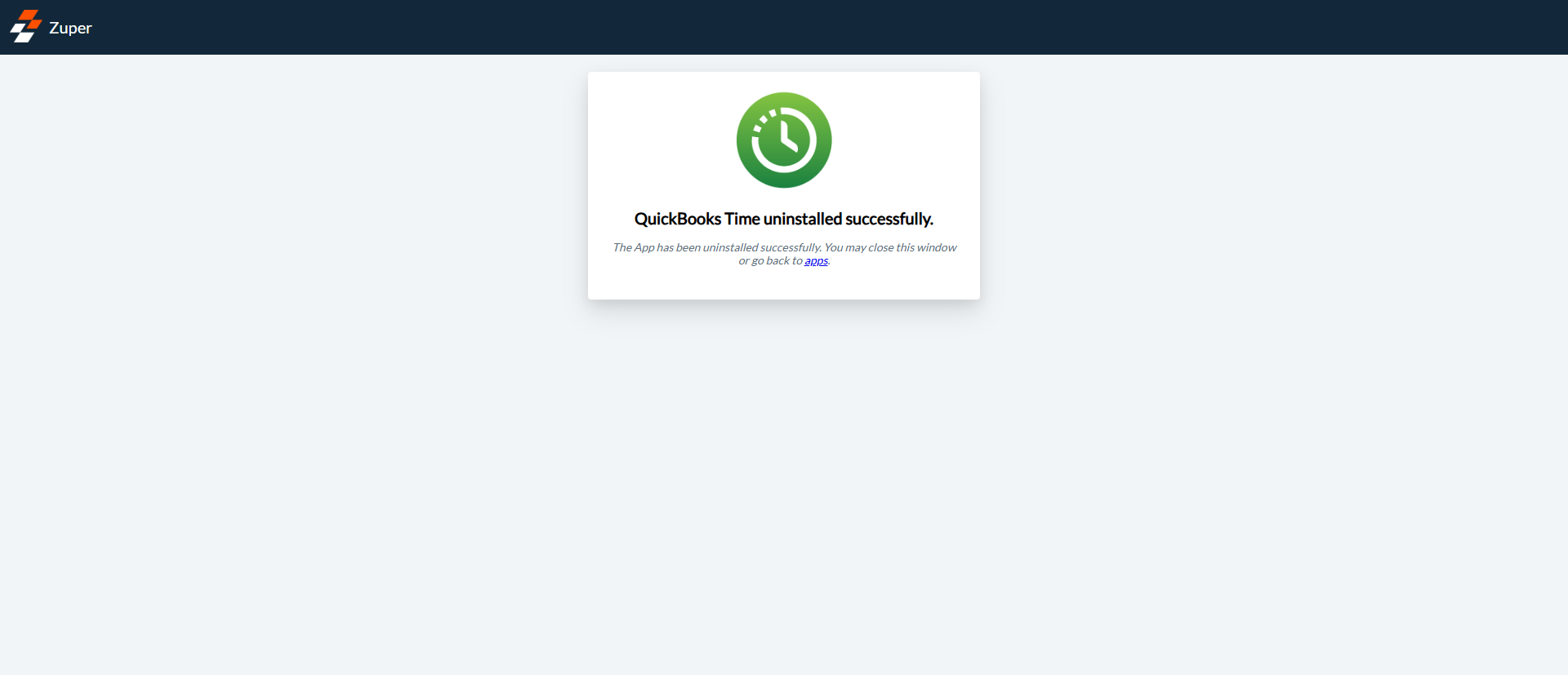
- The App is uninstalled successfully.
Important Points:
- The integration doesn’t support the syncing of job codes or customers associated with Time Entries.
- Locations are currently not supported and will always be tagged as ‘Zuper. ’