- Push work order details from Zuper to FieldNation.
- Sync status updates, notes, and attachments from FieldNation to Zuper.
- Track FieldNation job details directly from Zuper.
Installing FieldNation in Zuper
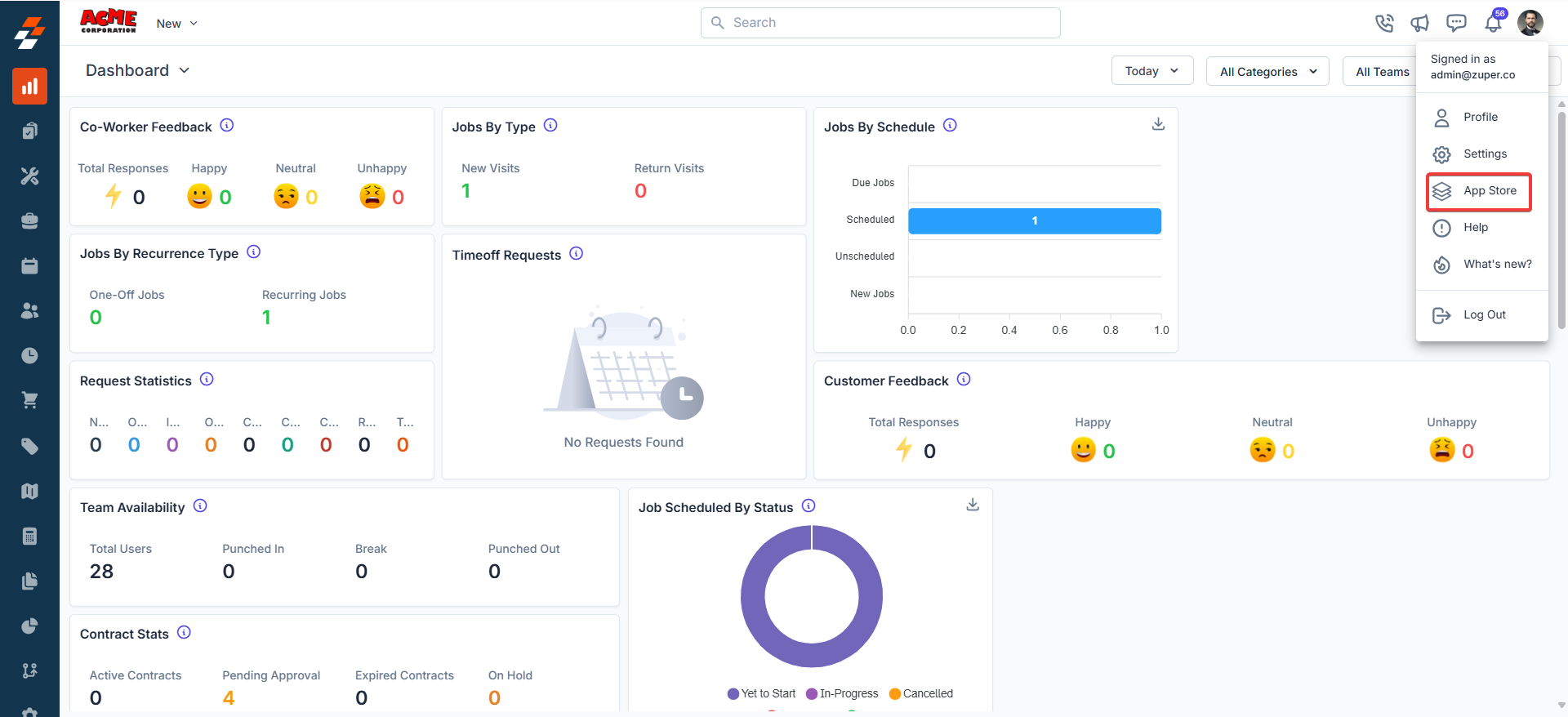
Follow these steps to install and configure the FieldNation app in Zuper:- Once you are logged in to your Zuper Account, click on your profile picture in the top right corner of the screen and click on “App Store.”
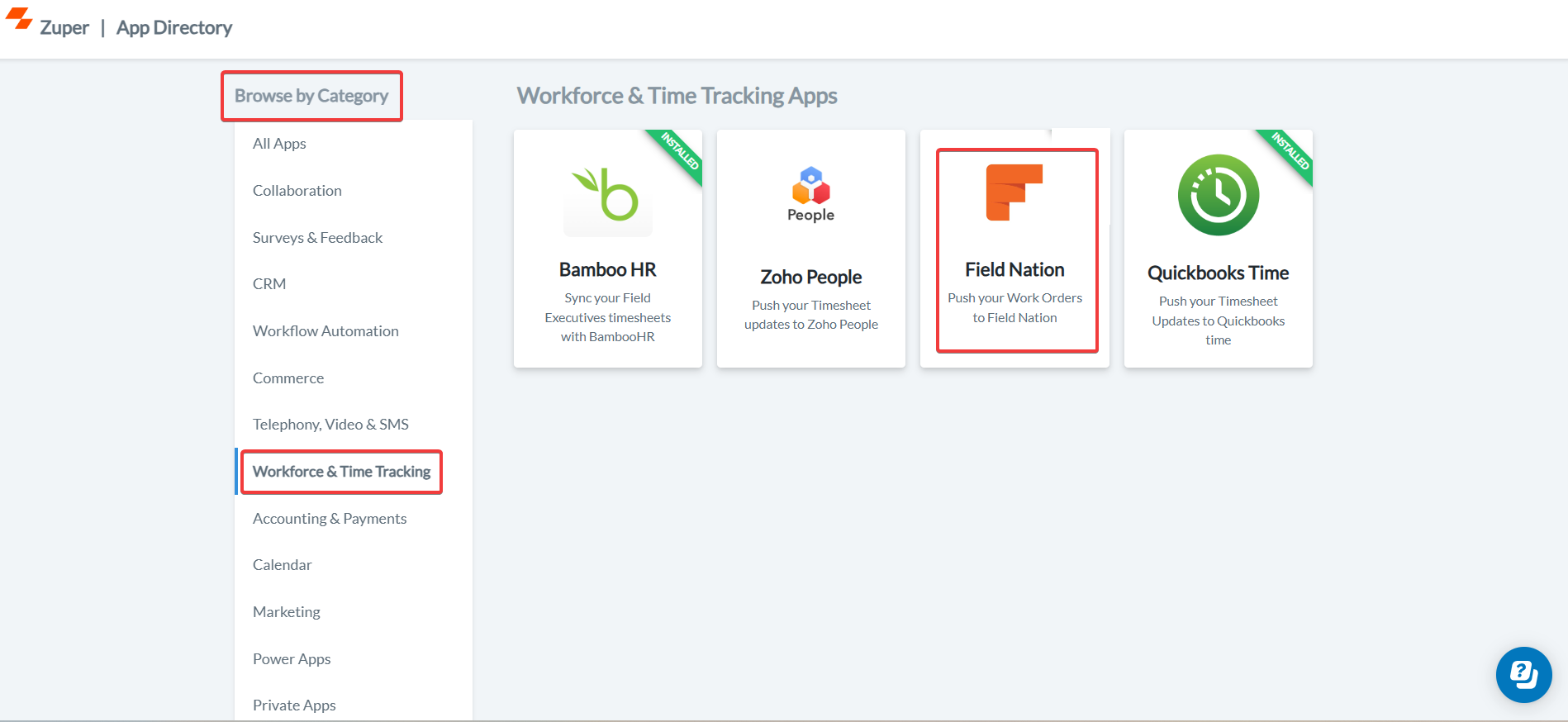
- Select the “Workforce and Time Tracking” option and choose “FieldNation.” Select the “Install App” button.
-
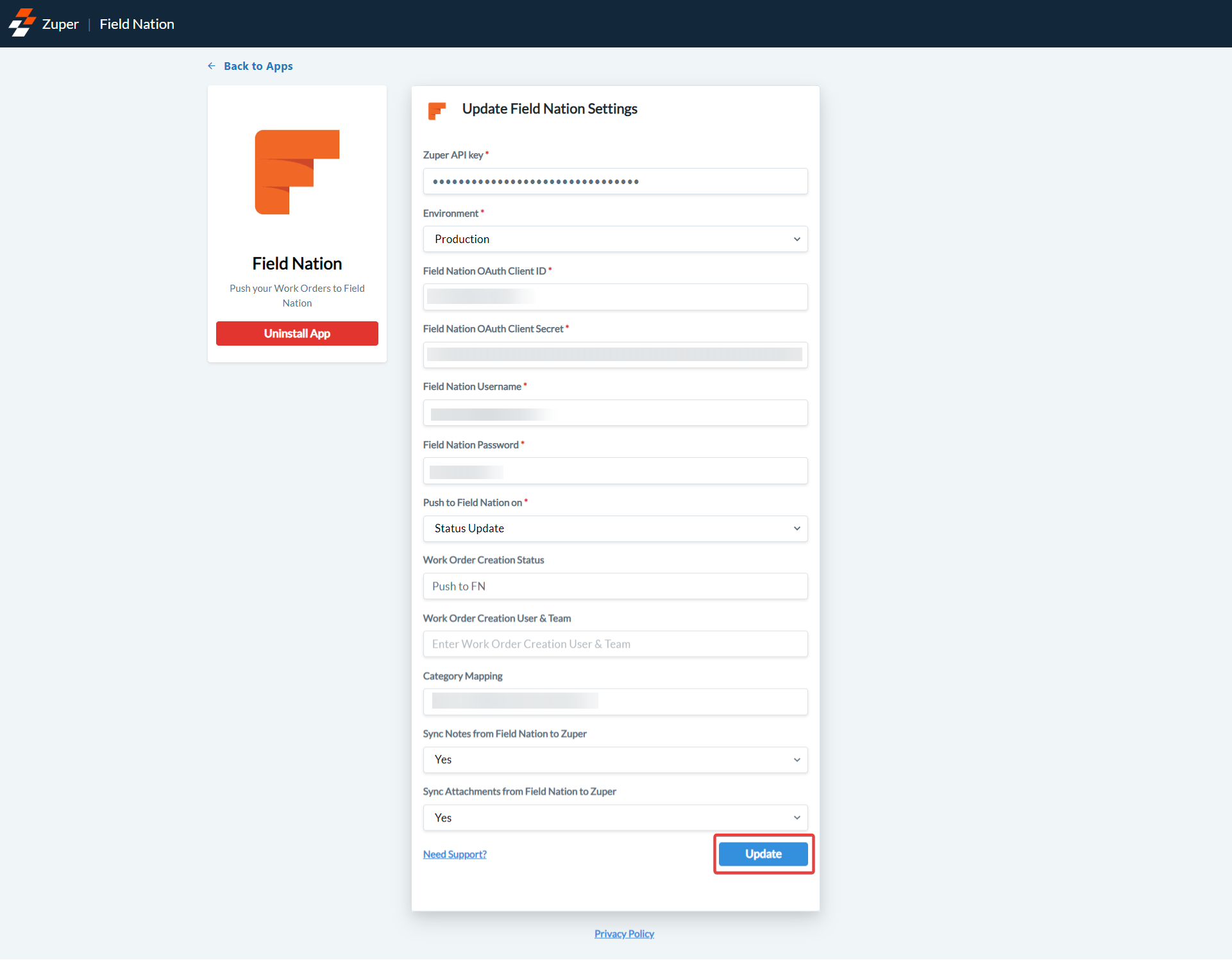
Fill in the following fields to connect Zuper and Fieldnation.
- Zuper API Key (Mandatory Field) - Enter the Zuper API key. Refer to How to Generate a Zuper API Key for guidance.
- Environment (Mandatory Field) – Enter Zuper’s Environment name. This can be either “Sandbox” or ” Production.”
- Field Nation OAuth Client ID (Mandatory Field) - Enter the OAuth Client ID from the Field Nation account.
- Field Nation OAuth Client Secret (Mandatory Field) - Enter the OAuth Client Secret from the Field Nation account.
 Note: You must have a FieldNation account with REST API and Webhooks enabled to obtain the OAuth Client ID and Client Secret.Important: Click Generate New Secret in FieldNation to obtain a new Client ID and Client Secret. Copy these from the pop-up and update them in Zuper, replacing any existing credentials. The “Copy link” button in the FieldNation REST API will not work.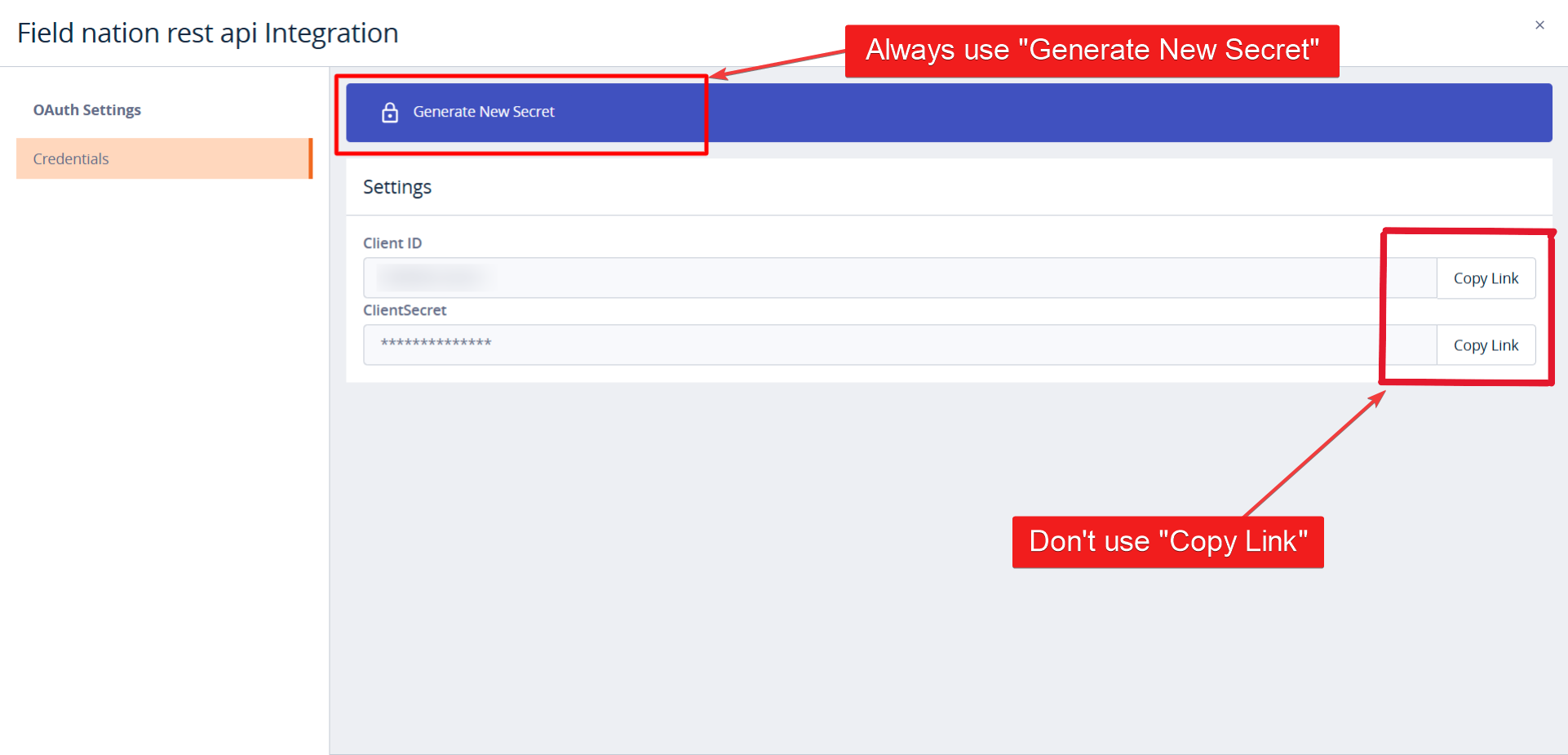
- Field Nation User Name (Mandatory Field) – Enter the user name of the Field Nation.
- Field Nation Password (Mandatory Field) – Enter the password of the Field Nation.
- Push to Field Nation on (Mandatory Field) – The action to push data to Field Nation whenever “Status Update,” “Assignment,” or “Status Update and Assignment.”
Note: If selecting “Status Update” or “Status Update and Assignment,” ensure an active “Status” is configured for the job category in Zuper.- Work Order Creation Status – Enter the status of the work order from Field Nation.
- Work Order Creation User and Team – Enter the user and team responsible for work order creation. The recommended format for the input: User and Team should have ”:” Colon separator, followed by ”;” semi-colon, and select “No” to avoid syncing the next set. (A sample format: Alex: Team California; Peter: Team NewYork).
- Category Mapping– Map FieldNation categories to Zuper categories, separated by the “Semi-Colon”(;).
- Sync Notes from Field Nation to Zuper – Select “Yes” to sync notes from Field Nation to Zuper, and select “No” to avoid syncing notes from Field Nation to Zuper.
- Sync attachments from Field Nation to Zuper– Select “Yes” to sync attachments from Field Nation to Zuper, and select “No” to avoid syncing attachments from Field Nation to Zuper.
- Select the “Update” button to integrate Zuper with Field Nation.
Field Nation and FieldNation and Zuper Status Mapping
The following table maps equivalent statuses between FieldNation and Zuper:How the Zuper-FieldNation Integration Works
The integration enables bi-directional synchronization between Zuper and FieldNation, ensuring seamless data flow for work orders. Sync Work orders from the Zuper to FieldNation:-
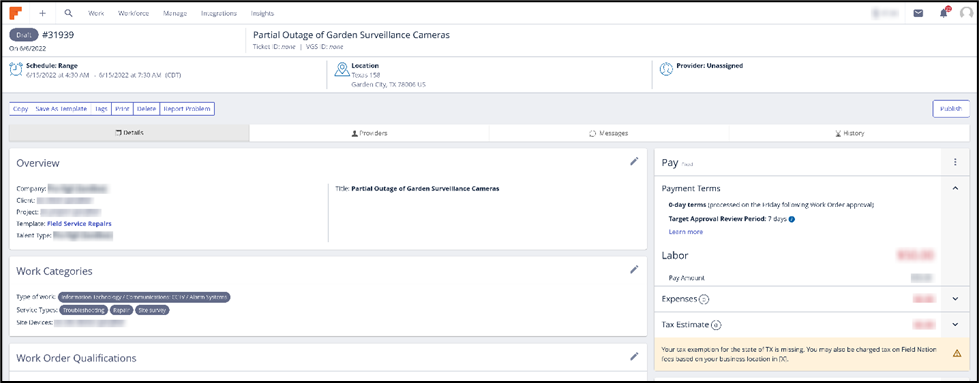
The type of work and the payment details are updated in Zuper and synced with FieldNation based on the category mapping.
-
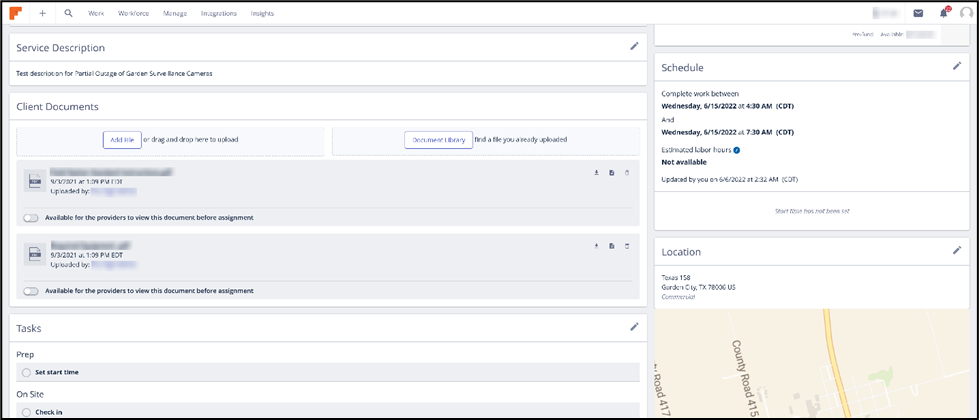
The schedule details and attachments on FieldNation are updated on Zuper.
-
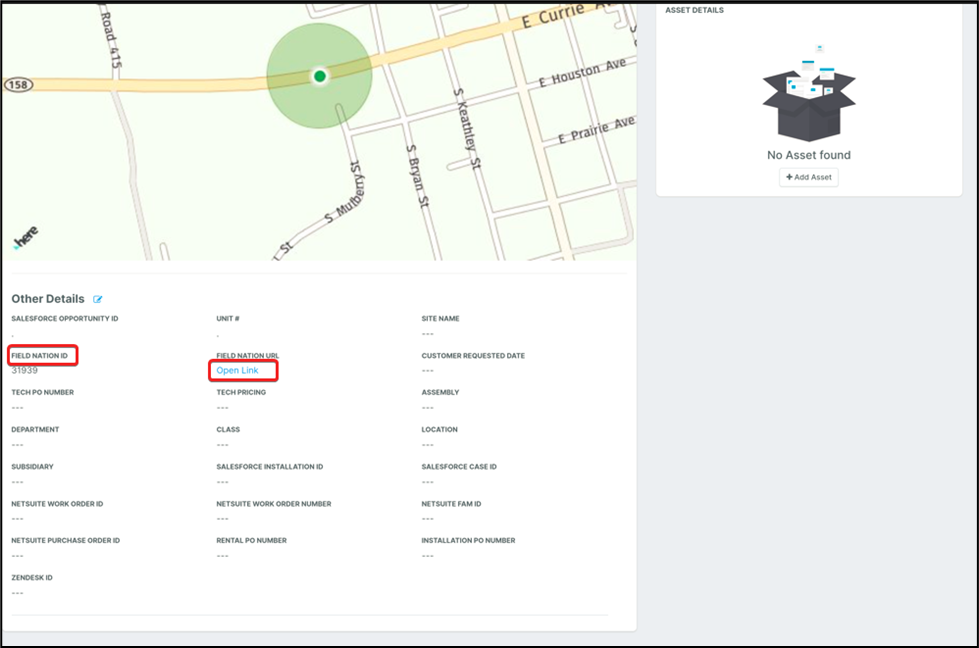
FieldNation job details can be tracked from the Zuper Job module in a single click. Under the Other Details section, locate the FieldNation ID and click Open Link to view the work order in FieldNation.
-
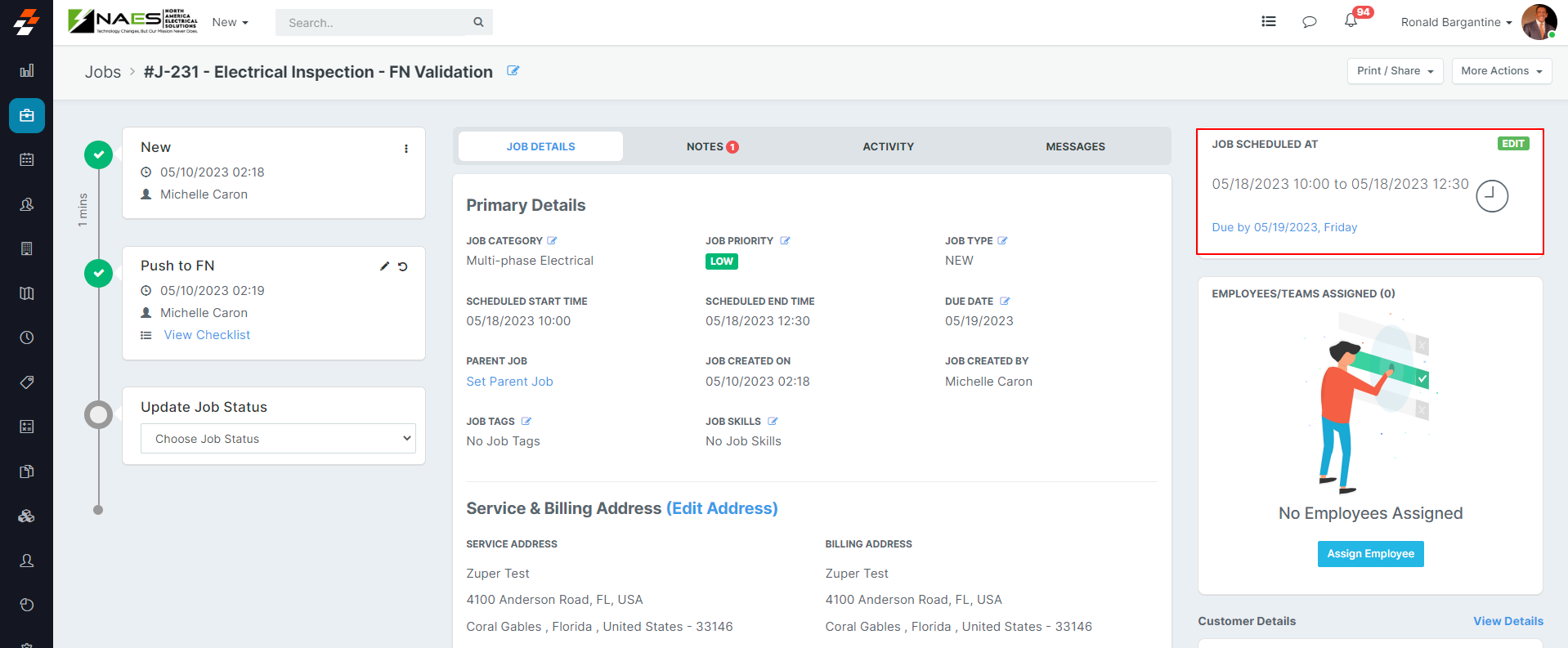
Track scheduled job times directly within Zuper.
Uninstalling FieldNation from Zuper
To remove the FieldNation integration from Zuper:- Once you are logged in to your Zuper Account, click on your Profile Picture on the top right corner of the screen & click on “App Store.”
- Select the “Workforce and Time Tracking” option and choose “FieldNation.” Select the “Install App” button.
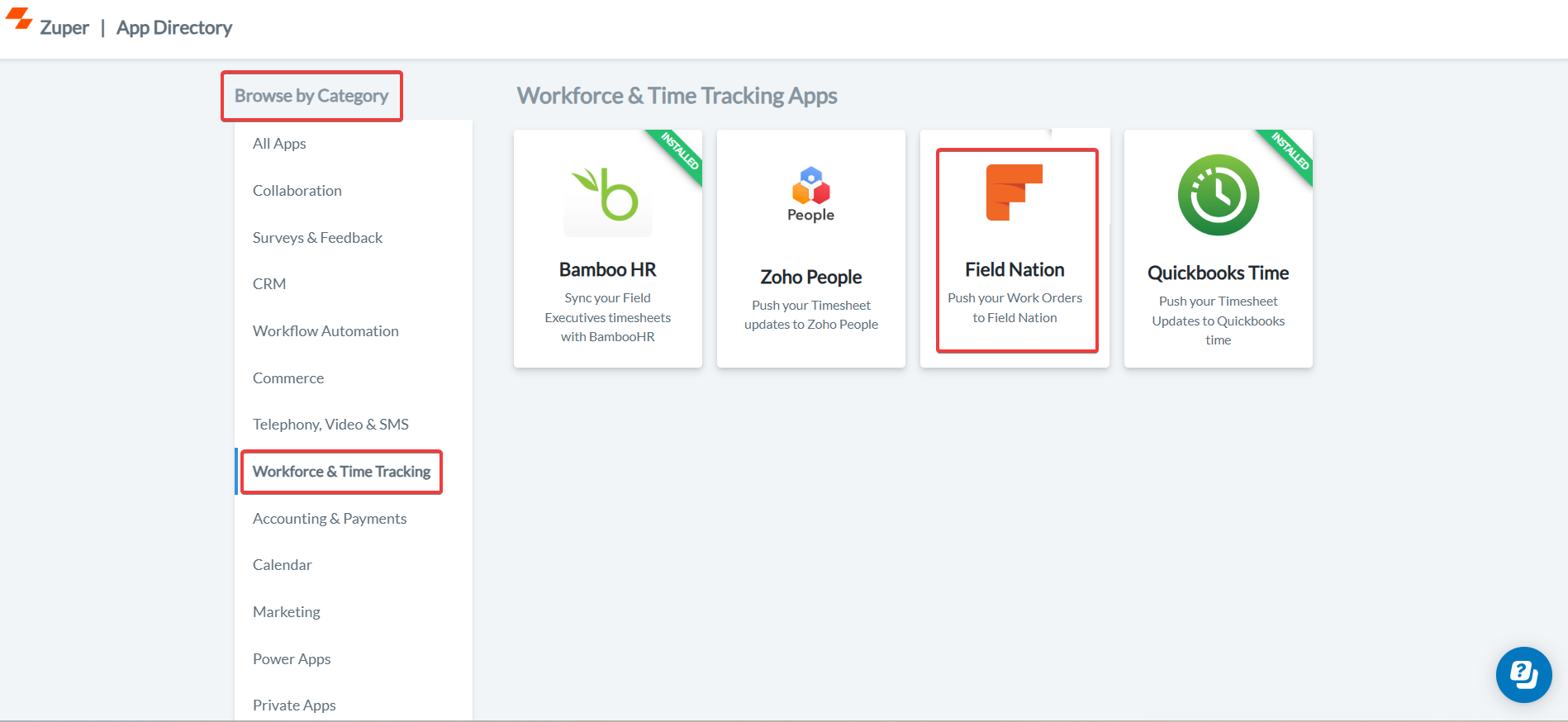
- Click on the “Uninstall App” button.
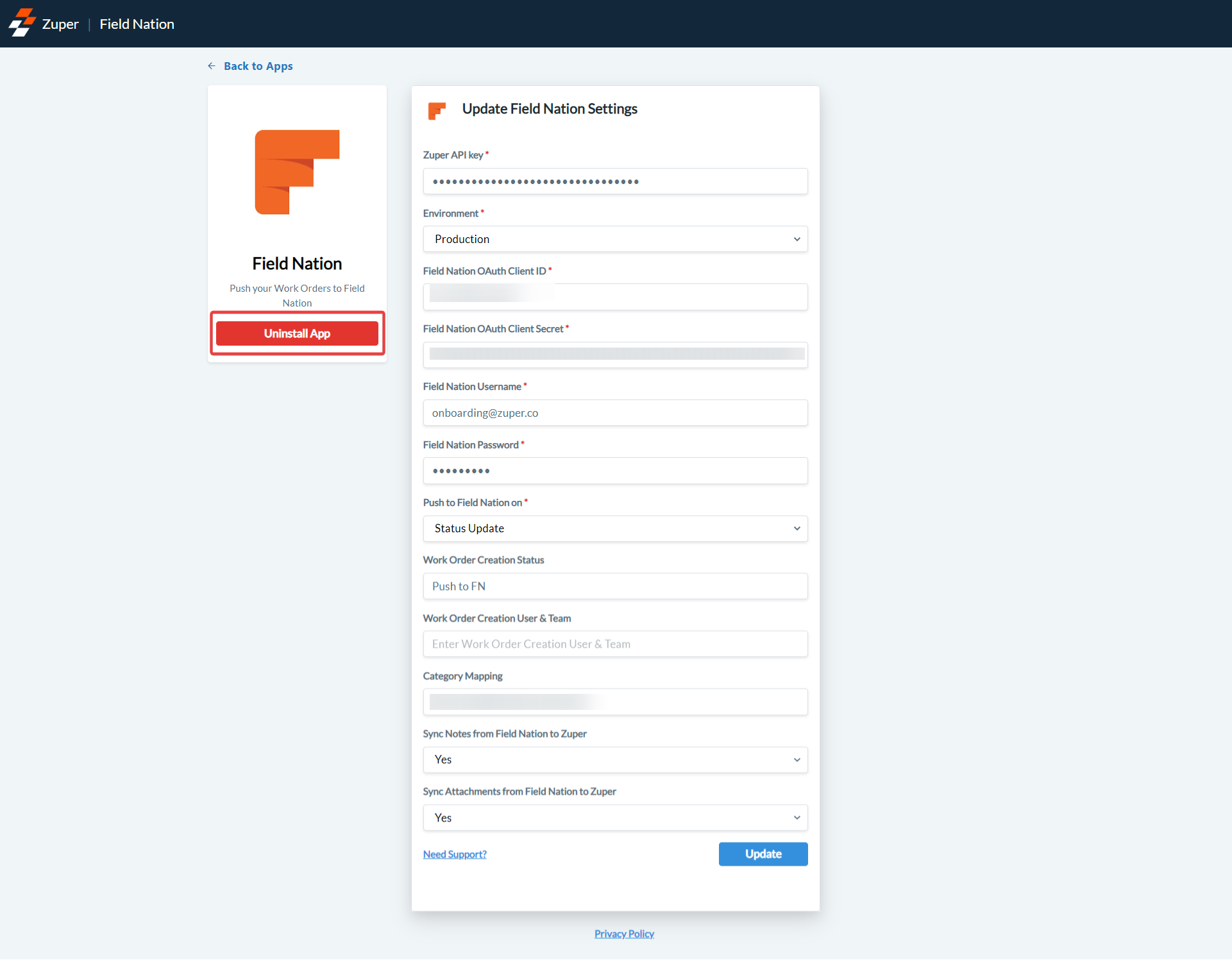
- The FieldNation app will be uninstalled successfully.