

- Record short videos.
- Use Dual-Camera Mode to capture video from both front and rear cameras simultaneously.
- Pause and resume recordings without starting over.
- Take photos while recording video
Benefits
The AI Walkthrough Note feature acts like a personal assistant on-site, capturing every detail while you focus on the work. When combined with Dual Camera Mode, it provides a comprehensive way to document jobs.- Live Documentation: Capture photos and videos in real time, building a complete virtual notebook without pausing work
- Voice Transcription: Speak naturally while AI converts your speech into clear, readable notes.
- AI-Powered Summarizing: Automatically removes filler words, corrects grammar, and organizes content into concise summaries.
- Dual Perspective Recording: Record simultaneously from front and rear cameras to capture both the technician’s viewpoint and the project context.
- Improved Communication: Multimedia notes help explain complex project details to clients and team members.
- Time-Saving Notes: Automatic transcription and AI summaries reduce manual note-taking.
- Flexible Editing and Translation: Edit AI-generated notes or translate them into multiple languages for better accessibility.
Capturing a Short Video
- Android
- iOS
- Open the Zuper mobile app.
- Navigate to the Job Details page.
- Tap Add Note – the camera will launch automatically.
- Go to the Walkthrough option.
- Switch to video mode at the bottom of the screen.
- Click “Start Walkthrough” to begin the session.
Using Dual Camera Mode
- Android
- iOS
- Open the Zuper mobile app.
- Navigate to the Job Details page.
- Tap Add Note – the camera will launch automatically.
- Go to the Walkthrough option.
- Switch to video mode at the bottom of the screen.
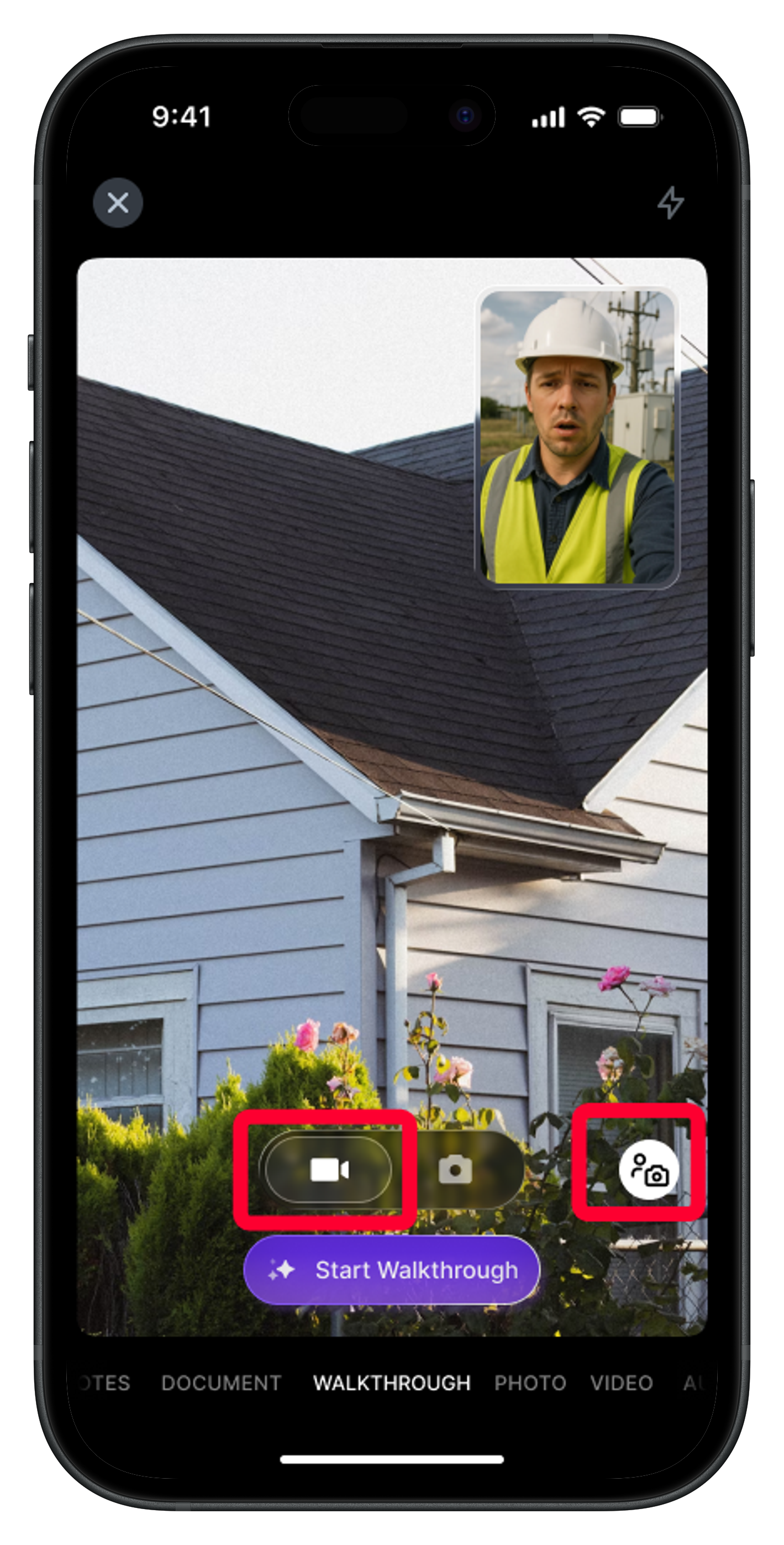
- Tap the dual camera icon and click “Start Walkthrough” to begin your dual-view presentation, showcasing both your narrative and the project scene.
While recording, keep in mind that you can:
- Record up to 3 minutes per walkthrough.
- Capture photos at any time during the recording by tapping the Camera icon at the bottom right of the screen.
- Say “Snap” to instantly capture a photo without tapping any buttons.
- Temporarily stop and restart both the video and transcription by tapping the Pause/Resume options at the bottom left of the screen.
Review Your Attachments
After recording a video (and capturing any photos during the session), you will be directed to the Review Attachments screen. Here you can:- Preview videos and photos you captured.
- Add tags using the “+ Add tag” button to categorize images.
- Tap Finish to proceed.
- You’ll be redirected to the Add Note page, where the captured video and images are displayed.
- Zuper AI will automatically process your audio, generating a polished summary with corrected spelling, grammar, and clear structure.
- Finally, tap Save. The summarized note, along with the recorded videos and photos, will be added to the job notes successfully.
Editing and Enhancing the Note (Optional)
Once AI generates a summarized note, you can edit or enhance it before saving:- Edit: Tap the “Summarized by AI” section to open the Edit Note screen. You can either:
- Microphone Input: Speak to add more details.
- Manual Editing: Use the keyboard to make changes.
- Enhance with AI: Refine your note using AI options:
- Summarize: Condense lengthy notes.
- Clean Up: Correct grammar, spelling, and structure.
- Translate: Convert notes into 17 languages, including Dutch, French, Slovenian, and Spanish.
Offline Capabilities
The AI Walkthrough Note feature also supports limited offline functionality, allowing technicians to continue capturing essential job details even without an active internet connection. Here’s what you can do offline:- Walkthrough Video Recording: Record walkthrough videos (up to 3 minutes).
- Dual Camera Mode: Use dual camera to capture video from both front and rear cameras simultaneously.
- Transcription (iOS Only): On iOS devices, audio transcription will continue to work offline, ensuring your voice input is converted to text.
- On Android devices, transcription will not work offline. However, you can still record videos with voice input. Your voice will be captured as part of the video but will not be transcribed until the device reconnects to the internet.
- AI Capabilities: AI-powered features such as Summarization, Clean Up, and Translate require an internet connection and are not available offline on either platform.
Best Practices
- Ensure a stable internet connection for a smooth recording experience.
- Use dual camera mode for specific purposes, such as:
- Training: Make detailed videos for new team members, showing tasks with live commentary.
- Sales: Create engaging videos that highlight the quality and progress of your work.
- Marketing: Produce promotional videos showcasing both you and your completed projects.
- Add tags to images for quick search and categorization.
- Always preview and edit notes before saving.
FAQs
- What is Dual Camera mode? Dual Camera mode allows you to record using both the front and rear cameras at the same time. This gives you a more comprehensive view of the job site, capturing both your perspective and the surroundings.
- How do I enable Dual Camera mode? Select Video mode in the Walkthrough notes option, then tap the Dual Camera icon at the bottom right before starting the walkthrough.
- Why don’t I see the Dual Camera option on my device? Dual Camera mode is available only on supported mobile devices. The feature is not supported on tablets, including both Android and iOS models, so the option may not appear on those devices.
- What is the maximum video length I can record? You can record videos up to 3 minutes in length.
-
Can I take photos while recording a video?
Yes. While recording a video, you can capture photos in two ways:
- Tap the camera icon on the screen at any time during video recording.
- Say “Snap” to take a photo hands-free while continuing the video.
- Why can’t I add more pictures to a note? If you encounter issues adding more pictures, it may be due to a system limitation or an account setting. Please contact Zuper support for assistance.