

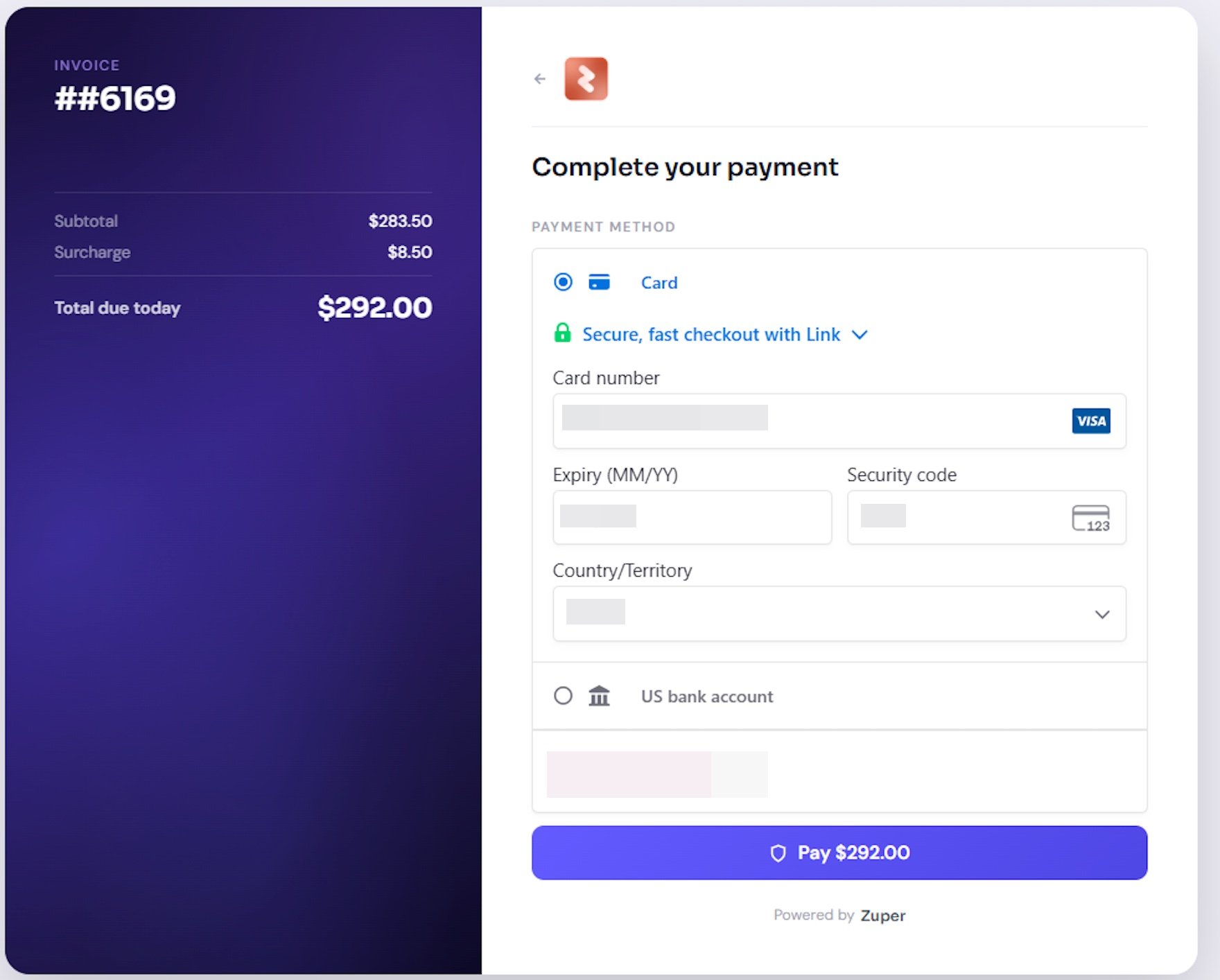
This feature is available for payments processed through Zuper Pay only.
Before You Begin
- Your account is enabled for Zuper Pay.
- You have Admin permissions to access Surcharge Settings.
- You have reviewed the Prohibited States section below. Surcharging is not allowed in every U.S. state. Check with your legal team before enabling this feature.
- Surcharges apply to credit card payments only. Debit and prepaid cards are not eligible.
- The surcharge you configure does not exceed the lower of 3% or your total average cost of credit card acceptance.
Important: The ZIP code in the customer’s or organization’s billing address, the card information, and your business’s operating state are all used to determine surcharge eligibility and the applicable rate. Confirm these are entered accurately before processing a payment.
How your surcharge rate is determined
Zuper does not always apply the surcharge rate you configure. For each credit card transaction, Zuper compares the following rates and applies the lower one:- The surcharge rate you configured for the transaction amount.
- The maximum surcharge rate permitted by Yeeld’s compliance service for the card and billing location.
Setting up Surcharge Rules
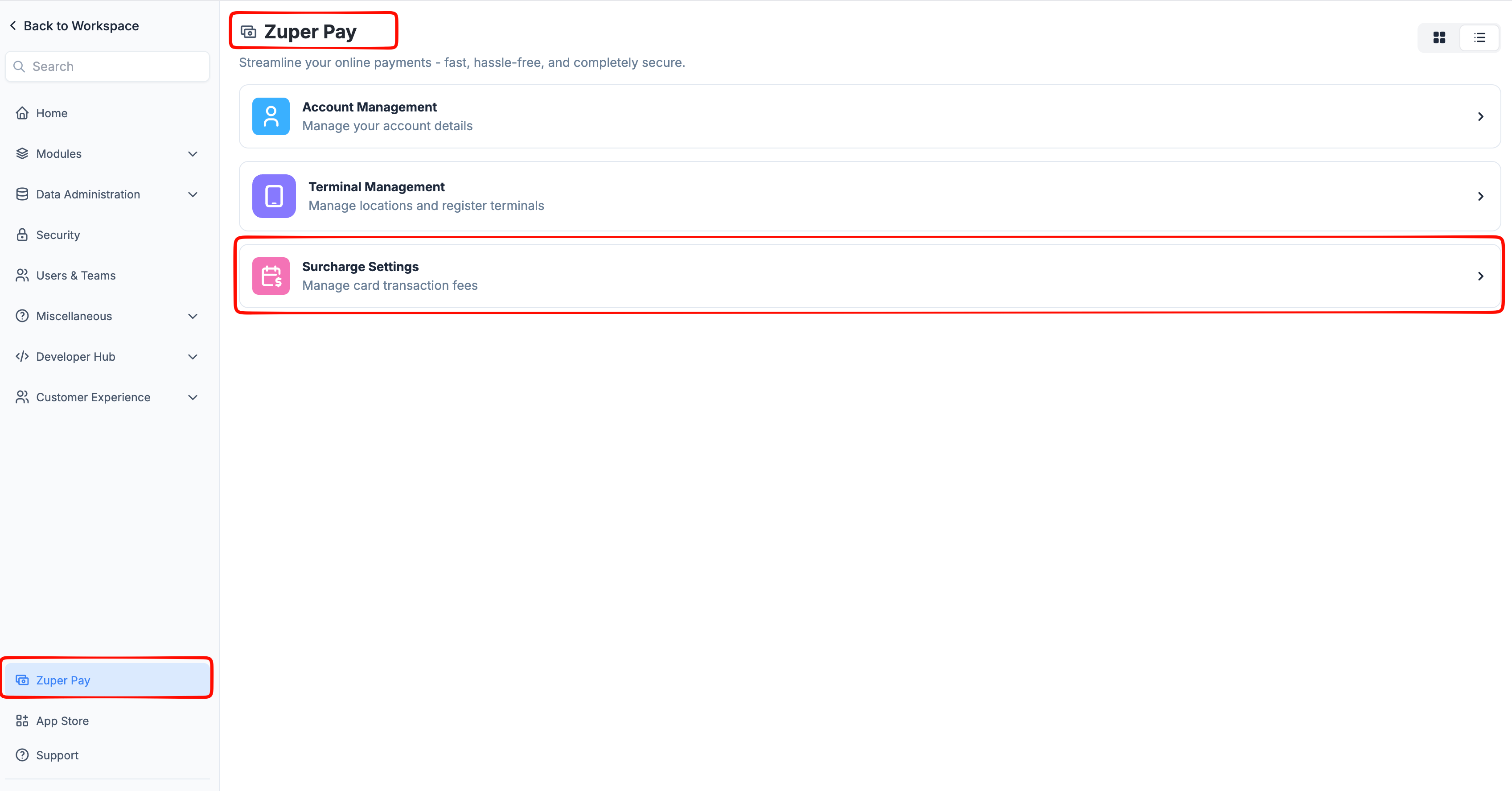
Start by setting up your surcharge rules in Settings. This is a one-time configuration that tells Zuper how much to charge based on the invoice or quote total. You can define tiered ranges so smaller invoices carry a lower fee than larger ones.- Navigate to the Settings module from the left navigation menu.
- Select Zuper Pay.
- Select Surcharge Settings.
- Toggle Enable Surcharge Fee to On. This is the organization-wide setting. Once it’s on, surcharging is enabled by default on every invoice and quote deposit. See “Turning off the surcharge for one invoice or quote” below to override this on a single transaction.
- Read and accept the consent form to activate the feature.
- In the Select a State field, choose the state of your business operation.
- Under Define Surcharge Fee Range, set up your tiers:
- Enter the Minimum Amount.
- Enter the Maximum Amount.
- Enter the Surcharge Percentage for that range.
- Click + Add New Range to add additional tiers and repeat.
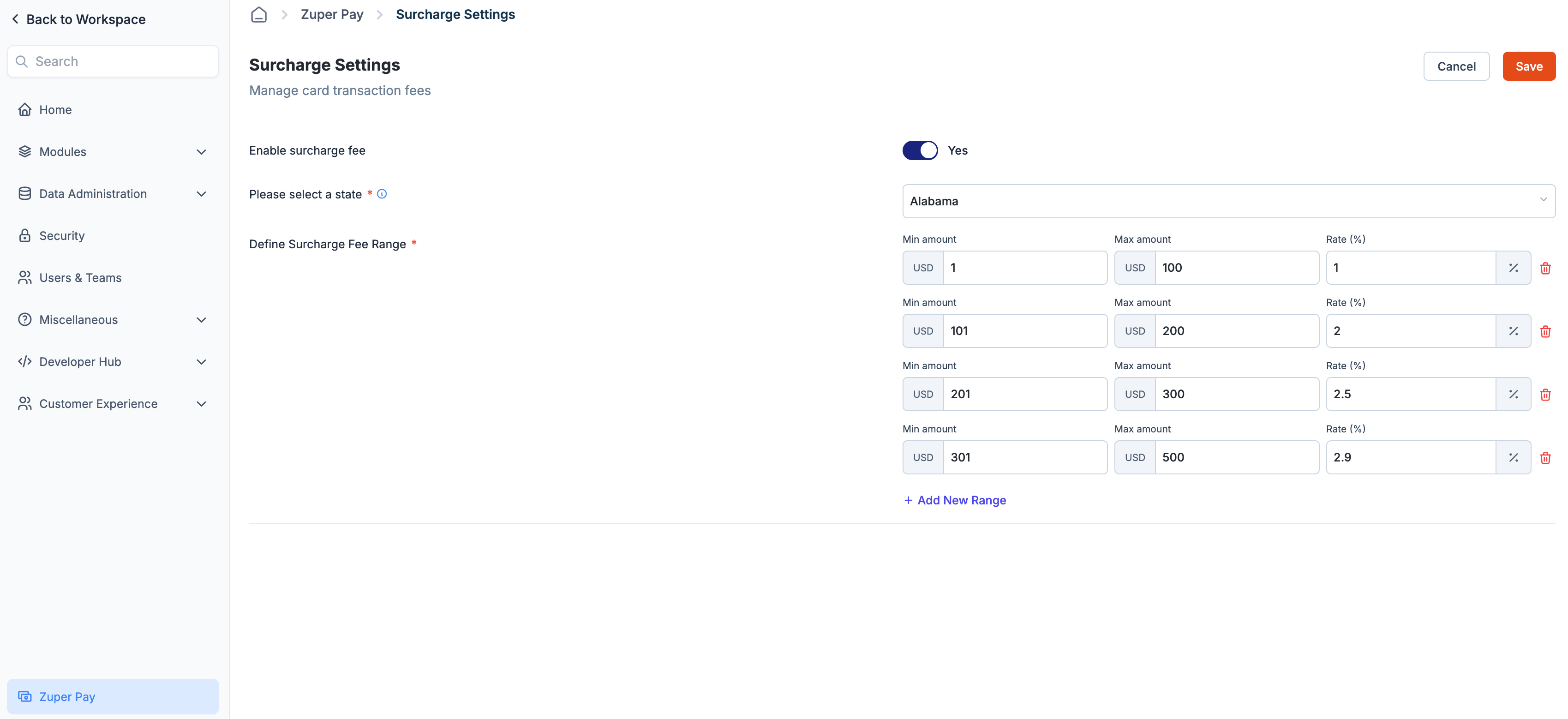
- Click Save.
Turning off the surcharge for one invoice or quote
Once you turn on the organization-level setting above, the surcharge applies automatically to every invoice and quote deposit. You do not need to turn it on per transaction. If you want to waive the surcharge for a specific transaction, open the invoice or quote, scroll to the bottom of the page, and uncheck Enable Surcharge Fee. This affects only that transaction. Your organization-wide setting stays unchanged, and the surcharge still applies to every other invoice and quote.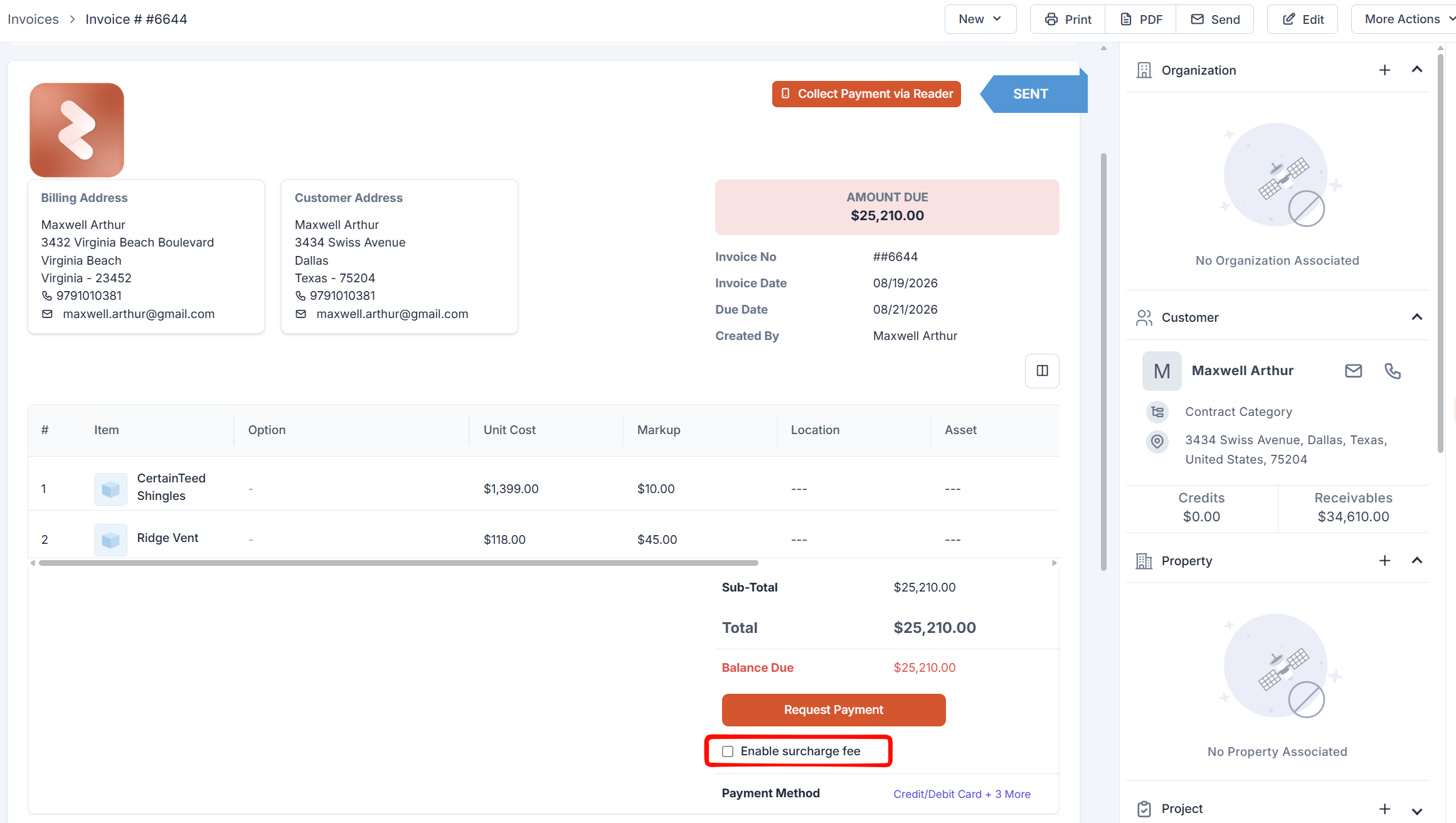
Note: When a surcharge is configured in Settings, it applies automatically to all automatic payments. See the Automatic Payments section below for compliance requirements.
How the surcharge appears on a payment
When a customer pays an invoice or quote by credit card, Zuper calculates the surcharge using the rules described above and adds it to the payment total. For example, suppose you have configured a 3% surcharge for transactions between $1,001 and $2,000, and Yeeld determines that the full 3% can be applied. If a customer pays a $2,000 invoice by credit card, Zuper adds a $60.00 surcharge, displays it as a separate line item, and presents a total payment amount of $2,060.00 for customer approval. If Yeeld determines that the maximum allowable surcharge for the transaction is 2%, Zuper applies a $40.00 surcharge instead of $60.00, even though your configured surcharge tier is 3%.Payment Method Considerations
Surcharges apply to credit card payments only. If the customer pays with a debit or prepaid card, the surcharge is automatically removed, and the customer is charged the original invoice amount only. Zuper supports surcharge collection for both card-present and card-not-present credit card transactions.- Card Present
- Card Not Present
Automatic Payments
Once you configure a surcharge in Settings, Zuper automatically applies it to eligible automatic credit card payments. You don’t need to configure the surcharge separately for each transaction. If a customer chooses not to continue with automatic payments, you can remove their saved card from the auto-charge setup. Zuper does not automatically remove saved cards based on customer responses.Processing Refunds
When you refund a transaction that included a surcharge, the surcharge is refunded in proportion to the refund amount.- Full refund: The customer receives the full amount back, including the surcharge.
- Partial refund: The surcharge is partially refunded in proportion to the amount refunded.
Prohibited States
Surcharging is governed at the federal, card network, and U.S. state levels. Visa, Mastercard, AMEX, and Discover impose their own requirements, including a cap of the lower of 3% or the merchant’s cost of acceptance. At the state level, some states prohibit or restrict surcharging entirely, while most allow it with conditions such as caps and disclosure requirements. Rules vary and may change. Zuper automatically detects the service address ZIP code and disables the surcharge for restricted locations.Frequently asked questions
Can the surcharge go above 3%?
Can the surcharge go above 3%?
No. The surcharge is capped at the lower of 3% or your total average cost of credit card acceptance. Zuper’s surcharge compliance service calculates the maximum allowable rate for each transaction based on card brand rules and state regulations. Whichever rate is lower applies.
If I update my surcharge settings, will existing invoices be affected?
If I update my surcharge settings, will existing invoices be affected?
No. Your changes only apply to transactions processed after you save. To apply a new surcharge to an older invoice, void or delete it, and create a new one.
Will the customer be prompted to confirm the surcharge before paying?
Will the customer be prompted to confirm the surcharge before paying?
Yes. Regardless of the payment method, the customer sees a Surcharge Notice before the transaction is finalised. They must confirm before the payment is processed.
Will the customer see the surcharge before they pay in the transaction?
Will the customer see the surcharge before they pay in the transaction?
Yes. The surcharge appears as a separate line item on the payment.
What happens to the surcharge if I issue a full refund?
What happens to the surcharge if I issue a full refund?
The full amount is refunded to the customer, including the surcharge.
What happens to the surcharge on a partial refund?
What happens to the surcharge on a partial refund?
Zuper refunds the surcharge in proportion to the total amount refunded, not just the invoice portion. For example, if you refund 50% of the invoice, 50% of the surcharge is also refunded.
Can I waive the surcharge for one customer without changing my settings?
Can I waive the surcharge for one customer without changing my settings?
Yes. Open the invoice or quote, scroll to the bottom, and uncheck Enable Surcharge Fee. The surcharge will not apply to that transaction, and your settings remain unchanged for all other transactions.
Do I need to notify my customers who make automatic payments?
Do I need to notify my customers who make automatic payments?
Yes. You must notify your customers at least 30 days in advance before surcharges are applied to their automatic payments. This is a card brand compliance requirement.
Will the surcharge I collect always cover my processing fee?
Will the surcharge I collect always cover my processing fee?
Not always. The surcharge is capped independently of your actual processing cost, so the rate allowed for a transaction can be lower than what you configured, and the amount collected may not fully offset your processing fee for that transaction.