

Access Material Orders
You can access Material Orders from a Job, Quote, or the home screen. When you access Material Orders from a Job or Quote, you can view the orders associated with that record and select an order to open its details.From a Job
When working on a job, you can view the Material Orders associated with it and track the status of each order.- Open the required job.
- On the Job Details page, select Material Orders under Overview.
- Review the list of Material Orders associated with the job
- Select a Material Order to open its details.
From a Quote
You can view the Material Orders associated with a quote and open a specific order to review its details.- Open the required quote. The quote details page opens.
- Tap the Association tab and select Material Orders.
- Review the list of Material Orders associated with the quote.
- Select a Material Order to open its details.
From the Home screen
You can access Material Orders directly from the Home screen. This opens the Material Orders listing, where you can quickly find a specific order, view its current status, and narrow down the list using search, sorting, and filtering options.- Open the Zuper Mobile App.
- From the Home screen, select Material Orders. The Material Orders listing displays available Material Orders along with their status and key details such as Material Order number, title, associated job, supplier, total amount, and required-by date.
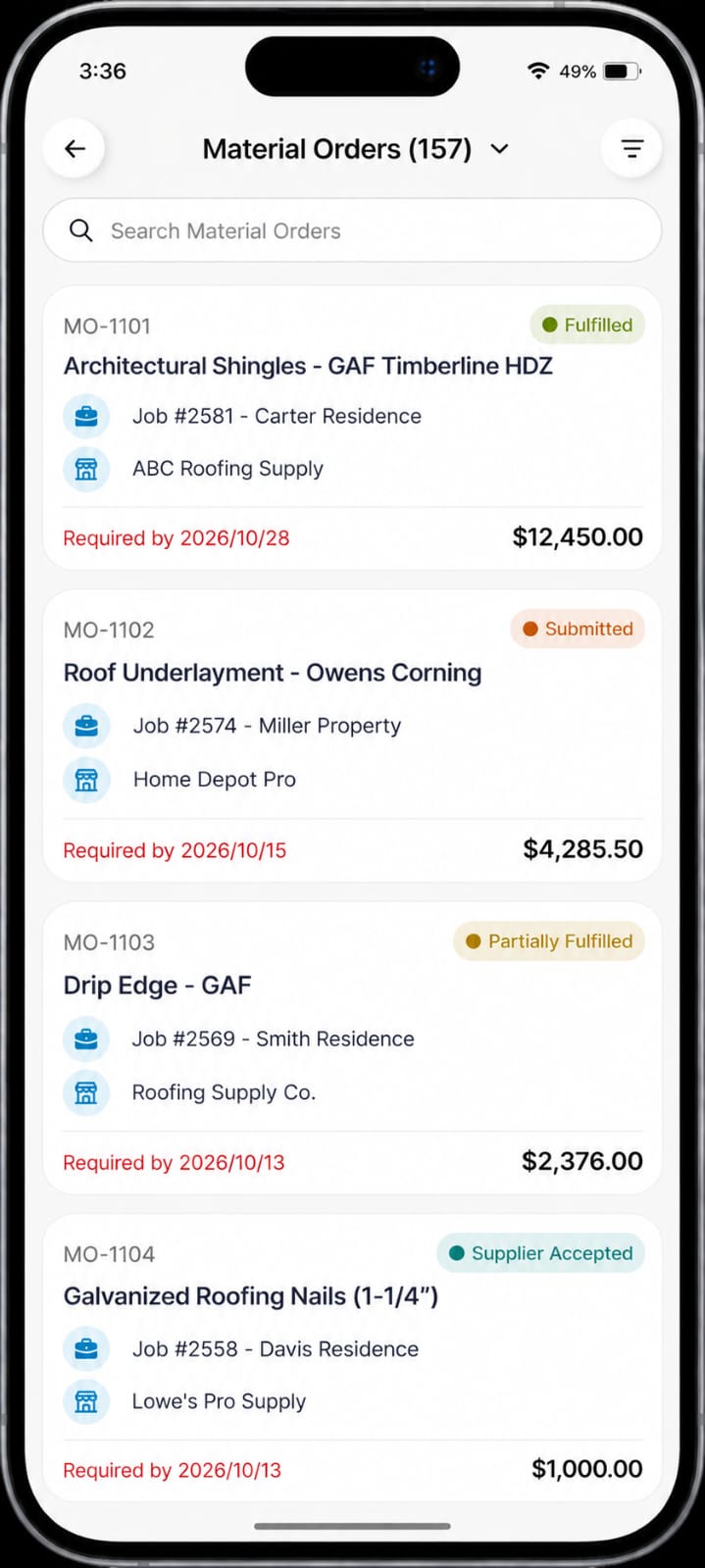
Note: The full Material Orders listing is available only to Admins. Field Employees and Team Leads can access Material Orders from the associated Job or Quote.
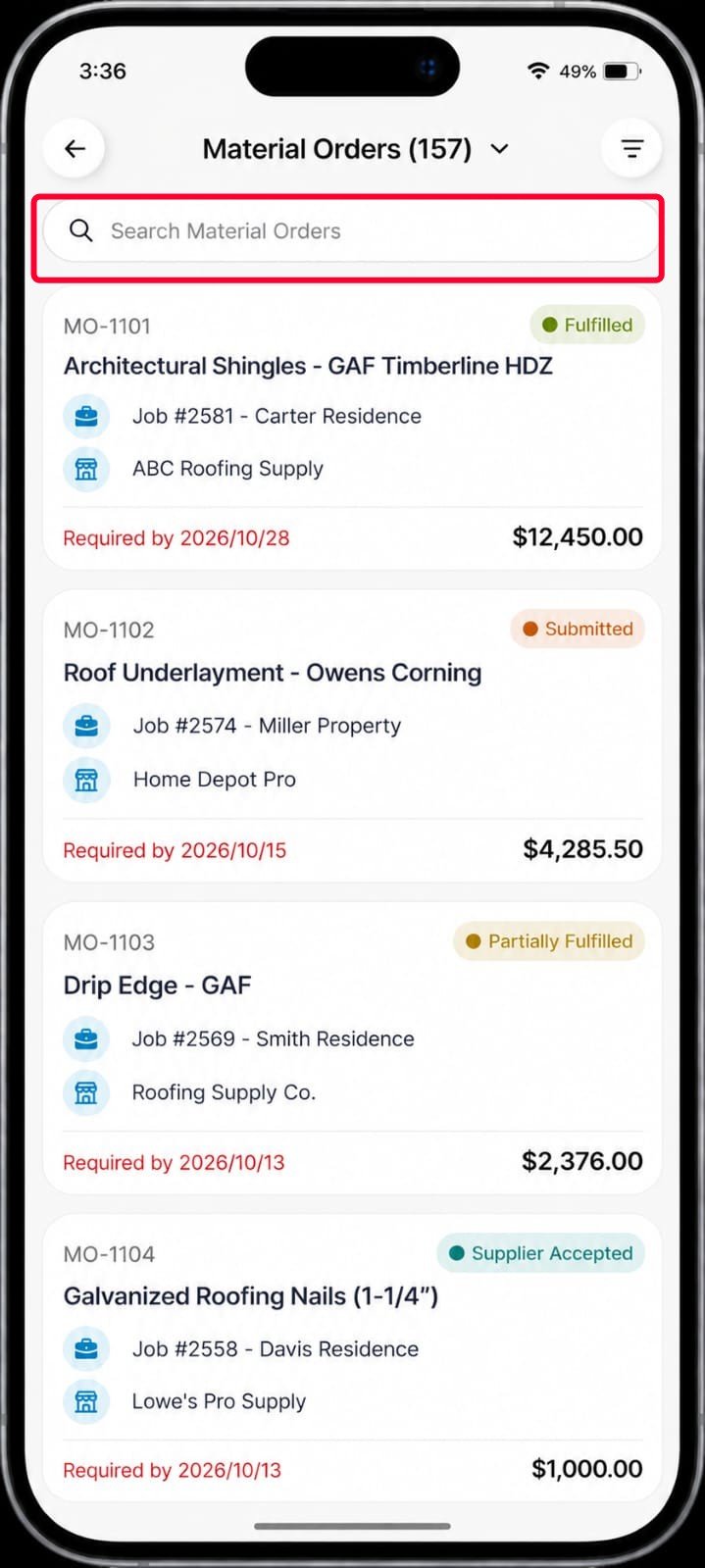
- Use the search bar to search for a Material Order using its Order No., Title, or Status.
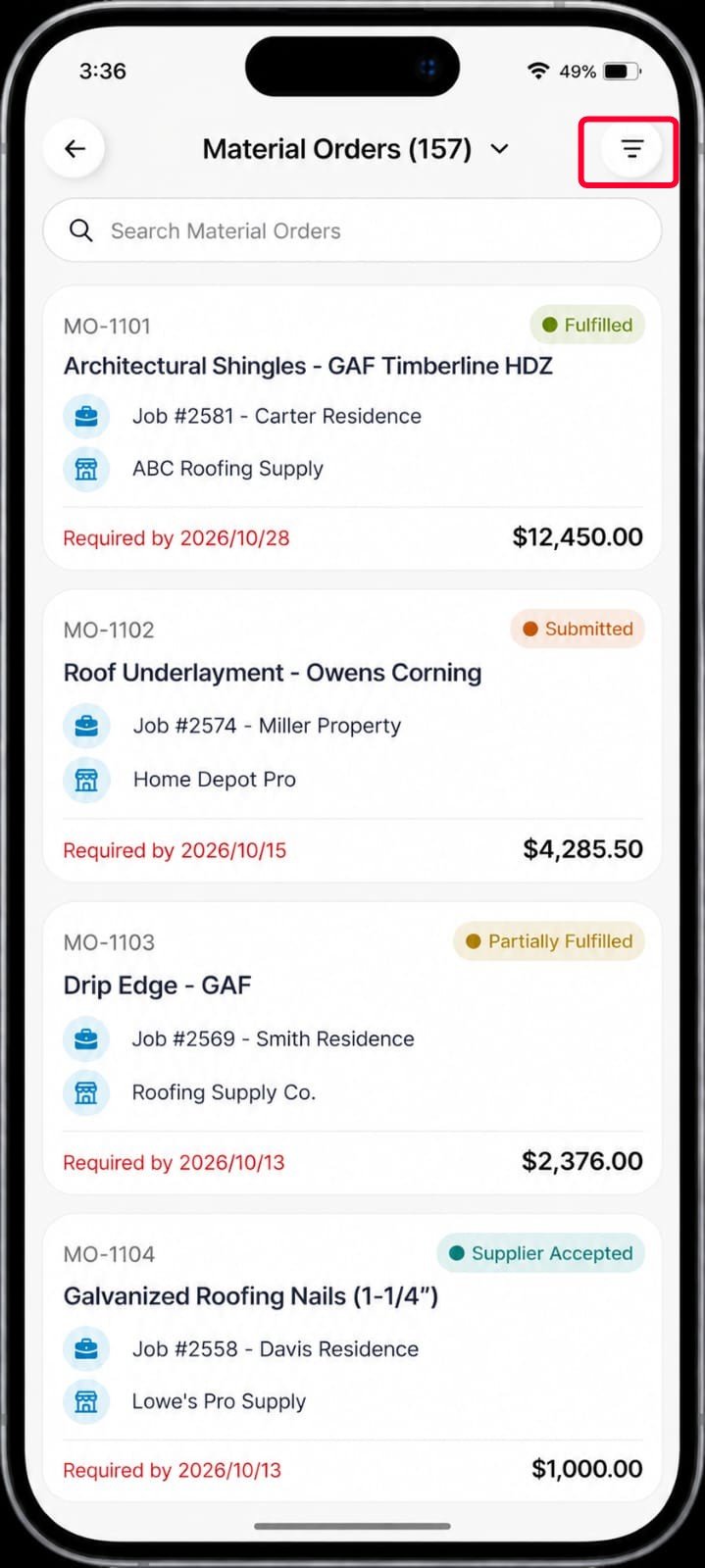
- Tap the icon in the top-right corner to further refine the list.
- Sort by: Created date, Required by, or Amount.
- Filter by: keyword, MO status type, Supplier, Delivery method, Delivery status, Ordered date, Required by, Created at, Job, Quote, or Material Request.
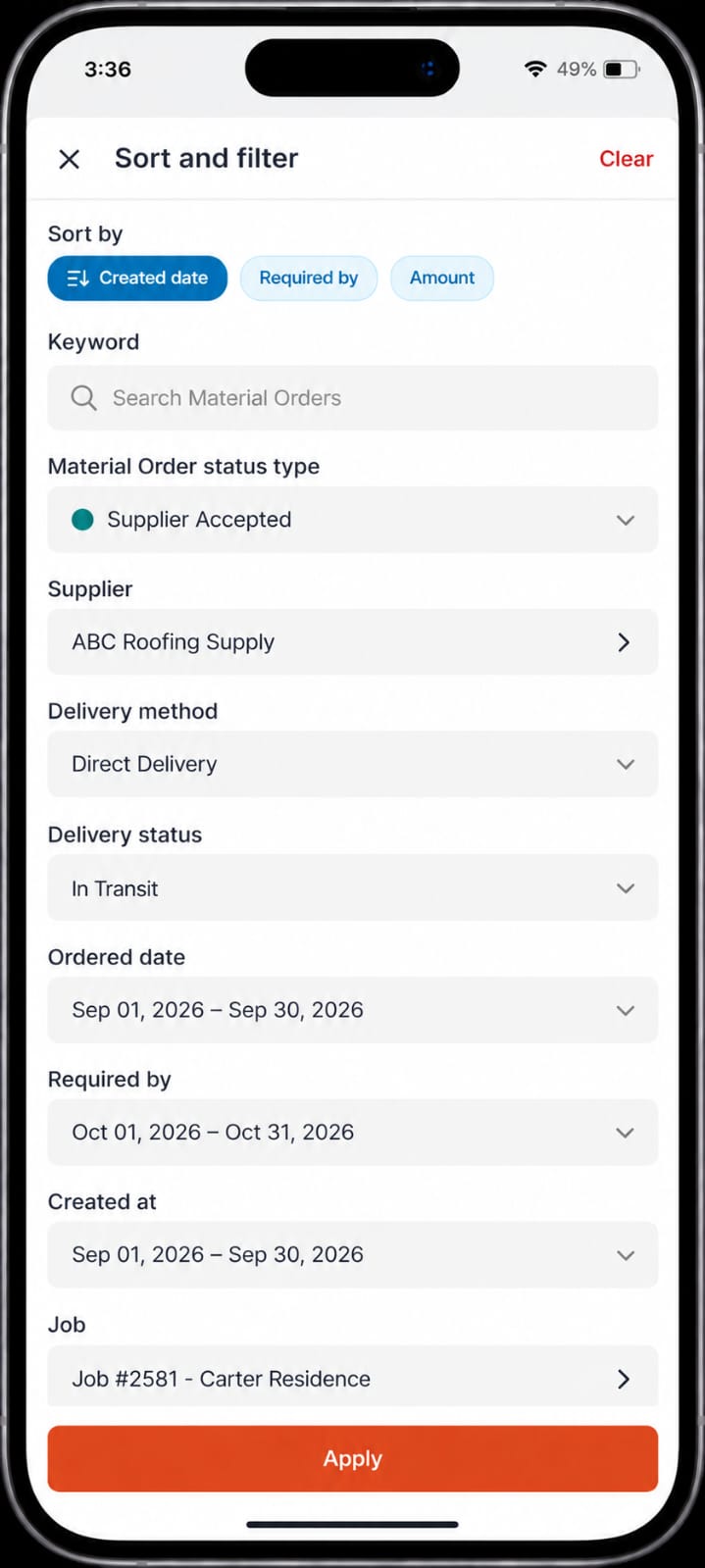
- Tap Apply to apply the selected sorting and filtering criteria. The Material Orders that match the selected criteria are displayed.
- Select a Material Order to open its details.
View Material Order Details
The Material Order details page gives you an overview of the order and the information you need while working in the field. You can review the associated job, order status, required-by date, supplier, ordered items, total amount, and other information associated with the Material Order. You can also contact the supplier, navigate to the delivery location, view the activity log, and customize the information displayed on the page.Review ordered items
Tap the Items tab to view the items included in the Material Order. You can review each item’s name, SKU, received quantity, and amount. The Total amount for all listed items is displayed at the bottom of the Items tab.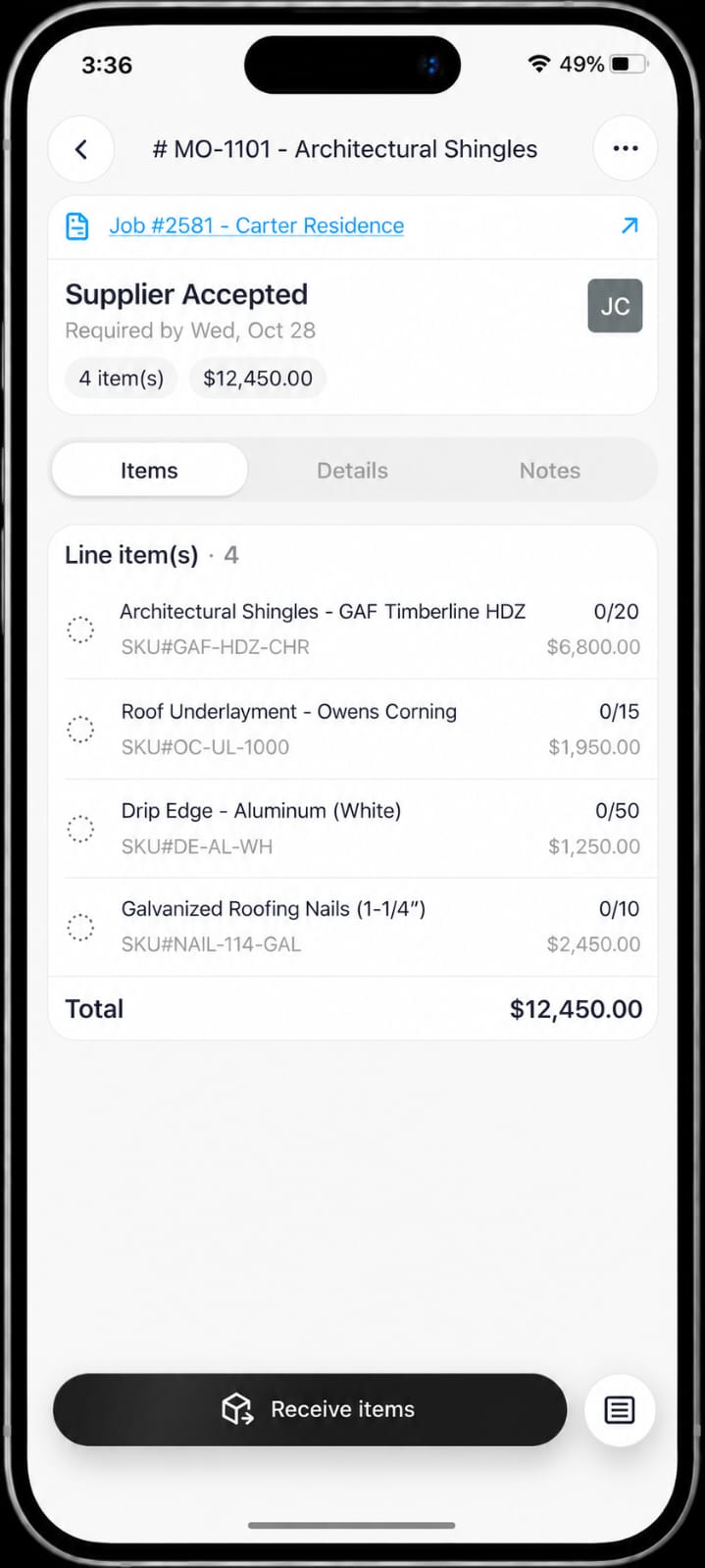
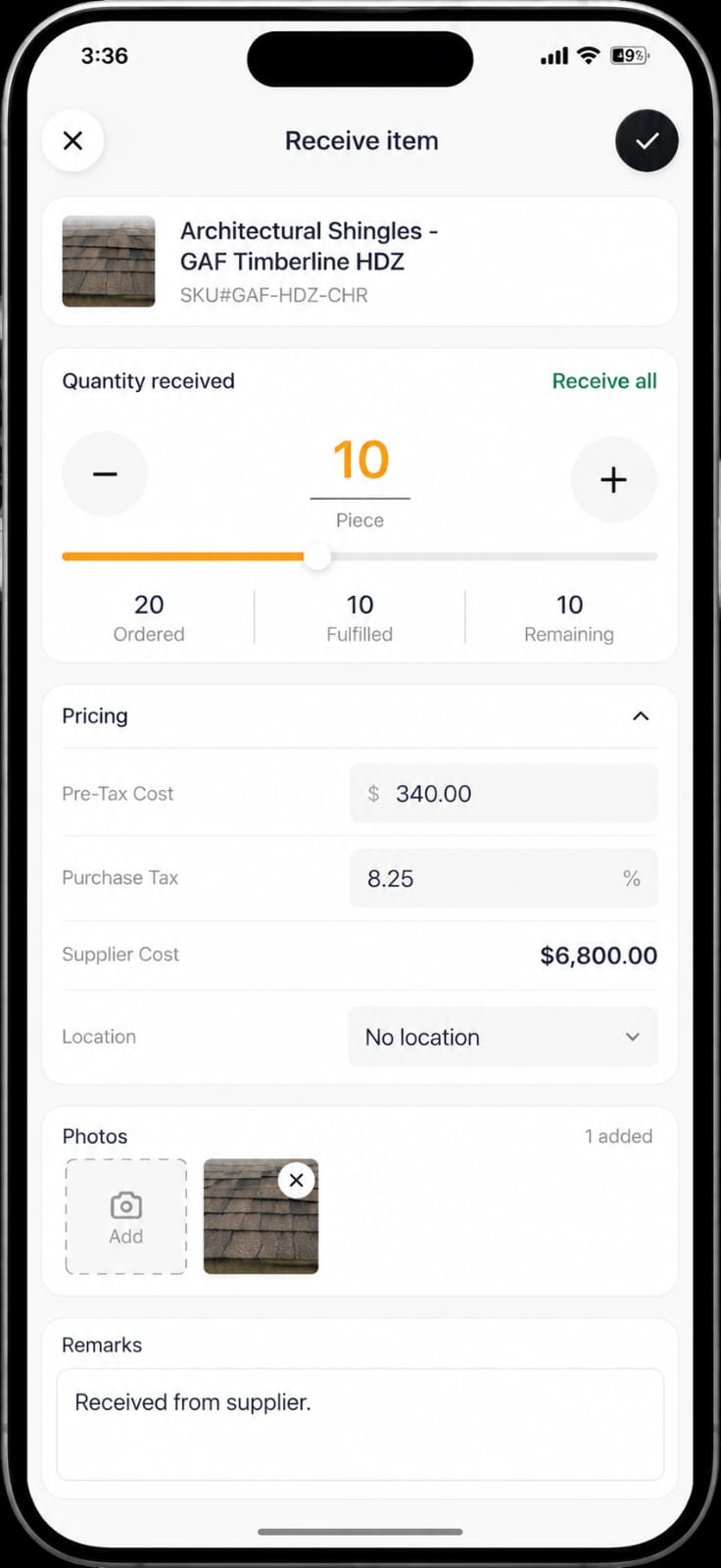
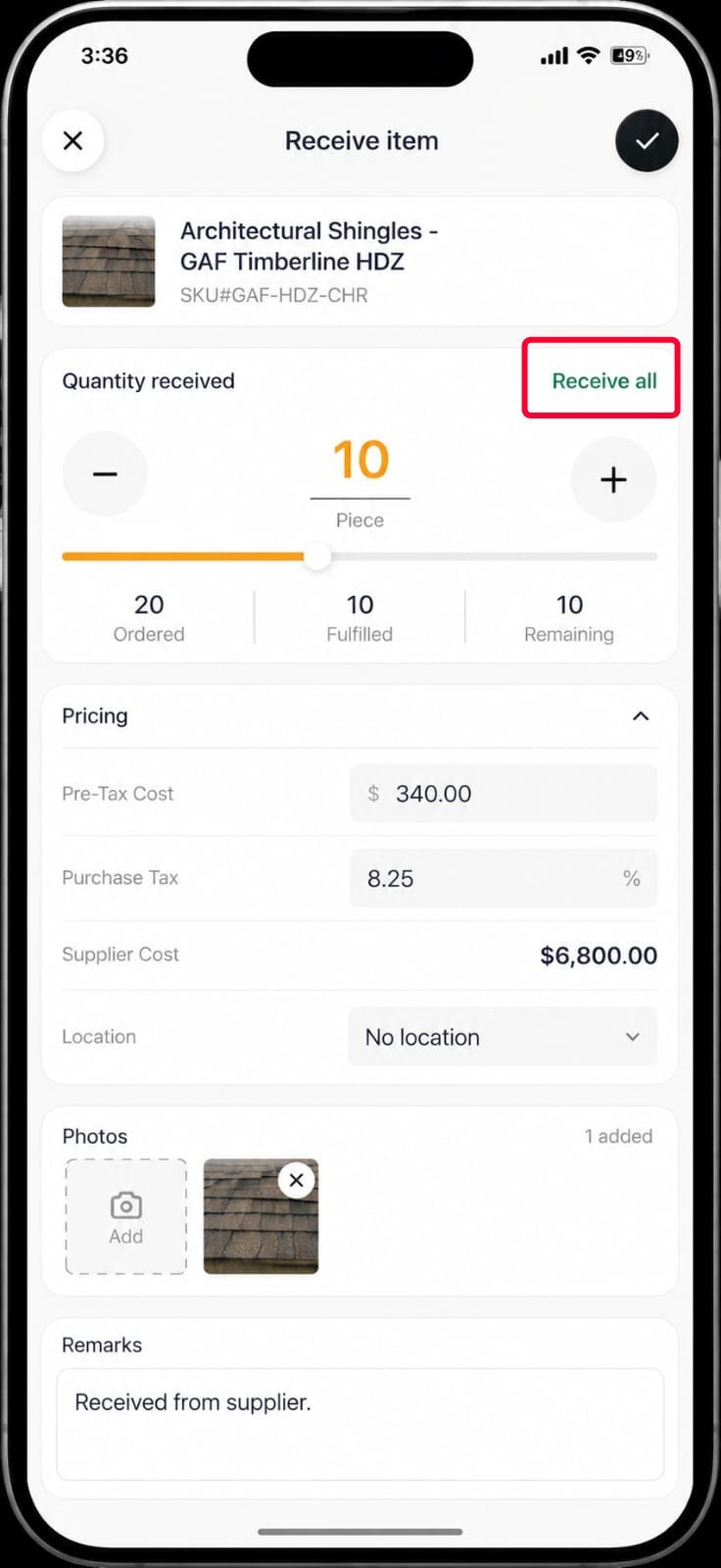
Note: You can use the Receive All option next to Quantity received to mark the remaining quantity of the selected item as received/fulfilled.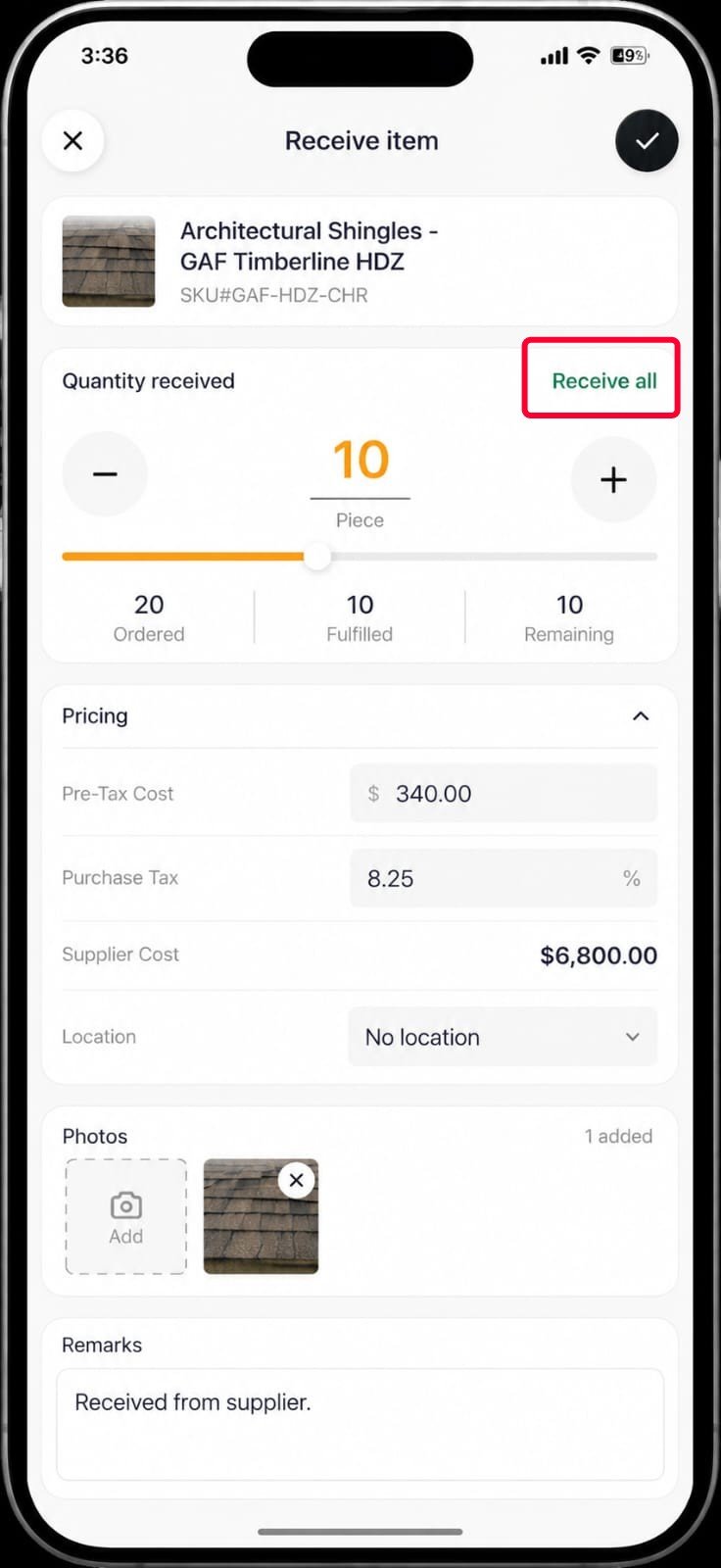
Review Material Order details
Tap the Details tab to view information about the Material Order, including the Required By date, MO Sent Date, Payment Term, Delivery Method, Delivery time, and other order details. You can also review supplier and delivery information, add remarks, attach files, and view custom fields.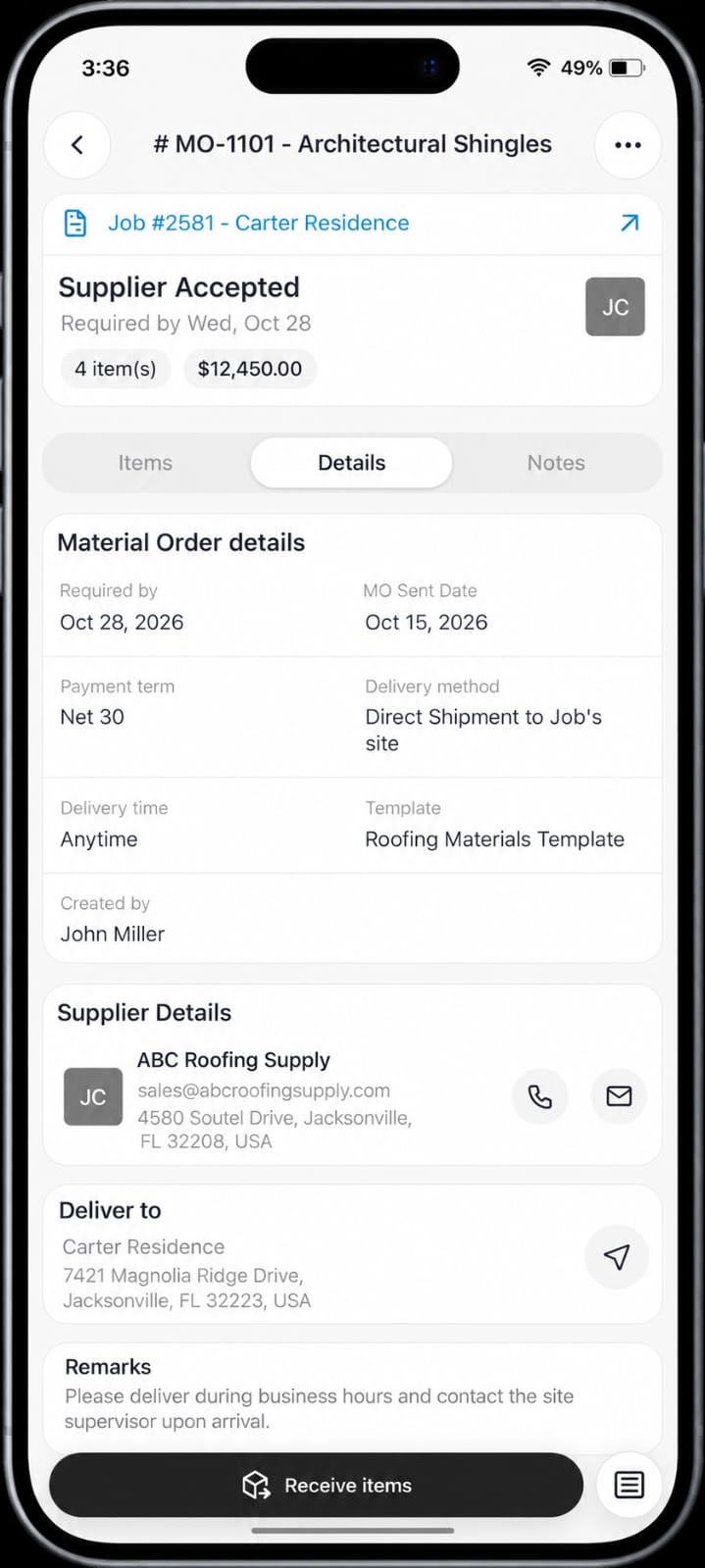
View notes
Tap the Notes tab to view any notes associated with the Material Order. You can also create a new note by selecting the + icon at the bottom.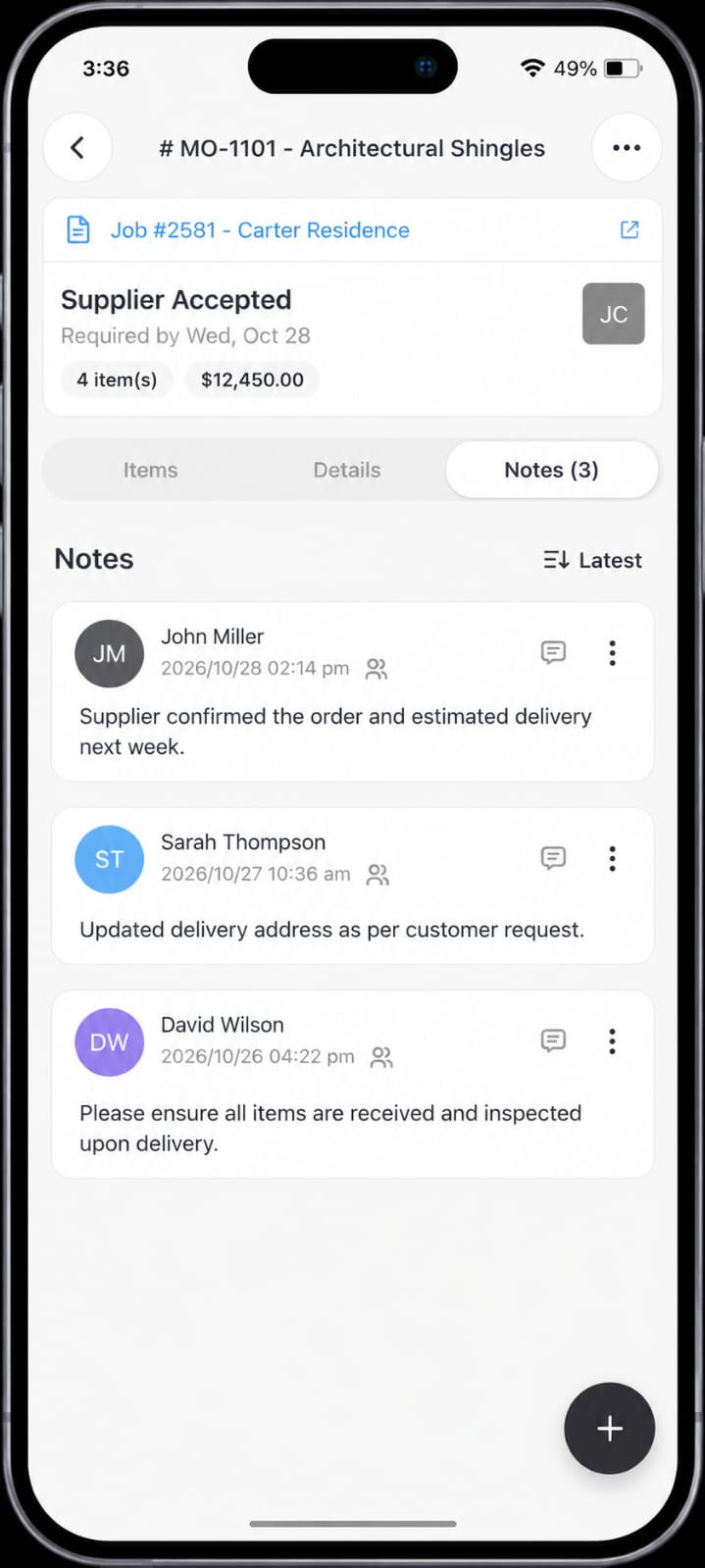
Note: You can also add notes directly from the Items or Details tab using the notes icon at the bottom of the page.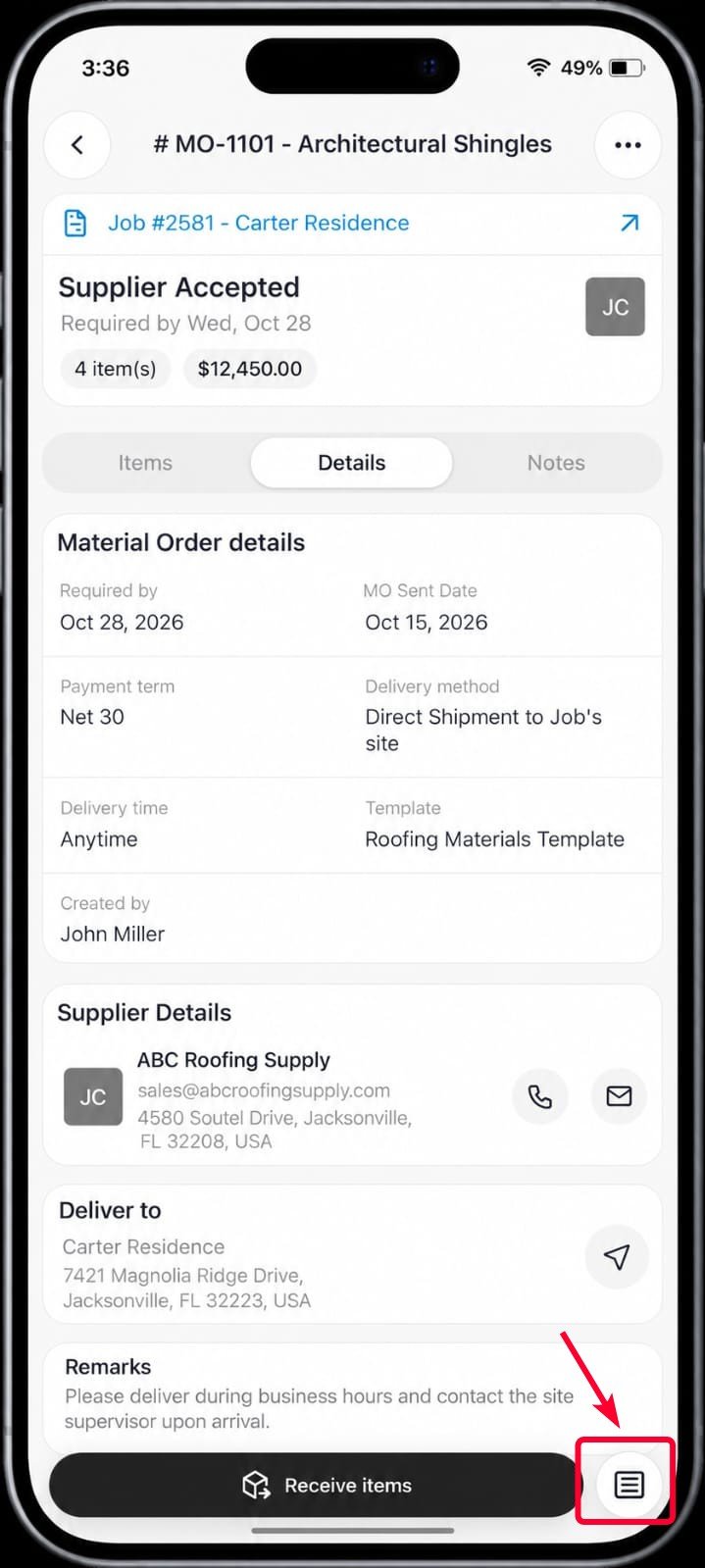
Contact the supplier
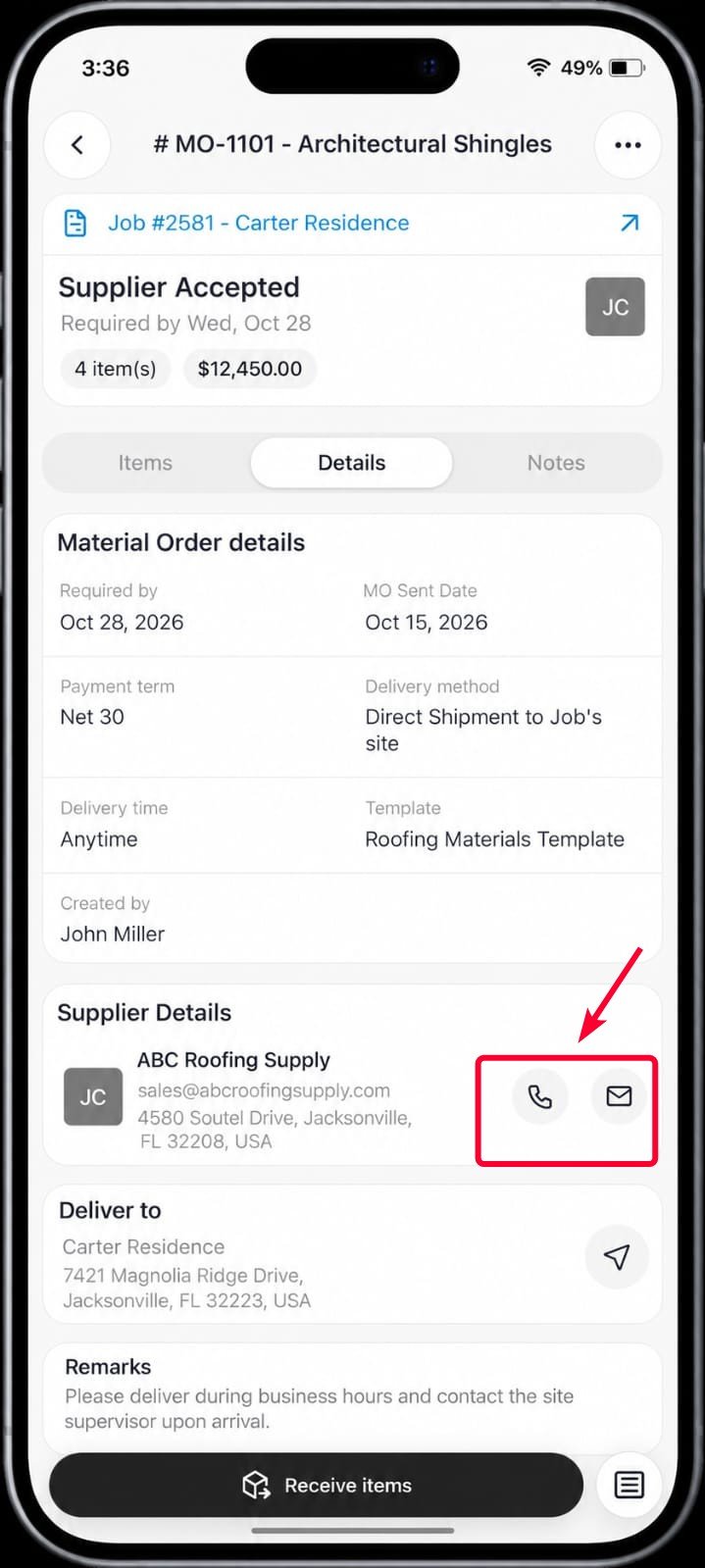
You can contact the supplier directly from the Material Order details page to check the delivery status or clarify any delivery-related questions.- Tap the icon next to the supplier name to call the supplier.
- Select Zuper Phone or My Phone to place the call.
- Tap the icon to email the supplier.
Navigate to the delivery location
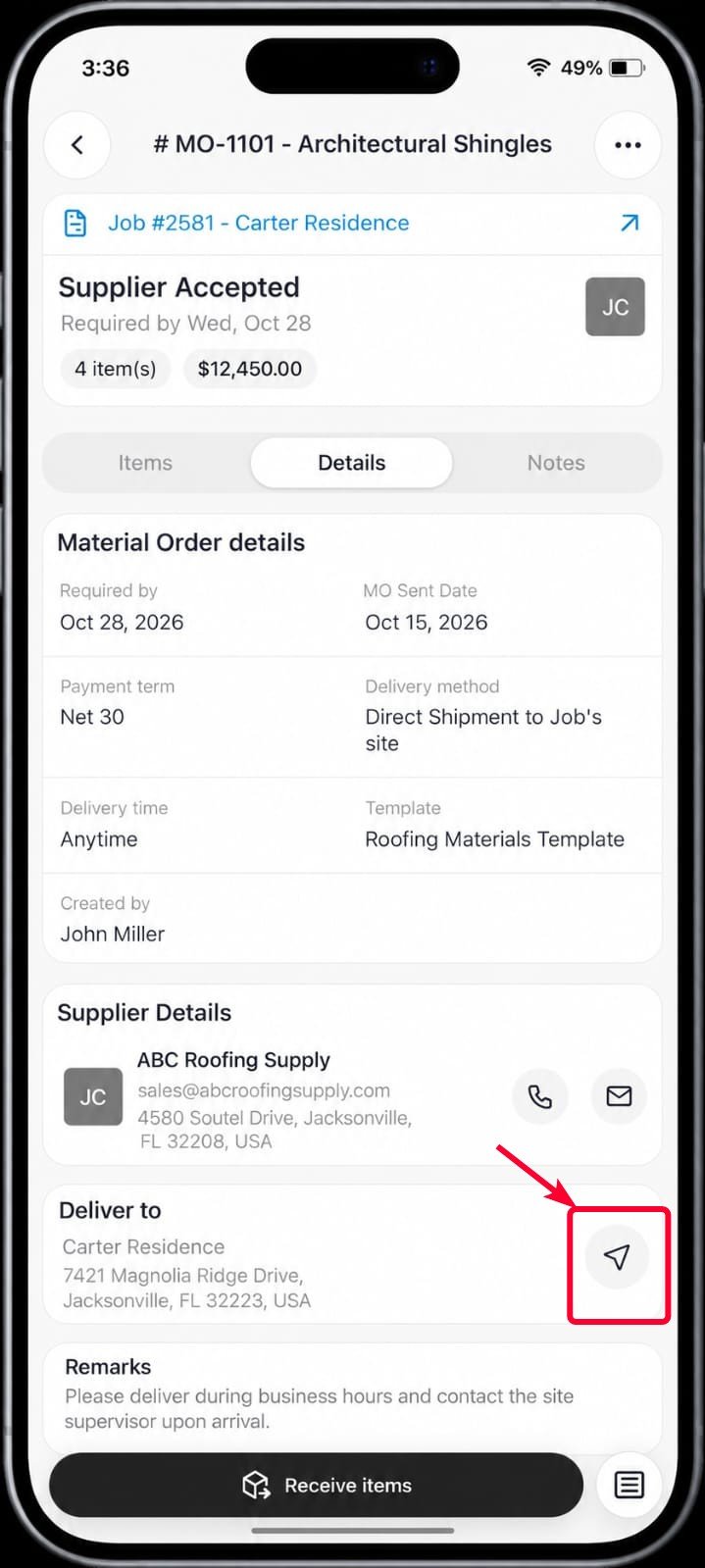
You can use the Navigate option next to the delivery address to quickly access the delivery location and get directions.- Tap the icon next to the Deliver to address.
- View the delivery location and follow the available navigation directions.
View activity log
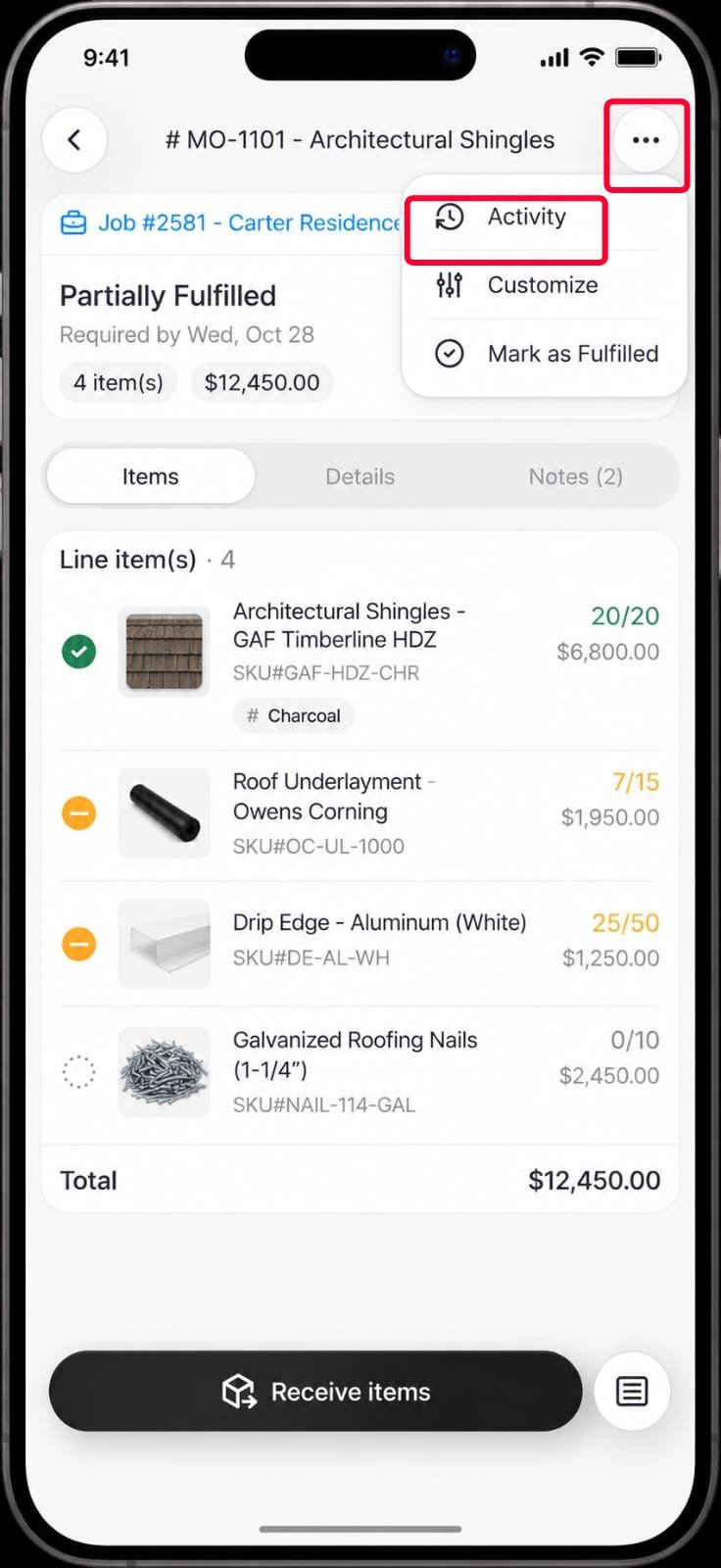
The Activity option lets you view the activity log for the Material Order and track the actions or updates made to it.- Select the More (⋯) icon in the top-right corner of the Material Order details page.
- Select Activity.
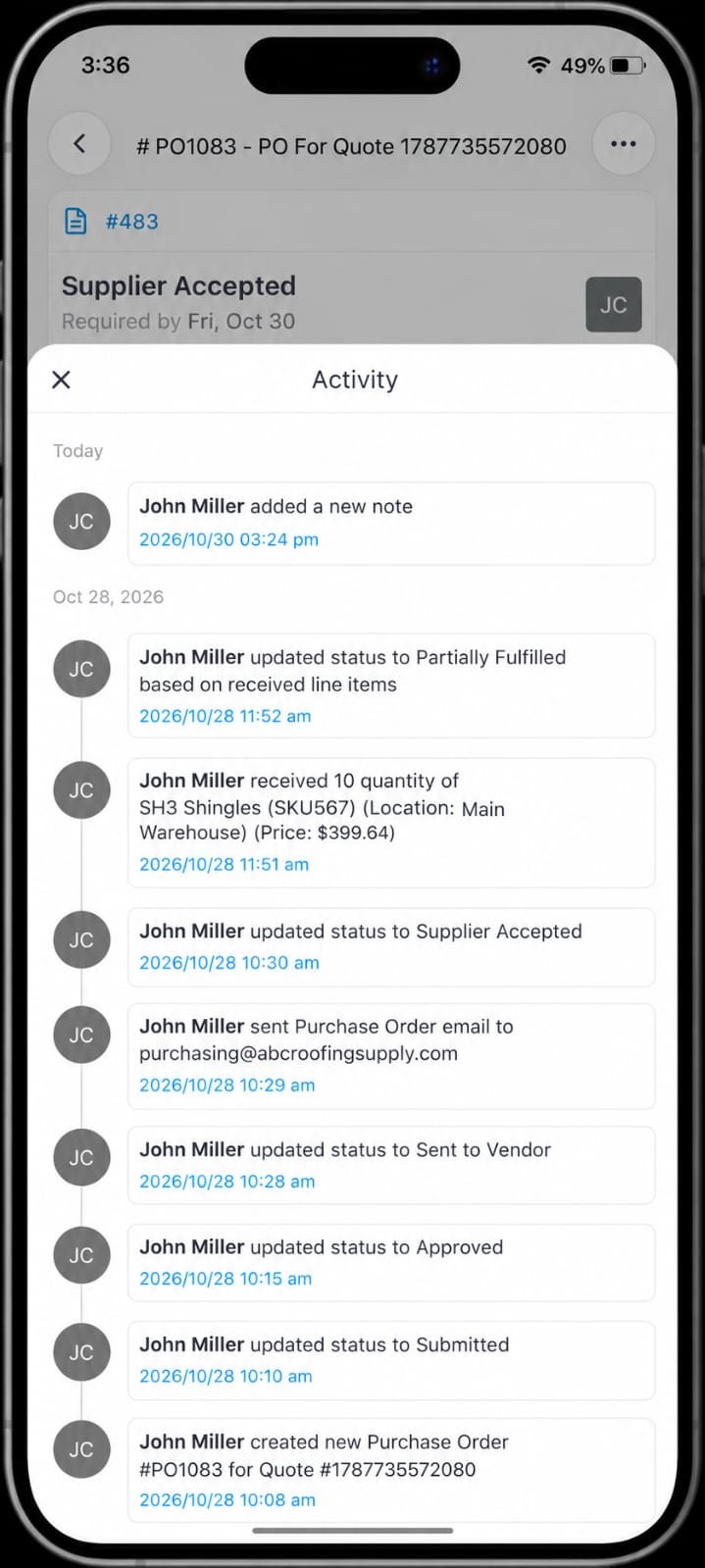
- Review the activity log for the Material Order. You can also use the available filters to filter the activity log by User and Date Range.
Customize the view
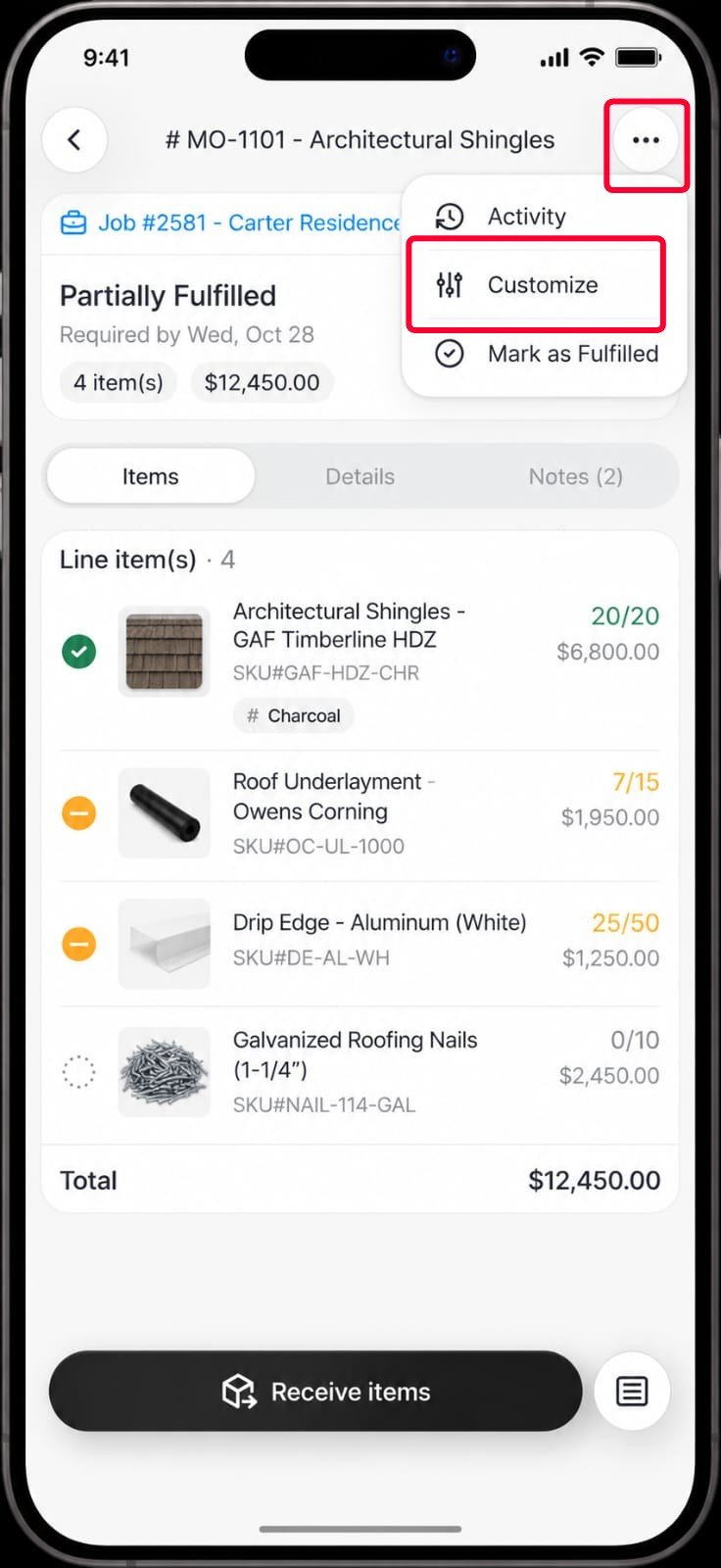
The Customize option lets you control how information is displayed on the Material Order details page. You can show or hide information and rearrange the available blocks to display them as you prefer.- Tap the More (⋯) icon in the top-right corner of the Material Order details page.
- Select Customize.
- Turn on the required options to display the corresponding information on the Material Order details page.
- Turn off the option to hide the corresponding information from the details page.
- Drag and rearrange the available blocks to change the order in which they are displayed.
- Tap the icon to apply the changes.
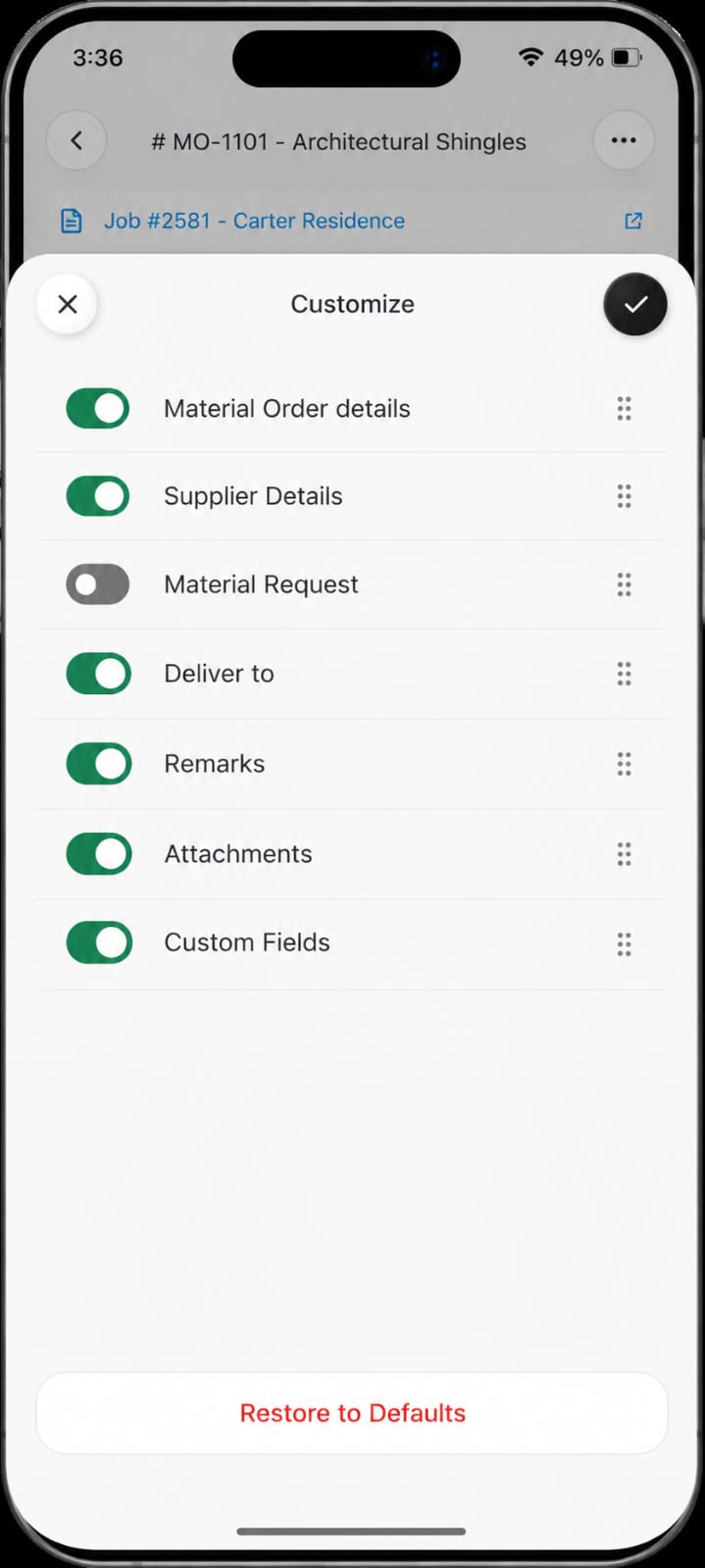
Note: You can select Restore to Defaults to reset the customization settings to their default configuration.
Receive Materials
The Material Order details page displays the current status of the order, including status updates made from the web application. As a field technician (FE), you can review the order status and record the quantities received. The Material Order status is automatically updated based on the quantities received.Receive items from the Material Order
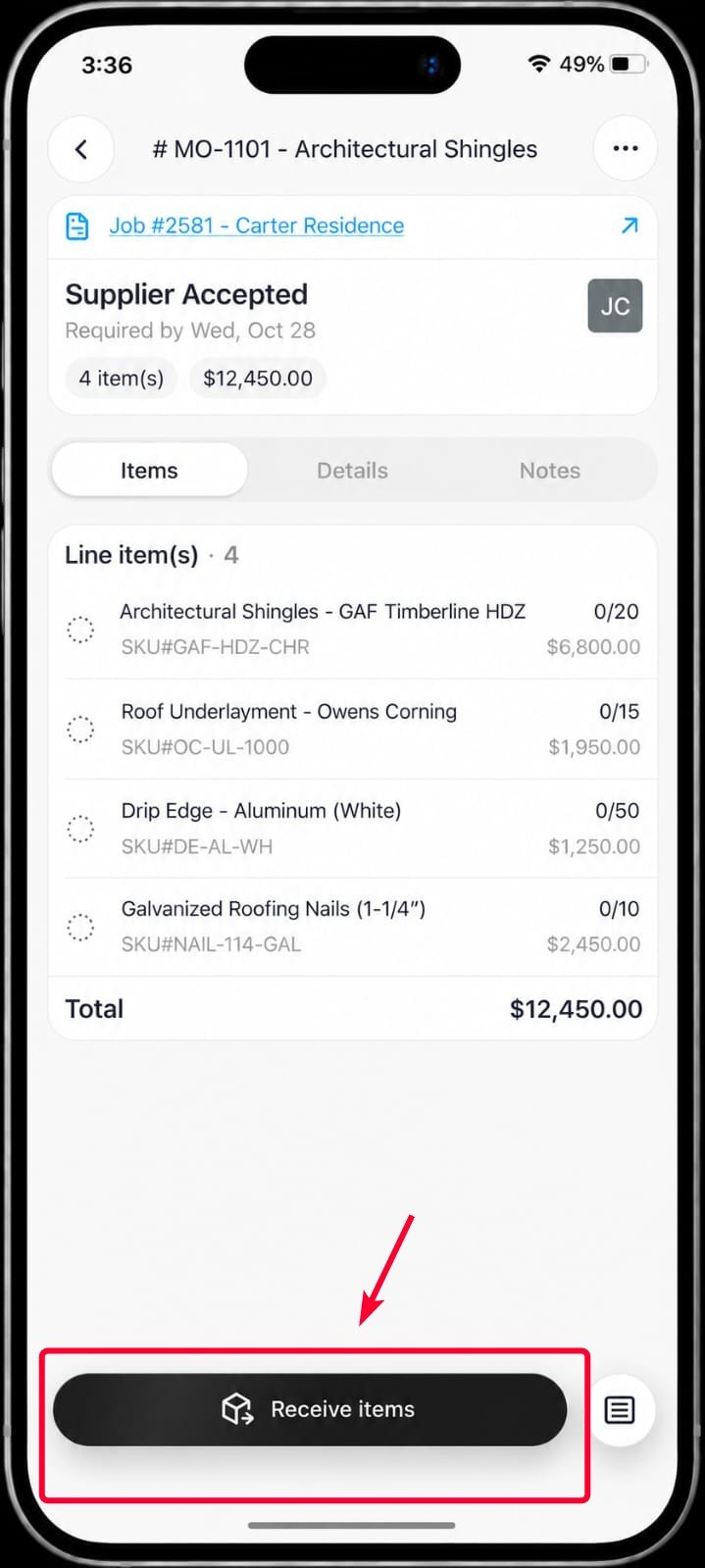
Once the Material Order status changes to Supplier Accepted, the Receive items button becomes available at the bottom of the Material Order Items and Details tabs. You can use it to record the items received, specify the received quantity, and add notes or attachments for reference.- Open the required Material Order with the Supplier Accepted status.
- Tap Receive items at the bottom of the Material Order Items or Details tab. The Receive items page opens.
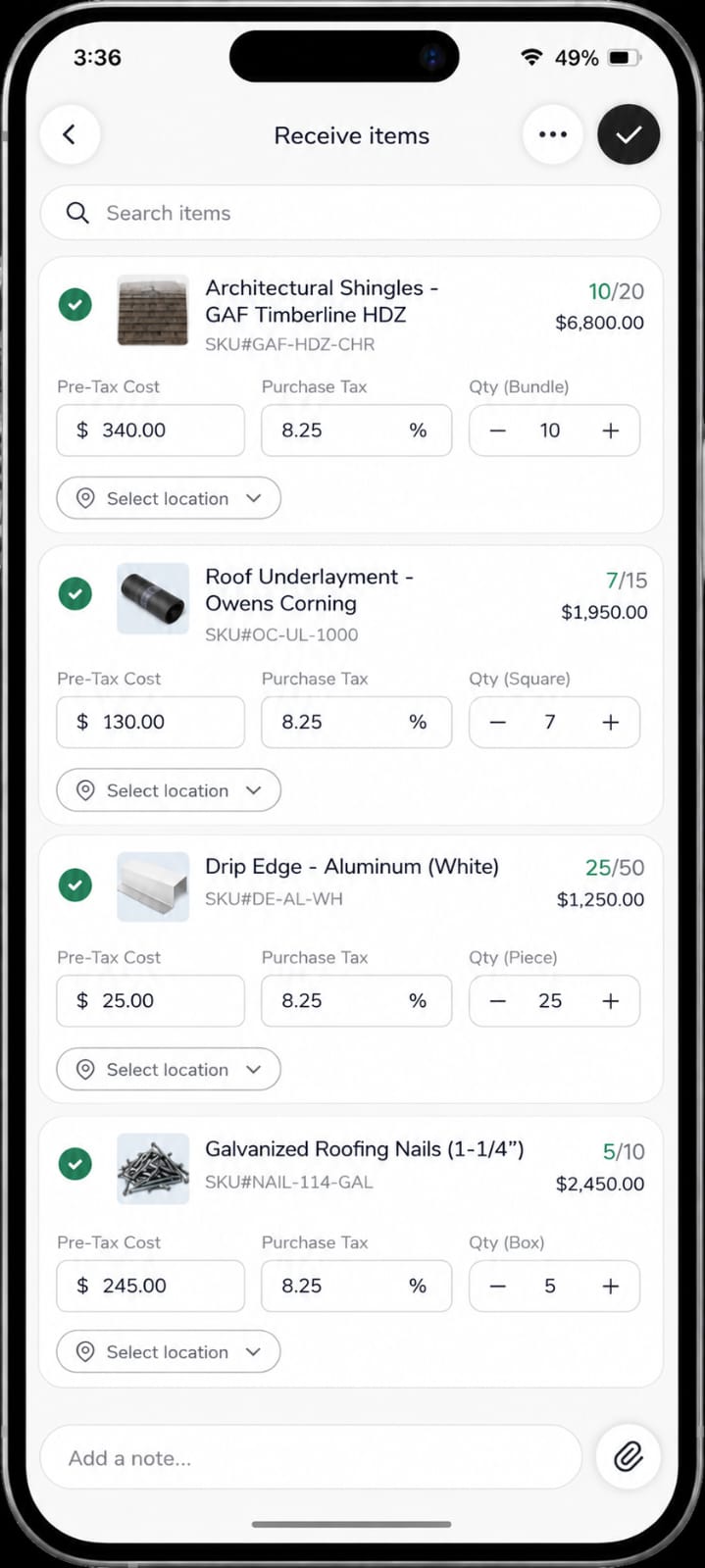
- Select the required item and specify the received quantity using the + and − buttons.
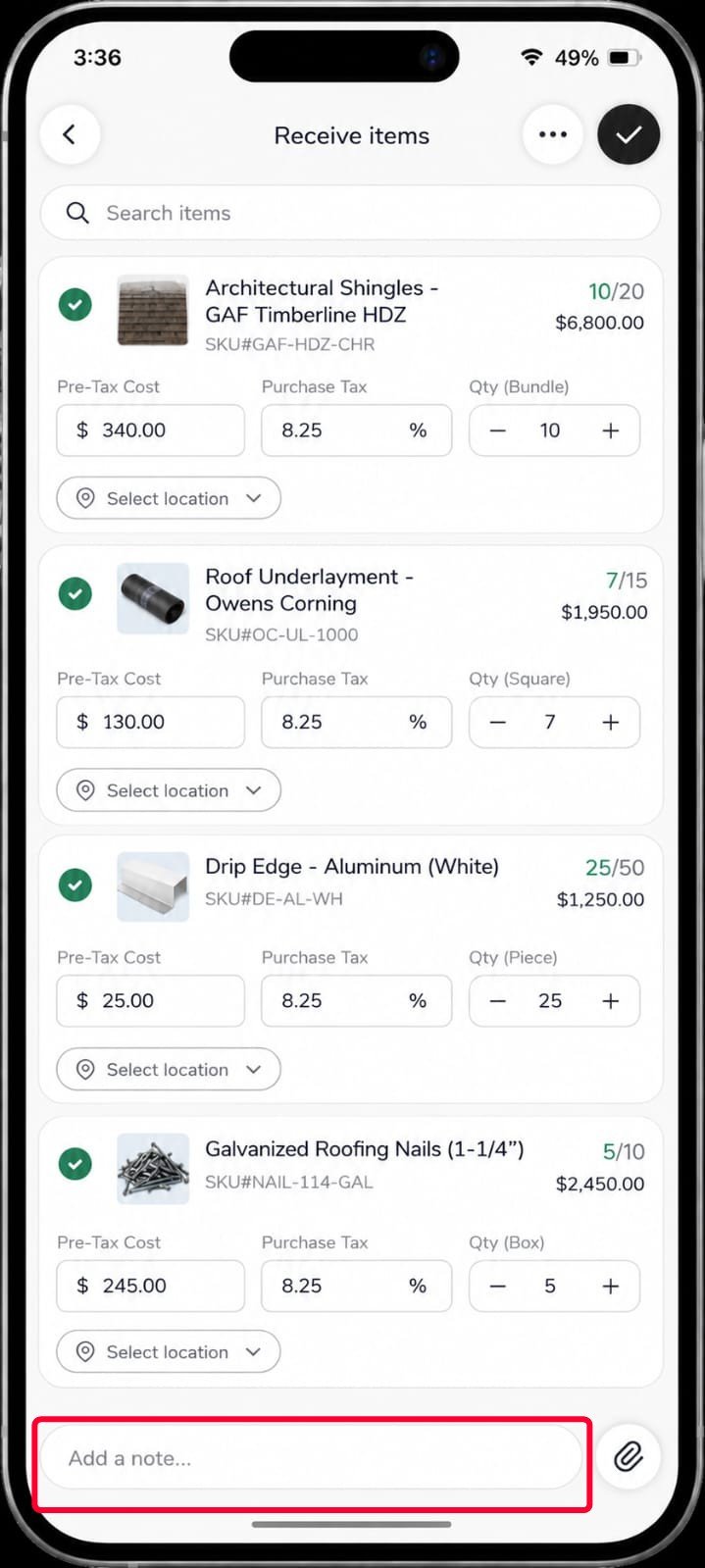
- To add a note about the received items, tap Add a note at the bottom and add the required information using Zuper AI. For more information, see here.
- To attach a file, tap the icon next to Add a note.
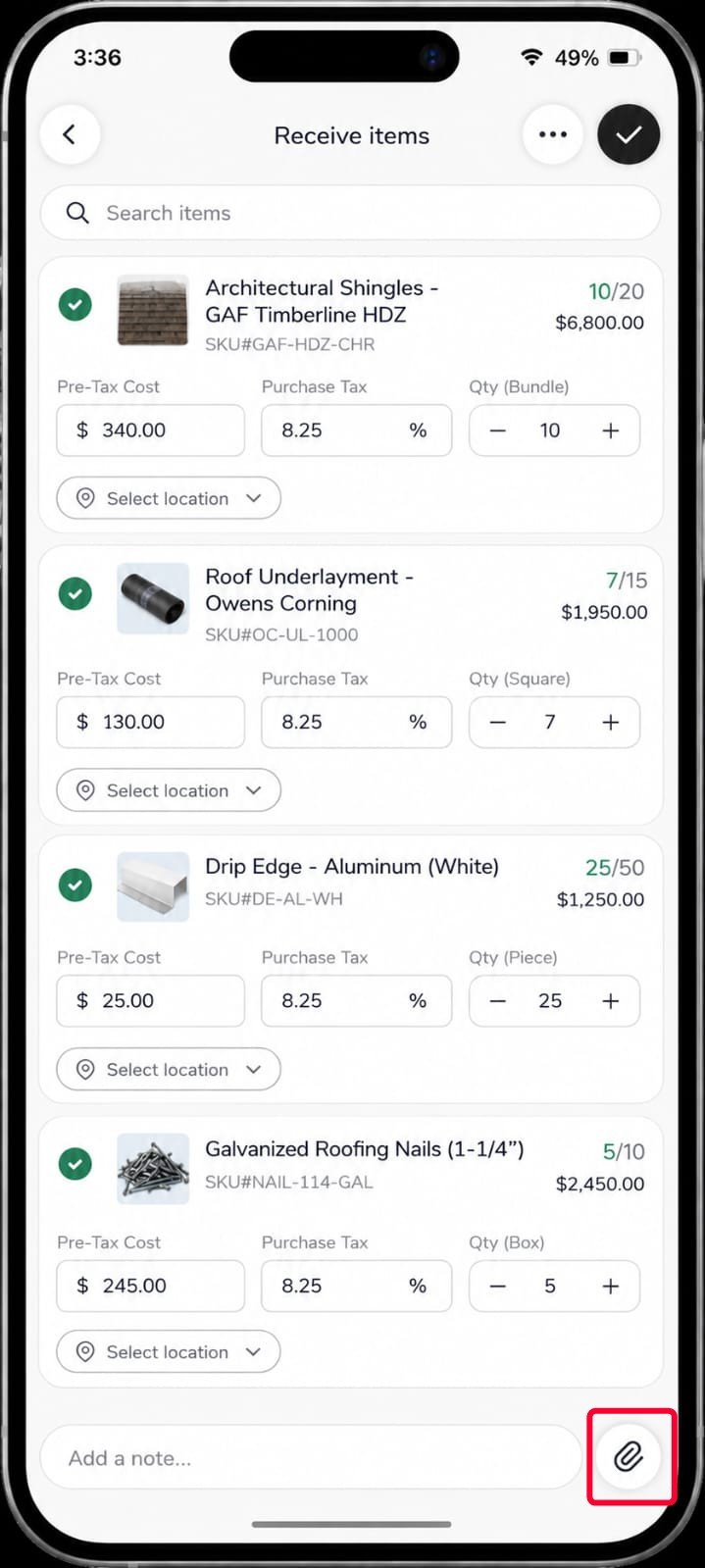
- Add an attachment using the Camera or Device Gallery.
- Tap the icon in the top-right corner to save the receiving details.
Note: You can select Receive all from the More (⋯) menu in the top-right corner to mark all items as received.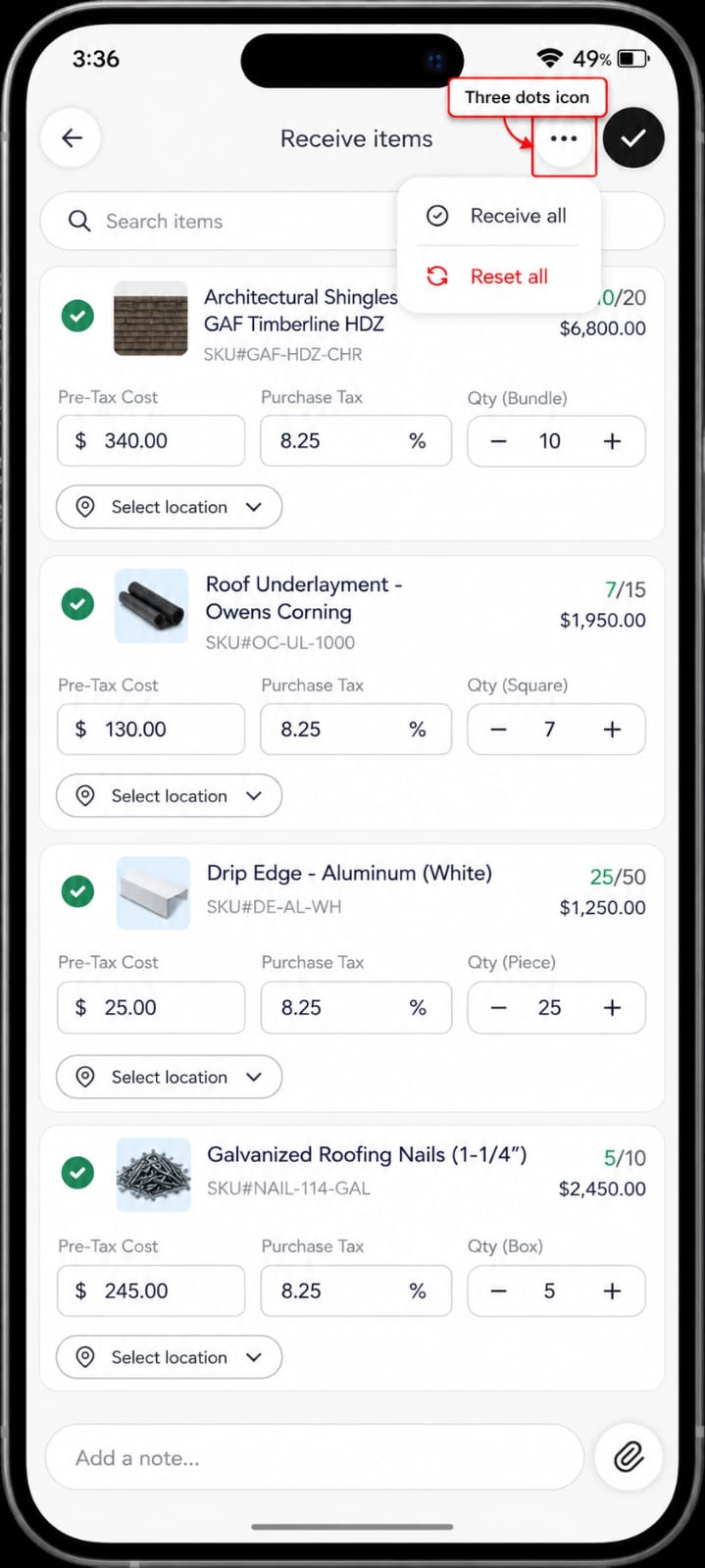
Receive an individual item
You can also select an individual item to view its details and record the received quantity.- On the Items tab, select the required item. The Receive item page opens.
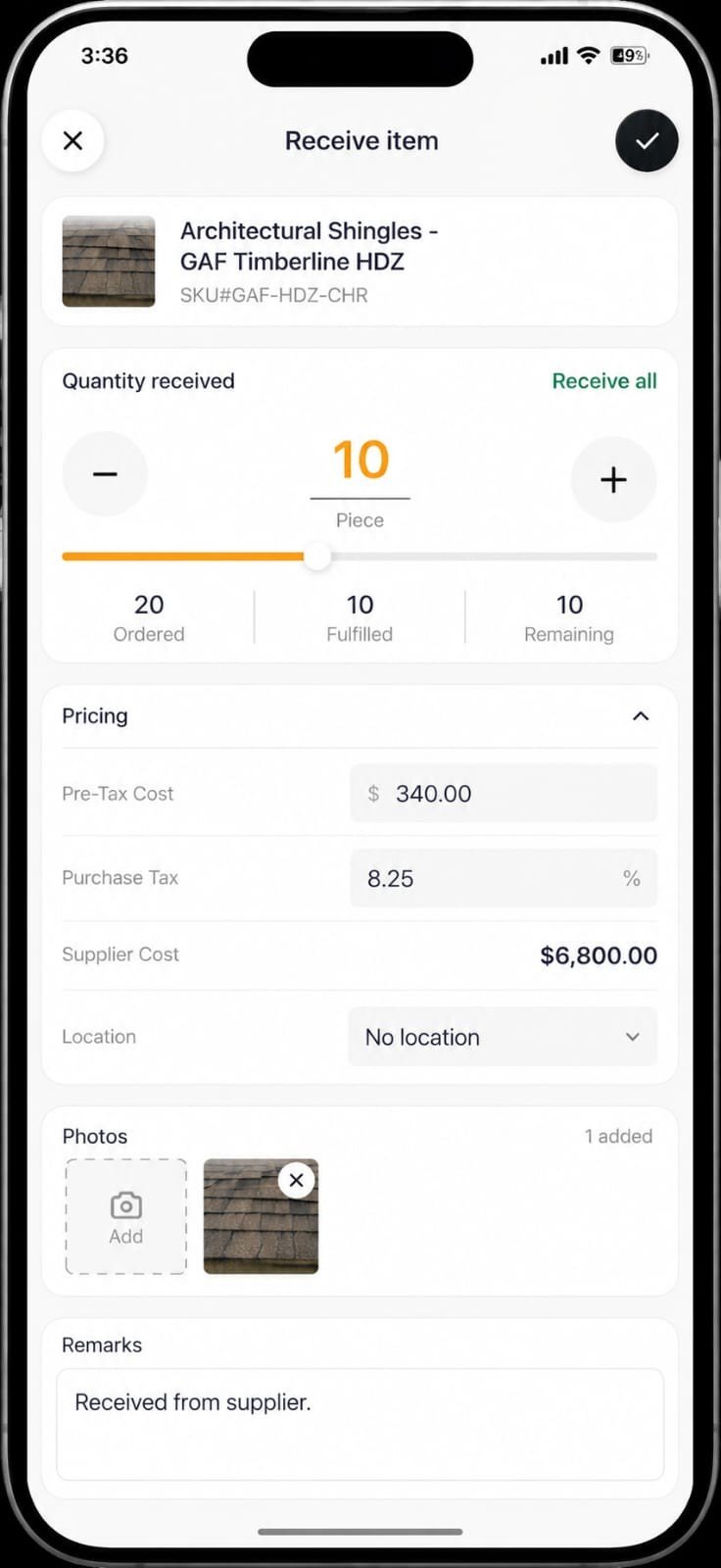
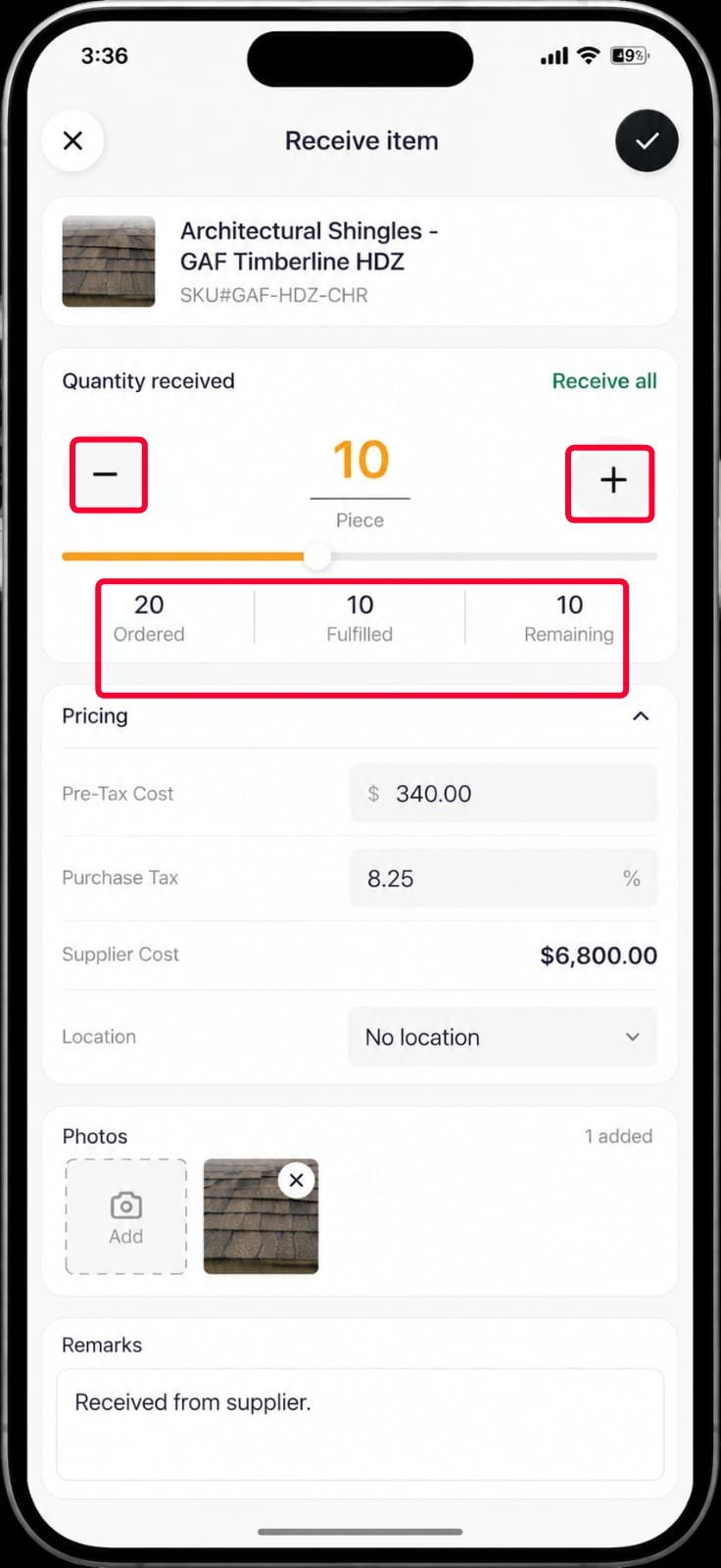
- In the Quantity received section, specify the received quantity using the + and − buttons.
- Review the Ordered, Fulfilled, and Remaining quantities to track the item’s receiving progress.
- To mark the entire remaining quantity as received, tap Receive all.
- To add a photo for the received item, select Add under Photos and add the required photo.
- To add remarks about the received item, enter the required information in the Remarks section.
- Tap the ✓ icon in the top-right corner to save the receiving details.
Note: If required, you can select More (⋯) > Mark as Fulfilled on the Material Order details page to mark the entire Material Order as fulfilled without entering the received quantity for each item.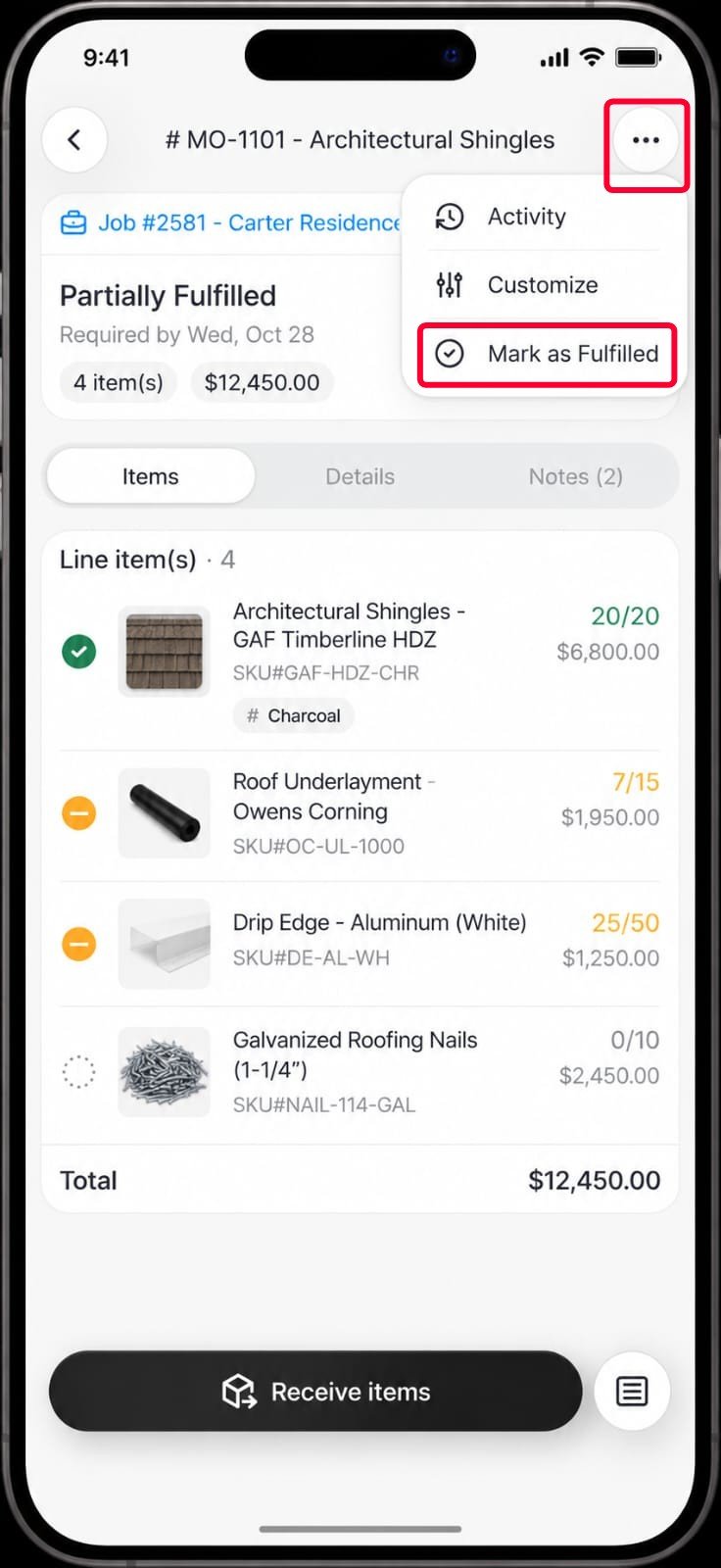
Track Material Order Status
The Material Order status is updated based on the quantities received or when the order is manually marked as fulfilled.- When only some items or quantities are received, the status is updated to Partially Fulfilled.
- Once all ordered items and quantities are received, the status is automatically updated to Fulfilled.
- If required, you can select More (⋯) > Mark as Fulfilled to mark the entire Material Order as fulfilled without entering the received quantity for each item.