

Feature enablement & creation of Trade Types
Trade types help you segment and manage your production or installation jobs across multiple trades, such as roofing, siding, and gutters. It also helps manage your operations by grouping materials and labor across various trades. The advantage extends into reporting jobs, inventory, and profitability across trade types. This will help you better control your business by individual trade and performance.- Customer Action Required: Contact support@zuper.co to enable the Trade Type feature.
- Limits: Up to 25 active Trade Types per organization.
- Post-Enablement: Create Master Trade Types via
- Navigation: Settings —> Miscellaneous —> Trade Type > + New Trade Type.
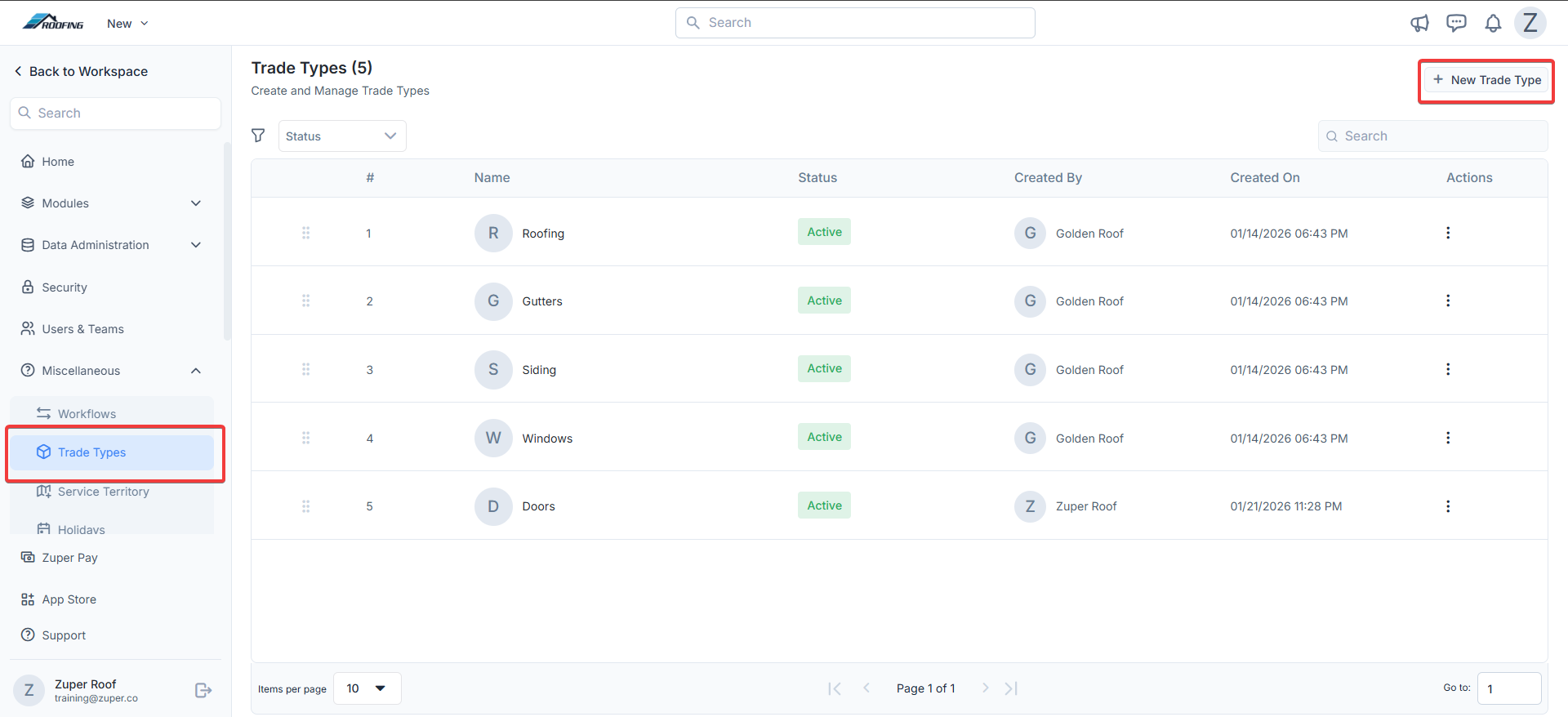
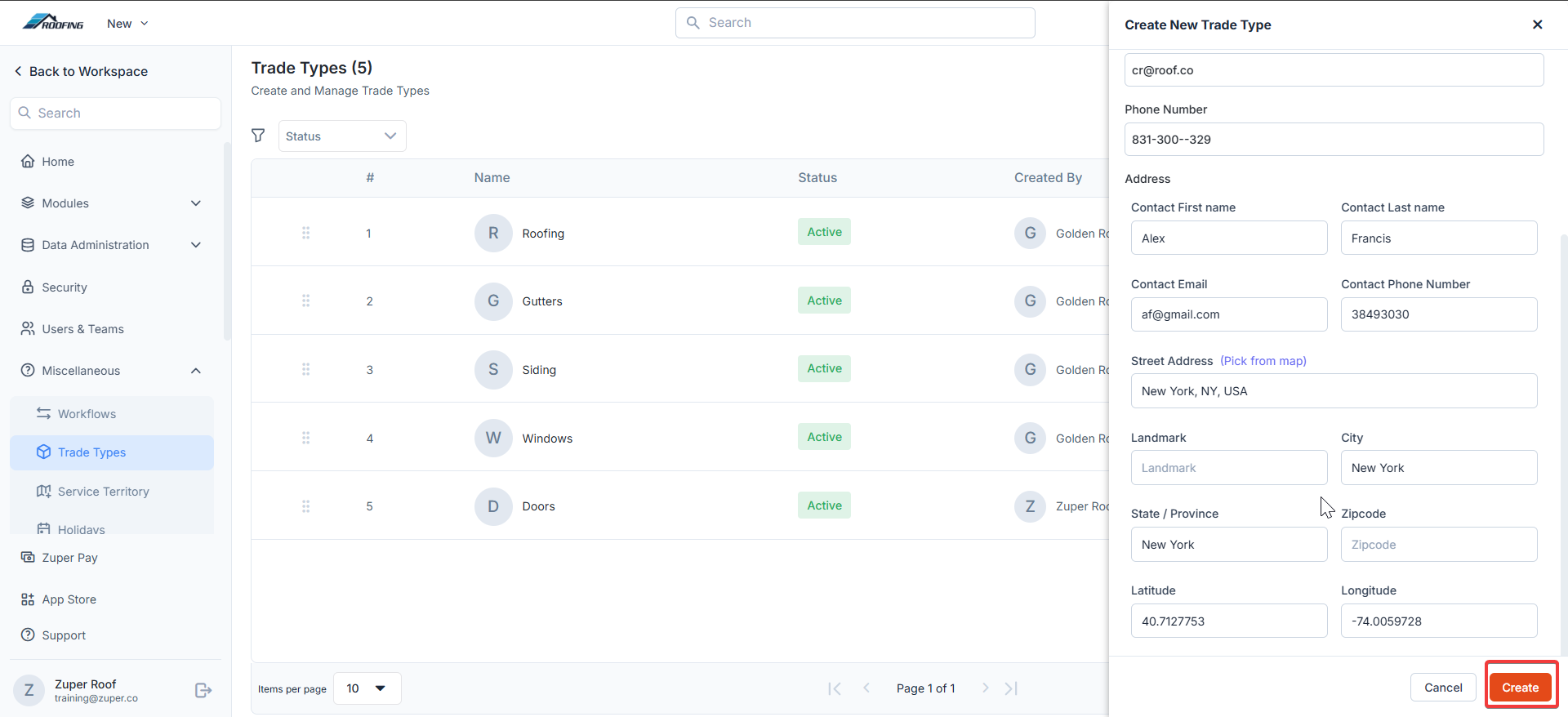
- Click the “Create” button to create the new master trade type.
Entity relationships and mapping use cases
Onboard to Zuper Trade Types (Roofing, Siding & Gutters)
a. Product Categories & Products
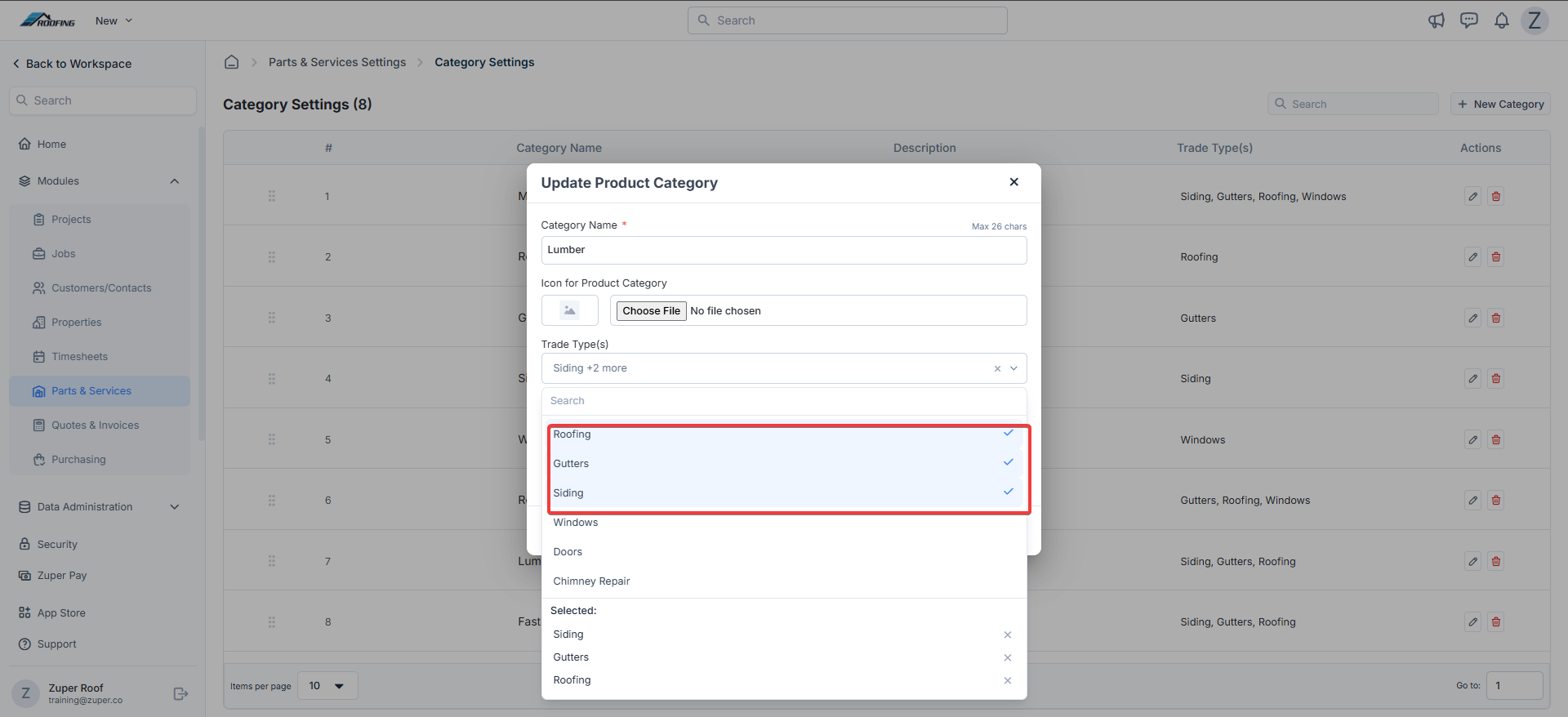
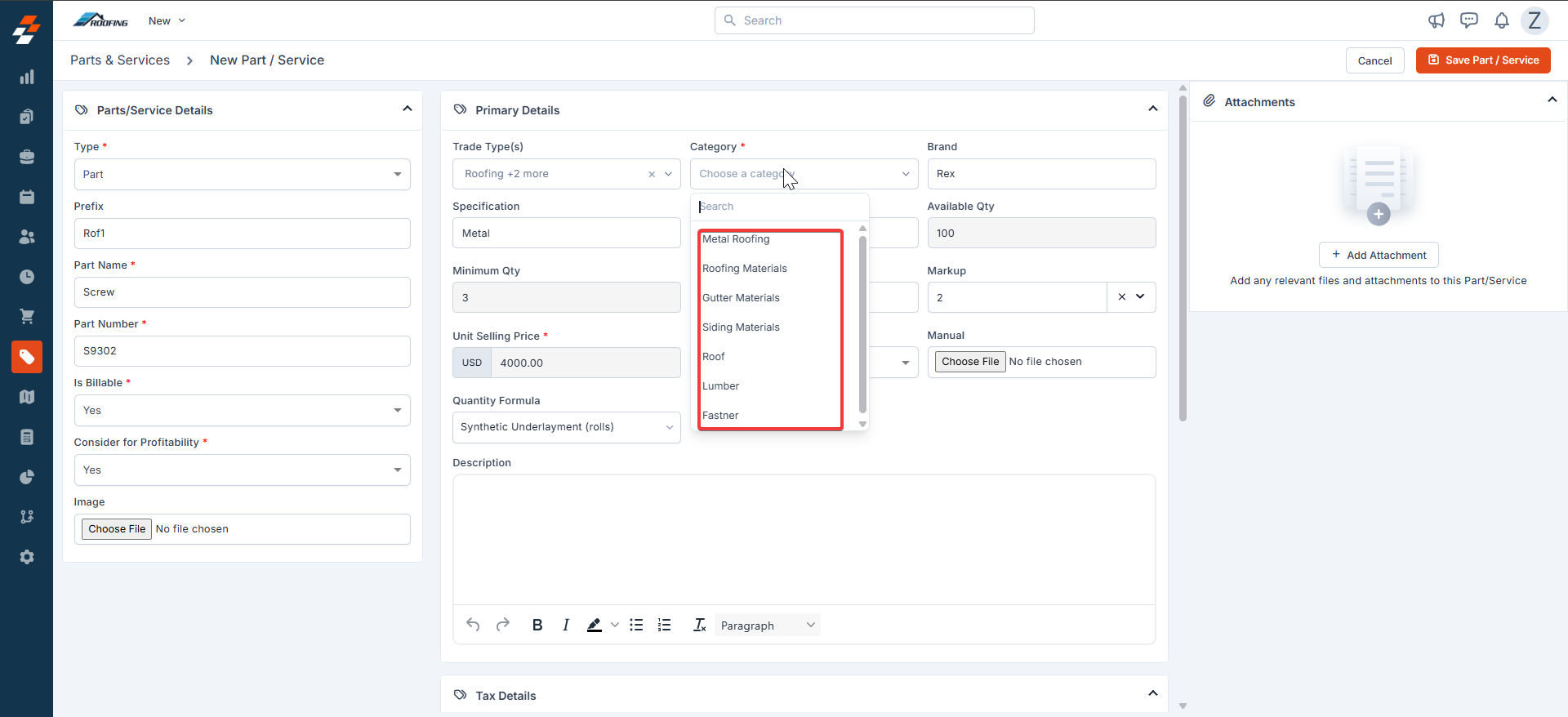
Mapping product categories to trade types helps systematically group materials of specific trade. For example, ‘Metal Roofing’ as a product category can be mapped to ‘Roofing’ trade type whereas, ‘Fasteners’, ‘Lumber’ can be mapped to both ‘Roofing’ & ‘Gutters’ since these categories of items have potential to be used under both the trades. Subsequently, while creating a material under parts/service master of Zuper, on selection of trade type ‘Roofing’, it’ll automatically shortlist product categories - ‘Metal Roofing’ or ‘Fasteners’ or ‘Lumber’ for user selection. Users can create various items, such as metal shingle valley caps, roof boots, roof vents, etc., under the Metal Roofing category.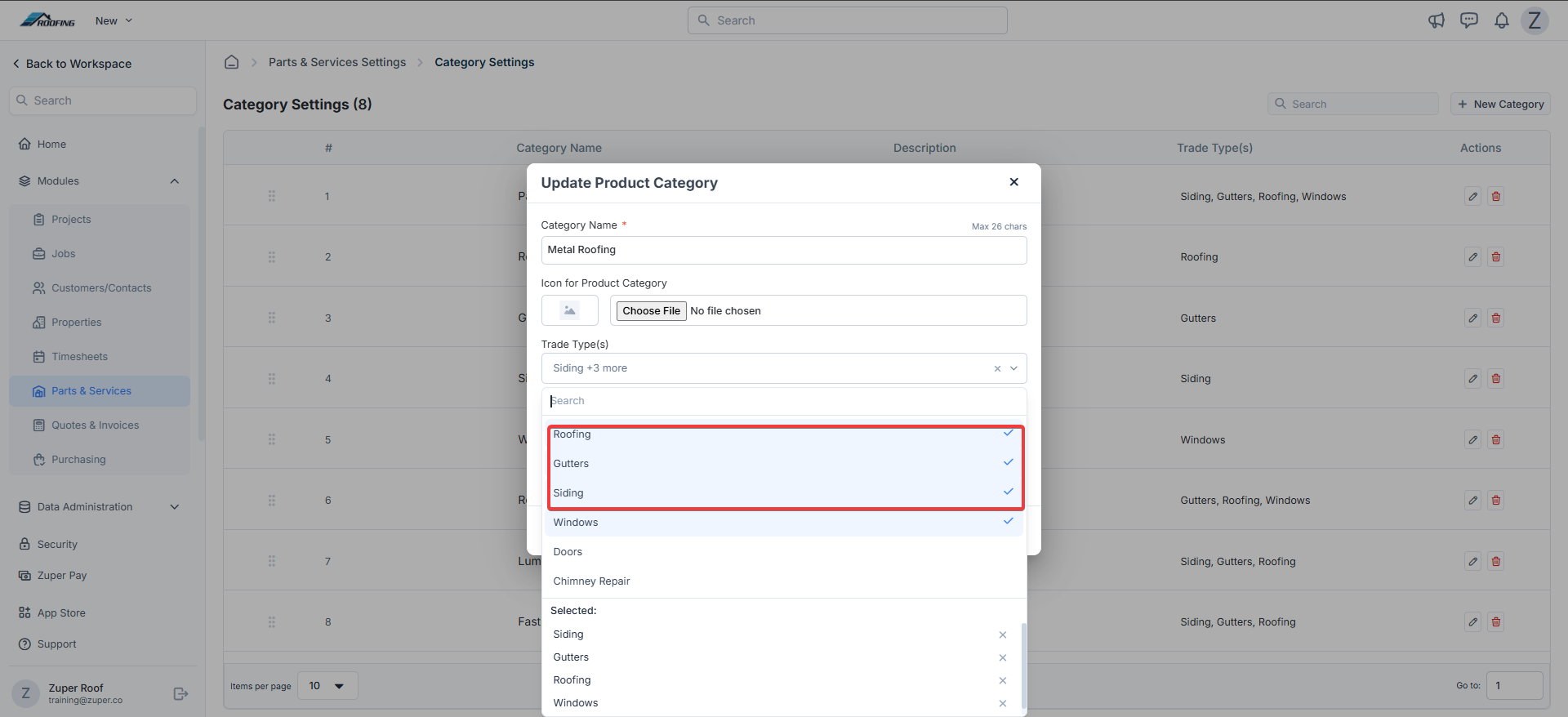
b. Job Categories & Jobs
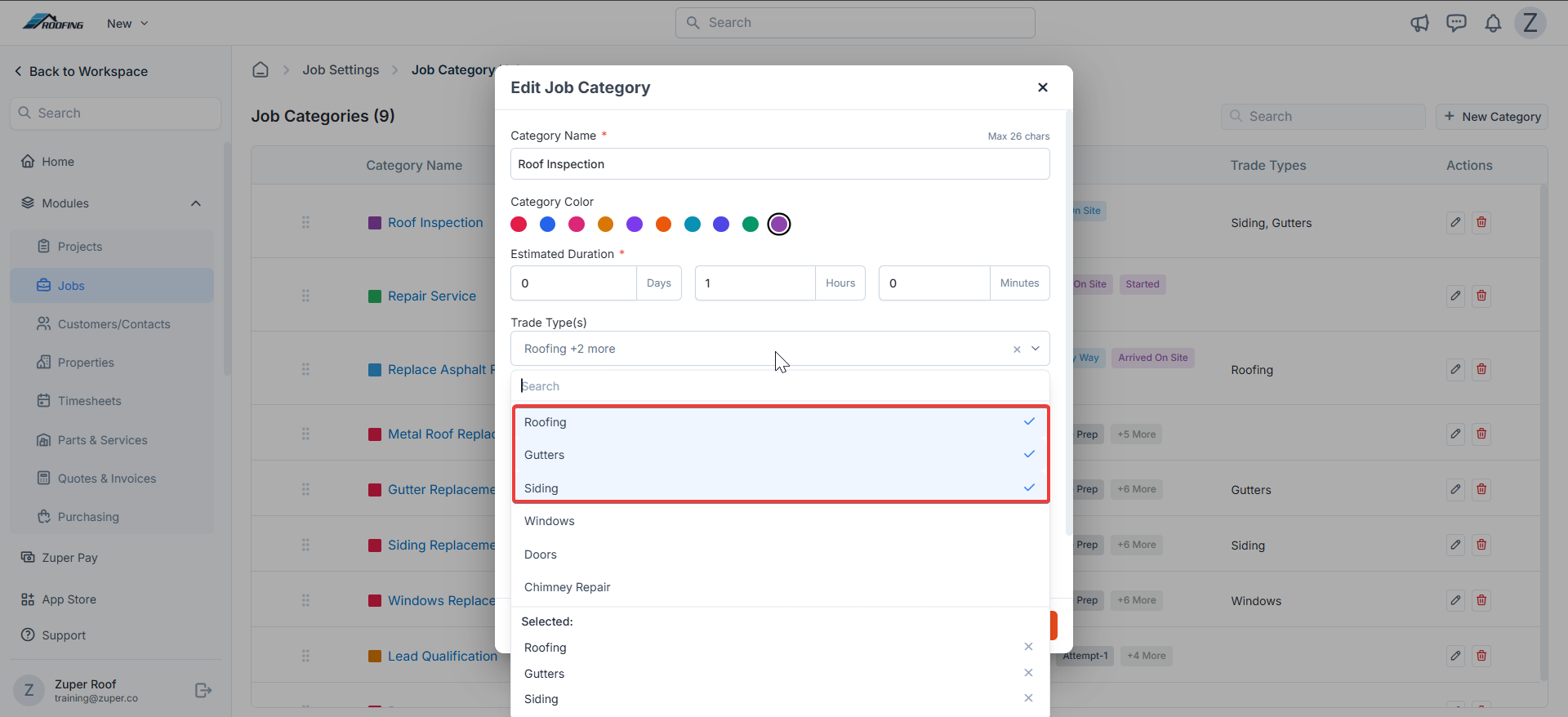
The next critical step is to map your job categories to right trade type(s). A job category can be mapped to one or more trade types based on your business needs. For e.g. roof replacement, roof repairs can be mapped to ‘Roofing’ trade type, gutter replacement shall be under ‘Gutters’ trade, and estimation category can be mapped to all – Roofing, Gutters and Siding trades.Navigation: Settings → Modules → Jobs → Job Category Hub → + New / Edit → Pick Trade Types.
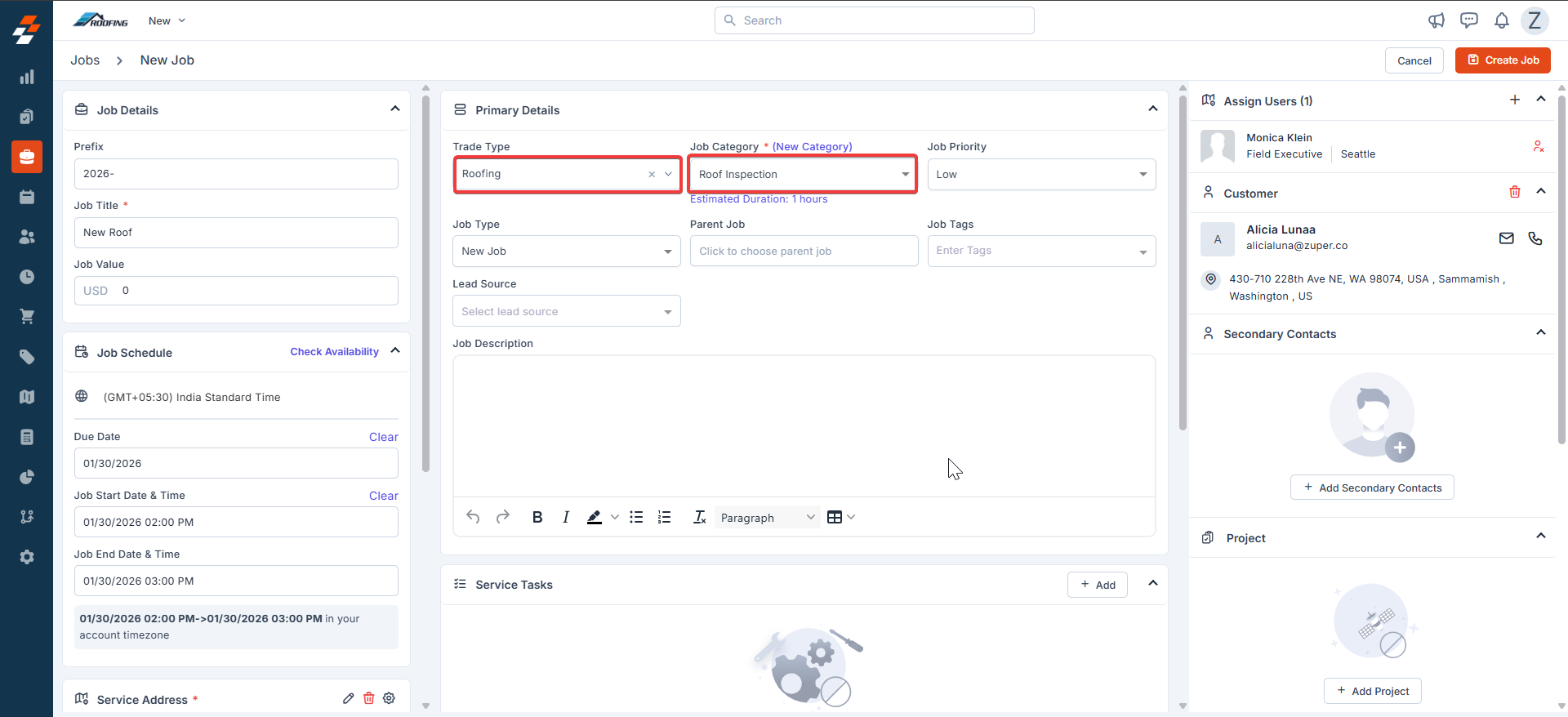
- Streamline reporting e.g., number of roofing jobs executed against gutters & sidings
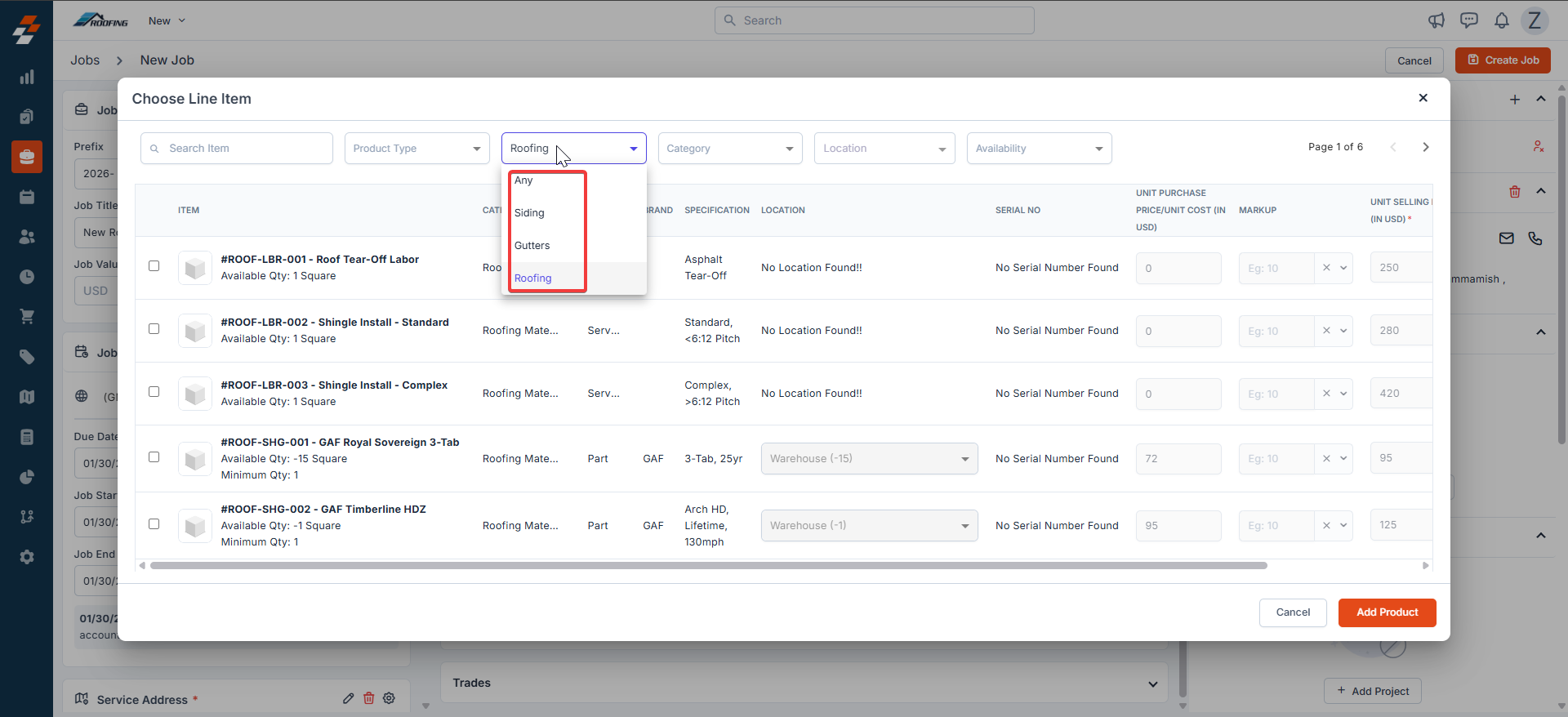
- Automatically filter items based on the job trade type. Meaning - A roofing job will pre-filter roofing-specific items while line-item addition.
c. Team & Dispatch Board
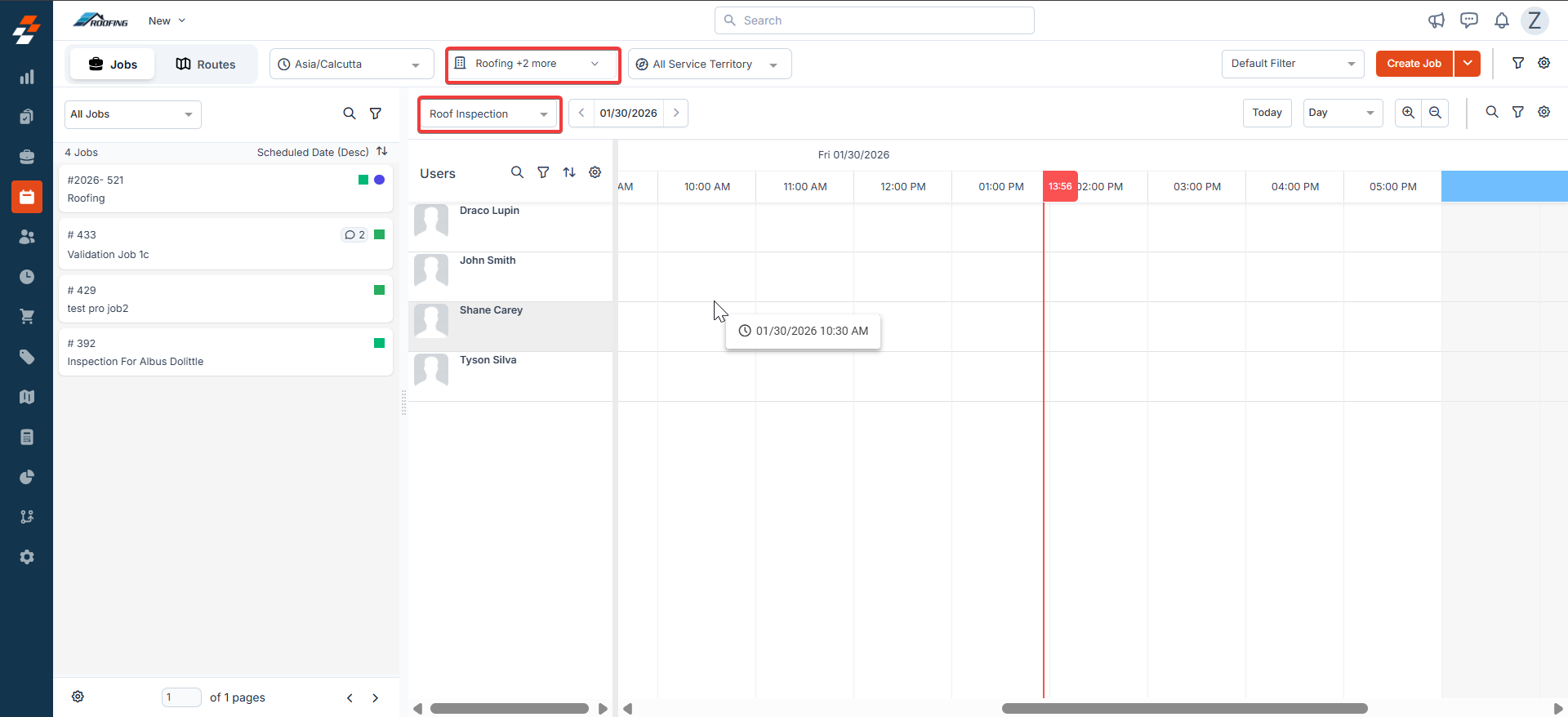
If your organization has teams specialized in specific trades such as roofing, gutters, siding etc. it’ll be prudent to associate trade types with teams. Because it’ll help filter jobs and teams in parallel on the dispatch board by trade type. You can ignore this section if your production teams are cross-functional in nature (unified teams handling both roofing and gutter installations).Navigation: Settings → Users & Teams → Team Mgmt. → + New / Edit → Pick Trade Types.
d. Disable Data Restriction
This is the company-level flag that is switched off by default. The suggested approach for roofing companies is not to enable this. Because it’ll impose data exclusivity on users. Meaning - Restrict access to jobs, products/materials, invoices, quotes based on user trade type.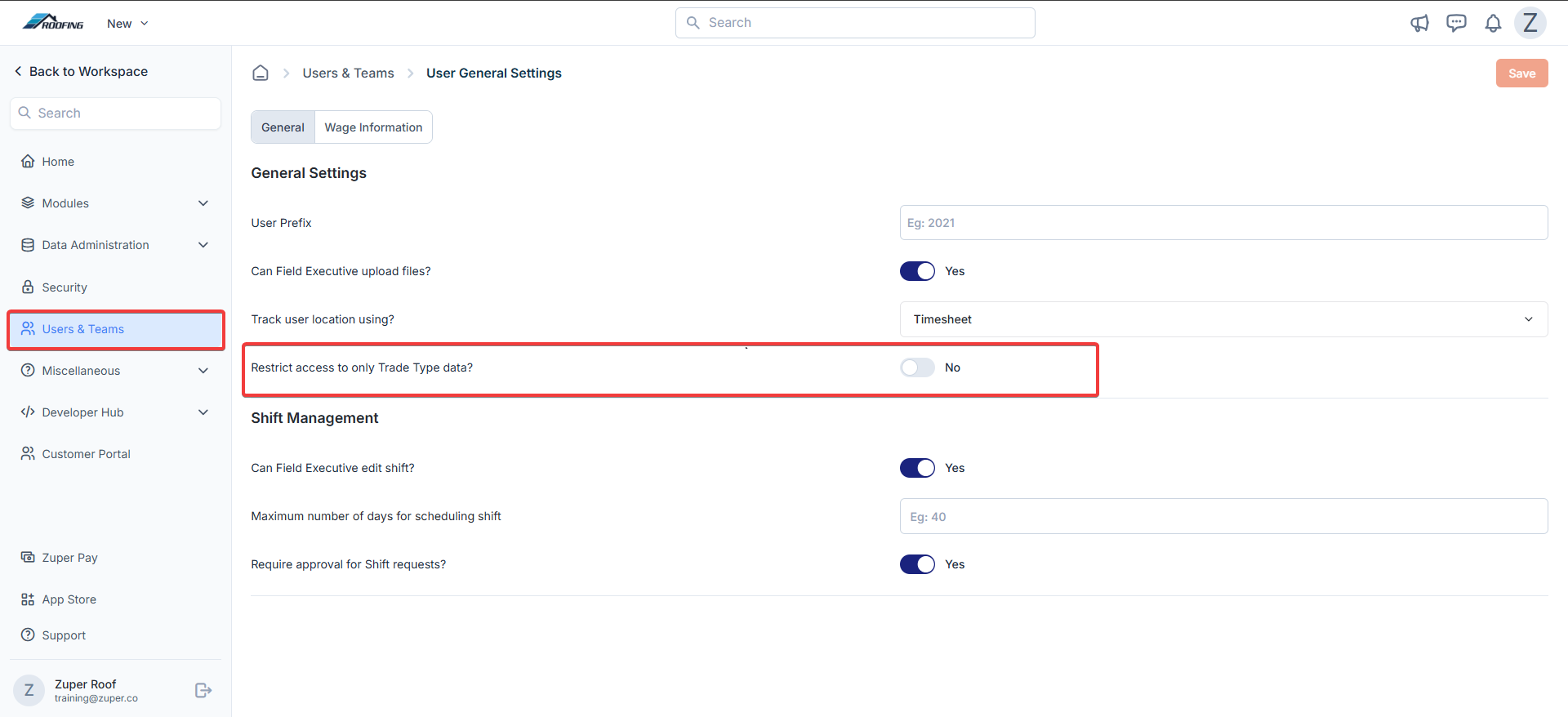
e. Automatic Flow of Trade Types Between Jobs, Quotes & Invoices
When a quote is accepted and job(s) are created from the quote, the job automatically inherits the trade type of the quote. Subsequently, invoice(s) generated from the job inherit the job’s trade type. This traceability is maintained regardless of the order of creation (job → quote → invoice, or quote → job → invoice, etc.). Like a job, both invoices and quotes can be mapped only to one trade type. Trade type fields are available in their respective ‘Details’ sections.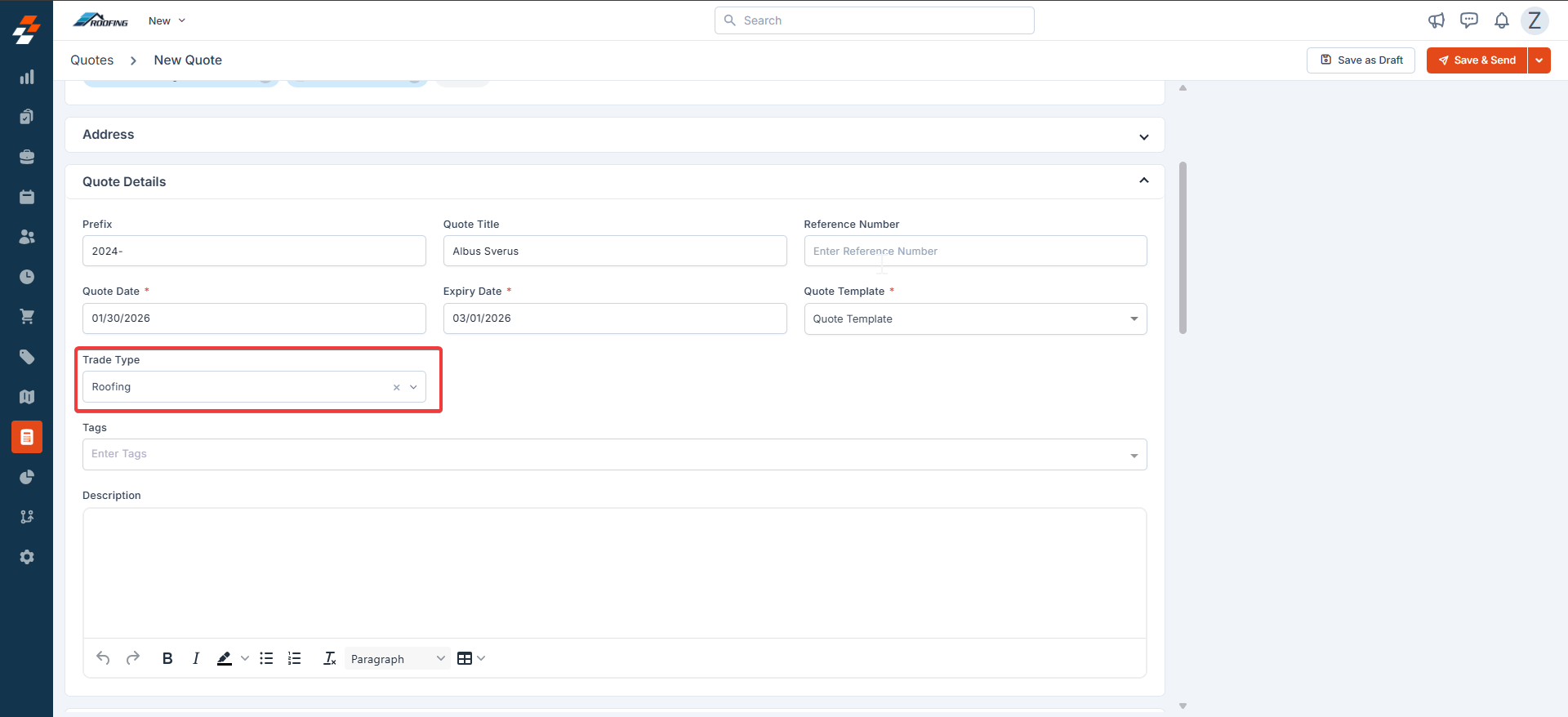
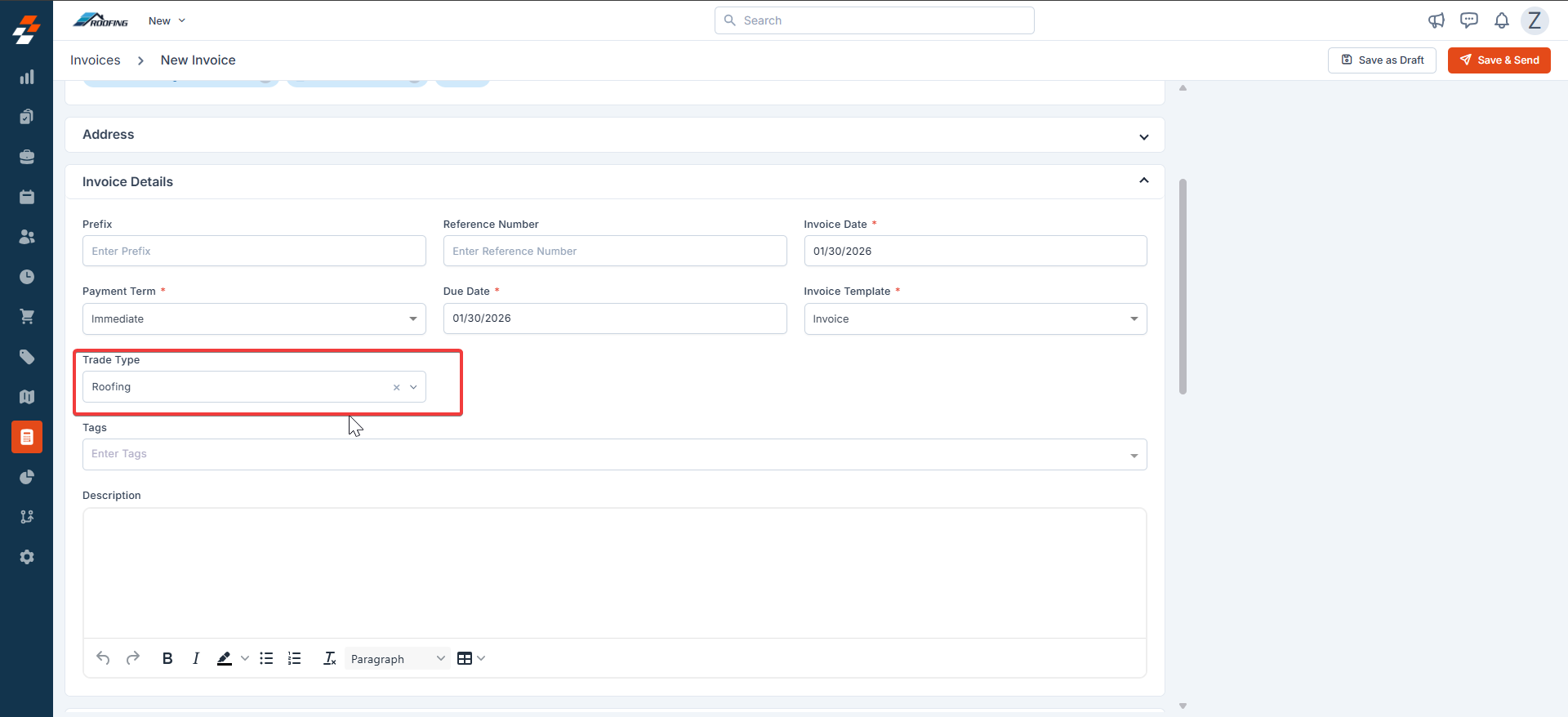
Note: Manually changing the trade type across linked entities can impact reporting. It’s recommended to keep trade type consistent across related jobs, quotes, and invoices.
f. Filters, Views & Reports
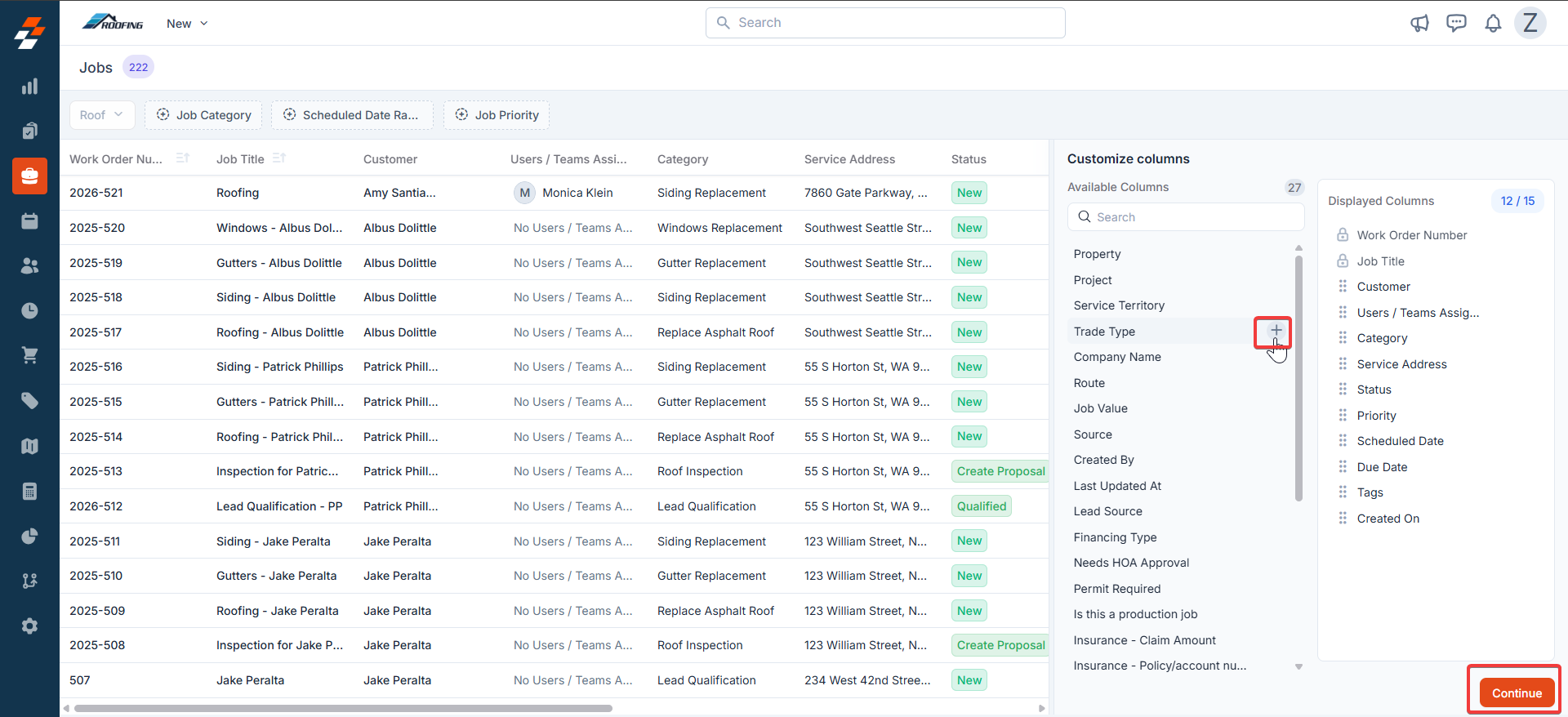
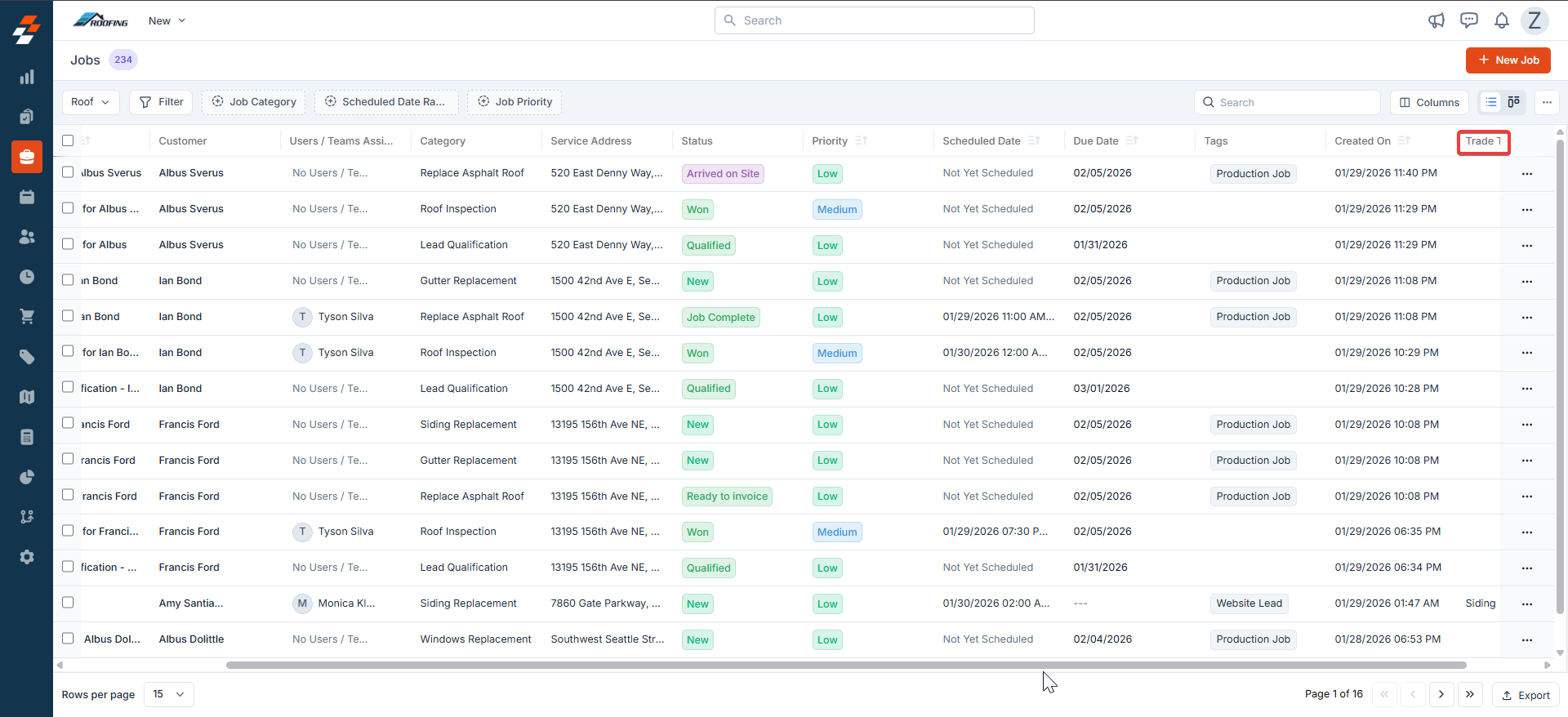
Filters: With trade types enabled, you can create filters and views across listing pages based on trade types (Jobs, Quotes, Invoices, etc.).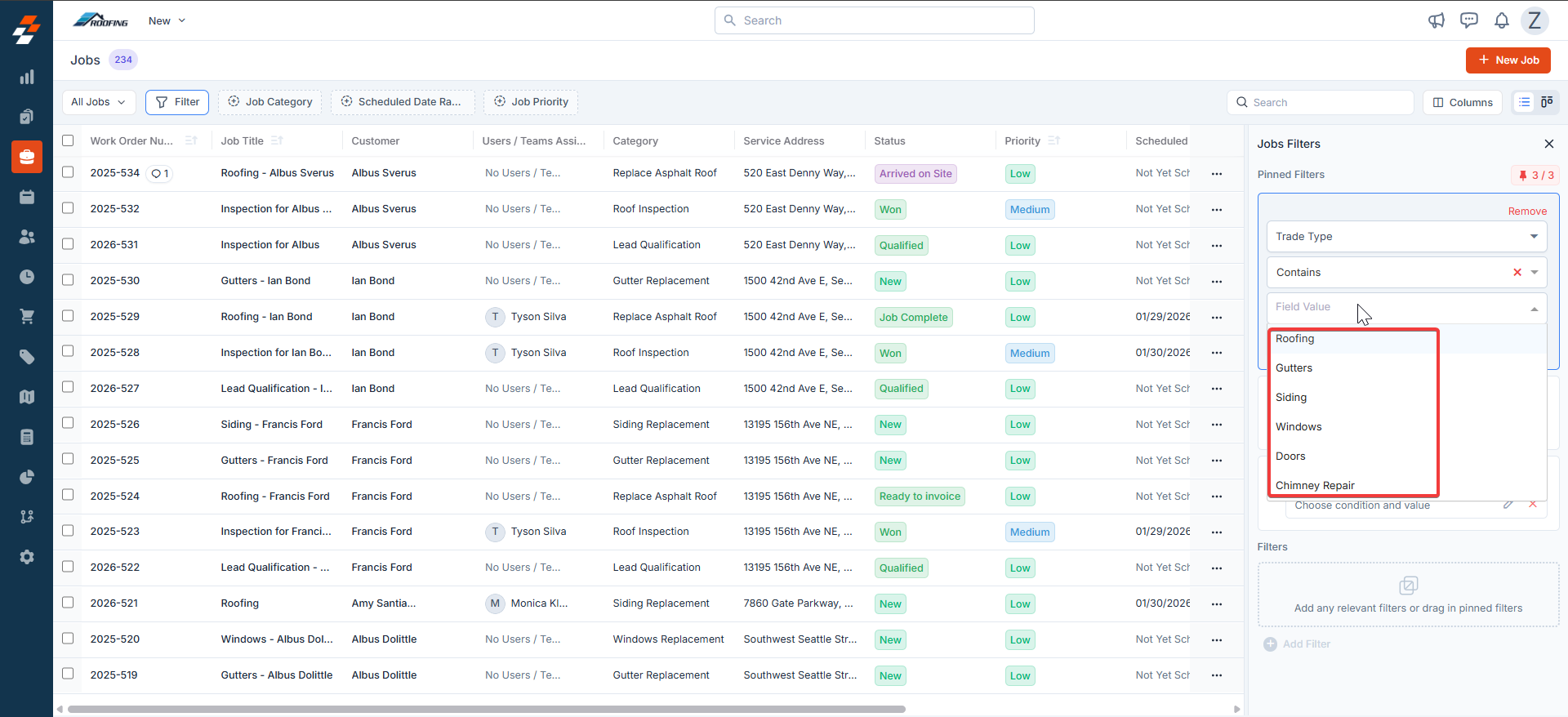
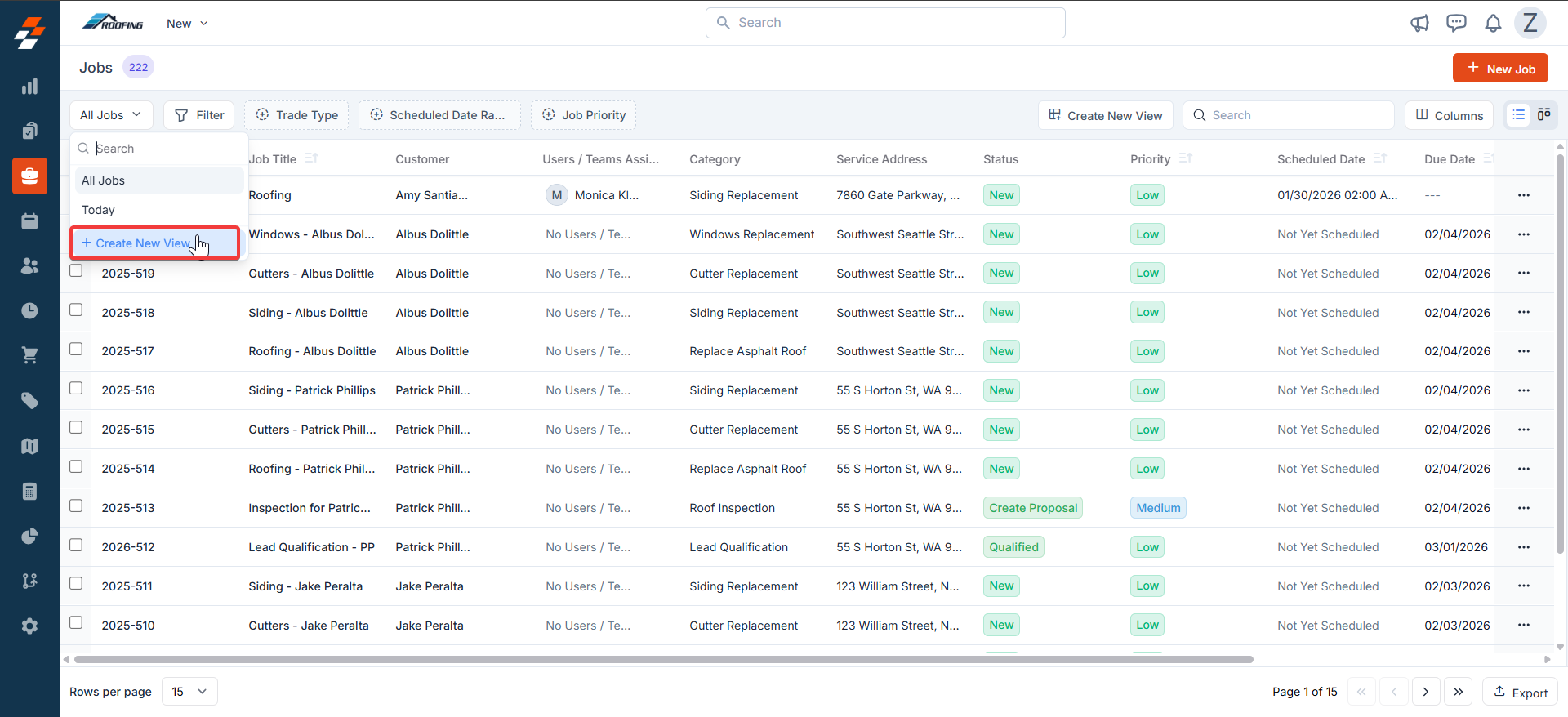
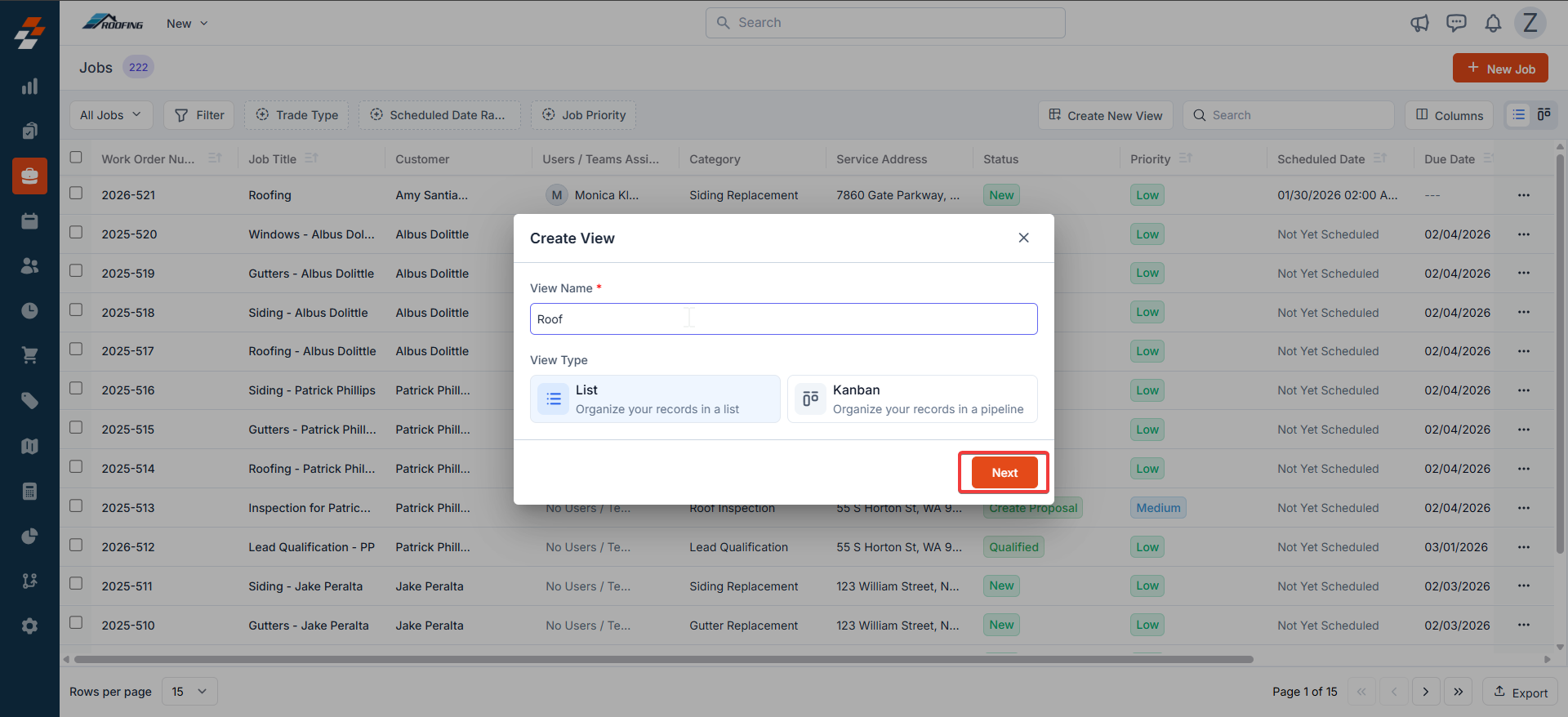
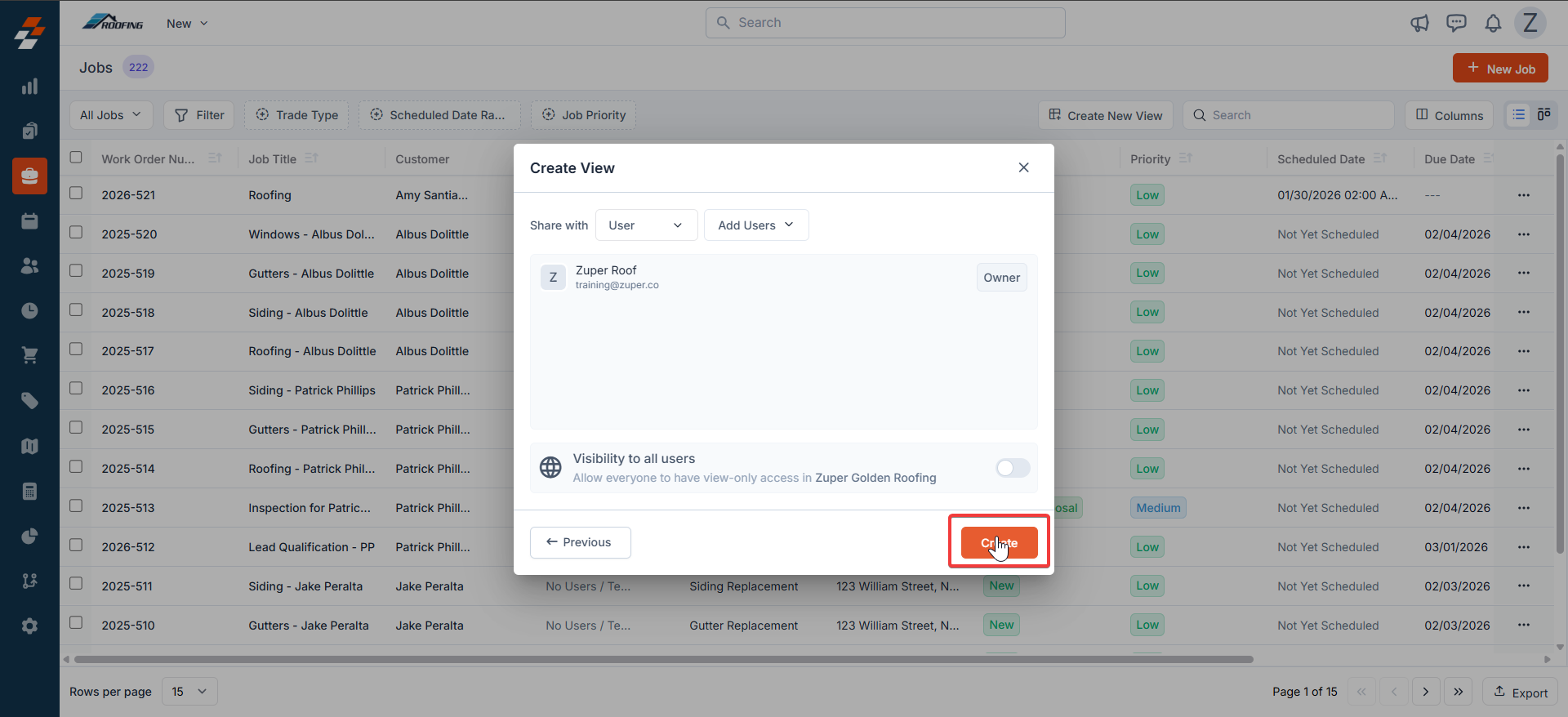
g. Reports
For a business handling Roofing, Gutters, and Siding, trade types allow you to classify jobs, quotes, invoices, products, users, and payments by trade. This makes it easy to pull consolidated or trade-specific data and clearly track revenue, collections, and performance for each trade—for example, identifying how much revenue comes from Roofing, Gutters, or Siding. In summary, trade types in Zuper enable roofing businesses to efficiently manage and group multiple service lines, such as Roofing, Siding, and Gutters,Roofing, Siding, and Gutters within a single system.Frequently Asked Questions
1. What happens to existing jobs, quotes, or invoices without trade types? No business impact. Trade type of job(s) can manually be updated, or they’ll continue to stay the way they are. 2. Can one job, quote, or invoice belong to multiple trade types? No. Jobs, quotes, and invoices can belong to only one trade type to maintain clean reporting and traceability. In case you want to create a quote, job, or invoice agnostic of trade, we suggest creating them without any trade type. 3. Can parts or services be shared across trade types? Yes - Parts & Services can belong to more than one trade type. We recommend that you configure/map them appropriately. For example:- Nails can belong to Roofing, Siding & Gutters
- Architectural shingles shall be mapped to Roofing only