

Check your appointments for the day
Start your day from the Home screen, where every visit assigned to you is listed so you know where to be and when.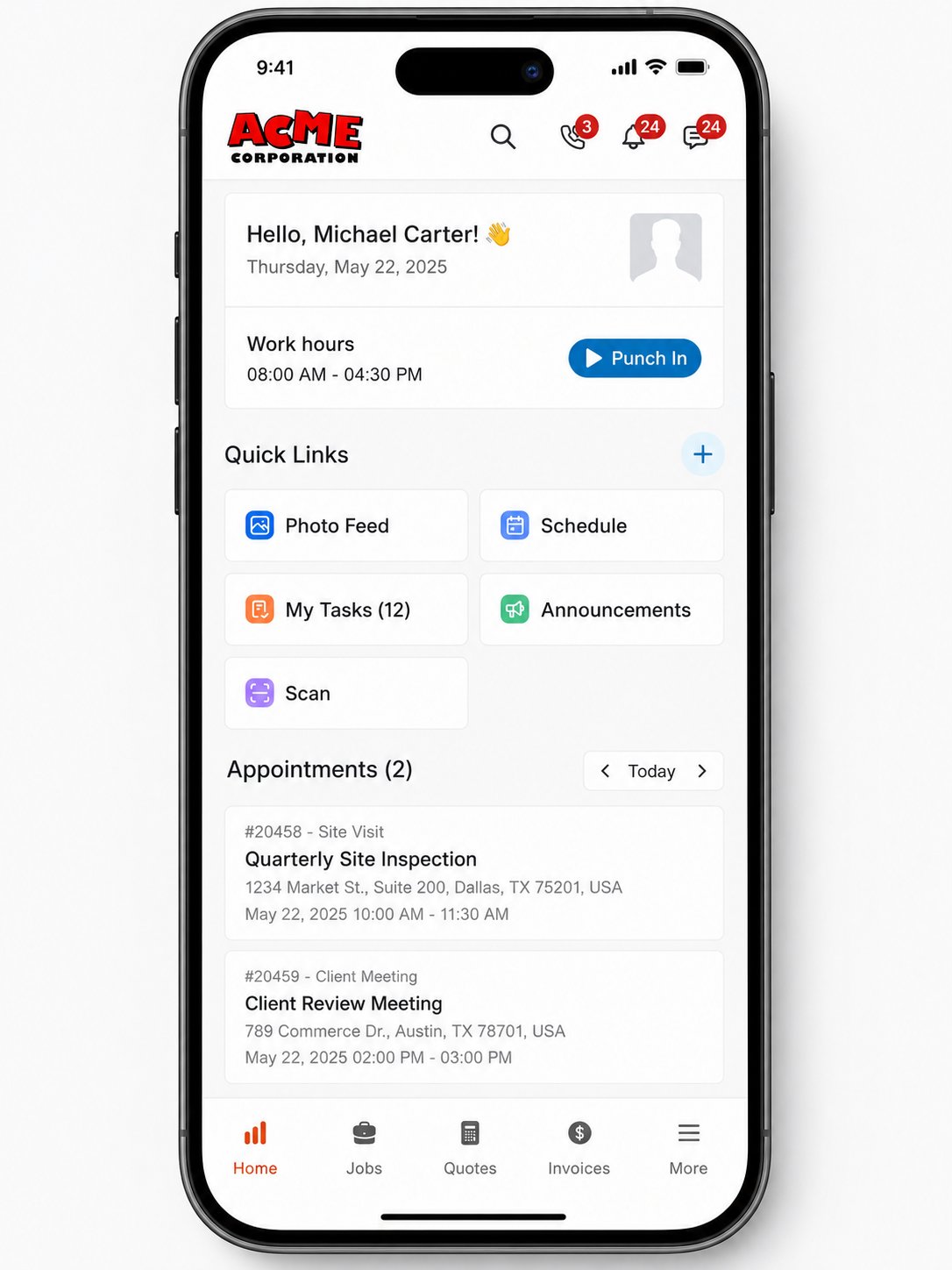
- Open the Zuper Mobile app.
- On the Home tab, scroll to the Appointments section.
- Review the appointments scheduled for you.
- Tap an appointment to open it.
Complete the tasks for an appointment
Tasks linked to an appointment represent the work planned for that visit. Complete them as you go so your progress stays tied to the right visit.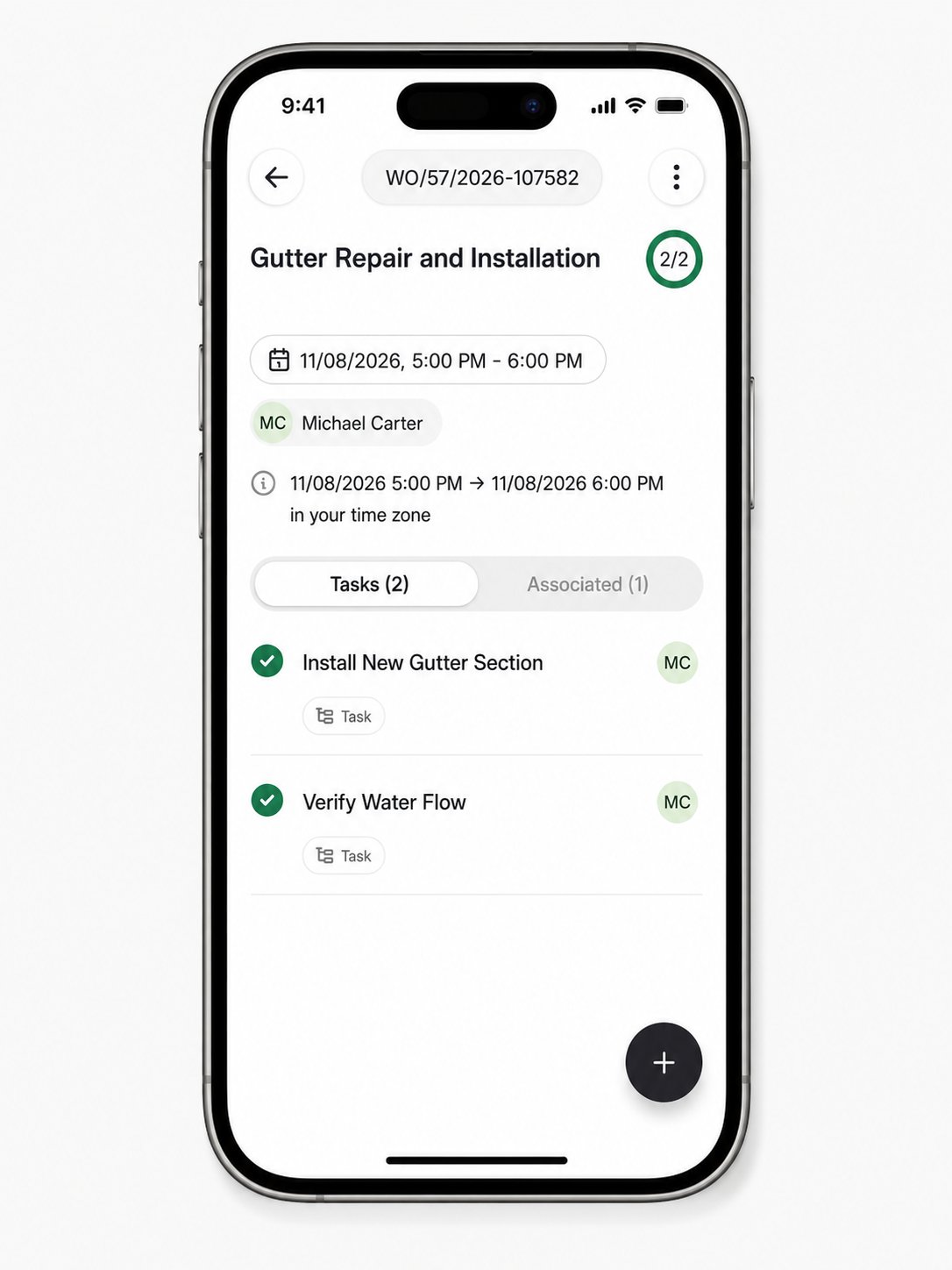
- On the appointment details page, go to the Tasks tab.
- Tap a task to open it.
- Perform the task and update the task status.
- If a checklist or inspection form is attached, complete it before you mark the task as completed. For more information, see Tasks.
Reschedule an appointment
Reschedule an appointment when the visit needs to move to a different date or time. This lets you manage your own schedule from the field.- Open the appointment.
- Tap the schedule icon (date and time), then select Edit.
- On the Schedule screen, change the date and time, or turn on All day if needed.
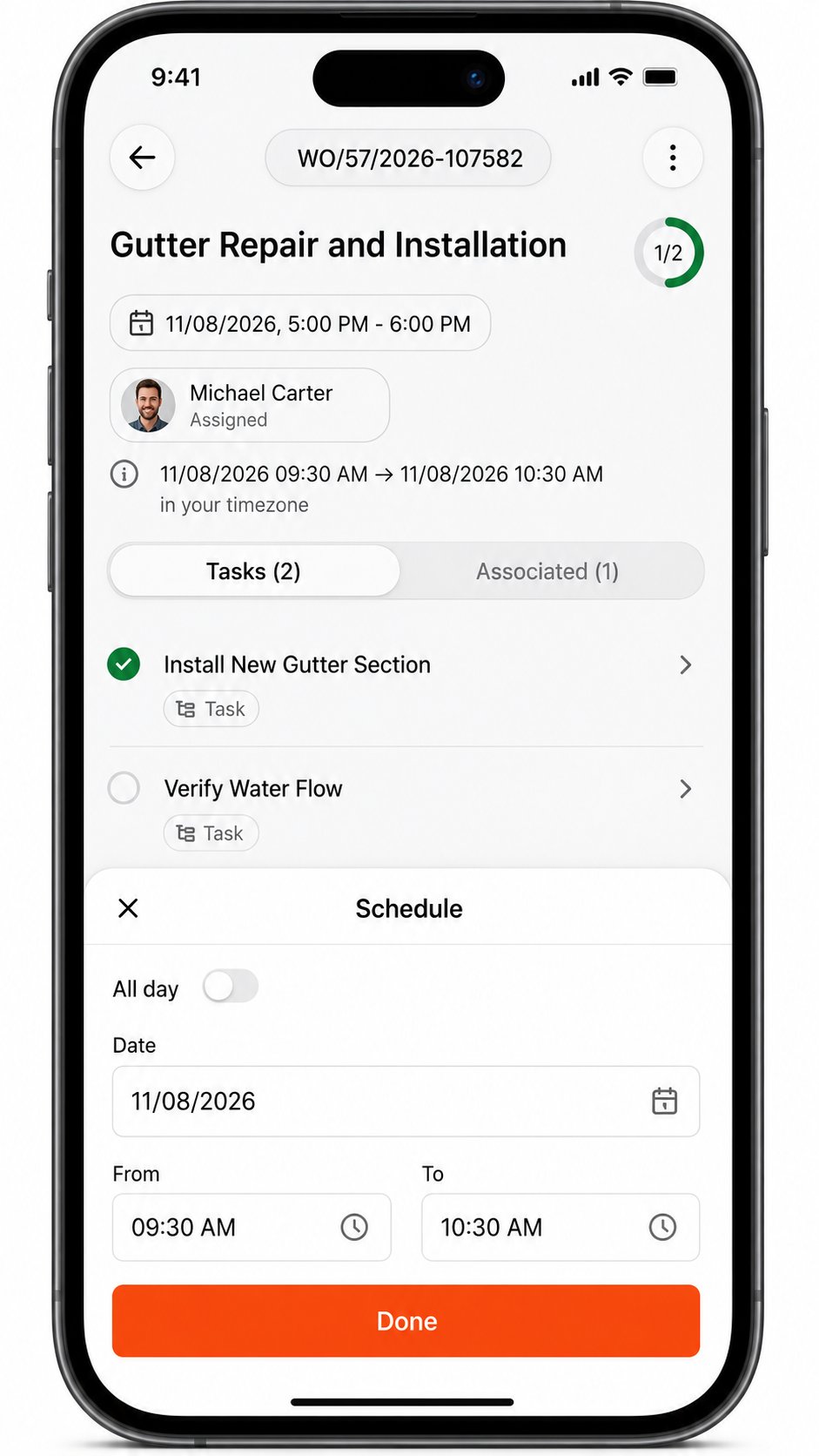
- Tap Done to save your changes.
Assign technicians to an appointment
Bring another technician on a visit when the work needs more than one person. You can add technicians to any appointment assigned to you.- On the appointment details page, tap the Assign icon. Your name appears here as the current assignee.
- Choose Assign users to pick team members yourself, or Assisted schedule to let Zuper suggest available users.
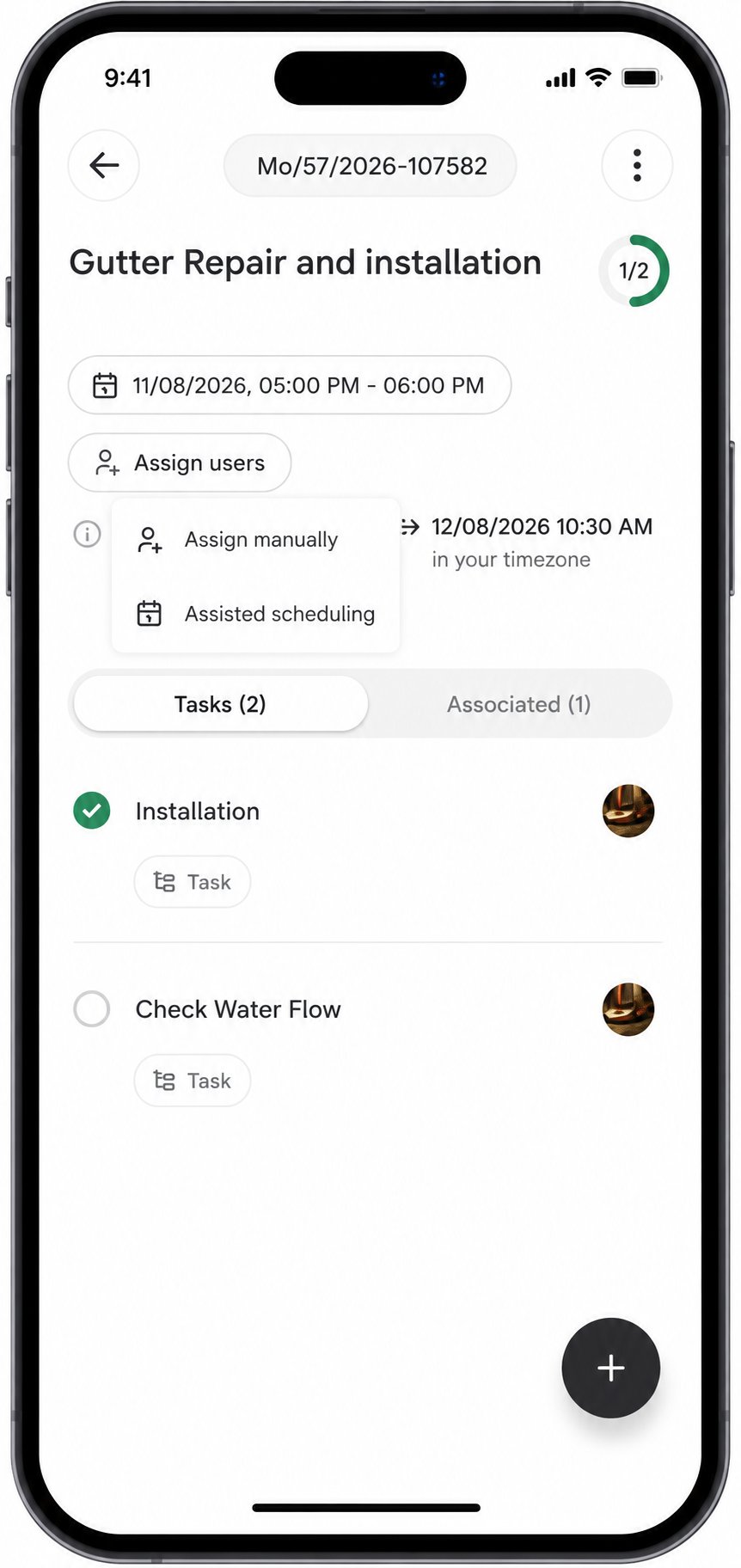
- Select the users you want to add to the appointment.
Add an appointment
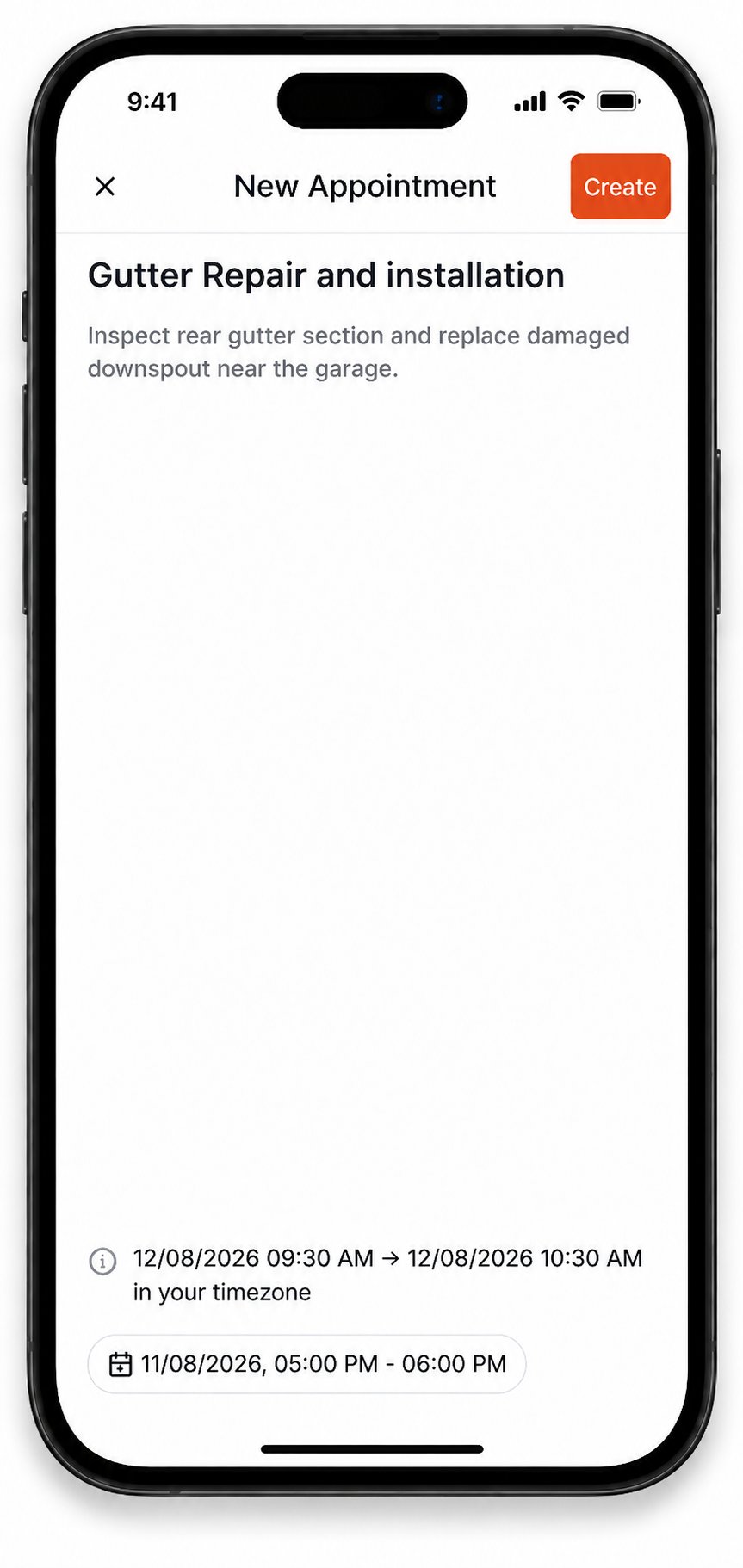
Create a new appointment when a job needs another visit, or hand it to the office to schedule for you.Note: Creating an appointment requires the appropriate permission for your role. Contact your administrator if you need access.
- Open the job and go to the Details tab.
- In the Appointments section, tap the + icon.
- On the New Appointment screen, enter an Appointment title.
- Enter a Description. This step is optional.
- Tap Assign users, then choose Assign users to pick team members yourself, or Assisted schedule to let Zuper suggest available users.
- Tap Select date & time. On the Schedule sheet, turn on All day, or set the Date, From, and To times, then tap Done.
- Tap Create.
Frequently asked questions
How do I mark an appointment as completed?
How do I mark an appointment as completed?
Complete the tasks associated with the appointment, then update the job to match your organization’s workflow.
Can I add another appointment?
Can I add another appointment?
Yes. You can add another appointment from the Appointments section of the job.
Can I edit an appointment?
Can I edit an appointment?
Yes. Open the appointment, tap the More options icon, and select Edit.
How can I see all the tasks associated with a job?
How can I see all the tasks associated with a job?
On the job’s Details page, go to the Tasks tab and turn on All Tasks to list every task associated with the job.