

Before you begin
Make sure the following conditions are met:- The original measurement has a Completed status.
- The associated job is not closed or canceled.
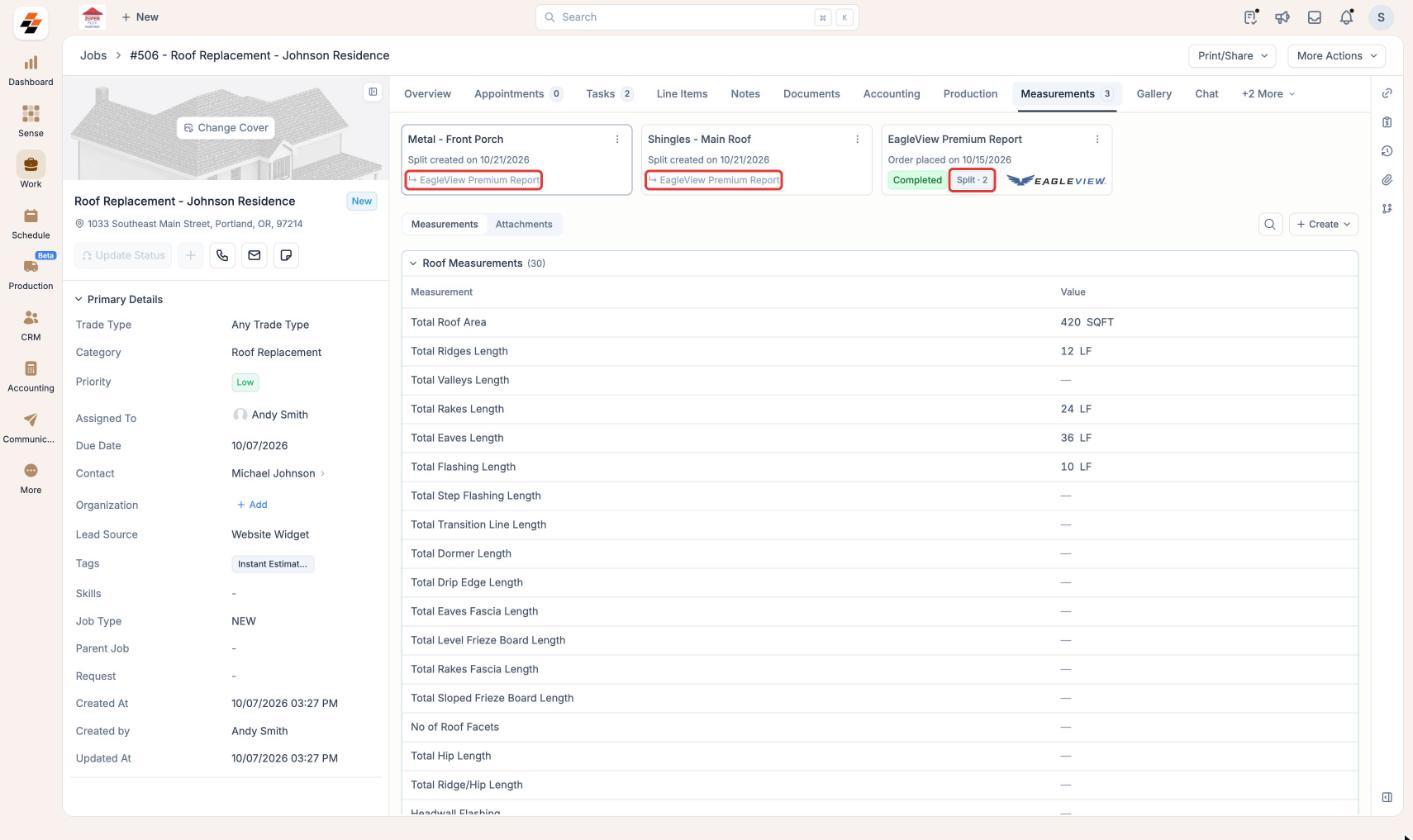
- The measurement was not itself created from another split.
- Your device has an active internet connection.
How Split Measurement works
Each measurement contains values called tokens, such as Total Roof Area, Total Ridges Length, or Suggested Waste Percentage. When splitting a measurement, Zuper handles these values in two ways.- Splittable tokens: Values that can be distributed between roof sections, such as area, length, or count.
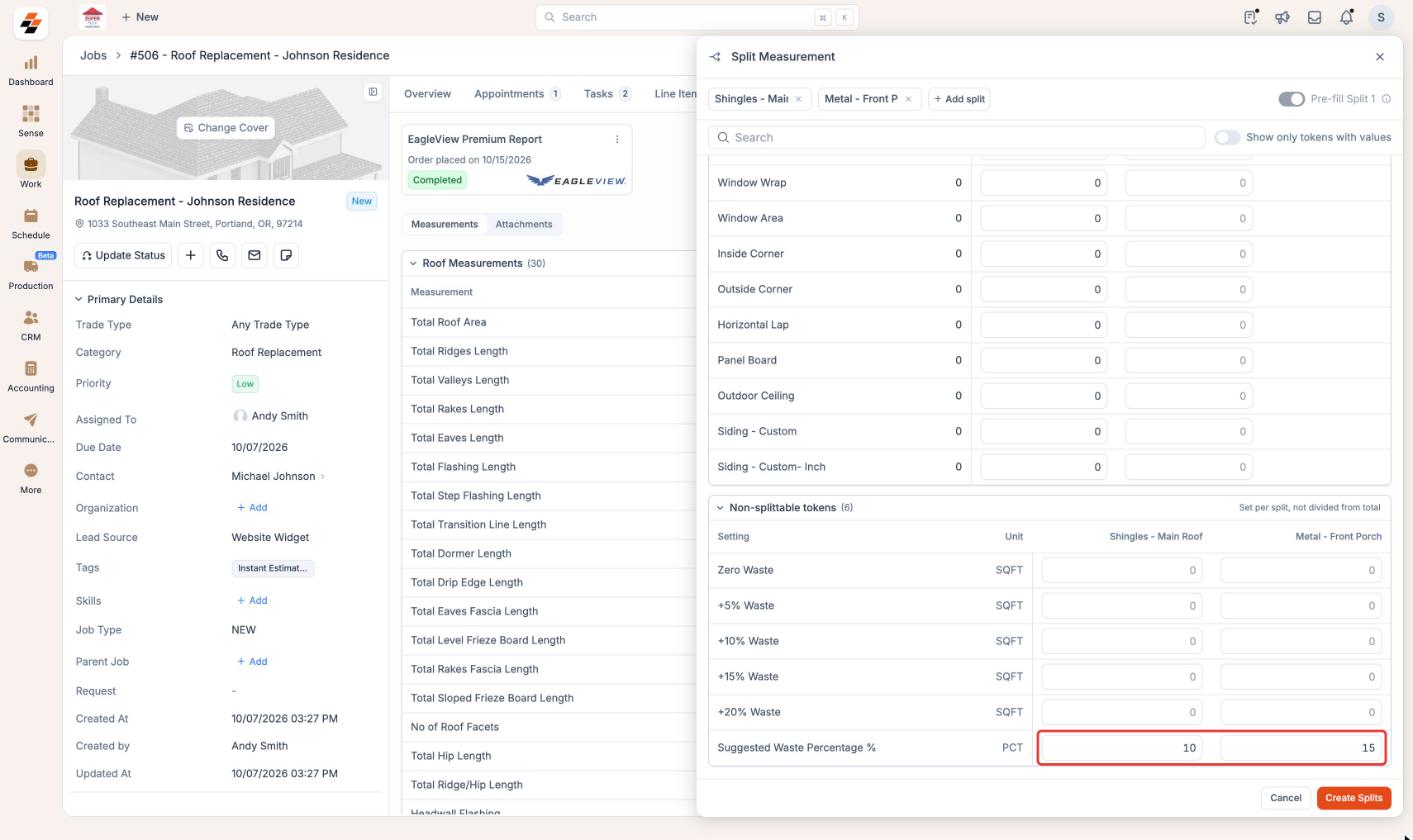
- Non-splittable tokens: Values that must be defined independently for each section, such as waste percentages.
The roof area and ridge length are distributed between the two splits. However, the waste percentage is entered independently because each material may require a different allowance.
Split a measurement
- Open the job and navigate to the Measurements tab.
-
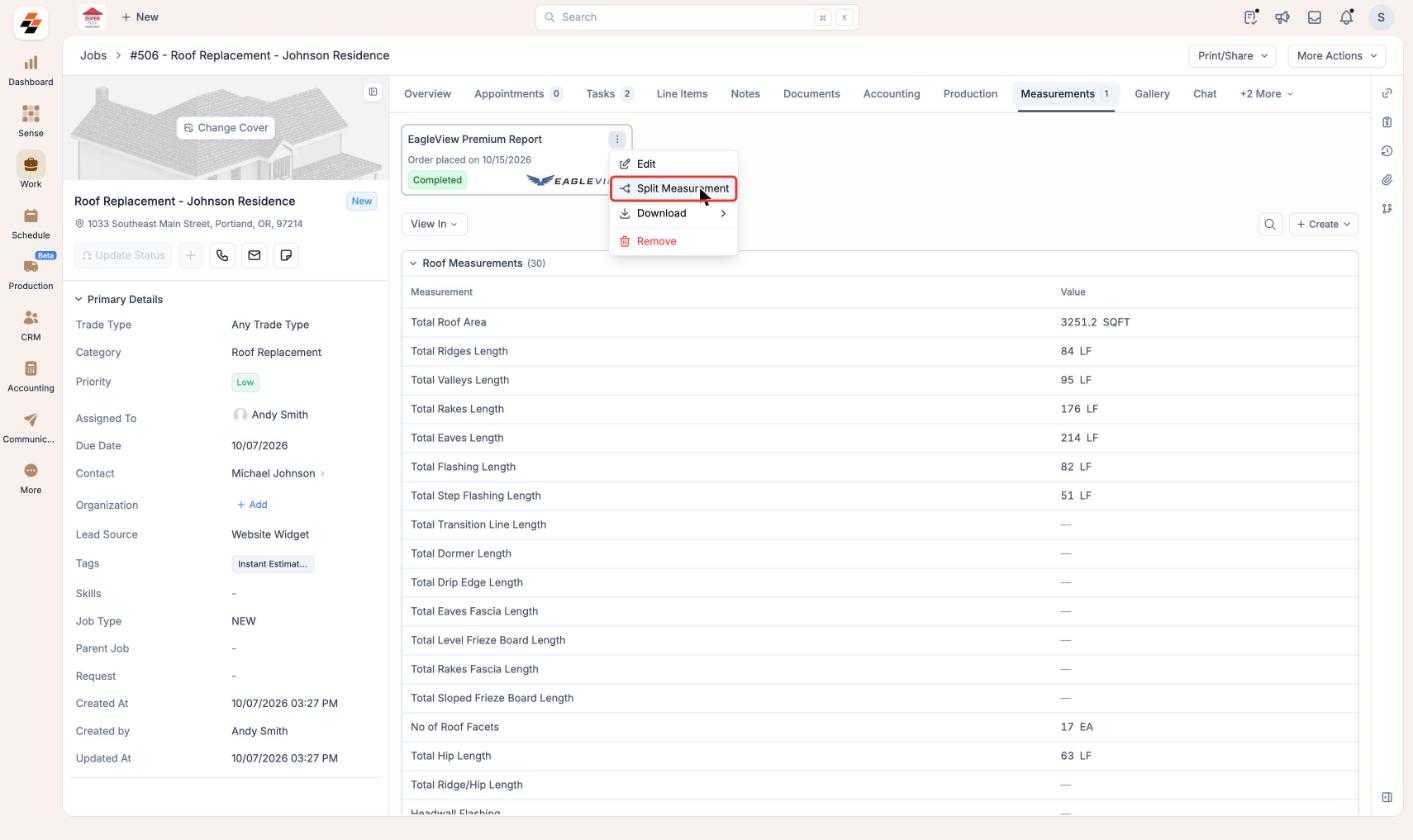
On the completed measurement card, click the More options icon (⋮) and choose Split Measurement.
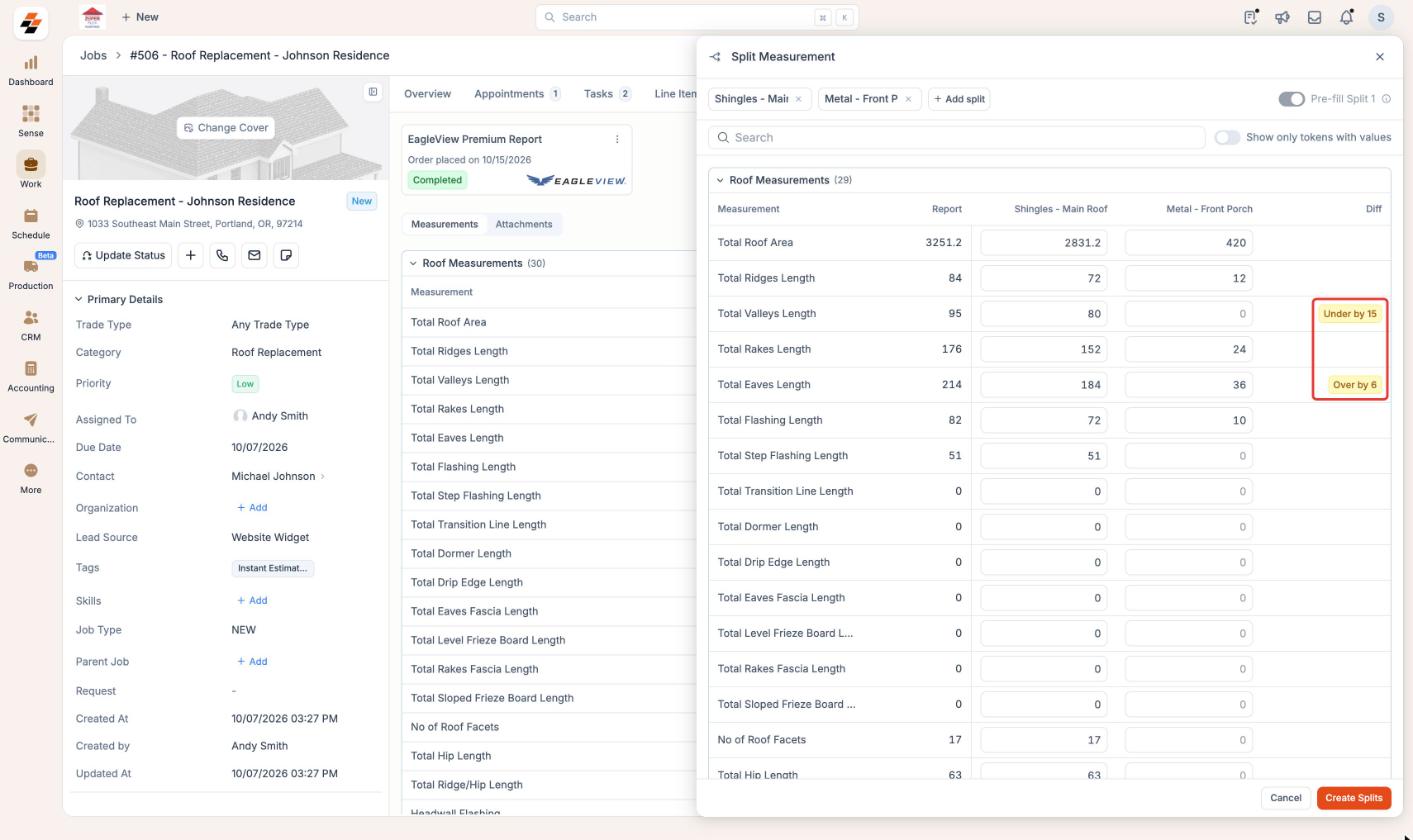
- In the Split Measurement panel, rename Split 1 and Split 2 based on the roofing material or scope. Select Add split to create additional splits, up to four.
-
Choose whether to use Pre-fill Split 1 before entering values.
- Enabled: Split 1 starts with the full report value and automatically adjusts as values are entered for the other splits.
- Disabled: Enter the values for every split manually.
 If you manually update Split 1 for a token, automatic adjustment stops for that token. Pre-fill cannot be changed after you start entering values.
 - Enter each split’s values in the corresponding token columns.
-
Review the Diff column for differences between the original report and the combined split values:
- Under by: The combined values are less than the original report.
- Over by: The combined values exceed the original report.
-
Under Non-splittable tokens, enter separate values for each split, such as waste percentages. Pre-fill does not apply to these tokens.
-
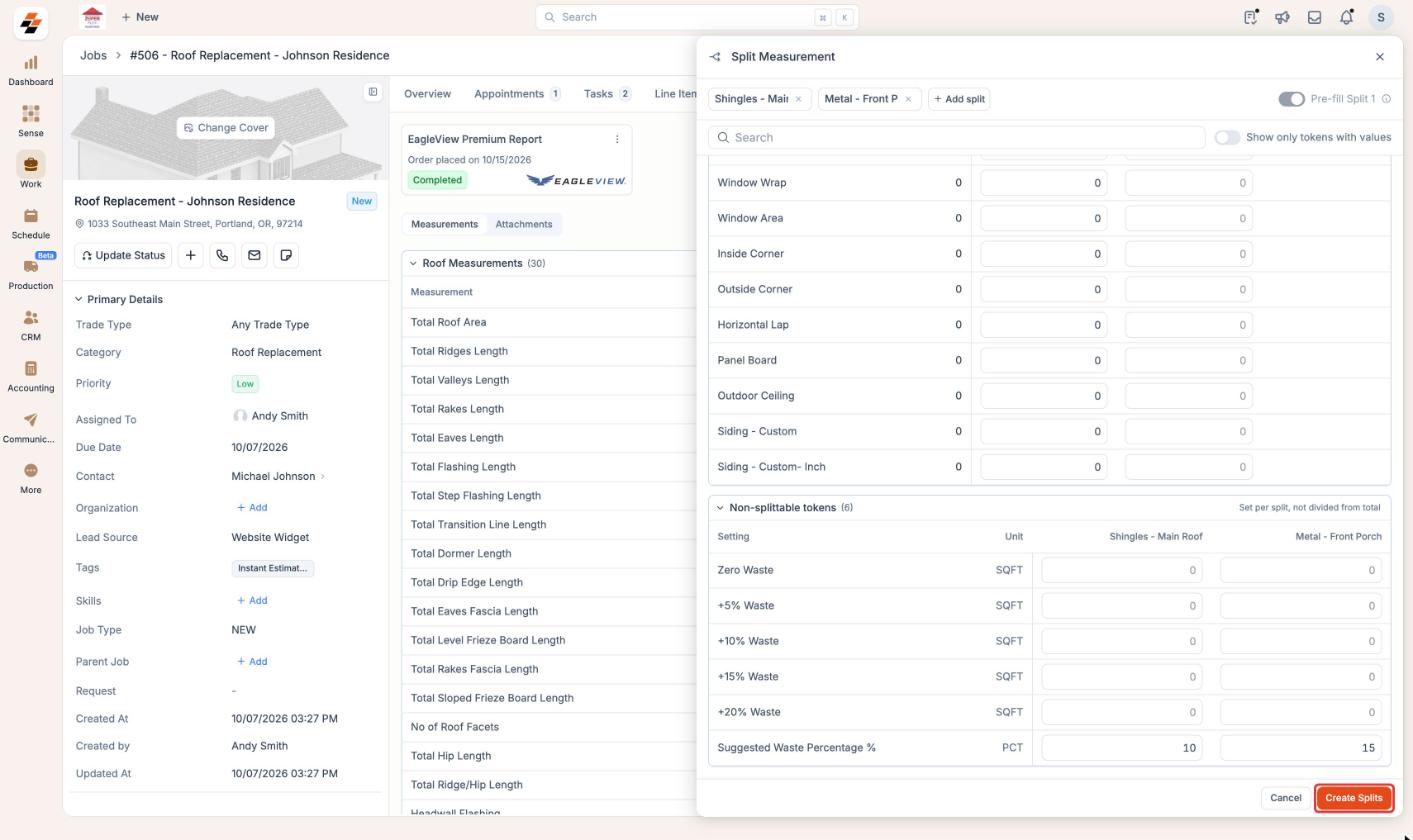
Ensure each split contains at least one value greater than zero, then select Create Splits.
FAQs
Why don't I see Split Measurement?
Why don't I see Split Measurement?
The option appears only on a Completed measurement that isn’t itself a split, on a job that isn’t Closed or Canceled. If all of that is true and you still don’t see it, ask your admin whether your role has access to measurements on jobs.
Why won't Zuper accept my split name?
Why won't Zuper accept my split name?
Each split needs a name that no other measurement on the job uses. The panel always starts with Split 1 and Split 2, so if you split this measurement before and kept those names, rename your new splits.
Why does my first split show 0 for a token?
Why does my first split show 0 for a token?
With Pre-fill on, the first split keeps only what’s left of the report value. If your other splits already use the full value or more, nothing is left, so it shows 0.
Why can't I turn Pre-fill on or off?
Why can't I turn Pre-fill on or off?
You can change Pre-fill only before you enter your first value. To start over with a different setting, select Cancel and open Split Measurement again.
Why don't I see a token?
Why don't I see a token?
Your admin has turned that token off in measurement settings, so it doesn’t appear when you split. Turning a token off only hides it, so ask your admin to turn it back on if you need it. See Measurement token settings.
What if creating the splits fails?
What if creating the splits fails?
Zuper shows an error and keeps your values so you can try again. Check your connection and make sure each split name is unique on the job, and contact Zuper Support if it keeps failing.