

Overview
Measurement tokens represent individual values in a roof measurement, such as Total Roof Area, Total Ridge Length, or Suggested Waste Percentage. When Zuper receives a measurement report from providers such as EagleView, GAF, or Hover, it maps the reported values to the corresponding tokens. These values are available on jobs and can be used in proposal calculations. You can choose which tokens to show, create custom tokens and organize them into categories, and decide how each token’s value is handled when someone splits a measurement.Before you begin
- You need the Admin role to configure measurement tokens.
- Zuper provides default tokens that you can show or hide. You can’t edit or delete default tokens.
Manage measurement tokens
Measurement tokens are organized into categories such as Roof Measurements, Roof Pitch Measurements, Roof Waste Factors, Gutters, and Siding. Each token displays its unit of measure, such as SQFT, LF, or EA.Show or hide tokens
- Go to Settings → Jobs → Measurements and open the Tokens tab.
- Expand a category, or use Search Tokens to find a token.
- Use the toggle beside the token to show or hide it. Changes are saved automatically.
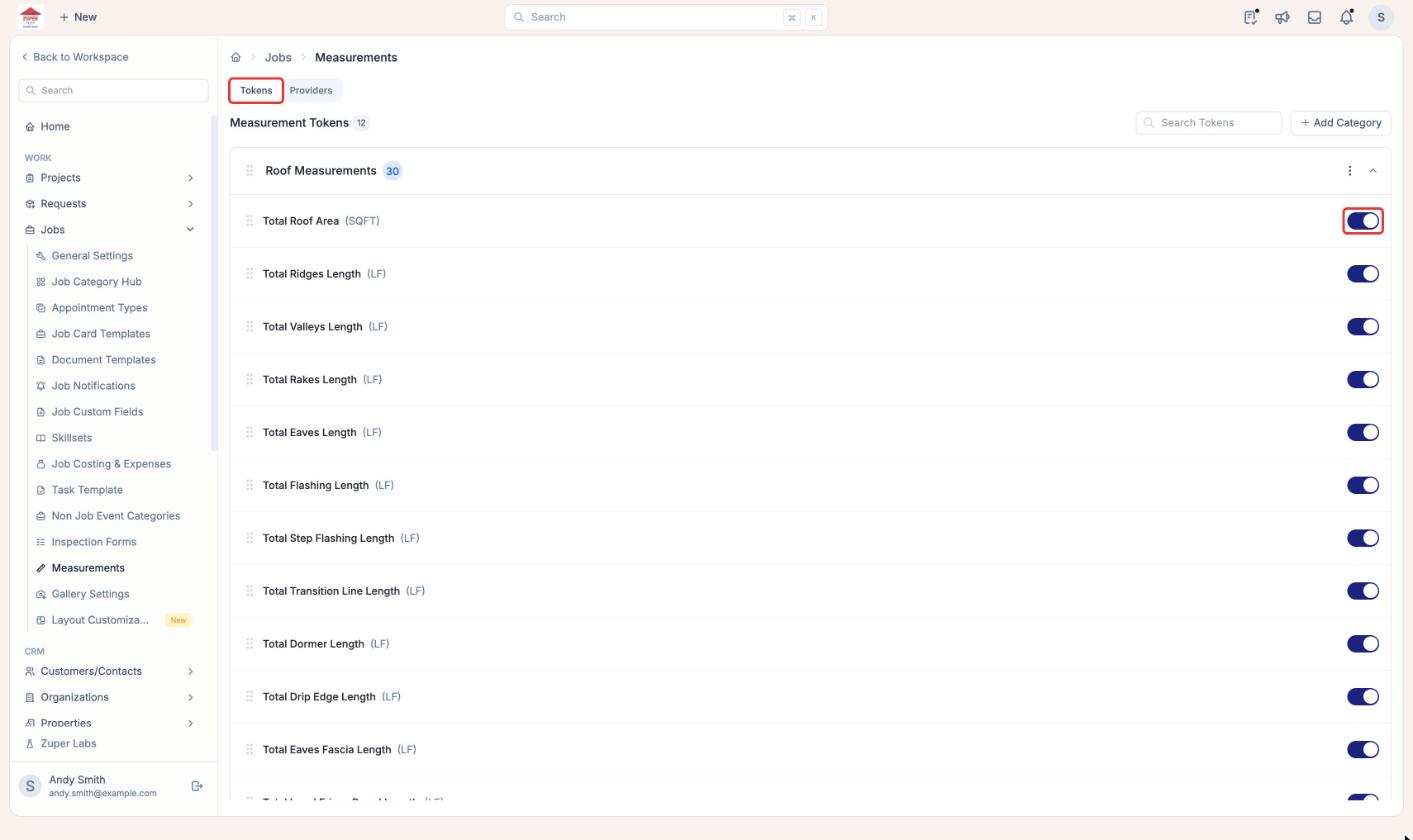
Hidden tokens do not appear in job measurements or when splitting measurements. Their existing values are retained and become visible again when enabled.
Manage categories
Create categories to group custom measurement tokens based on your organization’s needs.- On the Tokens tab, select Add Category.
- Enter the Category Name, then select Create. The new category appears with a Custom Category label.
Add or edit a custom token
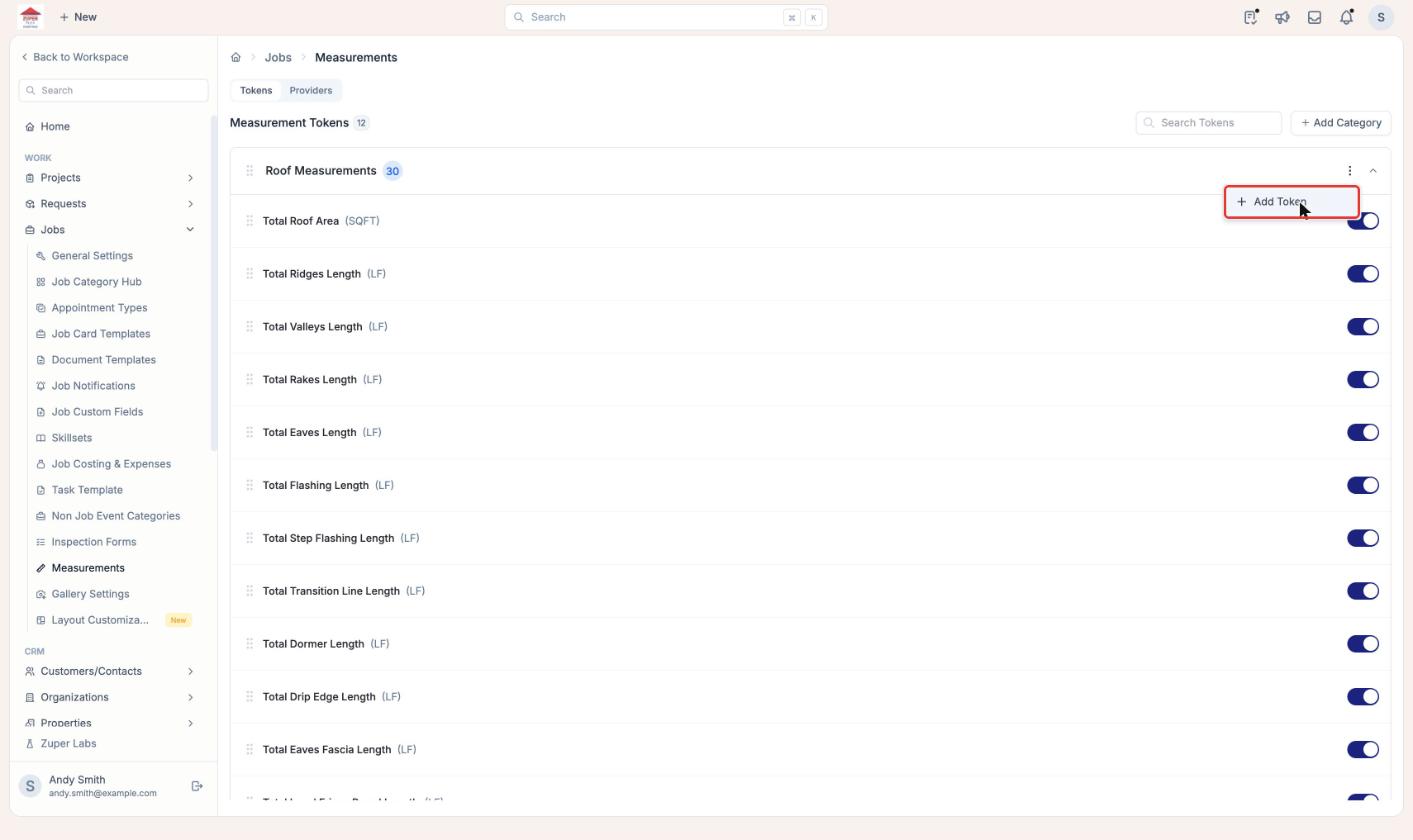
- On the Tokens tab, find the category you want, then select More options (⋮) → Add Token.
- Enter the Token Name and select the Unit of Measure.
- Leave Eligible for split checked, or uncheck it. See Configure tokens for split measurements below.
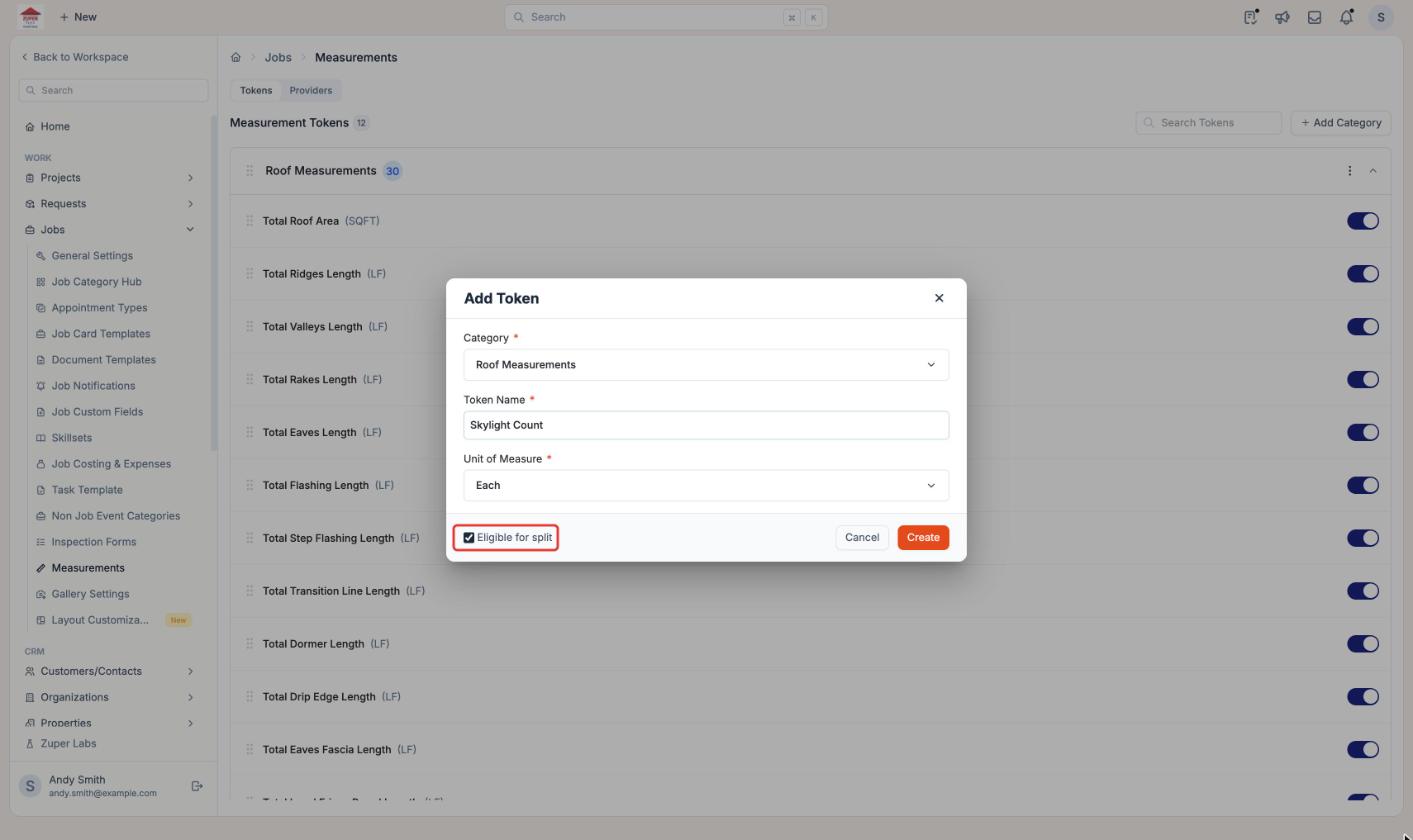
- Select Create. The token appears in the category with a Custom Token label.
- To edit a custom token, hover over the card, and select the Edit icon (pencil), make your changes, and select Update.
- To delete a custom token, hover over the card and select the Delete icon (trash).
Default tokens can only be shown or hidden. Only custom tokens can be edited or deleted. You cannot change a token’s category after creation.
Configure tokens for split measurements
The Eligible for split setting controls how a custom token’s value is handled when a measurement is divided into multiple measurements. For example, a roof may have an asphalt main section and a metal porch. Their roof areas can be divided from the original report, while each section may need a different waste percentage. To change split eligibility:- On the Tokens tab, locate the custom token.
- Select Edit (pencil).
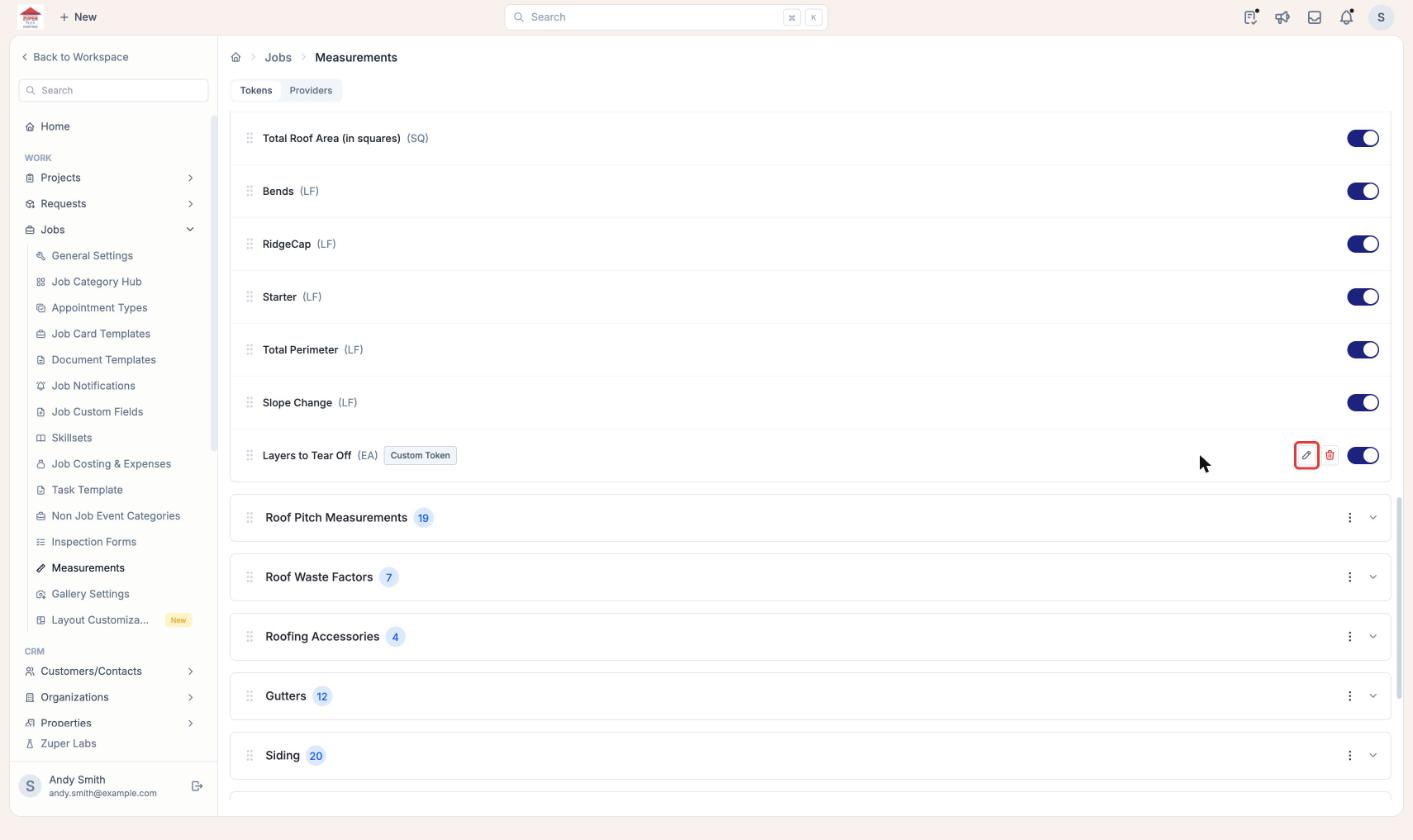
- Check or uncheck Eligible for split.
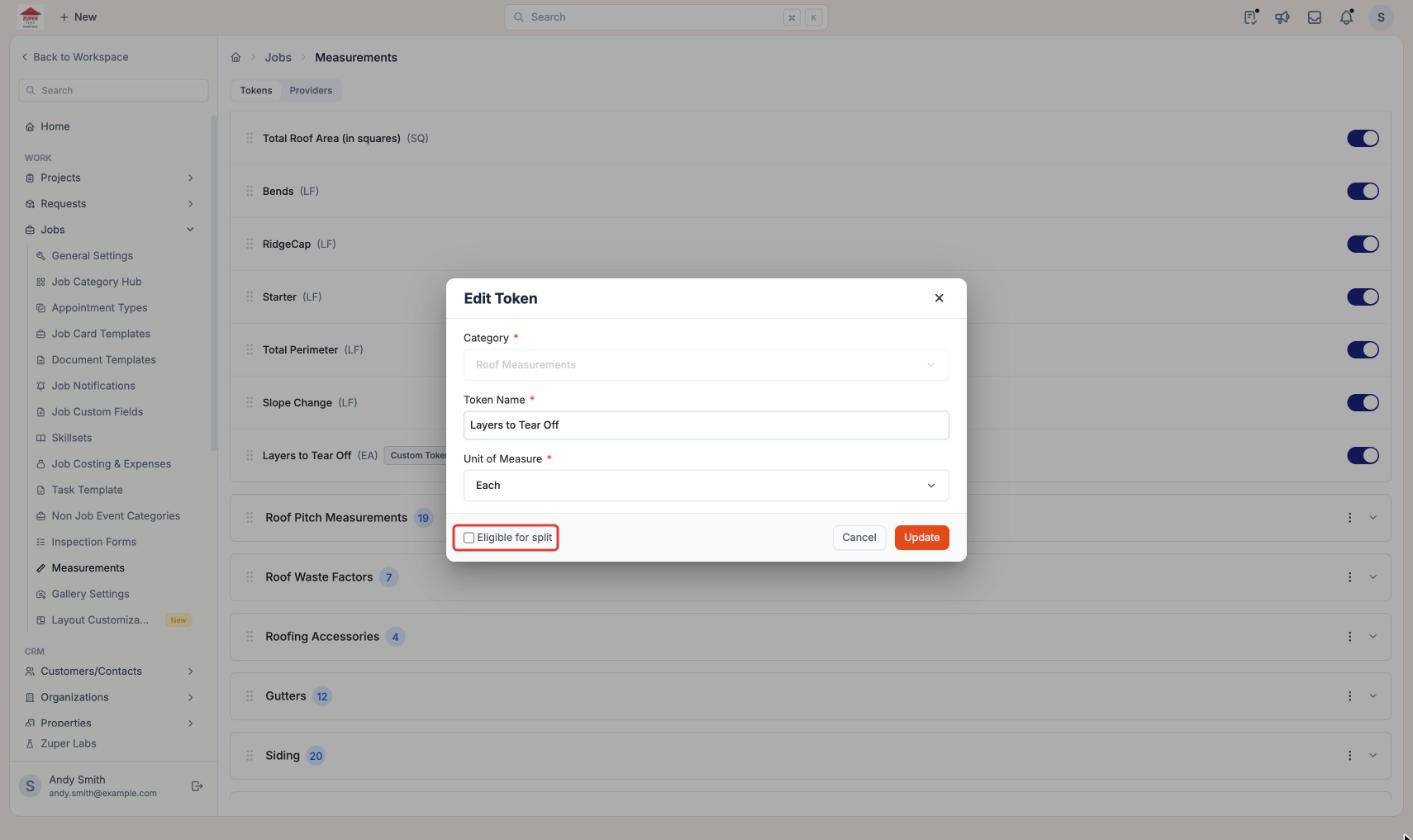
- Select Update.
Eligible for split is checked by default for new custom tokens. Unchecking it does not hide the token; it appears under Non-splittable tokens when splitting a measurement.